AdCreative.ai Credits and Usage Limits: How They Work
Manage your marketing budget effectively by mastering how AdCreative.ai charges credits for downloads and limits your active brand workspaces.
Some links are affiliate links: we may earn a commission if you sign up or buy through them, at no extra cost to you.
On this page8 sections
- 1The short answer
- 2The Creative Generation Dashboard and Credit Consumption
- 3The Download Queue and Regenerating Assets
- 4How to Download Your First Asset Without Wasting Credits
- 5Brand Workspaces and Multi-Profile Management
- 6AI Copywriting and Text Generation Limits
- 7Which Credit and Workspace Package Should You Pick?
- 8Frequently asked
The short answer
- Credits are only consumed when you download a finished ad creative or push it to an ad network.
- Generation and previewing are entirely free, letting you view hundreds of options before choosing.
- Workspace limits restrict how many distinct brand profiles you can manage simultaneously.
AdCreative.ai credits are deducted only when you download generated creatives to your device, while generating and previewing variations within the platform remains completely unlimited. This credit-on-download model allows you to view hundreds of AI-designed options before spending your monthly allocation. Understanding how these usage limits interact with brand workspaces, user seats, and campaign integrations is essential for scaling your advertising. If you run out of credits, your active campaigns will not pause, but you will not be able to export new assets until your monthly cycle resets or you purchase a top-up. For a deeper look into the platform's overall features, read our comprehensive AdCreative.ai Review 2026: AI Ad Creatives, Copy and Campaign Insights. In this guide, we will break down the mechanics of the credit system, how brand profiles affect your limits, and how to optimize your spending.
The Creative Generation Dashboard and Credit Consumption
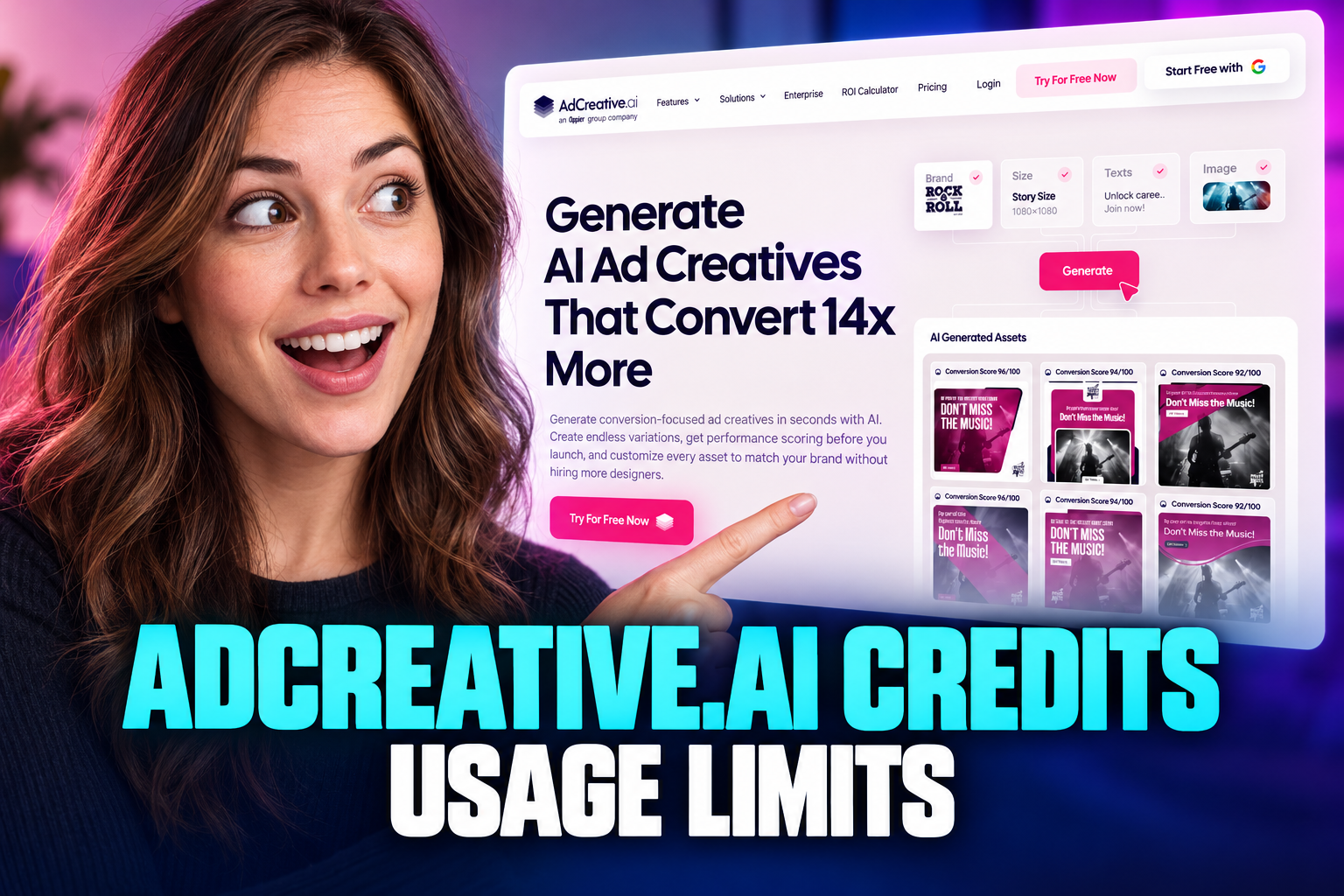
When you log into your account, you will spend most of your time on the primary creative dashboard. Here, the system prompts you to enter your target audience, configure your color scheme, and write your core ad text. After you click the generate button, the platform's custom render engine produces dozens of banner variations in seconds. This initial design generation phase does not cost you any credits. You can scroll through all the options, sort them by AI performance score, and view them in full screen completely free of charge. Credits are only deducted when you download a creative or push it directly to your social ad accounts. This unique setup allows you to test many concepts visually before spending your monthly allowance on specific outputs. The user interface features a real-time counter in the header, letting you monitor your exact credit usage during your design sessions.
The Download Queue and Regenerating Assets
As you prepare your social campaigns, you will likely need multiple sizes of the same creative design. If you select an appealing layout and download it as a square post, then download the exact same layout as a vertical story, this action consumes two credits. The system treats different aspect ratios as separate downloads because the underlying design elements must be fully rearranged. However, downloading the exact same file in the exact same size again due to a lost file or local browser crash does not charge you a second time. The platform tracks your recent downloads within your account history during your billing cycle. If you need to make a minor text adjustment to an already downloaded asset, saving the new version will count as a fresh export. This makes it important to review your spelling and layout balance carefully in the preview screen before initiating any downloads.
How to Download Your First Asset Without Wasting Credits
To maximize your budget, you should follow a structured review process before spending your monthly credits. This step-by-step workflow ensures you only pay for files that are ready for immediate campaign deployment. 1. Select your target workspace. Make sure you are active in the specific brand profile you intend to work on. 2. Input your copy and image assets. Provide the text headlines and background images for the AI model to process. 3. Review the on-screen previews. Scroll through the generated variations without clicking download. 4. Choose the optimal layout size. Select the specific dimension required for your ad network placement. 5. Click the download button. Confirm the download to deduct one credit from your balance.
Brand Workspaces and Multi-Profile Management
While credits control how many files you can export, brand workspace limits control how many separate companies you can manage. In your account settings, you will see a maximum limit for active brand profiles. Each profile stores unique logo files, custom color schemes, default typography, and historical campaign data. If your business operates multiple sub-brands, or if you run a freelance marketing business, this limit dictates how many clients you can host at once. If you hit your workspace limit, you must delete an existing brand profile to make room for a new one. Deleting a profile clears its historical assets, meaning you would have to spend credits to recreate them later. Higher subscription tiers expand these workspace limits and add multi-user seats, allowing your team to share the central credit pool. You can learn more about managing team settings in our comprehensive AdCreative.ai Review 2026: AI Ad Creatives, Copy and Campaign Insights.
AI Copywriting and Text Generation Limits
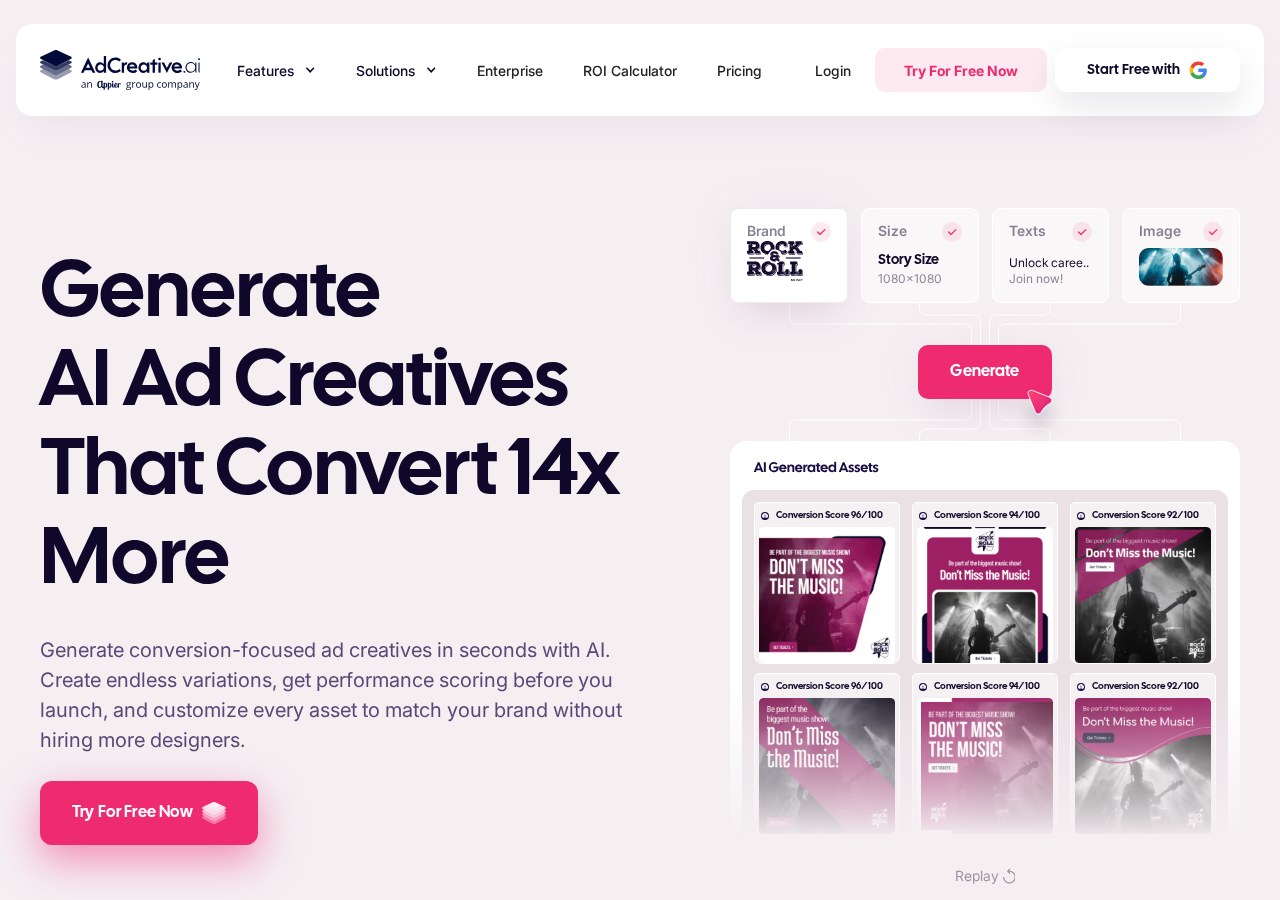
In addition to visual image creatives, the platform features a dedicated text generation dashboard. This tool writes ad headlines, primary texts, and descriptions optimized for standard marketing frameworks like pain-agitate-solve or attention-interest-desire-action. Generating and copying these written text ads usually does not impact your main visual download credits. The text generation tool operates under its own separate limits, which are often highly generous or completely unrestricted depending on your plan tier. This allows you to draft and refine your marketing copy extensively before matching it with your visual banners. If you use the integrated generation tool that places text overlay directly onto your visual image, you are only charged for the visual download. The written copy generated for that specific image comes bundled within that single credit cost, making it highly efficient.
Which Credit and Workspace Package Should You Pick?
Deciding which credit package and workspace limit to choose depends entirely on your business structure and monthly ad publishing volume. Because unused credits do not carry over to the next month on standard plans, matching your allowance to your actual usage is key. For individual e-commerce sellers managing a single shop, a basic tier with a single brand workspace and a modest credit limit is ideal. This gives you enough monthly variations to refresh your ads without paying for empty workspace slots. For marketing agencies or multi-brand portfolios, you should prioritize workspace limits first. Managing five or ten clients requires separate brand profiles to prevent logos and color schemes from crossing over, meaning you will need a higher-tier plan regardless of your total monthly download volume. Choose the plan that accommodates your client roster first, then scale your credit limits as your campaigns expand.
Frequently asked
Some links are affiliate links: we may earn a commission if you sign up or buy through them, at no extra cost to you. Affiliate disclosure