Best Fireflies.ai Alternatives for Automated Meeting Notes
Find the right meeting assistant for your team by comparing top competitors across transcription accuracy, security controls, and integration options.
Some links are affiliate links: we may earn a commission if you sign up or buy through them, at no extra cost to you.
On this page9 sections
- 1The short answer
- 2Managing the Meeting Bot Join Behavior
- 3Live Transcription and Real-Time Editing
- 4Organizing Transcripts and Video Playback
- 5Enterprise Compliance and Data Privacy Controls
- 6Configuring Workspace Integrations and Workflows
- 7Comparing the Alternatives Side-by-Side
- 8Which Meeting Assistant Should You Pick?
- 9Frequently asked
The short answer
- Otter.ai excels at live transcription and real-time collaborative editing during active virtual meetings.
- Fathom provides a generous free tier focused heavily on individual video conference recording.
- Choose alternatives based on native platform integrations, data hosting rules, and participant notification preferences.
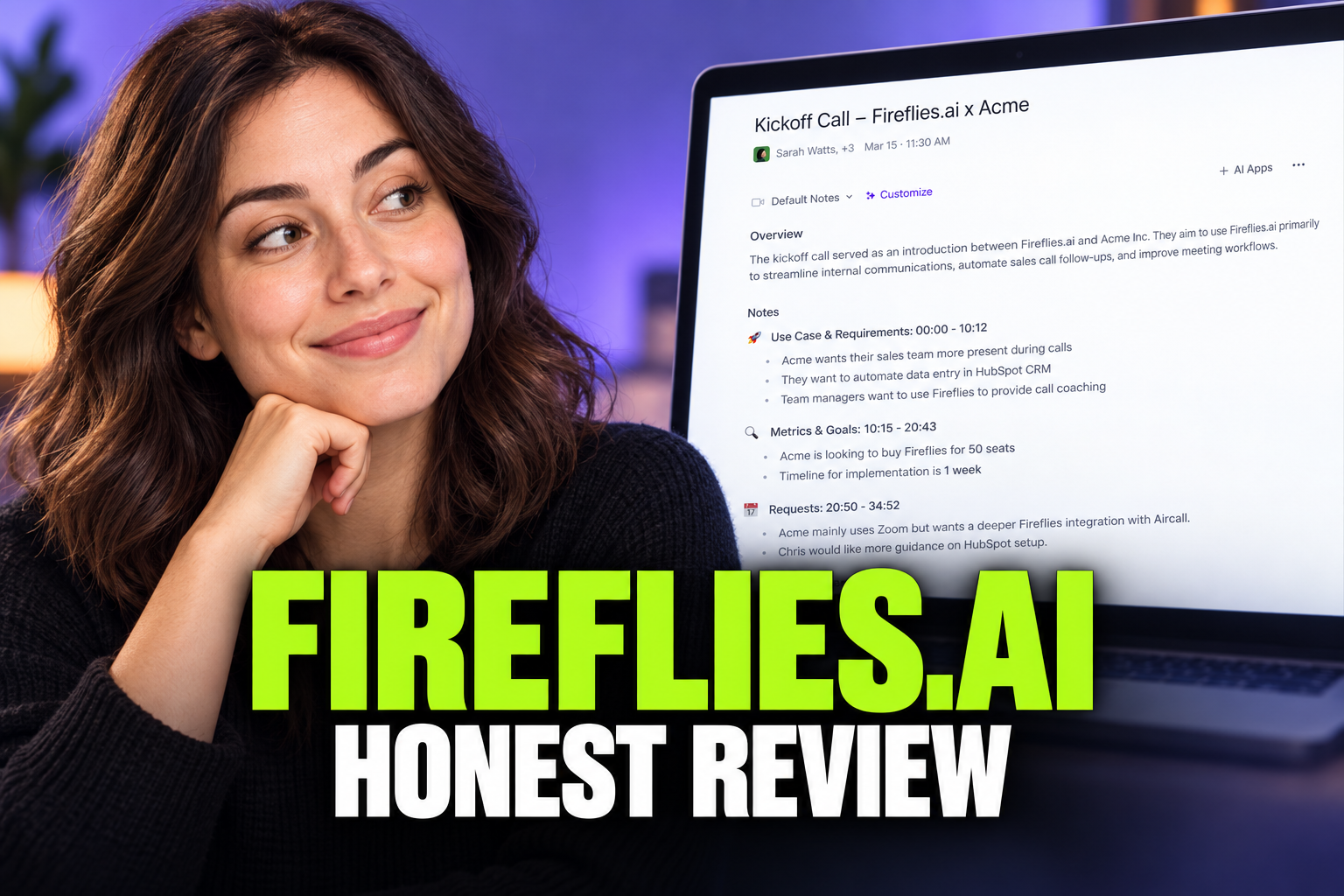
The best Fireflies.ai alternatives are Otter.ai, Fathom, and Grain, which offer automated meeting notes and summaries. Choosing between them depends on whether you need live real-time editing, local recording, or strict enterprise data privacy controls. While Fireflies.ai is a highly capable automated note-taker, it might not suit every workflow or budget. For instance, teams that require immediate, real-time collaboration on transcripts during a live call often find competing platforms more responsive. To understand if a switch makes sense, read our comprehensive Fireflies.ai Review to evaluate its core features. This guide will unpack how alternative platforms handle meeting bot behaviors, dashboard management, and privacy compliance.
Managing the Meeting Bot Join Behavior
The first interaction you have with any virtual meeting assistant occurs in the calendar settings screen. Users often look for alternatives because of how guest bots behave in waiting rooms. Fireflies.ai operates by sending a silent bot to your calendar events, which can sometimes surprise external clients if not configured properly. When configuring alternative tools, look at how they handle pre-meeting authorization. Some competitors allow you to rename the bot, while others require manual approval before the recording assistant can enter the video call lobby. This level of customization prevents awkward introductions during sensitive client presentations. Additionally, the dashboard interface typically displays toggle switches for auto-join rules. You can set the software to only record meetings that you host, or only meetings with external email domains. This specific workflow stage is crucial to control exactly when and how the virtual assistant enters your calls without manual intervention before every dial-in.
Live Transcription and Real-Time Editing
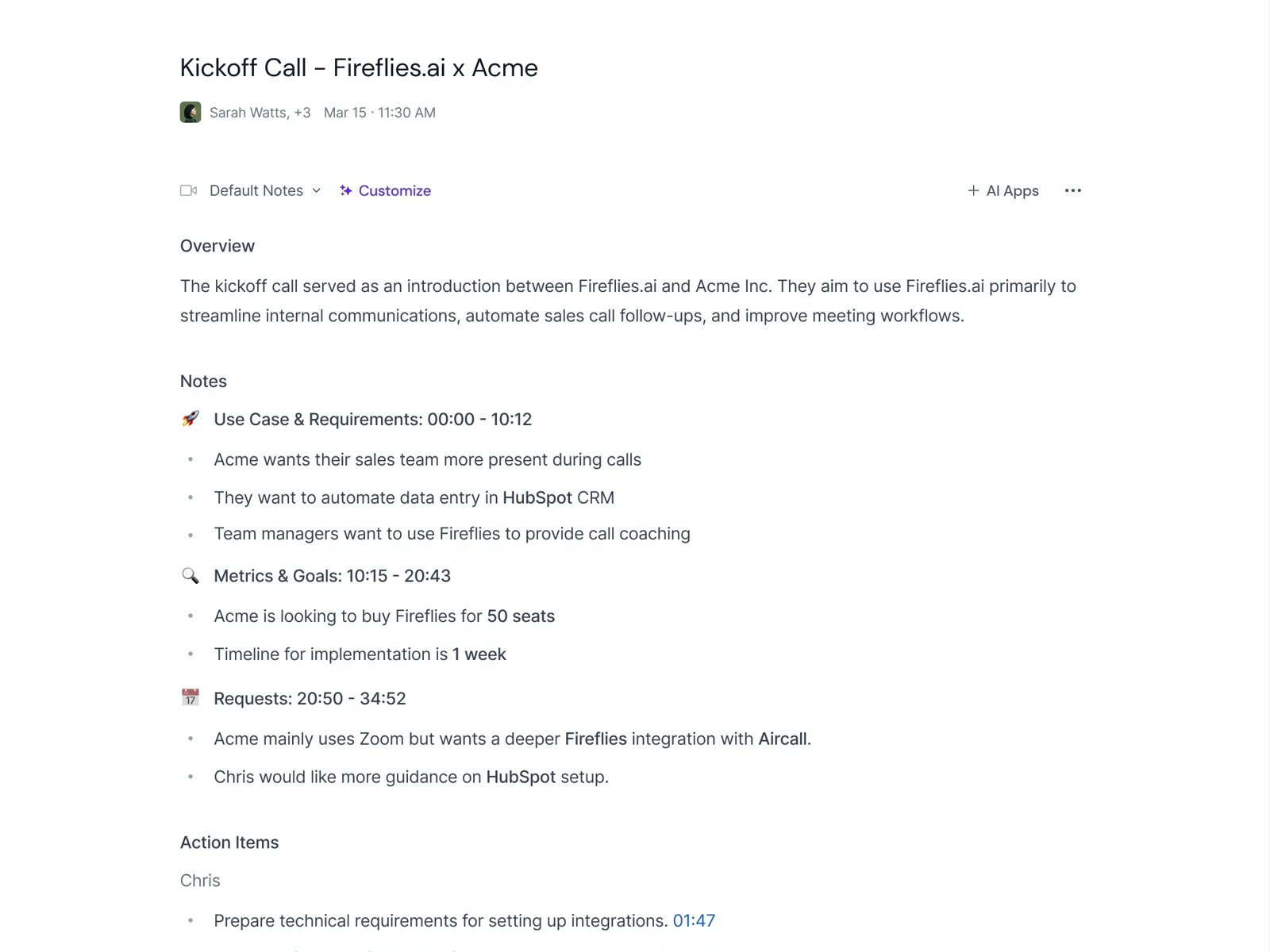
During an active call, the live transcription screen becomes the primary workspace. Platforms like Otter.ai excel in this area by displaying text in real time, running continuous speaker diarization to tag who is talking. This live stream allows participants to scroll backward to catch up on missed points during the conversation. A major differentiator for alternatives is the ability to insert comments or images directly into the live transcript. While the meeting is still running, this interactive feed allows team members to highlight key moments simultaneously. This means action items can be assigned instantly instead of waiting for post-meeting processing. Other software choices focus on a quieter background presence. Instead of a live text feed that might distract presenters, these alternatives process the audio in the background and only present the summary once the call ends. Deciding between a live, interactive text feed and a silent background processor is key to finding the right match.
Organizing Transcripts and Video Playback
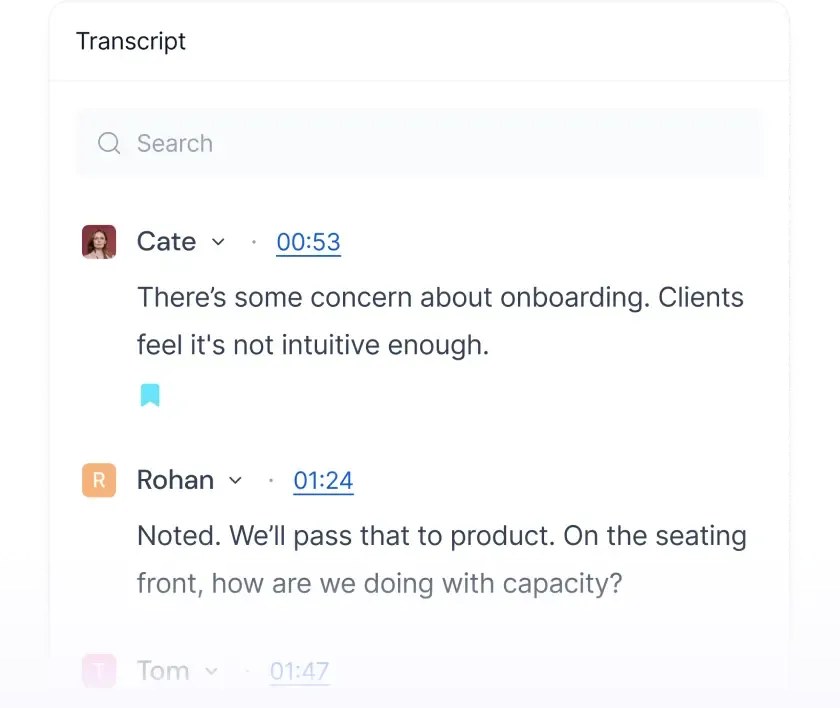
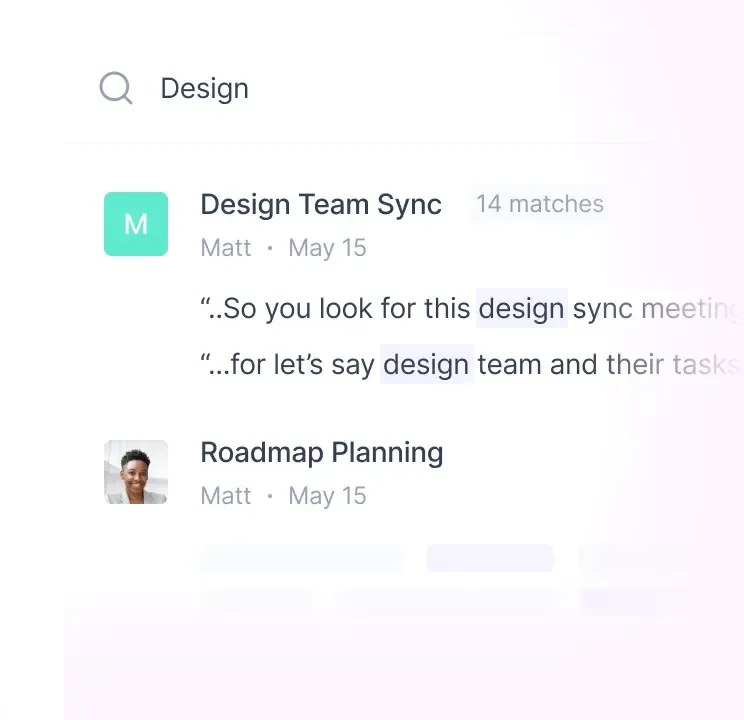
Once a meeting finishes, you are redirected to the recording library. This interface displays the video playback window alongside the finalized text transcript. The layout here matters because it dictates how quickly you can review, edit, and share the captured conversation with colleagues. In this screen, top-tier competitors offer synchronized playback where clicking on any written word instantly jumps the video to that exact timestamp. Some tools also generate automatic chapter markers based on topic shifts. These visual divisions help you quickly locate critical decisions without rewatching hours of video or reading through a monolithic block of text. Furthermore, search tools across your entire library represent a major decision point. High-quality search bars scan not just one transcript, but every meeting folder simultaneously. This global search means searching for a specific product name or client request pulls up every single historical mention in seconds.
Enterprise Compliance and Data Privacy Controls
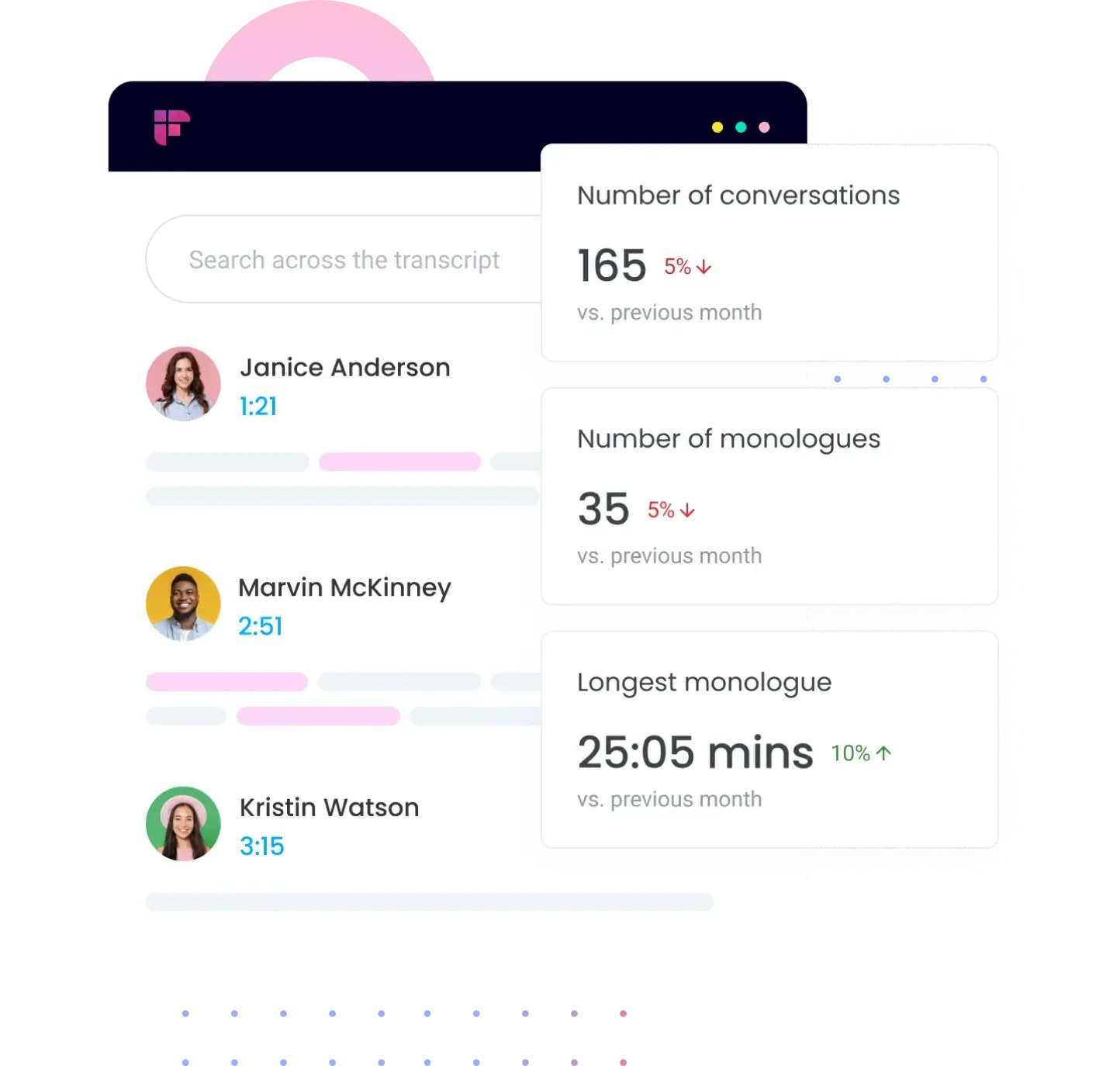
For organizations handling sensitive client data, the administration panel is the most important screen in the software. This dashboard governs where your audio data is stored, who has permission to view transcriptions, and how long records are retained. Many teams seek alternatives because their corporate IT policies require strict controls over data residency. Alternative software providers offer options to toggle off AI training models. This setting ensures your proprietary conversations remain private and prevent sensitive internal conversations from being used to train public models. Without this toggle, your meeting data might assist in training third-party algorithms. Security-focused alternatives also provide single sign-on options and detailed audit logs. These admin screens show exactly which employee accessed which meeting transcript and when they shared it. If your workflow involves healthcare or financial data, these granular compliance features are non-negotiable.
Configuring Workspace Integrations and Workflows
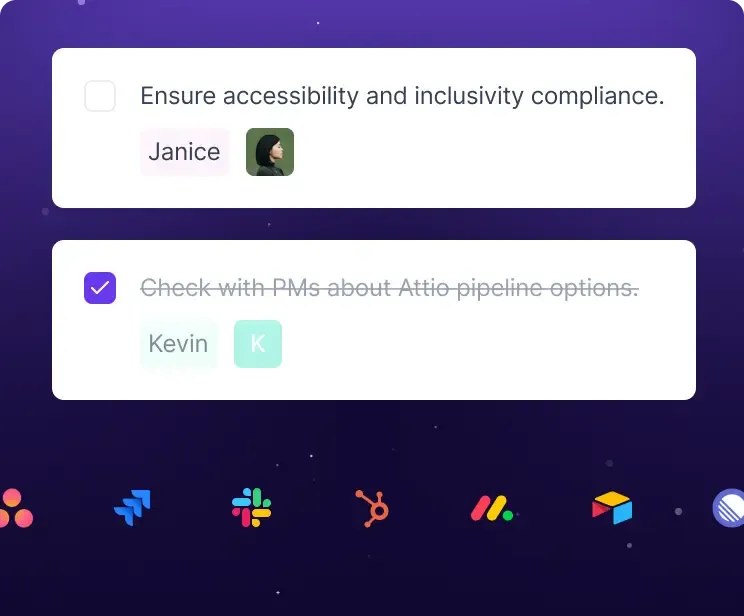
Once transcripts are complete, moving that information to your existing productivity stack is the next logical step. The integrations panel in your settings dashboard dictates how seamlessly these meeting summaries flow into your project management boards or team chat channels. Many teams look for Fireflies alternatives because they require deep, direct integrations that do not require third-party automation tools. Some meeting notes platforms connect natively to CRM systems, instantly updating customer contact records with the latest transcript link and bulleted action items. Other tools specialize in pushing short, curated video snippets directly to team chat channels. This dashboard feature lets you select a paragraph of text and generate a shareable link that plays only that specific clip. This keeps external teams informed without forcing them to read entire documents.
Comparing the Alternatives Side-by-Side
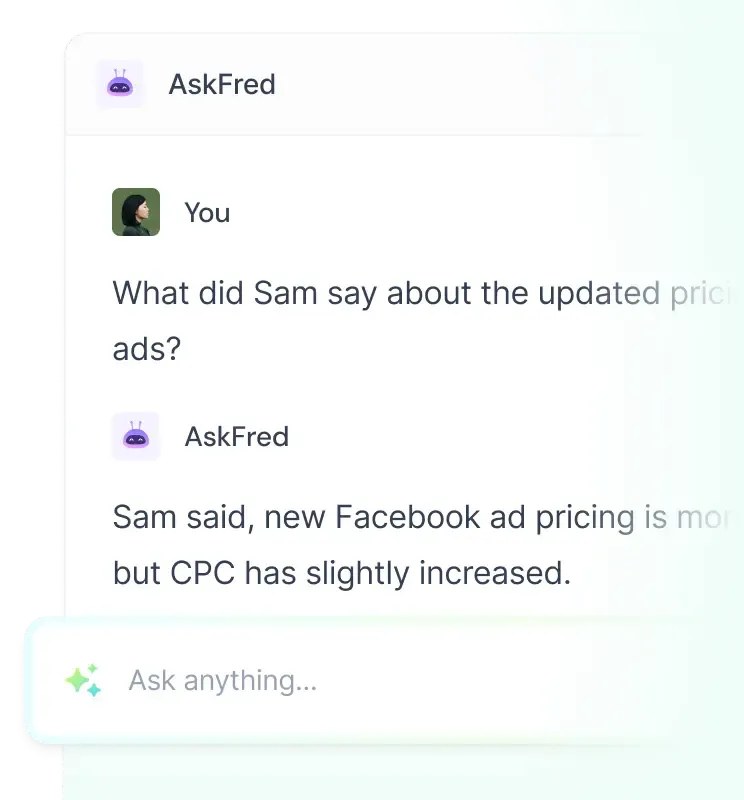
To help you evaluate your choices, look at how the main competitors stack up across primary technical and user-experience categories. This comparison highlights how each platform prioritizes a distinct aspect of the meeting lifecycle, from capture to final distribution. Let us analyze how these platforms compare across essential features: - Integration: Otter.ai does cloud-based calendar syncing, whereas Fathom does local recording desktop capture. - Live Interaction: Otter.ai does real-time collaborative text editing, whereas Grain does post-call highlight creation. - Privacy: Otter.ai does centralized database storage, whereas Fathom does local security processing. - Sharing: Fathom does instant external public link generation, whereas Grain does internal workspace folder organization. Choosing an alternative based on these configurations ensures your team gets a tool optimized for your core communication platform. Whether you rely on Microsoft Teams, Google Meet, or Zoom, each transcription tool integrates differently depending on its design.
Which Meeting Assistant Should You Pick?
Your final choice depends entirely on how your team runs daily calls. If you spend your workday in back-to-back brainstorming sessions where you need to reference live statements instantly, a platform with a real-time collaborative editor is ideal. These tools keep everyone on the same page during the active video call. Alternatively, if your main goal is simply keeping a clean record of customer success calls without distracting attendees, a minimalist tool that works quietly in the background is best. These streamlined assistants often offer better pricing flexibility for individual users who do not need complex workspace sharing rules. By evaluating your workflow against these specific interface behaviors, you can tailor the tool to your exact meeting cadence and privacy needs. Before making a final commitment, consider reviewing our detailed Fireflies.ai Review to benchmark these alternatives against the industry standard.
Frequently asked
Some links are affiliate links: we may earn a commission if you sign up or buy through them, at no extra cost to you. Affiliate disclosure