
FHD IPS Display: How to Choose the Right One
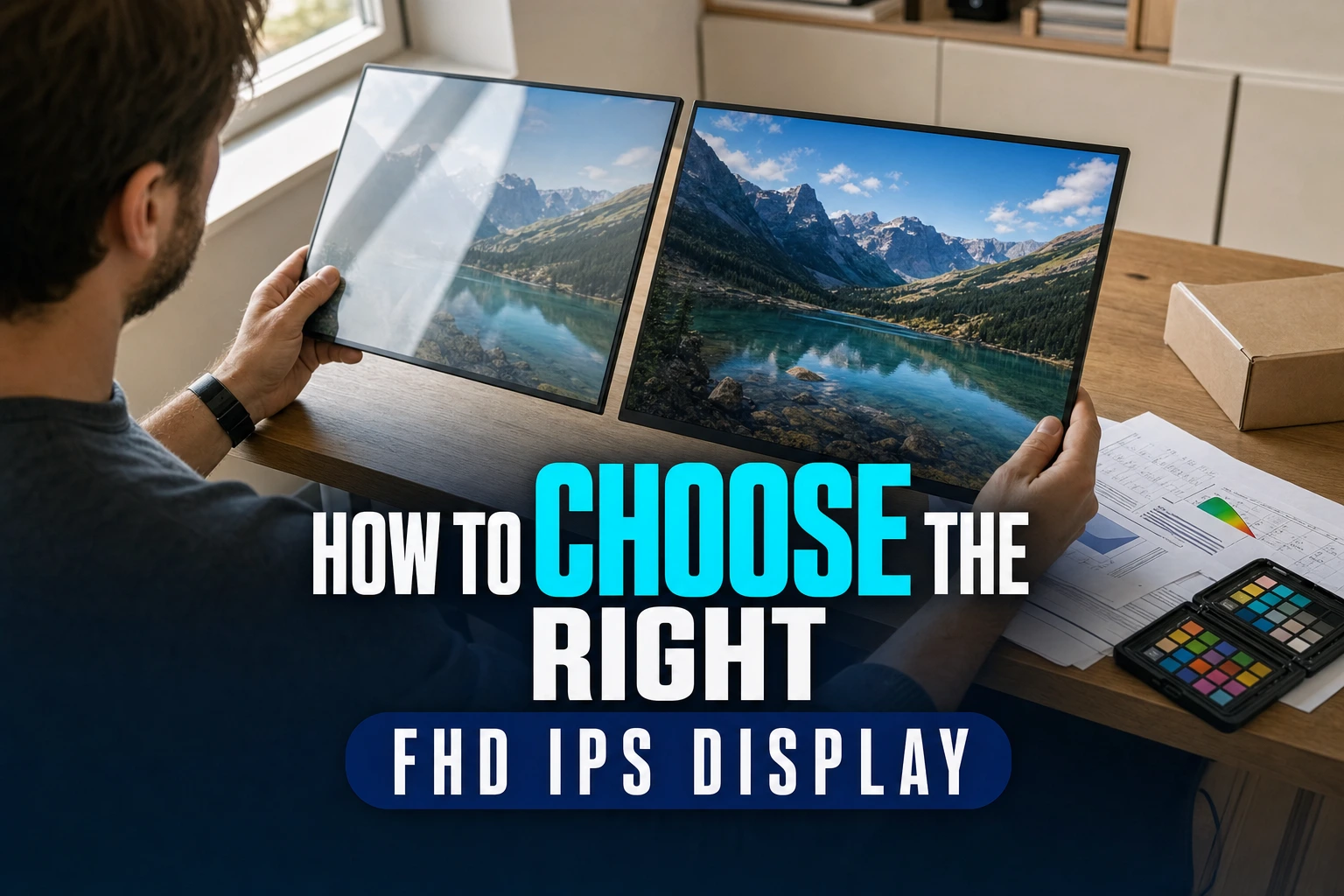
Choose an FHD IPS display by matching its size, brightness, colour coverage, finish and ports to your laptop, workspace and main tasks.
This article is informational and does not place shopping buttons in the story. Related buying guides may include affiliate links.
As an Amazon Associate I earn from qualifying purchases. This does not affect the price you pay. Affiliate disclosure
On this page11 sections
- 1The short answer
- 2How Do You Choose the Right FHD IPS Display?
- 3What FHD and IPS Actually Mean for Your Eyes
- 4Choose a Screen Size for Your Viewing Distance
- 5Compare Brightness, Contrast and Screen Finish
- 6Check Colour Coverage and Accuracy Claims
- 7Match Connection Ports to Your Laptop
- 8Review Refresh Rate, Response Time and Ergonomics
- 9Inspect and Configure the Display After Setup
- 10Which FHD IPS Display Should You Pick?
- 11Frequently asked
The short answer
- Check color accuracy specs to ensure your screen can reproduce realistic and vibrant colors.
- Prioritize screen brightness of at least 300 nits if you work near bright windows.
- Verify the port selection matches your host device to avoid carrying bulky adapter cables.
To choose the right FHD IPS display, match its size, brightness, colour coverage, screen finish and ports to your laptop and working environment. Confirm that your device can send video through the proposed connection, then compare specifications that affect daily use rather than relying on the FHD and IPS labels alone.
Choosing an external display or evaluating a laptop panel involves understanding exactly what these specifications mean for your daily productivity. A Full HD (FHD) resolution paired with In-Plane Switching (IPS) technology is widely used for office tasks, content creation and general entertainment. However, two screens with identical resolution and panel names can look different because brightness, colour reproduction, coating and panel quality also matter.
While many displays look similar at first glance, secondary specifications and connection requirements can determine everyday comfort and convenience. Understanding these details helps you avoid a screen that appears washed out in your room, makes text uncomfortably small or requires adapters to work with your current computer setup.
The quick version
- Inspect the physical panel and casing
- Connect the supplied or compatible video
- Open the operating-system display settings and
- Confirm that the intended refresh rate
- View plain light, dark and coloured
- Test brightness controls, speakers if fitted,
How Do You Choose the Right FHD IPS Display?
Start with your main use. For documents, browsing and video calls, prioritise readable text, a practical size, an adjustable stand or stable cover, and ports that match your laptop. Photo and video work places more emphasis on stated colour-gamut coverage and calibration support. Gaming adds refresh rate and adaptive-sync compatibility to the checklist, while travel makes weight, dimensions and power requirements important.
Next, consider where the screen will be used. A bright room can make a dim or glossy display difficult to see, whereas a fixed desk setup may benefit more from ergonomic adjustment than portability. Do not choose from the FHD IPS label alone: it identifies resolution and panel technology, not the complete viewing experience.
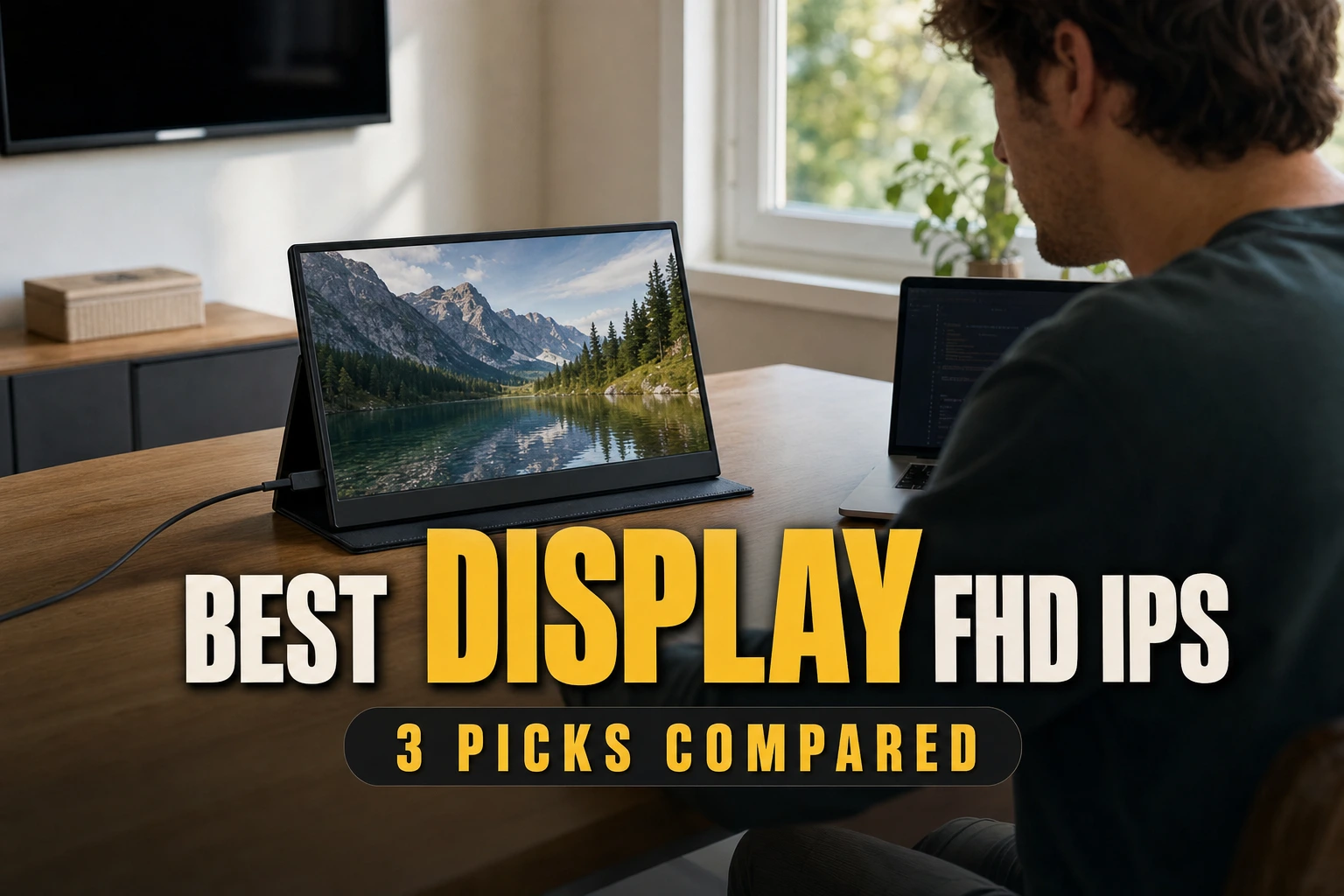
Before comparing individual models, write down your required screen size, video connection and intended tasks. A curated guide to FHD IPS portable screens can then help you compare form factors against those requirements without replacing your own compatibility checks.
What FHD and IPS Actually Mean for Your Eyes
Resolution and panel type influence how sharp and consistent a screen appears during a long workday. The term FHD refers to a resolution of 1920 by 1080 pixels. How sharp that looks depends on physical screen size and viewing distance: the same pixel count appears denser on a smaller panel and less dense on a larger one. FHD is also less demanding for a computer to drive than higher resolutions such as 4K.
The term IPS refers to the physical alignment of the liquid crystals inside the panel. Compared with older Twisted Nematic (TN) designs, IPS displays generally keep colours more consistent when viewed from the side. This can be useful when sharing presentations, using a portable screen at an angle or arranging multiple displays.
Combining FHD and IPS gives you a useful starting point, but neither term specifies brightness, contrast, gamut, refresh rate or response time. The portable FHD IPS display guide provides examples of how these specifications appear across travel-friendly designs.
 See the picks in our buying guide
Choose a Screen Size for Your Viewing Distance
Screen size changes how FHD looks. On a compact laptop or portable monitor, 1920 × 1080 can produce comfortably detailed text at normal viewing distances. On a much larger desktop panel, the same resolution spreads those pixels across a wider area, so edges and small type may appear less refined when viewed up close. This does not make a larger FHD display unusable, but it should shape your expectations.
Think about available desk space and how far the screen will sit from your eyes. A portable display should also fit the bag or case you intend to use. Check the product’s full dimensions rather than relying on diagonal panel size, because bezels, stands and protective covers add bulk.
Operating-system scaling matters as well. Use the native 1920 × 1080 resolution for the clearest image, then adjust text scaling if interface elements feel too small. Choosing a lower non-native resolution usually makes text and icons look softer.
Compare Brightness, Contrast and Screen Finish
Screen brightness is commonly expressed in nits, which describe luminance. A higher stated maximum can help a display remain visible under strong ambient light, but published specifications do not reveal everything about real-world performance. Uniformity, the brightness control range and the screen coating also affect how the panel looks. Without independent source data, there is no single brightness figure that suits every room.
Contrast ratio describes the difference between the display’s light and dark output. Higher contrast can give text and images more apparent depth, although manufacturers may measure contrast in different ways. Treat stated figures as comparison points rather than guarantees of identical performance.
Screen finish deserves equal attention. Matte coatings diffuse reflections and are often practical under office lighting, though some coatings can make the image appear slightly grainy. Glossy surfaces may look clearer in controlled lighting but reflect windows and lamps more visibly. Choose the finish for the room in which you will actually use the display, and look for a return policy that permits inspection if reflection handling is uncertain.
Check Colour Coverage and Accuracy Claims
Colour coverage tells you how much of a defined colour gamut a display claims to reproduce. sRGB is the most relevant reference for common web and office content, while Adobe RGB and DCI-P3 describe wider gamuts used in some creative workflows. A percentage without the named gamut is incomplete, so check exactly which standard the manufacturer is quoting.
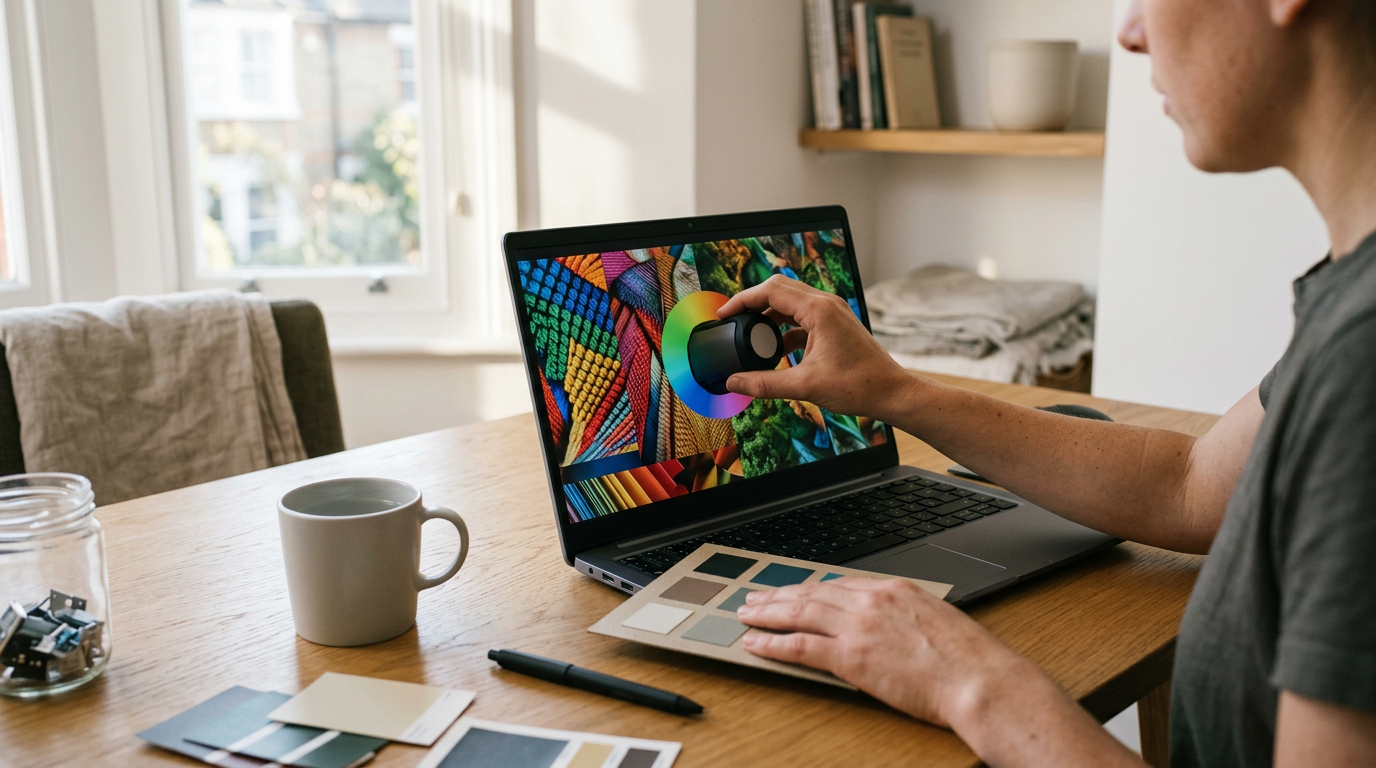
Coverage and accuracy are not interchangeable. A panel can cover a broad gamut yet reproduce individual colours inaccurately. If colour-critical work matters, look for clearly stated accuracy measurements, information about factory calibration and support for hardware or software calibration. Do not assume that every IPS panel is accurate simply because IPS technology can offer consistent viewing angles.
For documents, email and spreadsheets, precise colour reproduction may be less important than readability, brightness and ergonomics. For photography, illustration or video, prioritise documented gamut coverage and calibration options. Be cautious with vague labels such as “vivid colour” that do not name a measurable standard.
Match Connection Ports to Your Laptop
The physical ports on an external monitor determine how easily it integrates with your laptop or desktop. HDMI commonly carries video and audio. USB-C can carry video through DisplayPort Alternate Mode, but a USB-C connector does not automatically mean that the port supports video. Check the laptop specification and the monitor’s input requirements before buying.
Some USB-C displays can receive video and power through one cable, while others need a separate power adapter. Some can also provide power to a connected laptop, but the supported wattage must be suitable for that computer. Confirm these details in the manuals for both devices rather than assuming all USB-C implementations behave alike.
If your laptop has only USB-A, it generally cannot send a standard display signal without additional display hardware or an adapter system designed for that purpose. HDMI may therefore be the simpler choice. Also check whether cables are included, how long they are and whether right-angle connectors would obstruct neighbouring ports. The FHD IPS portable screen comparison can help organise models by connection type once you know what your laptop supports.
Review Refresh Rate, Response Time and Ergonomics
A standard productivity display does not need specialist gaming features, but motion characteristics still deserve attention. Refresh rate describes how often the image can update each second. A higher supported rate can make scrolling and cursor movement appear smoother, provided the laptop, cable and selected resolution can deliver it. Response-time claims describe pixel transitions, though measurement methods differ between manufacturers.
For gaming, check the refresh rate at 1920 × 1080, the available input used to reach it and any stated adaptive-sync support. Avoid judging motion performance from one response-time number alone. For films and office work, stable operation and sensible controls may matter more than the highest advertised rate.
Ergonomics affects every task. Look for tilt, height and orientation options, plus VESA mounting support if you plan to use an arm. On portable models, inspect the stand’s angle range and stability. A well-positioned screen can be more useful than a higher-specification panel held at an awkward angle.
Inspect and Configure the Display After Setup
Setting up your new display correctly is just as important as selecting suitable specifications. A quick evaluation can identify physical or signal problems while the retailer’s return process still applies.
- Inspect the physical panel and casing for visible damage before removing protective material unnecessarily.
- Connect the supplied or compatible video cable directly to the computer where possible.
- Open the operating-system display settings and select the panel’s native 1920 × 1080 resolution.
- Confirm that the intended refresh rate is available at that resolution.
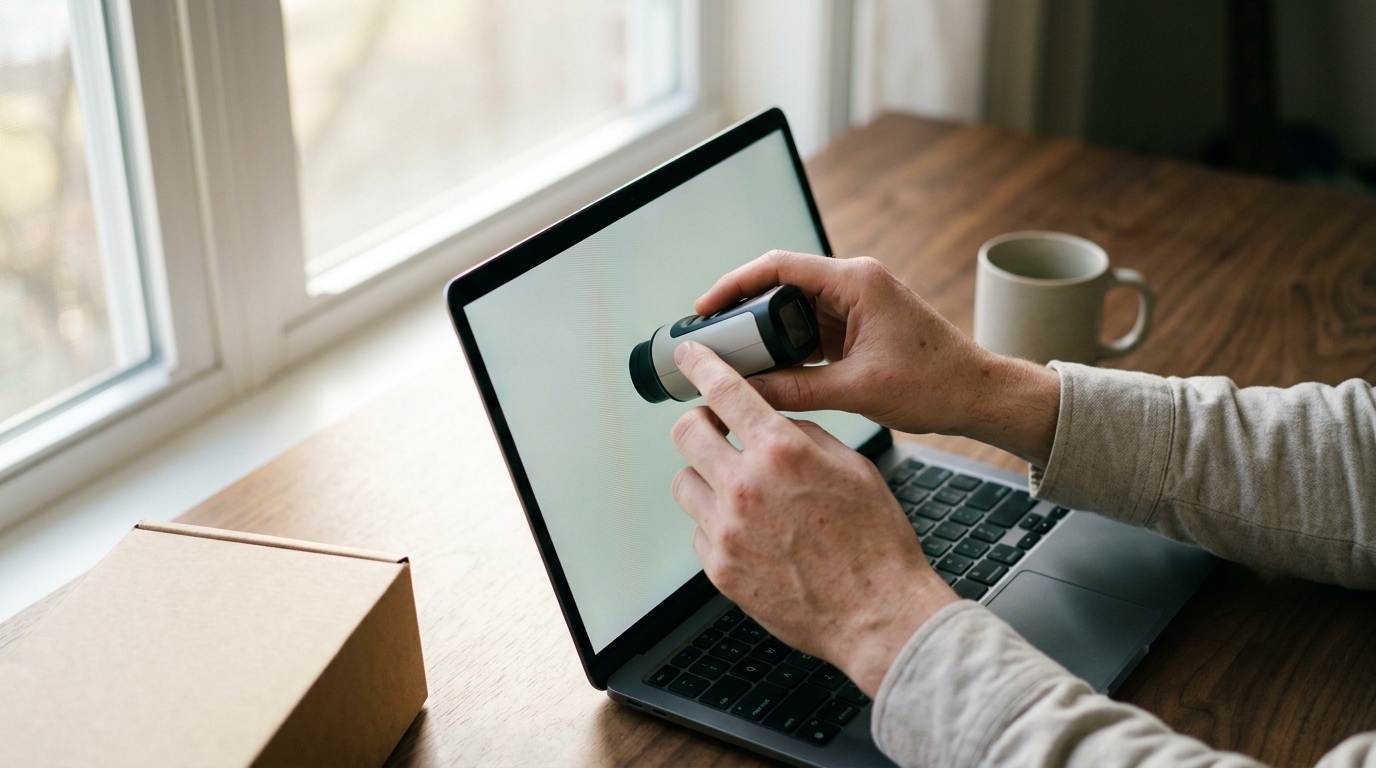
- View plain light, dark and coloured backgrounds to look for pixels that do not change correctly, obvious tint differences or distracting backlight variation.
- Test brightness controls, speakers if fitted, orientation changes and every port you expect to use.
A few imperfect pixels or some edge glow may be covered differently by each seller or manufacturer, so consult the applicable policy rather than assuming a universal standard. Persistent flickering or signal loss can come from the display, cable, adapter, port or computer; testing another compatible cable or port can help isolate the cause.
Which FHD IPS Display Should You Pick?
Choosing the ideal display ultimately depends on where you work and what tasks you perform daily. For home-office use, focus on suitable screen size, readable text, a non-distracting finish, stable connectivity and enough ergonomic adjustment for your desk. Creative work calls for documented colour coverage and calibration features, while gaming requires closer attention to refresh rate, response behaviour and synchronisation support.
Travellers should compare the entire unit rather than the panel alone. Dimensions, weight, stand design, cable placement, protective cover and external power needs determine how practical a portable screen is away from a desk. USB-C can reduce cable clutter only if both devices support the necessary video and power functions.
Make a short requirements list before reading model comparisons: laptop ports, preferred size, room lighting, primary software and portability needs. Then use the guide to portable FHD IPS displays to narrow the field. This approach keeps the decision tied to compatibility and use rather than a single headline specification.
Frequently asked
As an Amazon Associate I earn from qualifying purchases. This does not affect the price you pay. Affiliate disclosure