How to Avoid the Most Common AdCreative.ai Mistakes
Avoid distorted layouts, generic copywriting, and formatting errors in AdCreative.ai by mastering the brand profile setup and layout preview features.
Some links are affiliate links: we may earn a commission if you sign up or buy through them, at no extra cost to you.
On this page9 sections
- 1The short answer
- 2Mistakes in the Brand Profile Configuration Screen
- 3Overloading Backgrounds in the Creative Generator Interface
- 4How to Build a High-Performing Ad Template Step-by-Step
- 5Writing Vague Prompts in the Copywriter AI Tool
- 6Neglecting Aspect Ratio Previews in the Final Export Screen
- 7Ignoring Native Platform Integrations on the Settings Dashboard
- 8Choosing Your Workflow: When to Pick AdCreative.ai Over Alternatives
- 9Frequently asked
The short answer
- Low-quality logos and incorrect hex codes ruin design layouts during brand onboarding.
- Cluttered background images conflict with AI text overlays, making ad copy difficult to read.
- Bypassing direct ad account integrations limits campaign optimization and wastes asset download limits.
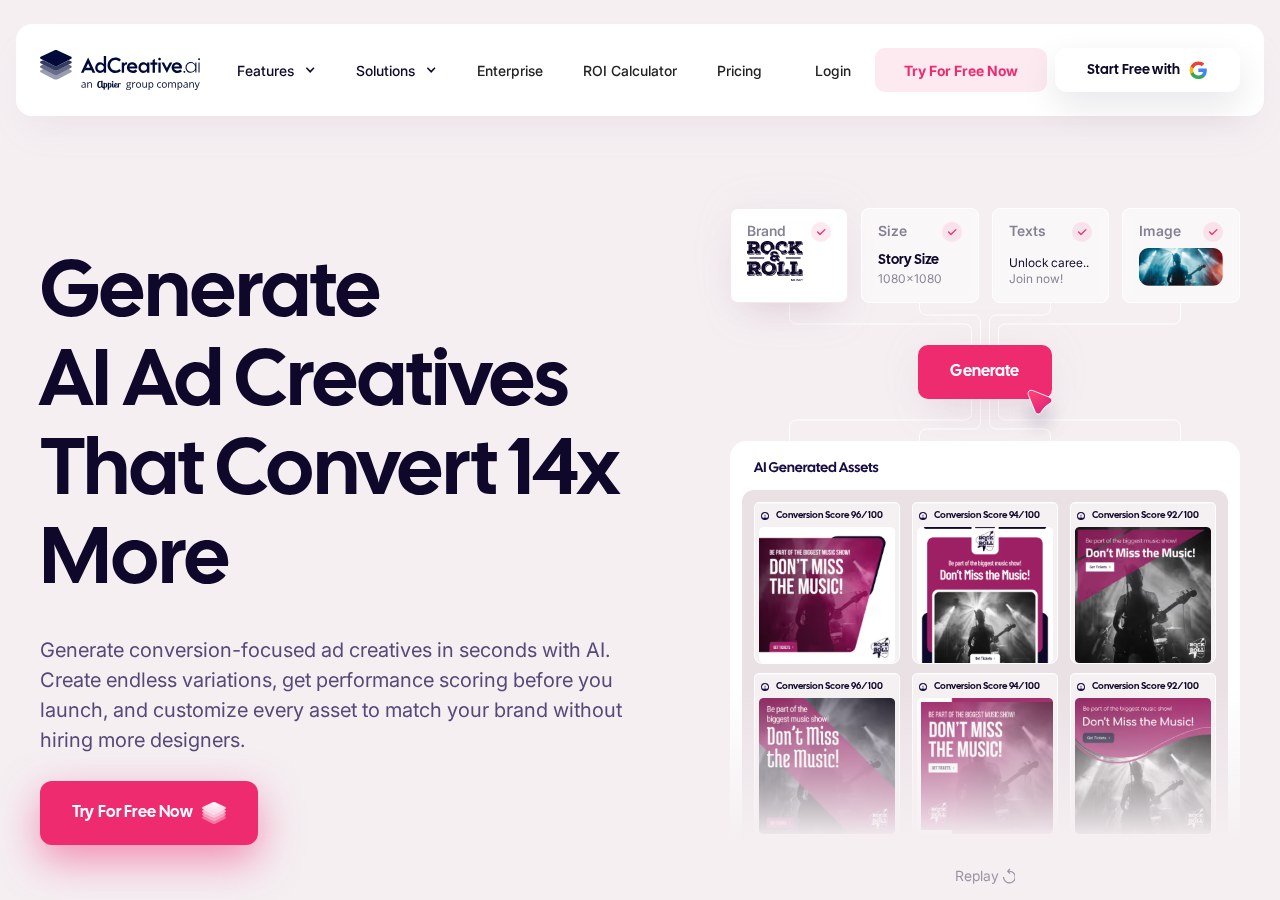
The most common AdCreative.ai mistakes include uploading low-resolution logos during brand setup, providing overly generic audience prompts, and skipping the layout preview phase before generating bulk assets. These setup missteps often cause distorted graphics and misaligned copywriting that underperforms on paid platforms. To protect your paid advertising spend, understanding how the platform's automation engine renders visual elements is critical. When provided with high-quality assets, the tool builds optimized layouts efficiently. However, supplying poor inputs yields generic templates that require manual reworking. By learning how to configure each phase of the generation dashboard properly, you can prevent formatting errors, improve your text accuracy, and construct a cohesive campaign workflow.
Mistakes in the Brand Profile Configuration Screen
The onboarding dashboard requires you to establish your core brand guidelines. A frequent error during this initial step is uploading low-resolution raster graphics, such as small JPEGs or transparent PNGs with rough edges. Because the rendering engine scales these files across dozens of layout variations, any pixelation in the original file becomes highly visible on larger banner sizes. To ensure crisp, professional output, users must upload high-quality `vector files` or high-resolution PNGs with transparent backgrounds. If your logo features a dark color scheme, generating ads with dark backgrounds can make your branding invisible. Preparing versatile asset variations beforehand ensures your brand remains legible across all templates. For a deep look at how these brand assets integrate with the automated templates, check out our comprehensive AdCreative.ai Review 2026. Another common issue on this screen is choosing approximate color values instead of inputting exact brand hexadecimal codes. The platform uses these precise codes to formulate background gradients, button highlights, and text elements. Guessing your colors results in inconsistent visual palettes that look disorganized across different ad sets. Entering exact color codes preserves brand consistency from the start.
Overloading Backgrounds in the Creative Generator Interface
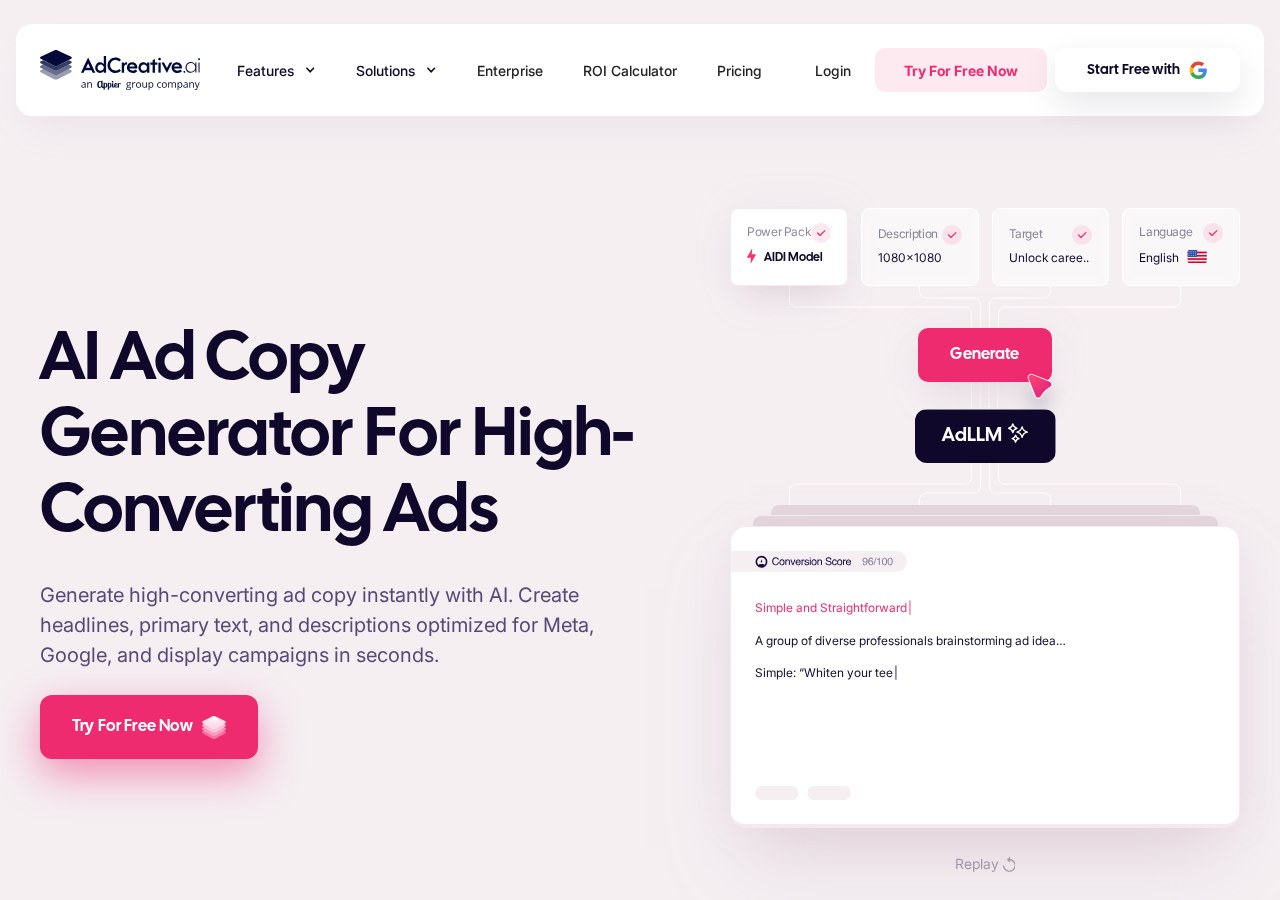
When transitioning to the template generation stage, you must choose background designs for your campaign. A major pitfall at this stage is selecting highly complex, colorful, or busy background images. When the rendering engine attempts to overlay headlines and action buttons onto a noisy background, the final output suffers from mismatched background contrast. This lack of clarity makes the sales copy incredibly difficult to read, especially on mobile devices where users scroll past content quickly. The design engine is programmed to position text blocks dynamically, but it cannot always overcome backgrounds containing random dark and light patches. Selecting clean, minimalist backgrounds with open space ensures your messaging stands out clearly. Additionally, uploading custom backdrops that clash with your primary brand colors disrupts the platform's automated color harmony. While the system attempts to balance these tones, extreme contrast between your custom background and your brand colors can produce unappealing results. Sticking to neutral tones or transparent product cutouts generates far more cohesive banner sets.
How to Build a High-Performing Ad Template Step-by-Step
Configuring your creative templates systematically prevents rendering errors and ensures your messaging aligns with your visual assets. Following a structured asset preparation sequence helps you get the best performance out of the automated generator. Use these steps to organize your dashboard details prior to exporting. 1. Gather high-resolution brand assets. Obtain vector-based logos and precise brand color hex codes to populate the profile settings correctly. 2. Input detailed demographic descriptions. Provide specific customer pain points and brand traits inside the target audience fields. 3. Upload clean product imagery. Use pictures with transparent backgrounds or minimal busy details to allow clean text placement. 4. Select appropriate conversion goals. Align your chosen template style with the primary marketing objective of your current campaign. 5. Review draft layouts globally. Inspect the preview screen for overlapping text elements or cropped margins before generating files. Standardizing this preparation sequence reduces the need to regenerate your creative batches. Organizing your input data ensures the platform places each branding element exactly where it belongs.
Writing Vague Prompts in the Copywriter AI Tool
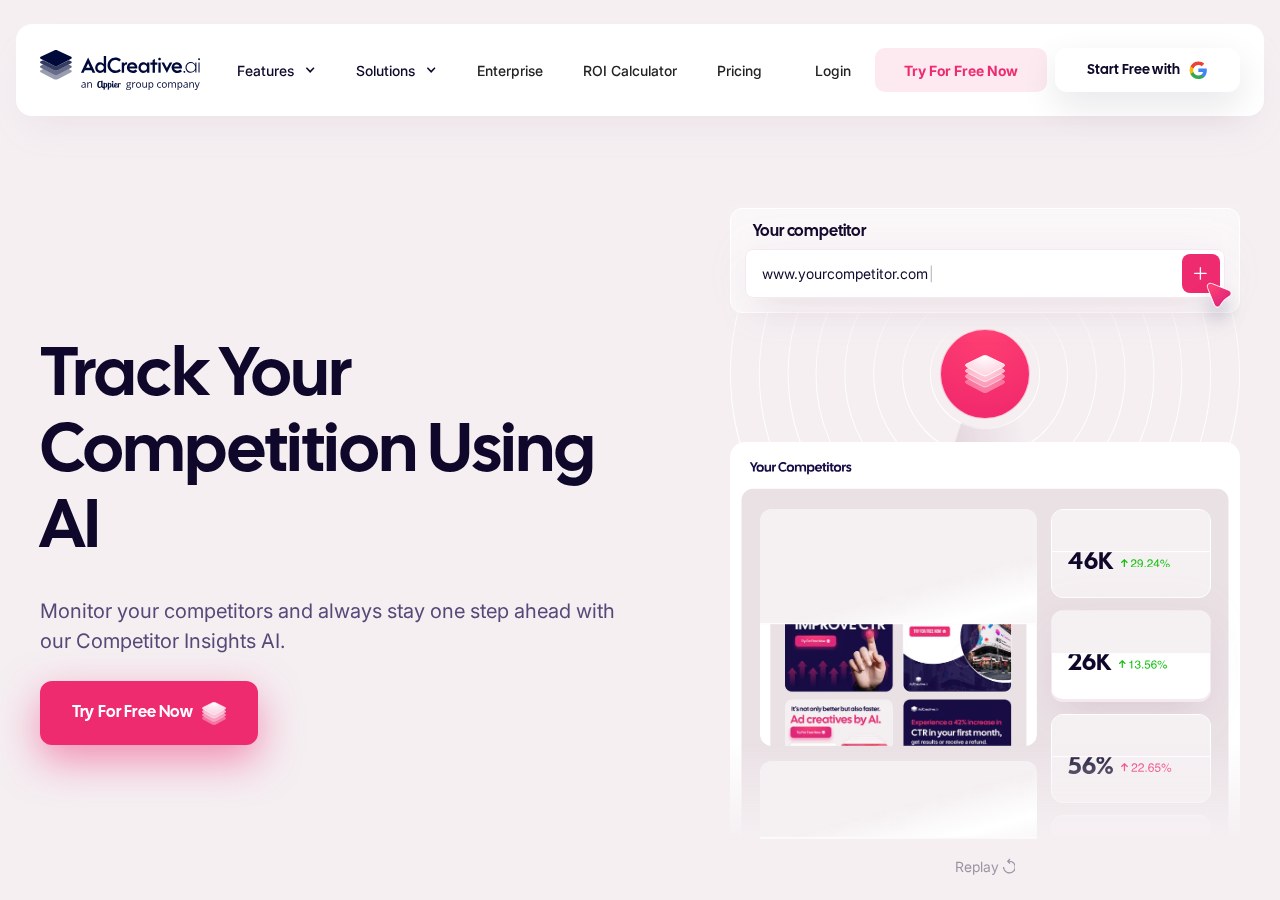
The built-in text generation tool writes headlines and call-to-action messages, but its output quality depends entirely on your prompts. Many marketers treat the text fields as an afterthought, writing short, generic descriptions like 'new shoes' or 'marketing services.' This lack of detail forces the language model to rely on generic advertising templates, producing uninspiring text that struggles to convert. To generate compelling copy, treat the project description box like a concise creative brief. Input specific user problems, list unique product benefits, and define the exact tone of voice you want to project. Supplying comprehensive context allows the generator to write highly focused headlines that resonate with your specific target audience. Additionally, exporting copy without reviewing it first can lead to repetitive phrases or awkward grammar. Automated copy generation can occasionally produce rigid phrasing when adapted to shorter banner formats. Reading through the text variations on the generation dashboard allows you to make quick manual edits before launching your campaigns live.
Neglecting Aspect Ratio Previews in the Final Export Screen
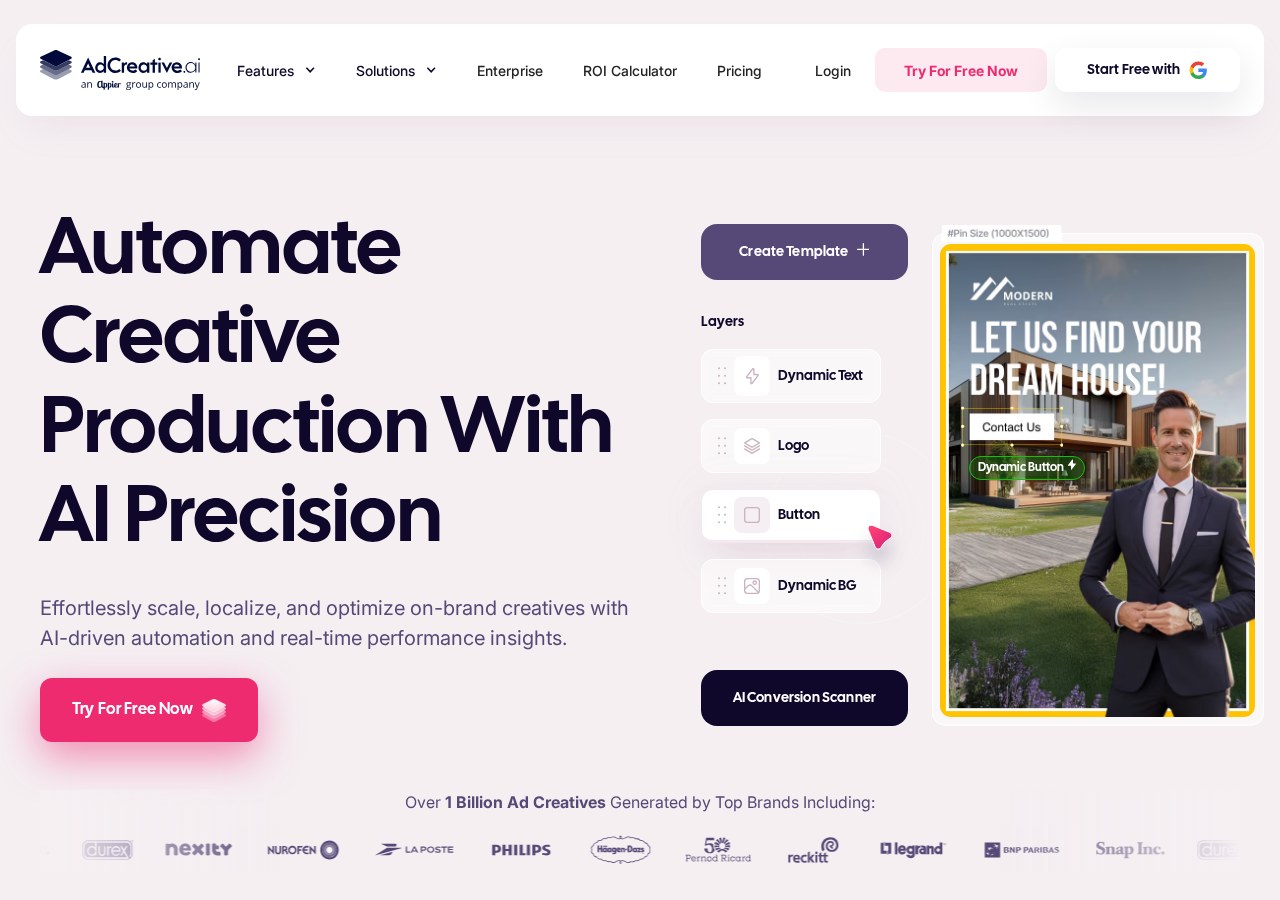
Paid networks use various image dimensions depending on where your ads appear, including vertical stories, landscape banners, and square feed placements. Within the campaign dashboard, you must select the appropriate `aspect ratios` for your target channels. A costly mistake is skipping the layout preview step for each format before downloading your final assets. While the design engine rearranges elements to fit different canvas shapes, some complex visual layouts do not scale perfectly across every ratio. Text overlays might occasionally block a product image on vertical frames, or call-to-action buttons might get clipped on wide landscape layouts. Checking the preview grid allows you to spot these formatting errors instantly. Neglecting this manual check means you risk launching ads with cropped headlines or obscured logos. Taking a moment to click through the individual dimension previews inside the platform ensures your brand presents a polished appearance on all mobile and desktop devices.
Ignoring Native Platform Integrations on the Settings Dashboard
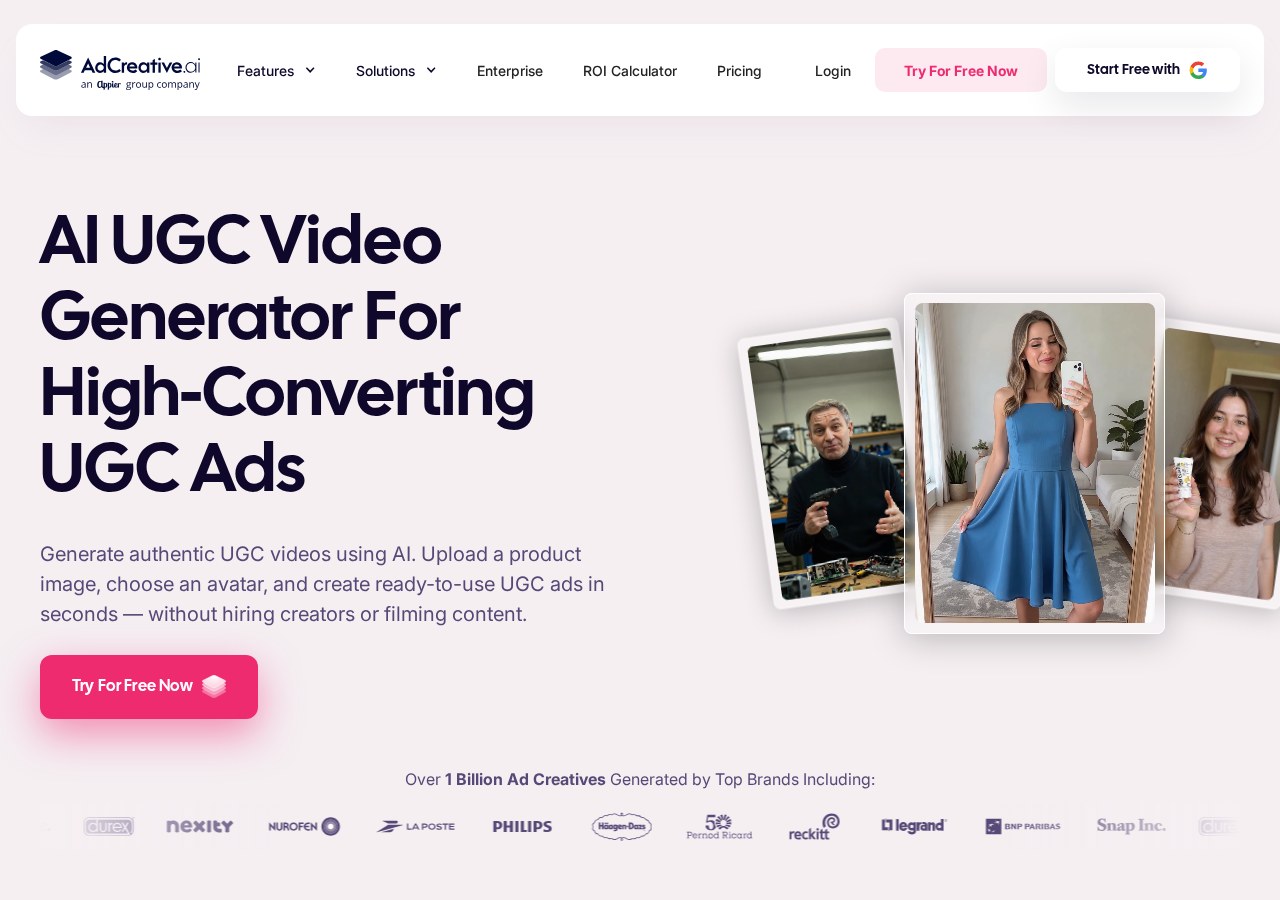
The utility of automated asset creation increases significantly when you connect your advertising accounts. The settings dashboard features direct `API integration` options for platforms like Meta, Google Ads, and Pinterest. A major mistake is ignoring these integrations and choosing to download and upload every image batch manually. Bypassing these connections isolates your design process from live performance feedback. When you link your ad accounts, the software analyzes which layout structures, colors, and copy patterns earn the highest conversions. Without this connection, you are failing to link live ad accounts and losing the tool's machine-learning optimization advantages. Integrating your accounts also simplifies your publishing workflow by letting you push graphics to your campaigns instantly. Bypassing this feature leads to hours of manual file management, making it harder to test creatives rapidly.
Choosing Your Workflow: When to Pick AdCreative.ai Over Alternatives
Deciding if this software fits your workflow depends on your specific creative production goals. If your marketing strategy relies on rapid testing, generating dozens of structured, high-volume banner layouts in seconds is highly efficient. This rapid automation is detailed further in our AdCreative.ai Review 2026. However, if your business requires highly customized, artistic branding where every pixel must be positioned manually, standard graphic tools like Canva or Figma offer better creative freedom. Alternatively, if you need stylized, painterly illustrations rather than structured ad banners, specialized AI art generators are more suitable. Ultimately, the decision centers on bulk-generation speed versus manual design precision. Media buyers managing multi-channel ad campaigns will benefit from AdCreative.ai's rapid asset output, while small brands with strict, static styling rules may prefer traditional manual layout platforms.
Frequently asked
As an Amazon Associate I earn from qualifying purchases. This does not affect the price you pay. Affiliate disclosure