Common ElevenLabs Mistakes and How to Prevent Them
Fix robotic voices, random accent switching, and distorted audio in ElevenLabs by adjusting voice settings and optimizing your source training files.
Some links are affiliate links: we may earn a commission if you sign up or buy through them, at no extra cost to you.
On this page8 sections
The short answer
- Clean training audio prevents volume fluctuations and robotic distortions in cloned voices.
- Improper slider settings cause either boring, flat speech or erratic, unpredictable accent shifts.
- Splitting long text into smaller paragraphs prevents the synthesis model from generating garbled audio.
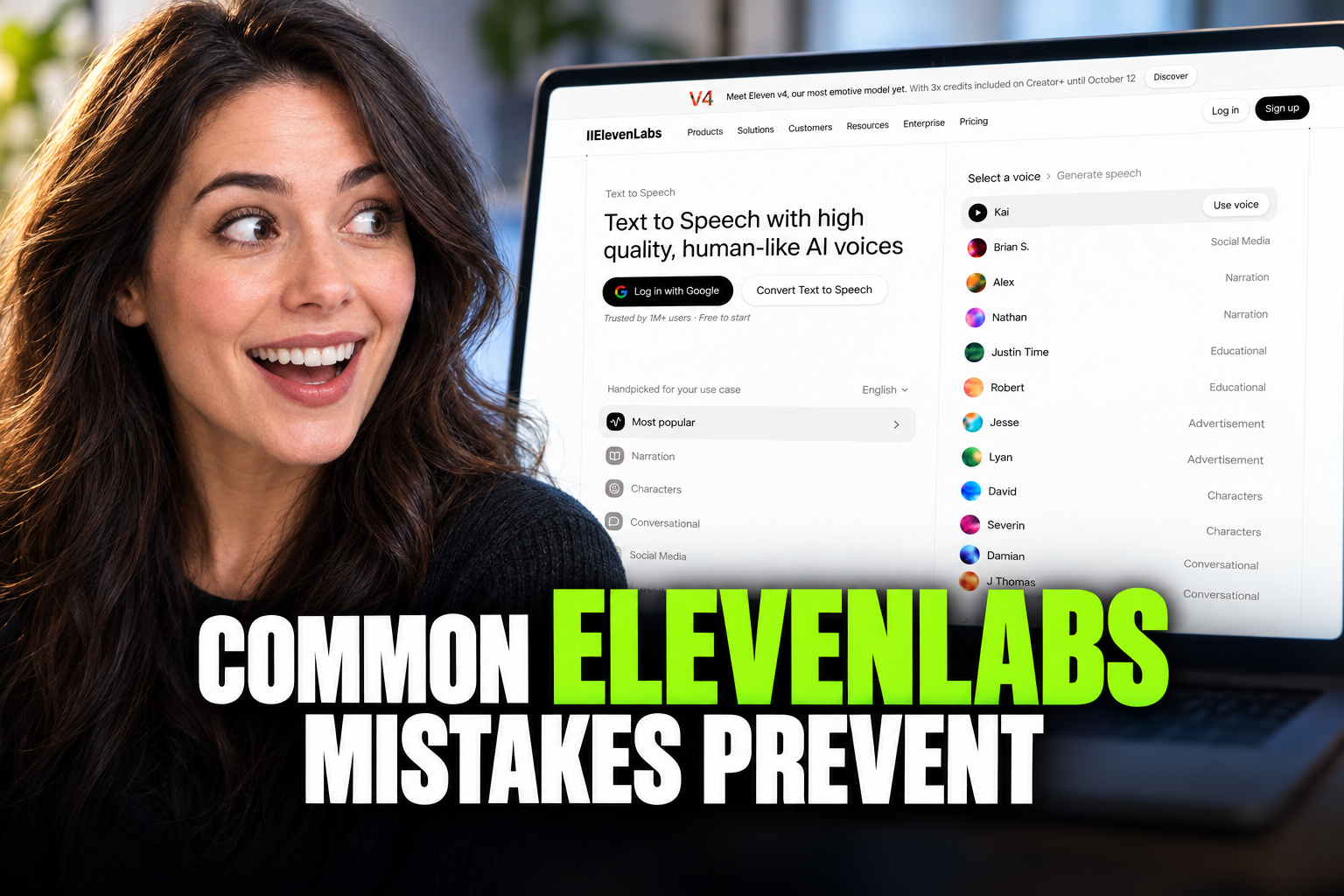
The most common ElevenLabs mistakes include uploading low-quality voice cloning audio, misconfiguring the stability sliders, and forcing multi-language models to read plain English. These errors result in robotic speech, abrupt accent changes, or distorted output. By adjusting a few settings in the voice laboratory, you can easily correct these issues and protect your generation budget. While the platform offers highly convincing synthetic speech, its artificial intelligence relies heavily on the exact parameters you set. Beginners often expect the default options to handle every scenario perfectly, which frequently leads to wasted credits. Understanding how these settings interact will save you hours of trial and error. Whether you are working on a simple narration or building complex multi-character dialogs, adjusting your workflow can prevent almost all common errors. If you are still evaluating the platform's core pricing tiers and limits, reading our detailed ElevenLabs Review: Pricing, Features and Limitations will help you understand the tool's foundational structures.
The Voice Design and Cloning Screen
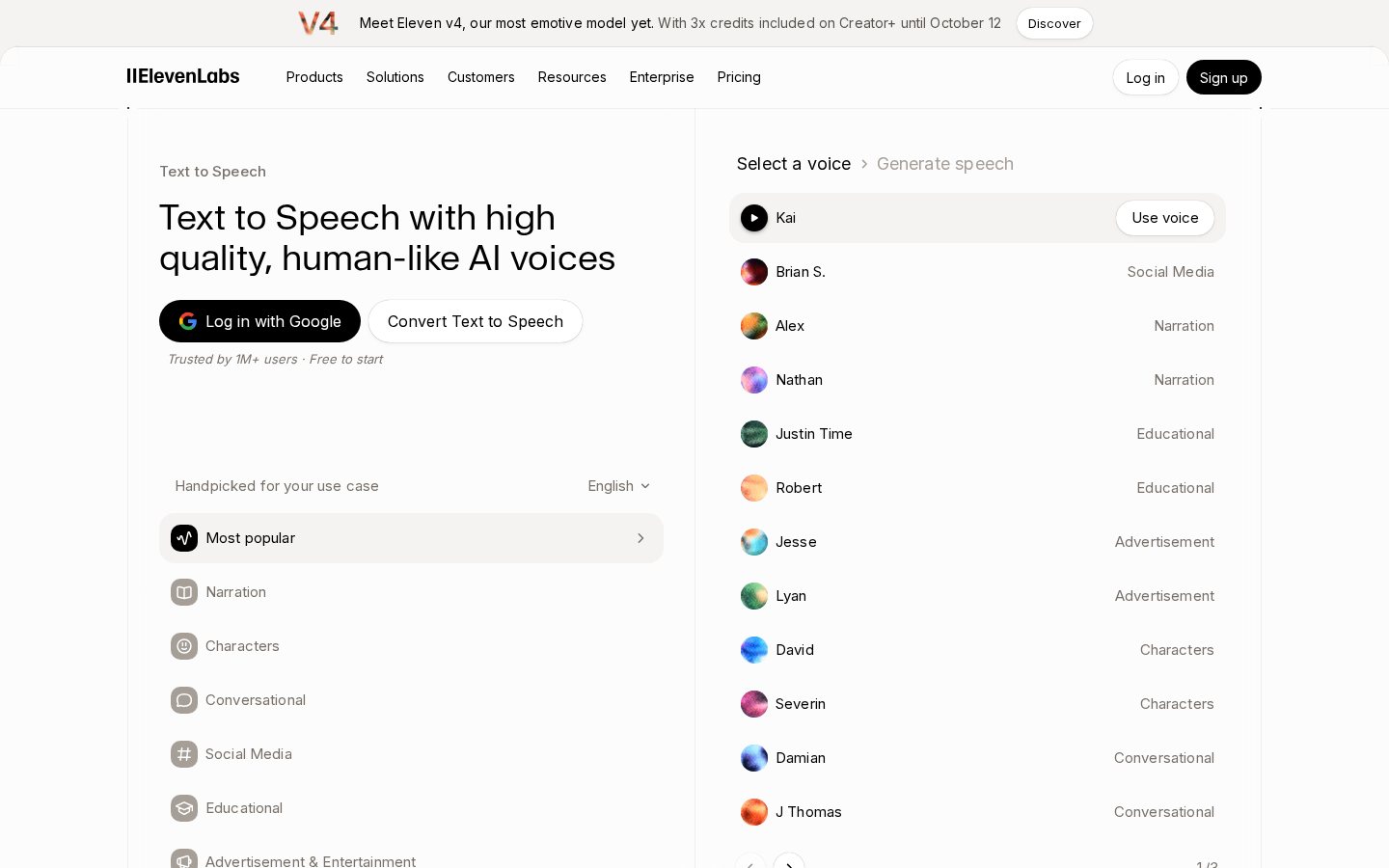
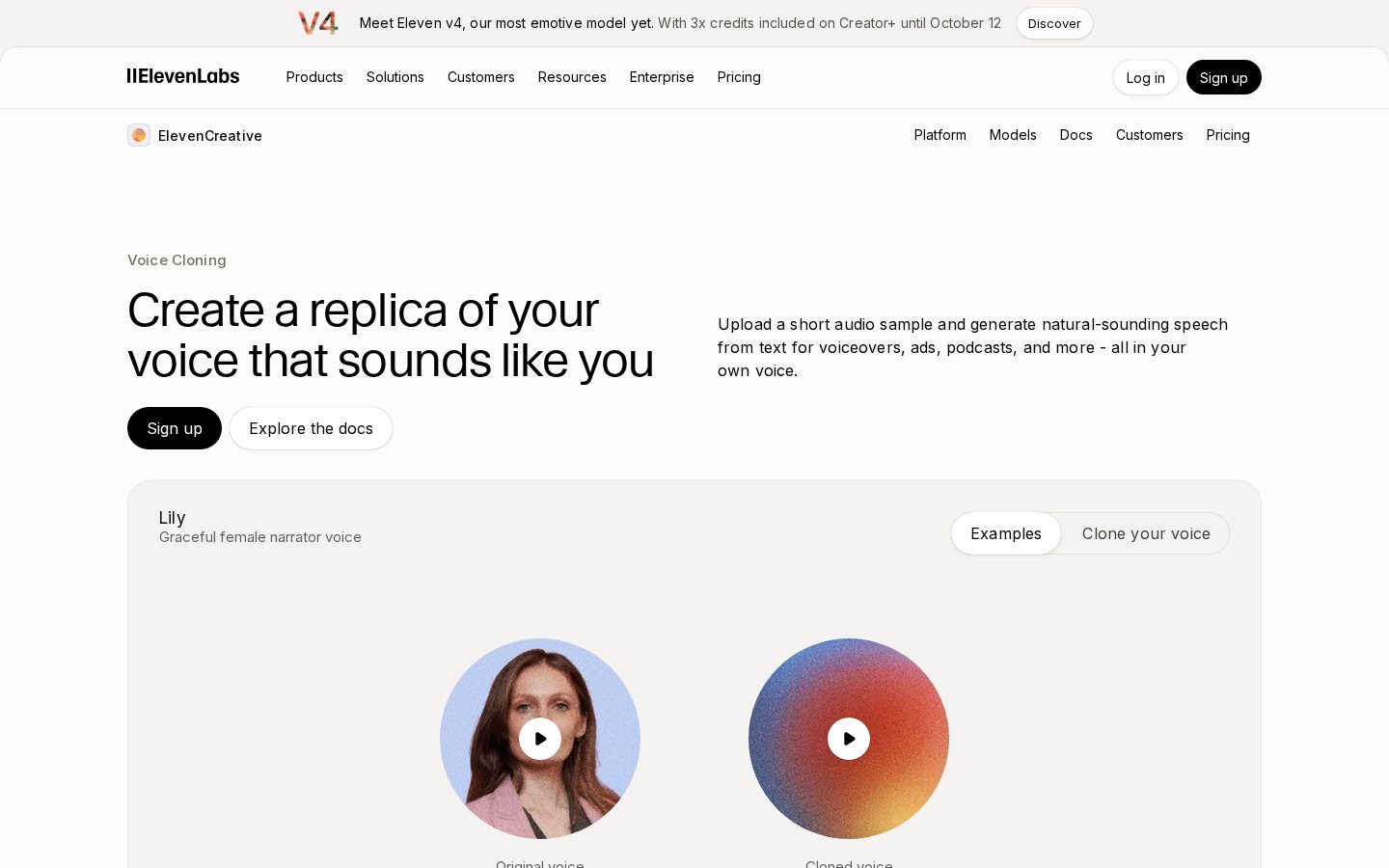
When creating a custom voice, the quality of your uploaded audio file dictates the final output. The most frequent error is uploading files containing background noise, echo, or multiple speakers. If the training data contains air conditioning hums, mouth clicks, or background music, the platform integrates these artifacts directly into the voice profile. To avoid these issues, always prepare your files in a dedicated audio editor before uploading. Apply a basic noise gate to remove silent gaps and ensure the speaker maintains a steady volume. If your source audio has uneven levels, use compression to smooth out the peaks and valleys before feeding it to the cloning tool. Ignoring file preparation leads to synthetic voices that whisper randomly, sound muffled, or fluctuate in volume. This mistake is especially common when attempting a Professional Voice Cloning setup, where high fidelity is paramount. Taking the extra time to clean your input files ensures a clean, natural-sounding output that retains the original speaker's true cadence.
The Voice Settings Dashboard
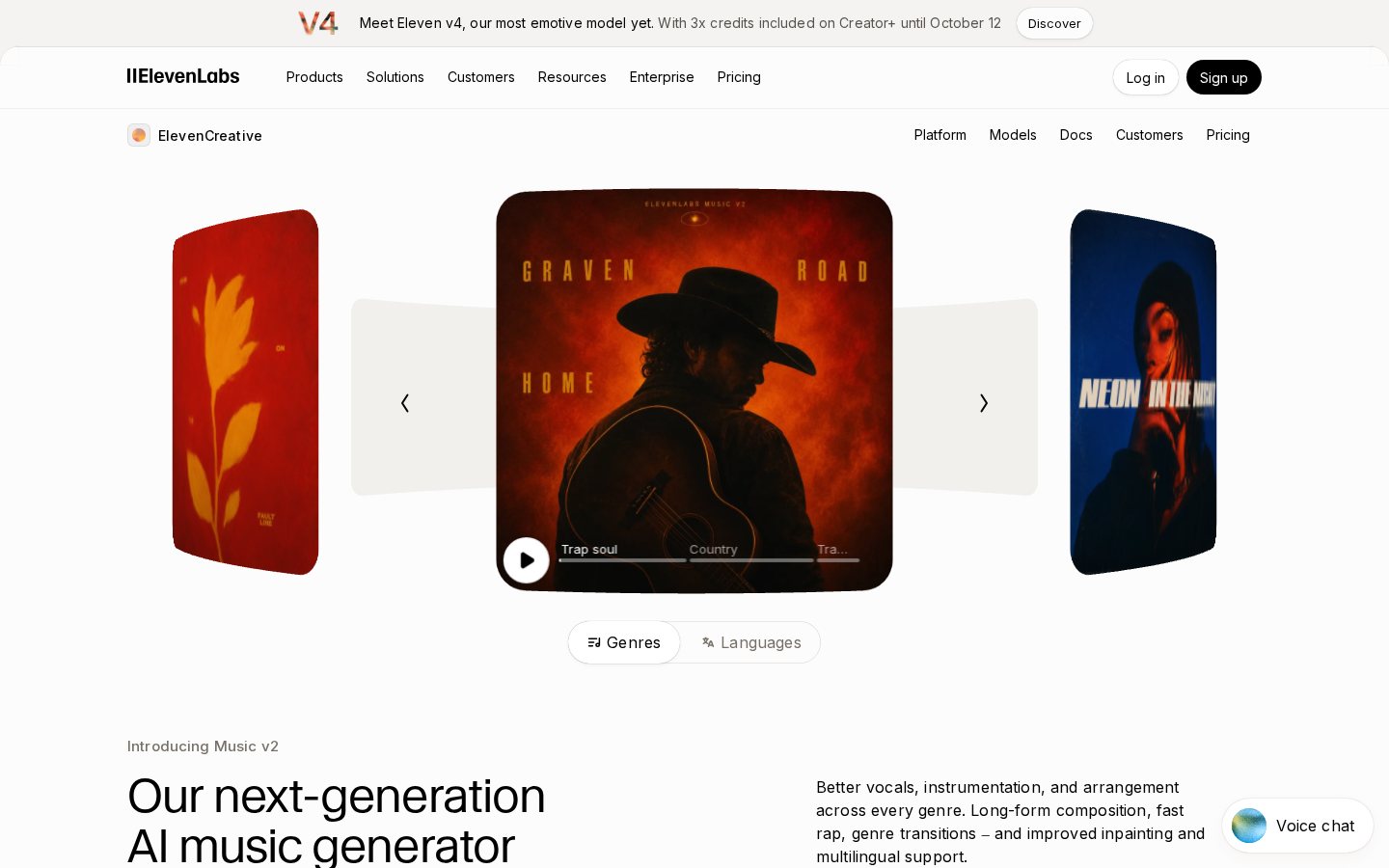
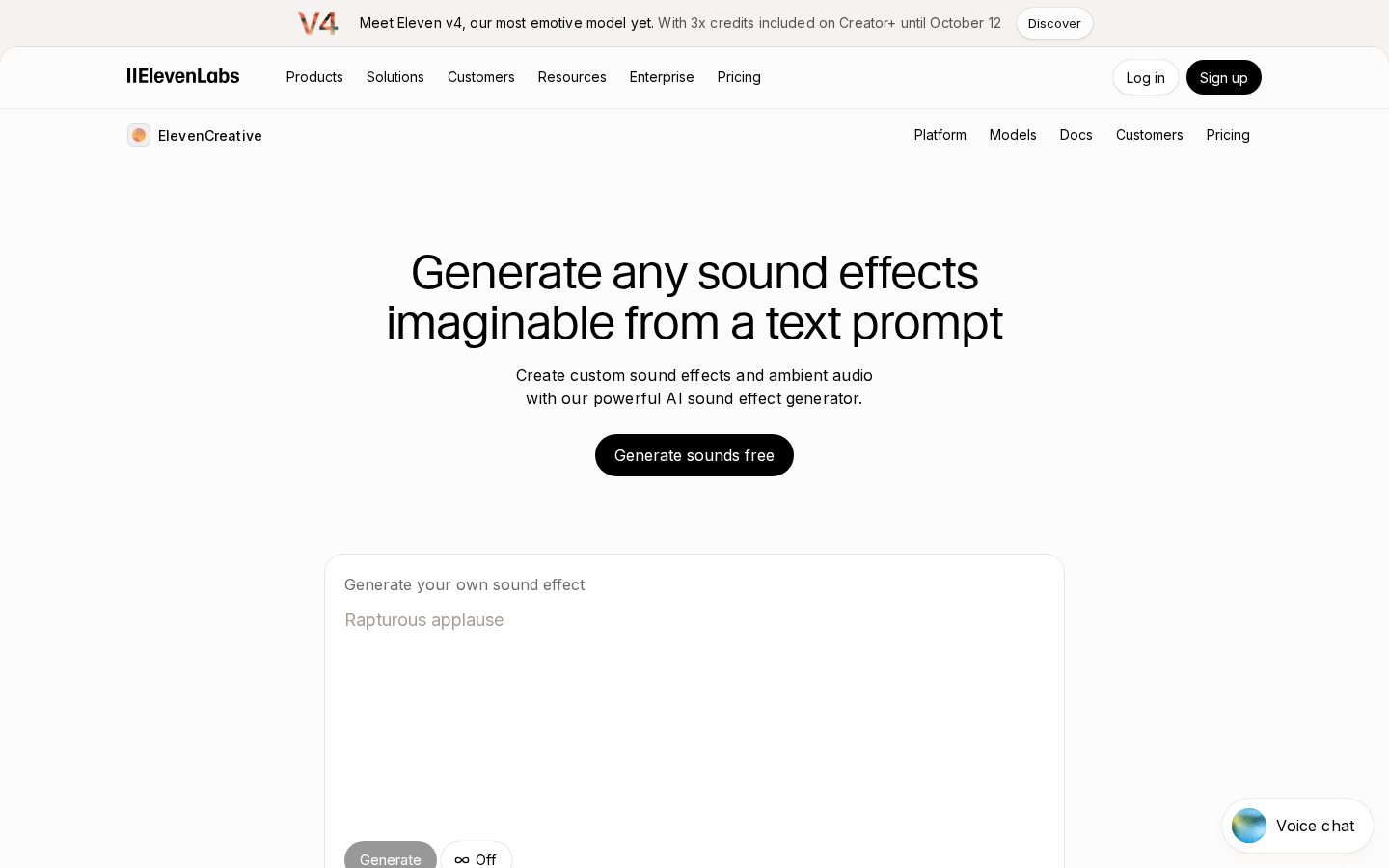
Once your voice is active, the adjustment sliders on the generation page control how the model reads your text. Setting the stability slider too high is a classic mistake that strip-mines all emotion from the generated performance. A stability setting near maximum forces the AI to speak in a monotone, robotic cadence that lacks natural human inflections. Conversely, setting stability too low makes the voice erratic and unpredictable. The AI may introduce random gasps, dramatic pauses, or sudden shifts in volume that ruin the flow of your narration. Finding the sweet spot requires fine-tuning, starting around the middle of the slider and making incremental adjustments. The clarity and similarity sliders also require careful handling. Cranking these to the maximum can introduce digital artifacts or harsh, metallic ringing tones. If your voice sounds over-processed, lowering the similarity threshold slightly will usually restore a warmer, more organic tone without losing the speaker's unique character.
The Model Selection Dropdown
Choosing the wrong synthesis model is a subtle error that frequently ruins foreign-language pronunciations or causes unwanted accent shifts. The dropdown menu offers various versions of both monolingual and multilingual engines. Many users default to the latest multilingual model even when generating simple English text, which can lead to unexpected results. Using a multilingual engine for English sometimes prompts the AI to adopt a slight European or British accent mid-sentence. If you are sticking to the dedicated English-only models for monolingual English projects, you ensure a more consistent regional accent. These models are highly optimized for localized speech patterns and carry less risk of phonetic confusion. For international projects, verify that your chosen model matches your target language's specific phonetic requirements. Some older engines lack deep support for complex syntax in non-English languages, resulting in awkward phrasing or literal, robotic pronunciations. Selecting the appropriate model first saves significant processing credits.
How to Fix Corrupt or Glitched Audio Outputs
Occasionally, the generation engine may produce a corrupted file characterized by muffled speech, strange digital static, or unnatural breathing sounds. These glitches often stem from a breakdown in how the AI interprets the preceding sentence or paragraph. Follow these specific steps to isolate and fix corrupt audio outputs in your workspace. 1. Identify the glitch. Locate the exact paragraph where the muffled or metallic sound begins. 2. Examine the preceding text. Check the paragraph immediately before the error for unusual formatting or missing punctuation. 3. Adjust the punctuation. Add a clean period or comma at the end of the previous paragraph to reset the AI context. 4. Tweak the slider settings. Move the stability slider up or down by five percent to force a fresh interpretation. 5. Regenerate the section. Click generate on the specific paragraph to render a clean, glitch-free audio segment. This logical troubleshooting sequence prevents you from wasting credits on entire document regenerations. Fixing the root context issue in the preceding block is usually all it takes to restore natural speech flow.
The Projects Editor Workspace
Processing massive blocks of text in a single generation is a highly inefficient approach that leads to severe degradation. When you paste thousands of words into the standard generation box, the AI struggles to maintain consistency over time. The model may begin to warp the voice, change accents, or completely stop speaking halfway through the file. For long-form content like audiobooks or long video scripts, utilize the dedicated Projects workspace. This interface is specifically designed to handle long texts by dividing them into manageable, individual paragraphs. It allows you to generate, preview, and adjust specific sections without having to re-render the entire document. Failing to use this structured approach costs significant time and platform credits. If a small error occurs at the end of a long, single-block generation, you are forced to pay for the entire text to be spoken again. Segmenting your text protects your budget and keeps the voice quality uniform from the first word to the last.
Selecting the Right Setup for Your Workflow
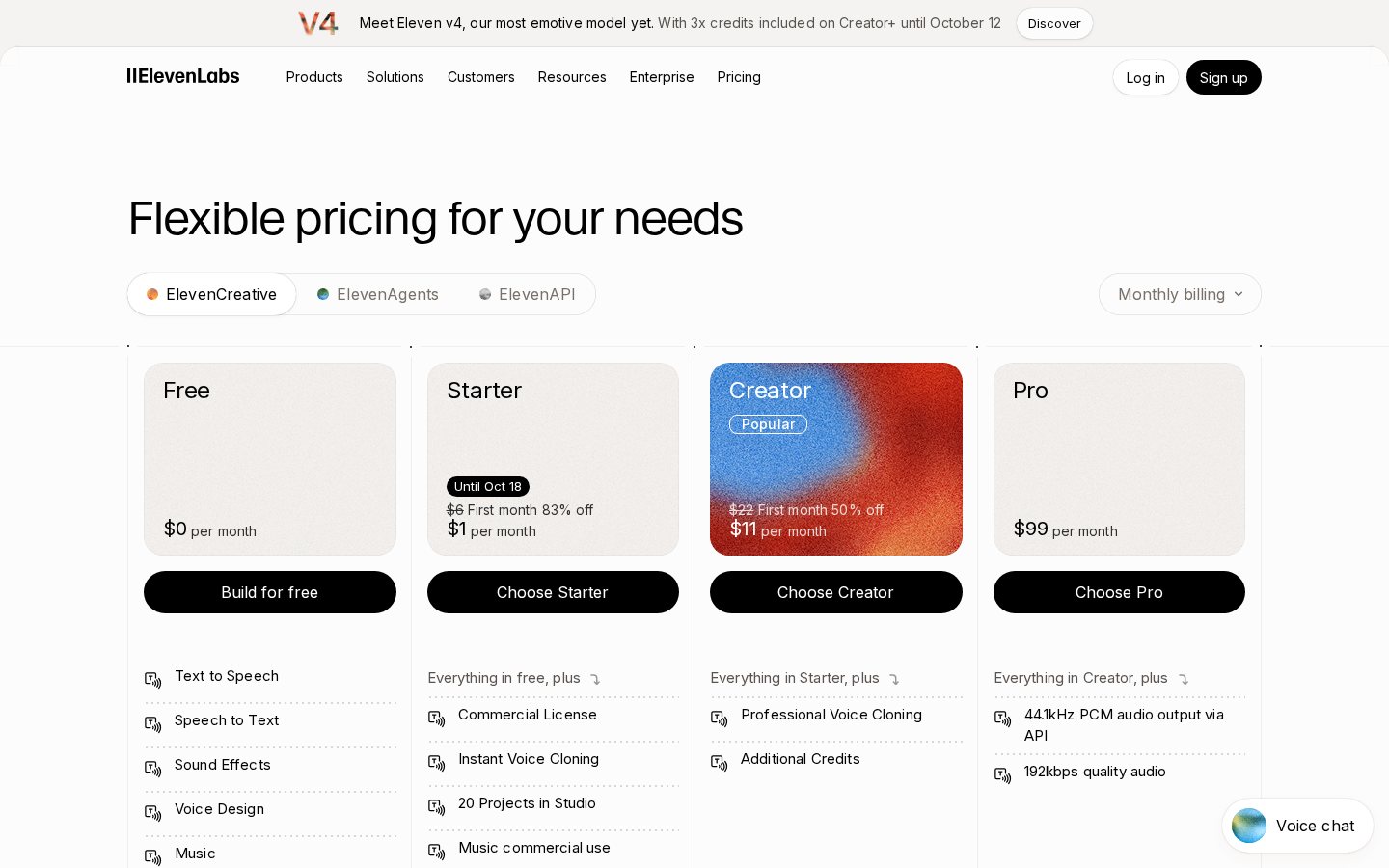
Choosing the wrong subscription level or feature set is another common pitfall. The platform offers distinct generation pathways: instant voice cloning, professional voice cloning, and pre-made voice options. Understanding which option fits your production pipeline determines your overall success. If your project requires absolute vocal consistency for long-form commercial work, instant voice cloning is often insufficient. It is highly sensitive to text context and can shift tones between generations. For serious commercial projects, upgrading to the professional tier—which trains a dedicated model on hours of clean studio recordings—is essential to maintain voice stability. For users on a tight budget or with casual needs, utilizing the curated library of pre-made high-quality voices is often smarter than attempting to clone your own voice with poor files. To help determine which tier matches your operational scale, you can consult our ElevenLabs Review: Pricing, Features and Limitations for a breakdown of costs and feature thresholds.
Frequently asked
Some links are affiliate links: we may earn a commission if you sign up or buy through them, at no extra cost to you. Affiliate disclosure