
Why Your Amazon Fire TV Keeps Restarting
An Amazon Fire TV may keep restarting because of an unstable power supply, a damaged cable, overheating, software trouble, or a connected accessory. Work through these fixes in order, starting with the power source.
This article is informational and does not place shopping buttons in the story. Related buying guides may include affiliate links.
As an Amazon Associate I earn from qualifying purchases. This does not affect the price you pay. Affiliate disclosure
On this page10 sections
- 1The short answer
- 2Why does my Amazon Fire TV keep restarting?
- 32. Perform a complete power cycle
- 43. Check HDMI connections, accessories, and heat
- 54. Update Fire TV software and troubleshoot apps
- 65. Test the remote and device-control settings
- 76. Factory-reset the Fire TV as a last resort
- 8When to seek support or consider replacement
- 9Frequently asked
- 10Sources
The short answer
- Power a Fire TV streaming device from its supplied wall adapter rather than a TV USB port.
- Disconnect the device, let it cool, and reconnect only the essential cables before testing it again.
- Install available Fire TV software updates if the device remains on long enough to reach Settings.
- Use a factory reset only after less disruptive fixes fail because it removes apps, settings, and account information.
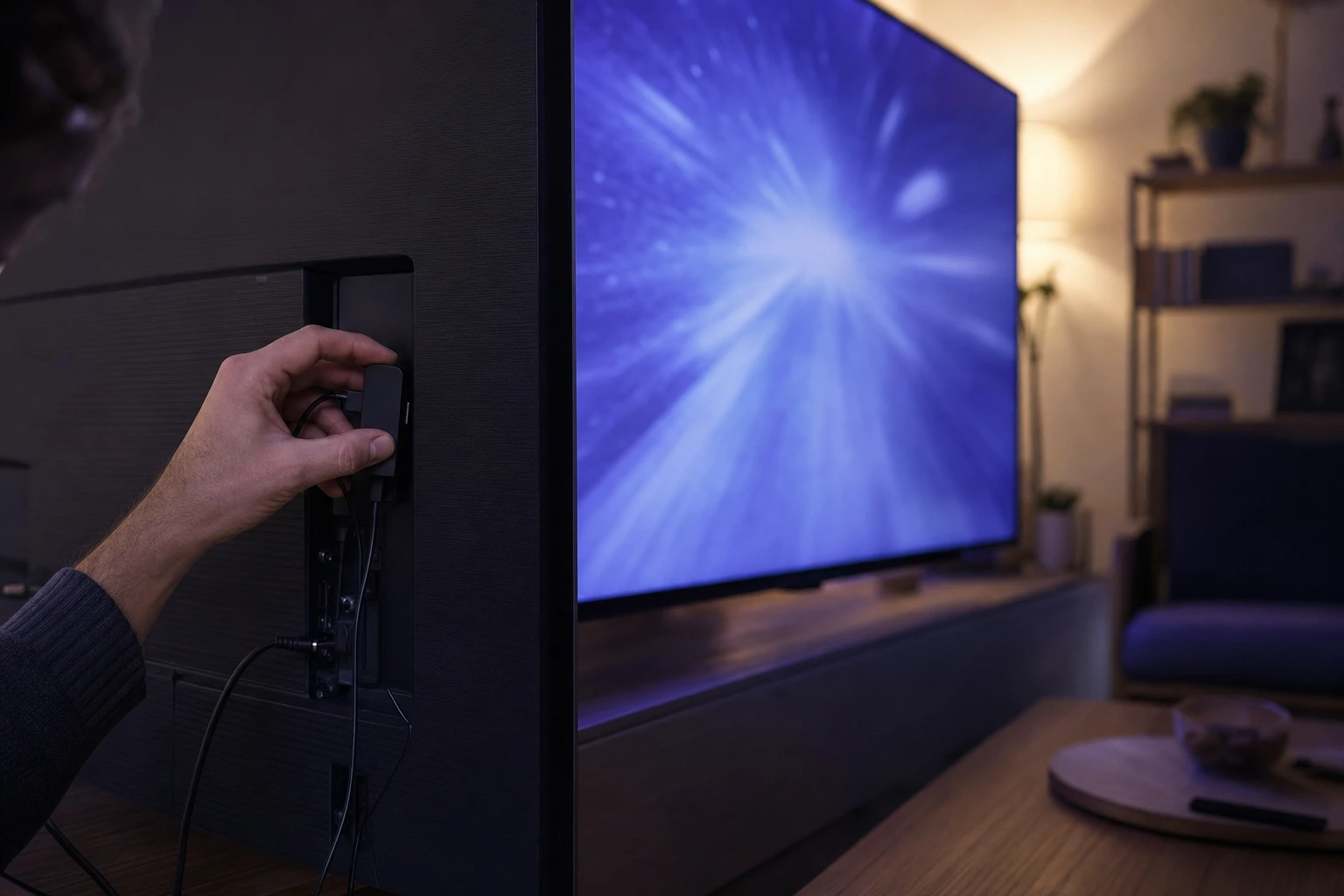
Your Amazon Fire TV or Fire TV Stick may keep restarting because it has an unstable power supply, a faulty cable or adapter, too much heat, a software problem, or interference from connected equipment. Start by using the supplied power adapter in a wall outlet, then restart the device and check its cables, ventilation, updates, and accessories.
Why does my Amazon Fire TV keep restarting?
Insufficient or interrupted power is a common reason a Fire TV streaming device repeatedly reboots. If a Fire TV Stick is powered through the television’s USB port, move its power cable to the adapter supplied with the device and plug that adapter into a wall outlet. A TV’s USB port may not provide the power the streaming device requires consistently.
Inspect the USB power cable and adapter for looseness, bent connectors, fraying, or other visible damage. Disconnect and firmly reseat both ends. If the restart loop continues, test a different working wall outlet. You can also remove a power strip or extension lead from the setup temporarily to rule it out.
Use the supplied cable and adapter where possible. If either part appears damaged, replace it with a compatible component that meets the device’s power requirements. Do not assume that any spare phone charger is suitable, because adapters can provide different outputs.
For a Fire TV smart television rather than a separate stick or box, unplug the TV’s power cord from the outlet and check that it fits securely at both ends, if the cord is detachable.
2. Perform a complete power cycle
A power cycle is more thorough than switching the device off and on with the remote. Unplug the Fire TV device from power. For a streaming stick or box, also disconnect it from the television’s HDMI port. Wait about one minute, then reconnect it to HDMI and power. Turn on the television, select the correct input, and allow the Fire TV time to start without repeatedly pressing remote buttons.
This process clears a temporary state that may be causing the device to restart. It also gives you an opportunity to reseat every connection. If the device remains stable after the power cycle, continue using it and watch for a pattern, such as restarts occurring only when a particular app opens.
If it immediately enters the same loop, repeat the test with a different wall outlet. For a Fire TV smart television, unplug the entire television, wait, reconnect it directly to a working outlet, and turn it back on. Test one change at a time so you can identify which step affects the problem.
 See the picks in our buying guide
3. Check HDMI connections, accessories, and heat
For a Fire TV Stick or Fire TV box, remove and reconnect the device at the HDMI port. If the connection is cramped behind the television, use the HDMI extender supplied with compatible models. You can also try another HDMI input to rule out a loose or malfunctioning port. A lost video signal does not always mean that the Fire TV itself rebooted, so note whether you see the Fire TV startup logo or only a brief black screen.
Disconnect nonessential HDMI and USB accessories while troubleshooting, including hubs, external storage devices, soundbars, game consoles, and HDMI switches. Then test the Fire TV by itself. If it becomes stable, reconnect accessories one at a time until the problem returns.
Heat can also contribute to repeated restarts. Make sure the device is not covered, pressed against a heat source, or enclosed without airflow. Disconnect it and let it cool before testing again. Do not place the streaming device on top of other warm electronics. If it works while cool but begins restarting after it heats up, improve its ventilation and check whether the behavior continues.
4. Update Fire TV software and troubleshoot apps
If the Fire TV stays on long enough to use its menus, check for a software update. The wording varies by model and software version, but the option is generally under Settings, then My Fire TV or Device & Software, followed by About and Check for Updates. Keep the device connected to reliable power while an update downloads and installs. Do not unplug it during installation.
If restarts happen only when you open one app, focus on that app rather than resetting the entire device immediately. Open Settings, choose Applications, select Manage Installed Applications, and choose the affected app. Try Force Stop and Clear Cache, then reopen it. Clearing the cache removes temporary files but should not remove the app itself.
If that does not help, clear the app’s data or uninstall and reinstall it. Clearing data signs you out and removes that app’s local settings, so make sure you can sign in again. Also remove apps you no longer use if storage is nearly full. Menu labels can differ, but the aim is to update the system and isolate any app associated with the restarts.
5. Test the remote and device-control settings
A stuck remote button or unintended command can sometimes look like a device fault. Remove the remote’s batteries for a short test and use the Fire TV mobile app as a remote if it is already available and connected. Check that the physical buttons are not jammed. If the restart behavior stops with the batteries removed, replace the batteries and inspect or replace the remote.
Connected-device controls may also complicate troubleshooting. HDMI-CEC allows televisions and attached equipment to exchange commands such as power and input changes. Its name varies by television brand. If the system appears to switch off, change inputs, or restart when another device is used, temporarily disable HDMI-CEC in the television and Fire TV settings, then test again.
This is not the first step for a clear boot loop, but it is useful after power and software checks. Keep HDMI-CEC disabled only if testing shows that it matters, since turning it off also removes convenient features such as controlling several devices with one remote.
6. Factory-reset the Fire TV as a last resort
If the Fire TV continues restarting after you have checked power, cables, heat, accessories, updates, and apps, a factory reset is the final software step. A factory reset erases installed apps, account information, preferences, and other local data. You will need to set up the device and sign in again.
If you can reach the menus, go to Settings, open My Fire TV or Device & Software, and choose Reset to Factory Defaults. Confirm the reset and leave the device connected to power while it completes. On many Fire TV streaming devices, you can also press and hold Back and the right side of the navigation ring on the remote for about 10 seconds to bring up the reset prompt. Remote shortcuts and menu names can vary by model.
Do not repeatedly factory-reset a device that cannot remain powered. Recheck the adapter, cable, outlet, and ventilation first. If the Fire TV still reboots during initial setup with only essential connections attached, the device may need service or replacement. If you are considering a television with Fire TV built in, compare the options in our guide to Amazon Ember TV models, but replacement should follow troubleshooting rather than substitute for it.
When to seek support or consider replacement
A Fire TV that restarts during initial setup, while connected directly to a known working wall outlet and with nonessential accessories removed, may have a hardware fault. Before seeking support, note the model, what appears on screen, how long the device remains on, and which power supplies, outlets, HDMI ports, or cables you tested. Those details can help distinguish a reboot from a display-signal problem.
For a Fire TV smart television, check the television maker’s support and warranty options. For a Fire TV Stick or box, contact the appropriate device support service. Avoid opening the casing or using visibly damaged electrical parts. If repair is not practical and you want a television with the platform built in, the Amazon Ember TV buying guide explains the related model choices without replacing the troubleshooting steps above.
Frequently asked
Sources

As an Amazon Associate I earn from qualifying purchases. This does not affect the price you pay. Affiliate disclosure