Get Started with Murf AI as a Beginner: Quick Guide
Create realistic voiceovers in the Murf AI Studio by configuring your text script, picking the right voice actor, and adjusting pronunciation settings.

Some links are affiliate links: we may earn a commission if you sign up or buy through them, at no extra cost to you.
On this page8 sections
- 1The short answer
- 2How to Get Started with Murf AI as a Beginner in the Studio
- 3Choosing and Filtering AI Voice Actors
- 4Writing and Structuring Your First Script
- 5Fine Tuning Voice Customization Controls
- 6Step-by-Step Guide to Creating Your First Audio File
- 7Which Murf AI Plan or Option Should You Pick?
- 8Frequently asked
The short answer
- Create a free account to access the Murf Studio and experiment with the voice library.
- Type or paste your script into individual text blocks for easier timing and voice customization.
- Adjust pitch, speed, and pronunciation settings to make the synthetic voice sound natural and professional.
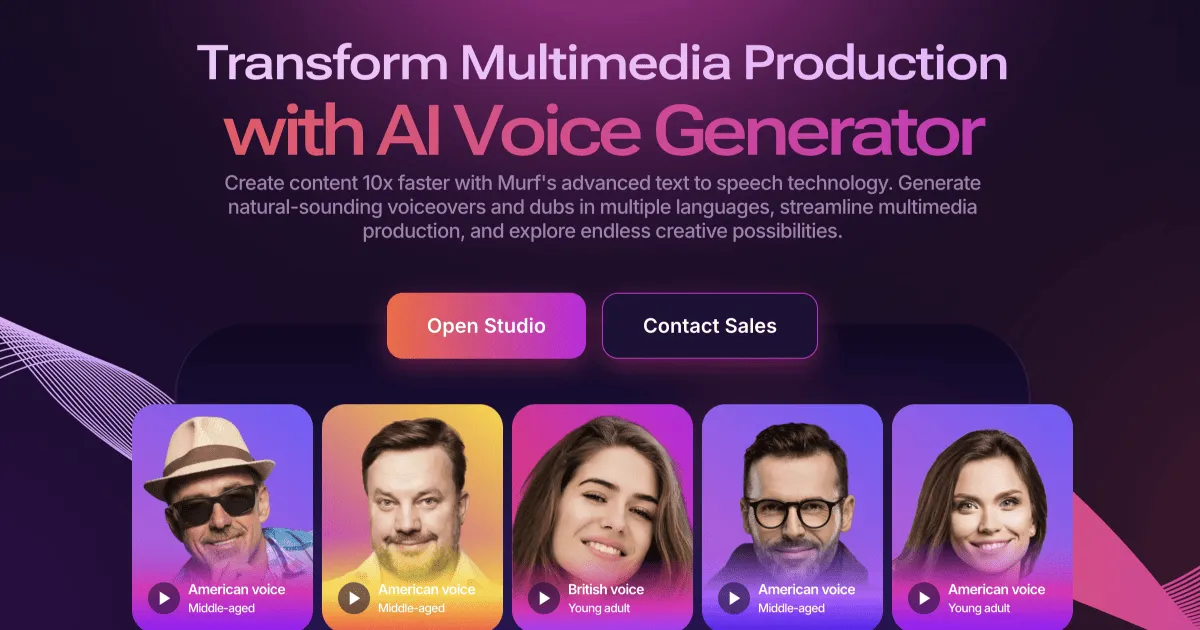
To get started with Murf AI as a beginner, create a free account, open a new studio project, input your script into the modular text blocks, assign a synthetic voice, and hit render. This browser-based platform converts raw text into clear spoken audio without requiring technical audio engineering skills or desktop installations.
How to Get Started with Murf AI as a Beginner in the Studio
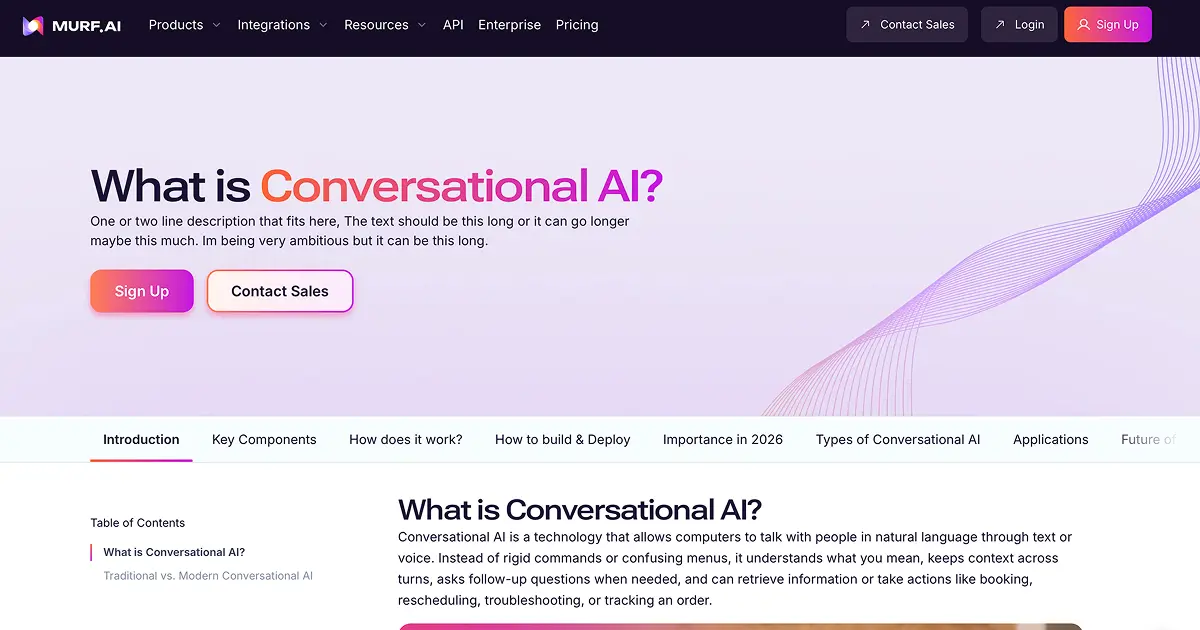
When you first log in to the platform, your journey begins by navigating the central project dashboard. This user-friendly screen displays your active folders, previous drafts, and a prominent button to create a new project. Selecting this button prompts you to name your file and choose whether you want to produce a standalone audio file or map your audio directly to a video timeline. The workspace itself is divided into three primary zones to keep your editing process highly organized. The left-hand sidebar holds your primary asset library, which contains the voice selector, stock music tracks, and media upload options. The central area of the screen is occupied by the text editor, where you will input your script. At the bottom of the screen, a simplified timeline displays how your spoken blocks align with your uploaded visuals or background music. Familiarizing yourself with this layout is essential because Murf operates entirely online. Instead of downloading heavy desktop software, all editing and voice synthesis tasks happen within this single browser tab. Beginners can quickly review our in-depth Murf AI Review 2026: Pricing, Voices and Who It's For to see how this workspace compares to alternative tools.

Choosing and Filtering AI Voice Actors
Once your project is open, your next step is selecting the right voice for your content. Clicking on the active voice avatar opens the primary selector window. Because the software offers hundreds of options, filtering the global voice library by age group, gender, language, and specific use case is the fastest way to narrow down your choices. The interface allows you to search for voices categorized by tone, such as conversational, authoritative, or energetic. Every voice card features a play button, allowing you to sample short phrases before applying the voice to your text blocks. This prevents you from wasting time rendering audio with a voice that does not match your project's desired mood. You can assign different voices to different text blocks within the same project. This multi-voice capability is useful for creating simulated conversations, podcasts with multiple guests, or instructional training videos where a narrator and a character speak back-to-back. It adds a layer of depth to your creative productions without requiring separate recordings.

Writing and Structuring Your First Script
Inputting your content in Murf is different from using a standard word processor. The system divides your script into distinct text blocks, with each block representing a separate sentence or logical pause in your audio. We recommend structuring your script into short paragraphs before you import or type it to ensure smooth natural pacing. You can type directly into the empty blocks in the center of your screen or copy and paste text from an external document. If you paste a large body of text, Murf will ask if you want to split the paragraphs automatically by punctuation. Accepting this automatic split makes it much easier to edit individual sentences later on. Pay close attention to how you write out numbers, acronyms, and abbreviations within your text blocks. While the AI engine is highly advanced, spelling out specific terms or using hyphens can significantly improve how the synthetic voice interprets your written words during the rendering stage. These minor adjustments prevent awkward pronunciation glitches and preserve clean vocal cadence across all project segments.

Fine Tuning Voice Customization Controls
To make your generated voiceover sound like a professional recording, you must utilize the fine-tuning options situated directly above your text blocks. These parameters allow you to adjust the vocal delivery of the AI model. Specifically, adjusting the speed and pitch sliders allows you to customize the energy level and urgency of the narration to match your background track. The phonetic spelling tool is another critical feature for beginners who want clean results. If the AI mispronounces a brand name, technical jargon, or a foreign word, you can click on the word and enter an alternative phonetic spelling. You can also save these custom pronunciations to a global dictionary so that the software remembers them. Additionally, you can insert manual pauses between words or sentences to manage flow. The interface features a dedicated pause button with preset lengths, such as half-second or one-second increments, as well as a custom duration input field. Adding silent intervals gives your listeners time to absorb complex or technical information smoothly.
Step-by-Step Guide to Creating Your First Audio File
Setting up your studio workspace and synthesizing natural audio for the first time is a highly structured task. Following a logical order of operations ensures you do not overlook crucial customization tools, voice settings, or final export configurations. This orderly approach saves processing credits and reduces editing mistakes. Managing your synthesis credits wisely during this process will save you substantial development time and prevent accidental consumption of your monthly limits. You should preview individual blocks before initiating a complete render of the entire script, which helps verify the vocal cadence, pronunciation, and emphasis beforehand. Launch a new project, paste your script lines into separate blocks, select an actor profile, adjust the delivery rate, and render individual segments to audit quality. Once satisfied, click the export button to generate the master file. After downloading your synthesized files, you can immediately use them in your creative presentations or video editors. If you notice any awkward pauses or pronunciations in the downloaded track, you can easily return to the project editor to modify the specific line block and regenerate only that section of the timeline.

Which Murf AI Plan or Option Should You Pick?
When deciding how to move forward with this platform, your choice of subscription level or alternative tools will depend heavily on your production scale and requirements. The free version serves as an excellent sandbox for learning the controls, but it does not permit downloads or commercial application of the generated voices. If you are a solo hobbyist, the entry-level options give you access to a solid selection of essential voices and basic parameters. However, professional creators, educators, and businesses will need to look at higher tiers that offer full commercial rights and collaborative workspace tools. We recommend assessing your monthly audio usage in terms of total generated minutes before committing to a paid plan. To explore license details, voice limitations, and export capabilities, examine the comprehensive Murf AI Review 2026: Pricing, Voices and Who It's For before finalizing your production setup.

Frequently asked
Some links are affiliate links: we may earn a commission if you sign up or buy through them, at no extra cost to you. Affiliate disclosure