How Do Fireflies.ai Credits and Usage Limits Work?
Understand how transcription minutes and AI credits are calculated in Fireflies.ai, and learn how to manage your team limits to avoid mid-month service pauses.

Some links are affiliate links: we may earn a commission if you sign up or buy through them, at no extra cost to you.
On this page8 sections
- 1The short answer
- 2Understanding the Fireflies Credits System
- 3Free vs Paid Plan Transcription Boundaries
- 4How to Track Your Monthly Consumption
- 5The Difference Between Standard and AI Credits
- 6How to Manage Meeting Settings to Conserve Limits
- 7Choosing the Right Tier: Which One Should You Pick?
- 8Frequently asked
The short answer
- Transcription minutes and AI credits are tracked as two completely separate usage pools.
- Unused limits do not roll over to the next billing cycle.
- Autojoin settings must be configured properly to avoid wasting your monthly allotments.
Fireflies.ai limits your usage based on monthly transcription minutes and separate AI credits allocated to your workspace. Unused standard transcription minutes do not roll over to the next month, and advanced features like AI-driven summaries and queries draw from a separate pool of monthly credits.
Understanding these caps prevents unexpected service interruptions during critical team meetings. Since different subscription tiers offer varying levels of access, knowing how the platform counts your meeting audio ensures you only pay for what your team actually needs. Let's unpack how these usage policies operate across different workflows.
The quick version
- Open your dashboard
- Select the settings option
- View the usage bar
- Review the AI credit meter
- Check the reset date
Understanding the Fireflies Credits System
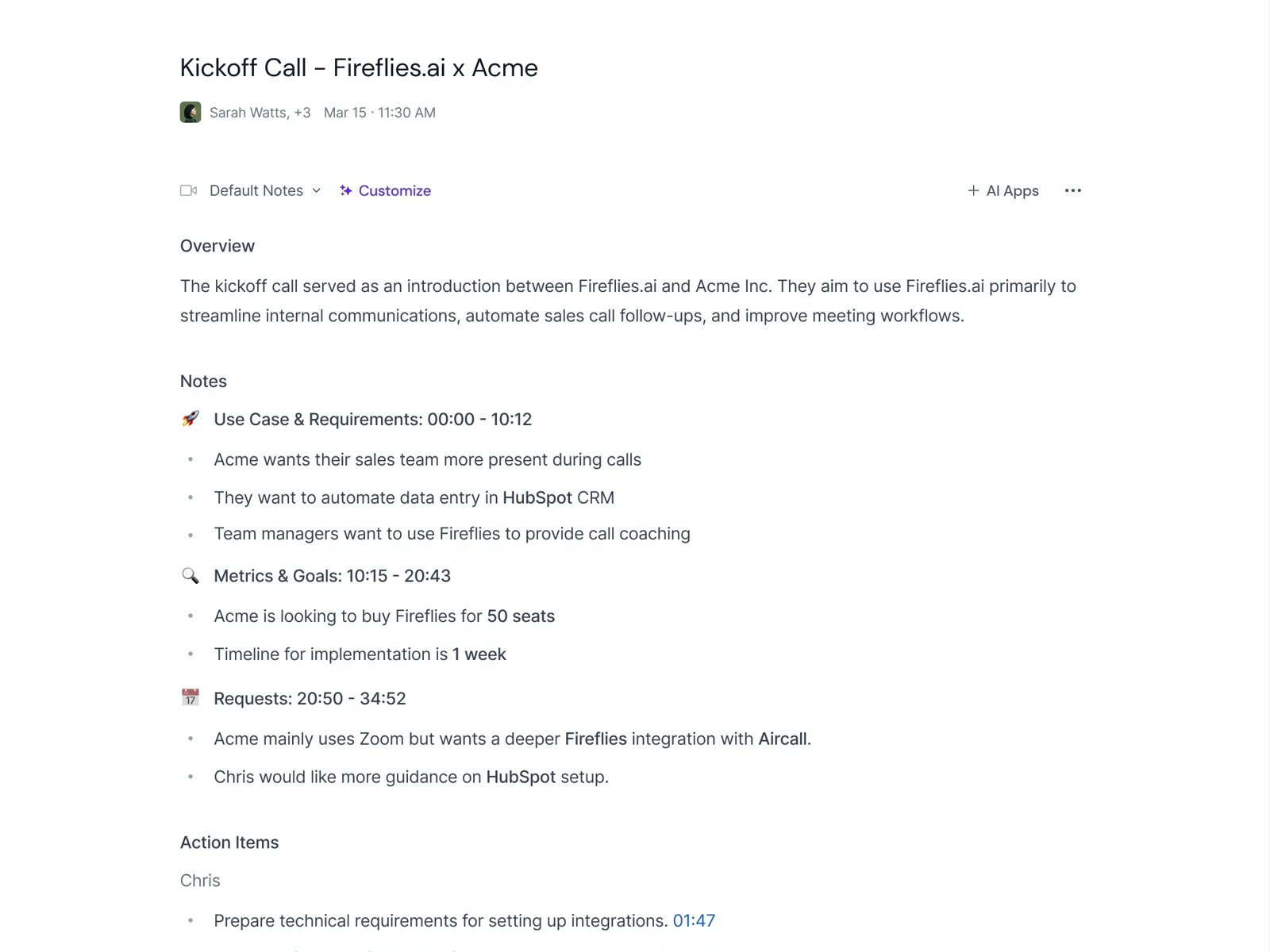
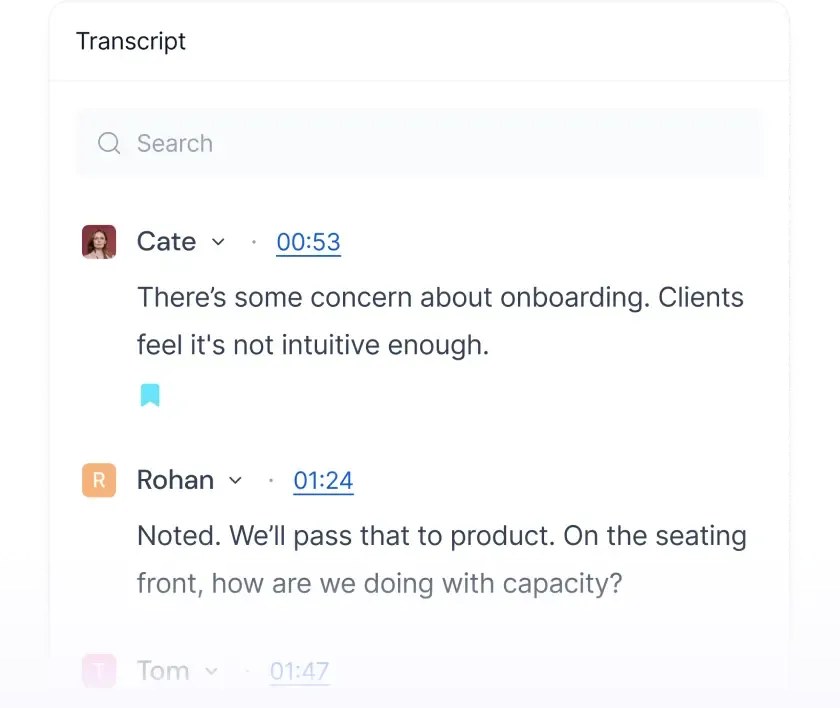
Every meeting processed by the software consumes resources from two distinct buckets: basic recording minutes and specialized AI computational points. When the meeting assistant joins your Zoom, Microsoft Teams, or Google Meet call, it tracks the total duration of the audio feed. This duration is directly deducted from your monthly allowance of transcription minutes, which serves as the foundational limit for all users.
Once the audio is transcribed into text, the platform uses a separate system of AI credits to power its advanced summarization and search capabilities. These credits represent the processing power needed to run complex language models that extract action items, generate meeting overviews, or answer custom questions.
While standard transcription happens automatically during the recording process, AI features require manual or automatic triggers that draw down your specialized credit balance. If your workspace runs out of these credits, the basic text transcript remains available, but the advanced intelligence features pause until the next billing cycle begins.
Free vs Paid Plan Transcription Boundaries
The free tier of the software is designed for casual users who need basic documentation of occasional meetings. Under this plan, you receive a restricted number of transcription minutes and lifetime storage. Once you exceed this threshold, the assistant will no longer join your calendar events or process uploaded audio files, requiring you to wait for the monthly reset or transition to a paid subscription.
Paid tiers remove these strict caps on basic recording, allowing you to capture as many hours of audio as your team generates. In our Fireflies.ai Review 2026: Pricing, Free Plan and Who It's For, we highlight how these paid options transition users to an unlimited transcription model. However, even on paid plans, the separate AI credit limits still apply, restricting how many times you can run advanced prompts.
On premium tiers, the system grants a generous monthly allotment of AI tokens per user. These tokens are shared across the workspace, meaning active users might consume the collective pool faster if they run multiple automated summaries daily. Monitoring this shared pool is essential for larger teams operating on collaborative workspaces.
How to Track Your Monthly Consumption
Checking your current usage metrics inside the dashboard helps you avoid mid-month service pauses. The platform provides a centralized billing and usage interface that shows exactly how many transcription minutes and AI credits remain in your active cycle. Follow these steps to monitor your team's consumption:
- Open your dashboard. Navigate to the main menu on the left side of your screen.
- Select the settings option. Click on the billing or account settings tab to open your workspace parameters.
- View the usage bar. Locate the visual indicators that display your consumed minutes versus your total monthly allowance.
- Review the AI credit meter. Look below the transcription section to see how many Ask Fred or custom prompt credits remain.
- Check the reset date. Note the specific day of the month when your limits automatically renew to plan your upcoming meetings.
The Difference Between Standard and AI Credits
It is vital to distinguish between standard transcription processing and the computational power required for AI analysis. Standard transcription translates spoken words into written text using speech-to-text models. This process only consumes your standard minute allotment and does not impact your AI credit balance, allowing you to keep basic written logs of all discussions.
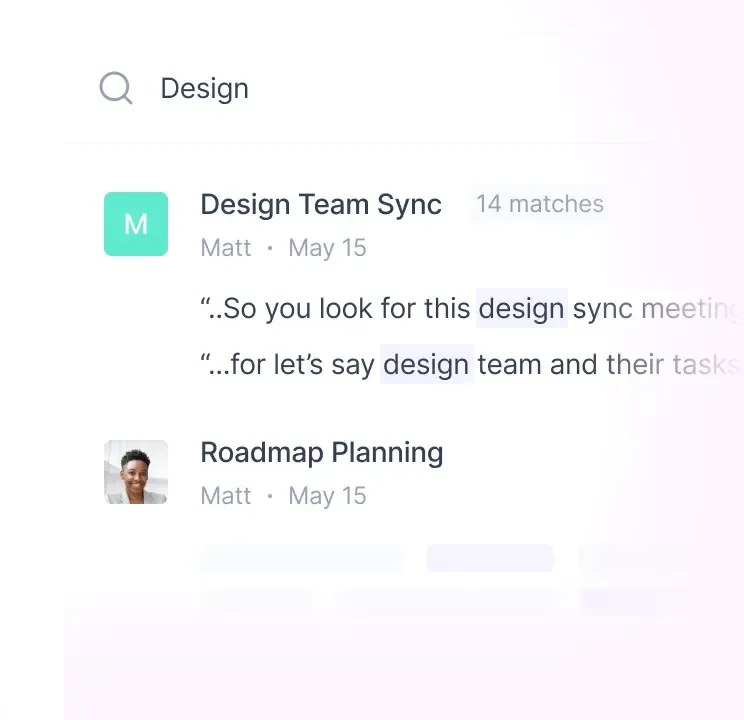
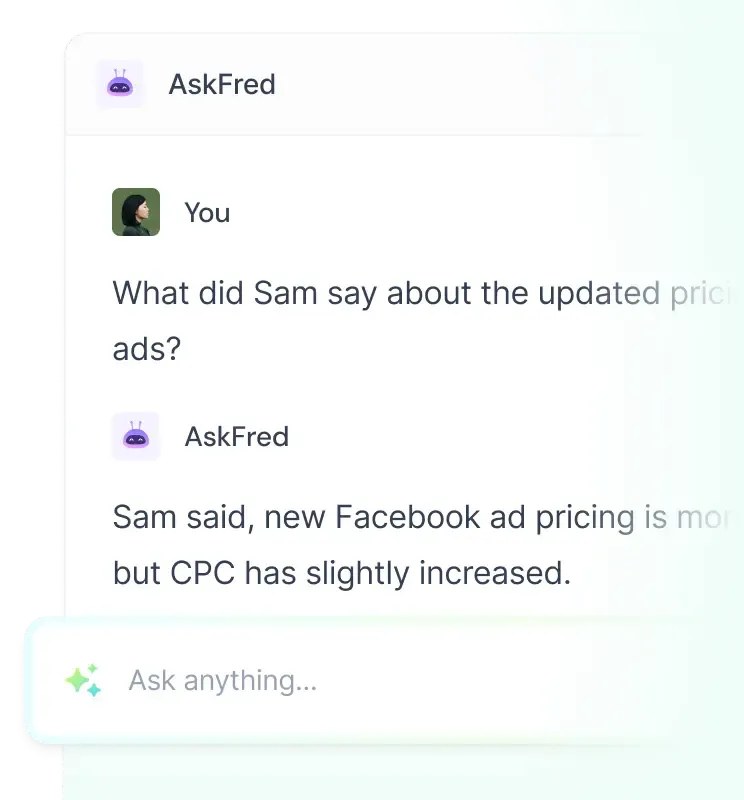
Conversely, AI credits are consumed whenever you query the assistant or generate customized meeting summaries. For instance, when you use the Ask Fred search bar to ask a question about what a client said, each query represents a distinct transaction that lowers your credit count. Similarly, running custom topic trackers or automated department summaries draws from this exact same pool.
Because these operations use advanced, resource-intensive language models, the platform enforces strict limits to manage server loads. Understanding this boundary allows teams to record every meeting for compliance while reserving their premium AI credits for high-value strategic sessions where deep analysis is actually required.
How to Manage Meeting Settings to Conserve Limits
To prevent your limits from draining on casual chats or internal standups, you must configure your autojoin settings correctly. By default, the software might attempt to join every single meeting on your linked Google or Outlook calendar. This automatic behavior can quickly deplete your transcription limits on irrelevant calls, calendar blocks, or personal appointments.
Within your account preferences, you can restrict the bot so it only joins meetings that you explicitly invite it to, or meetings where you are the host. You can also set rules to exclude internal company calls entirely, reserving your transcription hours for client-facing consultations or design reviews. Taking control of these settings prevents the bot from lurking in empty virtual rooms.
Additionally, you can manage consumption by using manual audio uploads instead of live bot joining. If you only need a portion of a lengthy training session transcribed, you can record the relevant segment locally and upload the file directly. This strategy ensures you only consume minutes for the precise audio segments you need to analyze.
Choosing the Right Tier: Which One Should You Pick?
Selecting the appropriate tier depends on your weekly meeting volume and how heavily you rely on automated summaries. For freelancers or solo practitioners who only need occasional text records of their calls, the basic free tier offers sufficient access without any financial commitment. This option is ideal if you do not mind manual management and basic search functions.
For growing teams that conduct multiple hours of meetings daily, a paid tier with unlimited transcription minutes is almost always necessary to avoid mid-month shutoffs. This option removes the anxiety of tracking call durations, allowing you to document every conversation automatically. You can read more about how these limits scale in our comprehensive Fireflies.ai Review 2026: Pricing, Free Plan and Who It's For.
If your workflow relies heavily on customized prompt templates, automated workflows, and frequent conversational queries with the AI assistant, look for a premium tier that offers a high volume of monthly AI credits. Having a larger pool of these credits ensures your team can run continuous search queries and complex automated integrations without hitting a usage wall.
Frequently asked

Some links are affiliate links: we may earn a commission if you sign up or buy through them, at no extra cost to you. Affiliate disclosure