
Choose the Right Portable Monitor for Your Setup
Choose the right portable monitor by checking device ports first, then comparing screen size, weight, panel type, resolution, power needs and stand design.
This article is informational and does not place shopping buttons in the story. Related buying guides may include affiliate links.
As an Amazon Associate I earn from qualifying purchases. This does not affect the price you pay. Affiliate disclosure
On this page9 sections
- 1The short answer
- 2How to Choose the Right Portable Monitor Connection
- 3Select the Best Screen Size and Weight
- 4Evaluate Panel Technology and Resolution
- 5Verify Device and Operating-System Compatibility
- 6Compare Power Delivery and Pass-Through Charging
- 7Check the Stand, Controls and Everyday Usability
- 8Match Portable Monitor Specs to Your Needs
- 9Frequently asked
The short answer
- Check your laptop ports for USB-C DisplayPort Alt Mode before choosing a single-cable monitor.
- Choose a fifteen-inch screen for a balance of workspace and portability in most travel bags.
- Opt for an IPS panel to ensure wide viewing angles when sharing screens with others.
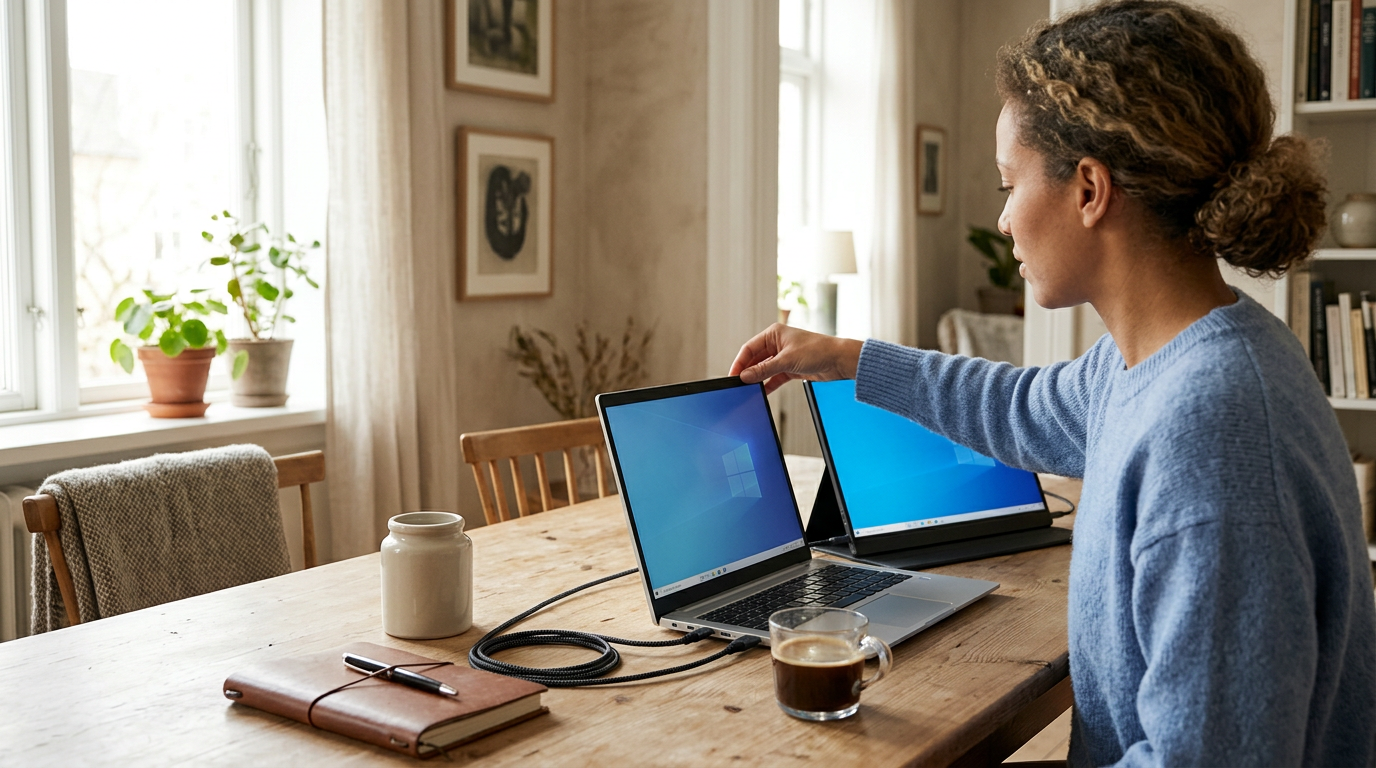
To choose the right portable monitor, first confirm which video outputs your laptop, tablet or phone supports. Then select a screen size and weight that suit your bag and workspace, an IPS panel and resolution appropriate for your work, and a power setup that will not complicate travel. Check the stand and cables before deciding.
Whether you are a remote worker setting up in a local café, a photographer editing photos on location, or a presenter sharing slides with a client, an extra screen can double your productivity. However, choosing the wrong display leads to frustrating compatibility headaches or a travel bag that is far too heavy to carry comfortably.
Understanding these thin screens saves you from buying a device that quickly drains your laptop battery or refuses to turn on. Let us break down the essential features so you can make an informed choice before committing to a purchase.
The quick version
- Examine your device ports and read
- Check the monitor's inputs
- Review power requirements
- Confirm display-mode support
- Measure your transport bag and intended
- Check included cables by connector type
How to Choose the Right Portable Monitor Connection
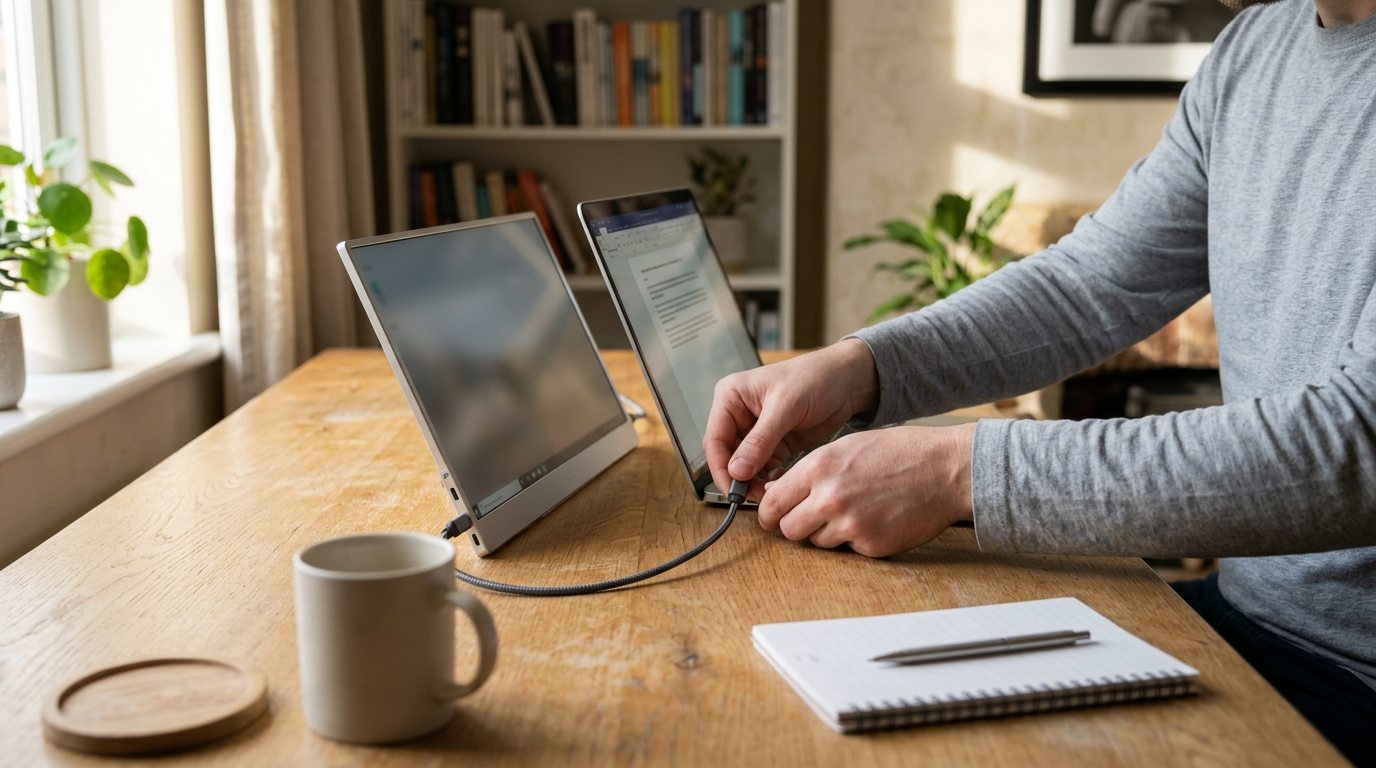
The way your portable monitor connects to your computer determines how easy it is to set up on a daily basis. The most convenient connection method uses a single USB-C cable to carry both the video signal and the electric power. To make this work, your laptop must support USB-C DisplayPort Alternate Mode, which allows video transmission over a compatible USB-C port. A USB-C connector alone does not confirm video support, so check the laptop specifications rather than relying only on the port's shape.
For laptops without compatible USB-C video output, an HDMI or mini-HDMI port is the typical alternative. HDMI transfers the video signal, but a portable monitor normally needs a second connection for power. That power may come from a wall adapter, power bank or suitable USB port, depending on the display's requirements.
Choosing a monitor with dual USB-C ports can allow pass-through charging, which may simplify a desk setup. This configuration lets you connect a compatible charger to the monitor while another cable links the monitor and laptop. Check the required input and output wattage because some power is used by the display. Verifying video output, power delivery and cable requirements is the most important first step.
Select the Best Screen Size and Weight
Portable screens come in several sizes, so the useful choice depends on your laptop, bag and available desk space. Larger displays provide more room for spreadsheets, editing timelines and side-by-side documents, but they occupy a larger footprint and may not fit a standard backpack sleeve. Smaller models are easier to carry and use on compact tables, although text and interface elements can feel cramped without display scaling.
For many mobile professionals, a monitor close to the laptop's own screen size creates a balanced side-by-side setup. Similar dimensions can make it easier to position both displays at comparable heights and move windows between them. Do not judge portability from diagonal size alone: compare the full width, height, thickness and listed weight, including any cover or stand you expect to carry.
Measure the laptop compartment or sleeve in your bag before choosing. Also consider the space required behind the display for its stand and beside it for cables. A monitor that fits inside a bag may still be awkward on an airline tray, café table or narrow hotel desk. Choose dimensions for the smallest workspace you regularly use, not just your main desk.
 See the picks in our buying guide
Evaluate Panel Technology and Resolution
The panel affects color, contrast and viewing angles. Many portable displays use In-Plane Switching (IPS) panels, which are a practical choice for general work and presentations because the image remains easier to view from off-center positions. TN panels can offer different performance trade-offs but often have narrower viewing angles. OLED displays provide another option, although their power use, brightness behavior and image-retention protections vary by model.
Resolution should be considered together with screen size and operating-system scaling. Full HD, or 1920 × 1080, is common on portable monitors and can provide a useful balance of workspace and readable interface elements. Higher resolution can make fine detail look sharper, but it may require scaling and can place greater demands on the connected device. Do not choose resolution from the specification alone; check whether your laptop supports it at the refresh rate you need.
Creative work requires more than an IPS label. Compare the manufacturer's stated color-space coverage, calibration options and brightness controls, while remembering that specifications are not interchangeable with independent measurements. For a focused overview of mainstream options, see our FHD IPS portable monitor comparison.
Verify Device and Operating-System Compatibility
Before completing your purchase, you should systematically check your current hardware to ensure the portable monitor can connect correctly. Even a capable screen may be unsuitable if the source device cannot output video or provide enough power. Following a structured verification process reduces the risk of selecting an awkward combination of adapters and cables.
- Examine your device ports and read its specifications. Confirm whether USB-C supports video output, not merely charging or data.
- Check the monitor's inputs. Identify whether it accepts USB-C video, full-size HDMI, mini-HDMI or another connection.
- Review power requirements. Find out whether the display can run from the source device or needs a charger or power bank.
- Confirm display-mode support. Check whether the operating system and device support extending the desktop rather than only mirroring it.
- Measure your transport bag and intended workspace using the monitor's complete dimensions.
- Check included cables by connector type and capability; similar-looking USB-C cables do not necessarily support the same features.
If the screen flickers or disconnects, insufficient power, a limited cable or an adapter can be among the possible causes. Test the intended connection path rather than assuming every USB-C cable is equivalent. Phone and tablet support deserves particular attention because a USB-C port does not necessarily provide external video output.
Compare Power Delivery and Pass-Through Charging
How a portable monitor receives power affects usability and laptop battery life. Powering the screen from a laptop is convenient because it can reduce the number of adapters in your bag, but the extra display will shorten runtime to a degree that varies with screen brightness, panel, content and laptop battery capacity. Lowering brightness can help, but readability in a bright room may limit how far you can reduce it.
Pass-through USB Power Delivery can simplify a setup near an outlet. A compatible charger connects to the monitor, and the monitor sends part of the available power to the laptop while operating the display. Check both the monitor's maximum input and its stated pass-through output, because the laptop may receive less power than the charger supplies. A charger that is adequate for the laptop alone may not maintain the same charging rate through a monitor.
Some portable monitors include a battery. This can reduce reliance on the laptop for power, but it adds weight, thickness and another battery to charge. A battery-equipped model may suit work away from outlets, while a lighter display without one may be easier to carry between powered workspaces. Compare the complete setup—including charger, power bank and cables—rather than looking only at the monitor's weight.
Check the Stand, Controls and Everyday Usability
A portable monitor's stand determines how comfortably it can be positioned. Folding covers save space and protect the panel, but they may offer only one or two angles and can be unstable on soft or uneven surfaces. Hinged kickstands usually provide more adjustment, while a tripod socket or VESA mounting pattern can support a separate stand if the model includes the appropriate fitting. Check whether portrait orientation is physically supported if you want a vertical document or coding display.
Look at the location of ports and controls. Side-facing connectors are accessible but can make the setup wider, while downward-facing ports may interfere with a low stand. On-screen controls should make brightness, input selection and other routine settings easy to reach. Speakers and headphone outputs can be useful, but their presence does not establish audio quality.
Include the protective cover, stand, cables and charger in your portability assessment. A slim panel can become a bulky travel kit once every required accessory is packed. It is also useful to check whether the cover protects only the screen or the whole device, especially if it will share a bag with a laptop and charger.
Match Portable Monitor Specs to Your Needs
To find the right monitor, matching your daily workflow to the correct specifications is far more effective than selecting features you may not use. If you move between coffee shops or shared desks, prioritize low total carrying weight, straightforward connections and a stand that works in confined spaces. A laptop-compatible IPS display with a single-cable USB-C connection can provide a simple mobile setup, provided the laptop supports video and sufficient power through that port.
For photography, design or video work, pay closer attention to stated color-space coverage, calibration support, brightness and viewing angles. Resolution should suit the applications you use, and an adjustable stand can help maintain a consistent viewing position. For presentations, wide viewing angles and dependable HDMI or USB-C input may matter more than maximum resolution.
Frequent flyers and minimalists should compare the complete packed dimensions and test whether the stand suits small surfaces. Console or handheld users should verify the required HDMI connection, supported resolution and refresh rate, and separate power needs. Once you know which criteria matter, use the FHD IPS portable monitors buying guide to compare suitable categories without losing sight of compatibility.
Frequently asked
As an Amazon Associate I earn from qualifying purchases. This does not affect the price you pay. Affiliate disclosure