
How to Connect AirPods to a Windows PC
Learn how to pair AirPods with a Windows 10 or Windows 11 PC, select them for sound and calls, and fix common Bluetooth connection problems.

This article is informational and does not place shopping buttons in the story. Related buying guides may include affiliate links.
As an Amazon Associate I earn from qualifying purchases. This does not affect the price you pay. Affiliate disclosure
On this page8 sections
The short answer
- Turn on Bluetooth in your Windows settings before starting the pairing process.
- Hold the case button until the white status light flashes to enter pairing mode.
- Select your AirPods from the discovered Bluetooth list to finish the connection.
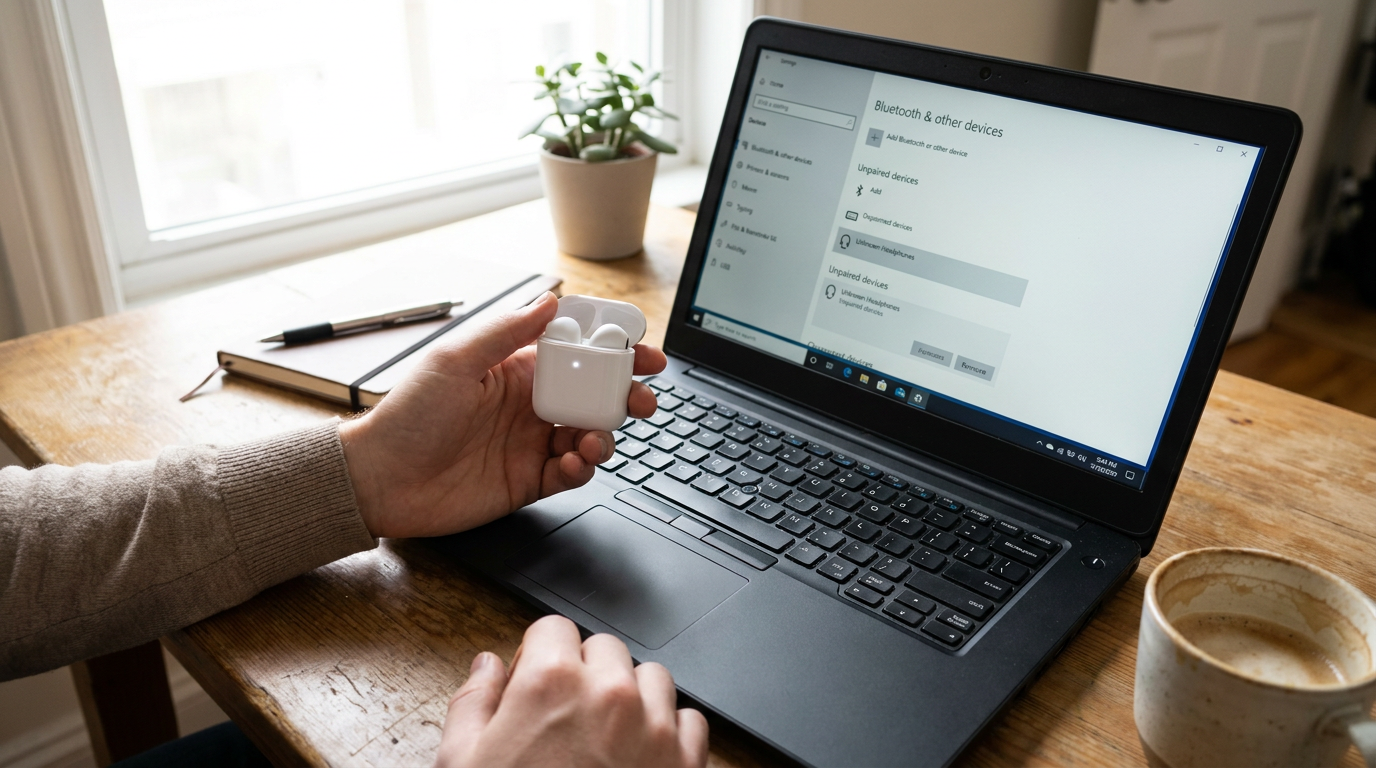
To connect AirPods to a Windows PC, turn on Bluetooth, place the AirPods in pairing mode, and choose them from Add device in Windows settings. Keep AirPods or AirPods Pro inside the open case while pairing. For AirPods Max, use the noise control button. No Apple software is required for the basic Bluetooth connection.
While AirPods are designed primarily for Apple devices, they function as standard Bluetooth headphones when paired with a Windows PC. You can use them for listening to audio and participating in video calls on a compatible computer. Some Apple-specific features are unavailable, but ordinary playback, microphone access and manual reconnection work through Windows.
How to Connect AirPods to a Windows PC
To begin the process, open the Settings app on your Windows PC by pressing the Windows key + I, then navigate to the Bluetooth & devices section. Ensure the primary Bluetooth toggle is switched to the On position. On Windows 10 systems, this menu may instead be labeled as Devices, followed by Bluetooth & other devices. It is vital to confirm that your computer hardware supports Bluetooth; while most modern laptops have this built-in, some desktop towers require a USB Bluetooth adapter to facilitate wireless communication.
Next, place your AirPods in their charging case and open the lid. Keep the earbuds seated inside the case while you prepare them for discovery. Locating the physical setup button is the next step. For standard AirPods and AirPods Pro, this is a small circular button on the back of the charging case. For the AirPods Max, you will instead press and hold the noise control button located on the top of the right ear cup. Hold the button until the status light begins flashing white. This light is either inside the case between the earbuds or on the front of the case, depending on the specific generation of the hardware.
Once the white light is pulsing, return to your PC and click Add device, then select the Bluetooth option from the top of the list. Wait a few moments for the computer to scan the area. Choose your AirPods from the discovered list to complete the connection. Windows will then register the device and list it among your saved audio peripherals. If the AirPods do not appear within thirty seconds, close the lid and wait a moment before trying the process again, as the pairing window can sometimes time out if the initial handshake fails.
Set AirPods as the Windows Audio Device
Pairing creates the initial wireless handshake, but Windows may continue playing sound through the computer speakers by default. To fix this, click the volume icon in the taskbar, open the output-device selector menu, and choose your AirPods from the list. You can also manage this through the main Settings menu by navigating to System and then Sound. Under the Output section, ensure your AirPods are selected as the active device. If you have multiple Bluetooth devices connected, verify that the AirPods are highlighted rather than a nearby speaker or monitor.
For digital calls or gaming, check the specific audio settings inside the application you are using as well as the Windows sound menu. You must select the AirPods as both the microphone or input device and as the speaker or output device. Be aware that Windows may expose a hands-free headset mode when the microphone is engaged. While this mode supports two-way communication for calls, the playback quality for music or videos will noticeably drop compared to the standard stereo listening mode. This is a bandwidth limitation of the Bluetooth protocol rather than a hardware defect.
After confirming the output settings, play a short system sound or a familiar audio track to test the levels. If sound still emanates from the internal speakers despite the settings showing a connection, close and reopen the specific application you are trying to use. Some software programs retain the audio device that was active when they first launched and do not recognize hot-swapping to a Bluetooth device until the program is refreshed. Also, check that the volume level in both the Windows taskbar and the application itself is turned up to an audible level.
 See the picks in our buying guide
Troubleshooting Common Connection Issues
It is common for a PC to occasionally fail to find the headphones or lose the connection during use. If your computer does not show the earbuds in the discovery list, try closing the case lid for ten seconds and then repeating the pairing process from the beginning. You can also toggle the Bluetooth master switch off and on again in your Windows settings to refresh the radio signal. This action often clears minor software glitches that prevent the computer from seeing new peripherals. Confirm that the status light is flashing white before you click Add device, as the AirPods will not be discoverable if they are in their standard standby mode.
If the AirPods are stubbornly connecting to a nearby phone or tablet instead of your PC, temporarily disable Bluetooth on that other device. Apple products are designed to aggressively prioritize connections within the Apple ecosystem, which can cause the AirPods to ignore the Windows pairing request. Keeping the AirPods case and the PC within a few feet of each other during the initial setup can also simplify the discovery process. If you are using a desktop PC tucked under a desk, be aware that the metal casing of the computer can sometimes block the Bluetooth signal, necessitating a clearer line of sight or a USB extension for your adapter.
If the headphones show as connected but you hear no audio, check the Windows system tray at the bottom right of your screen. Click the volume icon and verify that the AirPods are currently set as the primary playback device. Sometimes Windows defaults back to the built-in computer speakers if the Bluetooth signal dips for even a second. If the saved pairing profile becomes corrupted and refuses to connect, open Bluetooth settings, select the AirPods, and choose Remove device. Perform a full reset of the earbuds and then add them as a new device. Restarting the PC entirely can also clear persistent problems with the Windows audio service or Bluetooth driver.
Reconnecting AirPods After Initial Setup
After the initial setup is finished, your earbuds should automatically reconnect to your PC whenever you take them out of the charging case, provided Bluetooth is active on the computer. However, Windows is not always as seamless as macOS in this regard. If they do not link up automatically, you can manually force the connection without performing the setup button ritual again. Simply open your Bluetooth settings, find your earbuds under the list of saved devices, and click the Connect button. This tells the PC to actively reach out to the earbuds.
AirPods may frequently reconnect to another device they have previously used, especially an iPhone or iPad that is nearby. Disconnecting the earbuds from the other device or turning off the Bluetooth on that mobile device can make the Windows connection available again. If you find that the AirPods have completely disappeared from the saved-device list on your PC, you will need to repeat the original pairing process. Windows sometimes loses device profiles during major system updates or if the Bluetooth drivers are reinstalled.
Note that Windows does not support the automatic switching feature found on Apple devices. On a Mac or iPhone, your AirPods can move between devices based on which one is playing audio, but on Windows, you must manually select the device each time you switch. For a broader comparison of how these headphones perform and their physical design differences, looking into a comprehensive buying guide can help explain the specific capabilities of various models. Understanding these hardware differences is useful when you plan to use a single pair of headphones across both Apple and Windows operating systems.
AirPods Features and Limitations on Windows
While standard audio playback works reliably on a PC, several Apple-specific features will not function when using Windows. Features such as automatic ear detection, which pauses music when you remove an earbud, and custom tap or squeeze controls, are natively restricted to macOS and iOS. Additionally, spatial audio with dynamic head tracking and Siri voice commands are not supported on Windows. If you wish to check the exact battery percentage of your AirPods, you will find that Windows does not show this by default, requiring the use of third-party utility software to see the remaining charge.
Windows essentially treats AirPods as standard Bluetooth headphones rather than as integrated components of a proprietary ecosystem. This means the core functions you rely on will be stereo audio playback, the hands-free microphone mode for calls, and basic Bluetooth connectivity. Any settings that depend on deep Apple software menus, such as modifying the noise cancellation levels or changing the function of a long-press, usually need to be configured on a compatible Apple device first. Those settings are then stored on the AirPods themselves and will carry over to your Windows experience.
Battery information is significantly less integrated on a PC than it is on an iPhone or Mac. While the light on the charging case gives a general indication of battery health, Windows provides no native pop-up window or taskbar icon to warn you when the battery is low. Users who frequently move between platforms should be aware of these software gaps. While the hardware remains premium in quality, the user experience on Windows is more functional and less feature-rich than it is within the Apple environment. For more context on model specific features, consult resources that detail the differences between the various generations of AirPods hardware.
Frequently asked
Sources

As an Amazon Associate I earn from qualifying purchases. This does not affect the price you pay. Affiliate disclosure