
How to Connect AirPods to a Windows PC
Pair AirPods with a Windows 10 or Windows 11 PC through Bluetooth, then select them as the computer’s audio output.
This article is informational and does not place shopping buttons in the story. Related buying guides may include affiliate links.
As an Amazon Associate I earn from qualifying purchases. This does not affect the price you pay. Affiliate disclosure
On this page9 sections
The short answer
- Open Windows Bluetooth settings and choose the option to add a Bluetooth device.
- With the AirPods in the open case, hold the setup button until the light flashes white.
- Select the AirPods in Windows, then choose them as the audio output if sound still plays through the PC.
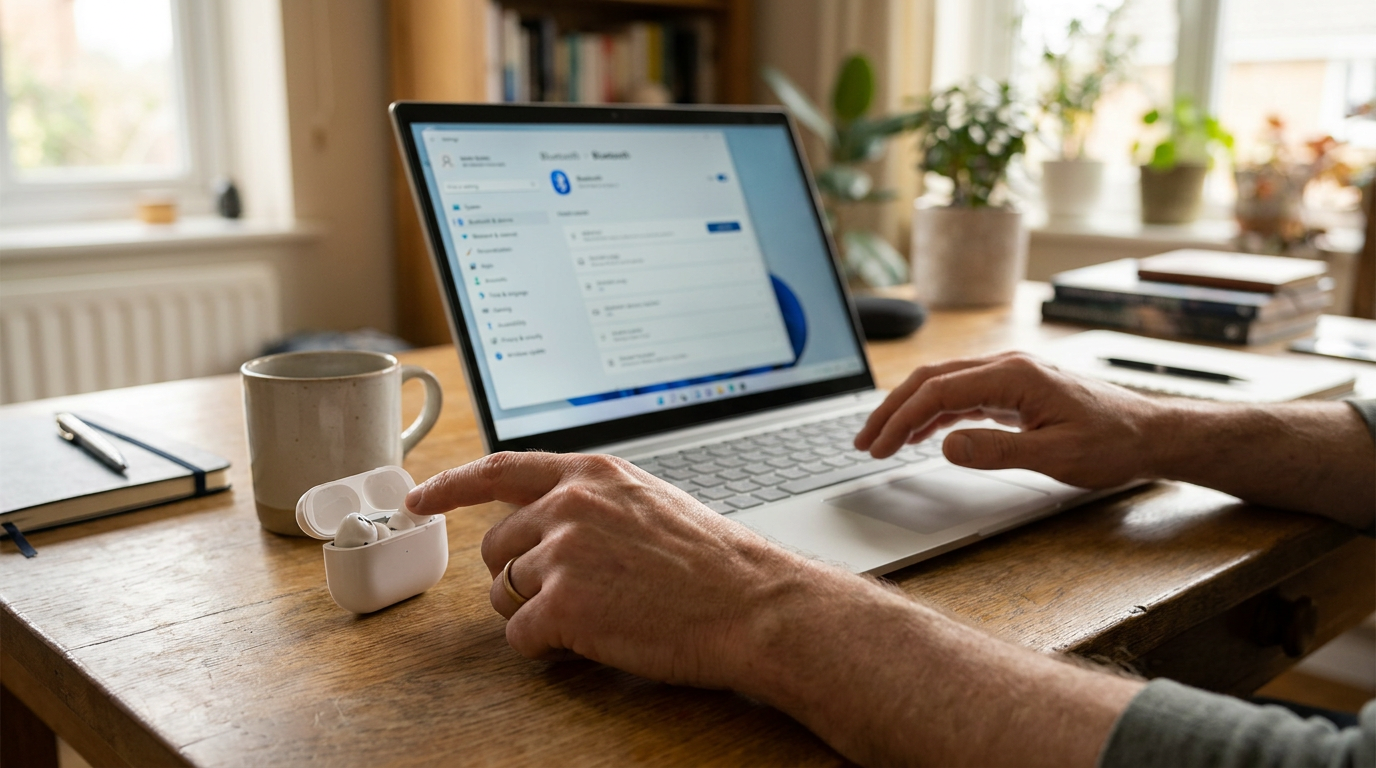
To connect AirPods to a Windows PC, open the computer’s Bluetooth settings, choose Add device, and select Bluetooth. Put the AirPods in their case, open the lid, and hold the case’s setup button until the status light flashes white. Select the AirPods when they appear on the PC, then wait for Windows to confirm the connection.
AirPods connect to Windows as standard Bluetooth headphones. You can use them for playback and, where supported, microphone input, but Windows does not provide the same setup and device-switching experience as Apple devices. The menus also differ slightly between Windows 10 and Windows 11, so the instructions below cover both.
Before you start
Confirm that the PC supports Bluetooth and that Bluetooth is turned on. Most laptops include it, while a desktop without built-in Bluetooth needs a compatible adapter. In Windows 11, open Settings and select Bluetooth & devices. In Windows 10, open Settings, select Devices, and then open Bluetooth & other devices. If there is no Bluetooth switch or Bluetooth category, Windows may not be detecting the required hardware or driver.
Place both AirPods in their charging case and open the lid. The case and earbuds need enough charge to enter pairing mode, although there is no fixed percentage required for this process. Keep the case close to the computer during setup. If the AirPods are currently connected to an iPhone, iPad, Mac, or another device, disconnect them there or temporarily turn off that device’s Bluetooth if it keeps reclaiming the connection.
For regular AirPods and AirPods Pro models that use a case setup button, that button starts discovery. AirPods Max use a different control, covered below.
Connect AirPods in Windows 11
Open Settings by pressing Windows key + I, then select Bluetooth & devices. Turn Bluetooth on and choose Add device. In the window that opens, select Bluetooth so Windows begins looking for nearby accessories.
With both AirPods inside the case and the lid open, press and hold the setup button on the case. Release it when the status light flashes white; that indicates pairing mode. Keep the case open while Windows searches.
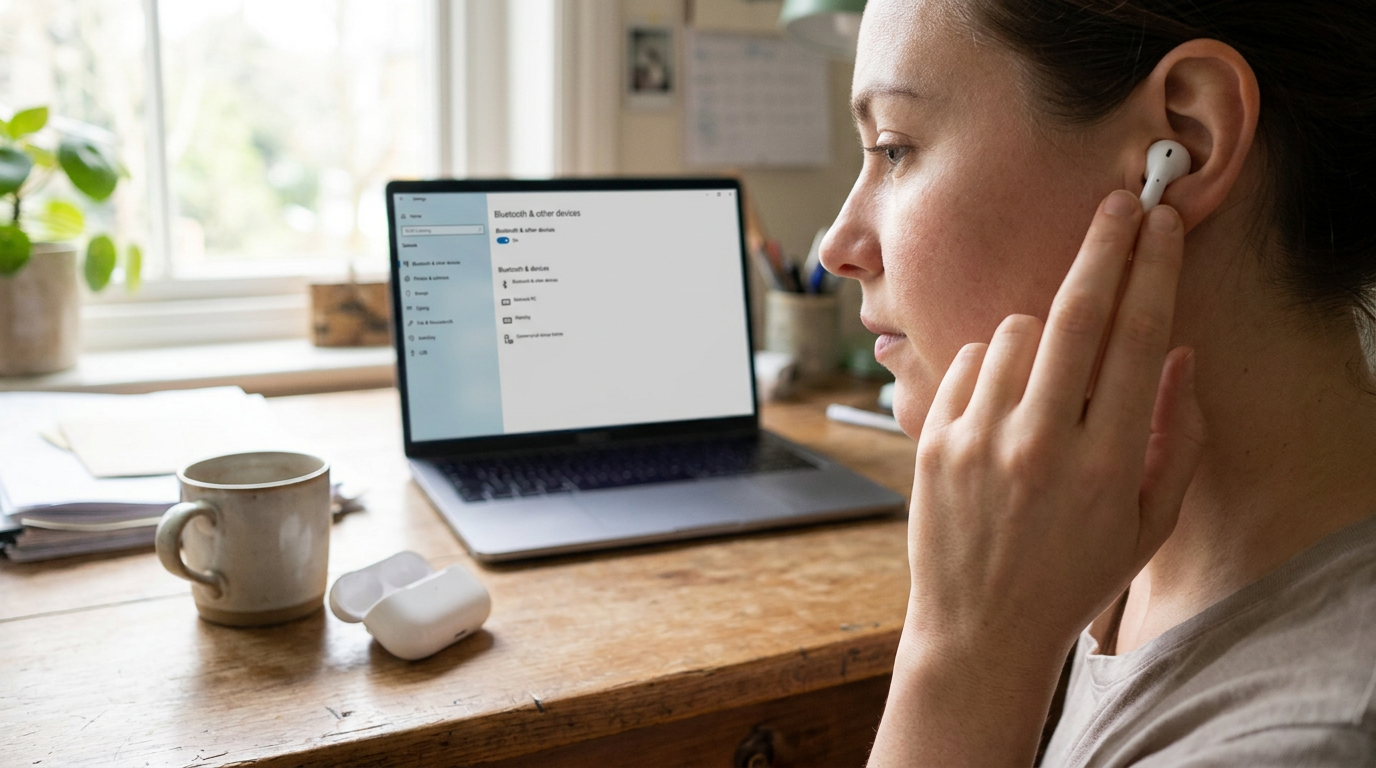
When the AirPods appear in the device list, select their name. Windows will complete the pairing and show a confirmation. Choose Done, remove the earbuds from the case, and play some audio. If the sound still comes from the computer’s speakers, select the speaker or volume area on the taskbar, open the output-device list, and choose the AirPods.
After this first pairing, Windows stores the device. You normally only need to select the AirPods from the Bluetooth or audio controls when reconnecting.
 See the picks in our buying guide
Connect AirPods in Windows 10
Press Windows key + I to open Settings, select Devices, and then choose Bluetooth & other devices. Switch Bluetooth on. Select Add Bluetooth or other device, followed by Bluetooth. Leave that search window open while you prepare the AirPods.
Put the earbuds in their case and open the lid. Hold the button on the back of the case until the status light flashes white, then look at the list on the PC. Select the AirPods when their name appears and wait for Windows to report that the device is ready.
If pairing succeeds but you cannot hear anything, click the speaker icon at the right side of the taskbar and choose the AirPods as the playback device. Windows may list more than one AirPods audio option. For music and video, choose the stereo or headphones option when one is available; the headset or hands-free option is intended for microphone use and can reduce playback quality.
Put AirPods Max in pairing mode
AirPods Max do not use an earbud charging case, so their pairing step is different. Open the Windows Bluetooth device search first, using the Windows 11 or Windows 10 path above. Then press and hold the noise control button on AirPods Max until the status light flashes white.
Select AirPods Max when the name appears in Windows and wait for the connection confirmation. If Windows pairs them but sends audio elsewhere, open the taskbar’s sound controls and select AirPods Max as the output device.
The rest of the Windows process is the same as it is for in-ear AirPods: Windows remembers the pairing, and later connections can be managed from Bluetooth settings or the audio-output menu. Do not look for a case setup button when following instructions written for standard AirPods or AirPods Pro; the noise control button performs that function on AirPods Max.
What to do if the AirPods do not appear or connect
First, check that the status light is flashing white and that the case remains open. If the AirPods are not discoverable, return both earbuds to the case, close the lid briefly, reopen it, and start pairing mode again. Keep the AirPods near the PC and disconnect them from another device if they connect there instead.
Next, turn Bluetooth off and back on in Windows, then repeat the search. If Windows already lists the AirPods but cannot connect, remove the saved device and pair it again. In Windows 11, find the AirPods under Settings > Bluetooth & devices, open the device’s menu, and choose Remove device. In Windows 10, select them under Bluetooth & other devices and choose Remove device. Then use Add device to repeat the normal process.
Restarting the PC can also clear a temporary Bluetooth problem. If Windows has no Bluetooth option or repeatedly fails with multiple accessories, check the computer maker’s support information for the appropriate Bluetooth driver rather than assuming the AirPods are at fault.
Fix audio output, microphone quality, and reconnection problems
If the AirPods show as connected but audio comes from the speakers, open the Windows sound controls and choose them as the output. Also check the output selected inside the app you are using, because calling and conferencing apps can override the Windows default.
Windows may use a hands-free profile when an app needs the AirPods microphone. That profile carries microphone and playback audio together, and the playback can sound less detailed than the stereo mode used for listening. If clearer playback matters more than the AirPods microphone, select the AirPods stereo or headphones output and choose the PC’s built-in microphone or a separate microphone as the input. The exact labels vary by Windows version and audio driver.
For later use, open the case and select the AirPods from Windows Bluetooth settings or the taskbar output list if they do not reconnect automatically. Another previously paired device may connect first, so disconnect the AirPods there when necessary. Windows supports core headphone functions, but Apple-specific controls and status information may be limited. For model comparisons rather than setup instructions, see the Apple Headphones Buyer's Guide (2026).
Frequently asked
Sources

As an Amazon Associate I earn from qualifying purchases. This does not affect the price you pay. Affiliate disclosure