How to Dub YouTube Videos Into Other Languages
Learn how to dub a YouTube video into other languages with ElevenLabs, review the translated speech, correct timing, and export the finished audio.
Some links are affiliate links: we may earn a commission if you sign up or buy through them, at no extra cost to you.
On this page8 sections
- 1The short answer
- 2How to Dub a YouTube Video Into Other Languages With ElevenLabs
- 3Choose the Source Language, Target Language, and Speakers
- 4Create the Dub From the YouTube URL
- 5Correct the Translation and Speaker Assignments
- 6Fine-Tune Audio Timing and Voice Delivery
- 7Export and Add the Dubbed Track to YouTube
- 8Frequently asked
The short answer
- Paste the direct YouTube link into the ElevenLabs Dubbing tool to automatically translate speech.
- Use speaker detection to ensure the AI assigns distinct, matching voices to every person.
- Edit the translated transcript inside the Dubbing Studio to correct translation errors and timing.
To dub a YouTube video into other languages with ElevenLabs, open its Dubbing tool, paste the YouTube URL, choose the source and target languages, and create the dub. Then review the translation, speakers, and timing in the editor before exporting the dubbed video or audio track.
While the process is highly automated, creating a polished, natural-sounding foreign-language track requires a few manual steps. Creators often face challenges like voice overlap, misaligned timing, and incorrect translations of specialized terminology. Reviewing each segment can prevent disjointed audio and avoid repeating a full project because of a small error.
This guide walks through the workflow, from project setup to fine-tuning individual speaker tracks inside the editor. You should also confirm that you have permission to process and publish the source material before importing a video you do not own.
The quick version
- Paste the YouTube URL
- Confirm the source language
- Choose the target language
- Check speaker settings
- Start processing
- Open the editor
How to Dub a YouTube Video Into Other Languages With ElevenLabs
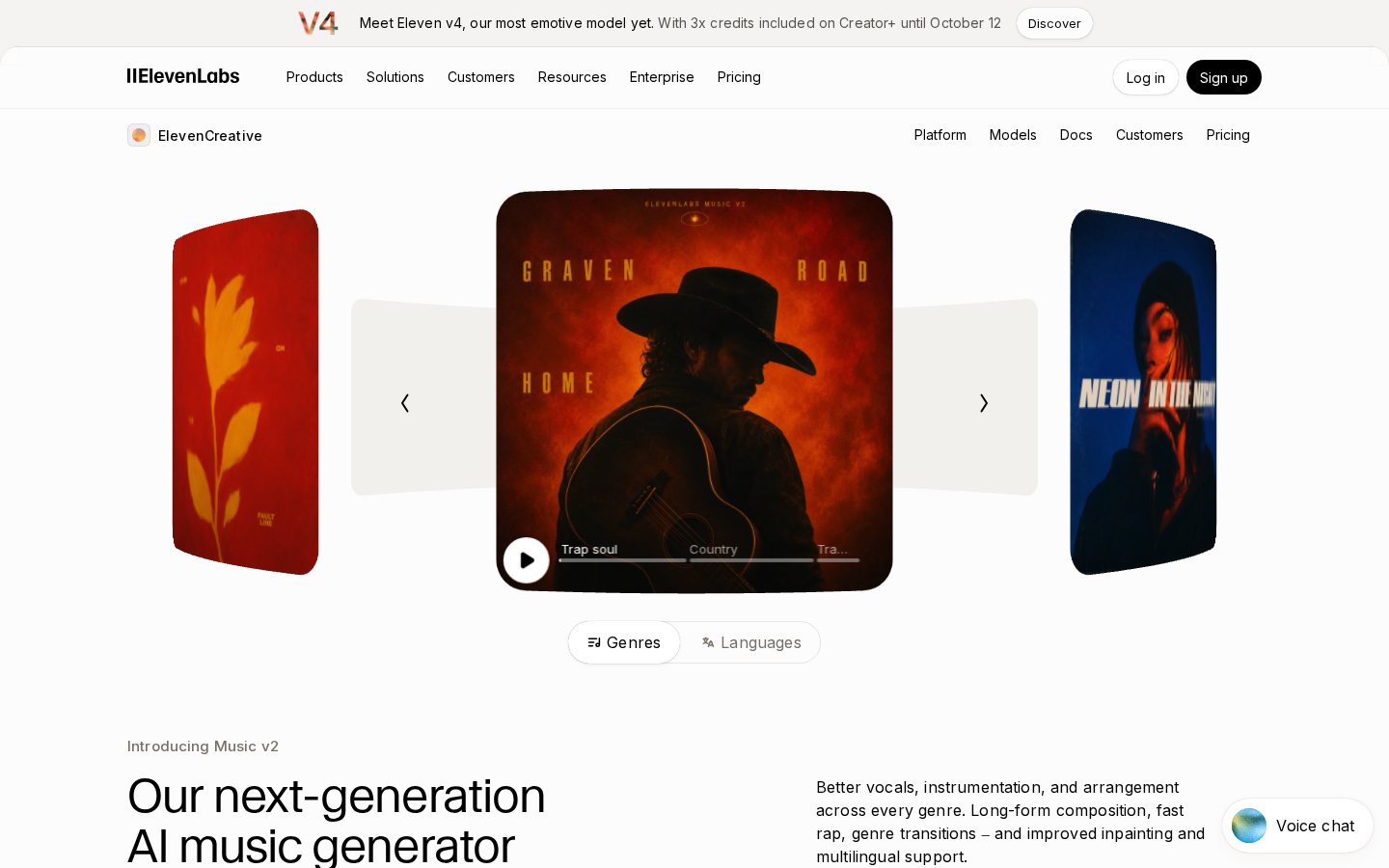
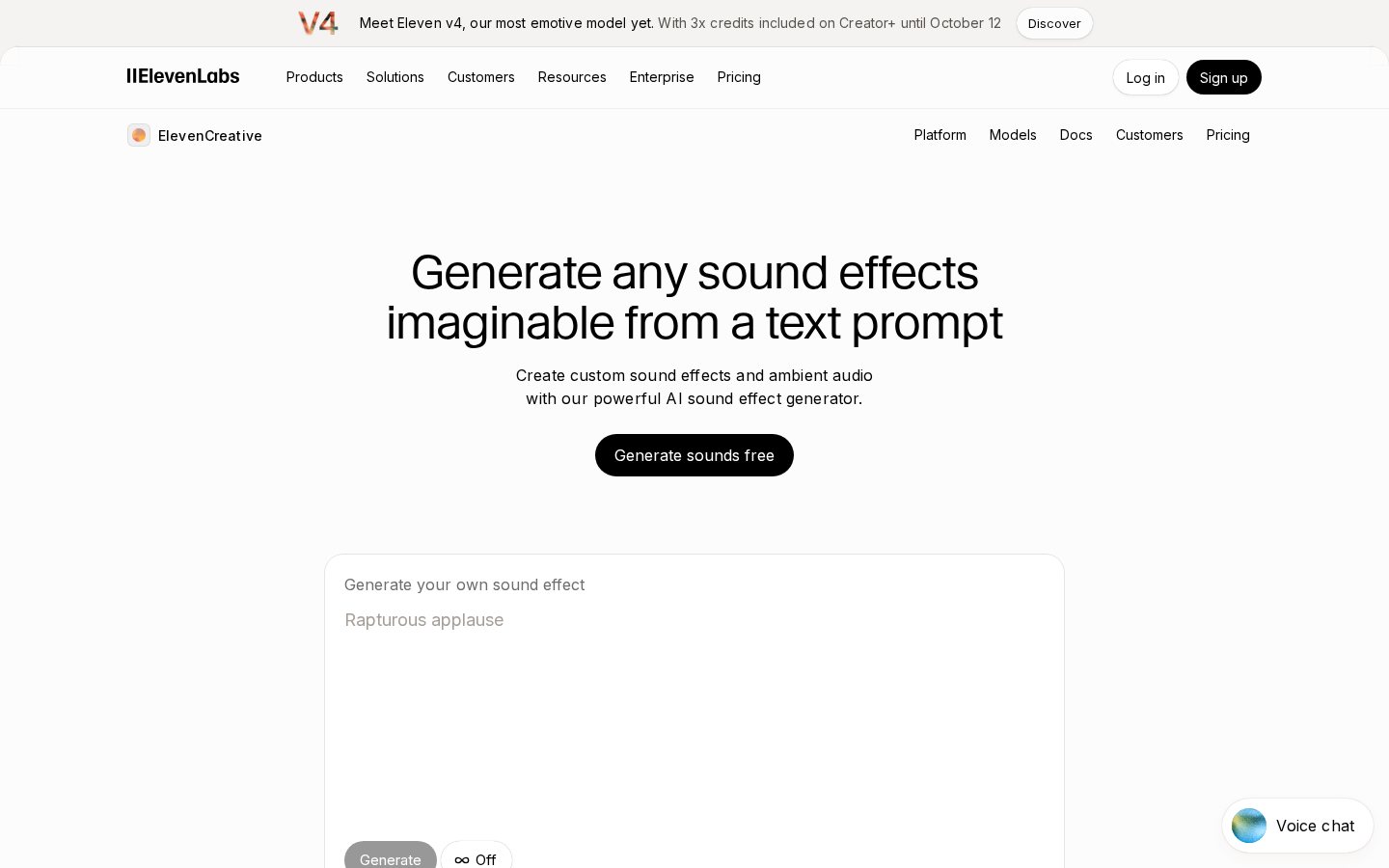
Before starting your translation, locate the primary navigation menu on the left side of your ElevenLabs dashboard. Click on the option labeled "Dubbing" to open the localization interface. This workspace is designed to handle video files, direct links, and audio translation rather than ordinary text-to-speech requests.
In this interface, look for the option to paste an external video link. Copy the full YouTube URL from your browser and place it in the source field. A direct link is more convenient than downloading and re-uploading a large local file, provided ElevenLabs can access the video. A private video or a link restricted by its owner may require a different import method.
Before continuing, verify that you own the video or have permission to use and publish its audio. Importing a publicly viewable video does not transfer its copyright or grant republication rights. For a broader look at the service beyond this workflow, read our ElevenLabs Review.
Choose the Source Language, Target Language, and Speakers
Once you have opened the Dubbing workspace, define the project parameters. Choose the language spoken in the original video and the language you want the new track to use. If the interface offers automatic source-language detection, review its choice before processing. Manually selecting the source language can reduce avoidable recognition errors, especially where the recording contains several languages, strong accents, song lyrics, or substantial background sound.
Next, choose one target language for the project. If you need several translations, treat each language as a separate output and review it independently. A correction that works in one language may not apply to another because sentence length, grammar, and word order differ.
For conversations, interviews, or panel videos, check the speaker diarization or speaker-detection controls available in the workspace. Specify the number of speakers if that option appears and you know the correct count. Listen for narration, quoted clips, and off-camera voices that may need distinct assignments. Correct speaker identification helps preserve consistency and makes later editing easier.
Create the Dub From the YouTube URL
After entering the source and language settings, create the dubbing project. The labels in the interface may vary, so follow the controls shown in your account rather than relying on a specific button name.
- Paste the YouTube URL. Use the complete address of the source video and check that it points to the intended upload.
- Confirm the source language. Correct it if the detected language does not match the principal spoken language.
- Choose the target language. Create a separate project or output for every language you plan to publish.
- Check speaker settings. Enable multi-speaker handling where appropriate and enter the known speaker count if the tool permits it.
- Start processing. Submit the project and wait until ElevenLabs marks it as ready for review.
- Open the editor. Inspect the transcript, translated text, speaker assignments, pauses, and timing before exporting.
Do not assume that a completed processing status means the dub is ready to publish. The first generated version should be treated as a draft. Names, abbreviations, specialist terms, and short interjections deserve particular attention because their meaning can depend heavily on context.
Correct the Translation and Speaker Assignments
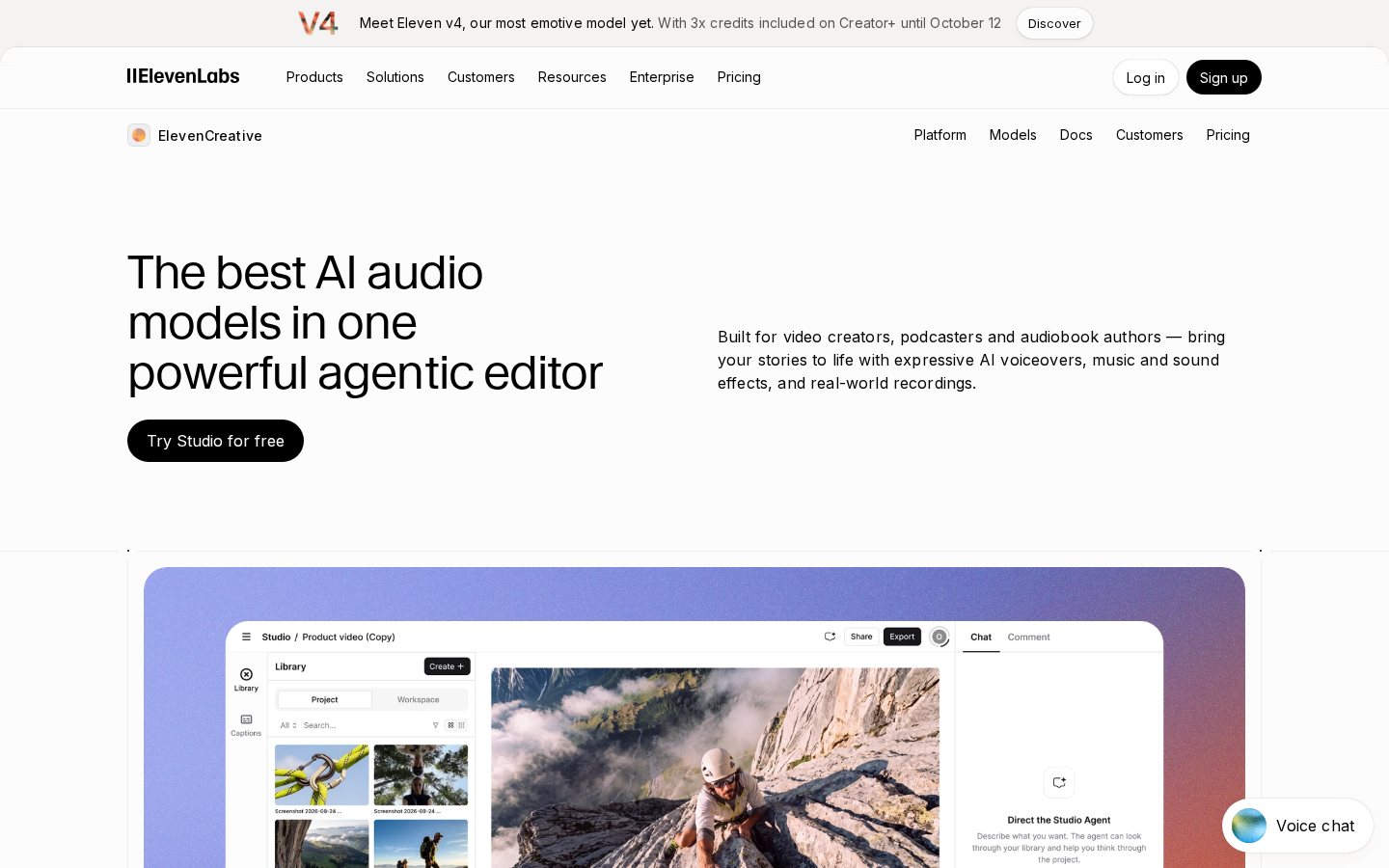
In the dubbing editor, compare the source transcript with the translated text segment by segment. Editing the text directly can correct translation errors without requiring you to replace the complete project. Start with factual details: names, organisations, product terms, place names, numbers, and acronyms. Keep a short terminology list if the video repeats specialist language, then use the same translation throughout.
Check that every line belongs to the right speaker. Speaker diarization can separate voices, but interruptions, laughter, narration, or two people talking at once may lead to incorrect assignments. Move or reassign segments where the editor allows it, and listen across segment boundaries rather than judging each clip in isolation.
Preserve the meaning and tone of the source instead of translating every phrase literally. Idioms may need a natural equivalent in the target language, while on-screen labels and quoted text may require consistent wording. Read the translated line in context and confirm that pronouns, formality, and terminology remain consistent from beginning to end. Our ElevenLabs Review provides additional context on the platform's wider voice and audio features.
Fine-Tune Audio Timing and Voice Delivery
Listen closely to the timing of the translated speech. Because languages express the same idea with different word counts and sentence structures, the new audio may run longer or shorter than the original segment. Use the editor's available timing controls to align the translated line with the relevant visual action, speaker turn, or pause. Avoid compressing speech so aggressively that it becomes difficult to understand.
Pay attention to audio bleeding, where background sound or another voice affects the isolated speech. Overlapping dialogue is particularly difficult because two translated lines may compete for the same time window. Where possible, shorten the translation without changing its meaning, adjust segment boundaries, or preserve a natural pause between speakers.
Review vocal consistency as well as timing. A voice may change character if separate segments receive different speaker assignments or substantially different settings. If voice controls are available, make small changes and compare them against the surrounding lines. Judge each edit within the complete scene, not only as a solo clip. For more background on the service's controls, see the full ElevenLabs review.
Export and Add the Dubbed Track to YouTube
When you are satisfied with the translation, speaker assignments, timing, and vocal delivery, review the export options shown for the project. Depending on the available controls, you may be able to export a video containing the new mix or an isolated dubbed audio track. Choose the format that matches your publishing workflow and retain the original project in case you need to correct a line later.
Before uploading, play the exported file from beginning to end. Check the opening and closing seconds, scene transitions, quiet passages, music levels, and any sections where speakers overlap. Confirm that the file begins at the correct time and remains synchronized throughout the video. Headphones can reveal clicks, clipped words, or abrupt edits that are less obvious through laptop speakers.
If your YouTube account provides access to additional language audio tracks, add the exported dub to the existing video through the relevant YouTube Studio controls and label its language correctly. Otherwise, use a publishing approach that fits the options available to your channel. YouTube features and account access can change, so rely on the current controls and official help information displayed in YouTube Studio.
Frequently asked
As an Amazon Associate I earn from qualifying purchases. This does not affect the price you pay. Affiliate disclosure