
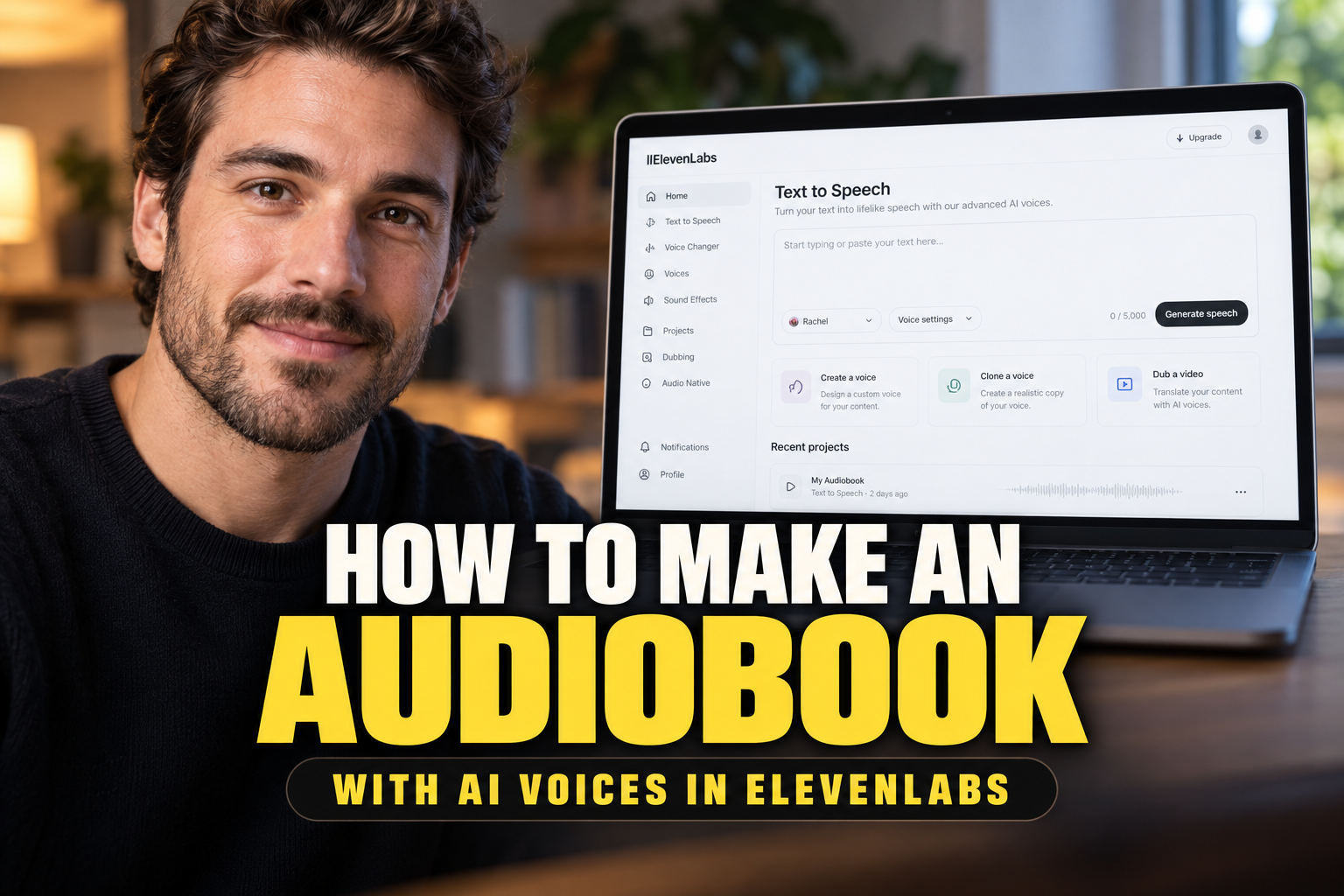
How to Make an Audiobook with AI Voices in ElevenLabs
A practical guide to creating professional-quality audiobooks using the ElevenLabs Projects tool, managing character voices, and exporting clean audio files.
Some links are affiliate links: we may earn a commission if you sign up or buy through them, at no extra cost to you.
On this page8 sections
- 1The short answer
- 2Preparing Your Manuscript for AI Conversion
- 3Step-by-Step Guide to Creating Your Project
- 4Assigning and Customizing Character Voices
- 5Refining Pronunciation and Pacing Errors
- 6Generating and Exporting the Final Audiobook
- 7Distribution and Technical Compliance Guidelines
- 8Frequently asked
The short answer
- Clean your manuscript's layout before uploading to prevent the AI from reading page numbers and headers.
- Assign specific voice profiles to individual character dialogue lines for an engaging, multi-speaker audiobook experience.
- Utilize global pronunciation dictionaries to handle unique names, fantasy words, and technical terms consistently.
To make an audiobook with AI voices in ElevenLabs, you can use the Projects tool to upload your manuscript, assign customized voices to different characters or the narrator, and generate the synchronized audio files. You can make an audiobook with AI voices in ElevenLabs by using the platform's Projects interface to import text, configure distinct speaker profiles, and generate formatted chapters. This process allows you to convert written books into natural-sounding speech without needing a recording studio.
The system utilizes advanced neural models to handle multi-voice dialogue, maintain vocal consistency across long texts, and format chapters into standard publication specifications. Setting this up correctly requires careful document preparation, setting up character profiles, and tweaking voice settings to ensure natural pacing.
The quick version
- Select the Projects tab
- Choose your input method
- Select your primary voice
- Set up the chapter structure
- Verify the voice settings
- Generate the initial draft
Preparing Your Manuscript for AI Conversion
Preparing your book file is the first crucial step before uploading anything to the software. AI voice generators parse your written words literally, which means any stray formatting, page numbers, headers, or footnote indicators will be read aloud by the artificial narrator. To prevent this, you should clean your manuscript thoroughly, saving it as a clean EPUB, PDF, or TXT file that contains only the narrative text.
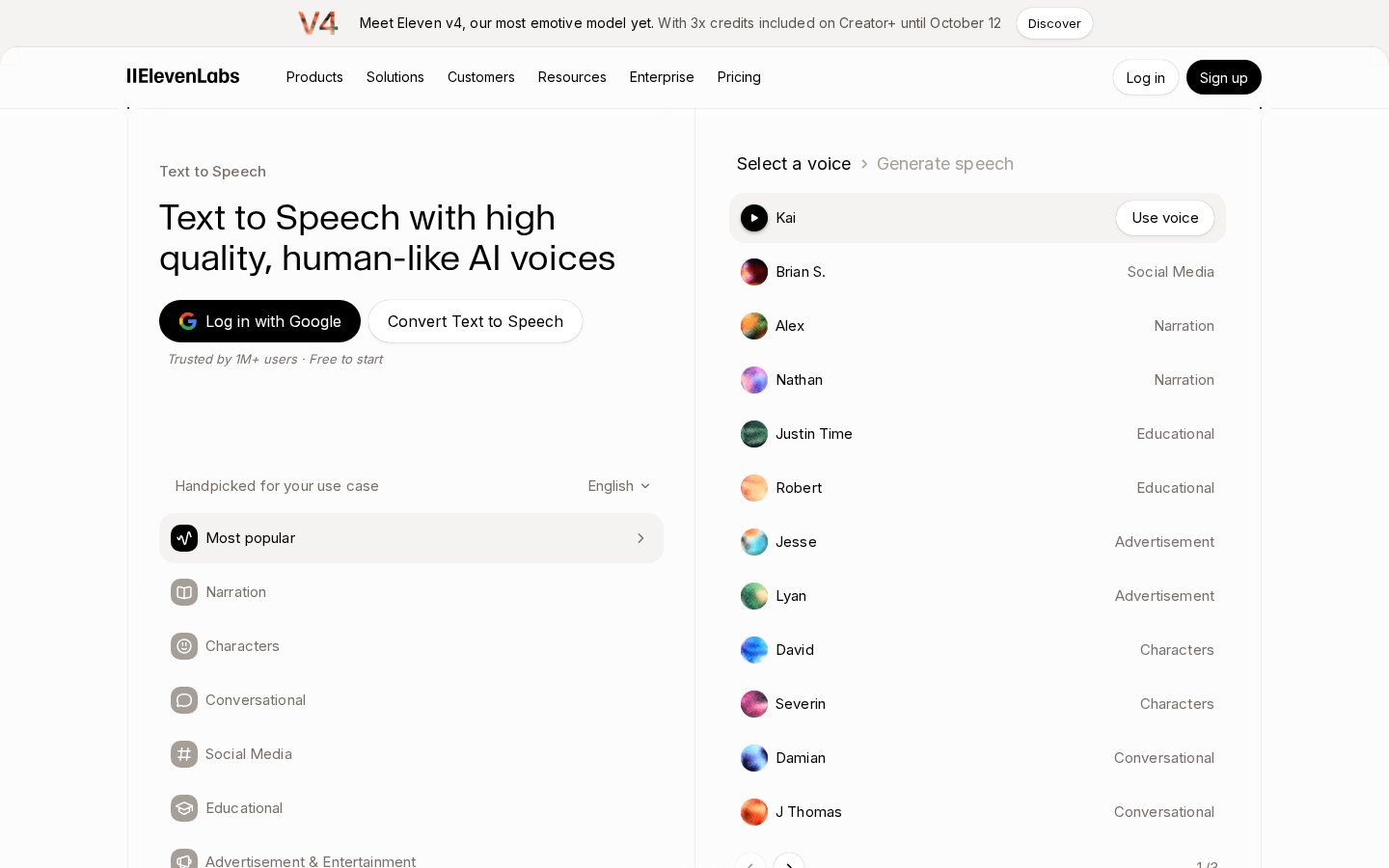
The Projects tool in ElevenLabs acts as your multi-chapter workspace where you can upload long documents and manage voice assignments. When you log into the platform, navigate to the Projects dashboard to start a new long-form audio endeavor. If you are familiar with the basic platform features described in our ElevenLabs review, you will find this specialized workspace much more organized than the standard text-to-speech box.
Grouping your manuscript into distinct chapters before the upload makes the generation process smoother. If your file is formatted correctly with standard heading tags, the software can automatically split the document into separate chapters. This division prevents you from having to process a massive, single block of text, which can lead to rendering errors or inconsistent speech pacing.
Step-by-Step Guide to Creating Your Project
Once your manuscript is formatted and ready, you can begin the generation sequence. The interface is designed to walk you through the import process, but missing a step can result in messed-up formatting or lost progress. Make sure you have enough character credits in your subscription tier, as processing an entire book will consume a substantial amount of monthly limits.
- Select the Projects tab. Locate and click on the "Create New Project" button in your dashboard.
- Choose your input method. Upload your prepared EPUB, PDF, or text file directly into the designated drop zone.
- Select your primary voice. Choose a default narrator profile from the drop-down menu to act as the main voice of your book.
- Set up the chapter structure. Let the tool parse your headings to automatically divide the text into separate sub-sections.
- Verify the voice settings. Double-check the stability and clarity sliders in the advanced settings to match your desired speaking pace.
- Generate the initial draft. Click the play or generate button to begin rendering the first paragraph of your manuscript.
If you encounter an error during the upload phase, check the file extension. Sometimes complex PDF formatting can cause the parser to fail, so saving your book as a plain TXT file is a reliable backup option. Once the import is complete, you will see a structured list of chapters on the left side of your screen.
Assigning and Customizing Character Voices
A compelling audiobook relies on distinct, expressive voices to help listeners distinguish between different characters and the narrator. The software allows you to highlight specific blocks of text—such as dialogue wrapped in quotation marks—and assign them to a different speaker profile. This capability brings a dynamic, multi-voiced performance to what would otherwise be a flat, single-narrator experience.
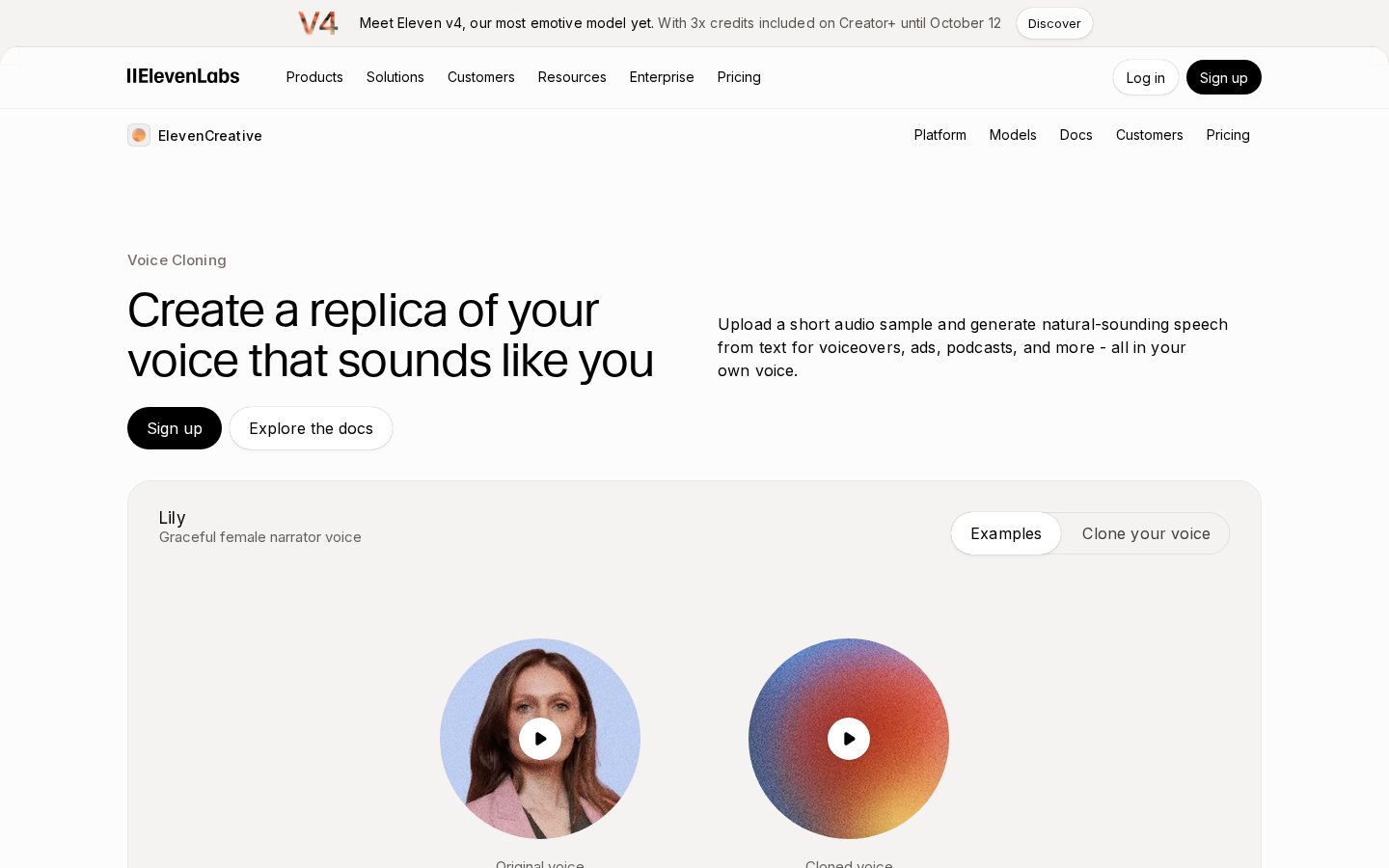
Assigning individual voices to specific characters allows the AI to render natural dialogue throughout your audiobook. You can choose from pre-made system voices or use Voice Cloning to create custom vocal profiles for your cast. In our ElevenLabs review, we detail how the high-fidelity cloning system reproduces specific vocal qualities, which is incredibly useful for maintaining character consistency across various chapters.
When selecting voices, match the tone to the character's age, gender, and personality traits. The platform provides filters to sort available profiles by accent, narrative style, and emotional warmth. Once you choose a voice for a specific character, save it to your project library so you can easily apply it to their dialogue lines in future chapters.
Refining Pronunciation and Pacing Errors
Even the most advanced neural networks can struggle with unusual names, made-up fantasy words, or complex scientific terms. When you listen to your initial draft, you will likely find a few words that sound awkward, flat, or flat-out incorrect. Refining these errors is a necessary stage of the production pipeline to ensure your listeners remain immersed in the story.
To fix a mispronounced word, you can use the pronunciation dictionary feature within the platform. This allows you to define a specific word and write its phonetic spelling or use Phoneme Pronunciation rules to force the AI to speak it correctly every time it appears. Utilizing this global rule prevents you from having to manually adjust the spelling of a word inside your main text layout.
Regenerating specific sentences instead of whole chapters helps you correct minor pronunciation mistakes without wasting your generation quota. Instead of rebuilding the entire chapter, highlight the single sentence that needs fixing, make your voice adjustments, and click the regenerate icon. This surgical approach keeps your credit consumption low and speeds up your editing workflow significantly.
Generating and Exporting the Final Audiobook
Once you have audited your chapters, assigned the correct voices, and resolved any pronunciation issues, you are ready to produce the final audio. This process converts your digital text into master-quality audio files that meet the strict technical standards of major distribution platforms. Be patient during this step, as rendering long books can take several minutes to process.
Downloading the final audiobook as individual chapters or a combined folder simplifies the submission process for publishing platforms. Most digital retailers require separate files for each chapter, along with intro and outro credits. The Projects interface allows you to download each rendered section as a high-bitrate MP3 or WAV file, matching the precise formatting requirements of your chosen distributor.
Before you package the files, listen to the transitions between chapters to ensure the silence gaps are natural. You can adjust the pause duration at the end of paragraphs and chapters within your project settings. Taking the time to verify these minor details will ensure a seamless listening experience for your audience when the book goes live.
Distribution and Technical Compliance Guidelines
To list your newly created audiobook on major retail platforms, your final audio must comply with specific technical specifications. These include rules regarding volume levels, background noise, and file formats. Creating an audiobook with Text-to-Speech (TTS) models means your background noise will already be perfectly silent, which gives you an advantage over home-studio recordings.
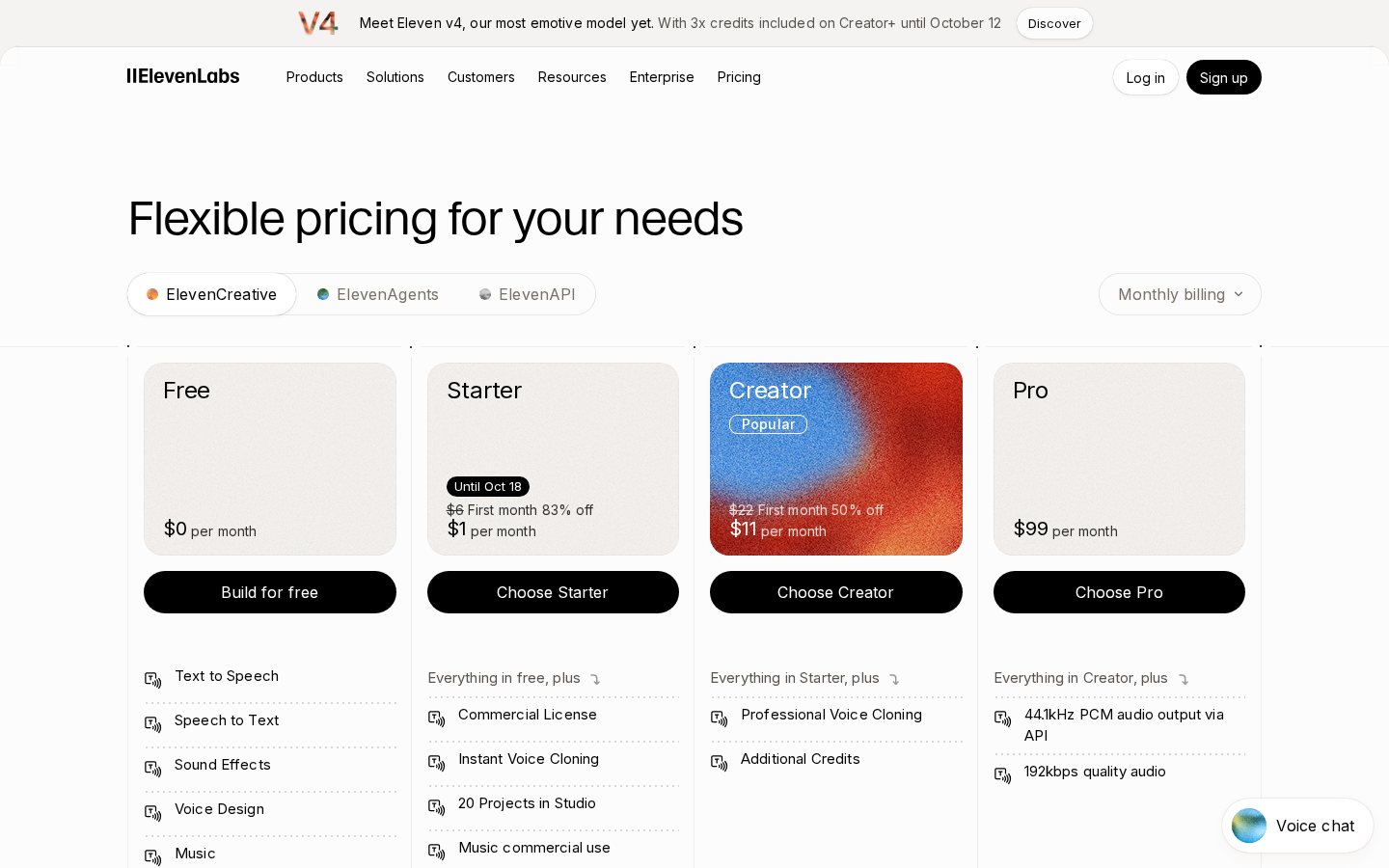
Ensure your files match the required constant bit rate and sample rate specified by your distributor. Generally, platforms require mono or stereo files rendered at 192 kbps or higher, with a sample rate of 44.1 kHz. You can configure these audio settings inside the export dashboard of the platform before you start the download process.
Lastly, keep in mind that some distribution platforms have specific policies regarding AI-generated narration. You must disclose that your audiobook utilizes synthetic voices during the metadata submission stage. Being transparent about your production methods ensures your book passes the review process without any unexpected delays or rejections.
Frequently asked
As an Amazon Associate I earn from qualifying purchases. This does not affect the price you pay. Affiliate disclosure