How to Get Started With ChatGPT as a Beginner
Learn how to get started with ChatGPT as a beginner, from creating an account and sending your first prompt to checking answers and protecting private information.
Some links are affiliate links: we may earn a commission if you sign up or buy through them, at no extra cost to you.
On this page8 sections
The short answer
- Set up a free account on the official website or mobile app to begin immediately.
- Write clear, detailed instructions in the message box to receive highly relevant answers.
- Use the chat history sidebar to organize, rename, or delete your previous conversations.
To get started with ChatGPT as a beginner, open the official ChatGPT website or app, create or sign in to an account, and type a clear question or instruction in the message box. Send the prompt, review the response, and ask follow-up questions to make it more useful. You do not need programming knowledge.
The interface functions similarly to standard messaging applications, allowing you to converse with an artificial intelligence assistant that can draft emails, summarize text, brainstorm creative ideas, or explain unfamiliar subjects. Begin with a simple, low-risk task, then refine the answer by adding context, a desired format, or a target audience. For a broader overview of its plans and intended users, read our ChatGPT review covering the free plan and who it is for.
The quick version
- Open ChatGPT
- Locate the text input bar
- Enter your initial request
- Submit the prompt
- Read and review the response
- Provide follow-up instructions
How Beginners Can Get Started With ChatGPT
Getting started with ChatGPT begins with visiting the official OpenAI platform in a desktop browser or downloading the official mobile application from your device's app store. Create an account or sign in using one of the options displayed on screen. Available sign-in methods can vary, so follow the current instructions shown by the service.
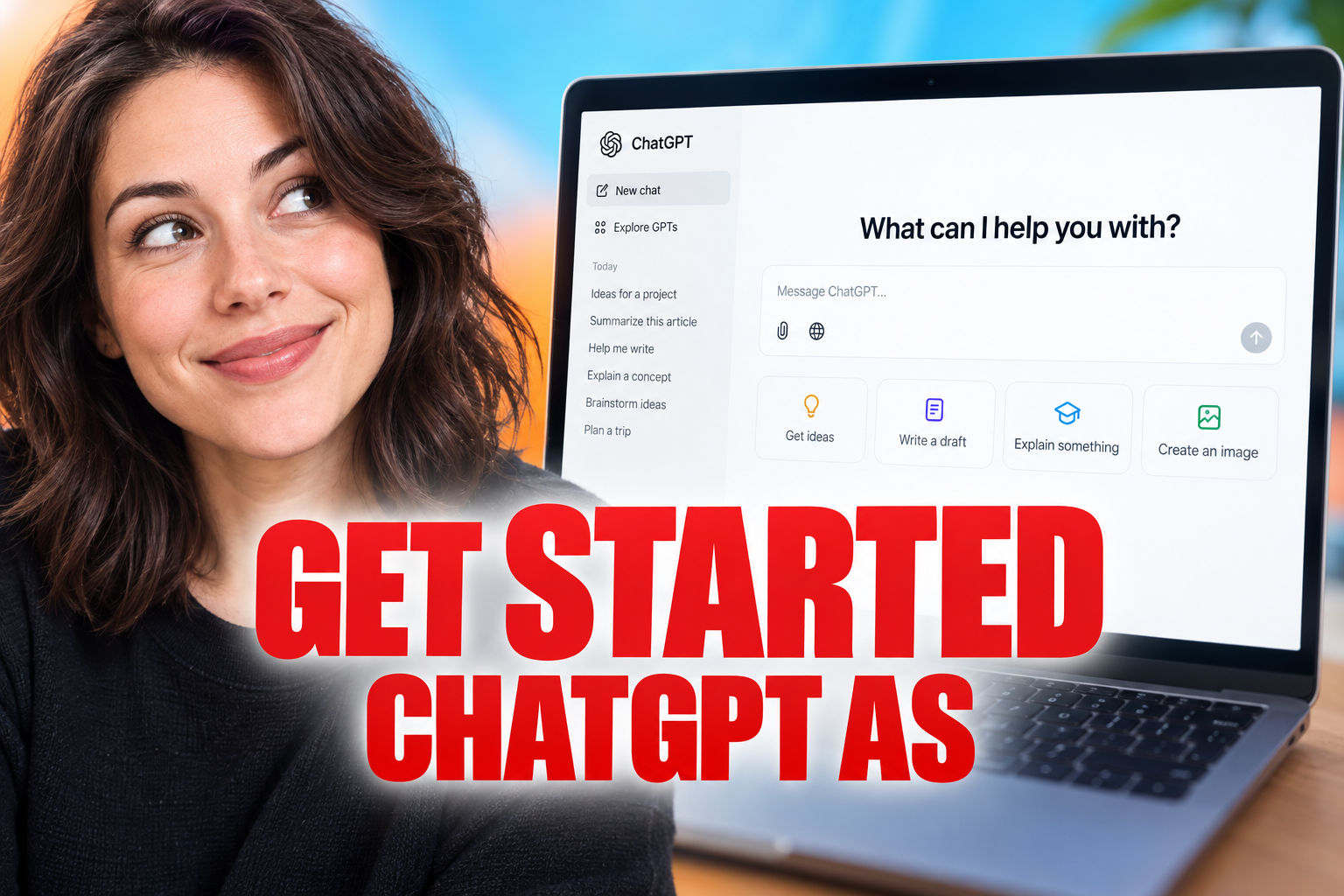
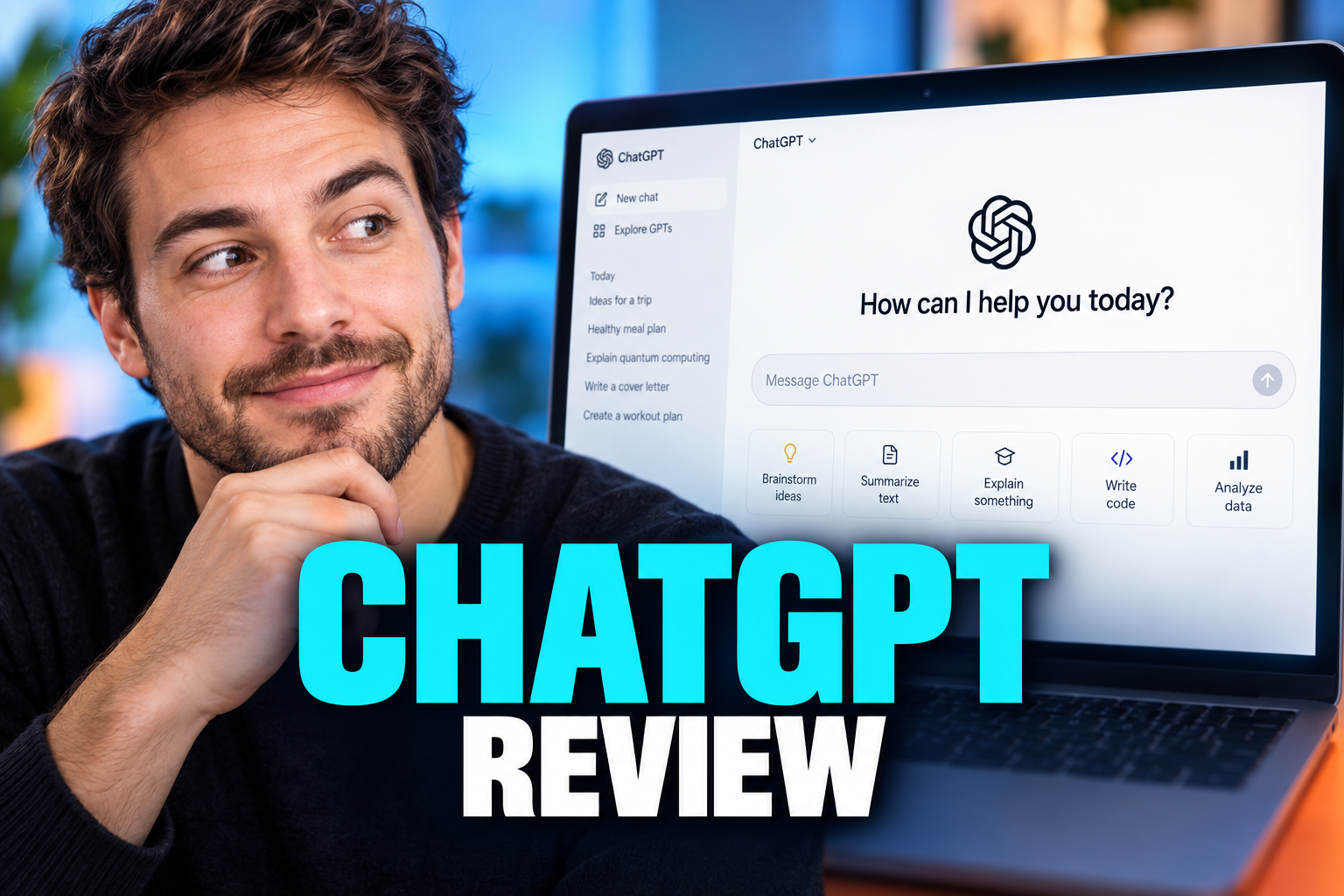
Once logged in, you will see a minimal interface designed to keep your attention on the conversation. The central portion of the screen displays your active dialogue, while the bottom contains the text input area where you compose messages. A sidebar or menu may provide access to previous conversations and account settings, depending on your device and interface version.
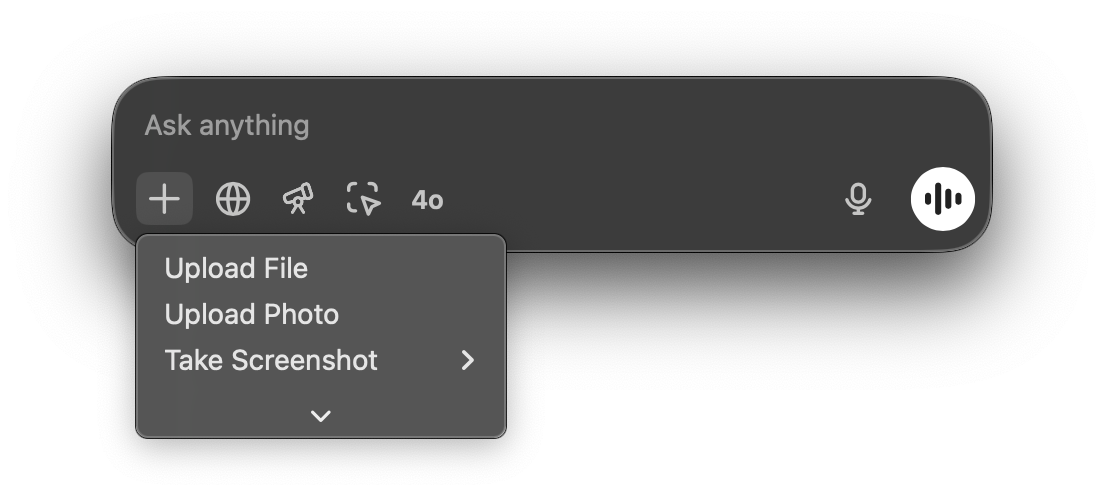
Understanding the basic layout helps prevent confusion during your first session. The input bar is where you type your requests, and any nearby controls may let you attach files or use voice features where supported. The system responds to natural human language, meaning you do not need any coding experience to use it.
Step-by-Step Guide to Your First Conversation
Starting your first conversation is straightforward if you follow the correct sequence of actions. You do not need to configure complex settings before typing your first message to the assistant. Simply focus on the text box at the bottom of the interface to begin your interactive experience.
- Open ChatGPT. Visit the official service or launch the official app, then sign in if prompted.
- Locate the text input bar. Find the message field in the main chat window.
- Enter your initial request. Type a clear question or command using natural conversational language.
- Submit the prompt. Use the send control or the relevant keyboard command.
- Read and review the response. Check whether it addresses your request and whether any factual claims need verification.
- Provide follow-up instructions. Add details, request corrections, or ask for a different format if the first answer needs refinement.
This interactive cycle is known as the chat loop, which forms the core of the experience. Instead of treating the tool like a search engine where you search once and leave, treat it as an ongoing conversation. Keep related follow-up questions in the same chat so the earlier context remains available within that conversation.
Crafting Clear Prompts for Better Results
To get more useful responses, understand how to construct a prompt, which is simply the text instruction you give to the system. Clear, detailed instructions help the assistant understand what you want. Vague inputs often result in generic answers that do not address your actual needs.
When writing your instructions, provide relevant context, define the desired format, and state the intended audience. For example, instead of asking the system to write an email, ask it to write a polite email to a client explaining a project delay. You can also specify a word limit, tone, structure, or information that must be included.
A practical beginner formula is: task + context + audience + format + constraints. For example: “Summarize the following notes for a new team member in five bullet points, using plain English and flagging anything that needs confirmation.” Writing complete instructions with relevant requirements usually produces a more focused first response. You can then ask the assistant to shorten, expand, simplify, or reorganize its answer.
You can request a perspective, such as asking it to respond as a tutor or editor, but that does not make it a qualified professional. For more detail about features offered across plans, see our ChatGPT Review 2026: Pricing, Free Plan and Who It's For.
Checking Responses and Fixing Weak Answers
ChatGPT can produce fluent text that sounds confident even when a detail is incomplete, outdated, or incorrect. Treat its output as a draft rather than automatic proof. Verify important names, dates, quotations, calculations, citations, and instructions against reliable sources before using them. This matters especially for legal, financial, medical, academic, or workplace decisions.
If an answer is too broad, do not simply repeat the same prompt. Explain what is missing. You might say, “Give me three practical examples,” “Use only the information in the text I supplied,” or “Separate confirmed facts from assumptions.” If the response misunderstands your goal, restate the task and include an example of the desired result.
For longer work, break the request into stages. Ask for an outline first, review it, and then request one section at a time. You can also ask the assistant to identify uncertainties or list questions it needs answered. This iterative prompting process gives you more control and makes errors easier to notice before they spread through a larger document.
Managing Chats, Files and Privacy
As you use the software more frequently, your chat history may begin to fill with conversation threads. The application may generate titles for chats based on their contents, and current interface controls can let you rename, archive, share, or delete conversations. The exact labels and locations may change between web and mobile versions, so use the options shown in your interface.
Organize chats by task, such as “weekly planning” or “email drafts,” so useful work is easier to find. Start a new conversation when you move to an unrelated subject or when old instructions are affecting the new response. Before sharing a conversation, review the entire visible thread because a shared view may include more context than the final answer alone.
Privacy is another crucial factor to consider when managing your data. Do not enter passwords, payment details, private identifying information, confidential client material, or proprietary company data unless your organization has explicitly approved that use. Review the current data controls in account settings to understand the available history, training, and deletion options. If you attach a file, remove unnecessary personal or confidential information first.
Choosing Between Free and Paid Access
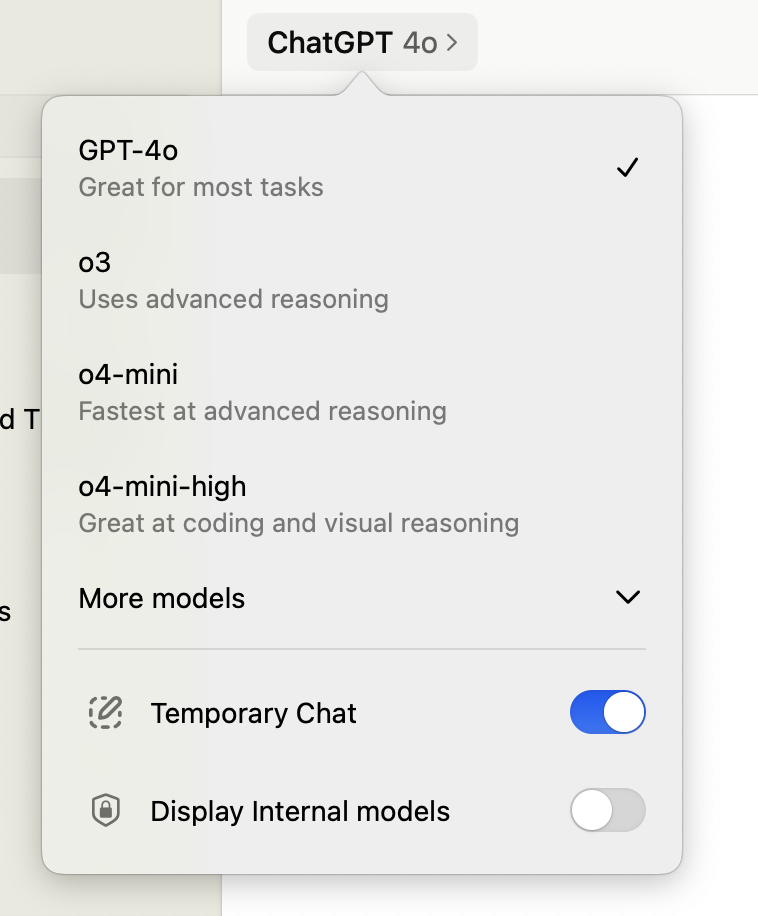
Beginners can start with the free access available through ChatGPT and learn the basic workflow before deciding whether they need a subscription. The core process is the same: enter a prompt, inspect the answer, and refine it through follow-up messages. Free access is a practical place to practise drafting, summarizing text you provide, brainstorming, and explaining general topics.
Paid access may offer different limits, models, or tools, but features and usage allowances can change. Compare the options currently displayed by OpenAI rather than relying on an old feature list. Consider how often you use the service, whether you regularly reach free usage limits, and whether a particular paid feature supports a real task in your workflow.
You do not need to subscribe before learning how to write effective prompts. Build a repeatable process first: define the task, supply appropriate context, request a format, verify the response, and revise it. If you later need a plan comparison, our ChatGPT Review 2026: Pricing, Free Plan and Who It's For explains the intended users and plan considerations without requiring you to upgrade.
Frequently asked
As an Amazon Associate I earn from qualifying purchases. This does not affect the price you pay. Affiliate disclosure