Is ChatGPT Safe and Private to Use?
ChatGPT is safe to use only if you adjust default training settings and manage sensitive prompts. Learn the step-by-step setup to protect your private data.
Some links are affiliate links: we may earn a commission if you sign up or buy through them, at no extra cost to you.
On this page8 sections
- 1The short answer
- 2How ChatGPT Handles Your Conversations by Default
- 3Step-by-Step Guide to Disabling Data Training
- 4Privacy Standards for Business and Team Accounts
- 5How to Delete Your History and Account Permanently
- 6Security Risks of Custom GPTs and Plugins
- 7Which Privacy Configuration Should You Choose?
- 8Frequently asked
The short answer
- OpenAI uses default chats to train its model unless you manually disable the training option.
- Enterprise and Team workspace tiers provide automated privacy and keep your proprietary data secure by default.
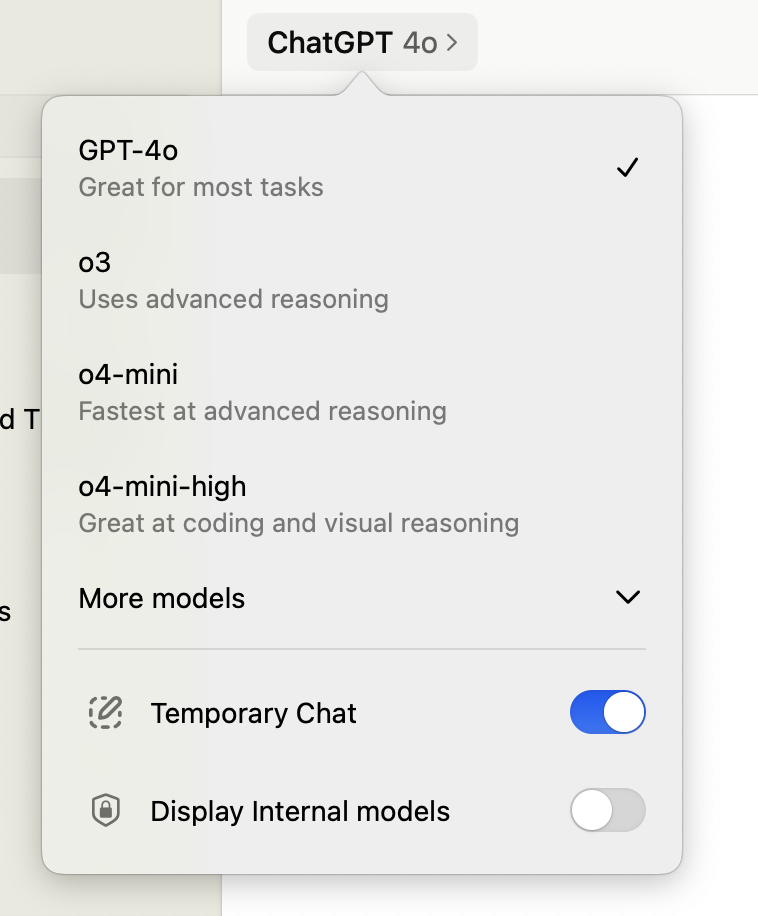
- Turning off history stops model training but prevents you from saving previous chat logs in your sidebar.
ChatGPT is safe and private to use only if you actively adjust its default settings and avoid sharing sensitive personal data. By default, OpenAI uses your conversations to train its models, meaning your inputs are not strictly confidential unless you opt out.
If you plan to use this software for work or personal writing, understanding these boundaries is essential. Choosing the right plan—whether the free option or a paid corporate subscription—directly affects how your data is handled behind the scenes. You can read our detailed breakdown of these plans in our ChatGPT Review 2026: Pricing, Free Plan and Who It's For.
In this explainer, we will walk you through the default security baselines, demonstrate how to disable data collection, and explain the administrative security features available on business accounts. Securing your chat portal takes only a few minutes when you know which settings to toggle.
The quick version
- Open the settings menu by clicking
- Select the Data Controls tab from
- Toggle off the Chat History &
- Verify the change by checking the
How ChatGPT Handles Your Conversations by Default
When you first open a chat window, the system is configured to save your prompts and responses. This information is stored on remote servers managed by OpenAI. Under these default terms, your inputs help refine the Large Language Model that powers the service. This process, known as data training, helps the AI learn human language patterns but presents risks for sensitive information.
It is important to realize that human reviewers may occasionally read annotated conversations to improve system safety. Although OpenAI removes direct identifiers, avoid pasting sensitive identifiers like passwords, medical records, or proprietary corporate code into the input field. Once entered, removing that data from the trained model is incredibly difficult.
If you use the free or standard paid tiers without changing your settings, you essentially grant permission for this training. For a complete look at what these different plans offer, our ChatGPT Review 2026: Pricing, Free Plan and Who It's For outlines the overall features. Understanding these baselines is the first step to securing your digital workspace.
To maintain safety, you must take control of your workspace settings rather than relying on default behaviors. Your personal security posture depends entirely on how you configure your profile. Let us examine the exact steps needed to adjust these default permissions immediately.
Step-by-Step Guide to Disabling Data Training
To protect your proprietary inputs, you must navigate the settings menu to disable the training option. This stops the model from learning from your specific prompts while still allowing you to use the tool daily.
Adjusting this option changes how OpenAI stores your data on their servers. The platform will still hold your history for 30 days to monitor for abuse, but it will not use the texts for model improvement.
- Open the settings menu by clicking your profile icon in the lower-left corner of the web interface. This action opens an overlay menu with several workspace options.
- Select the Data Controls tab from the sidebar menu to view your privacy toggles. Here you will find options for history storage and training permissions.
- Toggle off the Chat History & Training switch to stop OpenAI from using your conversations for future model development. The indicator will change color to confirm the training is deactivated.
- Verify the change by checking the sidebar, which will now show that chat history is paused for your current session. You can re-enable this at any time if you prefer convenience over privacy.
Remember that disabling history also means your sidebar will no longer save previous chats for easy access. This is the trade-off you must accept if you want to ensure your daily conversations are kept separate from the training pipeline.
Privacy Standards for Business and Team Accounts
For professional environments, the consumer-grade privacy settings are often insufficient to meet corporate compliance requirements. Businesses typically require stronger data governance, explicit storage guarantees, and contractual promises regarding information security. This is where high-tier business plans become necessary for overall team safety. These enterprise options provide a dedicated administrative layer that individual accounts simply do not support.
Unlike individual accounts, ChatGPT Team and Enterprise workspace accounts have data training disabled by default. OpenAI explicitly states that customer data submitted to these workspaces is never used to train their models. This change alone makes the business tiers much safer for handling proprietary code and confidential client files without needing to toggle settings manually.
Additionally, these business tiers offer centralized admin consoles where managers can enforce custom security rules across the entire group. Admins can control which external plugins are allowed and monitor overall member activity. This oversight prevents employees from accidentally sharing company assets with unauthorized third-party integrations that might harvest data.
These plans also support advanced single sign-on authentication methods, making access management much more secure across large organization structures. If you are deciding whether to upgrade your workspace, understanding these enterprise-grade controls is vital for protecting company secrets. Security administrators can deploy these accounts globally to maintain absolute oversight of active digital workspaces.
How to Delete Your History and Account Permanently
Even if you disable training, your past conversations might still reside in your account history if you had the training setting active previously. Regular clean-up of these legacy records is an important part of maintaining your digital footprint over time. Leaving old data stored indefinitely increases exposure risks if your personal credentials are ever compromised.
To clear your profile, you can delete your chat history either conversation by conversation or all at once through the settings menu. Once deleted, these logs are removed from your active dashboard immediately, though they may persist in OpenAI backup systems for a limited period. This ensures that casual observers of your screen cannot see past sensitive topics.
If you decide to close your account entirely, the deletion process is permanent and irreversible. This action removes your registered email, saved prompts, and payment details from the platform database. You will lose access to any custom models or subscription status associated with that profile.
Be aware that the account deletion process can take up to several weeks to fully propagate through all server backups. Plan accordingly if you are transitioning to an alternative tool or shutting down a project workspace. Monitoring the confirmation email from the support team is the best way to ensure the process is finished.
Security Risks of Custom GPTs and Plugins
The introduction of custom GPTs allows users to build specialized versions of the assistant for specific tasks. However, using these custom creations introduces new privacy considerations that differ from standard chats. You are no longer interacting solely with OpenAI's baseline infrastructure when using these custom modules.
When you interact with a custom GPT, the creator of that assistant may receive some of your interaction data under specific conditions. Specifically, if the custom GPT uses third-party APIs, your queries are sent to external servers outside of OpenAI's direct control. This creates an additional point of potential vulnerability for your data.
This means you must trust both OpenAI and the third-party developer to keep your information secure. You should inspect the custom GPT privacy controls and developer privacy policies before uploading any confidential documents to these custom tools. Avoid utilizing custom assistants for highly sensitive calculations unless you trust the creator completely.
Standard chats do not share data externally in this manner, making them inherently more predictable from a privacy perspective. Always evaluate the necessity of a custom tool before linking it to sensitive workflows. Sticking to the standard interface is generally safer for private work.
Which Privacy Configuration Should You Choose?
Deciding how to configure your account depends entirely on what kind of work you perform. If you are an individual working on personal, non-sensitive creative projects, the default free tier with training enabled might offer the most convenient experience. You get historical tracking without worrying about the implications of training data usage.
If you handle proprietary business ideas, personal financial records, or client information, you should immediately disable chat history and training. This setup keeps your work private while sacrificing the ease of searching past conversations. It is a necessary trade-off for protecting your professional reputation and clients.
For organizations where multiple team members handle client data daily, upgrading to a dedicated Team or Enterprise workspace is the only logical choice. This guarantees compliance without relying on individual employees to configure their settings correctly. It standardizes safety protocols across the entire company instantly.
No matter which option you select, remember that standard internet tools lack end-to-end encryption from your browser to the underlying model. Thus, ChatGPT is safe and private to use only when paired with conscious user habits, correct settings, and proper workspace configurations.
Frequently asked
As an Amazon Associate I earn from qualifying purchases. This does not affect the price you pay. Affiliate disclosure