What Can You Actually Make with ChatGPT?
Discover how to build functional tools, draft targeted documents, and generate clean code with ChatGPT using simple formatting structures and custom prompts.

Some links are affiliate links: we may earn a commission if you sign up or buy through them, at no extra cost to you.
On this page8 sections
The short answer
- ChatGPT builds working software scripts, structured text, and spreadsheet formulas using precise structural prompts.
- Custom instructions allow you to design personalized virtual assistants tailored to your specific business workflows.
- Uploading raw data files lets you generate interactive charts, cleaned spreadsheets, and structured summary reports instantly.
You can actually make functional code scripts, structured written documents, interactive custom GPT assistants, and data visualizations using ChatGPT. By giving the chatbot specific parameters, you can generate ready-to-use digital assets for your daily work.
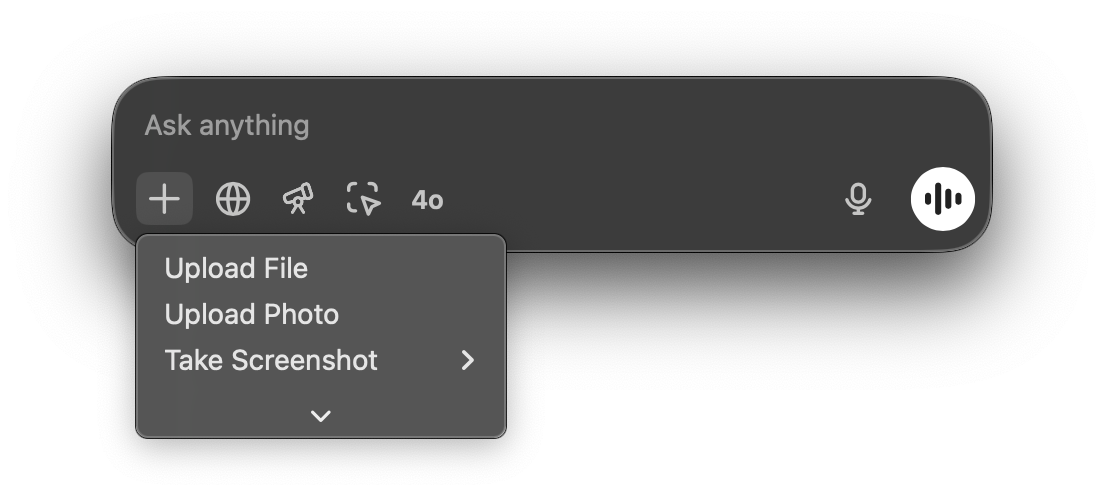
While many people use the software for basic conversation, its real value lies in generating structured outputs. By understanding how to manipulate the user interface—such as the paperclip icon for file uploads—you can shift from asking simple questions to producing tangible project deliverables.
Navigating these capabilities requires a clear understanding of the platform's tiers. In our detailed ChatGPT Review 2026: Pricing, Free Plan and Who It's For, we explore how the boundaries between the free and premium tiers affect what you can create. Let's look at the actual items you can build right now.
The quick version
- Open the custom instructions panel in
- Define your target persona and standard
- Input your precise formatting preferences and
- Test the newly saved profile with
- Save your refined rules or export
Interactive Data Dashboards and Spreadsheets
ChatGPT allows you to transform raw, unorganized numbers into polished data visualizations. By clicking the file attachment icon in the text input box, you can upload spreadsheets or CSV files directly. The underlying engine reads this dataset and constructs line graphs, bar charts, and scatter plots based on your instructions, saving manual setup time.
Beyond static images, you can request specific formulas to automate your work in external spreadsheet programs. The tool writes complex nested logical formulas, lookup sequences, and macro scripts. It explains exactly where to paste these formulas in your sheet, ensuring you do not have to debug the syntax yourself.
You can also ask the platform to clean dirty datasets by removing duplicates, filling in missing values, or formatting date columns consistently. Once the cleanup is complete, the interface provides a clickable download link to retrieve your newly formatted file. This turns hours of manual data preparation into a brief, supervised process.
Functional Software Code and Web Scripts
If you want to build a website, an automation script, or a custom browser extension, ChatGPT acts as a coding partner. It translates plain-language requests into formatted block code across dozens of programming languages. Because it outputs code in structured boxes, you can copy the text with a single click and test it immediately.
You do not need to be an expert programmer to make simple applications like calculators, countdown timers, or file converters. By requesting an HTML file with embedded CSS and JavaScript, you receive a single file that runs directly in any modern web browser. This rapid prototyping allows you to test functional ideas before committing to larger development projects.
When the code does not work, you can copy the error message back into the text input bar. The large language model analyzes the stack trace, identifies the line causing the failure, and suggests corrected lines of code. This interactive debugging loop teaches you how the code operates while resolving technical issues in real-time.
Custom GPTs and Specialized Assistants
Subscribers can build tailored versions of the assistant, known as Custom GPTs, without writing any code. Through the "Explore GPTs" menu, you can access the GPT Builder interface, which guides you through a conversational setup process. You define the specific persona, the knowledge base, and the operational boundaries of your custom creation.
During this creation process, you can upload reference files, such as your company style guide or a product manual, to the assistant's private database. This ensures the output remains aligned with your established brand tone and verified facts. You can also specify what the tool should avoid doing, preventing it from generating irrelevant responses.
Once finished, these custom tools live in your left-hand sidebar for easy access during daily tasks. You can keep them completely private, share them with colleagues via a direct link, or publish them to the public store. This makes it possible to distribute specialized workflows across an entire department.
Comprehensive Text Drafts and Outlines
Generating written material goes far beyond simple paragraph generation. You can construct comprehensive curriculum plans, employee onboarding handbooks, newsletter templates, and detailed user manuals. By establishing a clear system prompt first, you instruct the AI on the tone, target audience, and formatting requirements before it drafts a single word.
To make these documents highly readable, you can ask for the output to be delivered in markdown format. This automatically structures the text with clear headings, bold terms, bulleted lists, and tables. You can easily copy this formatted text and paste it directly into your word processor or content management system without losing the layout.
Instead of starting with a blank page, you can generate structured content outlines to guide your own writing. The tool can brainstorm creative angles, suggest subheadings, and point out logical gaps in your planned narrative. This cooperative writing approach helps organize thoughts quickly while keeping you in control of the final draft.
Step-by-Step: How to Configure a Custom Assistant
Creating a specialized asset with ChatGPT is most successful when you follow a structured configuration workflow. If you want to construct a reliable utility, you must set clear boundaries inside the interface. Setting up these guardrails ensures that the outputs remain consistent over time. Here is how you can set up a tailored helper step by step.
- Open the custom instructions panel in your settings menu. This area allows you to save persistent rules that apply to every new conversation.
- Define your target persona and standard delivery format clearly. State who you are, what projects you build, and whether you prefer concise bullet points or detailed prose.
- Input your precise formatting preferences and style constraints. Tell the system to use specific structures like markdown tables or to avoid certain cliché phrases.
- Test the newly saved profile with a sample task in a fresh chat. Observe whether the model adheres to your rules or requires further refining in the settings.
- Save your refined rules or export them as a reusable prompt template. This step ensures you can quickly swap instructions depending on the project you are tackling.
This foundational setup ensures that you do not have to repeat your background information every time you start a new thread. It saves significant time and prevents the tool from drifting away from your desired style during long sessions. By locking in these parameters, you establish a reliable baseline for your work.
Deciding Between Free and Paid Creation Tools
To decide which version suits your work, you must look at the specific creation tools each version offers. While the basic interface allows for simple text and basic coding, advanced creation requires more computing power. Your choice depends heavily on the complexity of the assets you plan to generate.
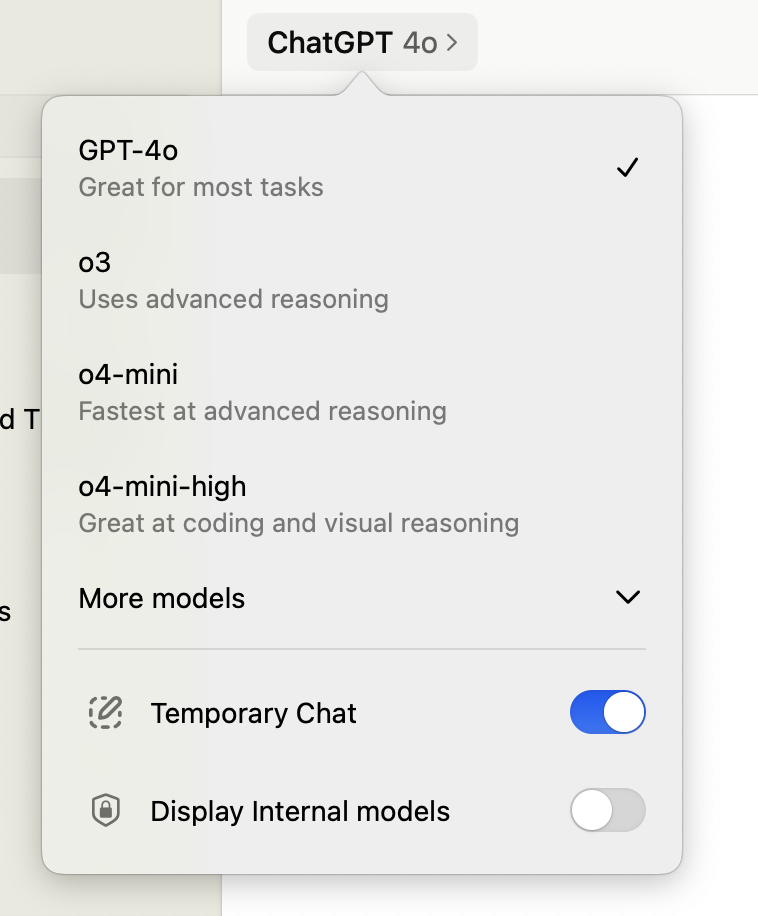
The differences between the tiers directly impact your creation workflow: - File Handling: The free tier limits your ability to upload large spreadsheets and images, while the paid tier allows for frequent, deep analysis of multi-page documents. - Customization: Free users must prompt the model manually in each new session, whereas paid subscribers can build and save dedicated Custom GPTs for continuous use. - Model Access: Paid tiers grant access to advanced reasoning models that handle complex logic and debugging much better than the standard models available to everyone. - Image Generation: Premium accounts include integrated image generation tools, allowing you to create custom icons and illustrations directly inside your chats.
If your goal is simply to draft occasional emails or write minor code snippets, the free version provides ample capability. However, if you plan to analyze corporate datasets, build custom workflow bots, or generate visual graphics, upgrading to a premium tier is a necessary step. For more details on these tiers, refer to our ChatGPT Review 2026: Pricing, Free Plan and Who It's For to find the right option for your budget.
Frequently asked

As an Amazon Associate I earn from qualifying purchases. This does not affect the price you pay. Affiliate disclosure