
What to Know Before Buying Murf: Review Guide
Before choosing Murf AI, understand its timeline-based workflow, voice controls, language tools, integrations, export restrictions and plan-dependent features.

Some links are affiliate links: we may earn a commission if you sign up or buy through them, at no extra cost to you.
On this page8 sections
- 1The short answer
- 2What Should You Know Before Buying Murf?
- 3How to Select and Customize Murf Voice Profiles
- 4Managing Multi-Language Translation and Dubbing
- 5Understanding Integrations, Downloads and Voice Cloning
- 6Which Murf Subscription Tier Fits Your Workflow?
- 7A Practical Checklist Before You Commit
- 8Frequently asked
The short answer
- Free accounts cannot download audio files, limiting initial testing to the online preview timeline.
- High-end voice cloning is restricted to corporate enterprise plans rather than basic individual tiers.
- Deep integrations with external design platforms streamline multi-media workflows directly inside your web browser.
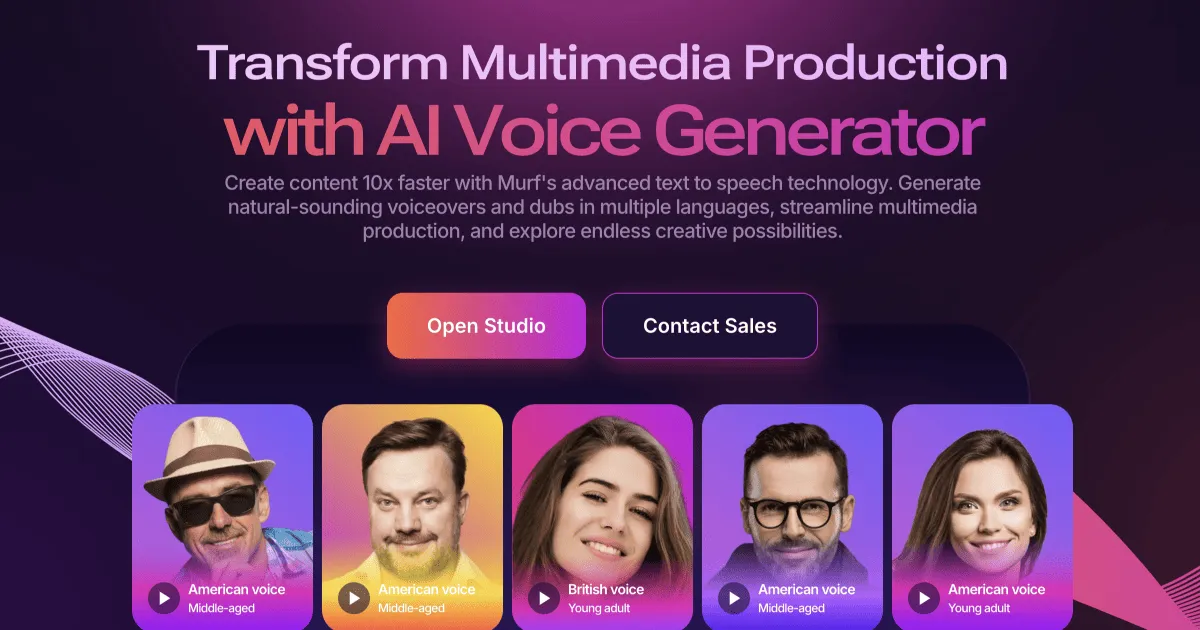
Before buying Murf, know that it is a timeline-based AI voice platform, not a one-click audio tool. Free accounts cannot download generated audio, while custom voice cloning is limited to enterprise arrangements. Check the editing workflow, export permissions, commercial usage rights and feature access in this Murf review before choosing a plan.
What Should You Know Before Buying Murf?
The main point to understand before buying Murf is that professional results require more than pasting a script and selecting a voice. The primary workspace of this voice generator resembles a simplified video editor rather than a basic text editor. When you enter the studio, you work with a linear timeline divided into distinct text blocks. Each block represents a separate audio segment, which you can adjust individually for speed, pitch, and pauses. This segmented approach helps you synchronize your voiceovers with specific slides or video frames. Users who expect to paste an entire ten-page script and get a single, perfectly paced audio file in one click will find themselves disappointed. The software relies on block-by-block manual adjustments to ensure the natural flow of spoken words. You must specify emphasis on individual syllables and introduce custom pause durations between sentences. This block interface acts as your central command. You can import external video clips or presentation slides directly into the workspace, allowing you to align the visual changes with the corresponding spoken text blocks. It prevents the audio from drifting ahead of your video, which is a common issue in simpler text-to-speech tools.
How to Select and Customize Murf Voice Profiles
Finding the correct voice within a large library can become overwhelming without a structured approach. The software organizes its vocal library by age, gender, regional accent, and intended use case, such as e-learning or conversational podcasts. Choosing the wrong profile can result in a robotic delivery that fails to connect with your target audience. Start by opening the voice selection library from the profile icon beside the active text block. Apply the available filters, then listen to sample clips before generating a longer passage. Next, adjust the speed controls to suit the visual pacing and insert manual pauses where natural breathing should occur. Test representative sections of your script, including questions, lists, abbreviations and emotionally important lines, rather than judging a voice from one short sample. Changing a voice may affect only the active block unless you select an option that applies it throughout the project. You may also need phonetic spelling to guide pronunciation of names, acronyms or specialized terminology. These controls can improve delivery, but they also add editing time that buyers should include in their workflow assessment.
Managing Multi-Language Translation and Dubbing
Expanding your reach to international audiences requires looking beyond basic English outputs. The platform provides localized options across multiple languages and regional variations. This allows you to adapt a master script into foreign-language voice tracks without recording every version separately. However, automated translation features carry a risk of literal phrasing errors that sound unnatural to native speakers. You must monitor the translated text blocks to ensure regional idioms make sense. The system handles speech generation, but human oversight remains critical to verify that the core message remains intact. The editor uses a synthesized speech engine that adjusts to different linguistic structures. Before finalizing a project, verify the pronunciation of specialized industry terminology, names and abbreviations, as automated systems can struggle with niche words. Treat localization as an editorial process, not merely a language-setting change. Compare the translated audio with the visual timing as well: a sentence may become longer or shorter in another language, requiring new block boundaries, pauses or slide timings. A native speaker or qualified reviewer should check important public-facing scripts where nuance matters.

Understanding Integrations, Downloads and Voice Cloning
For professionals who build presentations or visual assets regularly, switching between multiple software programs is a major hassle. To ease this workflow, the platform integrates with tools such as Canva and PowerPoint. These integrations can reduce repeated exporting and importing while you prepare narrated visual content. Despite these convenient connections, the restrictions on standard accounts can surprise unwary buyers. Our detailed Murf Review explains that the basic free tier prevents you from downloading finished audio files. You can preview projects inside the web browser, but exporting audio requires an eligible paid tier. Advanced features such as high-fidelity custom voice cloning are reserved for enterprise arrangements. This means individual creators or small businesses should not assume they can upload a short recording and reproduce their own voice through a standard plan. Before subscribing, map the complete path from script to finished file: confirm whether you need standalone audio, video output, presentation integration or team access. Also check the current terms for permitted distribution, because preview access, export access and usage permission are separate considerations.
Which Murf Subscription Tier Fits Your Workflow?
Choosing a plan depends heavily on your production volume, required features and collaboration needs. If you only need to evaluate the tool or test voice compatibility for an internal presentation, the free preview tier can help you explore the interface and compare voices, though it does not let you save generated audio locally. Independent content creators, educators and social media managers should compare paid tiers by export access, included voices, generation allowances and usage terms rather than selecting a plan from the tier name alone. If your workflow involves public-facing video distribution, confirm commercial usage rights before publishing. Larger teams may also need shared workspaces, collaboration controls or dedicated support options. Build a short test script that reflects your actual work, including difficult names, long sentences, scene changes and background media. Then estimate how often you will regenerate blocks during revisions. A full Murf review and buying guide can help you compare these plan boundaries and assess whether the editor suits your production process. Current plan documentation should remain the final reference because features and terms can change.

A Practical Checklist Before You Commit
Start by identifying the output you actually need: a standalone narration, a synchronized video voiceover, a presentation track or localized versions of the same script. Next, list the languages, accents and voice styles required by your audience. Test difficult vocabulary with pronunciation controls and check whether corrections can be reused consistently across the project. Review how the timeline handles revisions, because changing a script after visual timing is set may require multiple block adjustments. Confirm that your intended plan supports downloads in the formats needed by the next tool in your production chain. If colleagues need to review or edit projects, assess workspace and collaboration access rather than assuming that sharing an exported file will be enough. Finally, read the current licensing and usage terms for public, client or commercial work. Do not treat a successful browser preview as proof that you can export or distribute the result. For a broader feature comparison, consult the Murf AI review, then verify plan-specific details with Murf before making a decision.
Frequently asked
As an Amazon Associate I earn from qualifying purchases. This does not affect the price you pay. Affiliate disclosure