Who Should Use Fireflies.ai, and Who Should Skip It?
Discover who benefits most from the Fireflies.ai meeting assistant and when you should opt for traditional, offline recording methods instead.

Some links are affiliate links: we may earn a commission if you sign up or buy through them, at no extra cost to you.
On this page8 sections
- 1The short answer
- 2Managing the Automated Bot Entry Screen
- 3Editing Transcripts in the Main Workspace
- 4Navigating the Summarization and Action Items Screen
- 5Setting Up and Testing Your Account
- 6Connecting Tools in the Integration Center
- 7Deciding Between Automated Assistants and Manual Recording
- 8Frequently asked
The short answer
- Best for teams needing automated summaries and seamless CRM integrations to log client calls.
- Skip if clients require absolute off-the-record privacy or strict local data-storage compliance.
- Test transcription accuracy with your team's specific industry jargon before committing.
Fireflies.ai is ideal for team leaders, sales representatives, and recruiters who need automated, searchable meeting transcriptions integrated directly with their customer relationship management tools. However, you should skip it if you handle highly confidential client data that prohibits third-party cloud processing or if you only host informal, audio-only calls.
Choosing an artificial intelligence assistant changes how you run virtual meetings. When an automated recorder joins, it alters how participants interact, how notes are distributed, and how post-meeting tasks are tracked. Understanding these dynamics is crucial before committing to a platform.
For teams seeking a comprehensive pricing analysis, our Fireflies.ai Review 2026: Pricing, Free Plan and Who It's For provides a full cost breakdown. Here, we will focus on specific workflows to help you decide if this tool matches your daily needs.
The quick version
- Link your primary professional calendar to
- Configure your automatic entry rules before
- Conduct a short internal test meeting
- Review the generated transcript and summary
- Input custom vocabulary terms into your
- Connect your preferred productivity applicat…
Managing the Automated Bot Entry Screen
The initial point of contact with this software happens on the settings page where you configure how the bot joins your digital calls. You can link your Google or Outlook calendar directly to the dashboard, giving the software permission to scan your upcoming appointments. From this interface, you decide whether the assistant automatically enters every meeting, only those you host, or only specific calls you manually invite.
For sales professionals, setting this to automatic ensures that no client conversation goes undocumented. The bot quietly enters the meeting lobby and requests entry just like a human attendee, signaling that recording has commenced. This screen is designed to minimize pre-meeting friction, ensuring you do not have to scramble to find a record button once the conversation starts.
However, this automated entry is why some professionals should skip the software. If you work in legal counsel, mental health therapy, or venture capital, having an external bot request access to private meetings can damage trust. Some clients may find the presence of an AI recorder unsettling or inappropriate, necessitating manual removal of the bot.
For those in high-trust environments, the entry screen offers excellent granular controls. You can set the system to only join meetings with external email addresses or restrict recording to internal team standups. Managing these calendar auto-join settings correctly prevents accidental recordings of private chats that were never meant to be documented.
Editing Transcripts in the Main Workspace
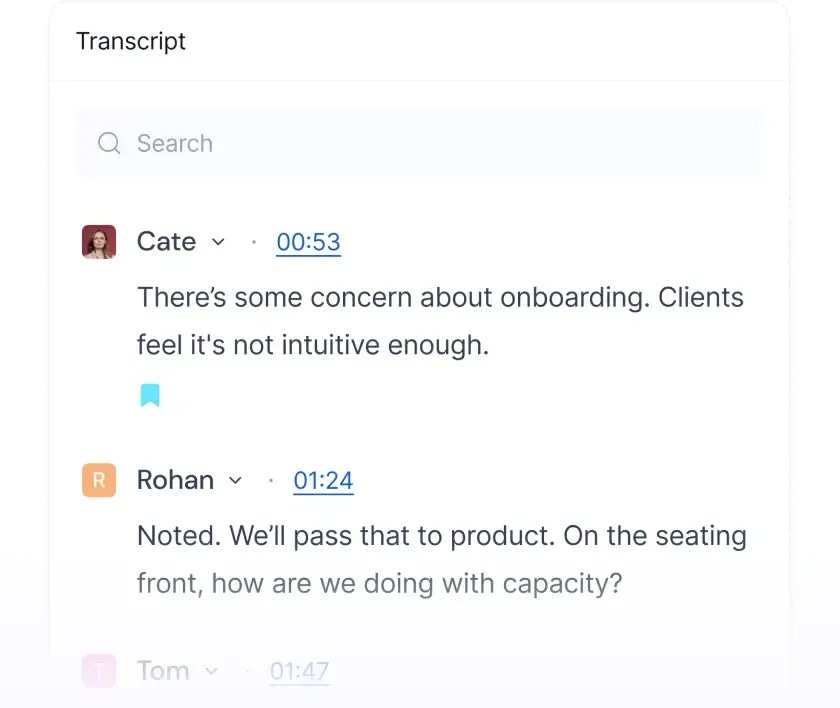
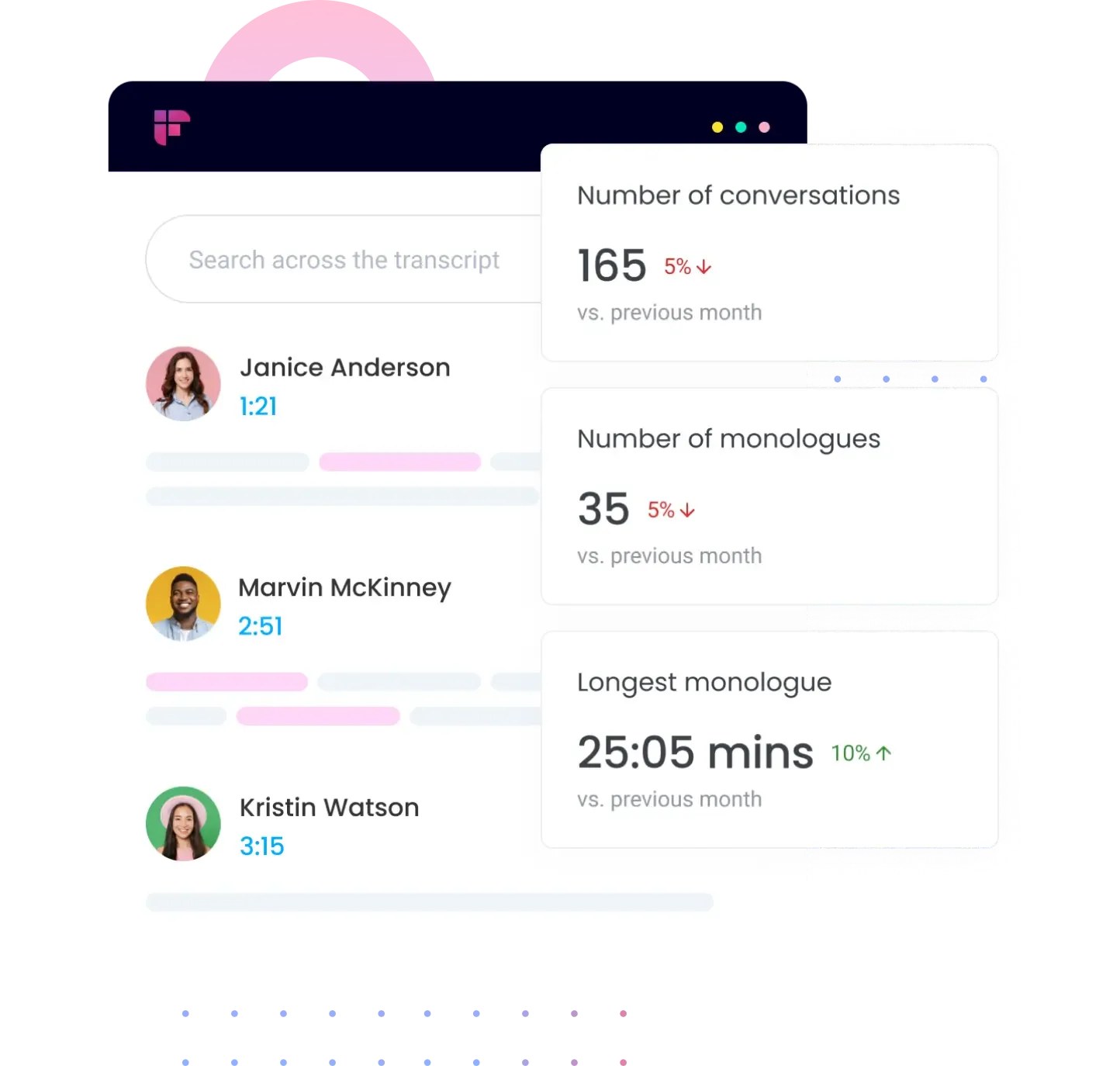
Once a meeting ends, the software processes the audio and presents the results in the central transcription viewer. This screen displays a synchronized playback interface where the text is aligned with the audio track. Users can scroll through the automatically generated dialogue, which is divided by speakers using natural language processing to identify who said what.
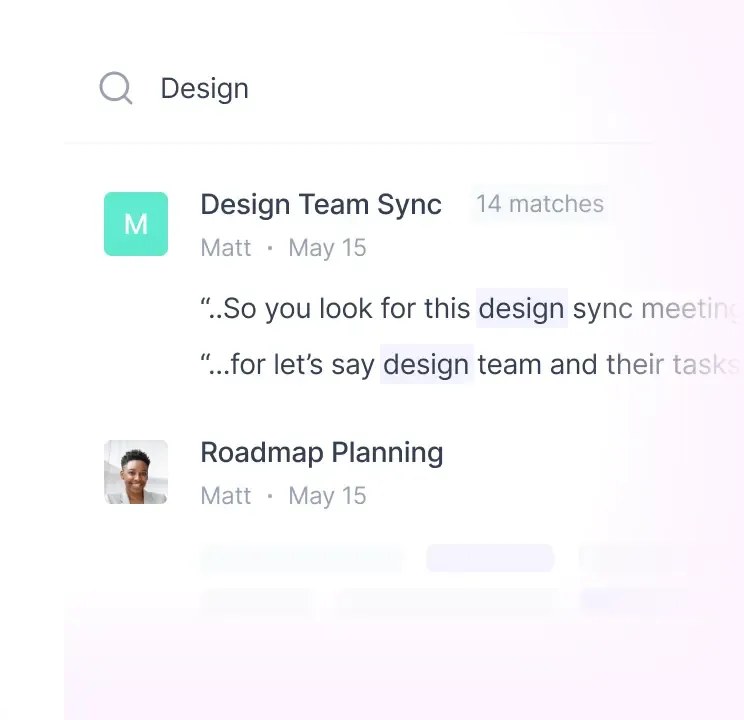
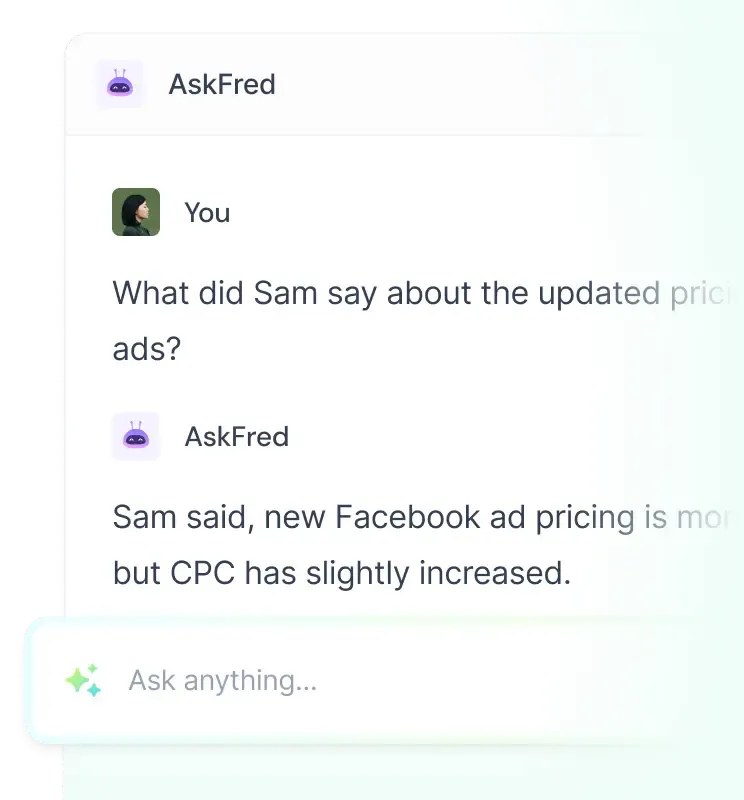
This dashboard is incredibly useful for project managers who need to verify specific details from a long planning session. Instead of listening to the entire recording, you can type a keyword into the search bar and locate every instance that word was spoken. The text is interactive, meaning you can click on any sentence to play back the exact audio snippet.
Despite these capabilities, the transcription engine is not flawless and may struggle with accented speech or complex technical terms. If your daily work involves highly specialized engineering or legal vocabulary, you might spend excessive time correcting mistranslated terms. Organizations that require absolute precision in their written records might find this manual editing process too tedious.
Fortunately, the system allows you to build custom vocabulary filters to improve future accuracy. By training the AI on your specific company acronyms and product names, you can gradually reduce editing times. However, if your team is unwilling to spend time refining these custom terms, the initial out-of-the-box accuracy might not meet your standards.
Navigating the Summarization and Action Items Screen
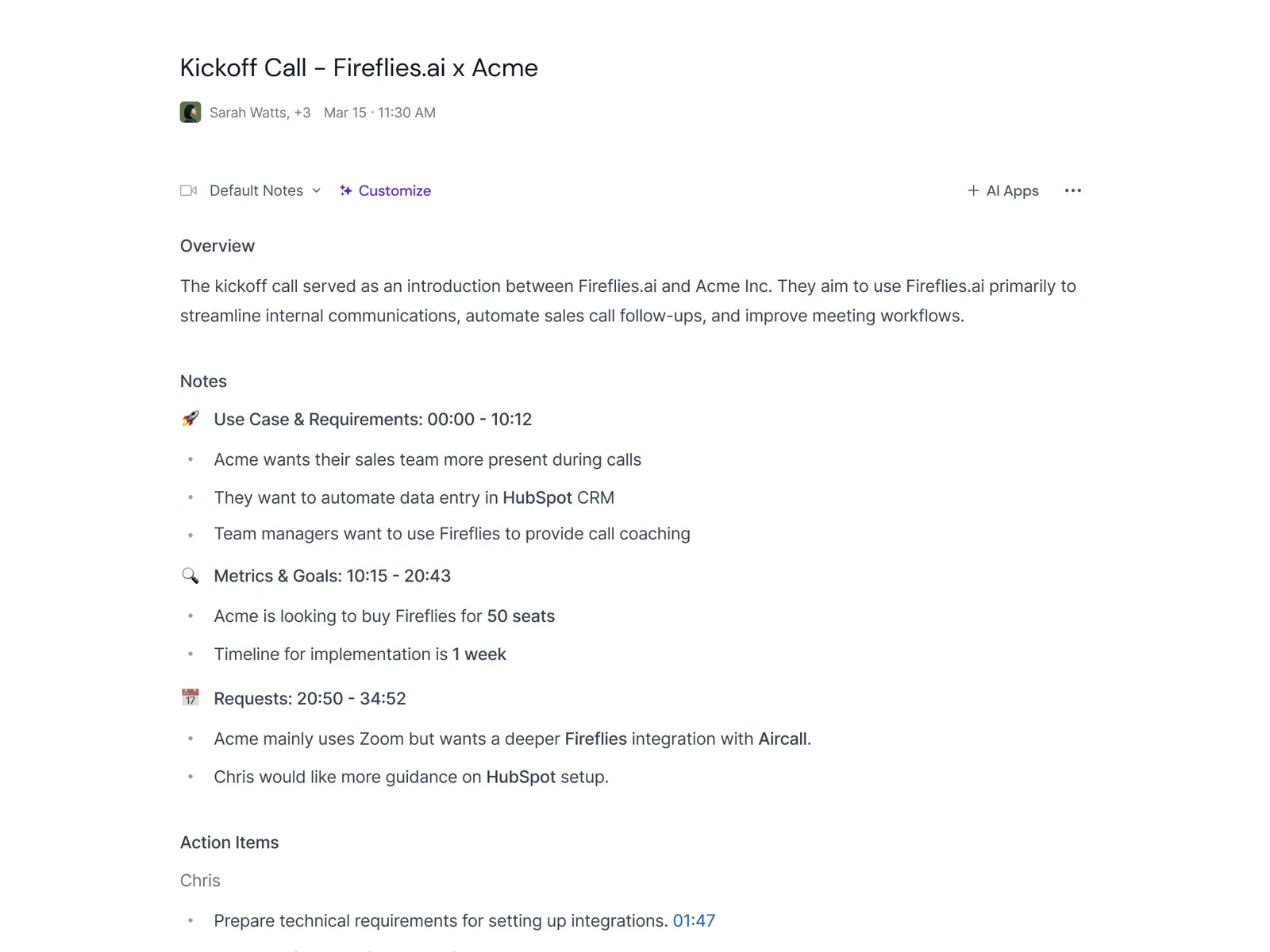
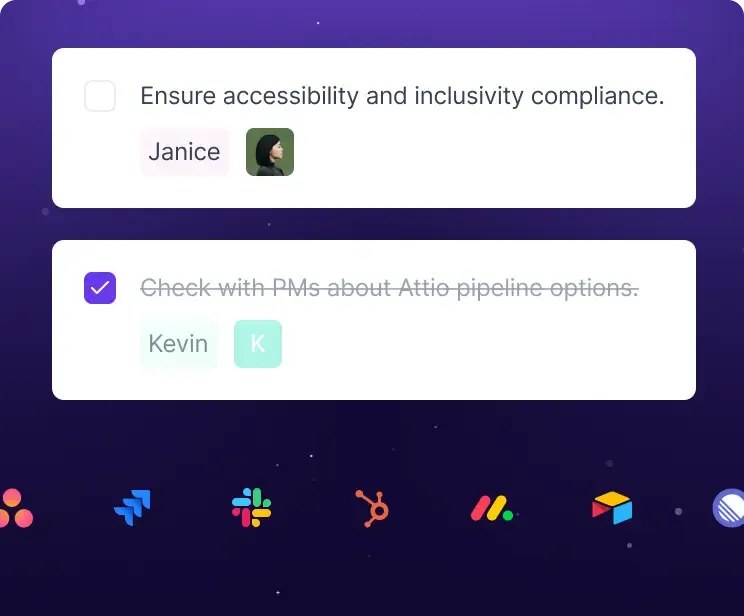
Adjacent to the transcript is the AI Notepad, a section that displays automated summaries, outlines, and designated action items. The software distills complex discussions into digestible takeaways, grouping them by topics such as next steps, questions asked, and key metrics. This screen is designed to replace traditional manual minutes, allowing attendees to focus entirely on the conversation.
For teams running agile standups or weekly marketing reviews, this screen provides immediate value. You can quickly scan the list of generated tasks, assign them to team members, and export them directly to your project tracking boards. This automated transcription and summarization workflow ensures that decisions made during a chaotic brainstorming session are preserved in an organized format.
However, the AI-generated summaries are only as good as the structure of the meeting itself. If your team tends to ramble, jump between unrelated topics, or make vague decisions, the summary screen may produce disorganized action items. It requires disciplined meeting facilitation to ensure the software can cleanly extract clear tasks and decisions.
For those who prefer a structured agenda, the summary tool works beautifully. It helps highlight key milestones without requiring a human note-taker to keep up with fast-talking presenters. If your meetings have a clear flow, this automated summary will save your administrative staff several hours of transcription cleanup work every week.
Setting Up and Testing Your Account
To determine if an AI assistant fits your daily routine, you should follow a structured evaluation process. Running a controlled test helps you understand how the software behaves in real-time without risking client relations. This checklist will guide you through the process of setting up and testing the software with your team.
- Link your primary professional calendar to the main dashboard. This allows the software to identify upcoming virtual appointments and apply your default recording preferences automatically.
- Configure your automatic entry rules before hosting a live conversation. Choose whether the bot joins all calendar events, only events you host, or only selected meetings.
- Conduct a short internal test meeting with your immediate team members. Speak naturally, use standard industry terms, and assign a few mock tasks during the call.
- Review the generated transcript and summary for overall comprehension. Check how well the system identified different speakers and captured your specific action items.
- Input custom vocabulary terms into your settings to correct repeated errors. This trains the AI to recognize your unique product names, partner brands, and team acronyms.
- Connect your preferred productivity applications to automate your workflow. Test the data flow to ensure summaries and action items populate correctly in your external tools.
Following this sequence ensures you do not send an unconfigured bot into a high-stakes client meeting. It gives you a clear baseline of the transcription quality you can expect based on your team's speech patterns.
If you decide to move forward, explore the subscription options. To compare plans, see our Fireflies.ai Review 2026: Pricing, Free Plan and Who It's For to balance features against your budget.
Connecting Tools in the Integration Center
The integration screen is where the software shifts from a simple recording utility to an automated workflow engine. From this dashboard, you can authorize connections to popular project management programs, chat applications, and customer relationship management systems. Once connected, the software can automatically push transcripts, audio snippets, and summaries directly to specific client records.
For sales departments, this integration is often the deciding factor. Instead of forcing representatives to spend valuable time logging meeting details manually, the system automatically attaches the call summary to the contact card in your CRM. This keeps your pipeline data fresh and ensures that other team members can review client interactions without requesting manual updates.
However, setting up these deep integrations requires administrative privileges and a clear data management strategy. If your organization uses proprietary or highly customized internal databases, you might find the standard connectors insufficient. In these cases, your team will need to rely on API integration pathways, which require software development resources to establish and maintain.
Additionally, smaller operations that rely on basic email and spreadsheets may find these integration features unnecessary. If your workflow does not require automated data sharing across multiple platforms, you might be paying for advanced capabilities that you will never use. Always assess your current software stack before upgrading to plans that feature advanced integrations.
Deciding Between Automated Assistants and Manual Recording
Selecting the right tool depends entirely on your operational goals, budget, and privacy standards. Some teams only require simple audio archives, while others need a sophisticated system that analyzes the dynamics of their conversations. Understanding how these approaches differ will help you make a practical decision for your daily business operations.
If you are choosing between an advanced AI assistant and traditional, manual recording setups, consider how each handles the workflow: - Integration: Fireflies.ai syncs with calendars and CRMs, while manual recorders require uploading audio files and typing summaries. - Data Privacy: Local recorders keep files on your physical machine, while Fireflies.ai processes data in cloud environments. - Task Automation: Automated assistants extract action items using conversational intelligence, while manual setups require human note-takers. - Accessibility: Cloud transcription offers instant search across teams, whereas local recordings are harder to catalog.
If you decide that an automated workspace assistant fits your requirements, look into how to get started efficiently. Our resources can help you compare available solutions, including our detailed Fireflies.ai Review 2026: Pricing, Free Plan and Who It's For. Choose the setup that keeps your team productive without complicating your administrative processes.
Ultimately, busy sales professionals and consultants who need to offload administrative tasks will find the automated workflow invaluable. Conversely, those working in highly regulated industries with strict compliance guidelines should stick to traditional local recording methods. Balancing these priorities ensures you choose a tool that supports your business without introducing unnecessary security risks.
Frequently asked

As an Amazon Associate I earn from qualifying purchases. This does not affect the price you pay. Affiliate disclosure