Who Should Use Murf AI and Who Should Skip It?
Find out if Murf AI fits your project needs by examining its voice editing timeline, customization controls, and high-tier licensing limitations.
Some links are affiliate links: we may earn a commission if you sign up or buy through them, at no extra cost to you.
On this page8 sections
- 1The short answer
- 2The Studio Dashboard: Organizing Complex Projects
- 3The Voice Selection Library: Matching Tone to Audience
- 4The Timeline Editor: Fine-Tuning Pitch and Pronunciation
- 5The Media Integration Panel: Syncing Voice with Video
- 6The Voice Cloning Interface: Replicating Human Talent
- 7Which One Should You Choose for Your Projects?
- 8Frequently asked
The short answer
- Choose Murf AI for precise syllable-level control over professional corporate voiceovers.
- Skip Murf AI if you require automated real-time translation or highly dramatic character voices.
- The timeline-based editor simplifies syncing voice blocks with slides and videos in your browser.
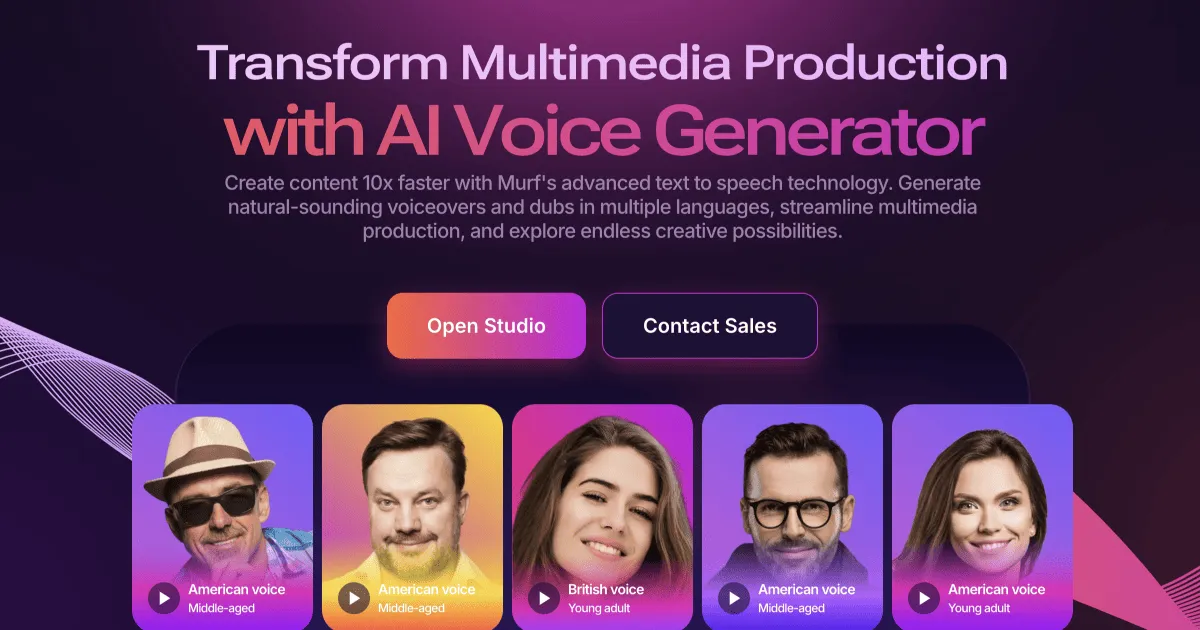
Murf AI is ideal for content creators, corporate trainers, and educators who need realistic, studio-quality voiceovers without hiring voice actors. However, budget-focused casual creators, narrative podcasters needing deep emotional ranges, and translators requiring seamless automated multi-language dubbing should skip it. Deciding whether to integrate this cloud-based voice generator into your production pipeline comes down to understanding its technical workflow. The tool operates through a structured timeline editor where you type text, assign specific voice models, and adjust precise parameters like pitch, speed, and emphasis. While the voice library is highly polished, the software requires a methodical approach to fine-tuning pronunciation. If your goal is to quickly churn out short social media clips with minimal adjustments, or if you require highly complex, character-driven dramatic performances, Murf AI might not match your creative demands. Let us break down where this software shines and where it falls short.
The Studio Dashboard: Organizing Complex Projects
The Studio Dashboard serves as your central command center. Upon opening the application, you enter a clean workspace designed to manage separate voice projects. Creators who manage multiple video channels or corporate clients will appreciate this screen because it lets you build folders and keep assets isolated. Inside each project, you import script files in formats like DOCX or TXT, which the system automatically breaks down into individual blocks. Each block corresponds to a specific paragraph or sentence, allowing you to assign different speakers to different sections. This modular approach is excellent for dialogue-heavy scripts but can feel tedious if you prefer a continuous stream of text. The dashboard also houses your template library, letting you save preferred layout settings and voice pairings. For large teams, this centralized structure ensures everyone accesses the correct brand assets, though solo creators might find the multi-step folder setup slightly more complex than basic text-to-speech tools.
The Voice Selection Library: Matching Tone to Audience
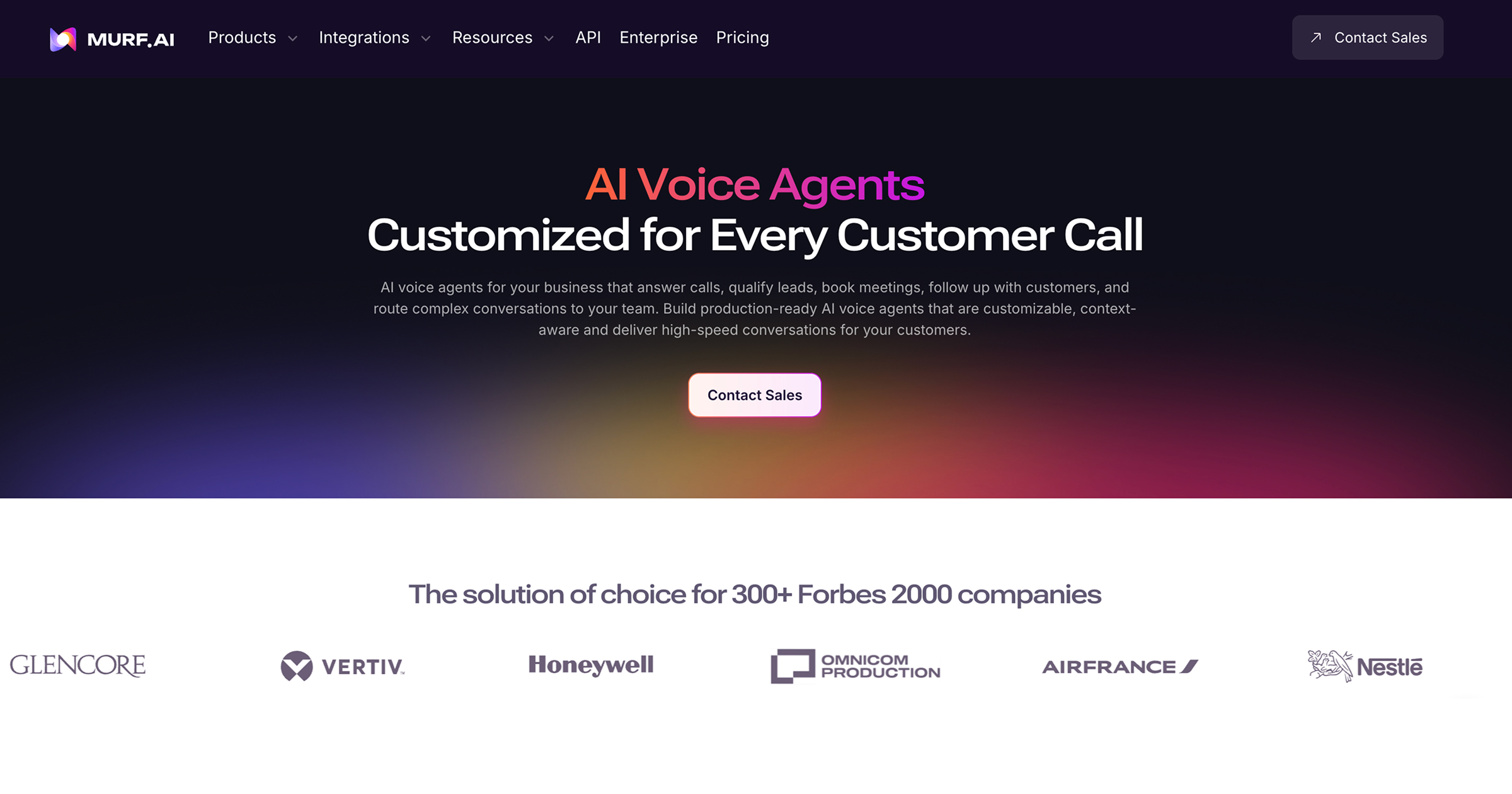
When you click on the active voice profile in any text block, the software opens the Voice Selection Library. This catalog contains a wide range of synthetic speech profiles categorized by language, accent, age group, and recommended use case. For example, you can filter specifically for corporate training, promotional advertisements, or audiobooks. Users targeting international audiences can choose regional accents, making the output sound authentic to local markets. If you are unsure which voice fits your brand identity, you can preview short audio samples directly from the selector grid. The primary decision factor here is access, as the most realistic and expressive voices are reserved for higher tiers. To explore the exact layout of these tiers and what each contains, check out our Murf AI Review 2026: Pricing, Voices and Who It's For. High-quality voices feature natural breathing patterns and subtle inflections, whereas the standard voices can sometimes sound slightly artificial. For businesses seeking a signature audio identity, this library provides a solid foundation.
The Timeline Editor: Fine-Tuning Pitch and Pronunciation
Once you select a voice, you will spend most of your time in the Timeline Editor. This is where you adjust the granular speed, pitch, and pauses of your chosen voice actor. The primary reason to use Murf AI is its granular control over punctuation, pause lengths, and emphasis points. If the synthetic engine mispronounces a brand name or a highly specialized industry term, you must manually adjust the phonetic spelling. This correction workflow is crucial for technical training modules and pharmaceutical presentations where accuracy is non-negotiable. Correcting these terms follows a specific timeline sequence: 1. Select the text block containing the problematic word or technical term. 2. Click the pronunciation button to open the custom phonetic spelling interface. 3. Choose between using alternative spelling variations or typing phonetic IPA symbols. 4. Preview the modified word individually to ensure the synthetic voice pronounces it correctly. 5. Apply the correction to the entire project or save it to your custom active dictionary. While this interface is highly functional, it requires patience and a methodical approach to achieve optimal realism.
The Media Integration Panel: Syncing Voice with Video
For video editors and instructional designers, the Media Integration Panel is a key workspace. This interface allows you to upload background video clips, slide presentations, or audio tracks directly alongside your voice blocks. You can drag and drop your voiceover segments along the visual timeline, aligning the spoken words perfectly with specific on-screen graphics or slide transitions. This eliminates the need to export the audio files and sync them in a separate video editing program, saving considerable time. The editor also features audio ducking controls, which automatically lower the volume of your background music whenever a voice block plays. This ensures your narration remains clear and legible without manual volume keyframing. However, if your video editing needs are highly advanced, containing multiple video tracks and complex color grading, you will still need to export the audio stems. For basic explainer videos and presentation slideshows, this integrated timeline is more than sufficient.
The Voice Cloning Interface: Replicating Human Talent
The Voice Cloning Interface is a specialized environment designed for organizations that want to replicate a specific person's voice. This is highly useful for corporate training departments that want the consistent voice of a specific executive without requiring them to spend hours in a recording studio. The system builds a custom synthetic model based on uploaded audio samples of the target voice. Once created, you can generate endless voiceovers using that exact cloned profile simply by typing text. This workflow is incredibly powerful for maintaining brand consistency across global training initiatives. However, Skip Murf AI if your primary goal is real-time interactive voice generation or highly emotional character acting. The custom clones are optimized for steady, informational narration rather than dynamic, high-energy dramatic readings. Additionally, the cloning process requires strict security clearance and proof of identity to prevent unauthorized use of someone's likeness.
Which One Should You Choose for Your Projects?
Deciding whether to adopt this tool depends entirely on your specific editing needs and project volume. You should choose Murf AI if your workflow revolves around structured, slide-based presentations or modular video lessons. It offers the precise timeline controls and professional voice options required to make educational and commercial content sound polished. Conversely, If you only need a quick voiceover for casual, low-budget social media posts, a simpler free tool is a better fit. To help clarify the differences, consider these comparative aspects: Aspect: Murf AI offers detailed word-by-word speed, pitch, and emphasis adjustments, whereas free tools usually only allow global speed changes. Aspect: Murf AI provides commercial licensing rights on its paid tiers, while free alternatives often restrict usage to personal or non-profit projects. Aspect: Murf AI includes an integrated media timeline to sync voice blocks with slides and videos, whereas basic generators output isolated audio files that you must sync elsewhere. Aspect: Murf AI requires a learning curve to master phonetic spellings, while simpler apps generate immediate audio with no customization controls.
Frequently asked
As an Amazon Associate I earn from qualifying purchases. This does not affect the price you pay. Affiliate disclosure