
Can You Use InVideo AI for Commercial Work?
Discover the licensing rules, credit requirements, and steps to safely use InVideo AI for monetized social media and client video projects.
Some links are affiliate links: we may earn a commission if you sign up or buy through them, at no extra cost to you.
On this page8 sections
The short answer
- Paid subscriptions grant commercial rights for all exported videos and remove all platform watermarks.
- Free plan exports contain watermarks and are restricted strictly to non-commercial, personal projects.
- Premium stock media relies on integrated libraries with specific usage rules that forbid standalone resale.
Yes, you can use InVideo AI for commercial work, provided you must use a paid subscription plan to export your projects. The free tier is restricted to non-commercial use and leaves watermarks on your final files. Understanding these licensing boundaries is essential for business owners, agency partners, and freelance creators who produce content for profit. Commercial use generally covers promotional campaigns, social media advertisements, client deliverables, and YouTube monetization. However, the exact rules depend heavily on where the video components come from and how you export the final file. Using automated tools to build promotional content requires careful attention to asset origins. While the platform offers access to millions of premium stock clips, using them outside the application's guidelines can result in copyright flags or licensing disputes.
Commercial Rights on Paid vs Free Plans
The distinction between personal and commercial licensing on this platform is clear-cut and determined entirely by your subscription tier. When you operate on the free plan, any video you generate is intended solely for exploration, trial, and personal sharing. These files carry visible watermarks that render them unsuitable for professional environments. To legally use your creations for marketing campaigns, brand promotions, or paid client work, you must upgrade to a paid subscription to secure the necessary distribution rights. Upgrading immediately removes the watermarks and provides a license that covers commercial distribution. This commercial license allows you to share your videos across multiple platforms, including company websites, YouTube, Instagram, TikTok, and digital billboards. It ensures that the generative AI elements, voiceovers, and standard background tracks can be displayed to public audiences for commercial gain without legal repercussions. However, you must maintain an active subscription while creating and exporting these files. If you generate a video on a paid plan, your rights to use that specific exported file remain intact even if you cancel your subscription later. What changes is your ability to edit that project or export new versions, which would then revert to free-tier restrictions.
Navigating the Script and Prompt Editor
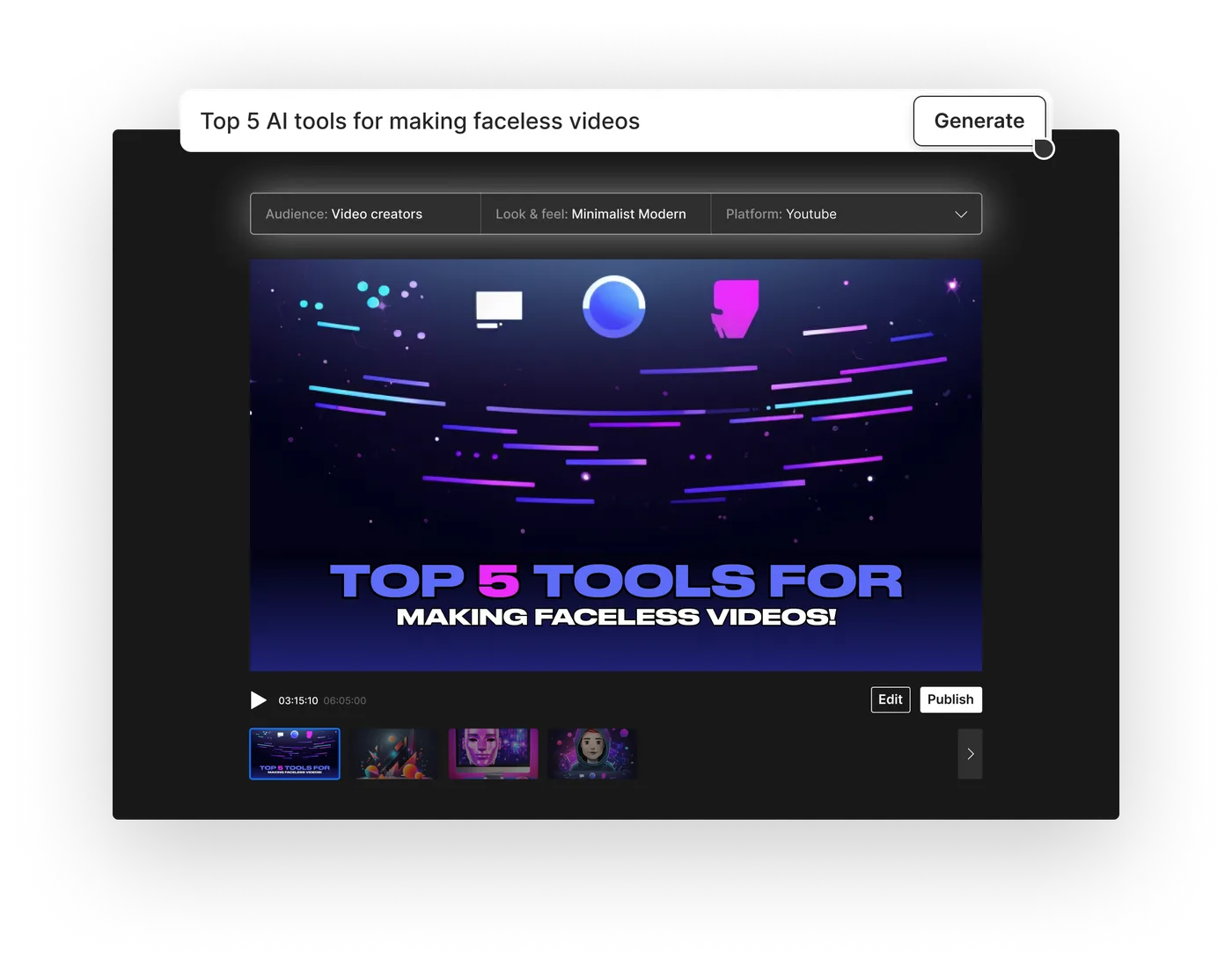
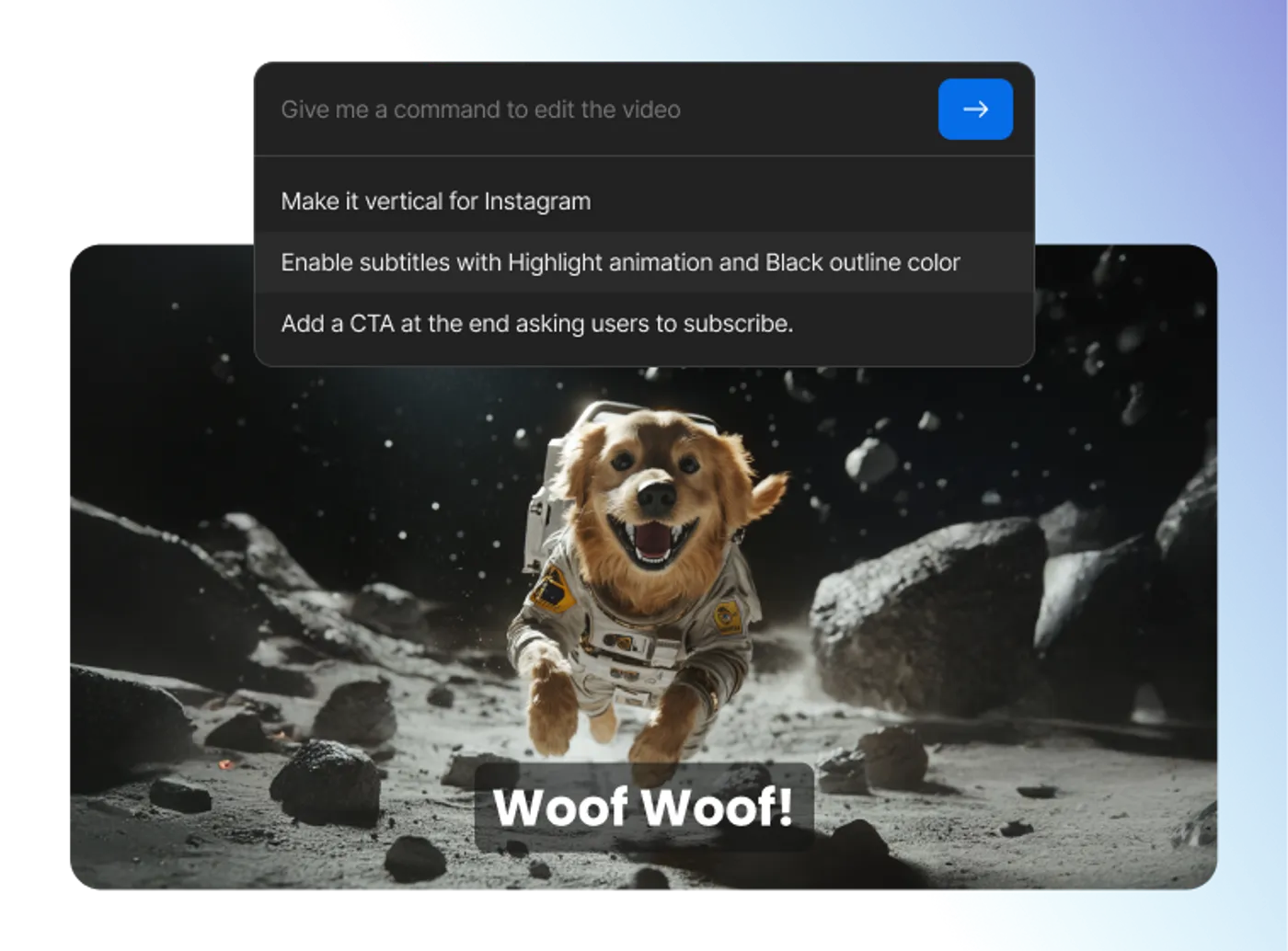
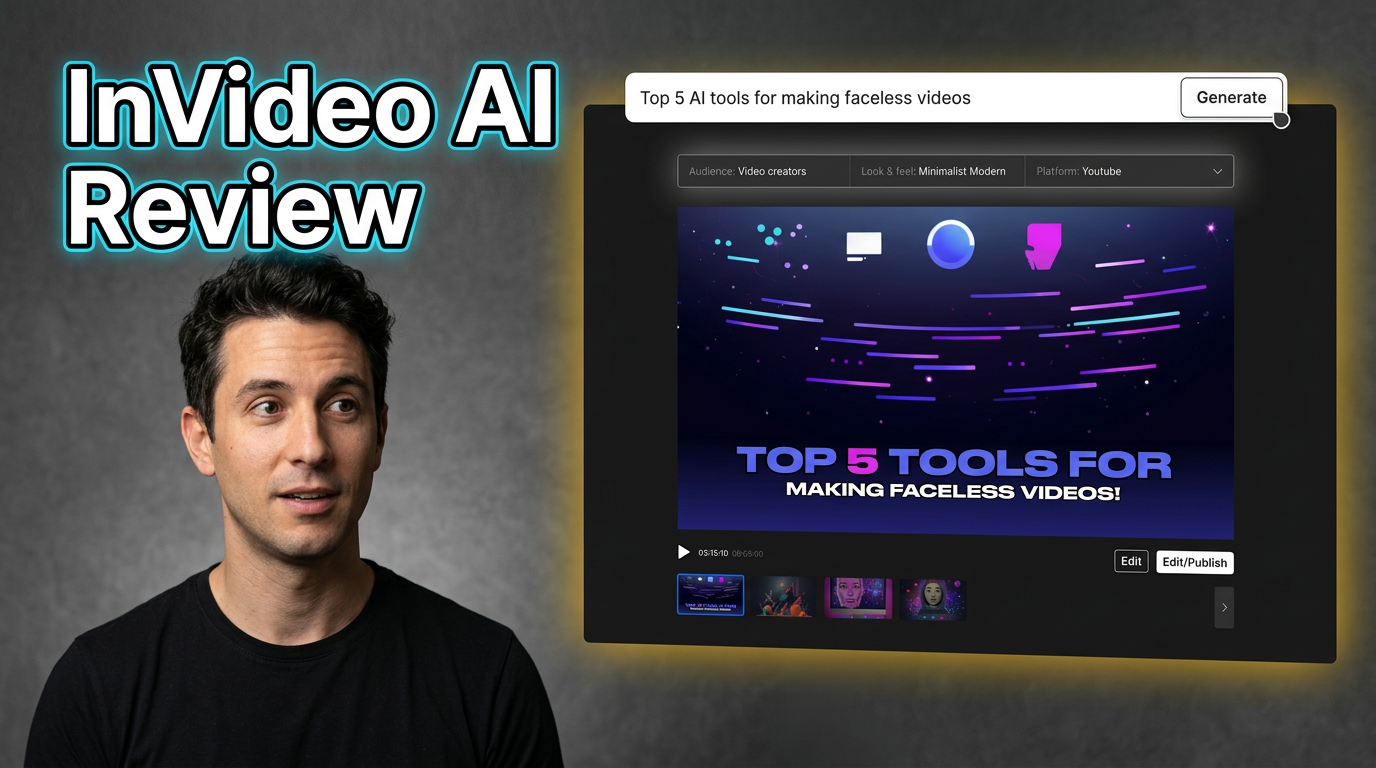
When you launch the video generation workflow, you face the primary script and prompt interface. This screen is where you input your instructions, target audience, and platform specifications. The underlying system uses natural language processing to interpret your business goals and draft a complete storyboard, script, and visual layout. Writing a detailed prompt is the most effective way to ensure the AI creates a video that aligns with your brand identity. For commercial work, your prompt should explicitly state the tone, pace, and purpose of the video. For instance, you can instruct the system to generate a short social media ad for a local fitness center, specifying an energetic voiceover and bright, fast-paced transitions. The editor will then write a voiceover script and pair it with relevant background footage and music. If the initial draft does not meet your standards, you can use the chat-based edit box directly below the video preview. Instead of manually slicing clips, you can type commands like change the voiceover to a professional female voice or make the second scene look more corporate. The engine will regenerate that specific portion while leaving the rest of the video untouched, saving hours of manual revision.
Managing Stock Media and Licensing Terms
Commercial video production relies heavily on high-quality visual elements. The platform integrates massive libraries of premium stock footage and photography from major providers. When you export a video on a paid plan, the platform automatically applies a royalty-free license to these clips, allowing you to use them in your commercial promotions without paying individual licensing fees. However, these licenses are subject to strict limitations that you must respect. The most important rule is that you cannot extract individual stock clips or audio tracks to use outside of the generated video. The rights are tied directly to the final, compiled video file. You cannot resell the raw media, packages of clips, or audio elements as standalone products, as doing so violates the licensing agreements with the third-party providers. To understand how these assets affect your monthly usage limits, it helps to review the platform's credit system. Paid accounts are allocated a set number of premium media exports each month. For a detailed breakdown of how these credits translate into actual video minutes, you can consult our InVideo AI Review: Pricing, Credits and Limitations. Knowing your limits prevents unexpected project pauses mid-campaign.
How to Customize and Replace Media Clips
While the automated engine does an excellent job of selecting stock media, commercial projects often require your own product footage or branded assets. The media replacement workflow allows you to swap out generic stock clips for custom files without losing the timed voiceover or background music. This is crucial for product demonstrations, software tutorials, and brand-specific campaigns. The editor provides a simple layout with an interactive timeline. When you select a specific scene, you can see the exact duration of the clip and its placement. To customize the video with your own material, follow these manual steps: 1. Upload your proprietary footage or brand logos to the media library using the upload tab. 2. Select the specific scene on the video timeline that you want to modify. 3. Drag your uploaded asset from the media library and drop it directly onto the timeline clip. 4. Choose whether to replace the original clip entirely or trim your asset to match the scene's exact duration. 5. Adjust the volume levels of your uploaded video to ensure your local audio does not clash with the generated voiceover. By replacing general placeholders with your own authentic product shots, you ensure your marketing materials look unique and avoid looking like generic stock templates.
Export Settings and Copyright Protection
The final stage of the commercial workflow takes place on the export configuration page. Here, you select your desired resolution, remove watermarks, and finalize your audio tracks. For professional client work and high-definition advertising, you should export your files in 1080p or 4K. Lower resolutions are rarely suitable for television or paid digital advertising campaigns. A major concern for commercial creators is navigating copyright claims on social media platforms, particularly YouTube. When you upload a video containing stock music or licensed clips, automated systems may occasionally flag your content. The platform provides license certificates or verification codes for the music tracks used in your projects. You can submit these documents to resolve copyright claims quickly. To avoid copyright disputes altogether, many agencies prefer to use their own licensed background music. You can upload an external track and instruct the script editor to replace the generated music. This ensures your legal team has absolute control over the audio rights, eliminating any risk of sudden monetization blocks on your business channels.
Choosing the Right Workflow for Your Business
Deciding how to integrate AI video tools into your commercial operations depends on your production scale and editing expertise. For small business owners and marketing teams who need to produce high volumes of social content rapidly, the automated prompt-to-video workflow is highly efficient. It eliminates the need for expensive cameras, complex editing suites, and professional voice actors. On the other hand, traditional video editors might prefer a hybrid approach. They can use the platform to quickly assemble rough cuts, draft scripts, or generate voiceovers, then export the project to make refined adjustments in advanced desktop software. This hybrid method leverages the speed of automation while retaining the precise control required for high-end cinematic commercials. If your business prioritizes speed, consistent output, and automated voice narration across multiple social media platforms, the prompt-based generation workspace will save you significant time. If your projects demand highly custom camera work, precise color grading, and non-linear narrative adjustments, a traditional editing workflow supplemented by individual AI tools will serve you better.
Frequently asked
As an Amazon Associate I earn from qualifying purchases. This does not affect the price you pay. Affiliate disclosure