Choosing VEED: Who Should Use It and Who Should Skip It
VEED offers fast, browser-based video editing with smart AI subtitles, but its credit system and online-only setup might not fit every video producer.

Some links are affiliate links: we may earn a commission if you sign up or buy through them, at no extra cost to you.
On this page8 sections
- 1The short answer
- 2Navigating the Browser-Based Timeline Interface
- 3The Automations: Auto-Subtitles and Audio Clean-Up
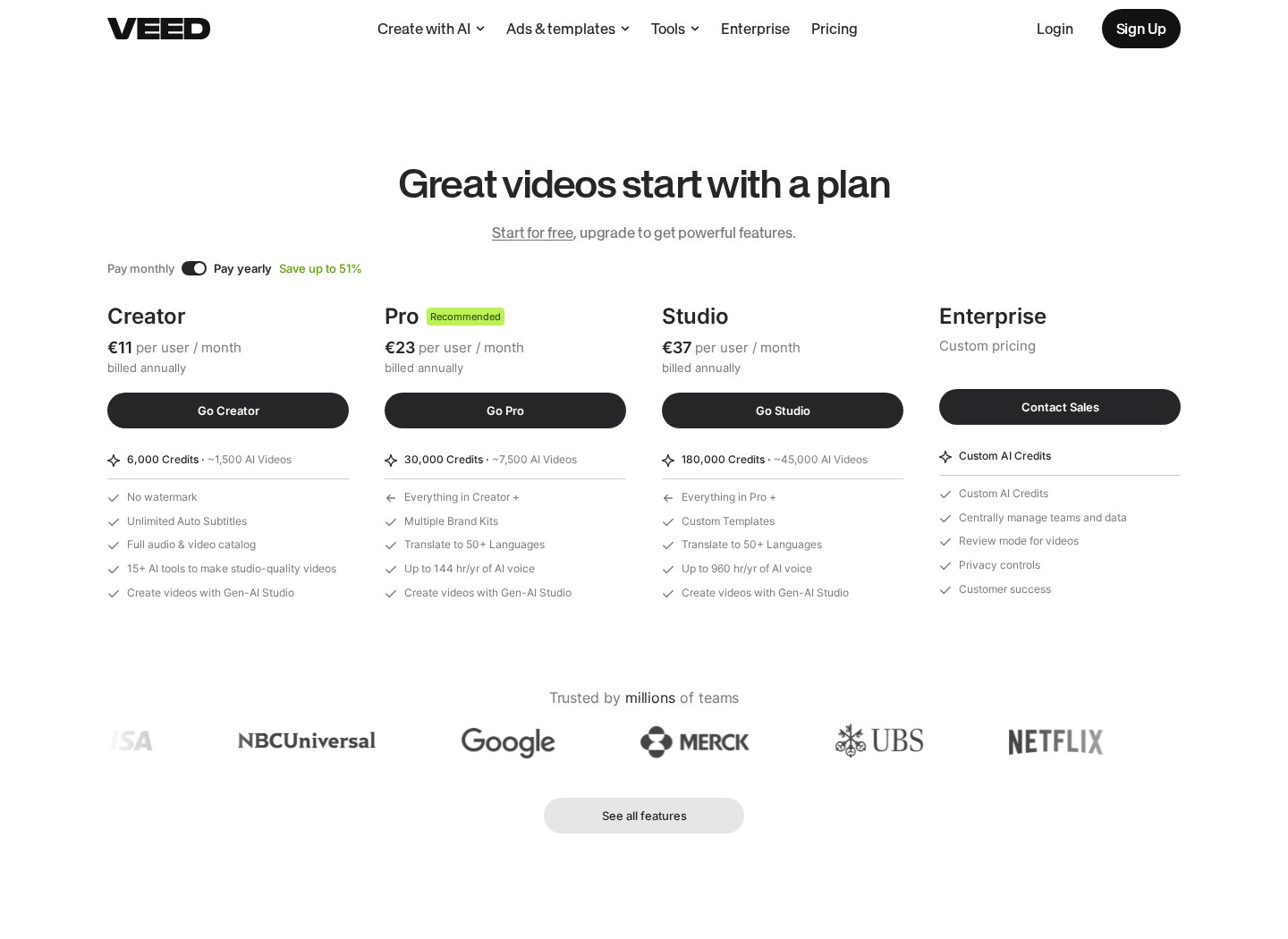
- 4Understanding the AI Credits System
- 5A Step-by-Step Guide to Publishing a Video
- 6Comparing VEED with Traditional Desktop Editors
- 7Which Video Tool Path Fits Your Production Workflow?
- 8Frequently asked
The short answer
- VEED excels at automated subtitle generation, quick social media formatting, and simple browser-based collaborative editing workflows.
- Professional editors needing frame-accurate multi-camera tracks or completely offline processing capabilities should look elsewhere.
- Generative AI tools within the platform rely on a credit consumption system that requires careful planning.
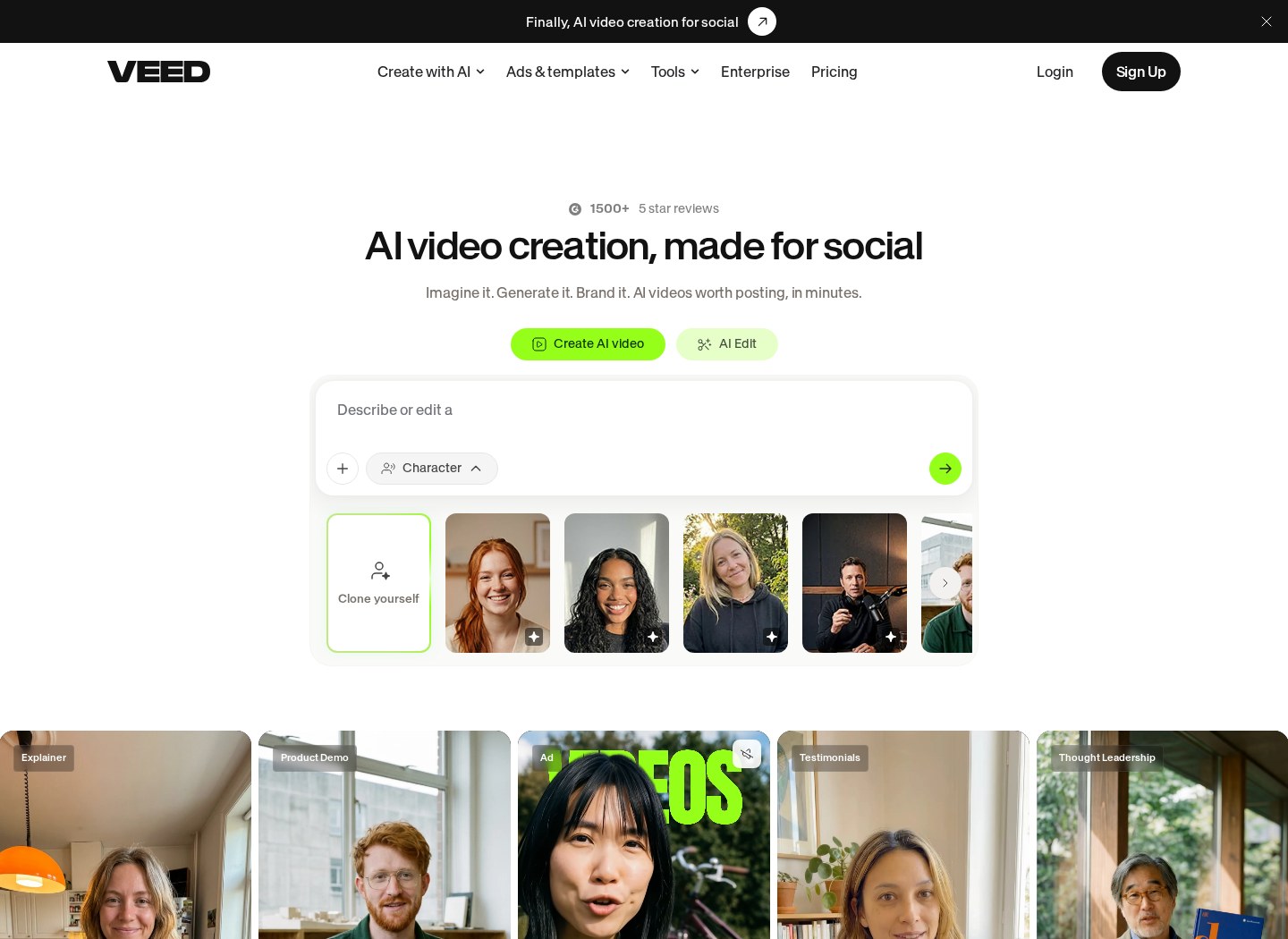
VEED is ideal for social media creators, educators, and marketing teams who need to quickly produce captioned, short-form video content entirely inside a web browser. Conversely, professional video editors requiring advanced offline timelines, intensive color grading, or those who want to avoid restrictive monthly credits should skip it.
Traditional desktop video editing software requires a powerful computer and steep training curves. VEED shifts the work to remote cloud servers, allowing users to trim clips, record screens, and generate transitions on basic laptops. For a detailed breakdown of the subscription options, check out our VEED Review 2026: Pricing, Free Plan and Who It's For.
Because this platform operates inside a web browser, your computer does not need a high-end graphics card to process files. However, this workflow introduces distinct limitations regarding internet speeds and asset management that every potential buyer must understand before signing up for a plan.
Watch it in action
The quick version
- Upload your raw footage directly to
- Generate automatic subtitles using the trans…
- Stylize the text overlays to match
- Apply audio clean-up tools to filter
- Export the completed project and download
Navigating the Browser-Based Timeline Interface
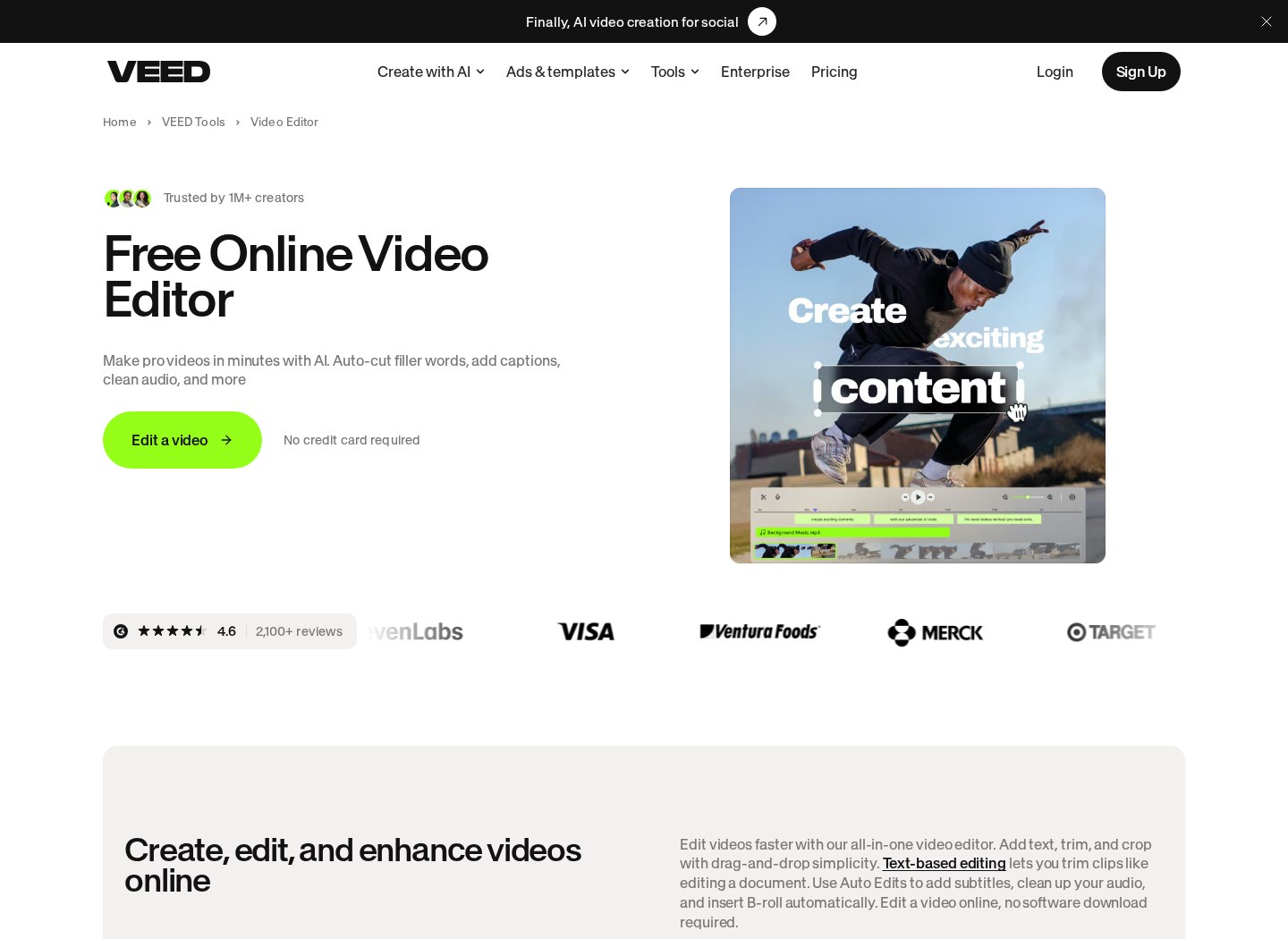
The platform opens directly into a cloud-hosted canvas, replacing the traditional desktop software layout with a streamlined dashboard. At the center is your video preview window, flanked by a left-hand navigation panel containing your media library, text tools, and design elements. Below the canvas sits a multi-track timeline where you can slice, arrange, and layer your video clips, audio tracks, and graphic overlays.
Because the application relies on cloud rendering, every change you make is saved instantly to remote servers. This setup is highly convenient for teams who need to share project drafts quickly, as you can generate a review link rather than exporting and uploading large video files. However, a major bottleneck occurs during the initial file upload phase. If you work with large video files daily or lack a reliable, high-speed internet connection, the upload process will severely slow down your editing speed.
Furthermore, editing complex projects with dozens of overlapping tracks can occasionally push your browser's memory limits. While the timeline is responsive for standard social clips, it lacks the specialized tools needed for multi-camera synchronization or advanced audio mixing. Creators who routinely produce long-form documentaries or cinematic pieces will likely find the browser environment too restrictive for their complex workflows.
The Automations: Auto-Subtitles and Audio Clean-Up
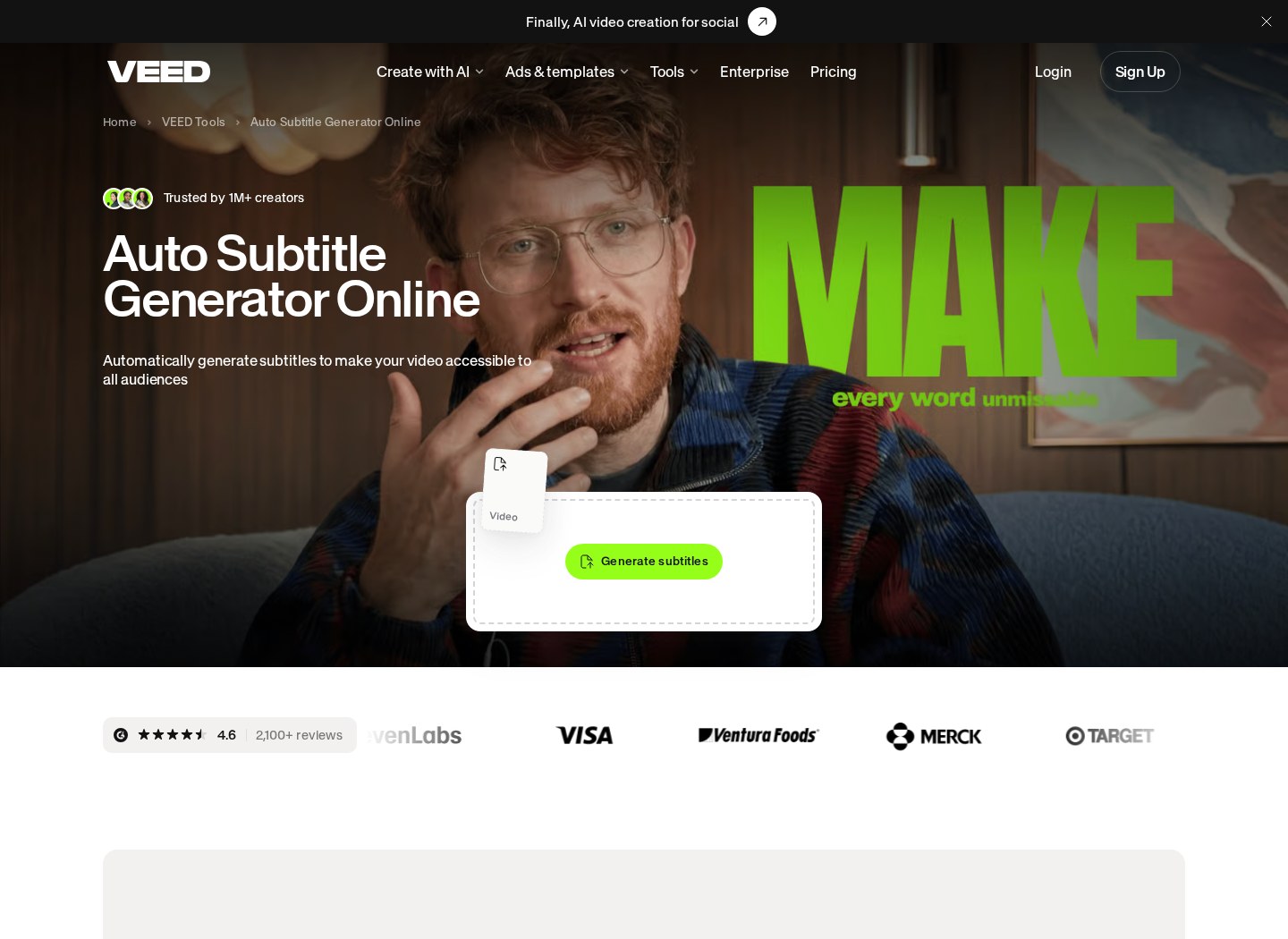
One of the strongest arguments for using this platform is its automated subtitle tool, which transcribes dialogue with high accuracy in seconds. Once the transcript is generated, you can format the text globally, applying eye-catching animations, brand fonts, and custom colors. Instead of manually cutting out pauses, the interface allows you to delete sections of the transcript text to automatically trim the corresponding video clips.
This subtitle feature is specifically tuned for fast-paced mobile platforms like TikTok, Instagram Reels, and YouTube Shorts. Traditional video editing suites require deep technical knowledge, but this platform simplifies the cutting and subtitling process into a few button clicks. Beyond simple text overlay, the editor features an automated filler word removal utility. This tool scans the audio file for hesitations like 'um' or 'uh' and removes them with a single action, smoothing out speech patterns instantly.
The audio suite also contains a clean-up utility designed to suppress room echo, background wind, and microphone hiss. This makes it highly useful for remote educators or internal training teams who record presentations in untreated rooms. If your main production hurdle is the time-consuming process of transcription and dialogue polishing, these specific features can save hours of manual labor.
Understanding the AI Credits System
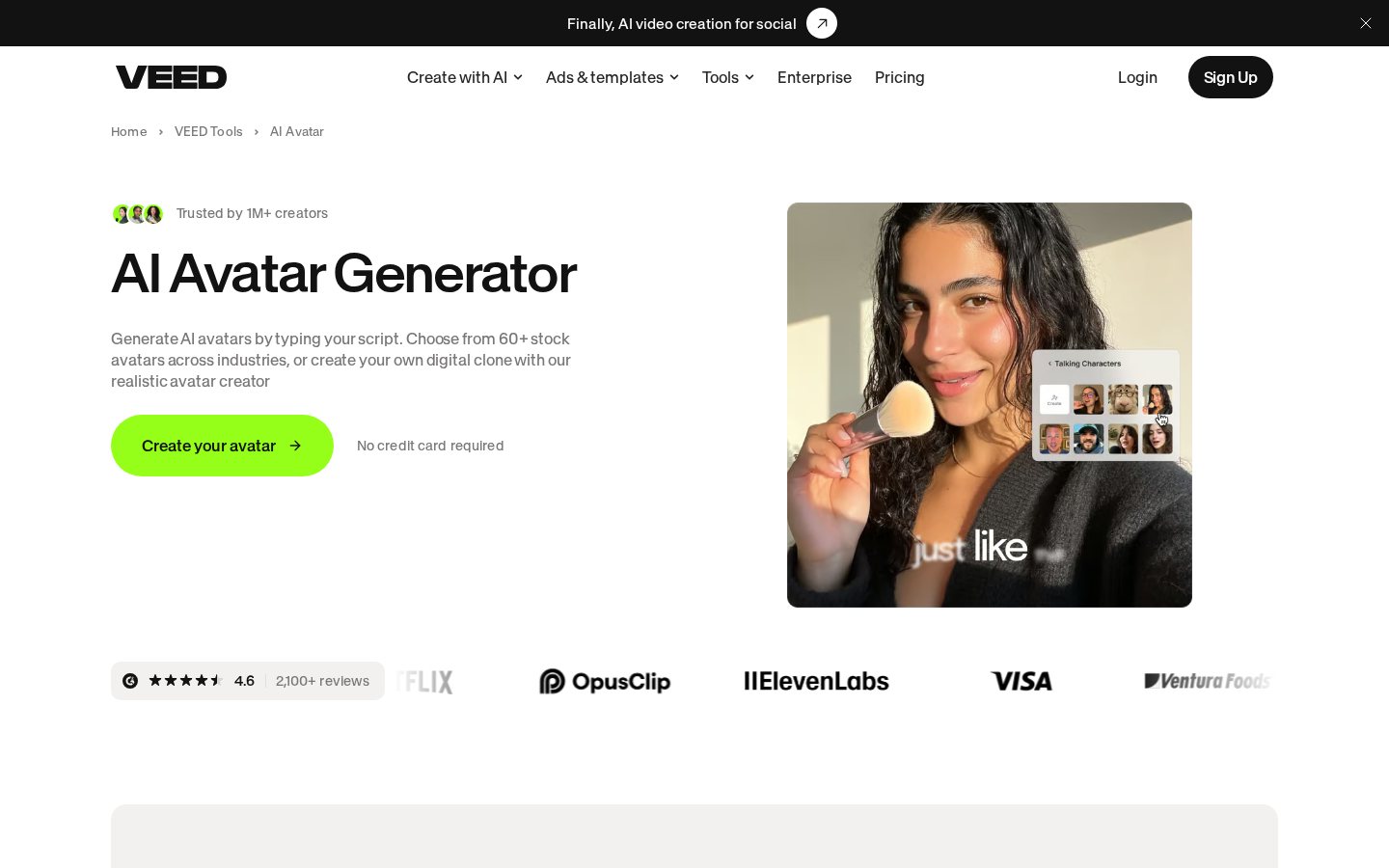
Many of the platform's advanced utilities, including digital avatars, text-to-speech engine features, and automatic translation, do not operate on a flat-rate basis. Instead, they consume virtual credits allotted to your account profile. These credits represent the computational power required to run complex neural networks in the cloud. If you plan to rely heavily on artificial voices or automated language dubbing, managing these balances is critical.
A key detail to note is how these allowances renew based on your payment structure. On standard monthly plans, unused credits typically expire at the end of the billing cycle, whereas annual plans provide the entire credit allowance upfront. If your video output is seasonal or sporadic, an annual plan gives you more flexibility to use your credits when you actually need them.
Running out of credits mid-month means you must either wait for the next cycle or purchase additional allowances. This credit-dependent mechanism means that the platform is less suited for high-volume automated video generation unless you budget for higher subscription tiers. For a comprehensive look at how these tiers impact the wallet, refer to our VEED Review 2026.
A Step-by-Step Guide to Publishing a Video
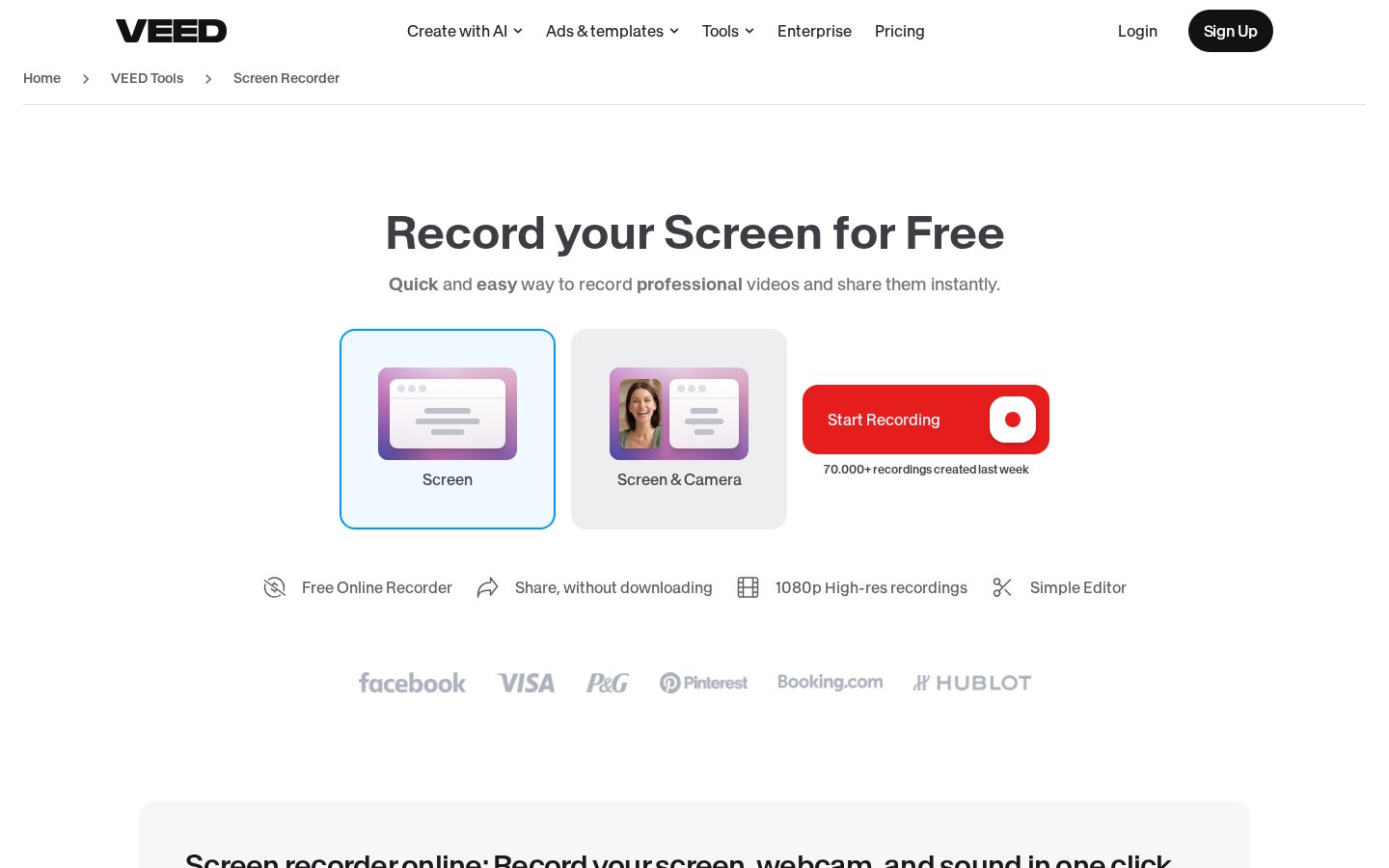
- Upload your raw footage directly to the cloud library. You can drag and drop media files from your local storage or record your screen and webcam simultaneously using the built-in recorder tools.
- Generate automatic subtitles using the transcription sidebar. Select your video's primary language and click the subtitle generator to instantly create a synchronized text track.
- Stylize the text overlays to match your brand style. Choose from pre-made subtitle templates or manually adjust fonts, background blocks, and text animations.
- Apply audio clean-up tools to filter out background noise. Click the audio track on your timeline and activate the clean voice feature to remove ambient room echo or microphone hum.
- Export the completed project and download the final file. Choose your preferred output resolution and aspect ratio, then wait for the cloud servers to compile your video for download.
Comparing VEED with Traditional Desktop Editors
When deciding where to edit your media, it is helpful to contrast browser-based design tools with traditional computer-installed programs. Here is how key workflow components stack up:
- System Requirements: VEED offloads computing tasks to cloud systems, making it highly usable on basic laptops, whereas desktop editors like Premiere Pro require expensive hardware with dedicated graphics processors.
- Internet Dependency: VEED requires a constant, stable broadband connection to function, whereas traditional desktop tools allow you to edit, render, and export projects offline without any network access.
- Collaboration: VEED allows team members to leave time-coded comments and edit projects via shared web links, whereas desktop software generally requires exporting files or using complex external servers to share work.
- Advanced Effects: VEED limits your output to straightforward cuts, simple transitions, and basic text overlays, whereas desktop programs provide precise color wheels, tracking masks, and deep audio mixing panels.
- Cost Predictability: VEED ties several advanced features to a credit system that can run out, whereas desktop editors are typically flat-rate subscriptions or one-time purchases with unlimited local rendering.
Which Video Tool Path Fits Your Production Workflow?
Deciding between a browser editor and a traditional local application comes down to your primary production goals and your physical workspace. If you run a small marketing department or manage multiple social media accounts, the speed of automated transcription and template-driven layouts is invaluable. You will save hours of work by letting cloud systems handle the tedious aspects of subtitle creation and basic edits.
On the other hand, you should skip this tool if you are a professional videographer or motion designer. If your projects involve multi-cam interviews, heavy grading, or hours of raw 4K footage, the upload times and interface limitations will quickly become frustrating. In those scenarios, investing in dedicated desktop software is the correct path.
Ultimately, choosing VEED is a smart move if your goal is to turn raw footage into captioned social posts quickly without technical friction. If you are still unsure if the feature set aligns with your ongoing projects, read our in-depth analysis of the VEED Review 2026: Pricing, Free Plan and Who It's For to map your budget to their tools.
Frequently asked

As an Amazon Associate I earn from qualifying purchases. This does not affect the price you pay. Affiliate disclosure