How to Avoid the Most Common Higgsfield Mistakes
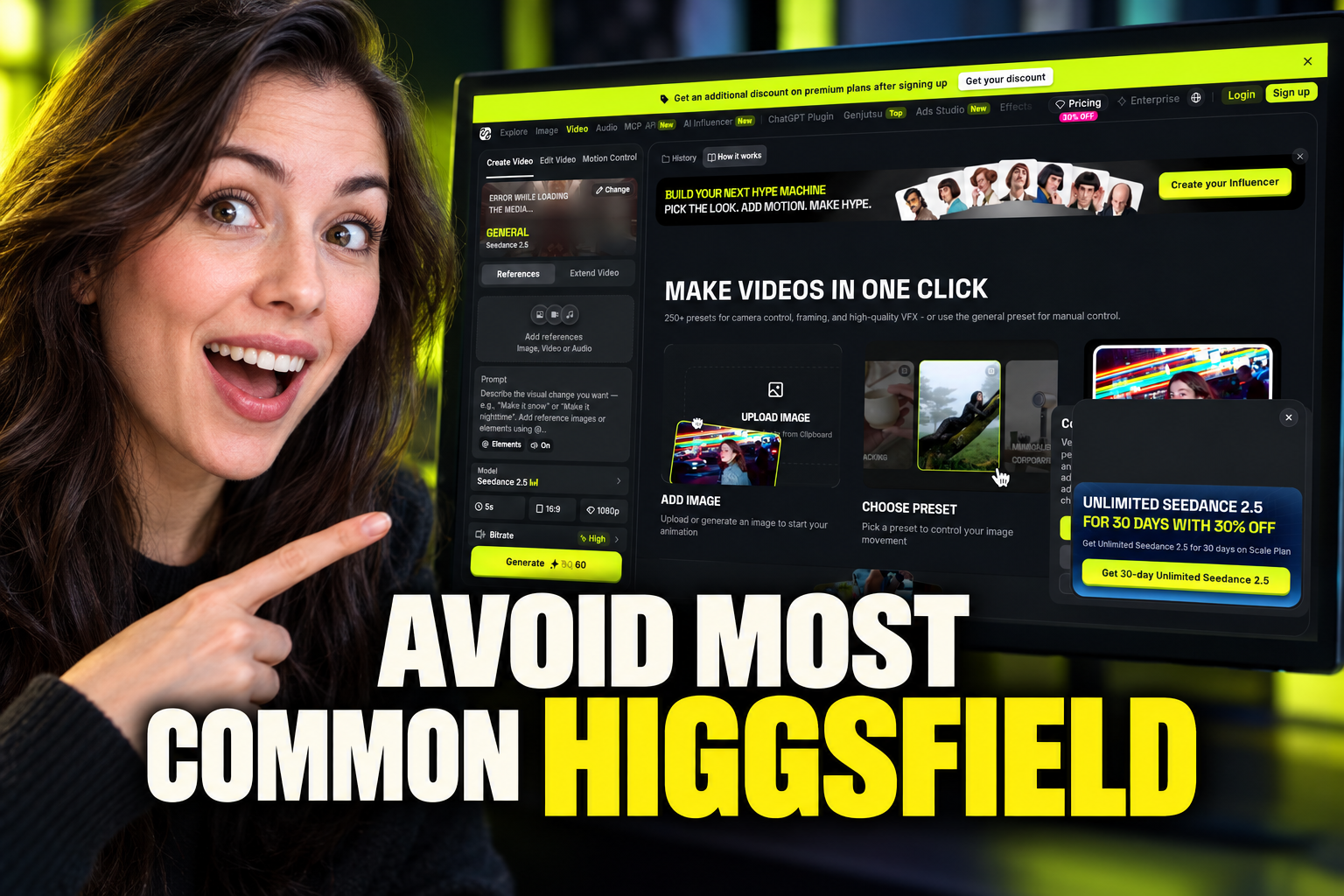
Fix distorted faces, warped camera movements, and broken lip-sync animations in Higgsfield by mastering prompt structure and keyframe controls.
Some links are affiliate links: we may earn a commission if you sign up or buy through them, at no extra cost to you.
On this page8 sections
- 1The short answer
- 2Overloading the Text Prompt Interface
- 3Ignoring Keyframe Anchors in Image to Video
- 4Setting Excessive Camera Motion Presets
- 5How to Correct Character Distortion Step-by-Step
- 6Mismanaging Audio Sync and Character Lip Movement
- 7Structured Higgsfield Prompts vs Generic Phrases
- 8Frequently asked
The short answer
- Avoid prompt conflicts by separating style parameters from character action descriptors in the input box.
- Keep camera motion presets moderate to prevent warped background environments and facial distortion.
- Use precise image-to-video keyframe anchors to maintain visual consistency across generative transitions.
The most common Higgsfield mistakes include overloading the text prompt with conflicting physical descriptions, setting camera motion values too high, and failing to anchor keyframes. These workflow errors lead to distorted faces, unnatural physical warping, and static image transitions.
While the generative video platform offers robust controls across its various workspace panels, a single conflicting parameter can ruin an entire render. Understanding how to manage prompt structure, camera limits, and audio quality is essential to producing clean, professional AI video clips.
By learning the visual indicators of common generation failures, creators can easily adjust their workspace settings to achieve consistent, high-fidelity results without wasting processing credits.
Watch it in action
The quick version
- Identify the exact frame timestamp where
- Go to the prompt setting panel
- Apply a motion restriction preset over
- Alter the generation seed value slightly
- Render a short, low-resolution draft clip
Overloading the Text Prompt Interface
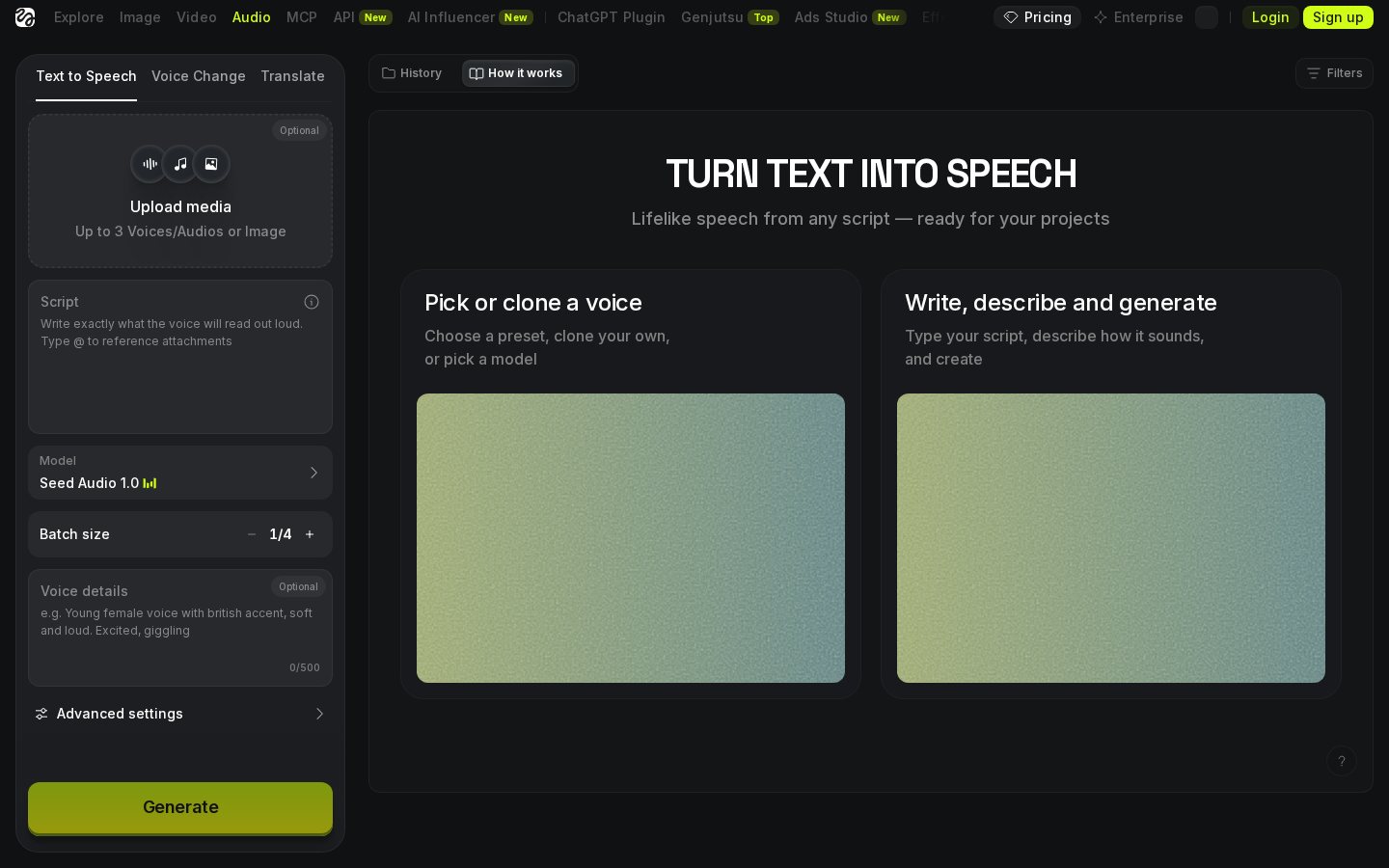
The text prompt interface is where most video generation errors begin for novice creators. Users frequently input long, unstructured paragraphs filled with complex adjectives and conflicting stylistic instructions. When you place contradictory terms next to each other within the input box, you trigger a prompt conflict that confuses the underlying rendering engines. This conflict forces the AI to attempt to merge incompatible visual styles simultaneously, resulting in severe physical anomalies like extra limbs, floating artifacts, or plastic-looking skin textures on your characters. To prevent this visual degradation, you must keep your text prompts highly modular and focused. Separate your main subject, the surrounding environment, specific camera angles, and stylistic choices into distinct segments using semicolons or brackets rather than combining them into a single run-on sentence. Reading our comprehensive Higgsfield Review can help you understand how this platform structures multi-model generations compared to other video creators. By organizing your prompt instructions sequentially, you give the platform's multi-model framework a clear hierarchy of visual elements to generate. Limiting your descriptive adjectives allows the generation models to focus entirely on rendering smooth, anatomically correct motion rather than trying to resolve conflicting artistic styles. This structured approach ensures that the background elements remain stable while your character performs the requested actions cleanly.
Ignoring Keyframe Anchors in Image to Video
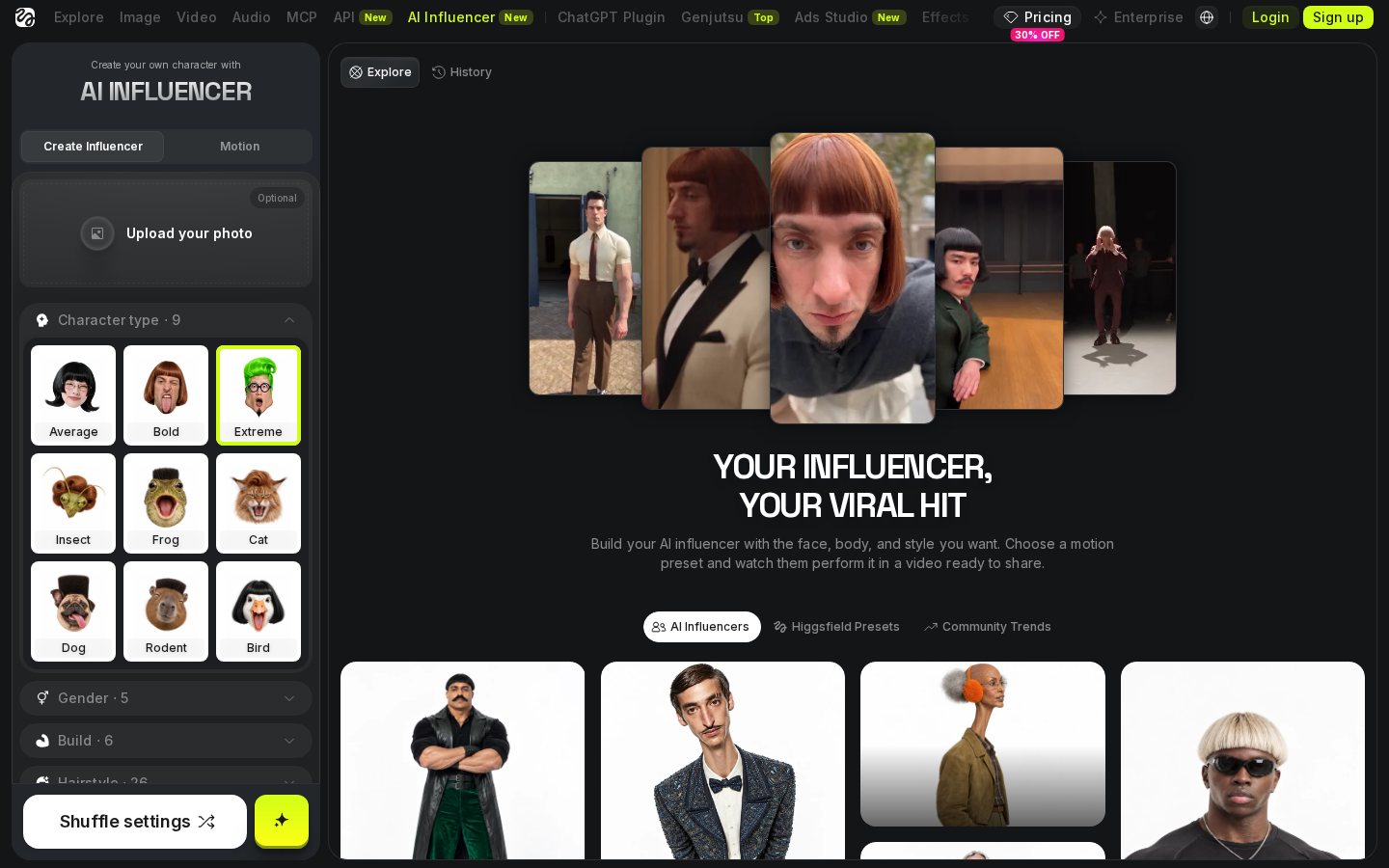
The Image-to-Video workspace provides a powerful way to animate static pictures, but neglecting keyframe consistency is a frequent error that ruins longer clips. When you upload a starting image and leave the animation transition entirely up to the model, the generator must guess the entire motion path from scratch. This guessing game often causes extreme staticity where nothing moves except minor background wind, or highly chaotic transformations where the character morphs into a completely different person mid-scene. To maintain a consistent subject identity across your video timeline, you must establish precise keyframe anchors within the editor. Specialized workflows utilize clean keyframe structures to translate your starting image into predictable three-dimensional motion without losing character details. Skipping this essential configuration step means the model will struggle to keep facial features identical from the first frame to the last. Always start your project with a high-resolution source image that features sharp details, direct lighting, and minimal background clutter. Low-quality or blurry source images force the upscaling engine to invent missing visual data during the rendering phase. This invention process introduces blinking artifacts, sudden lighting shifts, and strange visual noise that destroys the illusion of natural physical movement.


Setting Excessive Camera Motion Presets
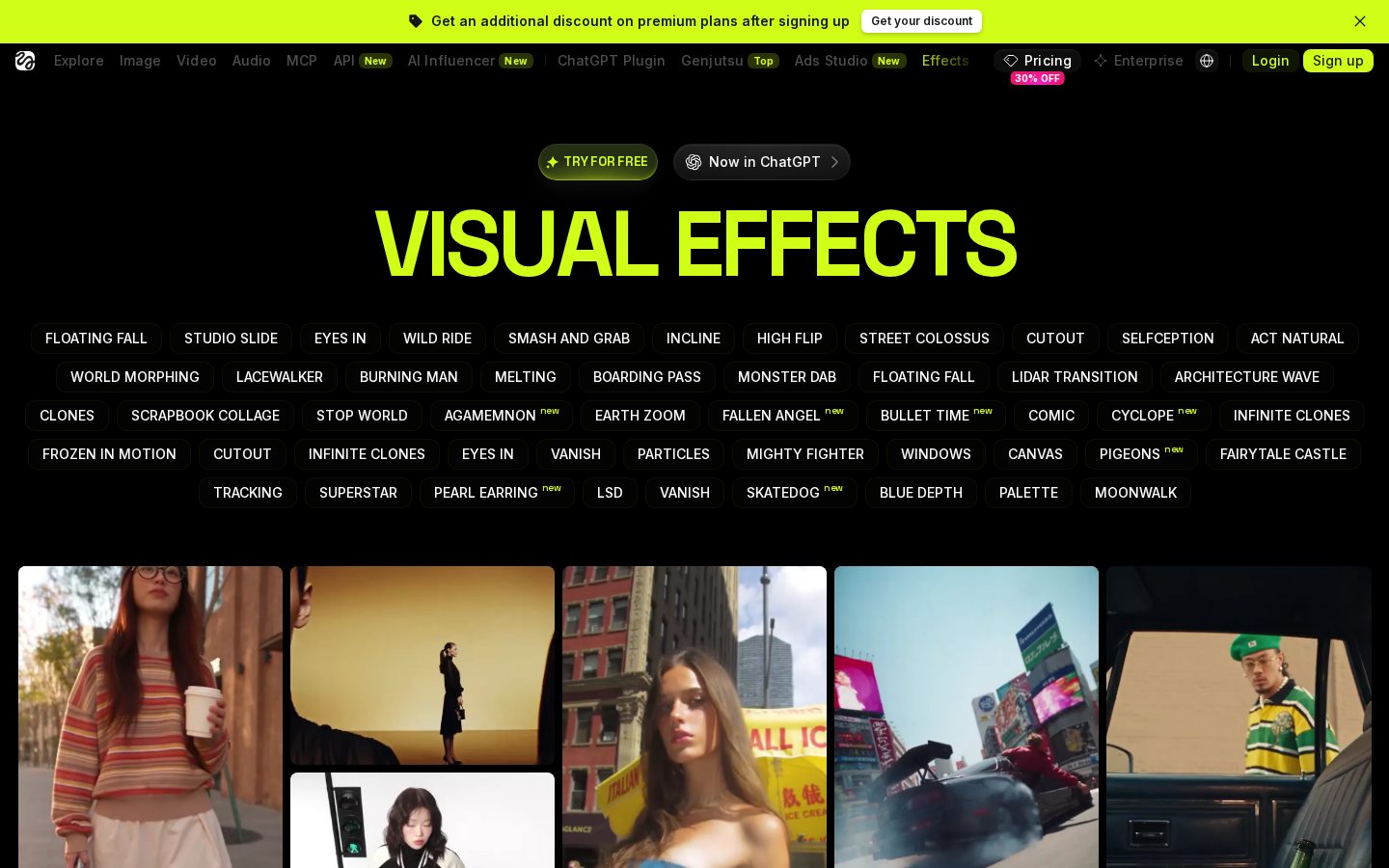
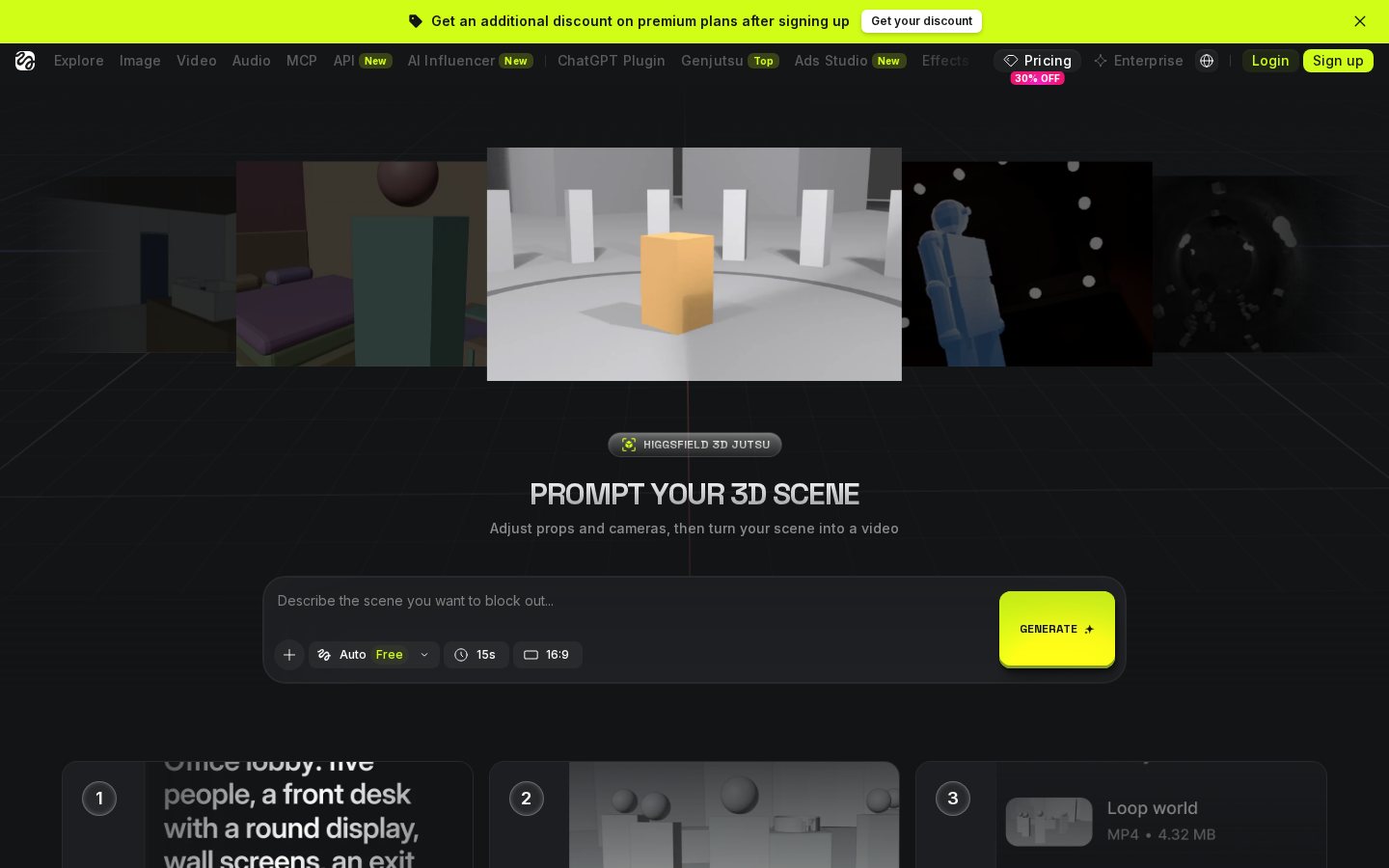
Higgsfield Cinema Studio features a sophisticated panel for camera movement controls, including pan, zoom, tilt, and roll. A major mistake here is Setting these parameters to their maximum values in hopes of creating dynamic, Hollywood-style action sequences. In reality, extreme camera values cause the background environment to stretch, warp, and detach completely from the moving subject. Because the rendering models calculate each motion vector dynamically based on your slider inputs, subtle changes yield far more stable results. When multiple heavy camera movements are applied simultaneously at maximum strength, the processor struggles to calculate correct perspective shifts. This calculation failure causes a disorienting, gelatinous warping effect across the frame where solid objects appear to melt. To fix this issue and produce professional-looking camera work, keep your motion sliders set to low values, ideally between ten and twenty percent of their maximum limits. Gradually increase the speed and direction settings only after reviewing a low-resolution draft of the motion path. This careful calibration ensures that your camera movement enhances the scene's realism rather than introducing chaotic visual distractions that break viewer immersion.
How to Correct Character Distortion Step-by-Step
When your generated video displays melted facial features, unnatural limb warping, or distorted physical details, a systematic correction process is necessary. Instead of deleting your project and starting over, you can adjust specific parameters within the workspace interface to stabilize the scene. Refer to our Higgsfield Review to see how these localized workspace sliders compare to automated correction tools. 1. Identify the exact frame timestamp where the character anatomy begins to warp or dissolve. This pinpoints the precise moment where the rendering path lost physical consistency. 2. Go to the prompt setting panel and reduce the text prompt weight to decrease model sensitivity. Lowering this value encourages the engine to rely more on the visual details of your starting image. 3. Apply a motion restriction preset over the character's facial area to freeze secondary skeletal movements. This keeps facial features locked in place while allowing other body parts to move naturally. 4. Alter the generation seed value slightly to force the engine to calculate a fresh rendering path. Changing the seed bypasses repeating rendering loops that produce identical physical glitches. 5. Render a short, low-resolution draft clip to verify that the physical distortion is corrected before wasting credits. This test run ensures your adjustments worked without consuming valuable rendering resources. By executing these troubleshooting steps sequentially, you can isolate whether the visual error was caused by prompt instructions, camera physics, or model limitations. Adjusting only one variable at a time ensures you do not introduce new glitches while correcting existing ones, saving you both time and processing credits.


Mismanaging Audio Sync and Character Lip Movement
The built-in audio upload and character synchronization tool is highly sensitive to background noise and low vocal clarity. Uploading audio files that contain heavy background static, music, or multiple overlapping voices is a major mistake that ruins lip-sync animations. The system attempts to map facial muscle movements to every sound it registers, resulting in erratic jaw movements, unnatural lip stretching, and misaligned speech patterns. To achieve believable character speech, you must feed the engine clean, isolated vocal tracks that contain zero background noise or ambient sounds. If your original recording contains ambient noise, use an external audio cleaning tool to isolate the voice before uploading. The clearer the vocal frequencies, the more accurately the lip-sync engine can align mouth shapes to the corresponding spoken syllables. Furthermore, verify the lip-sync synchronization threshold sliders in your audio setup panel before generating the final video. Setting this threshold incorrectly causes the character's mouth to either snap shut too rapidly or remain open during natural pauses in speech. Fine-tuning these thresholds ensures that the speaking animation flows naturally, matching the natural cadence and pauses of human conversation.

Structured Higgsfield Prompts vs Generic Phrases
Many creators treat generative video tools like simple search engines, using conversational sentences to describe their scenes. To render high-quality clips, however, you must utilize a modular syntax to render high-quality clips that separates visual context from motion commands. - Structure: Structured prompts use clear formatting separators like brackets or semicolons to organize style, subject, and action. Generic prompts rely on long sentences that confuse the generator's priority queue. - Visual Fidelity: Modular prompt setups maintain stable lighting and sharp facial details across multiple generated scenes. Conversational phrasing often introduces random styles, flashing artifacts, and sudden shifts in character appearance. - Motion Control: Exact motion phrases like slow pan left or constant tracking shot translate directly into smooth camera paths. Vague descriptions like epic cinematic action force the model to invent chaotic background movements. Choosing the correct approach determines whether your final export looks like a professional production or a glitched draft. If you want to see how this structured formatting requirement fits your creative workflow, explore our Higgsfield Review to evaluate its overall control layout and see how its advanced model library handles structured instructions compared to competing AI tools.
Frequently asked
Some links are affiliate links: we may earn a commission if you sign up or buy through them, at no extra cost to you. Affiliate disclosure