Common Lovable Mistakes: How to Avoid AI App Builder Pitfalls
Avoid the most common Lovable mistakes by structuring your database integration, writing modular prompts, and managing your version history effectively.

Some links are affiliate links: we may earn a commission if you sign up or buy through them, at no extra cost to you.
On this page8 sections
- 1The short answer
- 2Crafting Monolithic Prompts in the Chat Workspace
- 3Misconfiguring the Supabase Database Connection
- 4How to Build and Debug Your Application Iteratively
- 5Ignoring Version History and Rollback Features
- 6Mismanaging State and UI Updates in the Preview Pane
- 7Lovable vs Traditional No-Code: Which One Should You Pick?
- 8Frequently asked
The short answer
- Avoid single, massive prompts; instead, build your software iteratively using highly specific, feature-focused instructions.
- Set up database permissions early to prevent application authentication and data fetching errors during preview stages.
- Save manual checkpoints in the version panel to easily rollback broken code without losing development progress.
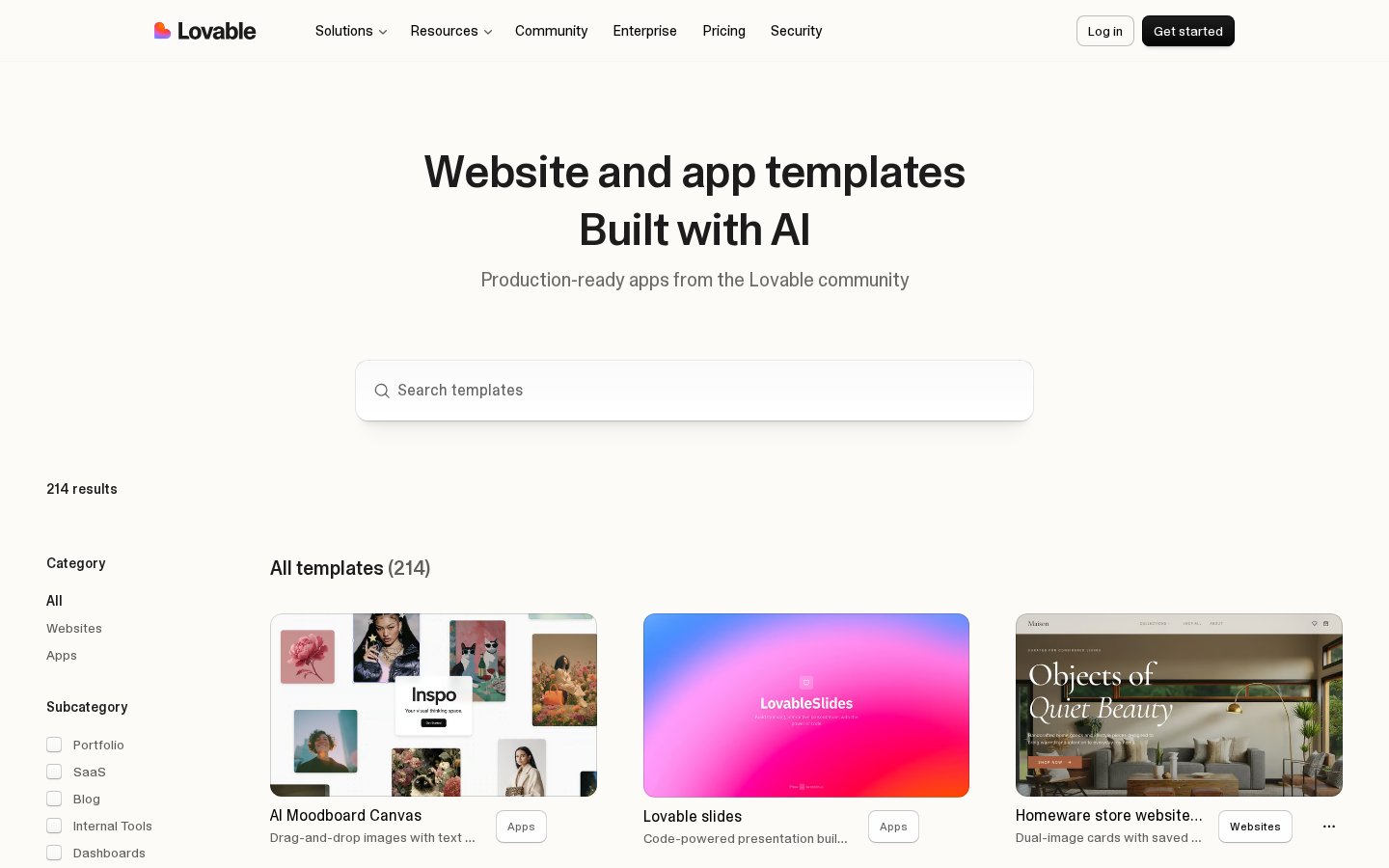
The most common Lovable mistakes include writing monolithic prompts that overload the code generator and ignoring proper database configuration settings. Users also frequently struggle when they do not break down their development workflow into small, iterative steps on the canvas.
Building applications with natural language tools feels deceptively simple. When you type a broad command, the AI tries to write your front-end, setup databases, and handle complex logic all at once. This chaotic approach leads to broken layouts and confusing error loops.
Understanding how to navigate the platform's constraints will save you hours of rebuilding. By learning the mechanics of the chat workspace and the database panel, you can maintain control over your software project. For more details on the platform, check out our Lovable Review 2026: Pricing, Free Plan & Who It's For to see if this application builder matches your team's specific requirements.
The quick version
- Outline your data schema
- Generate the base layout
- Connect your backend services
- Add features one by one
- Debug using the console
- Establish safe version checkpoints
Crafting Monolithic Prompts in the Chat Workspace
The primary error users make occurs right inside the main chat input field. Instead of requesting a single button or one specific input box, creators often type a massive paragraph describing their entire business concept. This forces the system to generate hundreds of lines of code simultaneously, which increases the likelihood of compilation errors.
When you attempt to build everything at once, the system struggles to isolate where bugs occur. It might write a beautiful user dashboard but completely break the navigation links or user settings. Splitting your ideas into tiny, manageable commands is the most effective way to keep the underlying structure clean and functional.
To combat this, utilize prompt chaining to guide the generator. Start by asking for a simple layout shell. Once the framework displays correctly in your live preview window, prompt for the next logical piece, such as a contact form or a data table. This systematic approach ensures that you can spot and fix bugs immediately.
Misconfiguring the Supabase Database Connection
Another frequent mistake happens within the database integration settings. Lovable relies heavily on external database systems to handle user data, dynamic content, and login security. Many builders connect their backend database but forget to configure Row Level Security (RLS) policies, leaving their user tables inaccessible or completely exposed.
Failing to run a proper schema migration causes the preview window to throw silent console errors. You might notice that your forms do not submit data, or the interface behaves as if no database is connected. These issues rarely stem from Lovable itself, but rather from unaligned data columns and missing tables on the database host side.
Make it a habit to inspect the database schema tool after every major update. Ensure that the table names generated by the chat window match the actual tables inside your database. If you change a data type in your prompt, double-check that your external tables updated accordingly to prevent critical communication errors.
How to Build and Debug Your Application Iteratively
Succeeding with AI-driven app creation requires a methodical, step-by-step assembly process. skipping the layout definition step or jumping straight into complex animations before establishing the basic structural layout is a recipe for frustration. Follow this structured workflow to build your application without introducing critical errors.
- Outline your data schema. Determine what tables, inputs, and relationships your app requires before writing code.
- Generate the base layout. Prompt the system to create a simple navigation bar and a clean landing container.
- Connect your backend services. Link your external database and verify authentication systems work correctly on the canvas.
- Add features one by one. Instruct the chat assistant to build individual forms, charts, or lists sequentially.
- Debug using the console. Open the built-in browser developer tools to check for errors when buttons fail to respond.
- Establish safe version checkpoints. Save your current working state before prompting for high-risk design or structural overhauls.
This sequential method ensures that you never have to guess which instruction caused your layout to break. If a step fails, you only need to troubleshoot the single prompt you just entered, rather than scanning thousands of lines of code. For an in-depth breakdown of how this workflow scales, read our Lovable Review 2026: Pricing, Free Plan & Who It's For to evaluate its overall performance.
Ignoring Version History and Rollback Features
Many creators make the mistake of ignoring the version history panel until it is too late. When a newly generated feature introduces a bug, users often try to fix it by writing more prompts. This compounding behavior layers new code over broken elements, making the underlying problem significantly worse and harder to diagnose.
The platform features a robust history log that tracks every prompt and its corresponding code change. Instead of arguing with the chat bot to undo a mistake, you should use the history slider to revert to a previous, stable build. This simple action instantly wipes out the buggy code and restores your work.
Think of the history pane as your safety net. Using it properly prevents the system from getting stuck in loops of self-referential error corrections. If the AI cannot fix a specific error in two attempts, rolling back to the last functional version is almost always the fastest path forward.
Mismanaging State and UI Updates in the Preview Pane
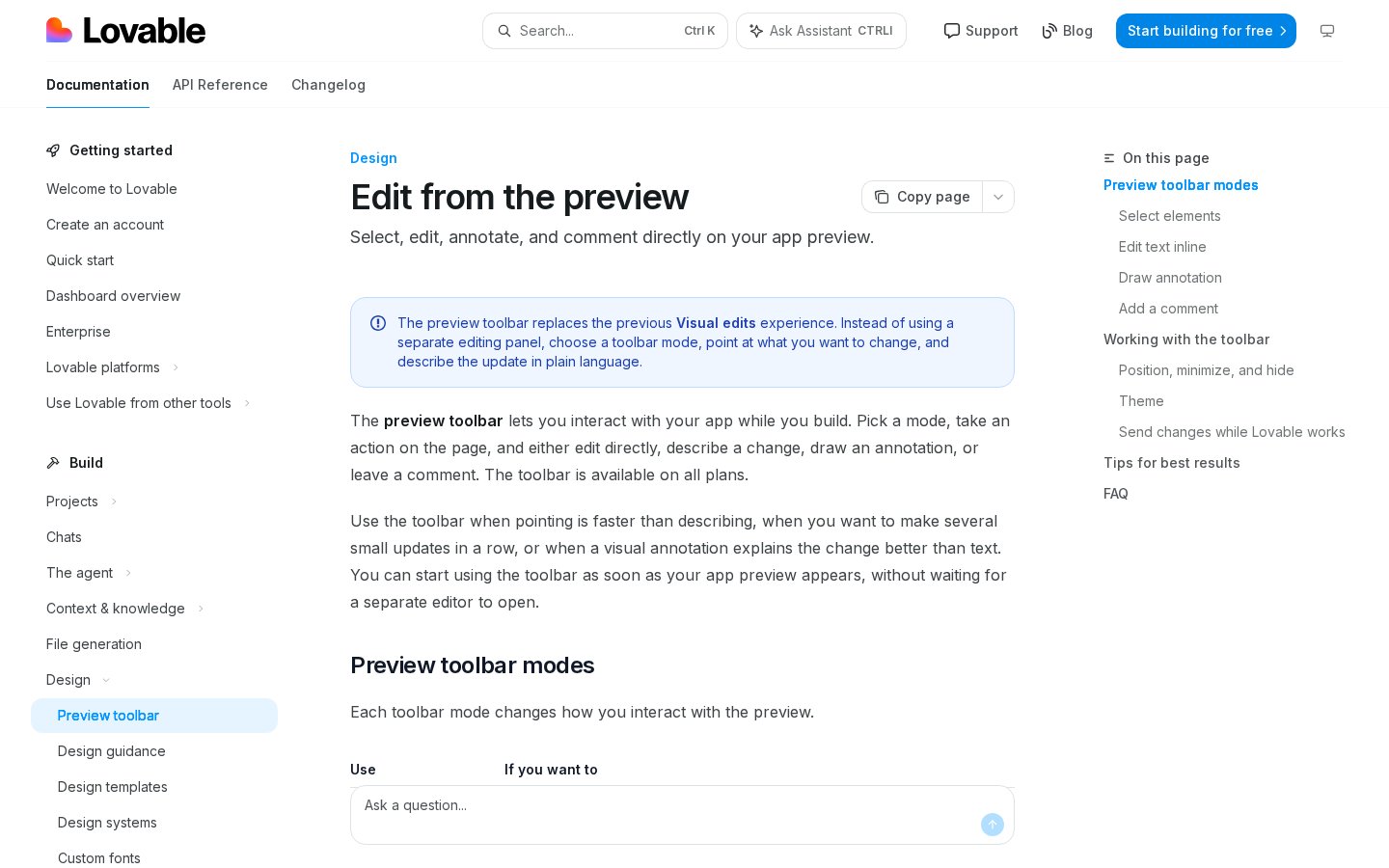
App builders often run into trouble by failing to isolate code changes when managing application state. When designing dynamic interfaces, state management dictates how data flows between different buttons, forms, and pages. If you ask the tool to update a UI element without specifying how the underlying data should change, the layout can become desynchronized.
For example, you might notice that clicking a tab updates the active screen but clears out all the text a user typed into an input form. This occurs because the generated code resets the local memory whenever the layout rerenders. Explaining exactly what data must persist across screen transitions is vital for a smooth user experience.
To avoid these interface glitches, clearly state which components need to remain static when other parts of the screen update. Tell the chat interface precisely where to store session data, whether that is in the browser's local storage or directly within your database tables.
Lovable vs Traditional No-Code: Which One Should You Pick?
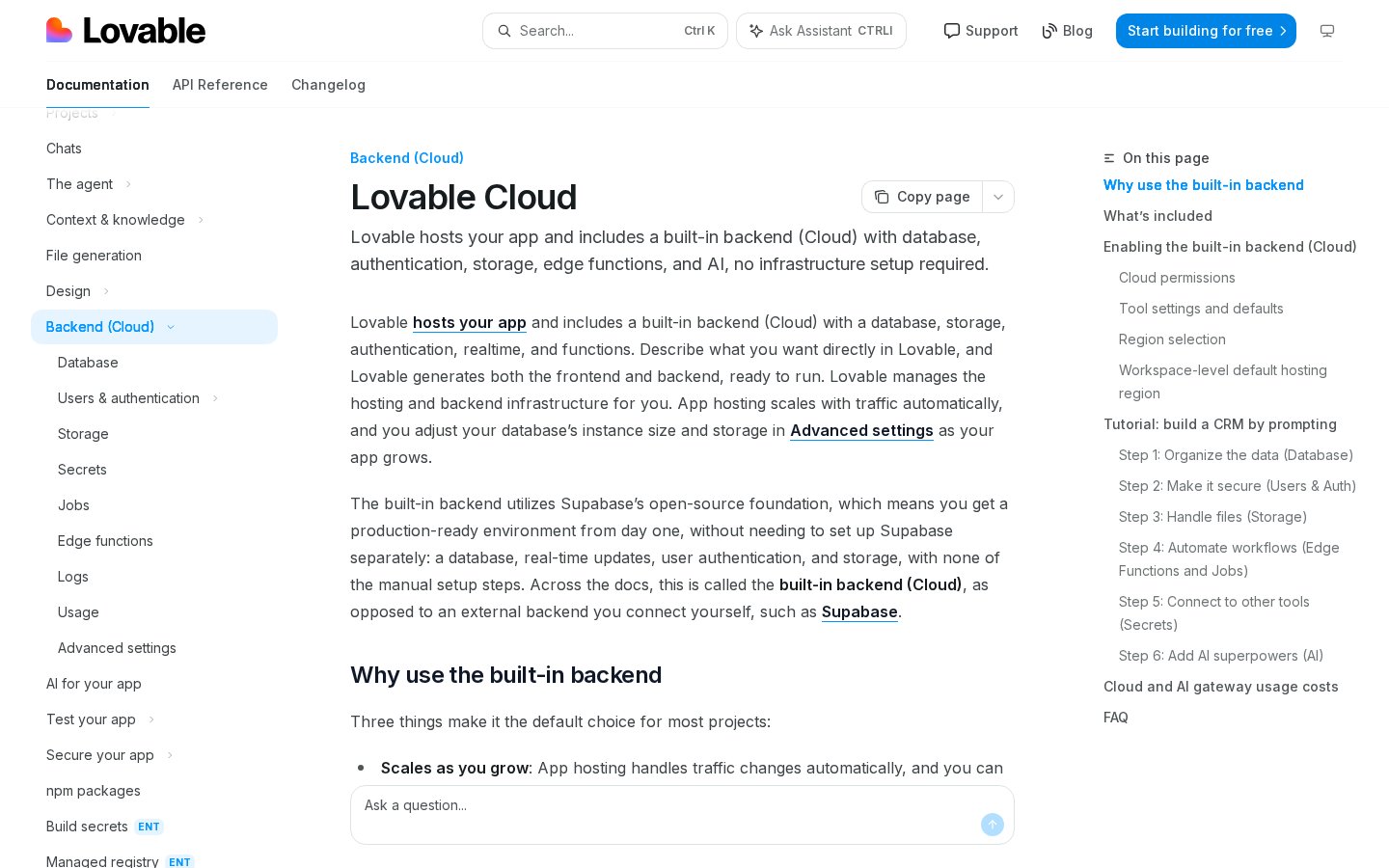
Deciding between a prompt-based application builder and a traditional visual drag-and-drop tool changes your entire development approach. Traditional platforms offer granular, manual control over every pixel and database query, but they require a steep learning curve. Prompt-based environments accelerate the building process by handling the underlying code for you, but they demand precise communication skills.
Your choice should depend on how you prefer to troubleshoot and scale your digital products. If you enjoy sketching layouts visually and setting up database logic manually, older visual builders might fit your workflow. If you prefer describing your ideas in plain English and iterating rapidly, prompt-driven software is the superior choice.
Let us look at how these methodologies compare across core product development categories. Understanding these differences will help you decide which system aligns with your current technical skills and software delivery timelines:
- Layout Control: Visual tools require manual dragging and alignment, while prompt tools generate layouts automatically based on descriptive text instructions.
- Learning Curve: Traditional visual environments take weeks to master, whereas text-driven platforms allow you to start building functional applications immediately.
- Code Portability: Visual systems often lock you into their hosted ecosystems, while modern AI-assisted systems frequently let you export clean react code.
- Maintenance Speed: Manual platforms require you to hand-fix every bug, while conversational systems resolve issues when you describe the error in the chat.
Frequently asked
Some links are affiliate links: we may earn a commission if you sign up or buy through them, at no extra cost to you. Affiliate disclosure