How to Fix the Most Common Pollo AI Video Generation Mistakes
Avoid failed prompts and wasted credits by mastering Pollo AI aspect ratios, camera motion controls, and temporal consistency settings.
Some links are affiliate links: we may earn a commission if you sign up or buy through them, at no extra cost to you.
On this page8 sections
- 1The short answer
- 2Overcomplicating Text Prompts and Adjectives
- 3Clashing Text Prompts with Camera Motion Sliders
- 4How to Set Up a Flawless Pollo AI Generation
- 5Choosing the Wrong Aspect Ratio and Output Resolution
- 6Failing to Use Image-to-Video for Character Consistency
- 7Which Video Generation Workflow Should You Pick?
- 8Frequently asked
The short answer
- Keep text prompts direct and focus on physical action verbs instead of descriptive adjectives.
- Coordinate manual camera sliders with text motion instructions to prevent chaotic facial warping.
- Use the image-to-video workspace to preserve character facial structures across multiple generated clips.
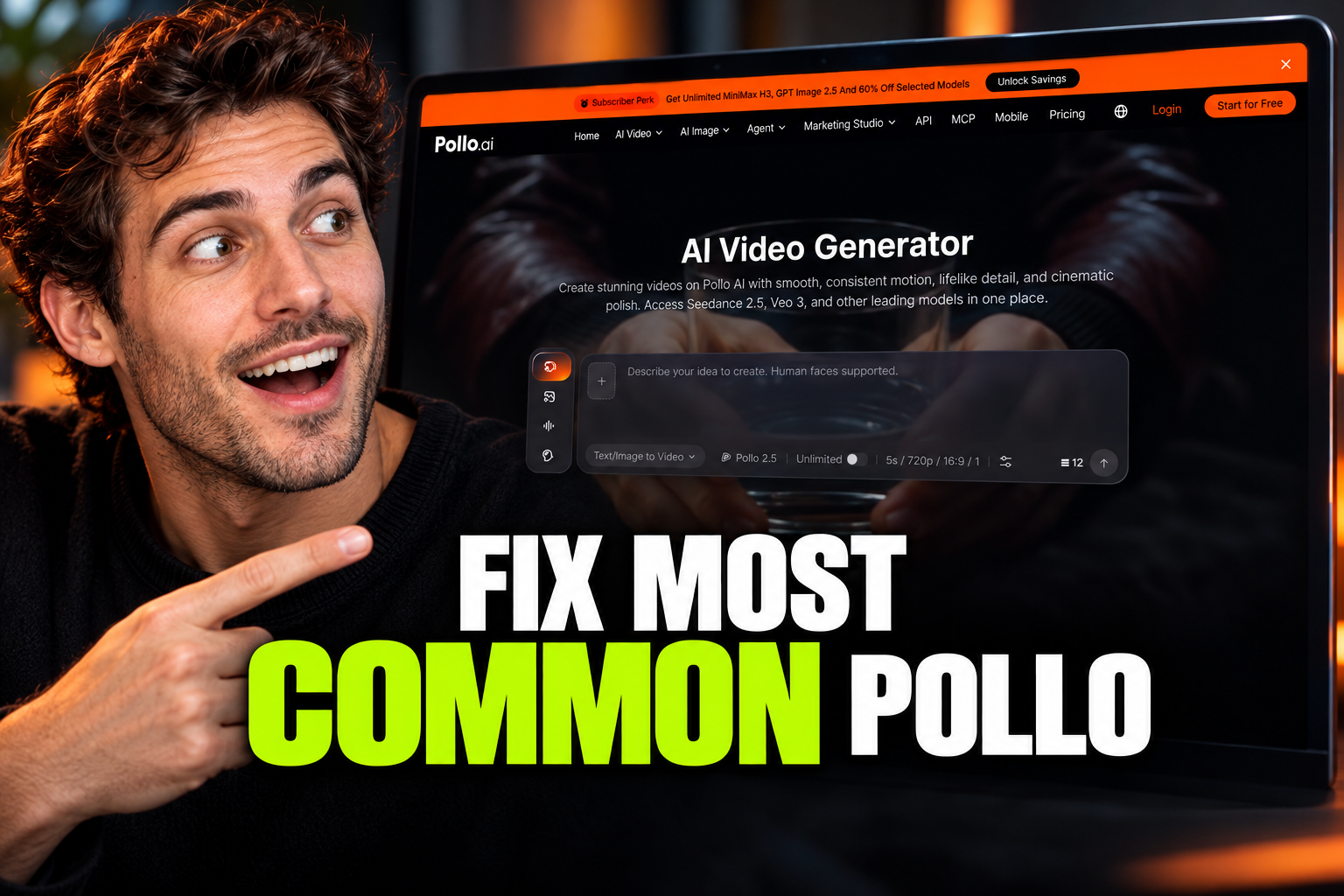
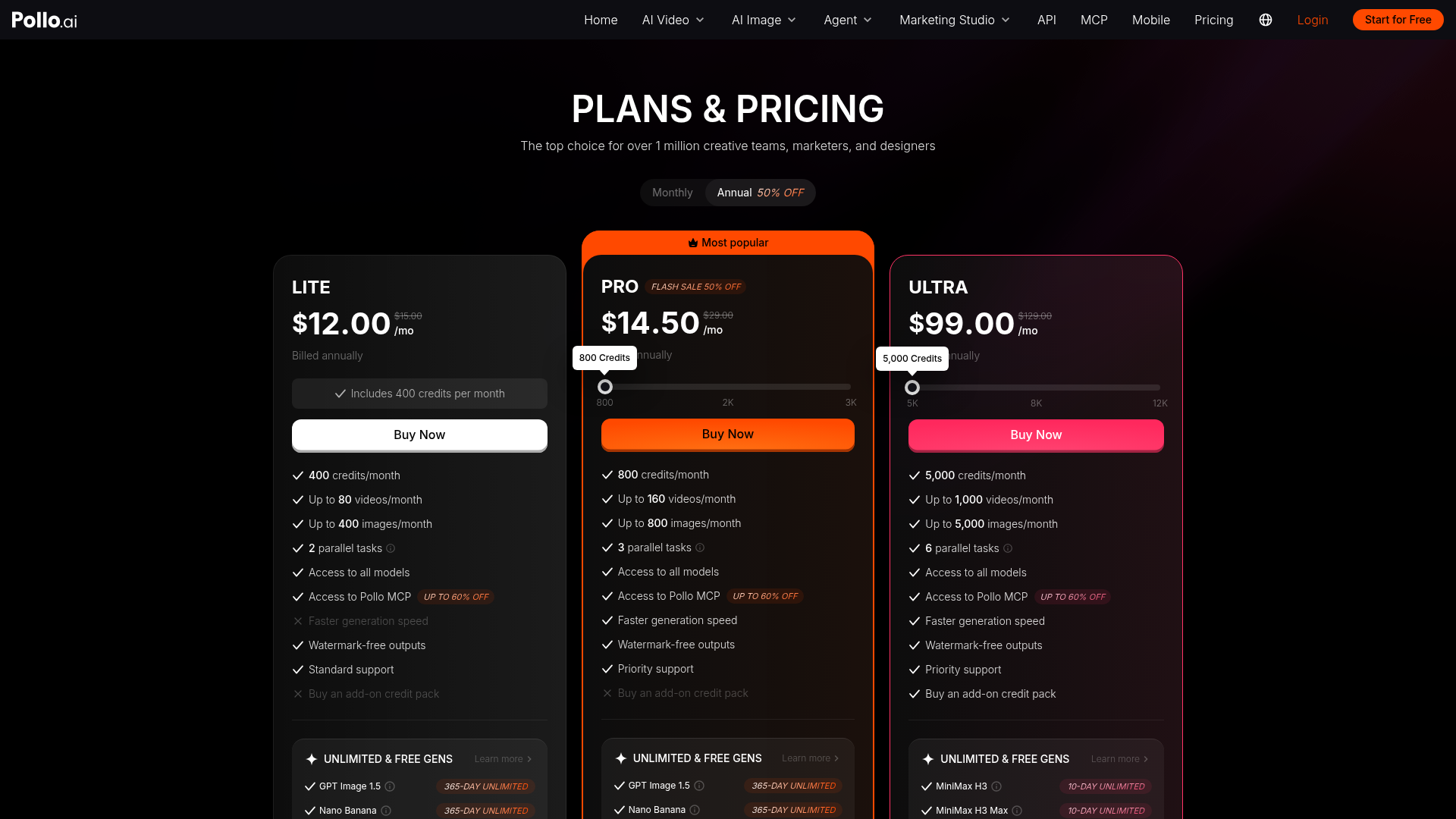
The most common Pollo AI mistakes involve entering over-complicated text prompts, ignoring camera speed sliders, and selecting incorrect aspect ratios for your platform. These workflow errors waste generation credits and produce highly distorted outputs. When using generative tools, minor settings adjustments completely alter your final render. Creators often write long, poetic descriptions rather than specific, structural directives, leading to chaotic morphing. To keep your animations clean, you must coordinate text inputs with manual speed sliders. Understanding how these system parameters interact helps you maintain an efficient production queue. For a complete breakdown of the platform cost structure, read our Pollo AI Review 2026: Pricing, Credits and Who It's For.
Overcomplicating Text Prompts and Adjectives
Many users structure their prompts like creative writing essays, adding heavy layers of emotional adjectives and abstract concepts. Pollo AI utilizes a neural network optimized for direct physical actions, meaning it struggles to interpret subjective phrases like "beautifully lit" or "melancholy atmosphere." Instead of guiding the visual generation, these vague descriptors clutter the prompt parser and lead to unpredictable warping. Writing clear, action-first prompt instructions prevents the engine from hallucinating random elements in the background. To keep the scene stable, focus on concrete nouns and active verbs, such as "a man walking down a rain-slicked concrete sidewalk." This structured approach allows the artificial intelligence to map out the motion path clearly without getting confused by poetic filler. The system also includes a negative prompt box, which is frequently overlooked by beginners. If you do not specify what to exclude, the rendering engine might automatically insert unwanted objects to balance the frame. Typing terms like "blurry, low quality, deformed hands, extra limbs" in the negative prompt field helps steer the generation away from typical rendering errors.
Clashing Text Prompts with Camera Motion Sliders
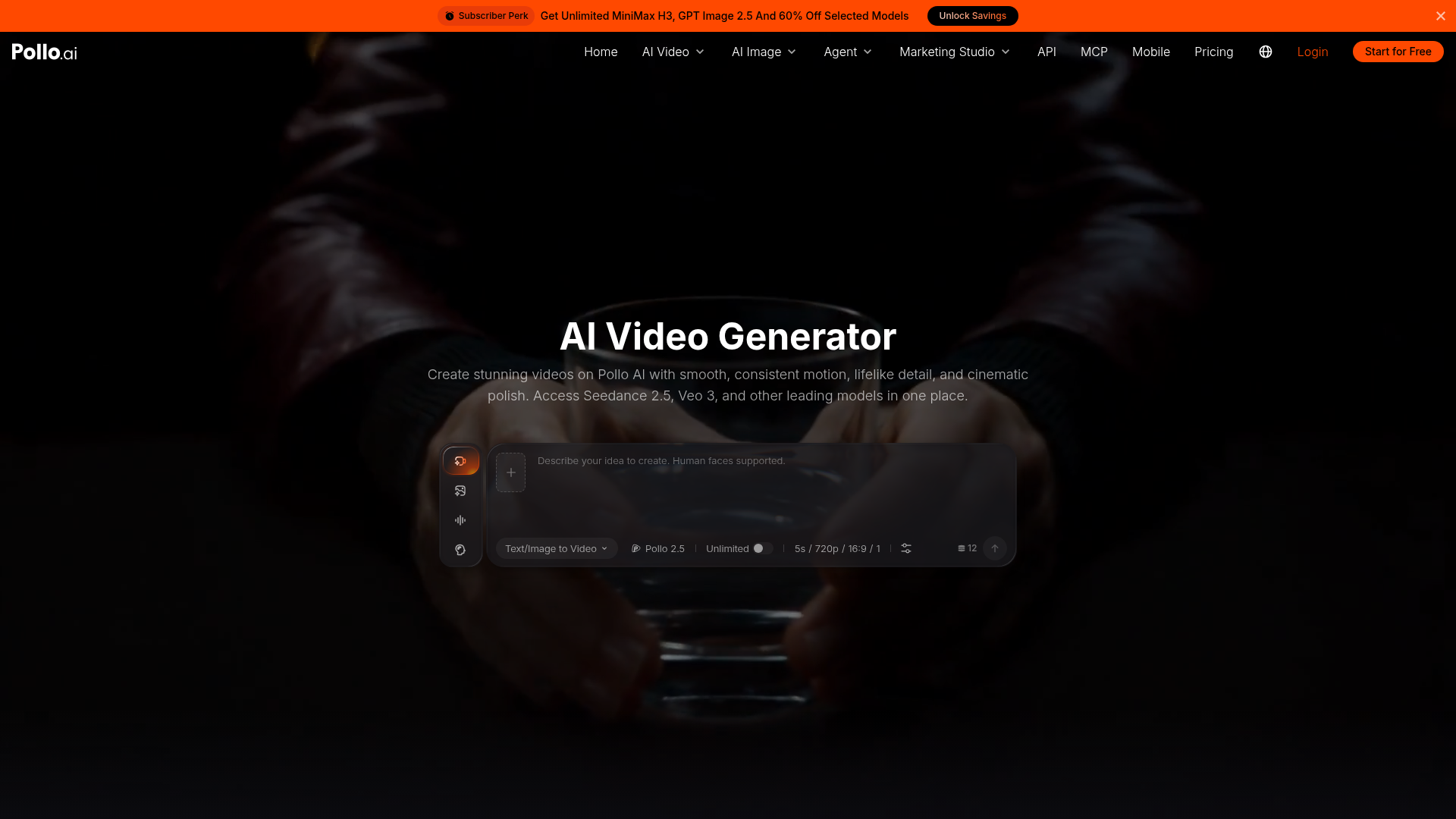
Another frequent error is setting the motion intensity slider to maximum while describing a static, slow-moving scene in the text box. When the text prompt asks for a "quiet, still portrait" but the motion speed parameter is cranked up, the system experiences a conflict. This contradiction usually causes severe artifacting, where human faces stretch or background walls bend unnaturally. Aligning manual camera sliders with text prompts is essential for maintaining temporal consistency across the generated video frames. If your prompt describes rapid action, like a racing car, a high motion setting works beautifully. However, for subtle human movements, dragging the motion slider down to a lower value ensures the face stays structurally coherent. The interface provides directional camera buttons, including pan, tilt, and zoom, which dictate the mathematical movement of the frame. If you enable a heavy zoom-in command while your prompt describes a sweeping panoramic shot, the engine tries to perform both actions simultaneously, resulting in a dizzying spiral effect. To resolve this, keep your camera slider values low when beginning a new project. Setting these values incrementally prevents the model from generating distorted frames.
How to Set Up a Flawless Pollo AI Generation
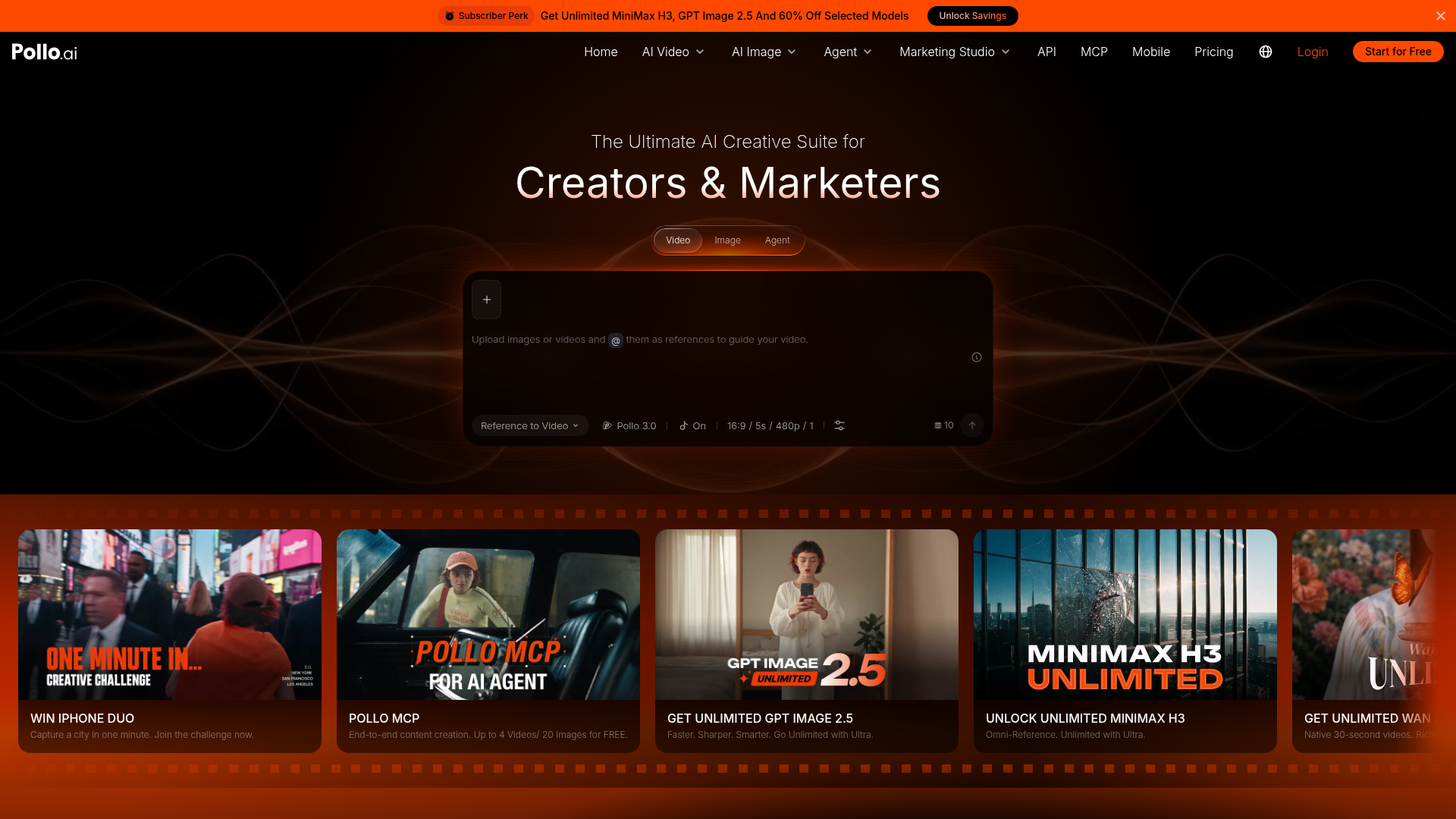
Setting up your workspace correctly before hitting the generate button saves valuable rendering credits and avoids common mistakes. Following a structured system ensures that the AI model receives clean, unambiguous instructions from the very start. 1. Upload a high-resolution starting image. Using a clean source photo gives the AI a solid structural anchor to build upon. 2. Draft a direct action-oriented prompt. Focus entirely on the specific movement you want the characters or objects to perform. 3. Adjust the motion intensity slider downward. Lowering this setting to a moderate value prevents chaotic morphing and keeps faces recognizable. 4. Select your target aspect ratio first. Setting the layout before rendering prevents awkward cropping and black bars on your final video. 5. Generate a short preview slice. Running a quick, low-resolution test helps you verify the movement path before committing a larger credit balance. This checklist helps eliminate guesswork, allowing you to establish a predictable pipeline for your creative projects. By addressing each setting in a logical sequence, you reduce the risk of receiving unusable outputs from the queue.
Choosing the Wrong Aspect Ratio and Output Resolution
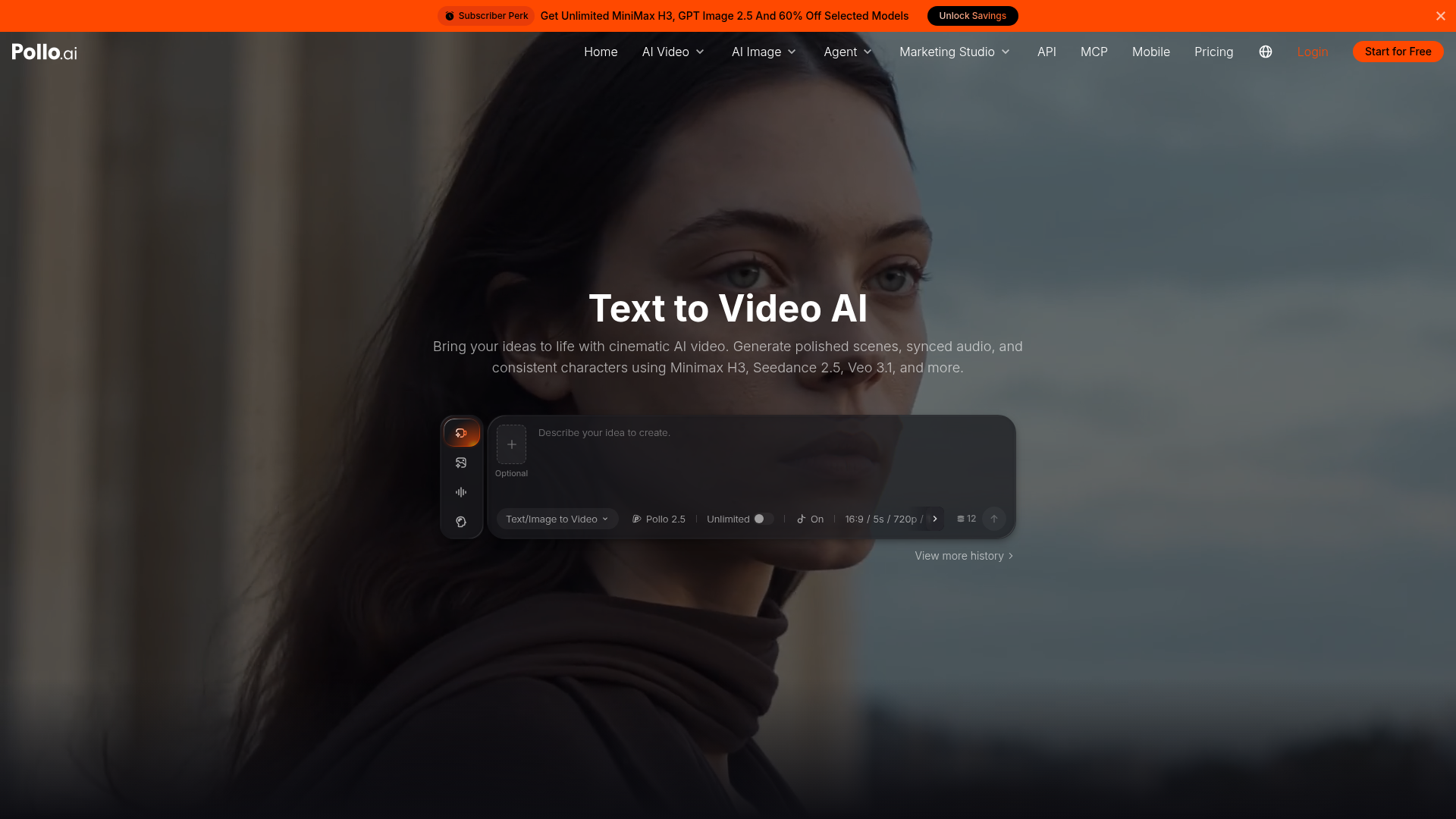
Selecting the visual layout after drafting the prompt often leads to chopped heads and awkward composition. Pollo AI allows users to choose between widescreen, square, and vertical outputs, but changing this setting late in the workflow alters how the engine frames the scene. If you write a prompt designed for a landscape view and then force it into a vertical frame, the AI will squeeze or crop critical elements. Choosing your aspect ratio first allows the generator to map out the visual physics of the environment correctly. Widescreen ratios require lateral camera movements, whereas vertical orientations need vertical panning controls. When the frame shape does not match the motion direction, the video usually ends up with black letterboxes or blurry side margins. Additionally, running landscape prompts in portrait mode often cuts off character appendages or crops vital background details. This forces users to regenerate the scene, wasting valuable queue times and premium processing credits. Taking a moment to define your target platform, adjust the frame shape container, and then write a prompt tailored to that specific spatial envelope saves resources. If you plan to scale your media across multiple social platforms, create separate generations tailored to each format.

Failing to Use Image-to-Video for Character Consistency
Relying solely on text-to-video generation to create recurring characters across multiple scenes is a recipe for frustration. Each time the text generator processes a prompt like "a young woman with brown hair," it builds an entirely new face from scratch. This leads to dramatic identity drift, making it impossible to assemble a cohesive narrative sequence. To fix this, users must utilize the image-to-video workspace to lock in character designs. Starting with a reference image provides the neural network with a fixed blueprint for facial structure, clothing, and lighting. The text prompt is then used only to describe the motion, while the source image maintains the character's visual identity. The reference photo does not need to be complex; a simple, high-quality portrait generated from a dedicated static image engine works perfectly. Once loaded into the source slot, you can prompt the character to speak, run, or turn their head without losing their face shape. This simple step bridges the gap between disconnected clips and continuous visual storytelling. For more advanced strategies on managing your character reference workflow and optimizing your balance, check out our Pollo AI Review 2026: Pricing, Credits and Who It's For. Organize your assets ahead of time to keep production smooth.
Which Video Generation Workflow Should You Pick?
Deciding between a text-driven or an image-driven workflow depends on the level of visual control your project requires. Both approaches have unique strengths, but picking the wrong method for your specific goal can waste your rendering queue. - Workflow: Text-to-Video offers rapid brainstorming, whereas Image-to-Video provides precise spatial composition. - Consistency: Text-to-Video often suffers from high character variation, whereas Image-to-Video locks in facial details and textures. - Motion control: Text-to-Video handles complex physical actions easily, whereas Image-to-Video excels at animating still photos without altering the scene background. - Speed: Text-to-Video generates scenes in one click, whereas Image-to-Video requires preparing a clean reference image beforehand. Use the text-to-video workflow when you are in the early, exploratory stages of a project and need to test different visual themes. This fast-paced environment helps you discover stylistic directions without spending too much prep time on design assets. Switch to the image-to-video workflow once you have established your characters, primary settings, and brand assets. This methodical approach ensures that your final video sequence remains polished, consistent, and free from sudden style shifts.
Frequently asked
As an Amazon Associate I earn from qualifying purchases. This does not affect the price you pay. Affiliate disclosure