How to Avoid the Most Common Shopify Mistakes on Your Store
Avoid costly setup errors on your Shopify store by correcting design, shipping, and app settings before your official launch.

Some links are affiliate links: we may earn a commission if you sign up or buy through them, at no extra cost to you.
On this page8 sections
- 1The short answer
- 2Customizing Your Theme Without Mobile Optimization
- 3Overloading Your Site With Third-Party Apps
- 4Misconfiguring Shipping Rates and Taxes
- 5Neglecting SEO Foundations on Product Pages
- 6Essential Steps to Verify Your Store Launch Checklist
- 7Editing Liquid Code vs. Using Apps: Which to Choose?
- 8Frequently asked
The short answer
- Avoid installing excessive apps to protect your site loading speed.
- Test the checkout process using real payment details before launching.
- Design primarily for mobile layouts to maximize conversion rates.

The most common Shopify mistakes include over-complicating the homepage layout, overloading the platform with slow third-party applications, and failing to execute a real test transaction before launching. Avoiding these critical setup errors protects your store from high cart abandonment rates and slow loading speeds.
Building an online store involves juggling many moving parts. New merchants often get distracted by visual details, ignoring the functional settings that actually drive sales. By addressing these foundational gaps early, you ensure a smoother experience for your buyers and save yourself from dealing with complex customer service issues later.
This explainer breaks down the classic errors store owners make during the setup process. We will look at specific adjustments you can make within your admin dashboard to optimize your site performance, protect your SEO rankings, and prevent unexpected charges at checkout.
The quick version
- Trigger a live checkout purchase
- Link your custom web address
- Generate standard legal pages
- Confirm automated email notices
- Install tracking code properties
Customizing Your Theme Without Mobile Optimization
Many new store owners design their storefronts exclusively on a desktop computer, forgetting that most e-commerce traffic originates on mobile devices. Designing primarily for mobile devices is no longer optional. Adjusting your theme visual elements on a large screen can lead to oversized images, unreadable fonts, and overlapping buttons on smartphones. When visitors struggle to click a button, they leave the site immediately.
Within the Shopify Theme Editor, you can switch between desktop and mobile previews using the icons at the top of the workspace. Use this feature to check every banner, text block, and navigation menu. If a custom banner looks cramped on mobile, replace it with a responsive image or use the built-in text overlay options instead of embedding text directly into the graphic file.
Selecting a highly responsive, clean layout is crucial. For a comprehensive look at how different subscription tiers support design customization, read our Shopify Review 2026: Pricing, Fees and Who It's For. Keeping your design simple prevents custom Liquid template code from breaking during future platform updates.


Overloading Your Site With Third-Party Apps
The Shopify App Store makes it incredibly simple to add advanced functions to your store, but installing too many plugins is a recipe for slow loading speeds. Every app you install adds external JavaScript files to your theme. This extra code forces browsers to download more data, directly hurting your conversion rate optimization efforts by testing your customers' patience.
When you uninstall an app, it often leaves orphan code behind in your theme files. Over time, these remnants pile up and create a sluggish browsing experience. To prevent this, only install essential tools that directly support your immediate sales goals, such as an email marketing integration or a basic reviews plugin.
Before adding any new utility, ask yourself if the core Shopify admin can already handle the task. The platform regularly adds native features that previously required external software, meaning you can often manage discounts, local deliveries, and basic email campaigns without relying on third-party developers.
Misconfiguring Shipping Rates and Taxes
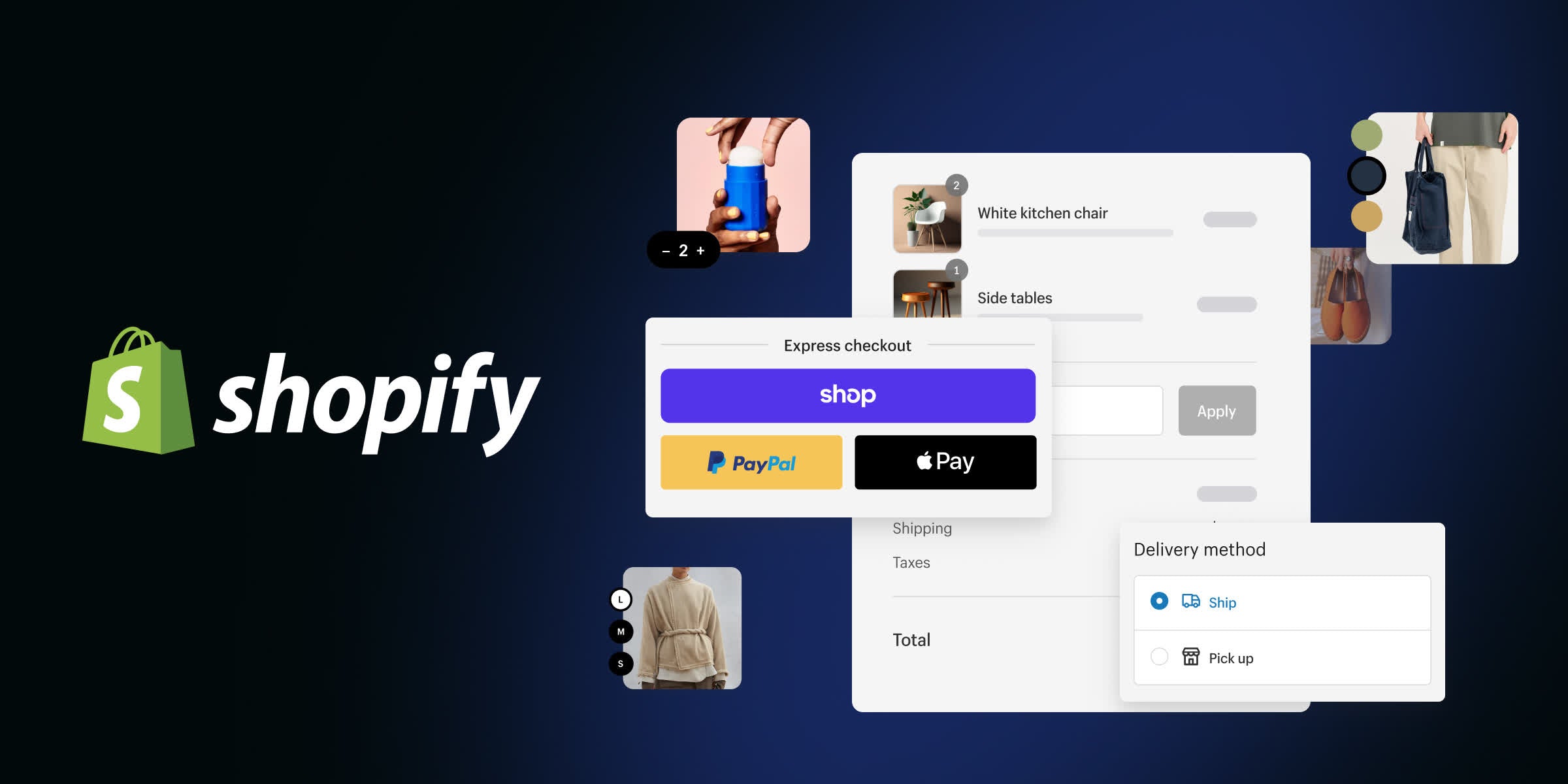
Unexpected costs at checkout represent one of the primary drivers of abandoned shopping carts. Unexpected shipping fees are the leading cause of abandoned carts. New sellers often make the mistake of leaving their shipping settings incomplete or relying on confusing, flat-rate zones that do not cover actual shipping costs. This leads to checkout errors where customers are told the store cannot ship to their address.
Navigate to the Settings menu and click on Shipping and Delivery to build clear profiles. You can configure rates based on weight, order price, or real-time carrier calculations. Make sure to establish specific zones for international destinations if you plan to sell globally, and clearly state your delivery times on your product pages to manage expectations.
Taxes present a similar challenge. Shopify provides automated calculators, but you must manually configure tax collection based on your business location and legal requirements. Failing to verify these settings can result in unexpected liabilities or overcharging customers in regions where you do not have a tax nexus.

Neglecting SEO Foundations on Product Pages
Another widespread oversight is failing to optimize the metadata that search engines crawl. When you import items directly from wholesale catalogs or dropshipping platforms, they usually come with generic titles and dry descriptions. Leaving these default texts makes it almost impossible for search engines to rank your pages.
To correct this, scroll to the bottom of any product details page in your admin dashboard and find the search engine listing preview. Here, you can customize the meta title and meta description to include search terms your target customers actually use. Keep these descriptions natural, focused, and free of keyword stuffing.
Additionally, always assign descriptive alt text to every image you upload. Search engines cannot see photos, so they rely on these text descriptions to understand what your products look like. Writing clear alt text also makes your digital storefront accessible to visually impaired visitors using screen readers.
Essential Steps to Verify Your Store Launch Checklist
Launching your online business without a structured verification routine invites errors that can disrupt your initial sales. Following a methodical pre-launch guide allows you to locate hidden issues before your marketing campaigns go live. Implement these key steps to ensure a flawless shopping experience:
- Trigger a live checkout purchase. Place a real order using a personal credit card and immediately refund the transaction to verify your payment processor functions correctly.
- Link your custom web address. Connect your domain in the settings menu and confirm that the default addresses redirect smoothly to your primary URL.
- Generate standard legal pages. Use the built-in templates to publish clear refund policies, shipping rules, and privacy terms in your footer navigation.
- Confirm automated email notices. Place a test order to examine the formatting of your order confirmations and shipping updates on multiple email clients.
- Install tracking code properties. Connect your analytics accounts within your preferences panel to capture customer data from day one.
Taking the extra time to walk through these milestones guarantees that your first visitors will not encounter broken buttons or non-functional payment forms. It builds trust from the very first transaction.

Editing Liquid Code vs. Using Apps: Which to Choose?
When you need to introduce custom features to your store, you will face a choice: write custom code or install third-party software. Choosing how to modify your templates directly impacts your store performance and maintenance budget over time.
If you have web development experience or budget to hire a professional, choose custom code modifications. Writing direct adjustments into your theme files keeps your pages lightweight and avoids monthly subscription fees. This method ensures your store retains rapid load speeds and runs smoothly without relying on external servers. Learn more about the flexibility of the platform in our Shopify Review 2026: Pricing, Fees and Who It's For.
If you need to launch quickly and want to manage updates yourself, choose app store extensions. Using reputable applications lets you test modern sales features without writing a single line of code. Just remember to limit your overall app count to protect your loading speeds, and systematically clean out unused code whenever you uninstall an app.

Frequently asked

Some links are affiliate links: we may earn a commission if you sign up or buy through them, at no extra cost to you. Affiliate disclosure