
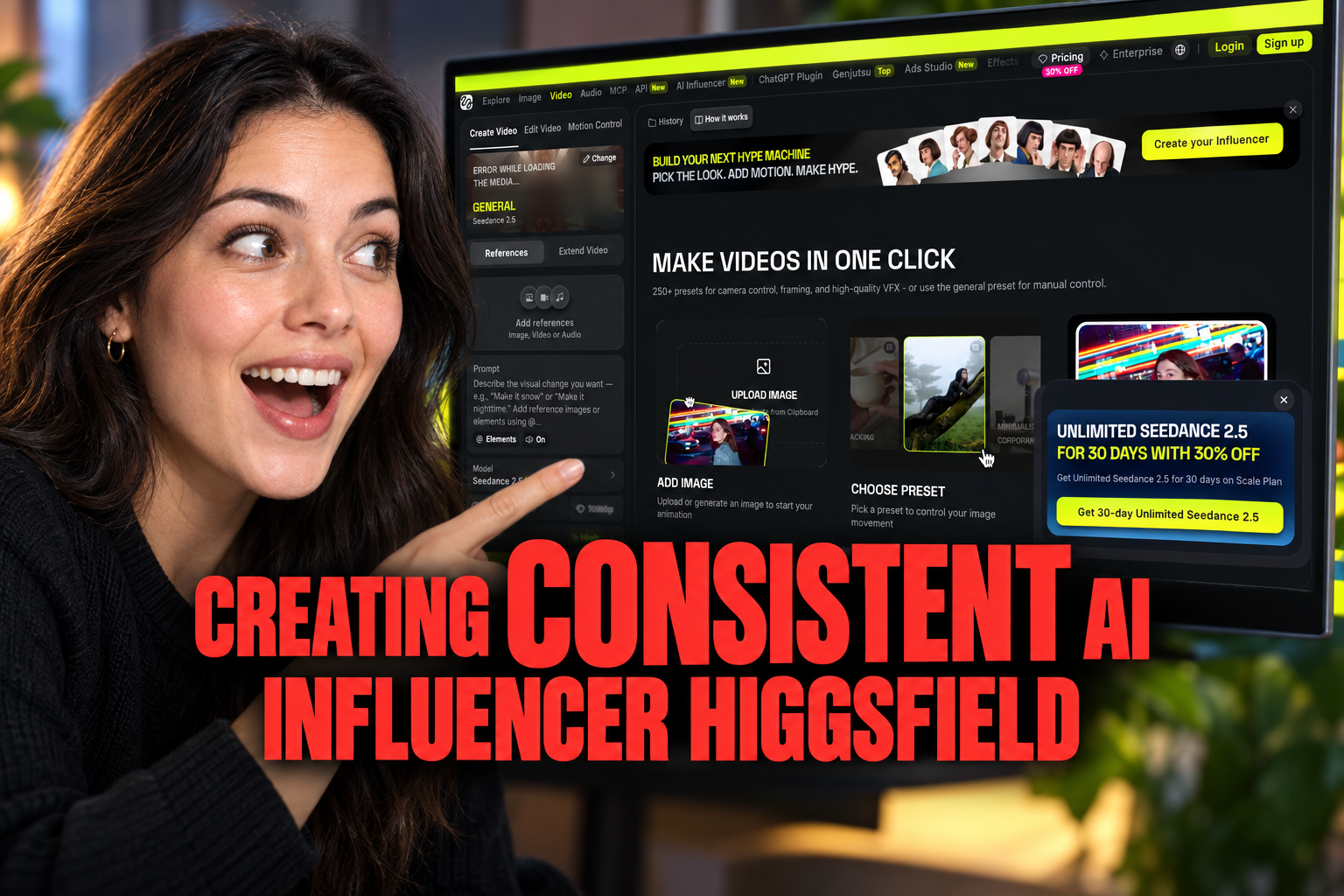
How to Create a Consistent AI Influencer with Higgsfield
Learn a repeatable Higgsfield workflow for keeping an AI influencer visually consistent across clips, from reference images and prompts to motion and troubleshooting.
Some links are affiliate links: we may earn a commission if you sign up or buy through them, at no extra cost to you.
On this page9 sections
- 1The short answer
- 2How to Create a Consistent AI Influencer with Higgsfield
- 3Choose a Clear Master Reference Image
- 4Write a Reusable Character Prompt
- 5Generate Short, Controlled Test Clips
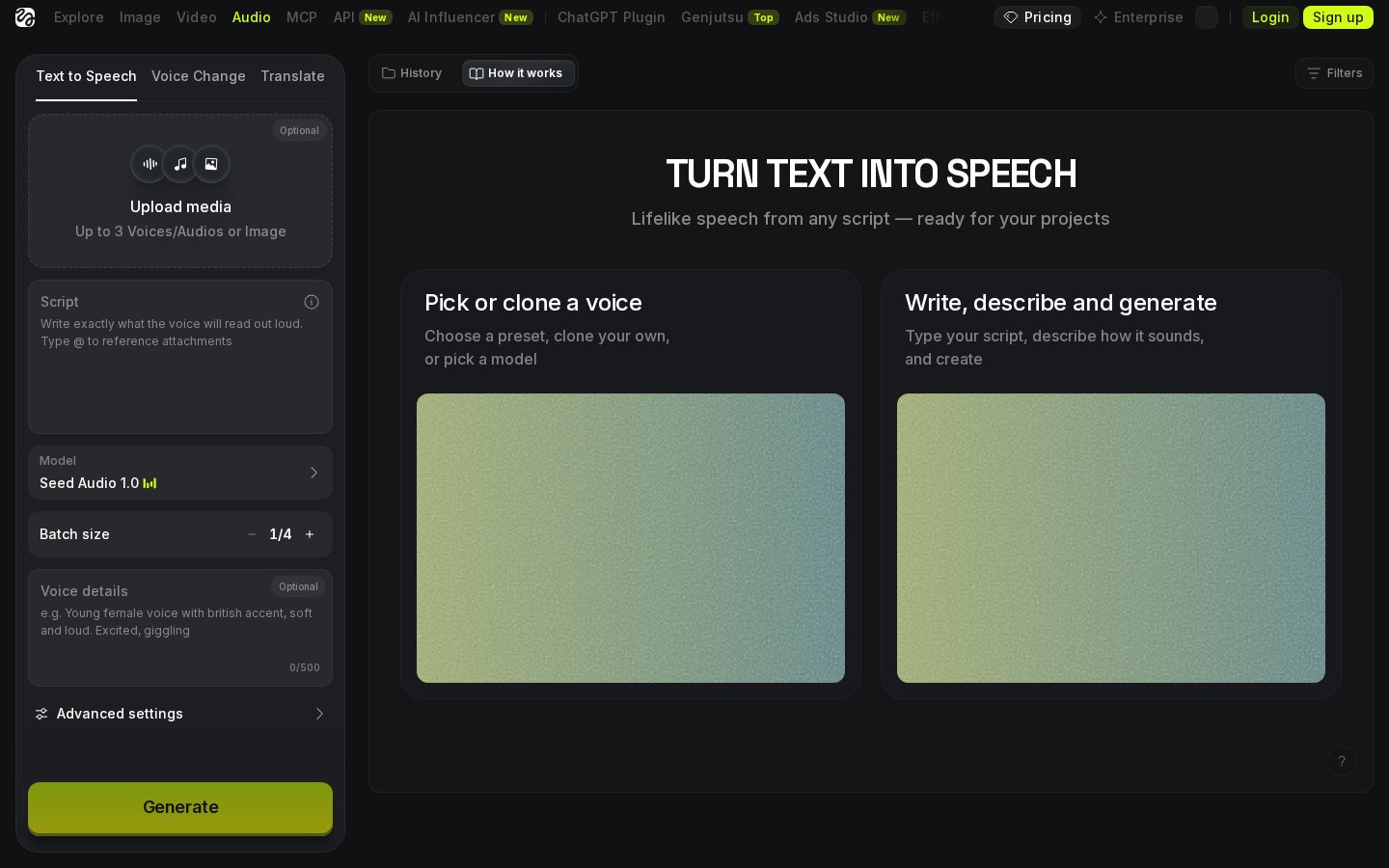
- 6Use Motion References Carefully
- 7Fix Identity Drift Without Rebuilding the Character
- 8Organise a Repeatable Content Workflow
- 9Frequently asked
The short answer
- Use a high-quality, front-facing portrait with neutral lighting as your base reference image.
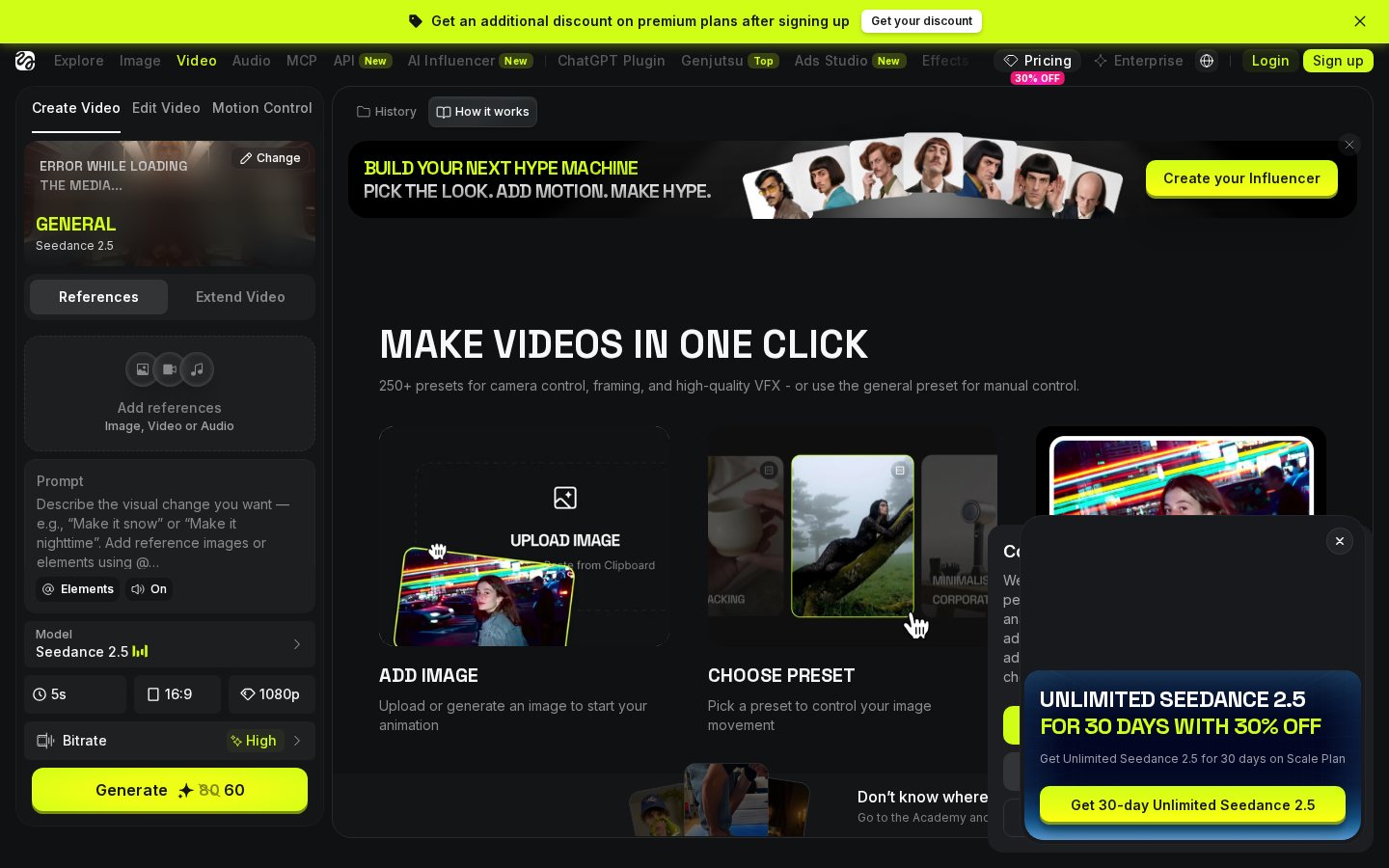
- Apply the actor-lock control in Higgsfield to carry the face across different motion templates.
- Maintain consistent prompt keywords for clothing and art style to ensure visual coherence.
To create a consistent AI influencer with Higgsfield, use one clear reference portrait for every clip, repeat the same character description, and keep lighting, framing, clothing, and motion instructions controlled. Generate short tests first, compare each result with your approved reference, and revise one variable at a time when the character’s face, hair, or styling changes. Higgsfield’s interface and feature names may change, so treat the steps below as a practical workflow rather than a fixed list of controls. For a broader overview of the platform, read our Higgsfield Review.
Watch it in action
How to Create a Consistent AI Influencer with Higgsfield
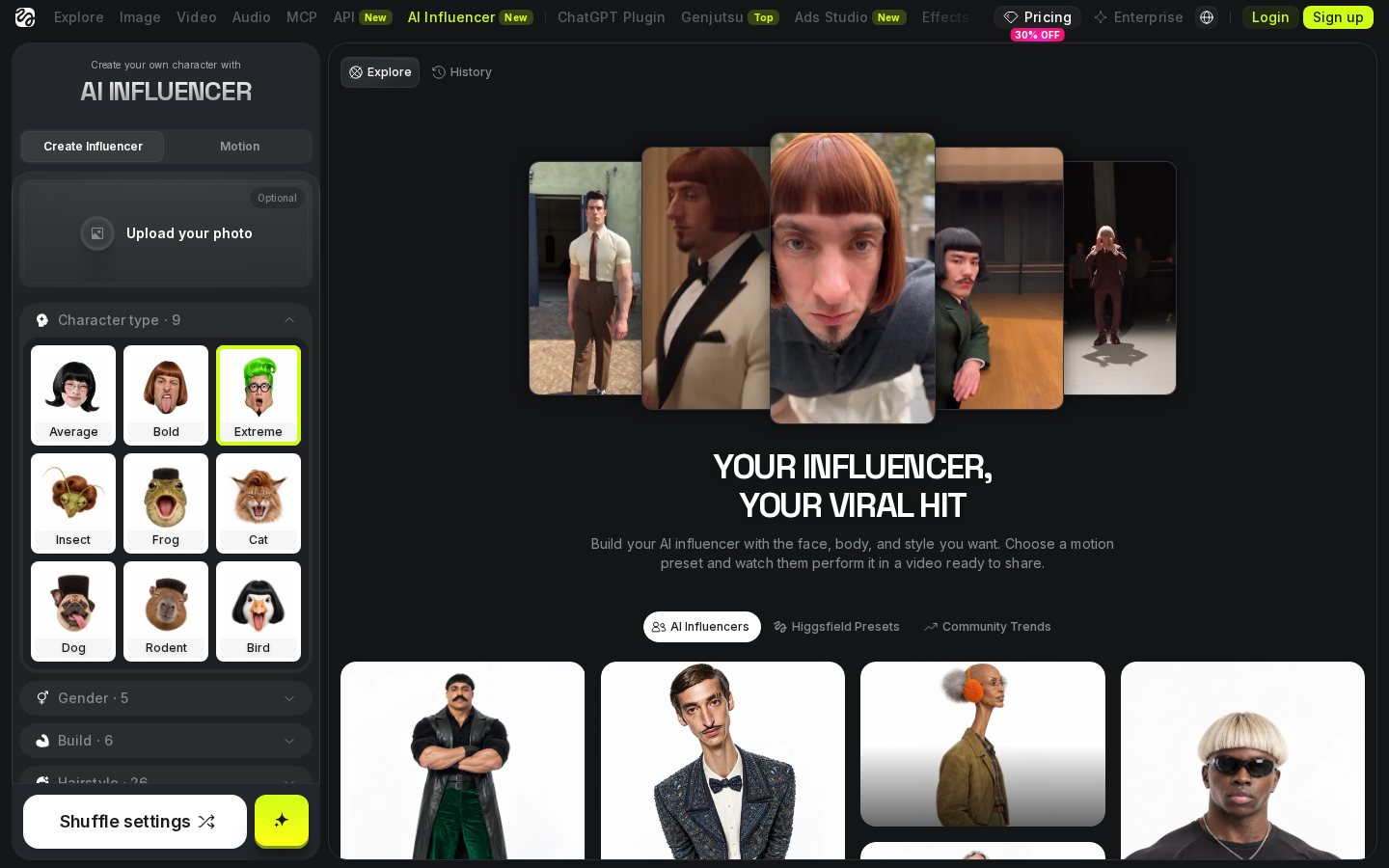
Start by defining an approved identity before producing a full set of videos. Choose one portrait as the character’s visual anchor, then write a short profile covering the features that must remain stable: hairstyle, hair colour, clothing palette, makeup level, accessories, and overall visual style. Use the same reference image and core description in every generation. If Higgsfield offers a reference-image, character, actor, or identity control in your current interface, attach the portrait through that option and keep its settings unchanged between related clips. Do not assume that a saved face alone will preserve every detail. Generative video can reinterpret hair, clothing, proportions, and lighting, so repeat those details in the prompt. Create a short test with a simple background and limited movement. Compare the face shape, eyes, hairline, skin tone, outfit, and silhouette with your approved reference before expanding the scene. This controlled first render becomes your baseline for later clips.
Choose a Clear Master Reference Image
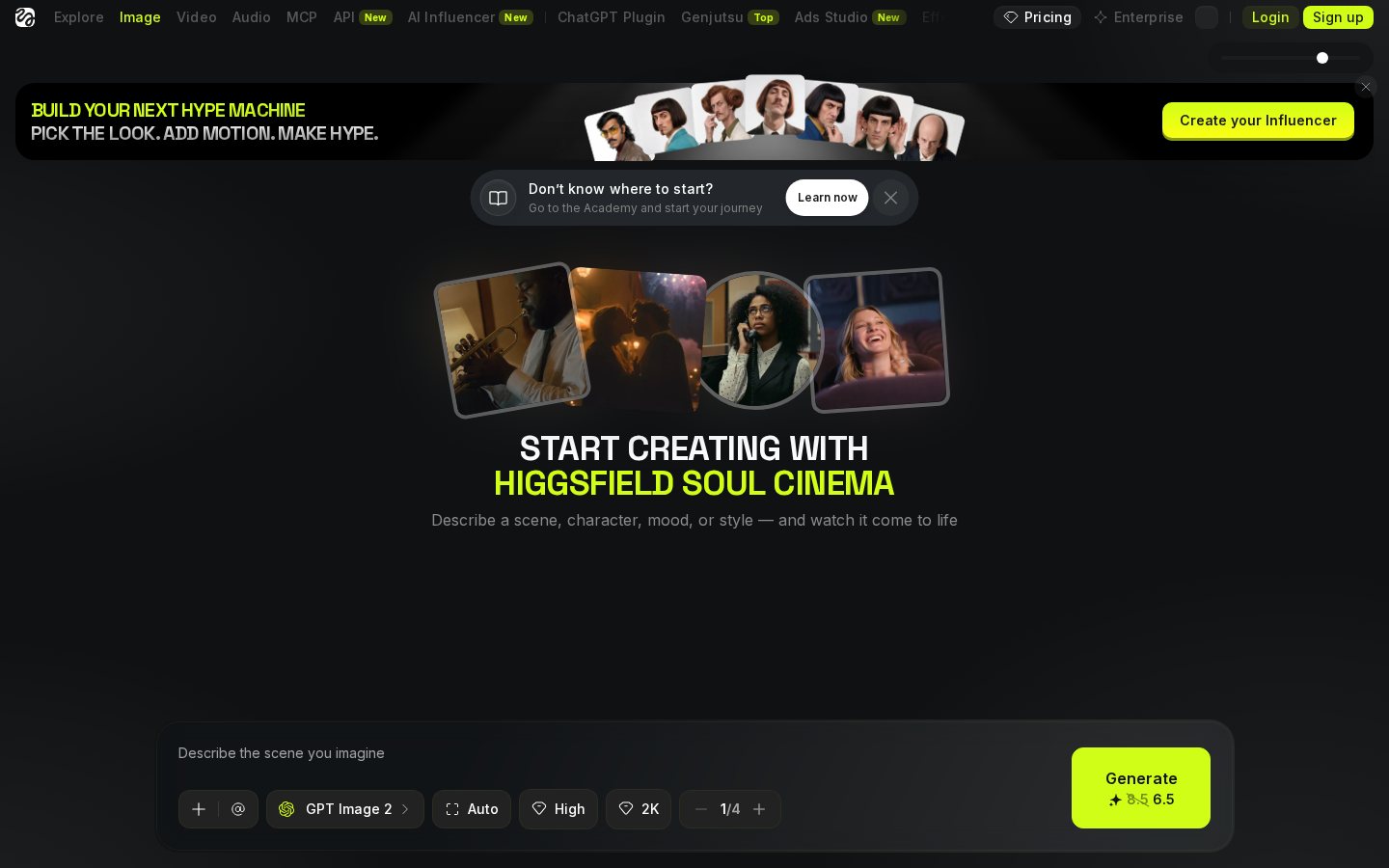
The source portrait should make the character easy to identify. Use a sharp image with the face visible, even lighting, and minimal obstruction from hands, hair, glasses, or strong shadows. A front-facing or modest three-quarter angle provides a clearer baseline than an extreme profile. Avoid starting with a busy scene because background objects can make it harder to judge whether later changes come from the character reference or the environment. A neutral expression is useful for the first test because it lets you inspect the eyes, mouth, jaw, and hairline without dramatic movement. Keep the original file rather than repeatedly saving compressed copies. Do not switch portraits halfway through a series unless you intend to redesign the influencer. If you need several poses, treat the approved portrait as the identity anchor and introduce new visual variables gradually. Name and archive the file clearly so collaborators do not substitute a similar but different image by mistake.
Write a Reusable Character Prompt
Create a prompt block that can be copied without alteration into each scene. It should use concrete language for stable visual traits, such as hair length and texture, clothing type and colour, accessories, makeup, shot size, and lighting direction. For example, “short dark wavy hair, plain blue crewneck shirt, no jewellery, medium close-up, soft frontal light” gives the system clearer constraints than subjective words such as “stylish” or “beautiful.” Save this block as the influencer’s identity prompt, then place scene-specific instructions after it. Keep the identity block unchanged while testing backgrounds, actions, or camera movement. Avoid adding conflicting details elsewhere in the prompt, such as describing short hair at the beginning and windblown shoulder-length hair later. A separate scene prompt can define the location, activity, mood, and movement without rewriting the person. Our Higgsfield Review provides additional context on the platform and its broader workflow.
Generate Short, Controlled Test Clips
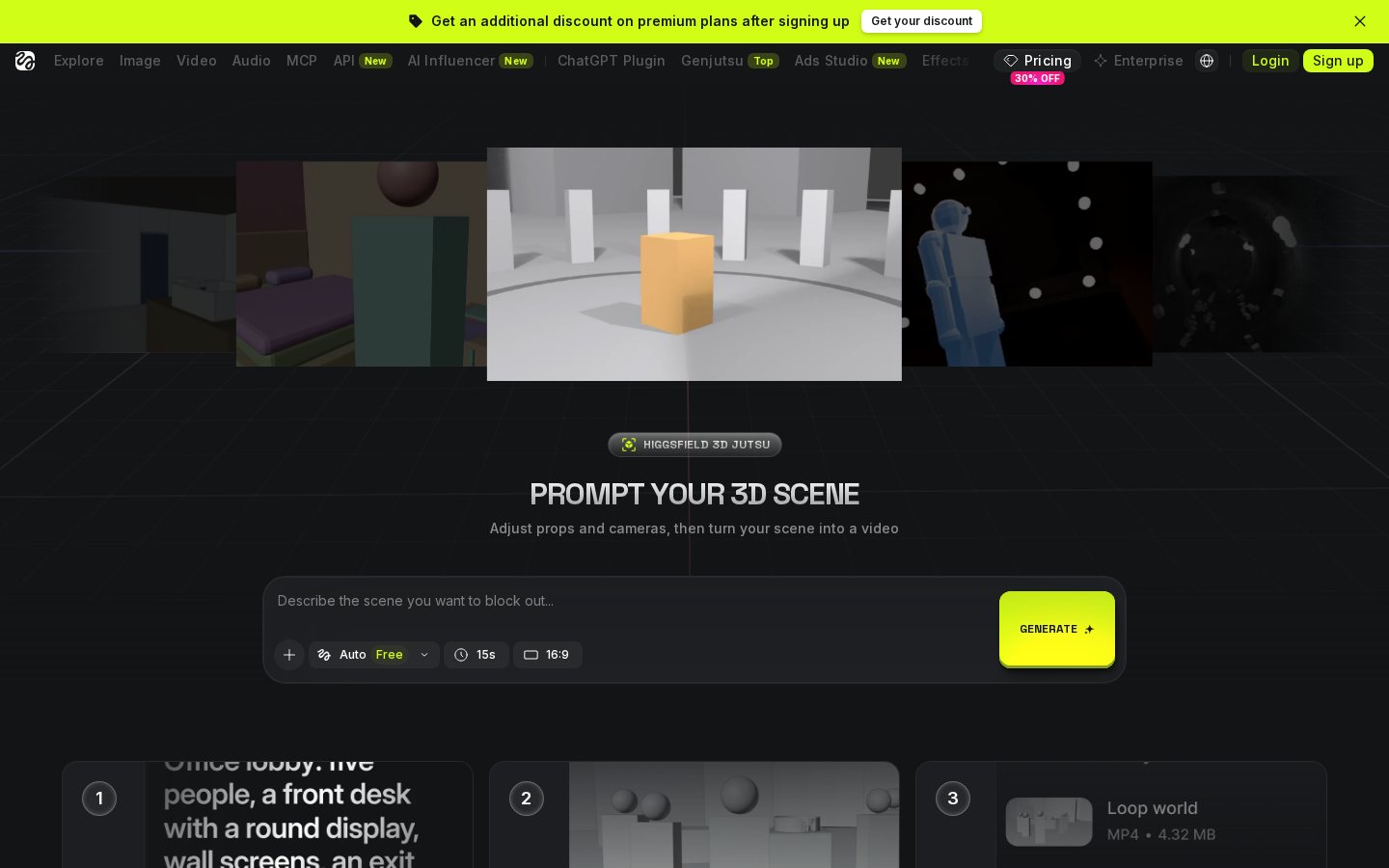
Begin with a brief shot that limits the number of variables the model must interpret. Keep the character near the centre of the frame, use a simple setting, and avoid rapid head turns, face-covering gestures, abrupt zooms, or frequent lighting changes. These choices make it easier to inspect identity drift, meaning unwanted changes to the character between frames or generations. Review the clip frame by frame around the eyes, mouth, hairline, jaw, ears, and accessories. Also compare the opening and closing frames, because a character may begin accurately and change as motion becomes more complex. If the identity remains stable, add one new element at a time: first a different background, then a stronger expression, then camera movement or a new action. Change only one major variable per test. This method does not remove every variation, but it helps reveal which prompt or motion choice is associated with a visible change and reduces unnecessary reruns.
Use Motion References Carefully
If the Higgsfield workflow you are using accepts an image, clip, or preset as a motion reference, choose movement that keeps the face readable. A guide with smooth gestures and moderate head rotation is easier to evaluate than footage with motion blur, occlusion, or repeated profile turns. Try to align the guide’s framing and pose with the reference portrait rather than asking the generated character to move instantly from a tight frontal portrait into an extreme full-body action. This relationship between the guide and the generated subject is often described as motion retargeting. Start with restrained movement, then increase its complexity after the face remains recognisable. Inspect moments when hands cross the face, hair moves over the eyes, or the subject turns away from the camera. Those transitions can expose inconsistencies that are not visible in a static preview. If a motion source repeatedly produces unwanted changes, simplify or replace it rather than continually rewriting the identity prompt.

Fix Identity Drift Without Rebuilding the Character
When a face, hairstyle, or outfit changes, return to the last successful clip and compare its inputs with the failed generation. Confirm that the same master portrait was attached, the identity prompt remained intact, and no new scene instruction contradicted the character profile. Then simplify the scene. Reduce rapid movement, remove face-covering actions, use steadier lighting, or replace a crowded background with a cleaner setting. Revise one factor at a time and keep a note of the result. If the hair changes, repeat its exact length, colour, parting, and texture in the identity block. If clothing changes, specify the garment, material, colour, neckline, and visible layers consistently. If facial proportions drift during turns, reduce the angle or shorten the movement. Avoid trying to repair every problem by adding more adjectives; longer prompts can introduce conflicts. A compact, ordered prompt and a controlled motion plan usually make troubleshooting clearer. See the full Higgsfield Review for related information about the tool.
Organise a Repeatable Content Workflow
A consistent influencer depends on production records as much as prompt wording. Store the master portrait, identity prompt, approved outfit descriptions, aspect ratio, framing notes, motion references, and successful scene prompts in one character folder. Give each approved version a clear name so you can reproduce it without relying on memory. Create a simple continuity checklist covering the face, hair, makeup, wardrobe, accessories, lighting, lens or framing language, and background style. Before producing a batch, generate one short sample and compare it with earlier approved clips. Plan related scenes in batches so they share the same visual rules, but keep each render and its inputs documented. If you intentionally change an outfit or hairstyle, record that as a new approved look rather than silently overwriting the original profile. This approach makes it easier to maintain continuity across posts and to return to a successful configuration after experimenting with new scenes or movements. For platform-level context, consult our Higgsfield Review.
Frequently asked

As an Amazon Associate I earn from qualifying purchases. This does not affect the price you pay. Affiliate disclosure