How to Get Started with VEED as a Video Editing Beginner
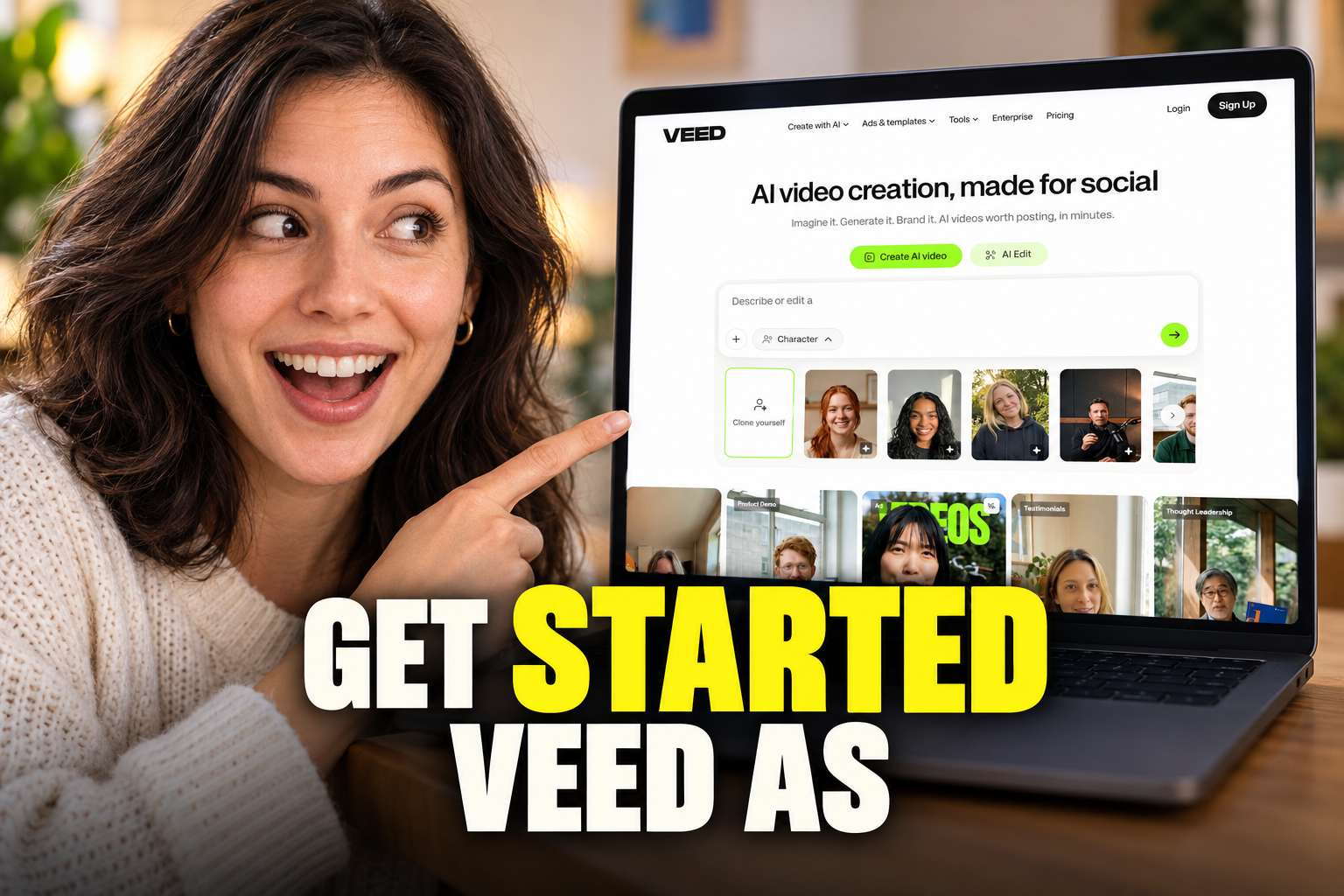
Create your first polished video using VEED's browser-based editor by utilizing auto-subtitles, simple timeline cuts, and AI-driven voice cleanups.
Some links are affiliate links: we may earn a commission if you sign up or buy through them, at no extra cost to you.
On this page8 sections
- 1The short answer
- 2Navigating the VEED Dashboard and Workspace
- 3Setting Up Your Editing Canvas and Timeline
- 4How to Edit and Polish Your First Video
- 5Generating and Customizing Automatic Subtitles
- 6Applying Audio Enhancements and AI Features
- 7Exporting Your Finished Video and Collaborative Sharing
- 8Frequently asked
The short answer
- Upload footage directly to your browser without downloading or installing resource-heavy editing software.
- Use the auto-subtitle feature to instantly generate highly accurate captions in dozens of languages.
- Export and share your finished project using optimized presets for major social media channels.
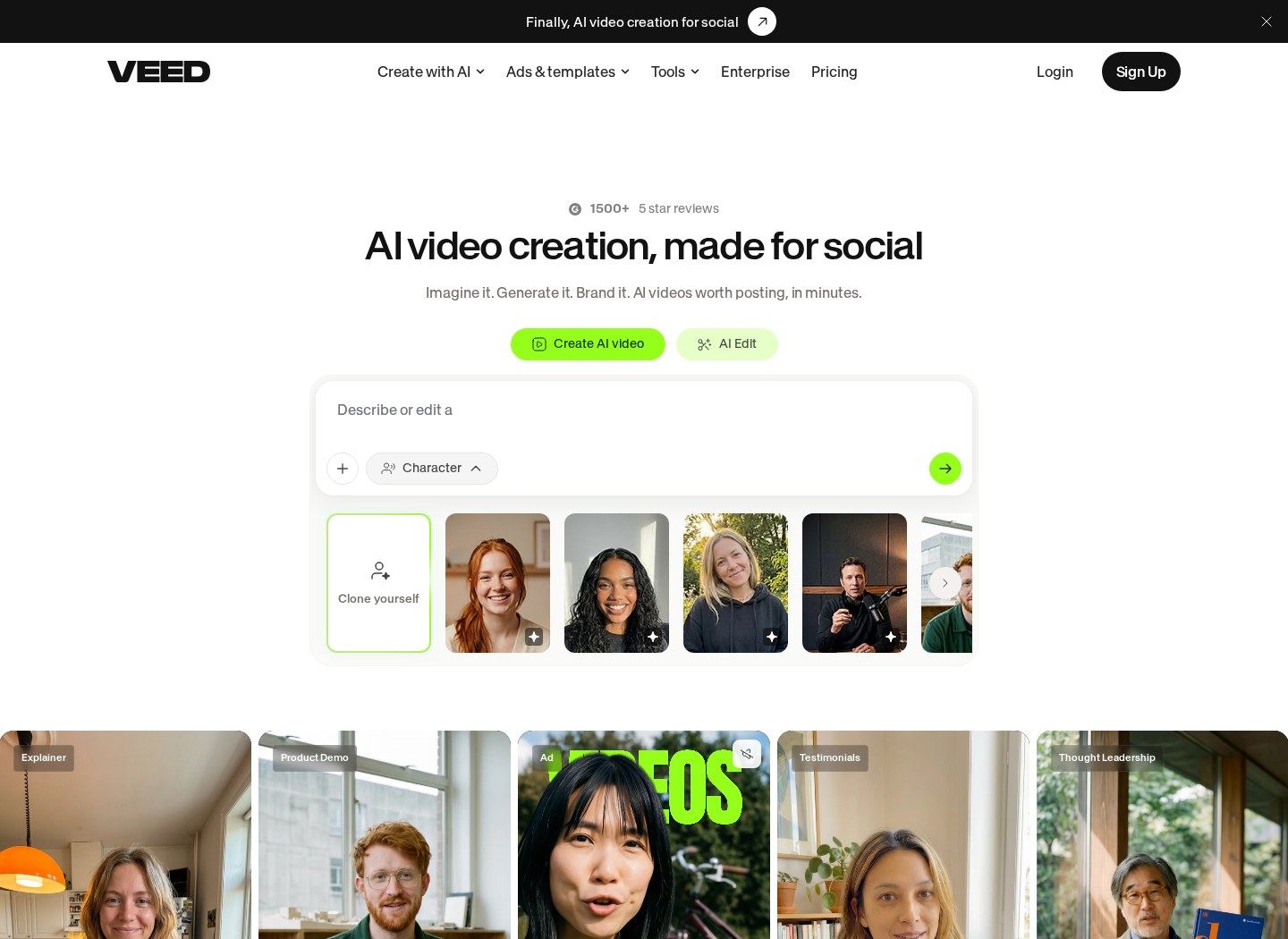
To get started with VEED as a beginner, open the browser-based editor, upload your video file, and use the automatic subtitle generator to add captions. This streamlined workflow bypasses complex installation steps and lets you edit immediately.
VEED operates entirely in your web browser, meaning you do not need to download heavy software or possess a high-end computer to produce clean social media clips, presentations, or training materials. Because it is designed for rapid creation, the learning curve is significantly shallower than traditional desktop suites. Beginners can master the basic timeline controls and export their first project in under an hour.
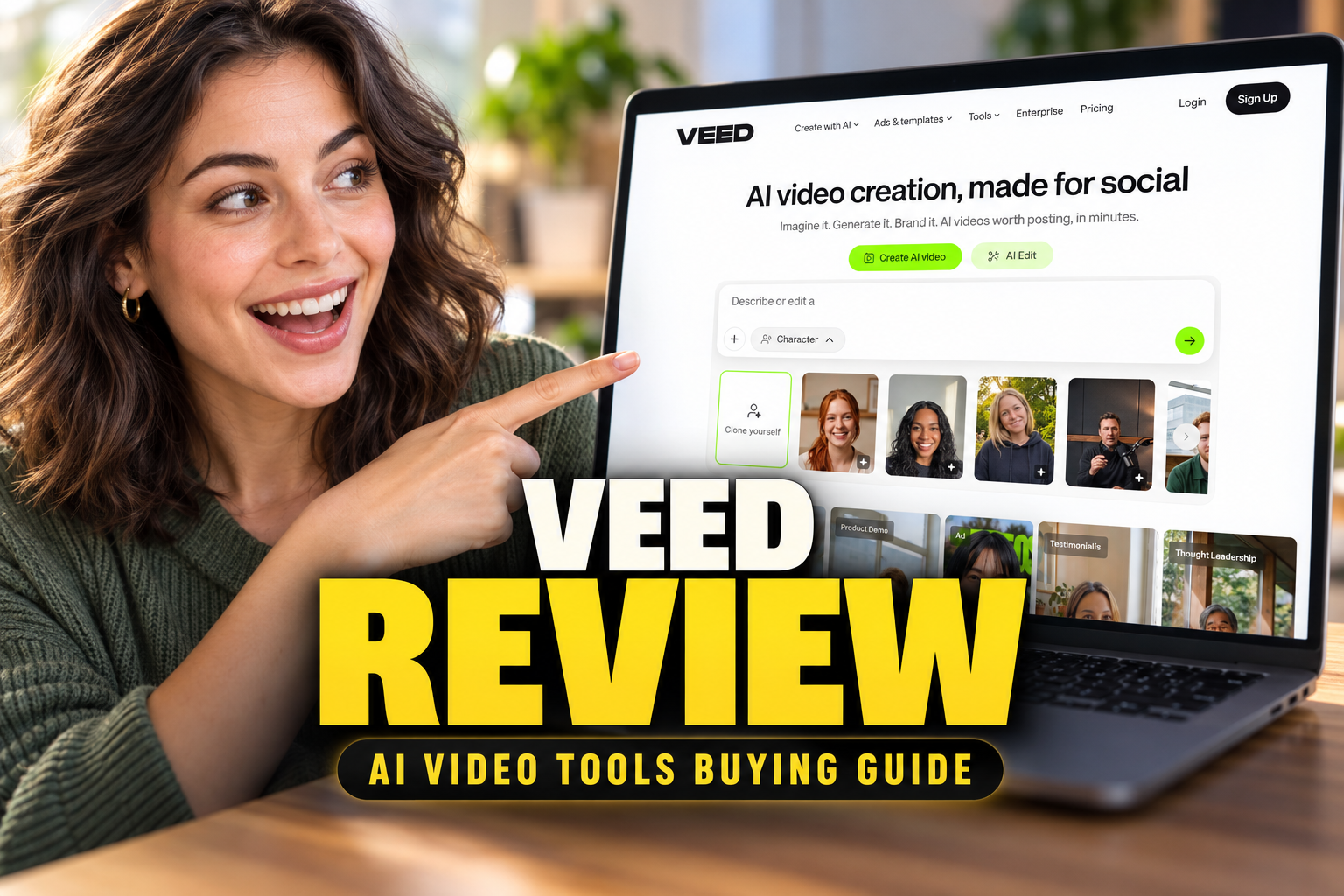
Navigating a new tool can still feel overwhelming without a clear roadmap. Understanding how to handle the interface, manage projects, and use the platform's core automation tools will prevent mistakes and save you time. For an in-depth look at options, capabilities, and subscription structures, you can read our comprehensive VEED Review 2026: Pricing, Free Plan and Who It's For.
Watch it in action
The quick version
- Upload your media assets
- Split and trim excess footage
- Generate automated subtitles
- Layer background audio tracks
- Insert graphic elements
Navigating the VEED Dashboard and Workspace
When you log in for the first time, you land on the central dashboard. This interface is your primary organizational hub, designed to be clean and minimal so you can find features quickly. The prominent "Create Project" button sits at the top left, alongside options to record your screen or start with a template.
The left-hand sidebar acts as your navigation panel, directing you to your folders, brand kits, and shared workspaces. If you are working with others, this dashboard allows you to organize assets into specific folders to prevent clutter. It also houses your account settings where you can adjust export preferences.
By keeping everything in a web browser, VEED eliminates the file-management headache common in offline editors. Your uploaded media files remain in your personal library, allowing you to drag them into new timelines whenever needed. This layout minimizes distraction, pointing you directly toward the editing canvas.
Setting Up Your Editing Canvas and Timeline
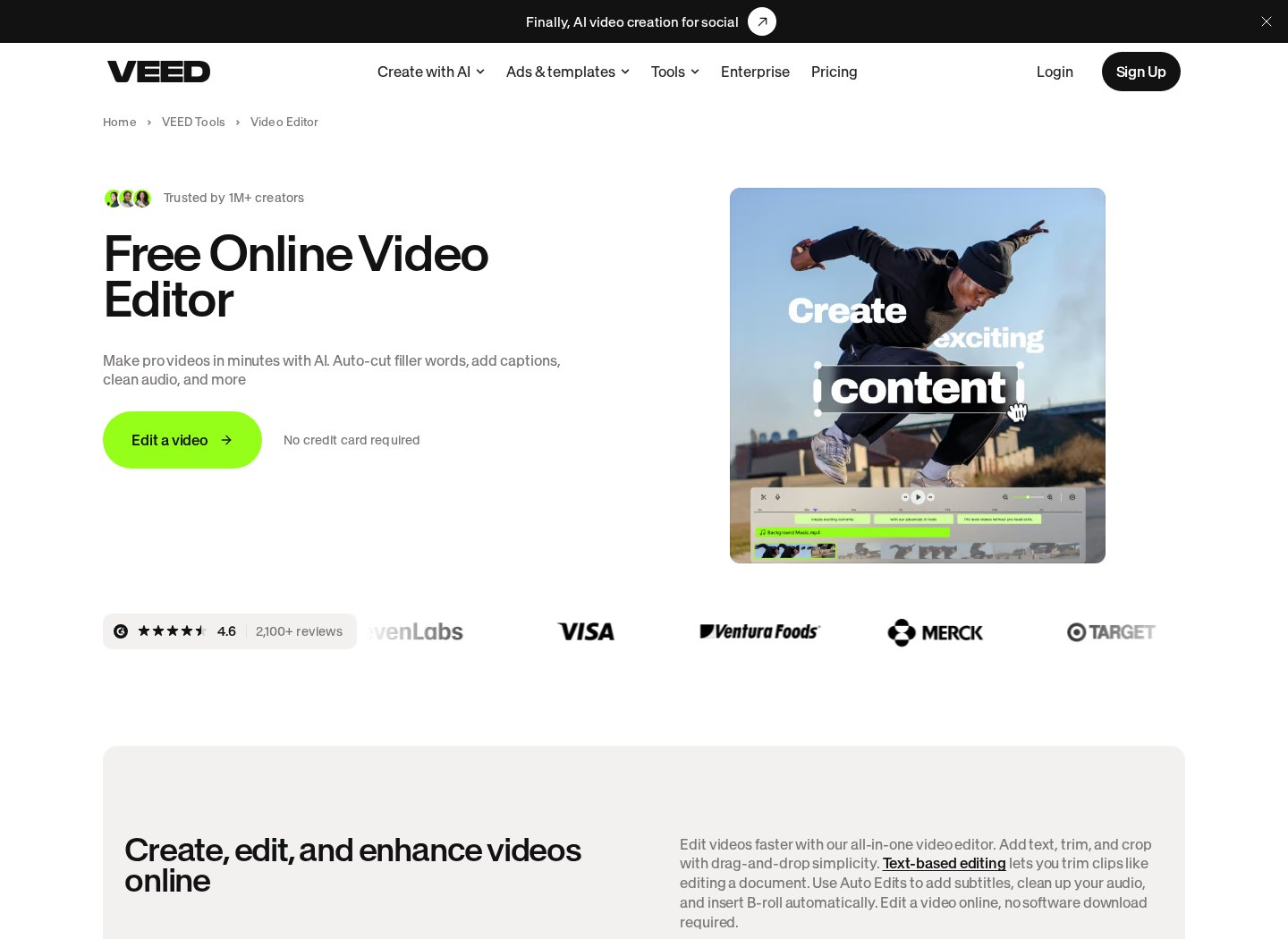
Once you start a project, you enter the main editing workspace, which splits into three primary zones. The left sidebar houses your creative tools, including text options, transitions, elements, and AI features. The center displays the live video preview canvas, showing exactly how your final product will look.
At the bottom of the screen sits the timeline track, which displays your video and audio tracks. To make editing straightforward, VEED groups complex layers into simplified tracks, letting you slide video clips, background music, and text boxes into place horizontally. You can easily zoom in on the timeline using the slider tool for precise editing.
Your first task on this screen is choosing the correct canvas size. Near the top of the preview window, a dropdown menu allows you to select the correct canvas size to begin. Selecting the aspect ratio early, whether widescreen or portrait, ensures your visual elements fit perfectly without clipping.
How to Edit and Polish Your First Video
Transforming raw footage into a polished video follows a systematic process that even absolute beginners can complete in minutes. The timeline reacts dynamically as you drop files, organizing them automatically to prevent overlapping errors. Focus on building your structure first before diving into advanced styling.
- Upload your media assets. Drag your video or audio files directly onto the canvas to populate your editing timeline.
- Split and trim excess footage. Position the playhead over unwanted pauses, press the split control, and delete the selected section.
- Generate automated subtitles. Click the subtitles tool on the left, select your language, and let the software auto-transcribe.
- Layer background audio tracks. Import royalty-free music, drag it below the main video, and reduce its volume to keep speech clear.
- Insert graphic elements. Drop in call-to-actions, arrows, or text overlays to guide viewer attention throughout the runtime.
Using these steps helps maintain a steady workflow. By focusing on structure before fine-tuning, you avoid wasting time adjusting subtitles or text positions on footage that you eventually cut out of the final project anyway.
Generating and Customizing Automatic Subtitles
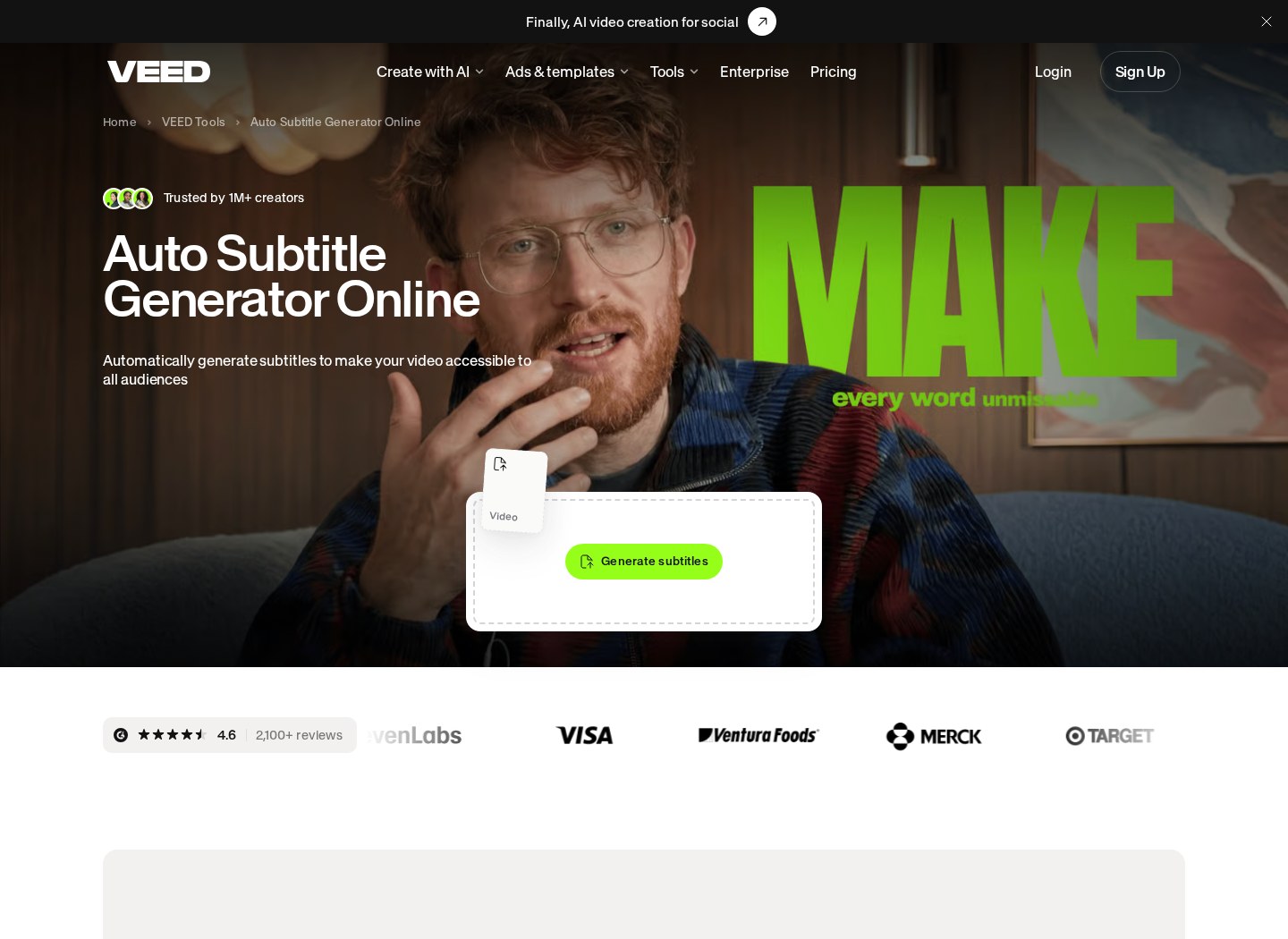
Adding captions is one of VEED's most popular functions, widely used to capture the attention of viewers watching on mute. The tool uses speech-to-text artificial intelligence to scan audio tracks and place text exactly when words are spoken. This removes the painstaking task of typing and aligning words manually.
After the automated transcription process finishes, the text appears on the left side of your screen as editable blocks. Clicking on any sentence allows you to adjust spelling errors, adjust timing, or split a long phrase into two shorter lines. The changes reflect instantly on the video preview canvas.
You can personalize the visual style of your captions using the design tab in the sidebar. This menu lets you select fonts, apply colored text backgrounds, change text sizes, and even use dynamic animation styles where words light up as they are spoken. Keeping your subtitles clear and high-contrast ensures better readability on smaller mobile screens.
Applying Audio Enhancements and AI Features
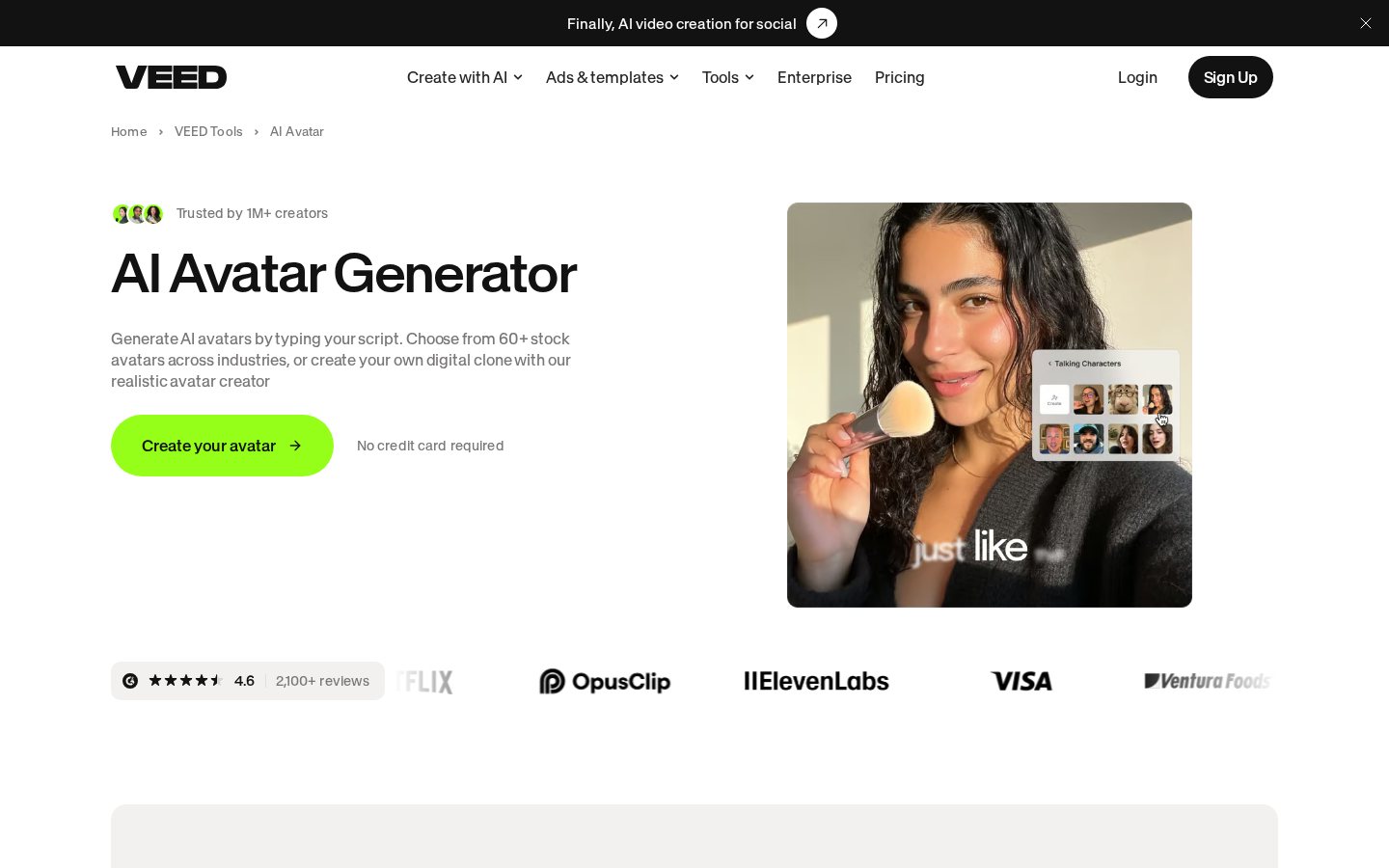
Good video is nothing without clean audio, and beginners often struggle with background noise or low-quality microphone recordings. VEED addresses this with an integrated AI-powered audio cleaning feature. Clicking on your video clip opens an audio options menu where a simple toggle removes unwanted ambient hum, wind, and background static instantly.
Beyond basic cleanup, the platform provides tools for generating digital voices from written text. If you do not want to record your own voiceover, you can type your script directly into the text-to-speech converter. You can then choose from various natural-sounding voices to read the text aloud, syncing it automatically to your video tracks.
For projects requiring a soundtrack, the built-in media library contains royalty-free music and sound effects. You can search by mood or genre, listen to previews, and add tracks with one click. Managing your audio levels properly ensures that music complements your voiceover rather than drowning it out.
Exporting Your Finished Video and Collaborative Sharing
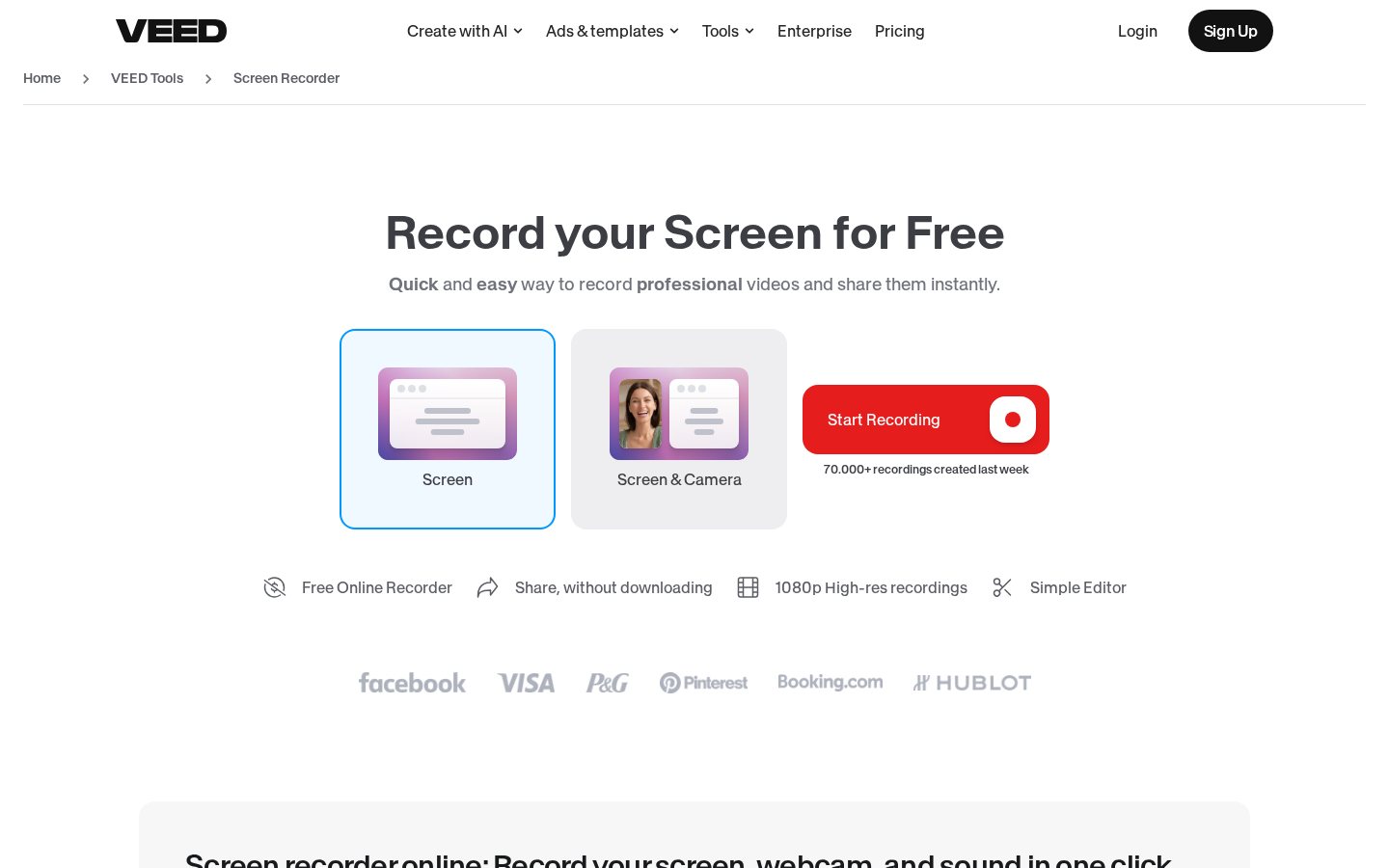
When your editing is complete, the final step is rendering and saving your file. Clicking the export button in the top right corner opens the rendering panel, where you can select your desired output quality. The editor offers predefined presets optimized for specific channels like YouTube, TikTok, or email newsletters.
For standard outputs, VEED lets you select resolutions like 720p or 1080p, matching modern standard viewing screens. Once you click export, the rendering occurs, and because this rendering occurs on secure remote servers, your system will not slow down during the processing time. This is especially helpful on lightweight laptops.
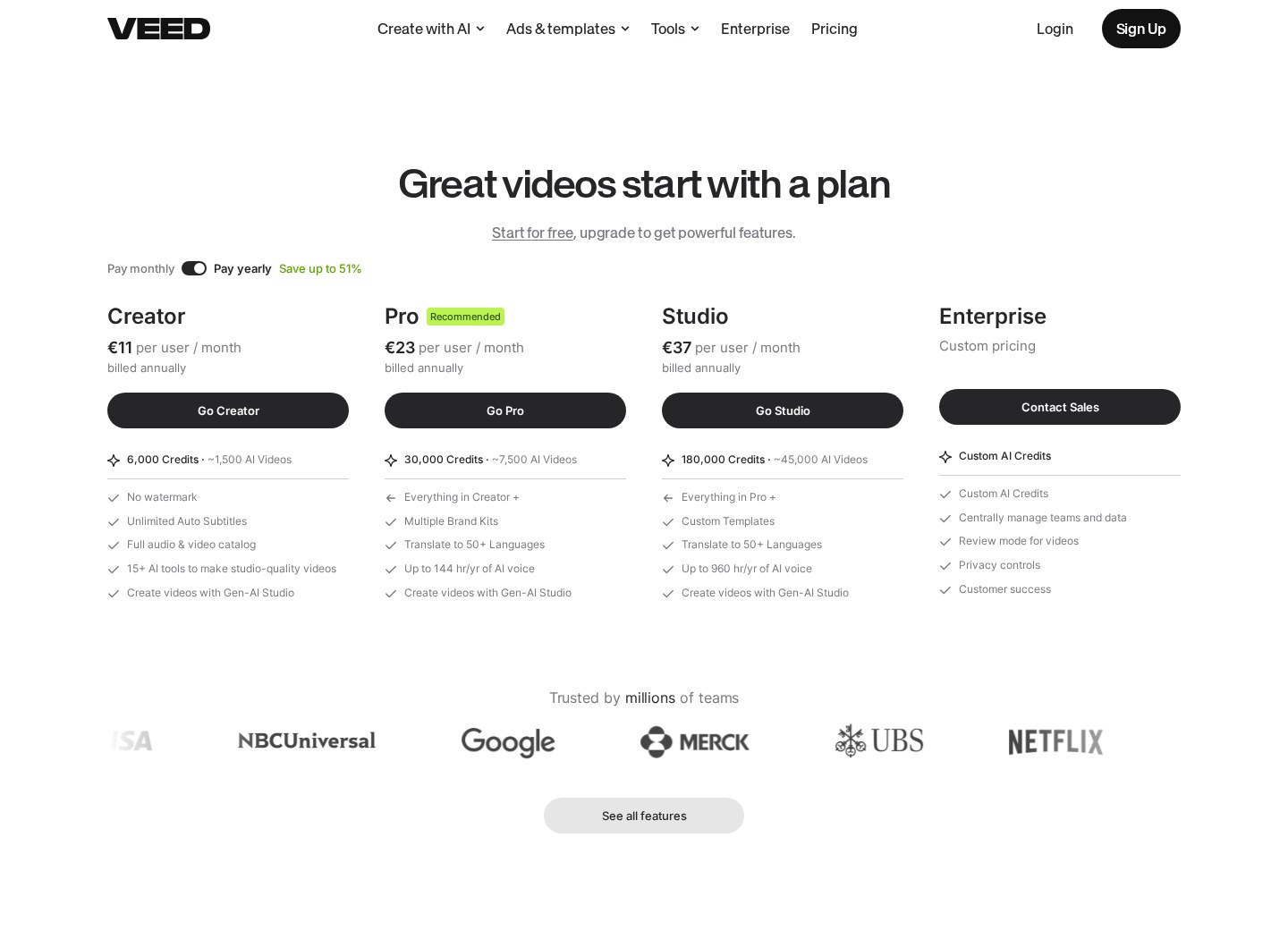
After processing, you can download the final MP4 file directly to your drive or share a review link with your colleagues. The review link feature allows team members to view the video and leave time-coded comments without needing to download large video files. To understand how these collaborative features scale across different subscription tiers, refer to our VEED Review 2026: Pricing, Free Plan and Who It's For to find the right configuration for your project demands.
Frequently asked
Some links are affiliate links: we may earn a commission if you sign up or buy through them, at no extra cost to you. Affiliate disclosure