What Are the Most Common GetResponse Mistakes?
Avoid deliverability drops and unnecessary costs by fixing these common GetResponse mistakes in your contact lists, automation triggers, and domain records.

Some links are affiliate links: we may earn a commission if you sign up or buy through them, at no extra cost to you.
On this page8 sections
- 1The short answer
- 2Neglecting List Hygiene and Retaining Inactive Subscribers
- 3Creating Overlapping Automation Triggers and Loops
- 4Skipping Domain Authentication and Security Records
- 5Designing Overly Complex Lead Capture Forms
- 6Steps to Audit and Correct Common Setup Mistakes
- 7Selecting an Incompatible Subscription Tier
- 8Frequently asked
The short answer
- Regularly purge inactive contacts to keep deliverability high and lower your monthly subscription fees.
- Map automation workflows on paper first to prevent overlapping triggers and endless message loops.
- Authenticate your domain with SPF and DKIM records to prevent emails from landing in spam folders.
The most common GetResponse mistakes include failing to clean contact lists, misconfiguring visual automation triggers, and neglecting essential email authentication like SPF and DKIM. These errors directly hurt your email deliverability and inflate your monthly subscription costs by counting inactive subscribers.
Setting up an email marketing system requires balancing technical configurations with creative content strategy. When platforms are set up in a hurry, small oversights in list management or automation rules quickly compound into larger deliverability issues that prevent your audience from seeing your messages.
Avoiding these pitfalls is straightforward once you know where to look. By auditing your account settings and refining your processes, you can maximize your deliverability rates and ensure your marketing budget is spent on active, profitable leads.
The quick version
- Check your authentication status
- Filter out inactive contacts
- Move inactive contacts to a segment
- Delete non-responders permanently
- Review active workflow paths
- Test your opt-in forms
Neglecting List Hygiene and Retaining Inactive Subscribers
Many digital creators assume that a larger subscriber list always translates to better marketing results. However, keeping cold or completely inactive contacts on your list is one of the most expensive errors you can make. GetResponse bases its pricing tiers on the total number of contacts in your database, meaning you are actively paying to store addresses that will never open your messages.
Beyond the financial drain, harboring inactive subscribers severely damages your deliverability rate. Internet service providers monitor how recipients interact with your campaigns, and if a large percentage of your audience ignores your messages, providers will flag your domain. This shift eventually causes your messages to bypass the inbox entirely, landing directly in the spam folder for your active subscribers too.
To avoid this downward spiral, you must establish a system for identifying and removing unengaged users. Setting up automated rules to tag subscribers who have not opened an email in ninety days allows you to run targeted re-engagement campaigns. If those contacts remain silent after a final attempt, purging them from your database ensures your metrics and deliverability remain healthy. Because regular list hygiene is essential to maintaining clean sender reputation, this task should be done quarterly.
Creating Overlapping Automation Triggers and Loops
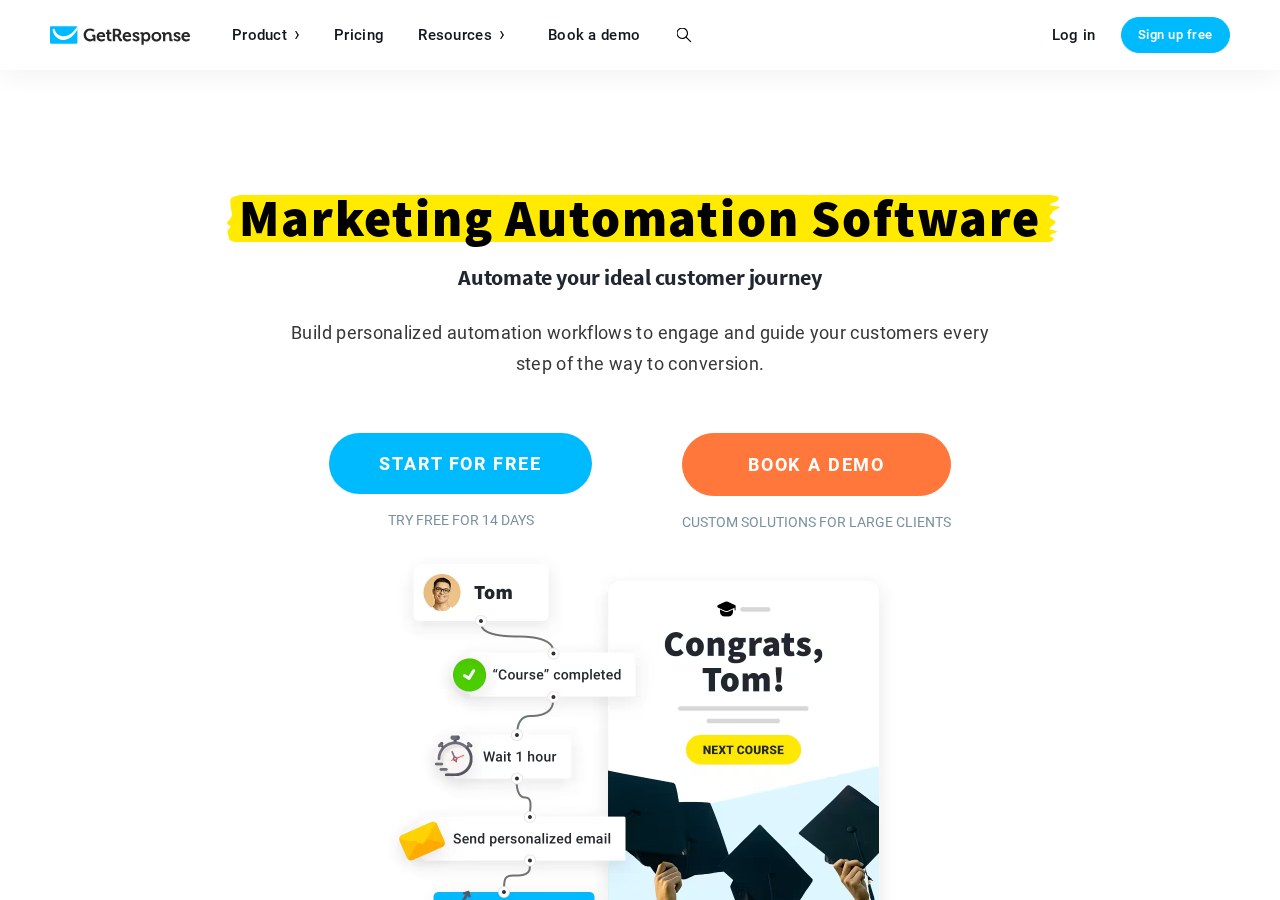
The visual automation builder is highly capable, but it is also a frequent source of technical slip-ups. Beginners often configure multiple workflows that trigger off the same user action, such as downloading a resource or joining a specific list. When these triggers overlap, a single contact can receive several conflicting emails within a matter of minutes, which annoys subscribers.
Another frequent issue occurs when a creator inadvertently creates infinite loops of automated emails. This happens when an action at the end of a workflow matches the trigger condition at the start of that same sequence. A subscriber might get trapped in a cycle of receiving the same introductory sequence repeatedly, which leads to immediate spam complaints and unsubscribe requests.
To prevent these conflicts, you should map out your subscriber journeys on paper before building them in the application interface. Always use the built-in restriction settings to ensure a contact cannot enter the same automated workflow multiple times concurrently. Testing your automated sequences with a couple of internal test email accounts will reveal these structural flaws before your customers encounter them.
Skipping Domain Authentication and Security Records
When you first set up your sending domain, the default configuration might allow you to start sending messages immediately. However, relying on default settings without establishing proper domain authentication is a critical error. Modern inbox providers have implemented strict security measures that automatically block messages sent from unauthenticated custom domains.
To ensure your emails actually reach the inbox, you must configure your domain name system settings. This process involves setting up SPF and DKIM records through your web hosting provider to verify that the platform has permission to send emails on your behalf. Skipping this configuration makes your messages look suspicious to spam filters, which will actively protect users by rejecting your mail.
Additionally, implementing a DMARC policy adds another layer of protection to your sending domain. While editing these records might feel intimidating if you are not technically inclined, the platform provides clear, step-by-step text records to copy into your DNS manager. Completing this step is non-negotiable if you want to maintain a professional reputation and reliable inbox placement over the long term.
Designing Overly Complex Lead Capture Forms
Generating new leads requires a frictionless entry point, but many users create complicated signup forms that ask for too much information. Requesting a physical address, phone number, and job title on an initial newsletter signup form will drastically lower your conversion rates. Users are protective of their personal data and will abandon forms that feel invasive or time-consuming.
Another mistake is failing to use a double opt-in process for new signups. While a single opt-in form might seem faster, it allows bad email addresses, typos, and spam bots to enter your database automatically. These fake addresses quickly bounce, damaging your reputation with mail servers and distorting your overall campaign analytics.
To optimize your lead generation, you should keep your initial signup forms simple, focusing primarily on the email address and first name. Ensure that you always test your signup forms on both desktop and mobile devices to guarantee that the layout displays properly. A form that is hard to read or tap on a smartphone screen will cost you valuable mobile traffic and potential revenue.
Steps to Audit and Correct Common Setup Mistakes
Correcting these errors does not require rebuilds from scratch, but it does require an organized review of your current configuration. By systematically examining your lists, automated workflows, and technical settings, you can restore your deliverability and optimize your budget. Follow these steps to clean up your account and get your email campaigns back on track.
- Check your authentication status. Verify that your SPF, DKIM keys, and DMARC records are fully validated in your account dashboard under the domain management settings.
- Filter out inactive contacts. Run a search for subscribers who have not opened or clicked any of your emails in the last ninety days.
- Move inactive contacts to a segment. Group these unengaged users into a specific segment dedicated to a final re-engagement sequence.
- Delete non-responders permanently. Purge any contacts who do not interact with your re-engagement emails to lower your subscription billing tier.
- Review active workflow paths. Open your automation builder and verify that no visual workflows have overlapping triggers or infinite loops.
- Test your opt-in forms. Submit a test email through every live signup form on your website to ensure the confirmation message arrives correctly.
Performing this audit on a quarterly basis will protect your account from drift and ensure you are only paying for engaged readers. Regular maintenance keeps your systems running efficiently and ensures your technical infrastructure supports your business goals. It also saves you from sudden jumps in billing when list sizes grow unnecessarily.
Selecting an Incompatible Subscription Tier
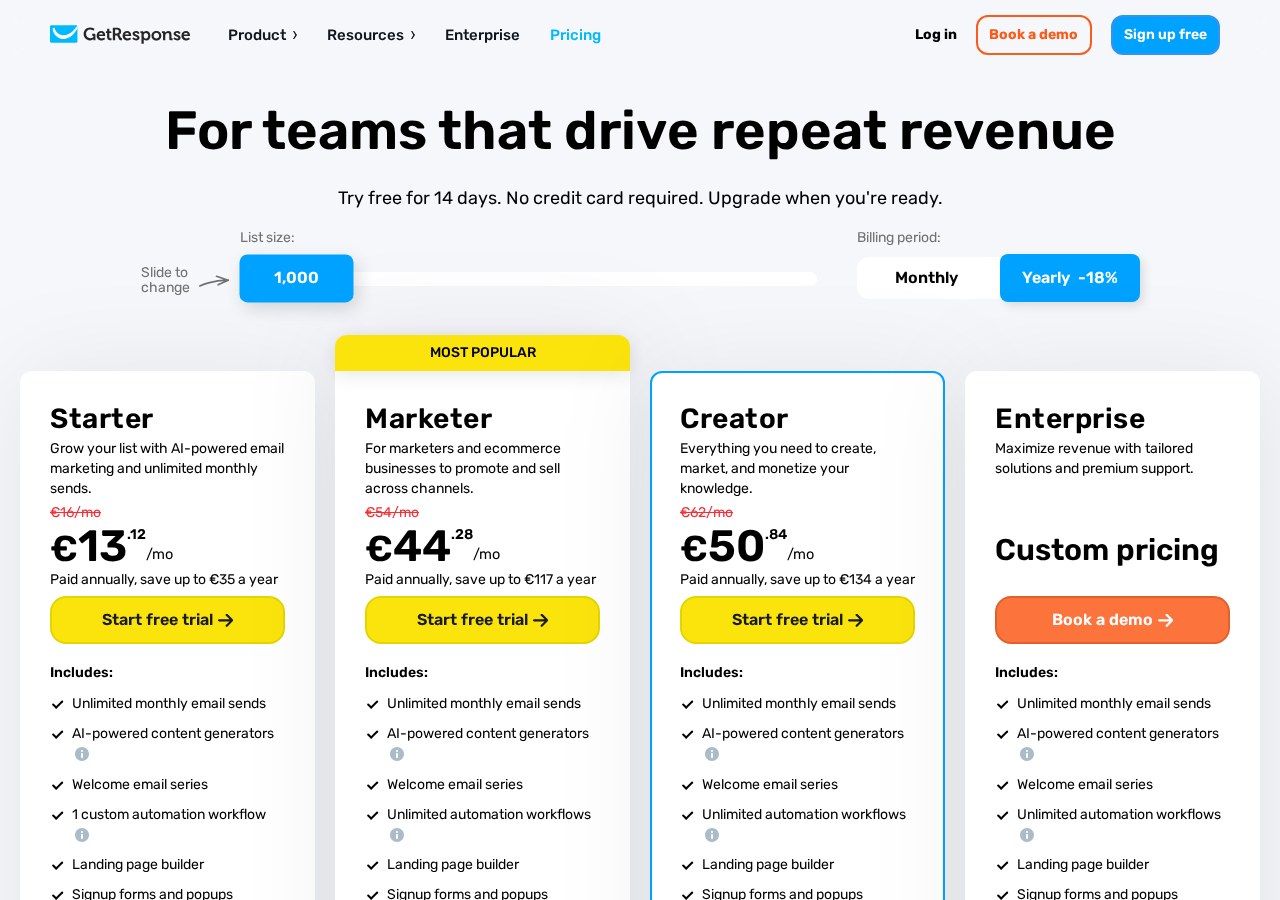
When choosing an email platform, it is easy to assume that all plans offer the same core features with different contact limits. With this service, however, specific functionalities like advanced marketing automation and webinar hosting are locked behind higher payment tiers. Choosing a basic plan because it is cheaper often leads to frustration when you realize key automation builders are missing.
For instance, users who want to build complex customer journeys will find the entry-level plans too restrictive. To get the most out of your campaigns, you must focus on matching your feature requirements to the correct tier from the very beginning. To understand which tier fits your budget and operational needs, check out our comprehensive GetResponse Review 2026: Pricing, Free Plan and Who It's For.
If you find yourself paying for features you do not use, such as built-in landing page builders or transactional emails, downscaling your plan might save you money. Conversely, if you are struggling with manual list management, upgrading to access automated tagging can save hours of administrative work. Regularly assessing your feature usage ensures you do not overpay for unused tools.
Frequently asked
As an Amazon Associate I earn from qualifying purchases. This does not affect the price you pay. Affiliate disclosure