InVideo AI Credits and Usage Limits: How They Work
Learn how InVideo AI credits and usage limits work across monthly generation minutes, premium media caps, exports, and voiceover rendering.

Some links are affiliate links: we may earn a commission if you sign up or buy through them, at no extra cost to you.
On this page9 sections
- 1The short answer
- 2How InVideo AI Credits and Usage Limits Work for Video Generation
- 3How Premium Media and Voiceovers Impact Your Balance
- 4How to Monitor Your Usage in the Workspace Dashboard
- 5What Happens to Unused Credits and Renewals
- 6Editing and Refining Videos Without Wasting Credits
- 7Which Subscription Tier Should You Choose?
- 8Handling Credit Shortages and Add-on Options
- 9Frequently asked
The short answer
- Credits are deducted based on the duration of generated video and the use of premium stock assets.
- Monthly credit allowances reset at the start of each billing cycle and do not roll over.
- You can preview drafts and edit scripts without consuming full video generation credits during the revision phase.
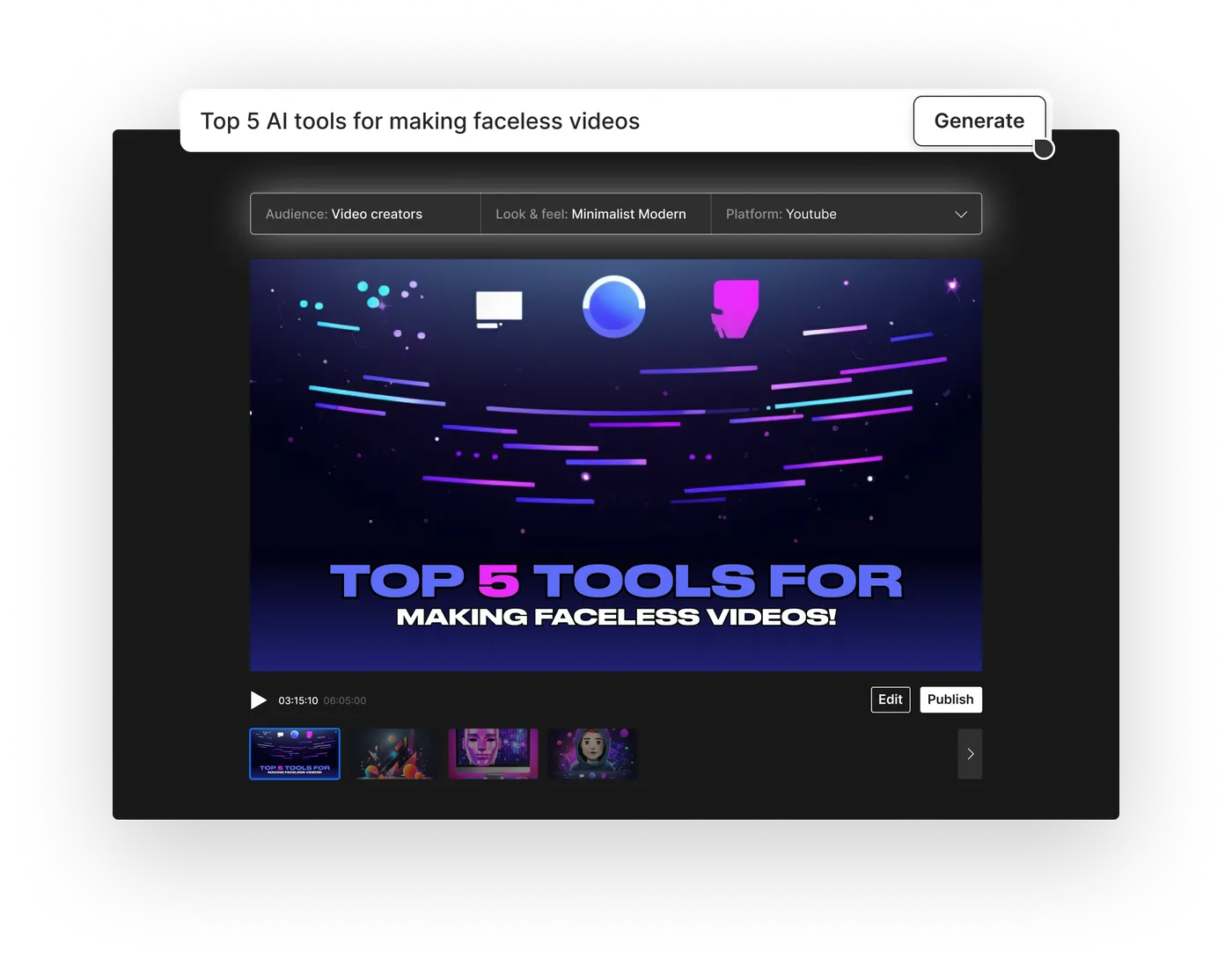
InVideo AI credits and usage limits work by deducting monthly generation minutes whenever you create or render a video draft. Each plan includes fixed allowances for AI generation time, premium stock media, and watermark-free exports. These limits reset at the start of every billing cycle and do not roll over. If depleted, generation pauses until renewal or upgrade.
The quick version
- Navigate to your workspace profile by
- Select the billing or subscription tab
- Examine the credit usage bar to
- Check the premium media counter to
- Review the export limit status to
How InVideo AI Credits and Usage Limits Work for Video Generation
InVideo AI functions on a specialized allocation structure where your monthly plan grants a specific number of generation minutes. Every time you enter a text prompt to create a draft, the system begins consuming your balance based on the length of the generated clip. This allocation is the baseline currency of the platform, defining how much content you can produce during your active billing period.
Unlike traditional editors where you pay for rendering speed, this platform charges for the automated creation process. When the system selects clips, writes a script, and applies a voiceover, it draws directly from your pool. You can learn more about how these plans compare in our full InVideo AI Review: Pricing, Credits and Limitations to see if the allocation fits your monthly workflow.
It is important to distinguish between draft generation and finalized exports. Creating a draft uses your initial allocation, but exporting that file without watermarks requires you to stay within your active subscription limits. If you exceed your monthly cap, you can still edit existing projects but cannot generate new ones until the next cycle restarts.
How Premium Media and Voiceovers Impact Your Balance
The complexity of your prompt directly affects how your credit balance is debited. If your video requires high-quality footage, the AI will pull from premium media libraries, which have their own independent monthly usage caps. These assets are crucial for professional looks but must be managed carefully to avoid exhausting your allowance too early in the month.
Similarly, the platform utilizes advanced synthetic voices to read your generated scripts. Using highly realistic AI voiceovers consumes credit allocations based on the length of the audio track. If you write a longer script, the voiceover generation will naturally require a larger portion of your monthly allowance, which can deplete your resources quickly if not monitored.
When you run out of premium media credits, the AI will substitute these clips with standard, non-premium stock assets or watermarked placeholders. This allows you to continue working on the structure of your video without getting completely blocked, though the final aesthetic quality of your project will be noticeably affected until your limits reset.
How to Monitor Your Usage in the Workspace Dashboard
Tracking your consumption ensures you never face a sudden halt in production. The user interface provides clear indicators showing exactly how many minutes you have used and how many remain. Knowing where to look in your account settings prevents surprise shortages before critical creative deadlines, saving you from stressful delays when finishing projects.
The dashboard divides your usage into distinct categories so you can see where your resources are going. You can easily view your remaining AI generation time, your premium media usage, and your export status. Navigating to this information is a simple process that takes only a few seconds and provides peace of mind.
- Navigate to your workspace profile by clicking your account icon in the top corner of the screen. This action opens your primary settings menu where you manage your preferences.
- Select the billing or subscription tab from the navigation sidebar. This page displays your current plan details, active billing cycle, and payment history details.
- Examine the credit usage bar to see your consumed generation minutes. This visual graph highlights how close you are to your monthly limit in real time.
- Check the premium media counter to verify your remaining stock photo and video allocations. This helps you track your premium media consumption for high-end assets.
- Review the export limit status to ensure you have enough remaining exports for your completed videos. This prevents export errors during the final download stage of your project.
What Happens to Unused Credits and Renewals
A common question among creators is whether unused minutes carry over to the following month. Under the standard subscription terms, unused InVideo AI credits do not roll over to your next billing cycle. This means any remaining balance is cleared when your new month begins, resetting your counter to its base level.
Because of this policy, it is highly beneficial to plan your production schedules around your billing date. Leaving a large balance of unused minutes at the end of the month results in lost value. You should aim to maximize your usage and render all pending projects before your subscription automatically renews.
For detailed information on the specific pricing tiers and how renewal dates are calculated, refer to our comprehensive InVideo AI Review: Pricing, Credits and Limitations. Understanding these structural rules helps you align your content calendar with your financial investment so you get the most out of your monthly subscription without wasting assets.

Editing and Refining Videos Without Wasting Credits
One of the most efficient ways to conserve your balance is to use the script editor instead of regenerating entire videos. When you ask the AI to rewrite a small section or replace a single clip, it consumes far fewer resources than starting a brand-new prompt from scratch, saving significant render time.
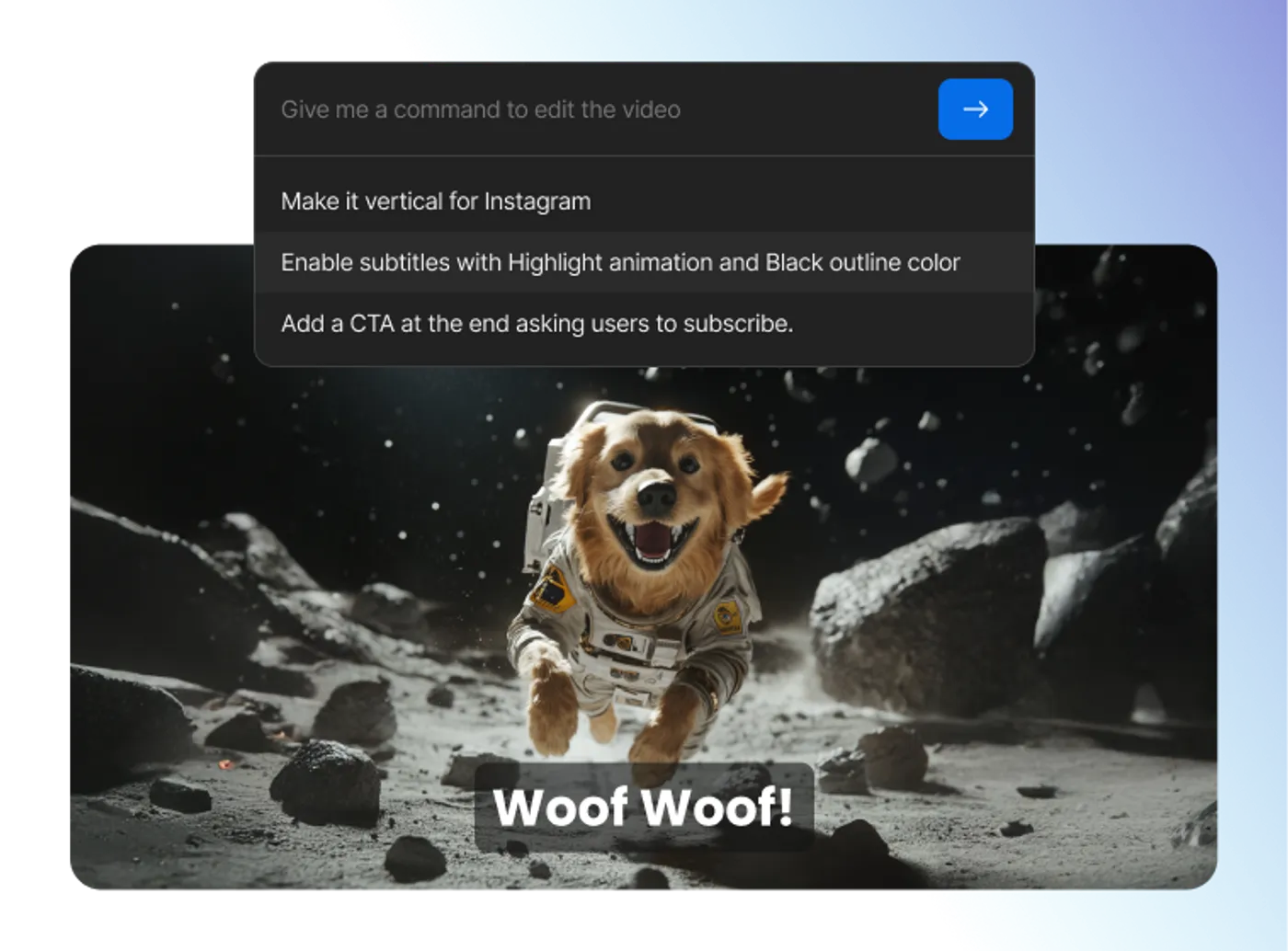
The platform uses a conversational text command interface to make changes to your drafts. Instead of throwing away a video you dislike, you can type specific commands like "change the voice to a female voice" or "replace the third clip with something brighter" to make targeted adjustments instantly.
This targeted editing approach bypasses the need for full renders, preserving your precious generation minutes. By refining existing drafts rather than starting over, you can perfect your final output while keeping your credit consumption to an absolute minimum throughout the month, maximizing your subscription's overall value.
Which Subscription Tier Should You Choose?
Selecting the right plan depends heavily on your monthly video output and your reliance on premium stock footage. The free tier is excellent for testing the interface and learning how to write prompts, but the watermarked exports make it unsuitable for professional commercial work or social media publishing.
For independent creators or small businesses, the mid-tier option offers a balanced mix of generation minutes and premium media access. This level provides clean, watermark-free exports that are ideal for social media channels and basic marketing campaigns without breaking your production budget or requiring high monthly costs.
Larger agencies or content creators who publish multiple videos daily will need the highest tier. This plan offers substantial generation limits and the largest allocation of premium media, ensuring you never run out of resources during peak production periods or when managing multiple clients simultaneously with tight turnaround times. Detailed tier trade-offs are explored in our InVideo AI Review: Pricing, Credits and Limitations.
Handling Credit Shortages and Add-on Options
If you find yourself running low on credits before your billing cycle ends, you have several options to keep your projects moving forward. You can choose to upgrade to a higher tier immediately, which prorates your current usage and instantly adds more minutes to your account to prevent project pauses.
Alternatively, some plans allow you to purchase one-time credit top-ups. This is a great choice if you have a temporary spike in video production but do not want to commit to a more expensive monthly tier on a permanent basis. This flexibility helps you manage unexpected client demands without overspending.
Managing your limits proactively is always the best strategy. By keeping a close eye on your usage trends over a few months, you can decide whether a permanent upgrade is more cost-effective than repeatedly buying individual top-up packages throughout the fiscal year, keeping your operational costs predictable.
Frequently asked
Some links are affiliate links: we may earn a commission if you sign up or buy through them, at no extra cost to you. Affiliate disclosure