
Add Automatic Subtitles to a Video with VEED
Turn speech into timed VEED subtitles, then correct the transcript, restyle captions and export the video or subtitle file.
Some links are affiliate links: we may earn a commission if you sign up or buy through them, at no extra cost to you. Affiliate disclosure
On this page9 sections
- 1The short answer
- 2Preparing Your Video for Automatic Transcription
- 3How to Add Automatic Subtitles to a Video with VEED
- 4Reviewing and Editing the Generated Subtitle Text
- 5Styling Subtitles for Clear On-Screen Reading
- 6Translating Subtitles for Other Languages
- 7Exporting the Captioned Video or Subtitle File
- 8Frequently asked
- 9Sources
The short answer
- Upload your video to the workspace and select the auto-transcription tool from the sidebar.
- Correct spelling errors and adjust timestamps directly inside the interactive text editing panel.
- Choose custom fonts, background colors, or animations before exporting your finished project.
To add automatic subtitles to a video with VEED, upload your video, open Subtitles in the left sidebar, choose Auto Subtitle, select the spoken language, and start the transcription. Review the generated text and timing before exporting the captioned video or downloading a separate subtitle file.
Adding subtitles to your video content increases accessibility and ensures that silent viewers on social media platforms can still follow your message. While manual transcription takes hours of tedious typing, modern machine learning systems make this chore a matter of a few clicks.
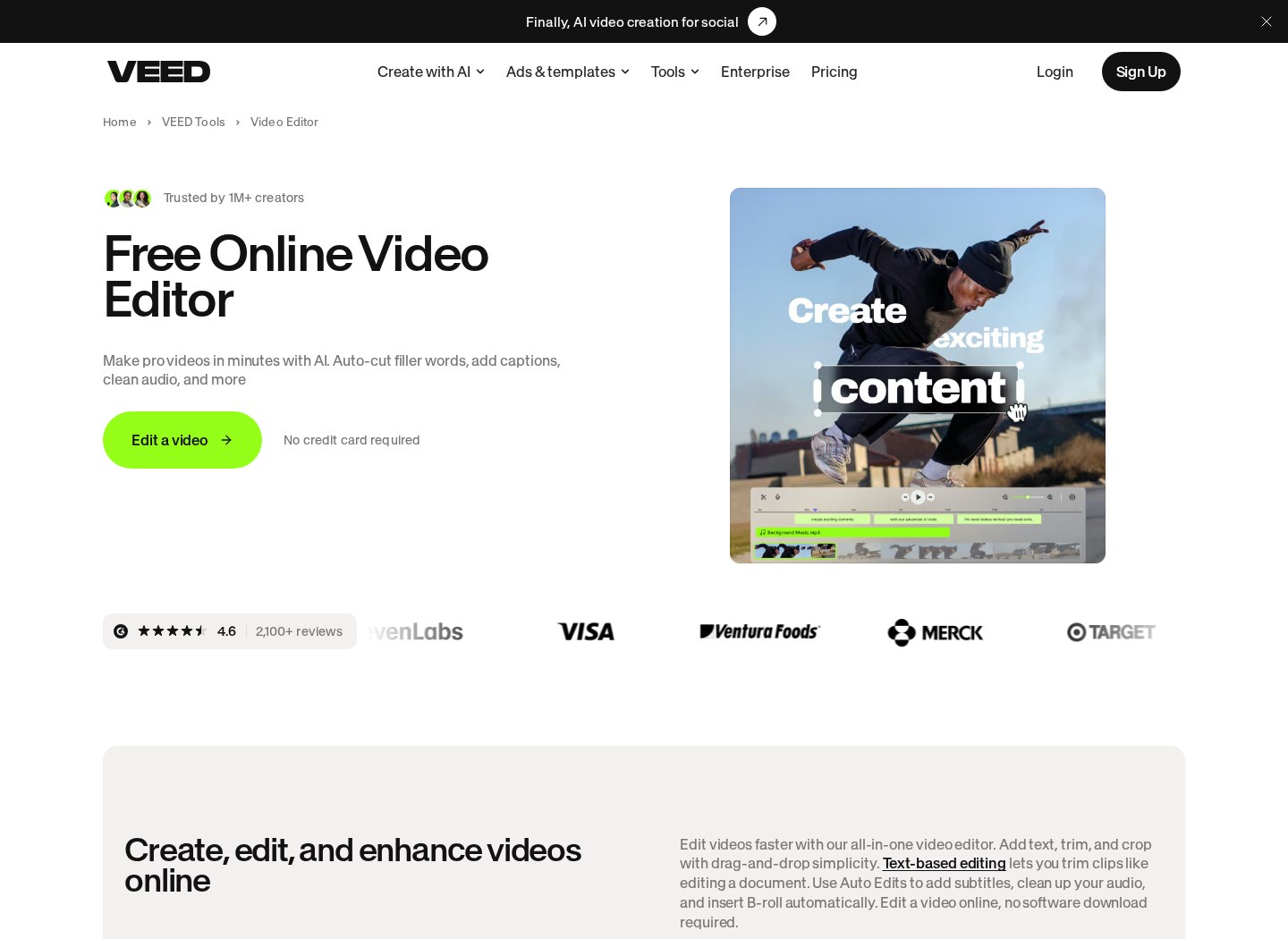
Using browser-based tools simplifies the editing workflow since you do not need a high-end computer to render text effects. This guide explains how to prepare your recording, generate captions, correct transcription errors, style the text, translate subtitle tracks, and choose an export format. For a broader look at the editor and its other features, read our VEED platform review.
What's inside
Everything you get with VEED


The quick version
- Click Subtitles
- Choose Auto Subtitle
- Select the language spoken in your
- Start the automatic transcription
- Wait for processing to finish, then
Preparing Your Video for Automatic Transcription
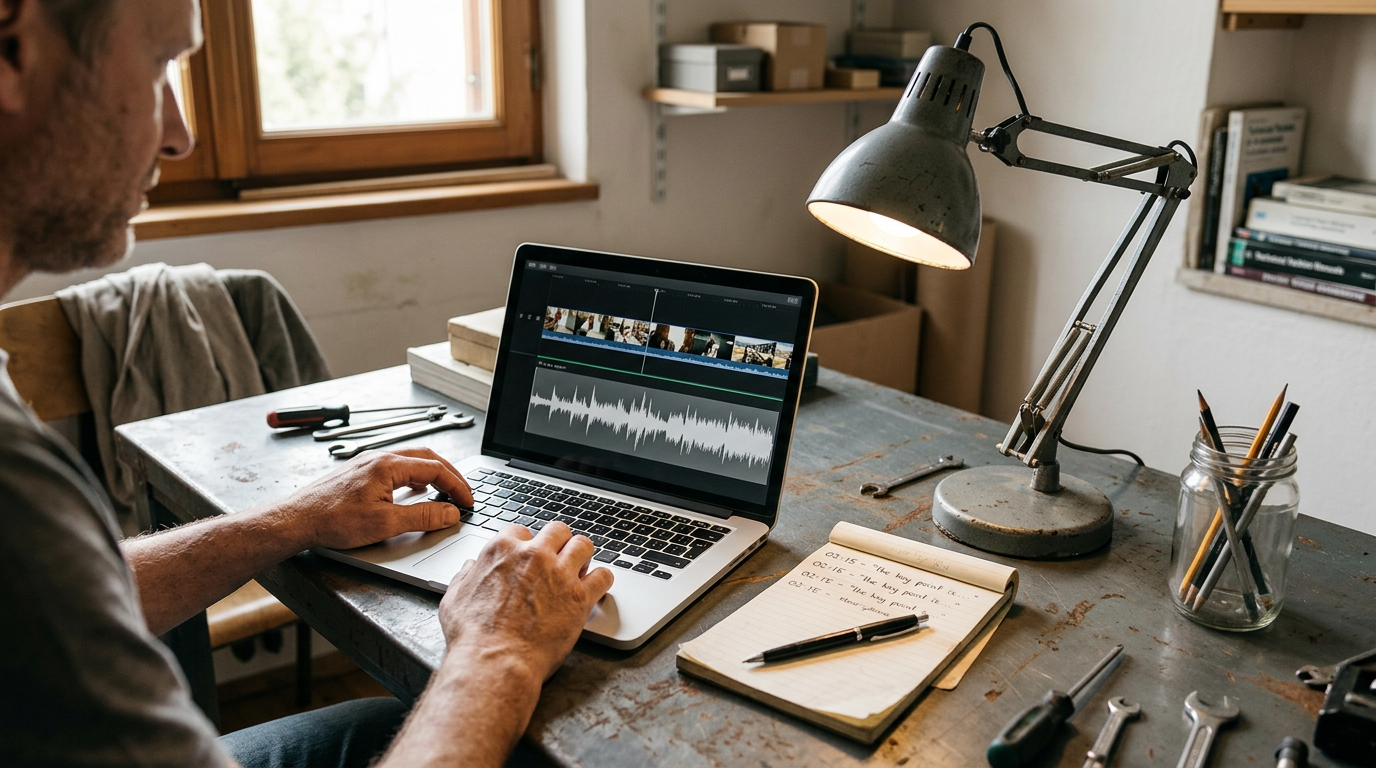
Before you upload your video file to the editor, take a moment to evaluate the quality of your audio track. Clean audio is the absolute foundation of accurate speech recognition, meaning background noise or low speaker volume can cause transcription errors. If your original file has loud background music, try to use a clean voice track instead.
VEED supports commonly used video formats, including MP4, MOV, and AVI, so conversion may not be necessary. When starting a new project, log in to your account and use the upload option to add the recording. You can also drag and drop the file into the browser editor. Once the upload finishes, confirm that the complete recording appears on the timeline and play a short section to check that its audio is present and clear.
Listen for overlapping speakers, clipped words, long silent passages, or music that masks speech. These issues can affect the initial speech-to-text transcript, although you can correct its text and timing later. It also helps to know the language spoken in the video before starting, because VEED asks you to select it during automatic subtitle generation.
How to Add Automatic Subtitles to a Video with VEED
Generating captions inside this editor requires very few steps. Once your video file is fully loaded into the workspace, you can trigger the speech-to-text algorithm with just a couple of clicks. Follow these steps to generate automatic subtitles in VEED:
- Click Subtitles. Locate the primary menu on the left side of the screen and select the subtitle icon.
- Choose Auto Subtitle. This opens the language configuration options.
- Select the language spoken in your video. Choose the relevant option from the available language list.
- Start the automatic transcription. VEED will process the audio and create timed subtitle segments.
- Wait for processing to finish, then play the video from the beginning and compare the captions with the speech.
After processing, the transcript appears as subtitle blocks with timestamps, while the captions are visible over the video preview. Check the first few lines immediately. If the selected language was wrong or the result is unusable, it is usually more practical to generate the subtitles again with the correct language than to rewrite every block manually.
 See the picks in our buying guide
Reviewing and Editing the Generated Subtitle Text
Even with voice recognition systems, automatic tools can make spelling mistakes or misidentify complex terminology. It is critical to read through the generated text carefully to ensure all names, brands, and technical words are spelled correctly. Correcting these errors directly in the editor prevents confusion for your audience.
To modify the text, click on a subtitle block in the subtitle panel and type the correction. Check the video preview after editing so you can see whether the revised wording fits comfortably on screen. Review the entire transcript rather than only the opening lines, paying particular attention to proper nouns, acronyms, numbers, punctuation, and passages with background noise or overlapping voices.
If the timing is slightly off, adjust the subtitle timing manually using the available timeline controls. Splitting a crowded subtitle or combining short fragments can make the sequence easier to read, but avoid changing the speaker’s meaning. Long sentences can clutter the screen and make it difficult for viewers to keep pace. For more detail on the wider editing interface, see our full VEED review.
Styling Subtitles for Clear On-Screen Reading
Once your text is clean and accurate, you can modify its appearance to suit the video. VEED provides subtitle styling controls that can change elements such as the font, text size, colour, alignment, and background treatment. Open the subtitle style controls and preview each change against several parts of the recording rather than judging it from a single frame.
Use high-contrast subtitle styling so the text remains visible over both light and dark scenes. A background box, outline, or shadow can separate letters from a detailed image. Keep the font large enough to read in a small mobile preview, and position captions where they do not cover faces, labels, or other important visual information.
Animated or word-highlighting styles can suit some short-form videos, but they should not make the transcript harder to follow. For interviews, tutorials, and presentations, consistent placement and restrained movement usually support readability. Play a representative section after styling to check line breaks, transitions, and the amount of time viewers have to read each subtitle.
Translating Subtitles for Other Languages
If your video targets an international audience, VEED includes subtitle translation tools that can create another language track from the original captions. Before translating, finish correcting the source transcript. Misspelled names, missing punctuation, or incorrectly recognised phrases can carry into a machine-translated version and make its review more difficult.
From the subtitle area, use the available translation option and select a target language. The editor can generate a translated subtitle track that you can inspect separately from the original. Check that the translated lines fit the frame and remain on screen for enough time, because translated phrases may be longer or shorter than their source text.
Machine translation can misread idioms, humour, slang, product names, and context-dependent wording. If the translated track will be published for an audience that relies on it, arrange a review by someone who understands that language and the subject. Our VEED Review provides more context on the platform beyond this captioning workflow.
Exporting the Captioned Video or Subtitle File
The final step is to choose how the subtitles will be delivered. You can render captions into the video itself or download a separate subtitle file where the available project and account options permit it. Embedded text creates burn-in captions that remain visible as part of every frame and cannot be switched off by the viewer.
A separate SRT file or VTT file keeps the text and timestamps outside the video. Compatible publishing platforms and players can use that file as a selectable caption track, which may let viewers turn subtitles on or off. Before downloading it, scan the final subtitle list for blank blocks, duplicated text, poor line breaks, and timing that overlaps the next caption.
To produce a video with visible subtitles, use VEED’s export control and choose the relevant output settings shown for your project. After processing, watch the exported video rather than relying only on the editor preview. Confirm that the first and last captions appear, the text stays within the frame, and the audio remains in sync. If you need help deciding whether VEED suits your broader workflow, continue to our VEED editor review.
Frequently asked
Sources
As an Amazon Associate I earn from qualifying purchases. This does not affect the price you pay. Affiliate disclosure