
How to Choose the Right Opus Review
Choose an Opus review that tests the AI clipping workflow with relevant footage and explains captions, reframing, manual controls, exports, and usage limits.

Some links are affiliate links: we may earn a commission if you sign up or buy through them, at no extra cost to you.
On this page10 sections
- 1The short answer
- 2How Do You Choose the Right Opus Review?
- 3Evaluate Footage Import and Clip Selection
- 4Analyze AI Clip Generation and Scoring
- 5Check Subtitle Accuracy and Caption Controls
- 6Assess Reframing and Speaker Tracking
- 7Compare Exports, Limits, and Editorial Control
- 8Use a Five-Step Opus Review Checklist
- 9Decide Whether an AI Clipper Fits Your Workflow
- 10Frequently asked
The short answer
- Look for reviews detailing active speaker tracking and subtitle accuracy instead of generic star ratings.
- Match the tested video formats in reviews with your own raw file types before buying.
- Determine if you need a repurposing assistant or a full-featured multi-track video timeline editor.
Choose the right Opus review by finding one that tests footage similar to yours and shows the complete workflow: import, clip selection, captions, reframing, manual corrections, and export. Prioritize evaluations that test specific features rather than repeating product claims. The most useful review also explains where automated clipping stops and manual editing begins.
Online reviews are often cluttered with shallow summaries or software promotions. To cut through the noise, creators need to look for reviews that dissect the core processing screens, usage limits, and export options. Reading a detailed Opus Review helps you determine if the automatic clipping workflow matches your raw footage type, whether it is a single-host podcast or multi-speaker interview.
This video automation platform specializes in repurposing long-form files into short-form content. However, your production needs might require full-timeline editing, which this tool is not designed to do. Filter reviews based on your specific video pipeline and distinguish between simple clipping and heavy manual editing before deciding whether the platform suits your creative process.
Watch it in action
The quick version
- Identify your primary raw-footage format
- Match that format to the review's
- Inspect transcription evidence
- Check the exported result
- Evaluate manual overrides
How Do You Choose the Right Opus Review?
Start by defining the job you need Opus to perform. A podcast producer should seek tests involving long conversations and multiple speakers, while an educator may need examples containing slides, screen recordings, or technical vocabulary. A review based on unrelated footage cannot reliably answer questions about your workflow.
Next, check whether the reviewer documents the process from source import to final export. Useful coverage should show what the software selected, what the reviewer had to correct, and which controls were available after generation. Give more weight to demonstrated workflows than broad praise or criticism. Screenshots or clearly described editing steps help you distinguish hands-on analysis from a summary of published feature descriptions.
Finally, note the review's scope and disclosures. An Opus Clip review should separate observations from promotional claims and acknowledge that results can vary with audio quality, subject movement, language, and footage structure. Use a detailed Opus Review as one input, then compare its examples with your own content type.

Evaluate Footage Import and Clip Selection
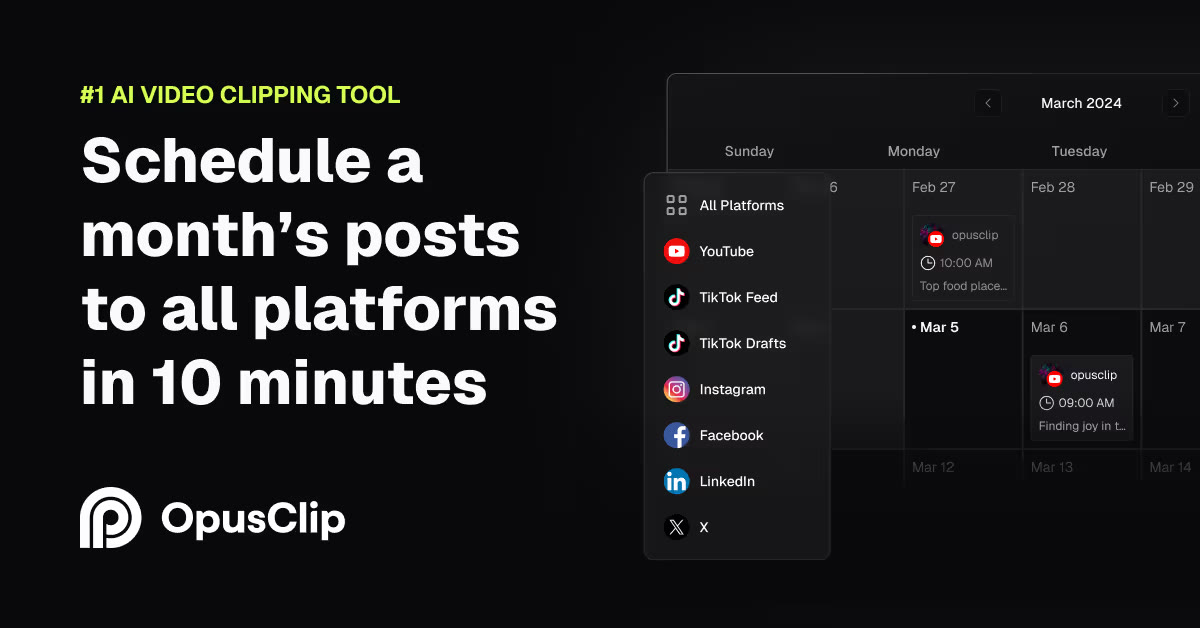
When reading an Opus review, pay close attention to how the author describes the initial upload interface. A quality review should detail the supported source methods it actually checked, such as web links or local uploads, rather than assuming every possible integration is available. This initial screen sets the stage for your entire clipping workflow, making it essential to understand before you input your first video.
Look for specific mentions of the clipping window settings. A helpful analysis will explain whether you can select specific time ranges for the AI to analyze, or if you must submit the entire file. This matters because analyzing unnecessary footage can use more of any plan-based processing allowance and add avoidable waiting time.
The review should also describe processing status and queue visibility. Instead of accepting an isolated speed claim, look for the source-file duration, upload method, and conditions surrounding the observation. Useful processing evidence includes context, because connection speed, source complexity, and service demand can affect the experience. Reviews should also say whether failed uploads or unsupported sources produced clear guidance.
Analyze AI Clip Generation and Scoring
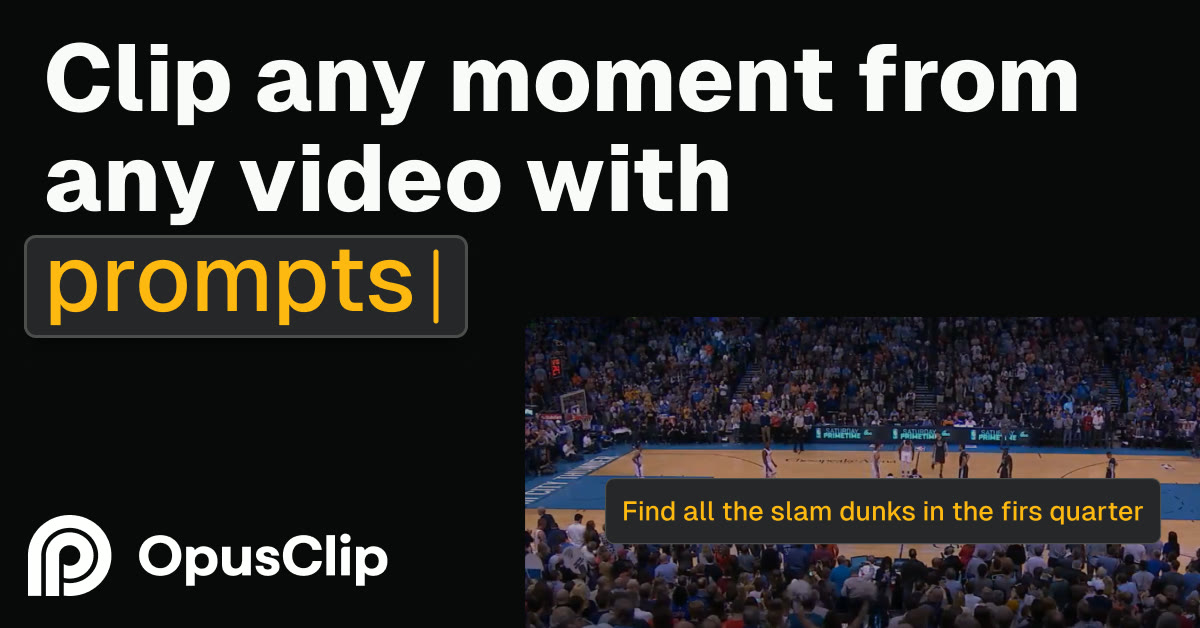
The core promise of automated clipping software lies in its ability to identify potentially useful moments. When evaluating different critiques, look for detailed explanations of how the reviewer interpreted the platform's curation score or similar ranking. A reliable analysis treats this score as a prioritization aid, not a prediction of social media performance.
Editors should examine whether generated clips preserve complete ideas. If a review simply praises the AI without showing how it handles context transitions, it may not be deep enough. You want to know whether selections begin with enough setup, end after the speaker completes the point, and avoid abrupt cuts between unrelated thoughts. The strongest reviews compare more than one generated clip rather than building a conclusion around a single favorable example.
Also check whether the reviewer attempted to change the suggested segment. Manual control matters as much as automatic selection. Coverage should explain whether users can revise clip boundaries, choose a different passage, or reject unsuitable results without restarting the entire task. That distinction reveals whether the tool supports editorial judgment or mainly asks users to accept its initial choices.
Check Subtitle Accuracy and Caption Controls
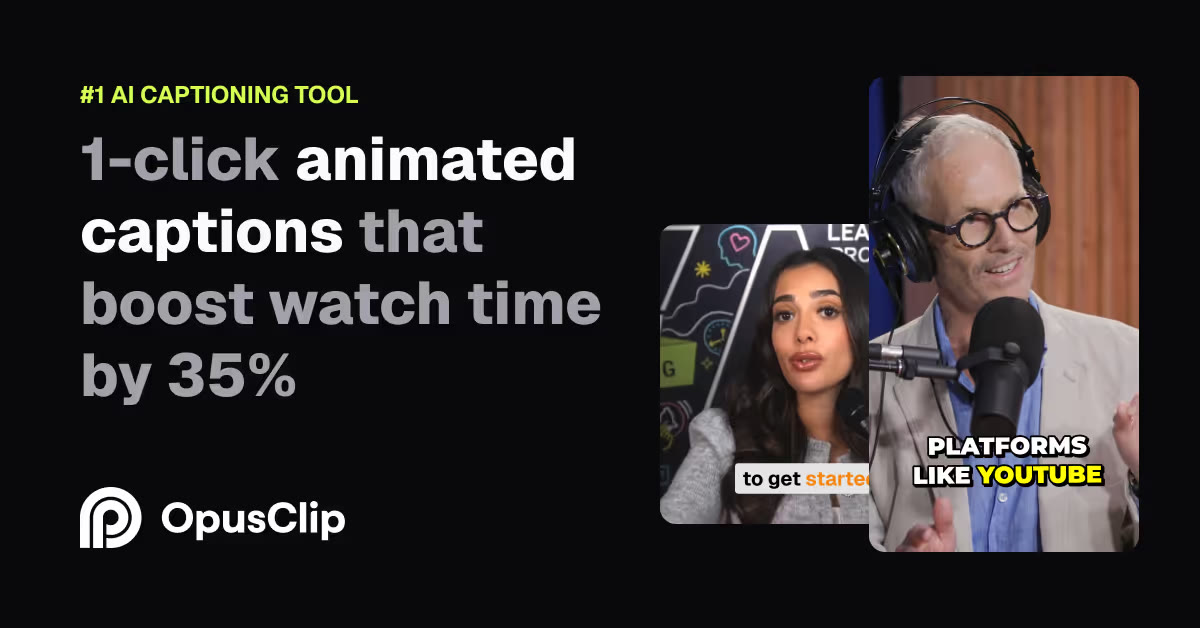
Captions are vital for silent mobile scrolling, making the subtitle editor one of the most critical screens in the software. A thorough critique should assess automated speech-to-text transcription using visible examples. Treat unsupported accuracy percentages cautiously: the useful evidence is what the reviewer transcribed, which errors appeared, and how easily those errors could be fixed.
The review should walk you through the subtitle customization screen. This is where users may adjust available font styles, colors, animations, and layouts. Opt for reviews that show actual screenshots of the style presets and explain how easy it is to correct spelling mistakes or adjust the timing of individual words. Tests containing names, specialist terms, overlapping dialogue, background noise, or varied accents are more revealing than clean studio speech alone.
Look for discussions of kinetic typography, which highlights active words as they are spoken. A good Opus Review will note whether these animations look natural or distracting and whether the available controls suit different visual styles. It should also explain whether corrected captions remain synchronized after a clip boundary changes, because an attractive preset is of limited value if routine edits create timing problems.
Assess Reframing and Speaker Tracking
Converting horizontal widescreen video to vertical format requires reframing tools that keep important subjects visible. An authentic review should address how the software follows a speaker and changes the crop as people move. Look for side-by-side examples of the source and vertical output rather than a general statement that tracking works.
Pay attention to how the review describes multi-speaker layouts. When two people are talking in a widescreen video, the software must decide how to present them in a narrower frame. A detailed review must explain how the layout editor handles these transitions and whether you can manually override the AI's framing decisions. It should test interruptions, quick exchanges, subject movement, and moments when more than one face is visible.
If your video contains screen shares, presentations, product demonstrations, or gameplay, face-focused tracking may not represent your needs. Reliable critiques should explain how the tool treats non-human subjects and mixed-media layouts. Check whether key text remains readable, whether the crop hides interface elements, and how much work is needed to correct framing. This distinction is vital for educational creators, tech reviewers, and gamers who rely heavily on screen capture.
Compare Exports, Limits, and Editorial Control
A review is incomplete if it stops at the editor preview. The exported file is what enters your publishing workflow, so coverage should identify the demonstrated aspect ratios, resolution options, caption treatment, and any visible branding. It should also distinguish between captions rendered into the video and any separate caption-file options the reviewer can verify.
Usage constraints deserve the same attention. Rather than focusing on a headline allowance without context, look for an explanation of what action consumes processing capacity, what happens when a task fails, and whether unused output still affects the account's allowance. Policies and plan details can change, so confirm current terms directly before relying on an older review. This article intentionally avoids quoting prices or temporary offers.
Most importantly, determine how much control remains after automation. A credible Opus Clip review and workflow guide should show whether the user can adjust cut points, crop placement, caption text, visual styling, and export choices. The right review makes limitations visible, allowing you to judge whether saved setup time outweighs the corrections your content may require.
Use a Five-Step Opus Review Checklist
Finding the right match for your production process requires a structured approach. Instead of reading endless opinions, compare the evidence in each review against your content goals. This helps you assess whether the tool is likely to save editing time without treating any review as a substitute for your own trial.
- Identify your primary raw-footage format. Determine whether your videos are solo monologues, multi-person podcasts, interviews, webinars, presentations, or gameplay recordings.
- Match that format to the review's examples. Give priority to tests using similar speaker counts, camera movement, audio conditions, and on-screen material.
- Inspect transcription evidence. Search for visible examples involving names, specialist language, accents, background noise, or overlapping speech relevant to your work.
- Check the exported result. Confirm that the review discusses framing, caption rendering, aspect ratio, visual quality, and any restrictions evident in the finished file.
- Evaluate manual overrides. Ensure the review explains how users can revise cuts, crops, subtitles, and layouts after generation.
Record each review's evidence in a simple table with columns for footage match, workflow depth, caption testing, reframing, controls, exports, limitations, and disclosures. This makes conflicting opinions easier to interpret: two reviewers may reach different conclusions because they tested different material.
Decide Whether an AI Clipper Fits Your Workflow
Choosing between specialized clipping tools and traditional editors depends on your content generation style. If your primary goal is to repurpose existing webinars, podcasts, interviews, or streams into short-form videos, a dedicated AI clipping tool may reduce the manual work involved in finding segments, cropping frames, and adding captions.
On the other hand, if you are creating short-form videos from scratch or require complex multi-track audio and visual layouts, a full timeline editor may be a better fit. These platforms generally focus on precise sequencing, layers, effects, and audio mixing rather than automated extraction from long recordings. Select your tool based on where your workflow begins rather than the sheer number of clips you hope to produce.
A hybrid approach can also make sense. A team might assemble and approve its main video in a timeline editor, then use an automated repurposing platform to generate candidate vertical clips. Those candidates still need editorial review for context, captions, framing, and brand consistency. The right Opus review should help you estimate that correction workload instead of presenting automation as a replacement for editorial judgment.
Frequently asked
As an Amazon Associate I earn from qualifying purchases. This does not affect the price you pay. Affiliate disclosure