How to Get Started with InVideo AI as a Beginner
Generate complete videos from simple text prompts using InVideo AI. Master the dashboard, script editing, and stock footage replacements in minutes.
Some links are affiliate links: we may earn a commission if you sign up or buy through them, at no extra cost to you.
On this page8 sections
The short answer
- Start with a detailed prompt specifying your topic, target platform, tone, and desired visual pacing.
- Use the interactive edit screen to swap out individual video clips or rewrite specific script lines.
- Adjust the voiceover style, background music volume, and subtitle themes using simple natural language commands.
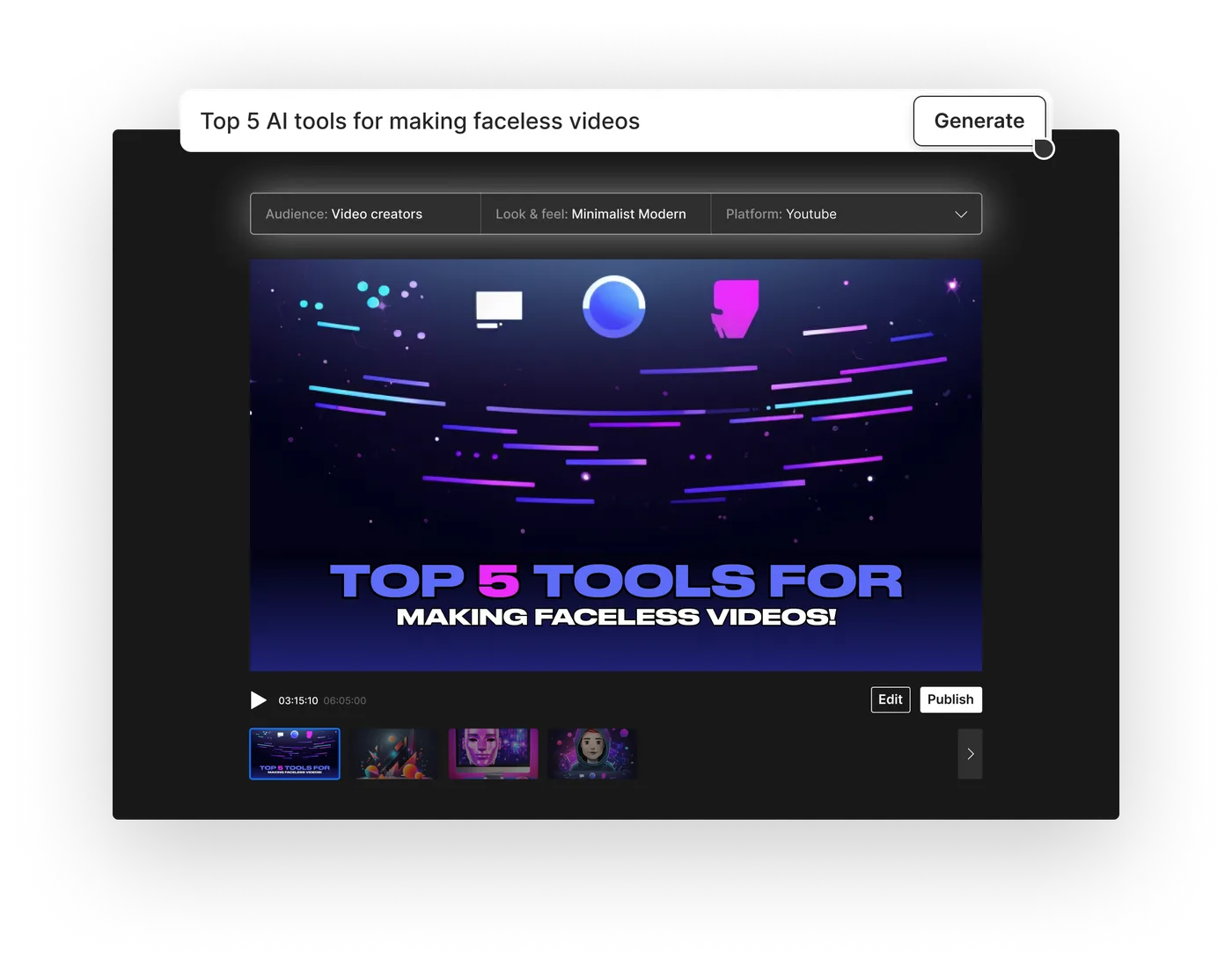
You can get started with InVideo AI by signing up for an account, entering a descriptive text prompt in the generator box, and letting the artificial intelligence draft your video script, voiceover, and media layout. Once the draft is generated, you can refine the results using simple text commands or the manual timeline editor.
Unlike traditional video editing software that requires manual cutting, multi-track timelines, and complex keyframing, this tool relies on natural language processing to do the heavy lifting. You type what you want to see, specify your target platform, and let the system arrange stock footage, generate a synthetic voiceover, and apply transitions automatically.
Understanding this automated workflow is essential before you jump in. By mastering the core controls and learning how to communicate with the generator, you can bypass the steep learning curve of classic video production. This guide will walk you through the entire process from your first prompt to the final export.
The quick version
- Choose your workflow
- Write your description
- Define key settings
- Launch the generator
- Review the preview
Understanding the Prompt Interface
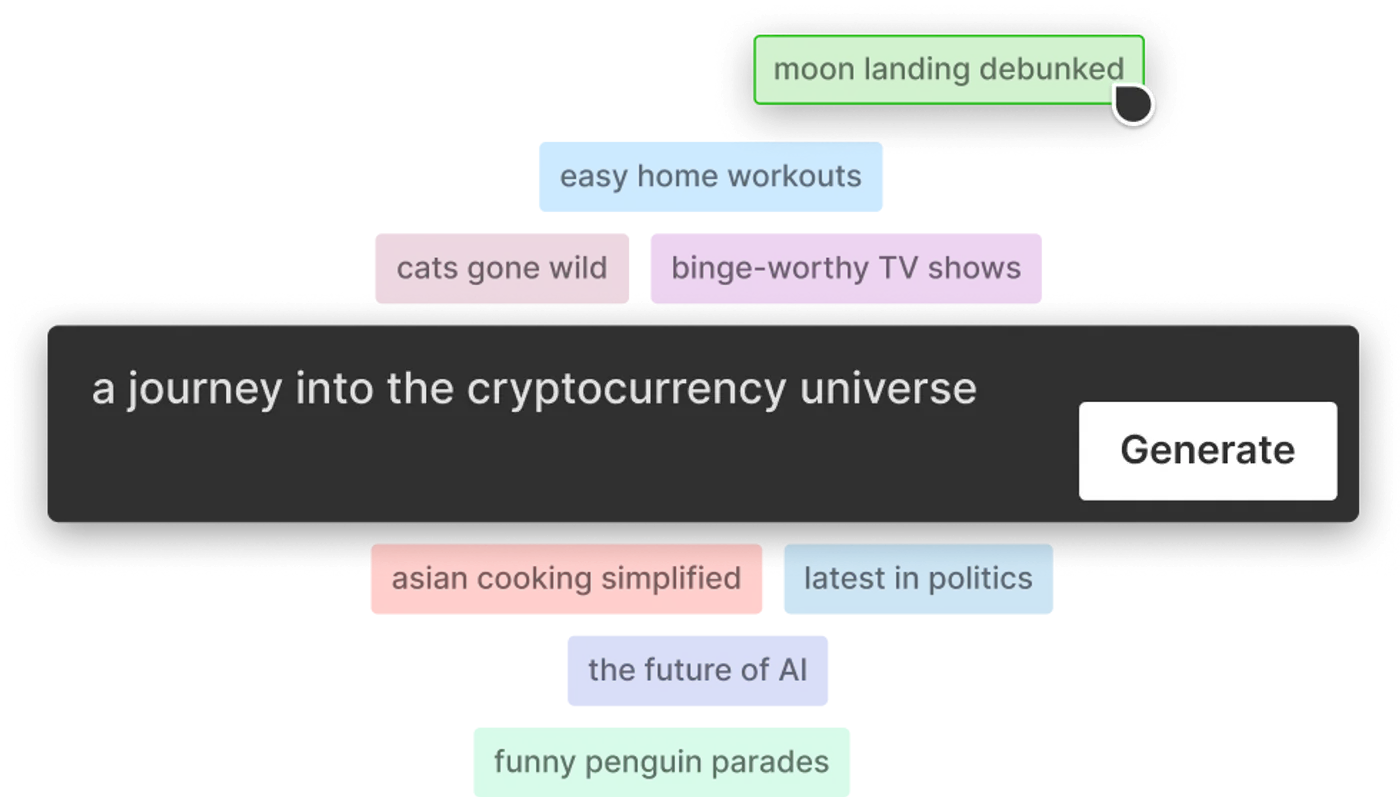
When you first log into the dashboard, you are greeted by a streamlined workspace centered around a large text input box. This input area is where you direct the creator engine, acting as both a scriptwriter and director. To get the best results, writing a detailed prompt is crucial, as the engine relies on your descriptors to select media, write scripts, and match the tempo of the music.
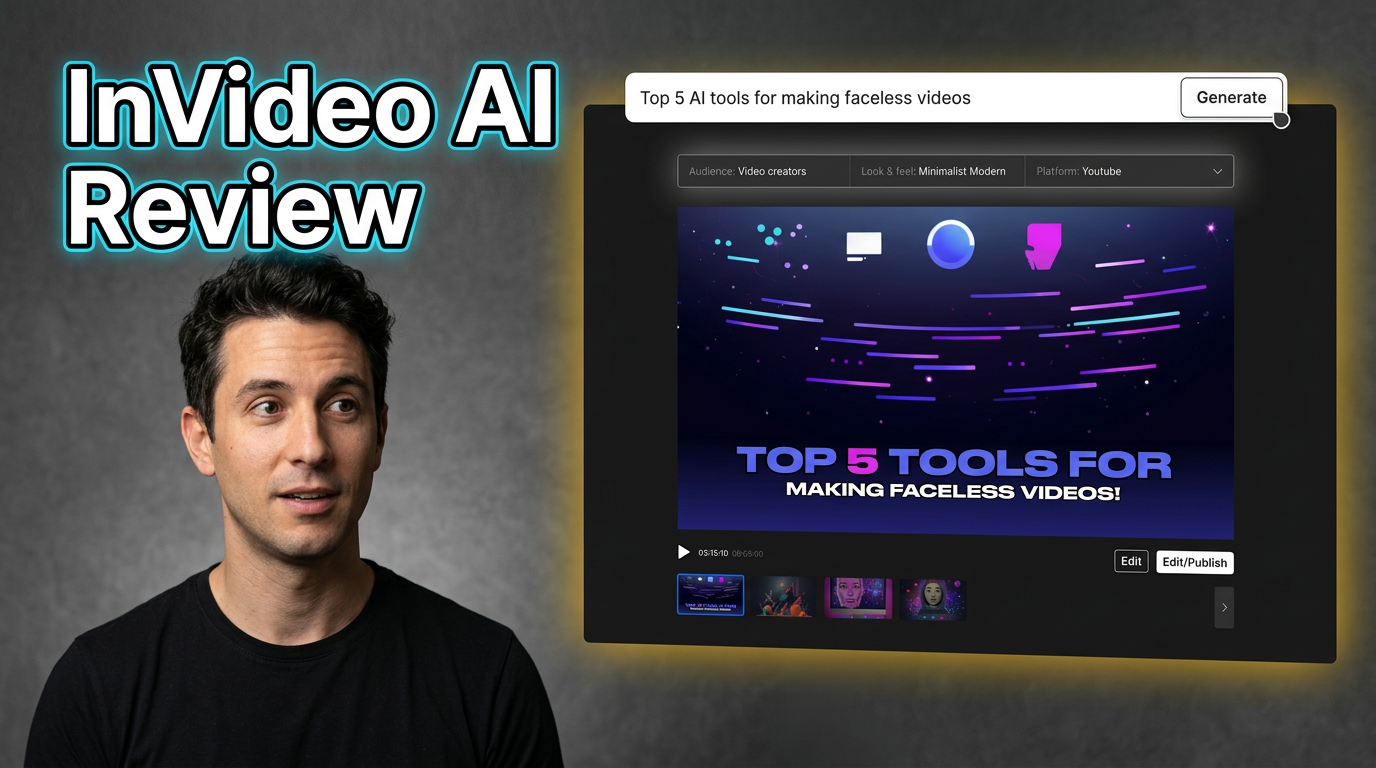
Directly above or around the input field, you will notice various dropdown options for specific workflows. These workflows help pre-configure your settings for popular platforms like YouTube, Instagram, or TikTok, ensuring you do not have to manually adjust parameters. By choosing a workflow, the system automatically configures the appropriate aspect ratio and target duration for your chosen platform.
Behind the scenes, the interface converts your typed instructions into structured guidelines. Instead of writing general requests, try to specify the target audience, the specific tone of voice, and the types of visual transitions you prefer. defining your target audience clearly in the text helps the AI match the vocabulary and visual speed to those viewers. The clearer you are in this initial box, the less manual editing you will have to perform later.
How to Generate Your First Video
To begin creating your first automated project, follow these essential workflow steps:
- Choose your workflow. Select a template from the home dashboard to automatically set up your formatting.
- Write your description. Type a thorough explanation of your video concept directly into the main prompt field.
- Define key settings. Configure your target audience, platform style, and general aesthetic when prompted by the system.
- Launch the generator. Click the confirmation button to let the processing engine compile your script and stock assets.
- Review the preview. Play the completed draft in the main window to check the flow and visual consistency before editing.
These straightforward steps allow you to produce a rough cut in mere minutes, bypassing hours of manual layout work.
Refining Media and Script Elements
Once the generator completes your video, you can view the result in the central preview player. If the initial draft is not perfect, you do not have to start over from scratch. The interface features a dedicated Edit button that reveals two separate workspace tabs: Edit Script and Edit Media.
In the script tab, you will find the complete written text of your voiceover organized into chronological blocks. If you spot a typo or want to rephrase a sentence, you can type your changes directly into the text box. The application uses voice synthesis to immediately update the spoken narration to match your new text without disrupting the visual alignment.
In the media tab, you can view all the stock footage clips arranged in sequence. If a clip does not match your expectations, swapping out stock footage is straightforward. You can search the integrated stock media libraries using search terms, preview the options, and click on any clip to replace the existing video segment instantly.
Customizing Voiceovers and Subtitles
The audio and caption elements play a massive role in viewer retention, and the system offers powerful ways to control them. If you are not satisfied with the default narrator, you can modify the voice profile without editing the script. The platform lets you select from a wide range of realistic voice options with different regional accents, genders, and conversational speeds.
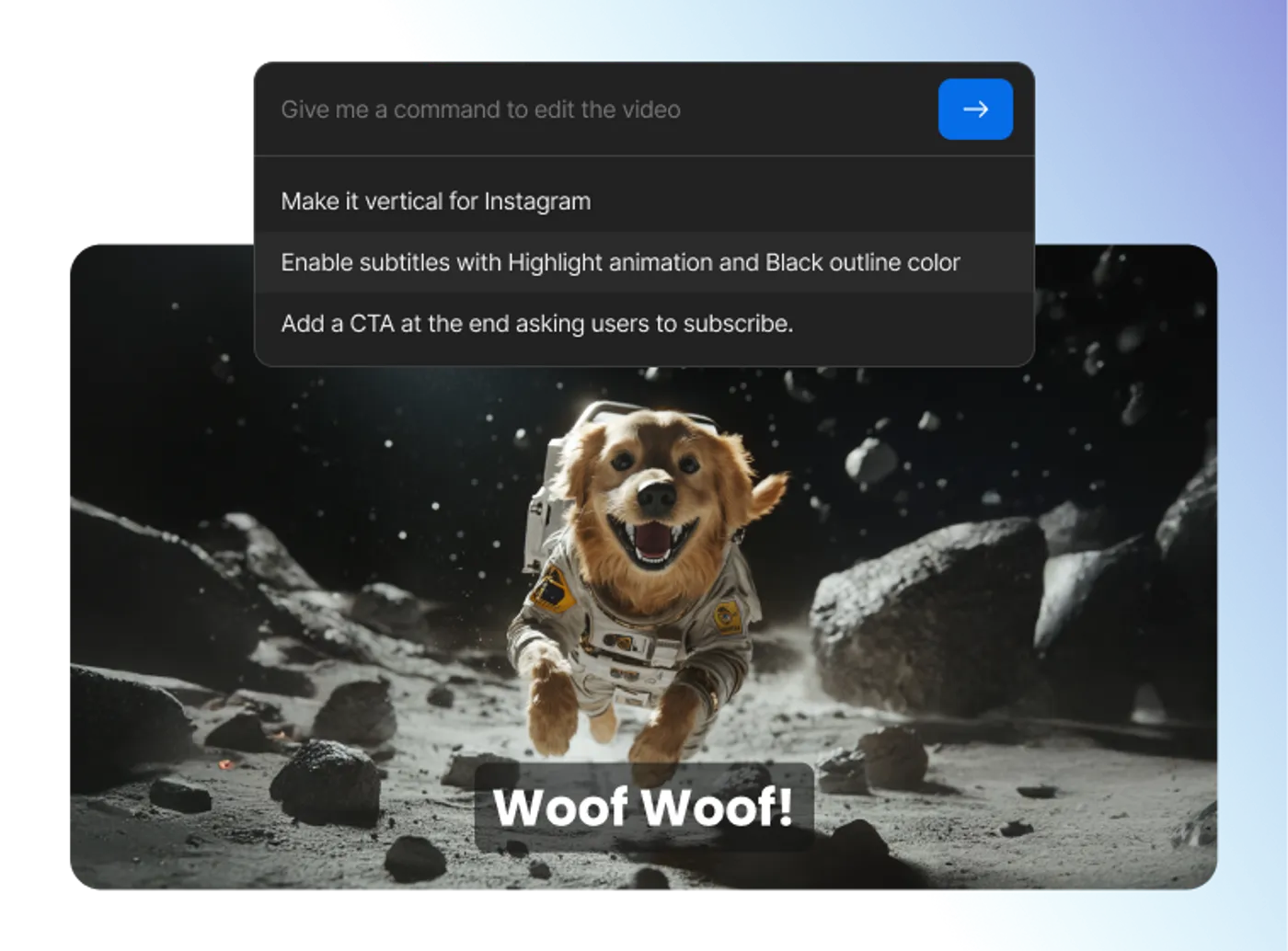
To make these adjustments quickly, you can use the interactive command box located directly beneath the preview player. By using text commands, you can instruct the assistant to modify elements globally. For instance, typing 'make the voice sound more energetic' or 'change the narrator to an Australian male' will trigger an automated update across the entire timeline.
Subtitles are also generated automatically and overlaid onto your video tracks. If you want to customize their appearance, you can choose from different text templates, change font families, and adjust the positioning. These visual adjustments ensure your captions align perfectly with your brand aesthetic, giving your final product a cohesive, polished appearance.
Choosing Your Video Creation Method
When deciding how to produce your next project, you must weigh the speed of automated layout against the fine control of classic production tools. Here is how prompt-based automation compares directly to manual timeline editors:
- Prompt Input: InVideo AI relies entirely on natural language text to build scenes, whereas standard editors require manual file imports and asset placement.
- Editing Style: InVideo AI modifies videos through conversational chat instructions, whereas manual editors use multi-track timelines, keyframes, and cutting tools.
- Media Sourcing: Automated creation pulls directly from connected stock libraries on your behalf, whereas traditional platforms require you to film your own assets or license stock clips independently.
- Learning Curve: The generative interface takes only minutes to understand, whereas professional editing software demands weeks of dedicated study to navigate fluently.
If you need to make rapid, template-driven videos, you should pick InVideo AI. However, if your projects require custom animations, complex green-screen effects, or highly specific sound design, you should pick a traditional timeline editor.
Exporting Your Finished Project
After you have polished your script, swapped out unwanted media clips, and adjusted the voiceover, your final task is exporting the video. The export menu is located in the top-right corner of the workspace and provides several options for resolution and rendering. Before initiating the download, you must decide which export settings align with your current plan limits.
Free accounts typically generate files with visible watermarks and branding overlays. To produce professional content for commercial use, clearing watermarks from your media is necessary, which requires upgrading to a premium subscription plan. You can read our extensive InVideo AI Review: Pricing, Credits and Limitations to understand how monthly generation credits and export caps apply to different subscription tiers.
Once you select your desired resolution—ranging from standard high-definition up to 4K—the rendering process begins on cloud servers. This means your computer does not need a powerful graphics card to compile the final file. When the render completes, you can download the MP4 file directly to your hard drive or publish it straight to your linked social media channels.
Frequently asked
As an Amazon Associate I earn from qualifying purchases. This does not affect the price you pay. Affiliate disclosure