
How to Make an AI Video From One Image in Higgsfield
Learn how to turn a single image into an AI video in Higgsfield, from preparing the source file and describing motion to reviewing and exporting the clip.

Some links are affiliate links: we may earn a commission if you sign up or buy through them, at no extra cost to you.
On this page8 sections
- 1The short answer
- 2Prepare the Single Image Before You Generate
- 3How to Make an AI Video From a Single Image With Higgsfield
- 4Write a Motion Prompt Higgsfield Can Interpret
- 5Control Camera Movement Without Distorting the Scene
- 6Review Faces, Hands, Edges, and Backgrounds
- 7Export and Finish the Generated Video
- 8Frequently asked
The short answer
- Upload high-resolution images with clean subject borders to ensure accurate character mapping and motion tracking.
- Select pre-made motion templates rather than complex text prompts to prevent unnatural limb distortion.
- Apply subtle camera pans and zooms to create depth and keep the background looking realistic.
To make an AI video from a single image with Higgsfield, upload a clear source image, choose an image-to-video workflow, describe the subject and camera movement, generate the clip, and review the result. Keep the first motion simple. If faces, limbs, or backgrounds distort, revise the prompt or source image and generate a new version. For a broader overview of the platform, read our Higgsfield Review.
Watch it in action
The quick version
- Upload one source image
- Describe one main action
- Add restrained camera direction
- Choose the output framing
- Generate and inspect the full clip
- Revise one variable at a time
Prepare the Single Image Before You Generate
Your source image gives the video model its visual starting point, so choose one that clearly shows the subject and the surrounding scene. JPEG and PNG are practical input formats where supported. Use a sharp image without heavy compression, strong motion blur, or important details cropped by the frame. A visible face, complete body outline, and clear separation between the subject and background can make the intended motion easier to describe and assess.
Match the composition to the output you want. A portrait-oriented image is a sensible starting point for a vertical clip, while a landscape image gives the scene more horizontal space. Leave room in the direction of movement: if the subject will walk right, for example, avoid placing it against the right edge. Do not assume higher resolution can repair an unclear composition. A clean, well-framed source is more useful than a large file with hidden hands, cut-off feet, or a busy background. Keep an untouched copy so that you can restart without repeatedly editing the original.
How to Make an AI Video From a Single Image With Higgsfield
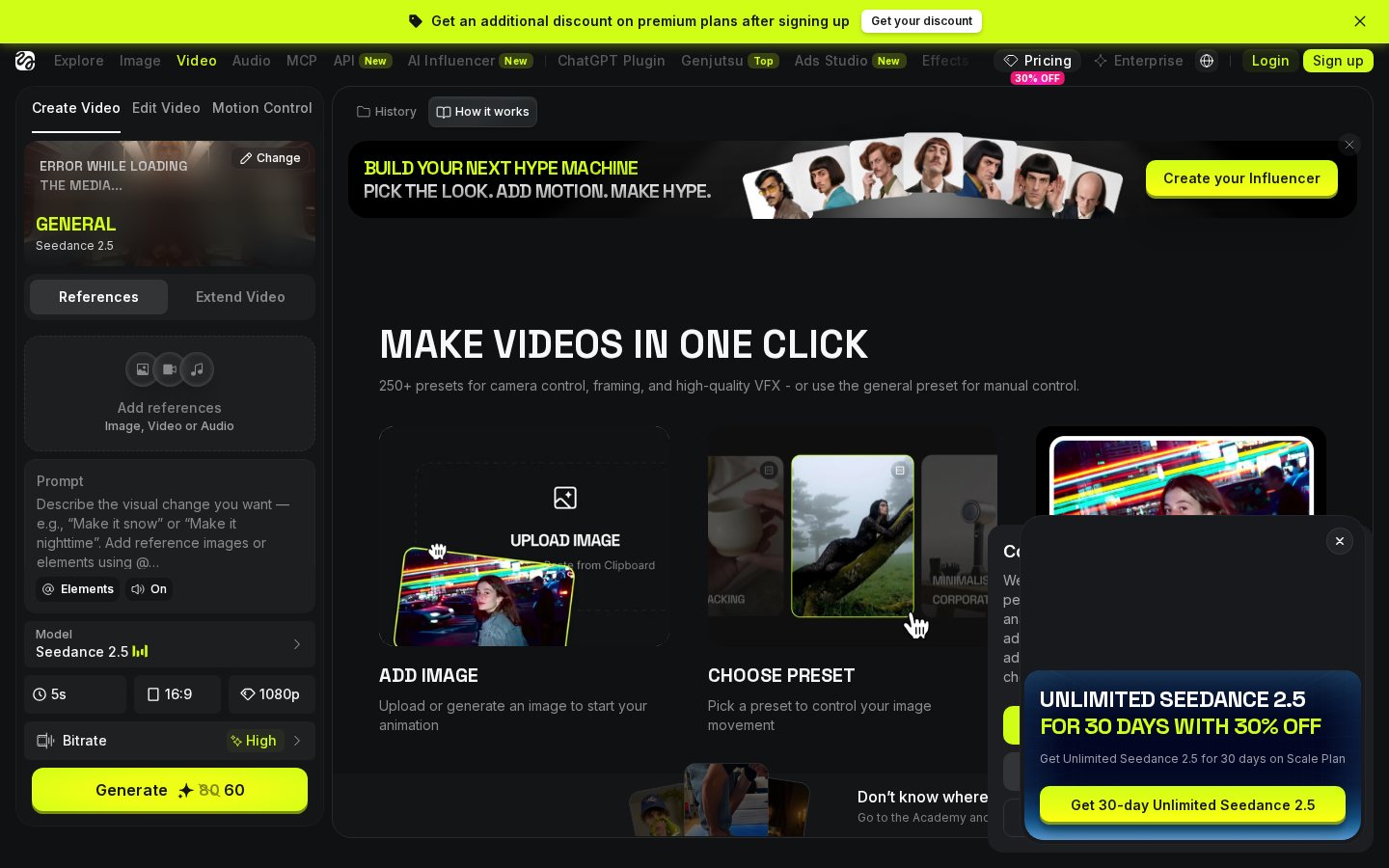
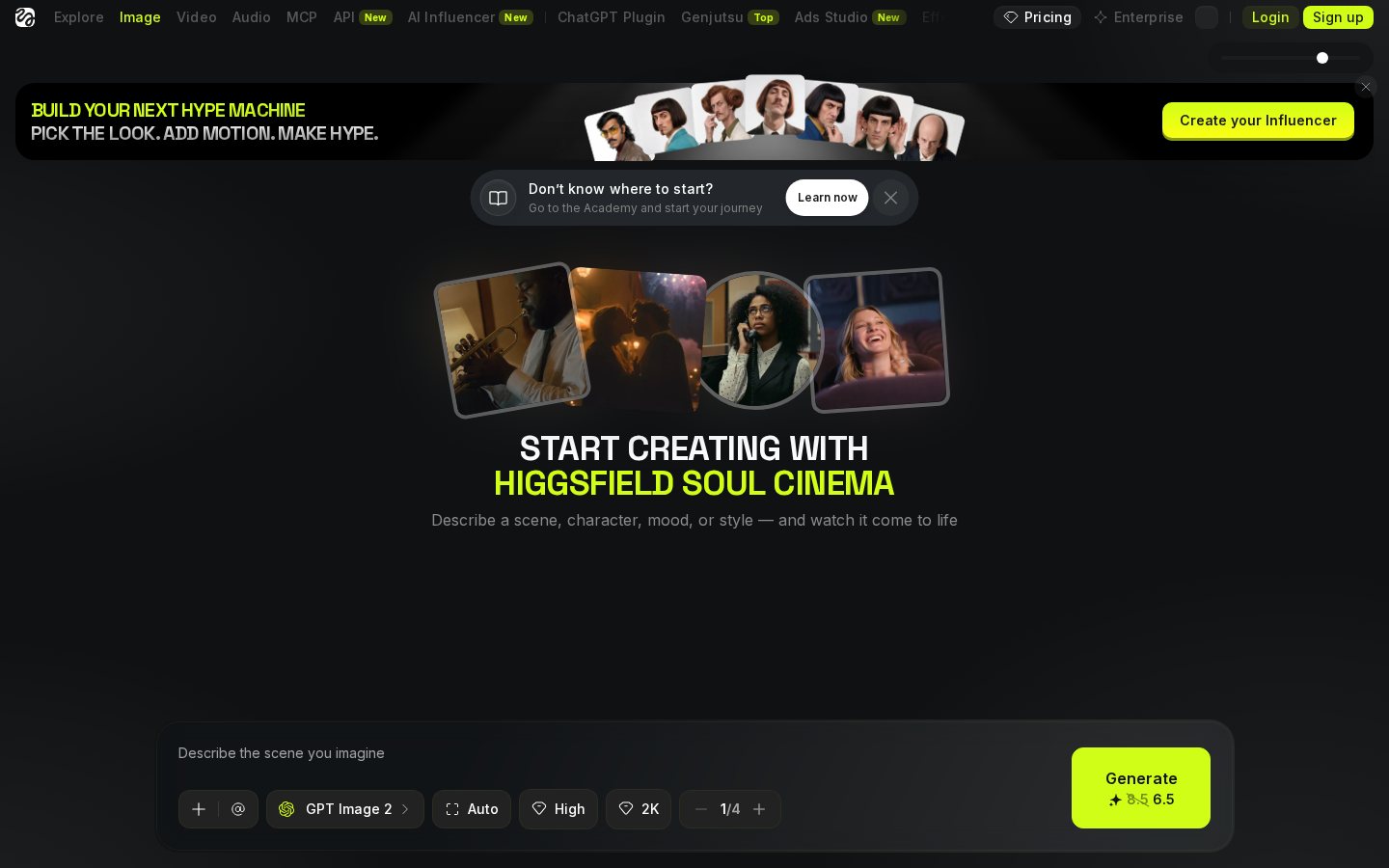
The exact labels in Higgsfield may change, but the core image-to-video process is straightforward. Open the creation interface and select the option that accepts a source image. Upload your picture, then choose any available output settings that suit the intended frame. Describe the action and camera behaviour in the prompt field, or select an appropriate preset if the interface offers one. Review the setup and begin generation.
Use this sequence:
- Upload one source image. Check that it appears in the intended orientation and crop.
- Describe one main action. State what the subject does, how quickly it moves, and where it moves.
- Add restrained camera direction. Ask for a slow pan, gentle push-in, or static camera rather than combining several moves.
- Choose the output framing. Keep the aspect ratio consistent with the source where practical.
- Generate and inspect the full clip. Look beyond the opening frame for changes to faces, hands, edges, and background details.
- Revise one variable at a time. Simplify the action, reduce the camera movement, or use a cleaner source image before generating again.
This controlled approach makes it easier to identify which instruction caused an unwanted result. The Higgsfield Review provides additional context on the tool beyond this workflow.
Write a Motion Prompt Higgsfield Can Interpret
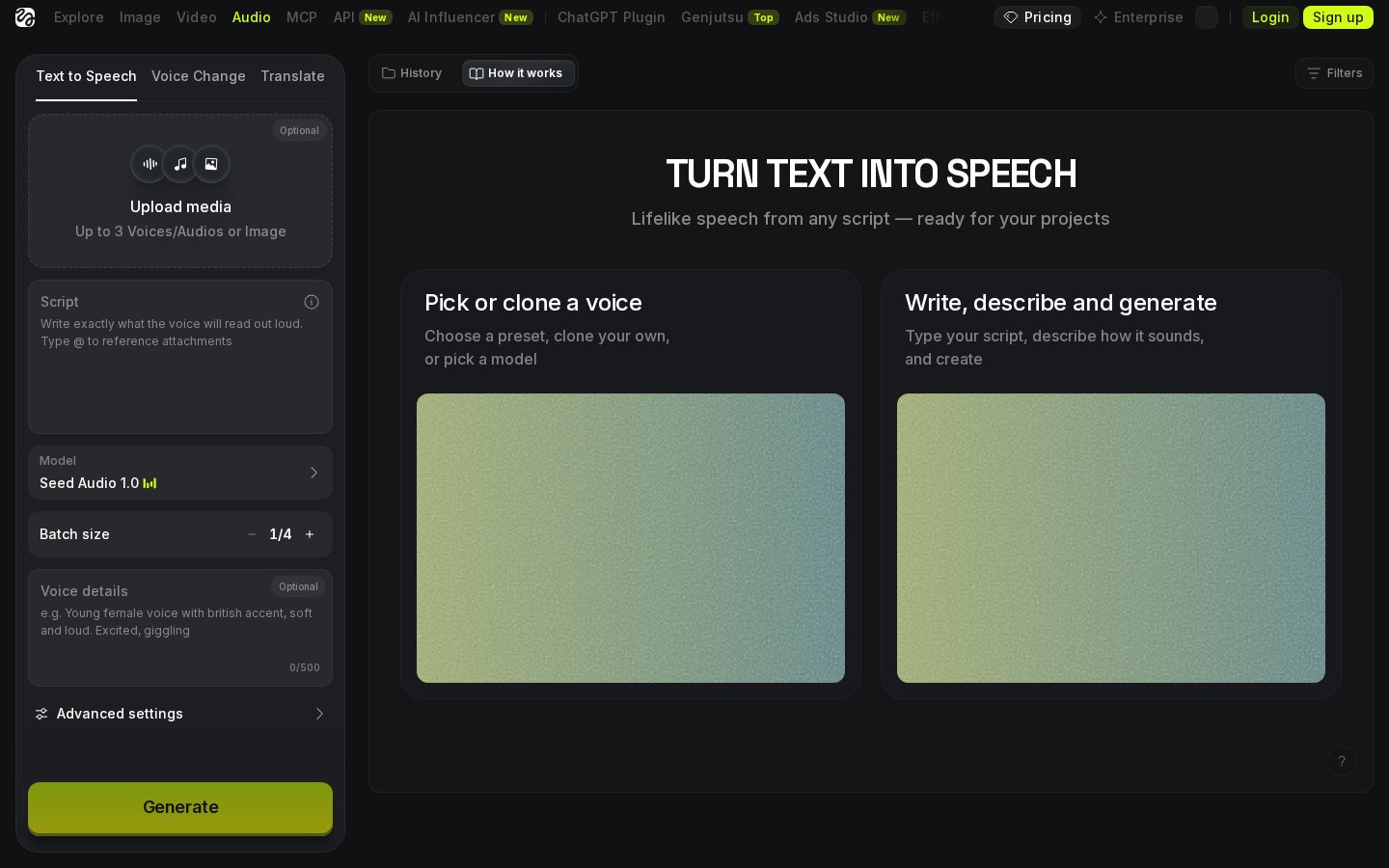
A useful motion prompt describes visible changes rather than a mood alone. Identify the subject, action, speed, direction, and camera behaviour in plain language. For example: “The person slowly turns towards the window while the camera remains still.” Another workable structure is: “A gentle breeze moves the subject’s hair and clothing; slow camera push-in.” These prompts state what should move and limit competing instructions.
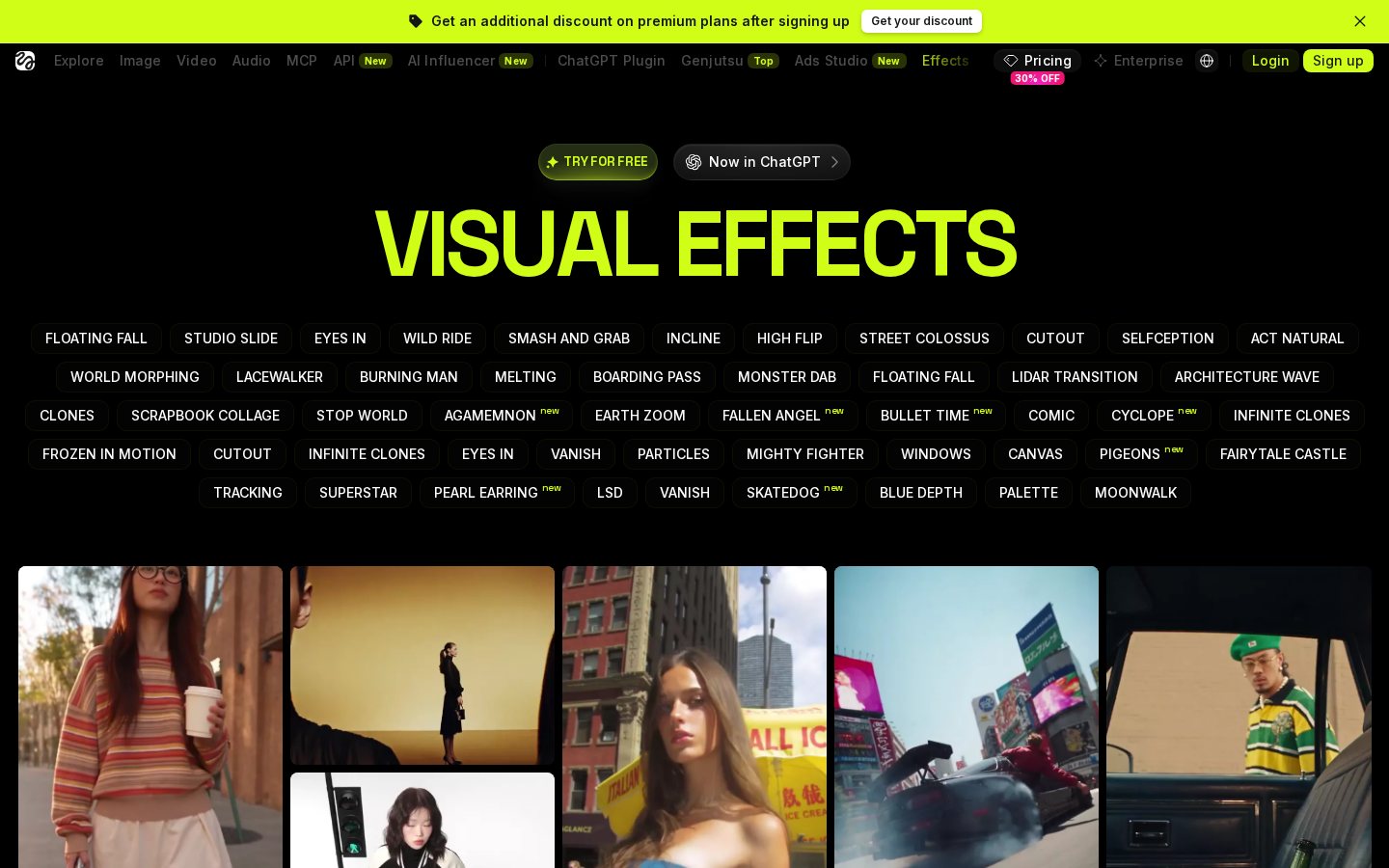
Keep the first attempt to one principal action and one camera direction. A sequence such as “run, jump, sit, wave, and turn around” asks the model to create several poses and transitions from one reference image. Split that idea into separate clips instead. Avoid instructions that conflict, such as requesting a static camera and a fast orbit in the same prompt. Use observable terms—slowly, left, forward, slight head turn—rather than relying only on abstract words. If Higgsfield presents motion presets, treat them as starting points and compare them with a short custom prompt. For more information about the wider feature set, see the full Higgsfield review.
Control Camera Movement Without Distorting the Scene
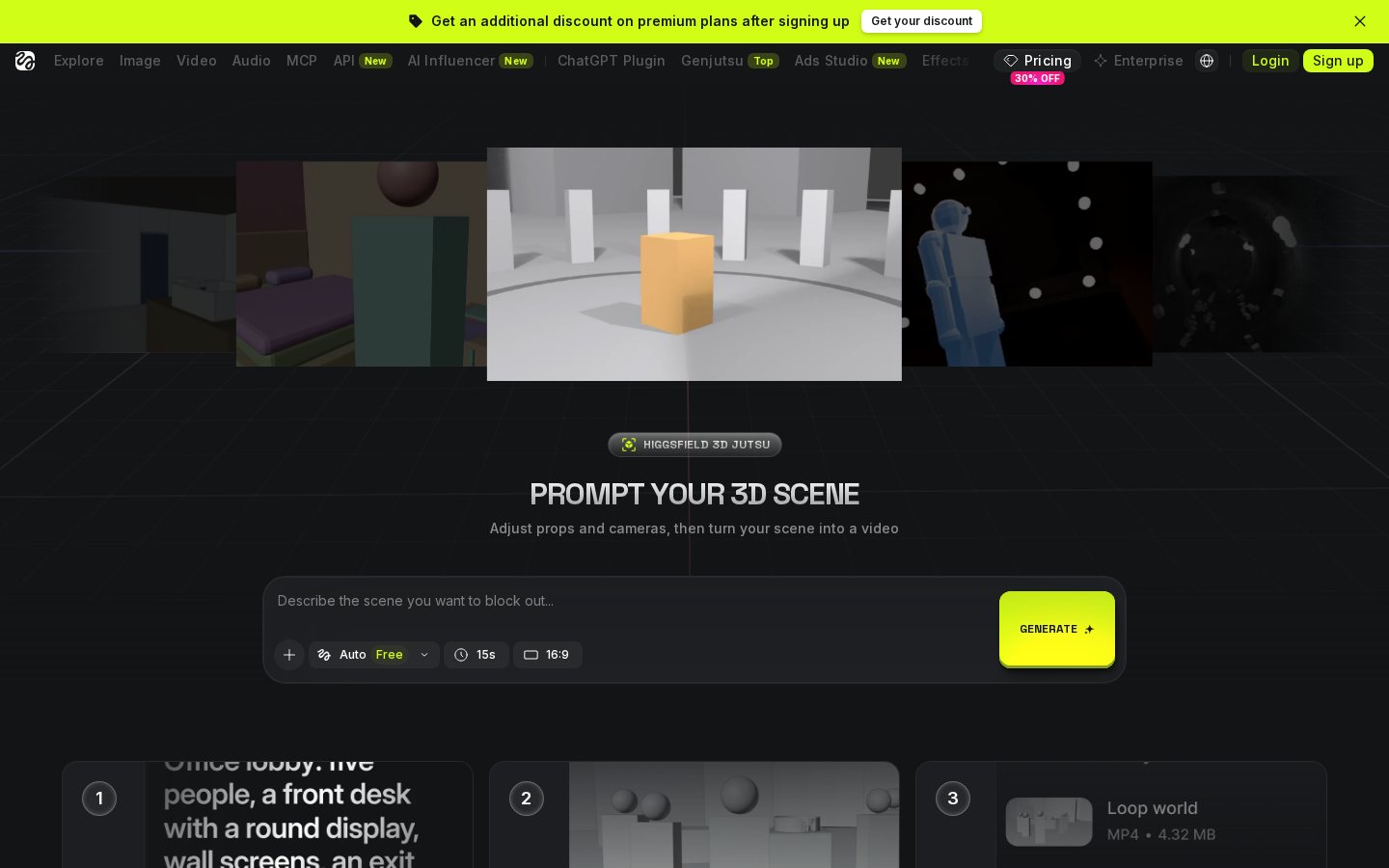
Camera direction can add depth, but it also asks the model to reveal parts of the scene that are not visible in the original picture. A small camera push-in usually requires less newly generated scenery than a wide pan or orbit. Begin with a static camera or a subtle zoom, then increase movement only after the subject animation looks coherent.
Consider the source composition before choosing a move. A pan towards the edge of a tightly cropped image may require the system to create a large area beyond the original frame. An orbit can require unseen sides of the subject and background. A tilt may expose space above or below the source. Keep camera motion slower and narrower when the image contains fine patterns, text, fences, foliage, reflections, or repeated architecture, because these details are easy to notice if they change between frames.
Balance subject and camera motion rather than maximizing both. If the person turns, walks, or gestures, a stationary or gently moving camera gives you fewer changing elements to inspect. If the subject remains almost still, a restrained pan or push-in can provide the main movement. This separation also makes troubleshooting easier.

Review Faces, Hands, Edges, and Backgrounds
Watch the generated clip from beginning to end more than once. First assess the overall action: does the subject move in the intended direction, and does the camera follow the instruction? On the next pass, inspect high-attention areas such as faces, hands, text, jewellery, clothing patterns, and the outline where the subject meets the background. Look for temporal consistency problems, including details that change shape, disappear, or flicker between frames.
If the face changes, reduce head rotation and ask for a smaller expression or movement. If hands or limbs distort, choose an action that keeps them closer to their visible starting position. If the background stretches, use a static camera, shorten the implied travel, or start with an image containing more open space. If fine textures shimmer, simplify the movement or replace the source with a less detailed scene.
Change only one major element before each new generation. Rewriting the prompt, changing the crop, and adding a new camera move at the same time makes it difficult to learn what improved the output. Save useful versions with clear filenames so you can compare the source, prompt, and result. Our Higgsfield platform review covers the service at a broader level.

Export and Finish the Generated Video
Once you have a usable generation, play it at normal speed and examine the first and final frames. Check whether the clip starts or ends during a distorted pose, abrupt camera move, or visible change in the background. If the central section is stronger than the edges, trim the weak frames in a video editor rather than keeping the entire generation.
Use the export controls Higgsfield currently provides and choose settings that suit the destination. Preserve the original generated file before resizing, cropping, adding captions, or applying additional compression. A master copy gives you a clean source for later edits. Avoid repeated exports through several apps, because each lossy conversion can reduce detail.
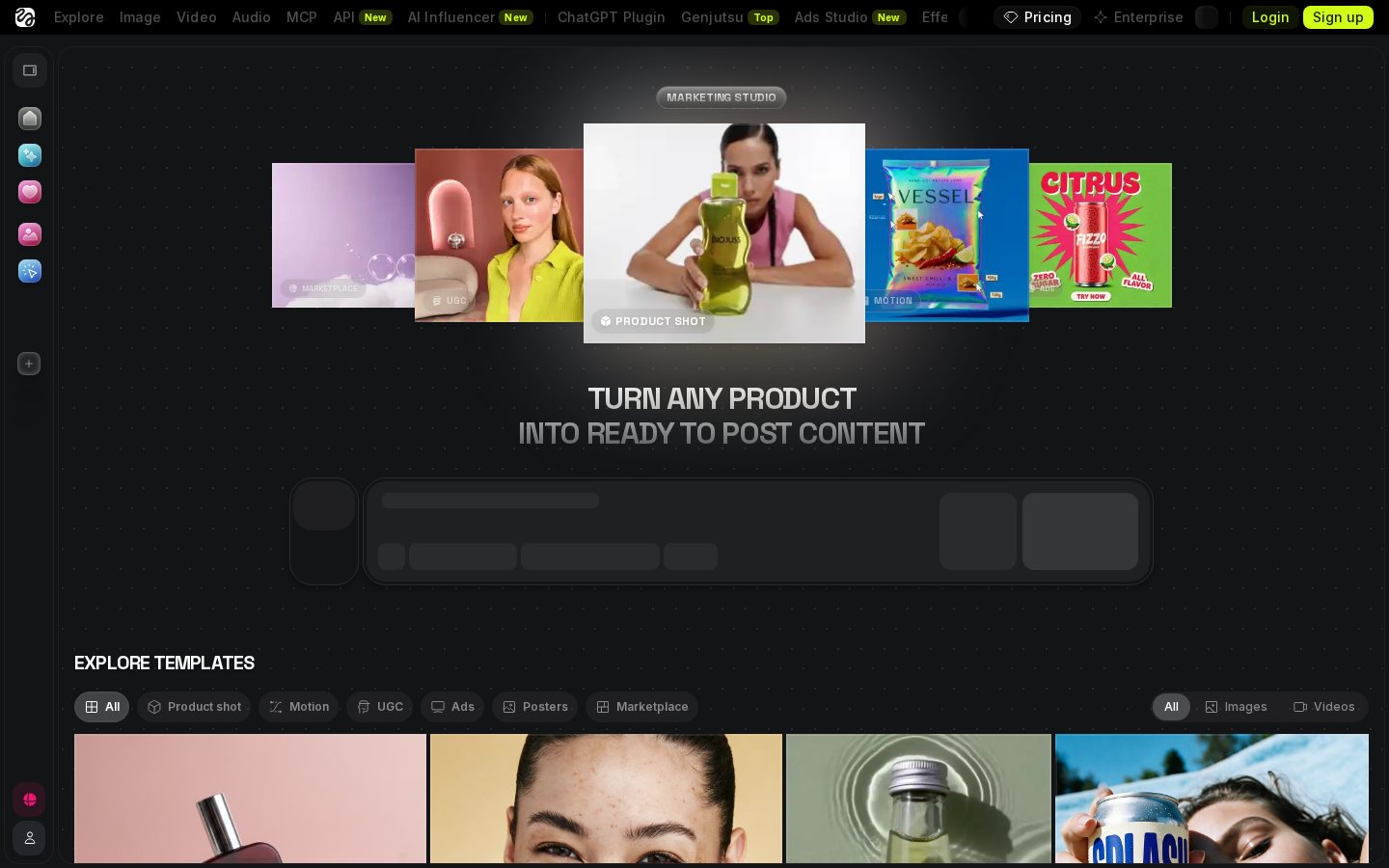
If you need several aspect ratios, plan them from the original image where possible instead of forcing one finished video into every format. Keep important faces and actions away from extreme frame edges so later crops have room. Before publishing, review the exported file rather than relying only on the interface preview. Confirm that orientation, framing, audio state, and playback are as intended, then archive the source image, prompt text, and selected video together.
Frequently asked
As an Amazon Associate I earn from qualifying purchases. This does not affect the price you pay. Affiliate disclosure