
How to Turn a Long Video into Short Clips with VEED
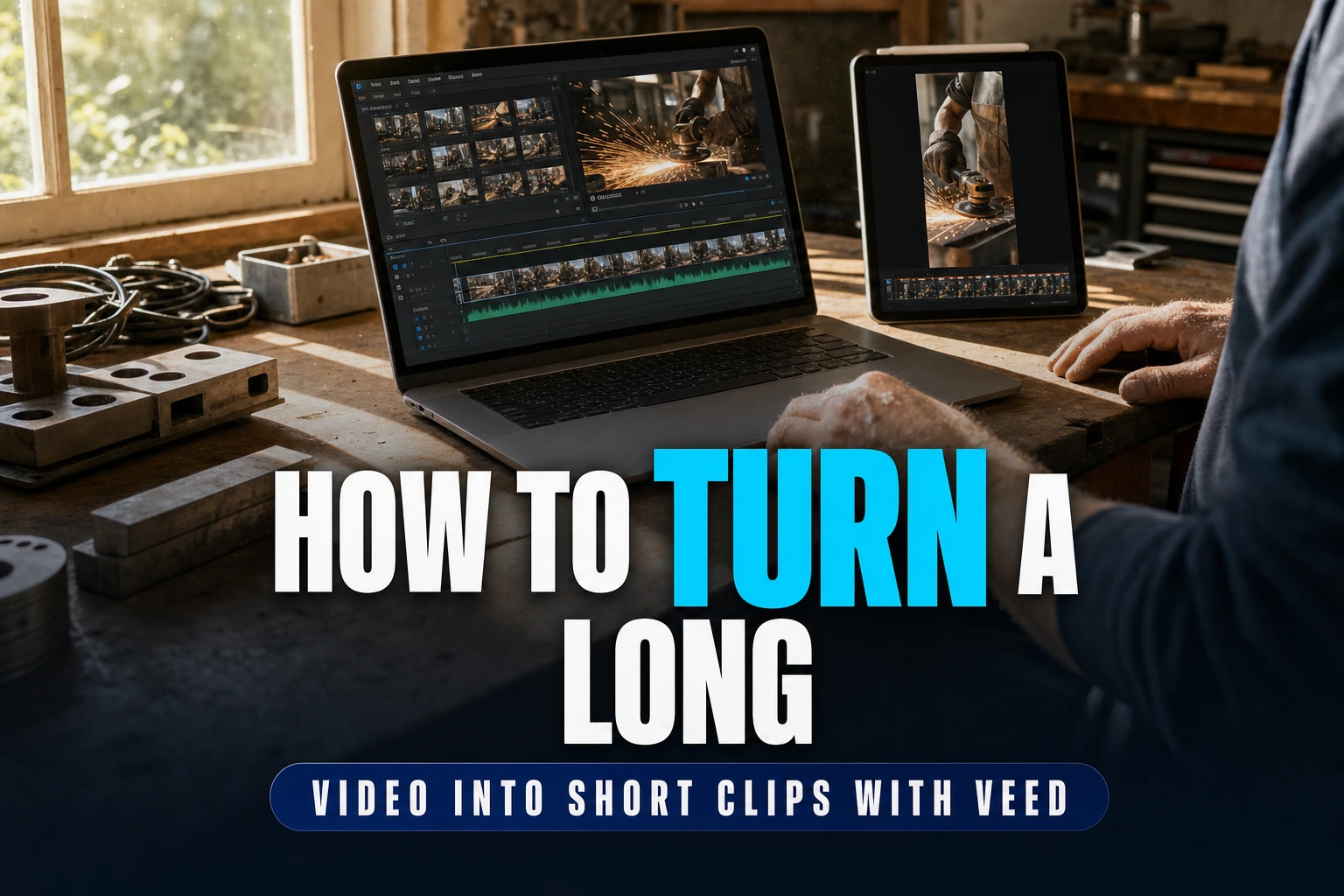
Use VEED AI Clips to find strong moments, reframe them vertically, add captions and prepare short videos for social feeds.
Some links are affiliate links: we may earn a commission if you sign up or buy through them, at no extra cost to you. Affiliate disclosure
On this page9 sections
The short answer
- Upload your video and let the AI automatically identify key engaging moments.
- Adjust aspect ratios and apply custom subtitles to match social media platforms.
- Review and edit the automatically generated clips before exporting your final files.

You can turn a long video into short clips with VEED by uploading your file to their AI Clips tool, which automatically extracts the most engaging segments. This feature crops, captions, and formats your video for social channels in minutes.
Repurposing lengthy webinars, podcasts, or online presentations into brief snippets is an effective way to grow your online presence. Instead of manually editing hours of raw files, modern online editors use speech recognition to find the best moments. This strategy allows you to populate multiple social channels without shooting new footage every day.
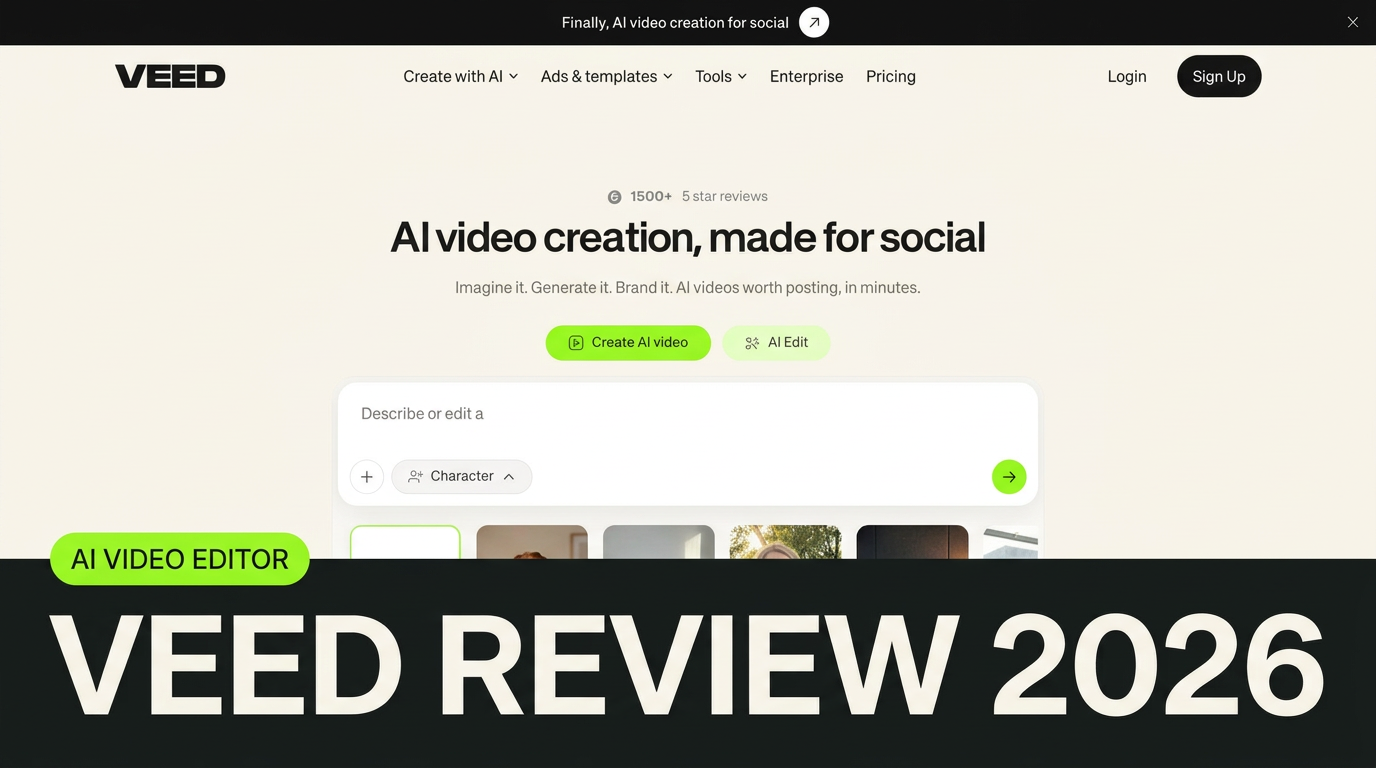
This guide explains the step-by-step process of converting long assets into bite-sized clips. We will cover file uploading, layout adjustment, subtitle generation, and overall troubleshooting to ensure your clips are ready for social platforms. To see how this software scores overall, view our VEED Review.
What's inside
Everything you get with VEED
The quick version
- Navigate to the AI clips interface
- Select your desired export format and
- Enter a prompt to guide the
- Let the automated tool analyze your
- Review the list of generated clip
- Apply automated captions and select your
Understanding the AI Clips Feature
VEED features an intelligent tool designed to scan your media files and detect highlights based on audio cues and visual changes. This system cuts down the tedious process of scrubbing through hours of raw recordings manually. It identifies peak engagement points, making it highly effective for talking-head videos, webinars, and online courses.
When you feed a file into the software, the AI evaluates speech patterns, changes in pitch, and transition points. This auto-framing technology ensures that the active speaker remains centered, even when you change the aspect ratio from horizontal to vertical. You can read more about how this system compares to competitors in our comprehensive VEED Review.
The software is web-based, which means you do not need a high-end computer to run intensive processing tasks. All the heavy lifting and rendering happen on remote cloud servers. This setup allows you to quickly generate multiple clips simultaneously without slowing down your local computer.
Step-by-Step Guide to Creating Clips
To get started, you will need a registered profile and a long video file or a link to a published video. Follow these structured steps to upload your footage and let the automated system carve out the best segments for your channels.
- Navigate to the AI clips interface and upload your video. Drag and drop your local file or paste a direct link.
- Select your desired export format and video length. Pick vertical aspect ratios for mobile platforms like TikTok.
- Enter a prompt to guide the AI highlights. Tell the system what key topics or moments to focus on.
- Let the automated tool analyze your media. Wait for the server to process and segment your footage.
- Review the list of generated clip selections. Click edit on any segment to adjust the starting points.
- Apply automated captions and select your text style. Match the visual aesthetic to your branding.
Once you complete these steps, you can export each clip individually or download them in bulk. If the AI misses a crucial moment, you can manually adjust the selection boundaries on the project timeline. This hybrid approach gives you both the speed of automation and the precision of manual editing.
 See the picks in our buying guide
Customizing Your Short Video Layouts
Social media platforms favor different shapes, and converting wide horizontal recordings to vertical formats can sometimes cut off important visual details. VEED solves this using intelligent cropping that tracks movement within the frame. This ensures that the primary subject stays in focus without manually keyframing every frame of the clip.
You can manually override the automatic cropping if the focus shifts to the wrong subject. The editor allows you to drag the cropping box left or right on the preview screen. This gives you ultimate control over the composition, ensuring that graphic overlays or facial expressions remain perfectly visible.
Additionally, you can add background templates or side-by-side splits for reaction-style videos. This is particularly useful for podcasts where you want to show both the host and the guest simultaneously. Utilizing these layout tools can transform standard horizontal footage into highly engaging vertical content.
Adding and Editing Captions for Engagement
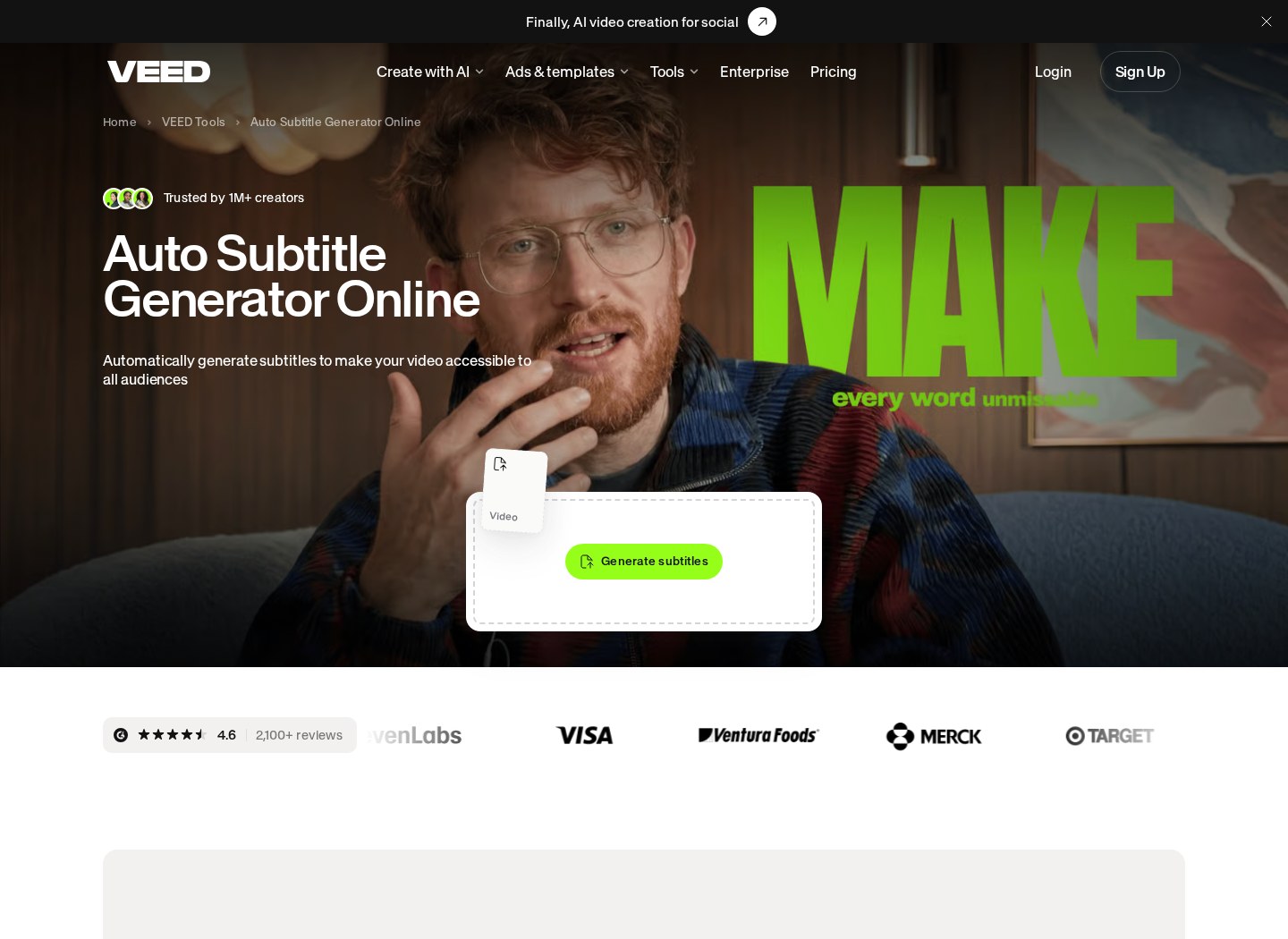
Many mobile users watch social media videos without turning on their audio. Because of this behavior, adding accurate captions to your short clips is essential for holding viewer attention. VEED includes a built-in automatic transcription engine that converts spoken words into on-screen text in seconds.
The transcription engine supports dozens of languages and accents, but it can occasionally misinterpret technical terms or slang. It is crucial to review the generated text block by block in the left-side panel. You can easily click on any word to correct spelling mistakes, adjust timing, or change paragraph breaks.
After correcting the text, you can style the subtitles using dynamic presets. Popular options include word-by-word highlight styles, which make the text bounce or change color as the speaker talks. For a deeper understanding of how these subtitle tools compare to other editors, refer to our VEED Review.
Refining and Polishing Your Generated Clips
AI-generated cuts are rarely perfect right out of the box, as they might leave out a crucial introductory sentence or cut off a speaker mid-breath. To fix this, use the timeline editing track to fine-tune the starting and ending handles. Adding a brief fraction of a second before the speech begins can make the transition feel much more natural.
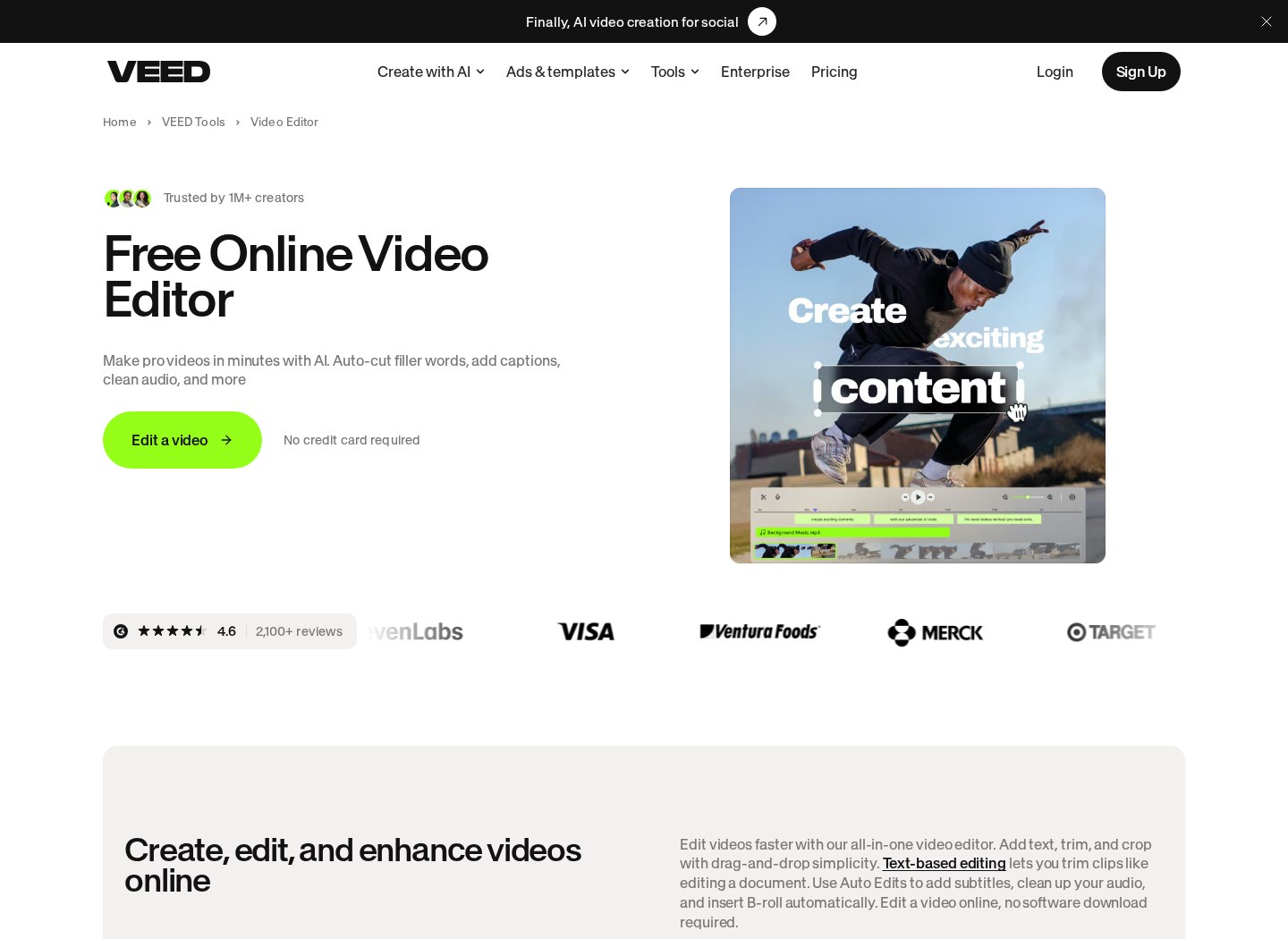
You can also utilize the filler-word removal tool to clean up your audio track. This feature automatically scans the audio file and highlights pauses, 'umms,' and 'ahhs' for rapid deletion. Removing these verbal hiccups keeps your short videos concise and fast-paced, which is critical for maintaining high retention rates.
Finally, consider adding simple transitions or overlay elements to cover up jump cuts. If you cut out a sentence in the middle of a clip, a slight zoom-in or a quick transition effect can mask the sudden movement. This simple polishing step separates amateur video edits from professional-grade content.
Troubleshooting Common Clip Generation Errors
Sometimes, you might encounter issues where the AI fails to generate clips or spits out an error message during the processing phase. This most commonly occurs when attempting to upload extremely long files that exceed your account's duration limits. To prevent this, check your account tier and crop your raw video into smaller segments before running the tool.
Another frequent problem is misaligned subtitles or audio sync delays. If the voice does not match the text, try clearing your browser's cache or refreshing the editor window. Alternatively, you can use the sync audio option inside the timeline to manually shift the audio track forward or backward.
Lastly, ensure your source video has clear, clean audio before uploading. Background noise, heavy music, or low voice volume can confuse the AI clipping engine, leading to inaccurate segment selections. Using a basic noise reduction filter on your raw footage beforehand will yield significantly better results.
Frequently asked
Sources
As an Amazon Associate I earn from qualifying purchases. This does not affect the price you pay. Affiliate disclosure