How to Avoid the Most Common InVideo AI Mistakes
Stop wasting generation credits on mismatched stock clips by mastering prompt structure and editing workflows in InVideo AI.

Some links are affiliate links: we may earn a commission if you sign up or buy through them, at no extra cost to you.
On this page8 sections
- 1The short answer
- 2Writing Vague Prompts in the Text Generator Box
- 3How to Structure an Effective InVideo Prompt
- 4Skipping Manual Script Edits in the Script Tab
- 5Accepting Default AI Stock Media Choices
- 6Ignoring Audio Controls and Voiceover Settings
- 7When to Choose InVideo AI Versus Traditional Video Editors
- 8Frequently asked
The short answer
- Be highly descriptive in your prompts to guide the AI's structural decisions.
- Always review and edit the generated script before finalizing your voiceover options.
- Manually swap out mismatched stock media using the built-in library search tool.
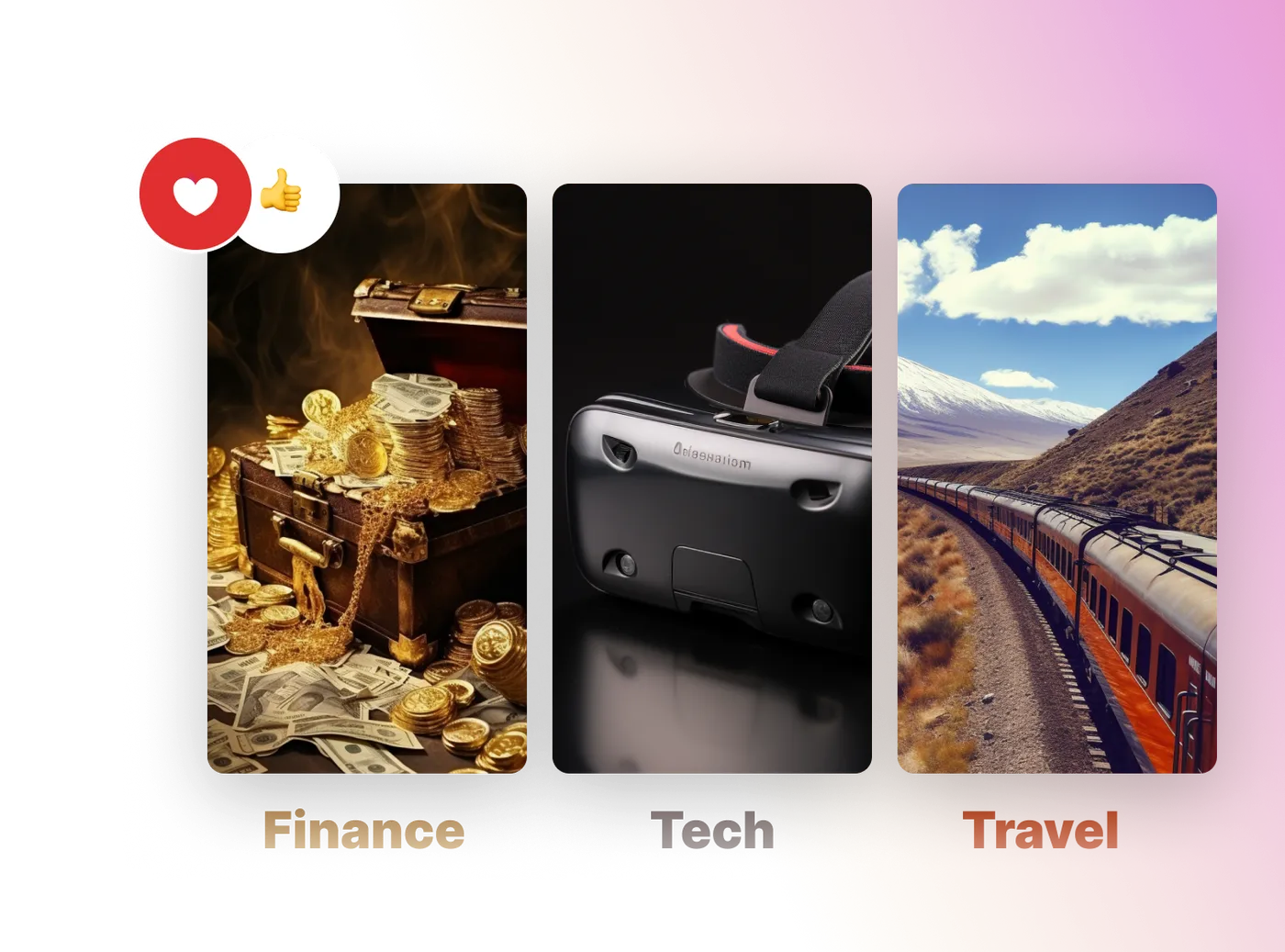
The most common InVideo AI mistakes include writing vague text prompts, ignoring the script editor, and letting the AI pick unrelated stock footage. Avoiding these errors saves your subscription credits and produces professional videos.
Many users treat the prompt box like a search engine rather than a director's brief. This leads to generic videos that lack a clear narrative structure. Understanding how the tool translates your words into scenes is the key to getting high-quality output.
By learning how to guide the generator and perform manual overrides in the timeline, you can prevent the robotic pacing and visual mismatches that plague amateur content. Let's break down the major pitfalls and how to fix them.
The quick version
- Define the video topic
- Specify the platform and format
- Establish the tone of voice
- Detail the narrative style
- Set the visual aesthetic
Writing Vague Prompts in the Text Generator Box
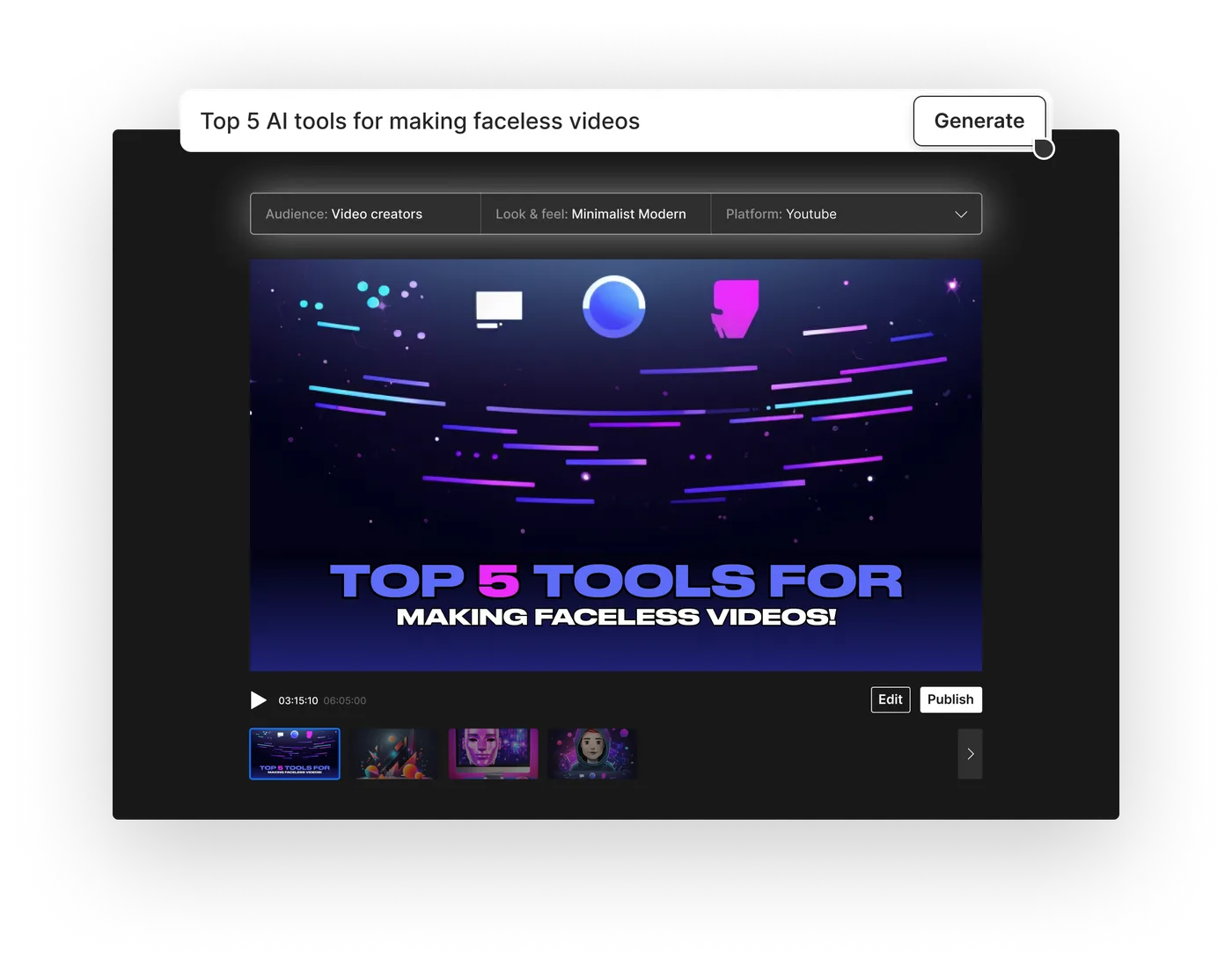
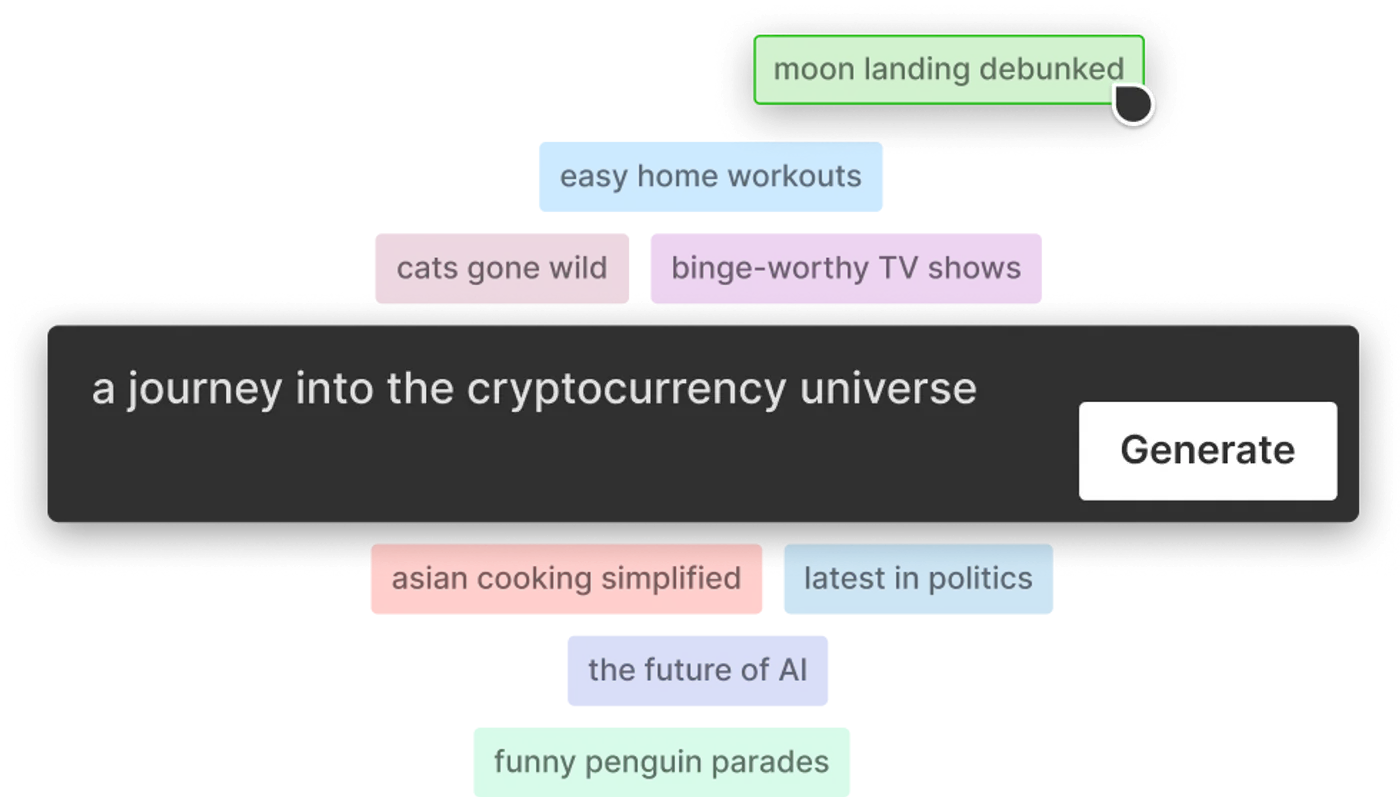
The prompt box is your primary tool for directing the AI, yet many creators treat it as a basic search bar. Writing short, non-descriptive phrases forces the generator to guess your intent. The software will fill in the gaps using generic themes, resulting in a predictable and uninspiring video.
When you provide minimal input, the system struggles to establish a specific tone, target audience, or narrative arc. It often pulls random historical facts or surface-level trivia to pad the video length. This leads to disjointed scenes that fail to engage viewers or convey a clear message.
Instead, treat the prompt window as a creative brief for a human production team. You must define the target demographic, the overall mood, and the exact structure you want the narrative to follow. This practice of refining your instructions is known as prompt engineering, which establishes clear boundaries.
Skipping these details also leads to a heavy waste of your monthly allocation. Every time you must re-generate an entire project because the initial concept was off-target, you burn through valuable system resources. For a complete breakdown of how these resources are metered, see our InVideo AI Review: Pricing, Credits and Limitations.
How to Structure an Effective InVideo Prompt
To get the best results, you need a systematic approach to writing your input prompts. The generator relies heavily on specific keywords to determine pacing, visual style, and voice selection. By organizing your instructions into structured blocks, you ensure the AI understands the complete vision of your video.
Let's look at the correct sequence to build a reliable prompt:
- Define the video topic. State your main subject clearly in the opening sentence.
- Specify the platform and format. Mention if the video is for vertical shorts or widescreen presentations.
- Establish the tone of voice. Instruct the system to use professional, humorous, or dramatic pacing.
- Detail the narrative style. Direct the AI to write in the first-person perspective or use an objective narrator.
- Set the visual aesthetic. Describe the type of imagery you want, such as corporate stock or cinematic outdoor clips.
By following this exact template, you minimize the chance of unexpected visual deviations. The generator can align its internal asset search with your specific aesthetic goals, matching the tempo of the voiceover with corresponding high-quality video clips.
This structured method also makes post-generation edits much simpler. Because the foundation of the script is strong, you will only need to make minor tweaks to individual scenes rather than rebuilding the entire project from scratch.
Skipping Manual Script Edits in the Script Tab
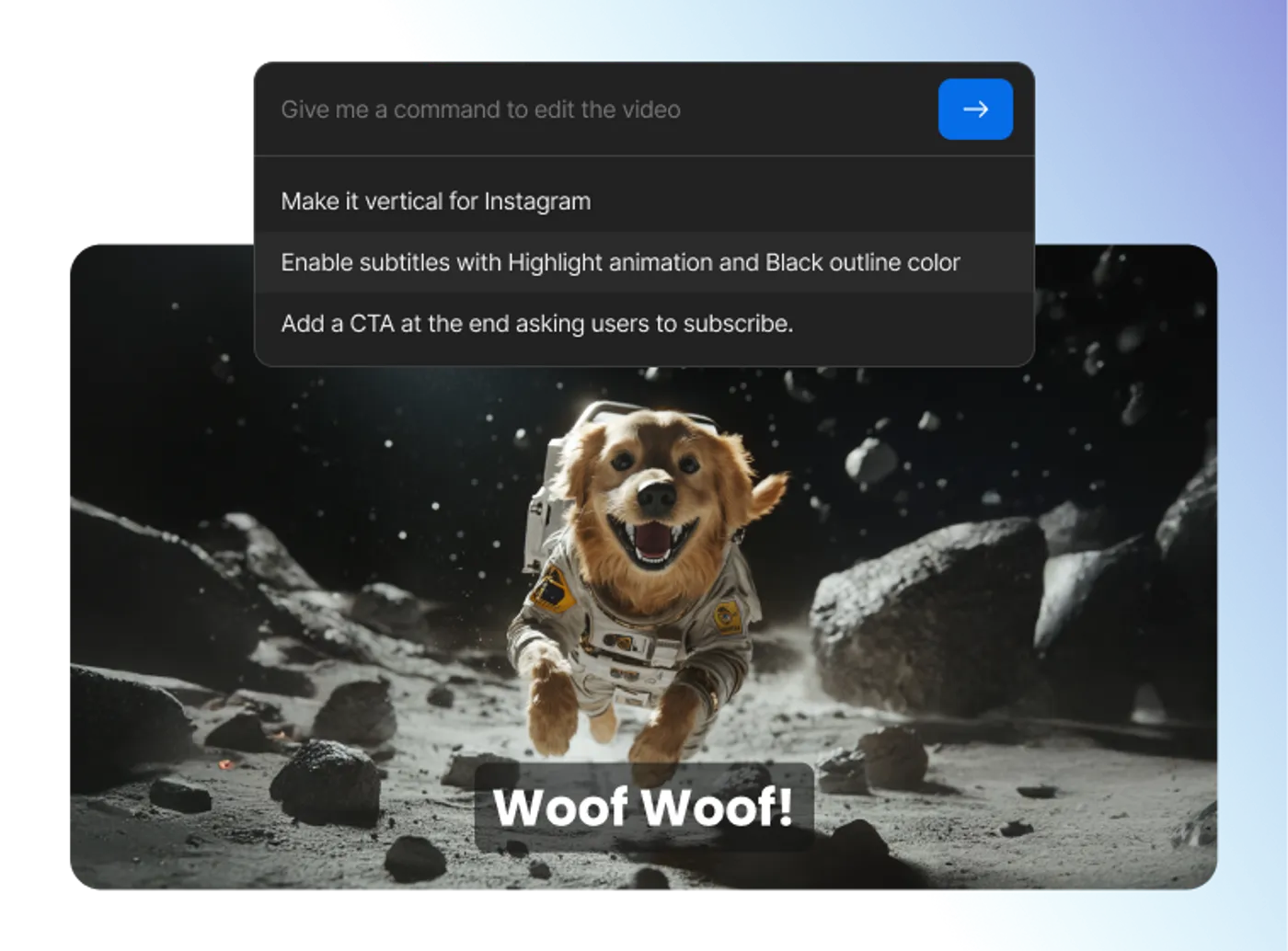
Many users make the mistake of using the chat interface to fix script errors after the video is generated. Typing requests to change phrasing often causes the AI to rewrite parts of the script you actually wanted to keep. This can break the pacing of your entire project.
Instead, you should utilize the dedicated script editing panel inside the dashboard. This interface allows you to view the generated text-to-speech draft line by line. Here, you can type direct modifications, delete unnecessary filler words, and correct pronunciation errors manually without triggering a full video regeneration.
Editing the text directly also ensures that your visuals remain locked to the specific sentences you choose. When you use the prompt chat to make edits, the AI frequently replaces perfectly good stock clips with new, unrelated assets because it interprets the request as a brand-new generation command.
Taking control of the script editor is particularly important when dealing with industry-specific terminology or brand names. The voice synthesis model might mispronounce unique words, which you can easily fix by phonetic spelling directly inside the script editing block.
Accepting Default AI Stock Media Choices
InVideo AI automatically matches your script with relevant video clips from its vast media library. However, the automated search algorithm sometimes selects literal or mismatched visuals for abstract concepts. Accepting these default clips without reviewing them makes your video look unprofessional and amateurish.
Reviewing and replacing mismatched stock footage is a crucial step in the polishing phase. You can open the media editor to search for alternative clips using specific keywords. The media panel allows you to preview different options and swap them into your timeline with a single click.
Another common issue is the repetition of similar visual clips within a short span of time. The AI might select the same stock character or setting for multiple scenes, which breaks the flow of your story. Manually diversifying your clips ensures that the visual progression remains engaging for the viewer.
You can also upload your own original footage to replace the generic stock media. Blending high-quality personal assets with selected premium stock footage gives your final video a unique identity that cannot be replicated by automated generators alone.
Ignoring Audio Controls and Voiceover Settings
Visuals are only half of the experience; poor audio choices can immediately ruin a video. Many creators accept the first voice avatar the AI generates, even if the accent, gender, or emotional tone does not match the subject matter. This leads to a robotic delivery that disconnects the viewer from the content.
The platform provides a variety of natural-sounding voice options. Choosing the correct voiceover avatar involves selecting the right accent, age profile, and delivery style to fit your message. A lighthearted travel vlog requires a completely different vocal energy than a serious financial update.
Additionally, the background music volume is frequently set too high, which drowns out the narrated voiceover. You must adjust the audio mix sliders to ensure that the background track supports the narrative rather than competing with it. A subtle music track enhances engagement, while loud music causes listener fatigue.
Be sure to check the pacing of the audio track as well. If the narration feels too hurried or contains long, unnatural silences, you can use the timeline editor to adjust the timing of the voiceover blocks relative to your background tracks.
When to Choose InVideo AI Versus Traditional Video Editors
Deciding between an automated tool and a traditional timeline editor depends on your specific production goals and timeline. Automated systems excel when you need to produce high volumes of content quickly, whereas manual editors offer pixel-perfect control over every transition and frame.
Let's compare how these two approaches handle key aspects of the creation process:
- Generation speed: AI tools create a rough draft in minutes, while traditional editors require hours of manual clip slicing and audio syncing.
- Creative control: Manual editing software allows you to design custom motion graphics and transitions, whereas automated platforms rely on pre-built templates and layout styles.
- Media sourcing: Automated tools have integrated libraries of premium stock, while traditional suites require you to find, download, and license assets independently.
- Computing power: Cloud-based generators run on remote servers, making them ideal for lower-spec laptops, while professional editing suites demand robust local hardware.
Which workflow should you pick for your projects? Choose an automated tool like InVideo AI if your primary goal is rapid output for content marketing, social media shorts, or informational channel formats where speed is critical. It is the ideal choice for small teams that lack dedicated video editors.
On the other hand, stick to traditional editing suites if you are producing highly customized commercial ads, narrative films, or brand videos that require unique visual effects. If you decide to go the automated route, make sure to read our detailed guide on InVideo AI Review: Pricing, Credits and Limitations to find the right subscription tier for your creative needs.
Frequently asked
As an Amazon Associate I earn from qualifying purchases. This does not affect the price you pay. Affiliate disclosure