Is InVideo AI Worth Paying For? Plan Value Explained
A close look at InVideo AI workflow, credit limitations, and voice generation features to help you decide if a paid subscription fits your budget.

Some links are affiliate links: we may earn a commission if you sign up or buy through them, at no extra cost to you.
On this page9 sections
- 1The short answer
- 2The Prompt Interface and Script Generation
- 3Step-by-Step Generation Workflow
- 4Understanding the Credit Dashboard and Limits
- 5Fine-Tuning Videos in the Timeline Editor
- 6Voice Cloning and Voiceover Settings
- 7Which Subscription Tier Should You Pick?
- 8How InVideo AI Compares to Traditional Editors
- 9Frequently asked
The short answer
- Paid tiers suit creators who publish short-form content regularly and need rapid automated video generation.
- The credit-based metering system means long-form video creators can consume their monthly allocation very quickly.
- Manual timeline adjustments and custom script edits are necessary to ensure the final output feels professional.
InVideo AI is worth paying for if you need to quickly produce short, script-heavy social media videos on a strict schedule and want to automate voiceovers, stock footage selection, and basic editing within a credit budget. The software handles the heavy lifting of raw drafting, which helps creators who produce volume over highly customized cinematic pieces.
For those weighing the transition from the free plan, understanding how the platform operates under paid accounts is critical. Our detailed InVideo AI Review: Pricing, Credits and Limitations breaks down the platform mechanics, but this guide will focus on whether the paid features justify the ongoing cost for your specific workflow.
Paid tiers replace the heavily watermarked, limited free exports with clean rendering, higher-quality voice options, and access to premium stock libraries. If your primary goal is to churn out content for social feeds, the subscription could pay for itself in hours saved.
The quick version
- Define your core concept
- Review the generated outline
- Customize the voiceover settings
- Swap unmatched media clips
- Export your final master
The Prompt Interface and Script Generation
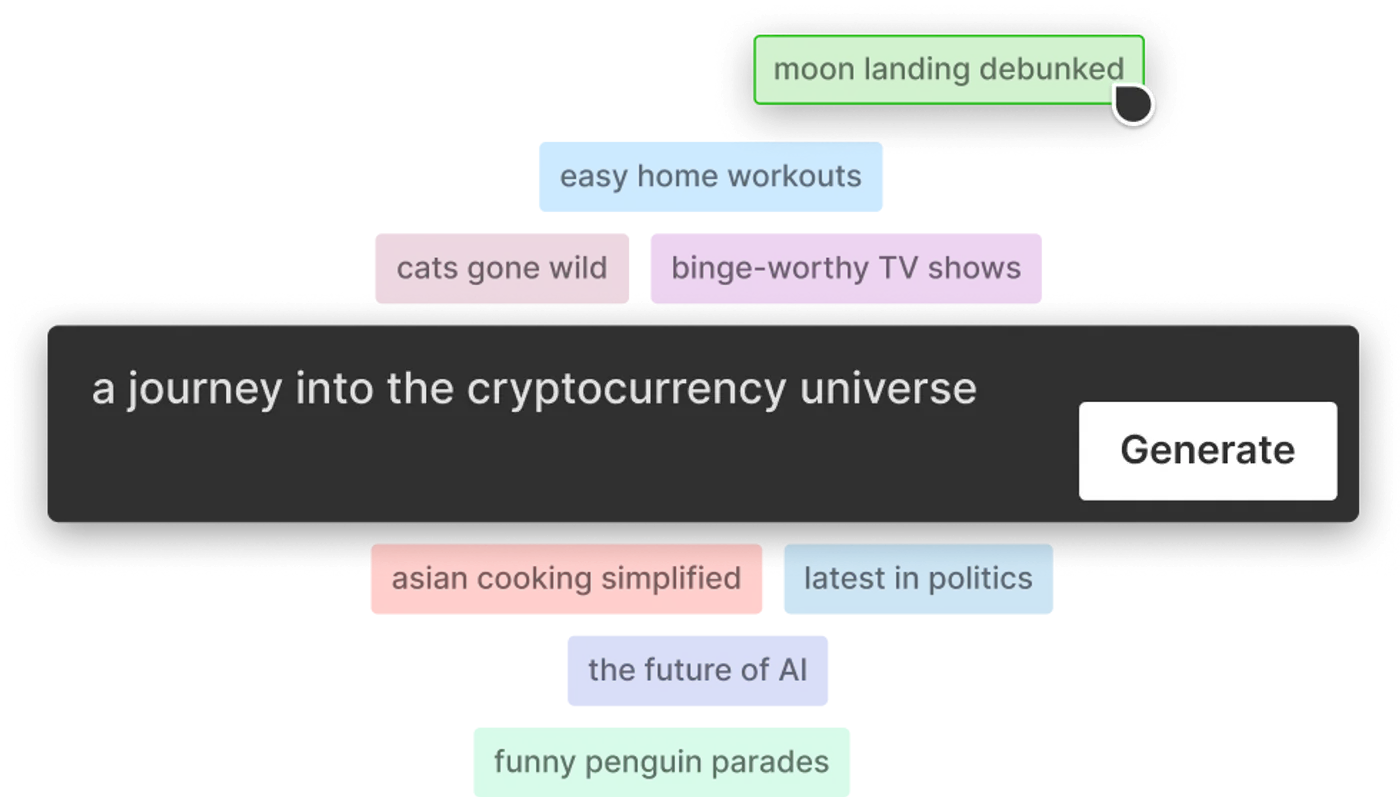
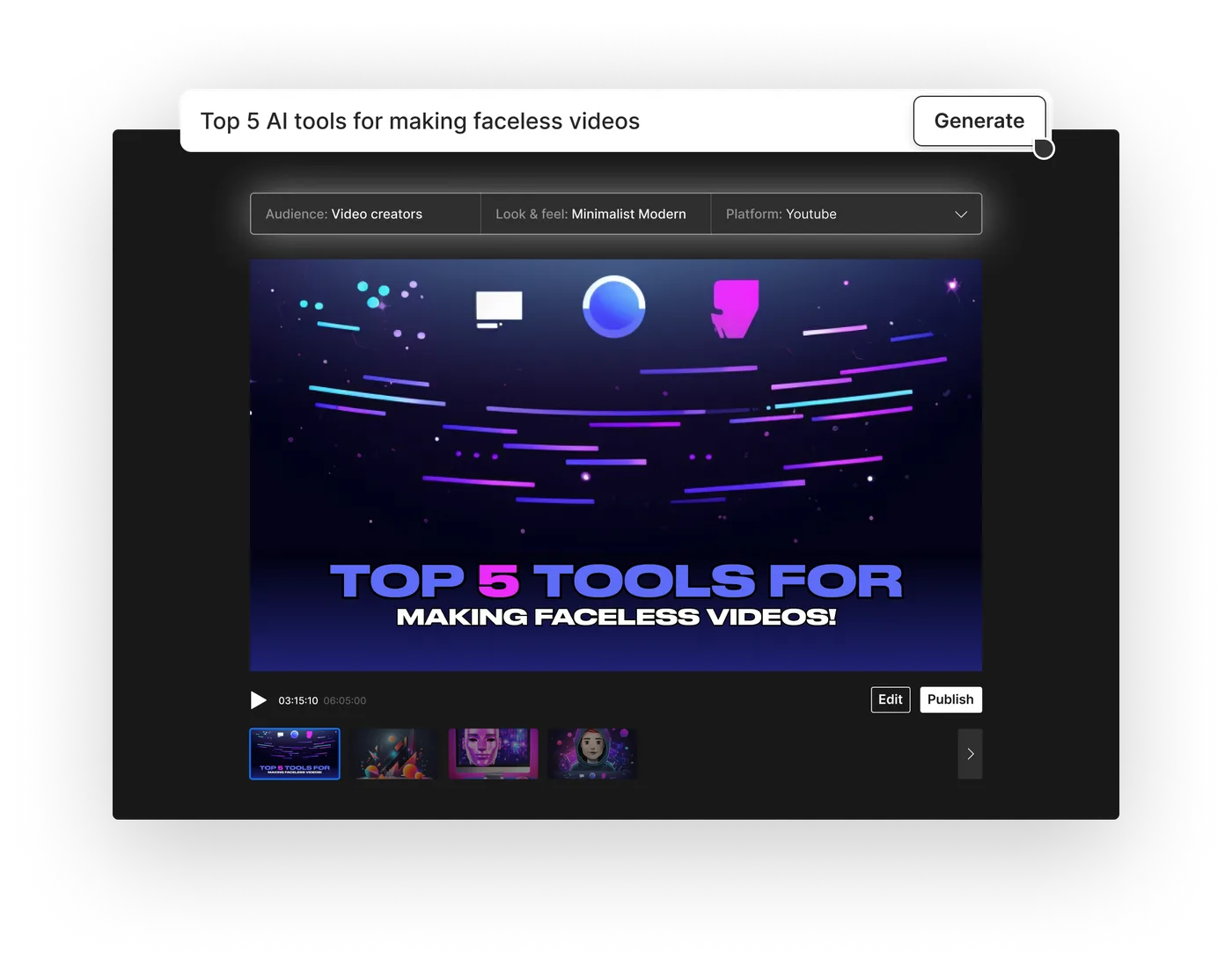
The journey starts with the main input dashboard. Users find a clean screen dominated by a text entry box where they describe their target video. This interface relies on `natural language prompting` to interpret creative briefs, target audiences, and desired tones without requiring complex timeline skills.
Behind this screen, the system processes your prompt to draft a complete script. Instead of immediately stitching clips together, the software generates a narrative structure first. Users can inspect this text, make adjustments to the pacing, or rewrite specific lines before any media is rendered, ensuring that refining the script draft remains a priority.
This screen also houses quick selectors for target audience and platform aspect ratios, such as vertical formats for social feeds or horizontal options for traditional players. Setting these parameters early prevents formatting errors during the automated editing phase.
Step-by-Step Generation Workflow
Navigating the creation process requires a methodical approach to prevent wasted resources. By following a structured sequence, creators can refine their concepts before finalizing the render.
- Define your core concept. Write a detailed prompt specifying the target audience, tone, and platforms.
- Review the generated outline. Inspect the initial script draft for factual accuracy and narrative flow before proceeding.
- Customize the voiceover settings. Select a pre-configured AI voice or apply a cloned voice to read the approved text.
- Swap unmatched media clips. Use the built-in search tool to replace any automatic stock selections that do not fit.
- Export your final master. Download the finished render once you are satisfied with the text overlays and transitions.
This structured approach minimizes the need for costly outline regenerations. Making edits in the early stages keeps your project organized and ensures that the final media aligns with your original vision.
Understanding the Credit Dashboard and Limits
The credit dashboard is the most critical screen for managing your subscription budget. Every action, from generating draft scenes to exporting finished files, draws from your monthly balance. Monitoring your credit usage ensures you do not run out of resources mid-project.
Understanding this `credit-based metering` system is vital because the free tier limits exports and applies heavy watermarks. When you upgrade to a paid tier, your account is credited with a set allocation that resets every billing cycle. For a comprehensive breakdown of these allowances, consult our InVideo AI Review: Pricing, Credits and Limitations.
Unused credits do not always roll over indefinitely, depending on your specific plan terms. Creators must calculate their monthly video output needs to decide whether a lower tier provides enough capacity or if a higher tier is necessary to support their publication schedule.
Fine-Tuning Videos in the Timeline Editor
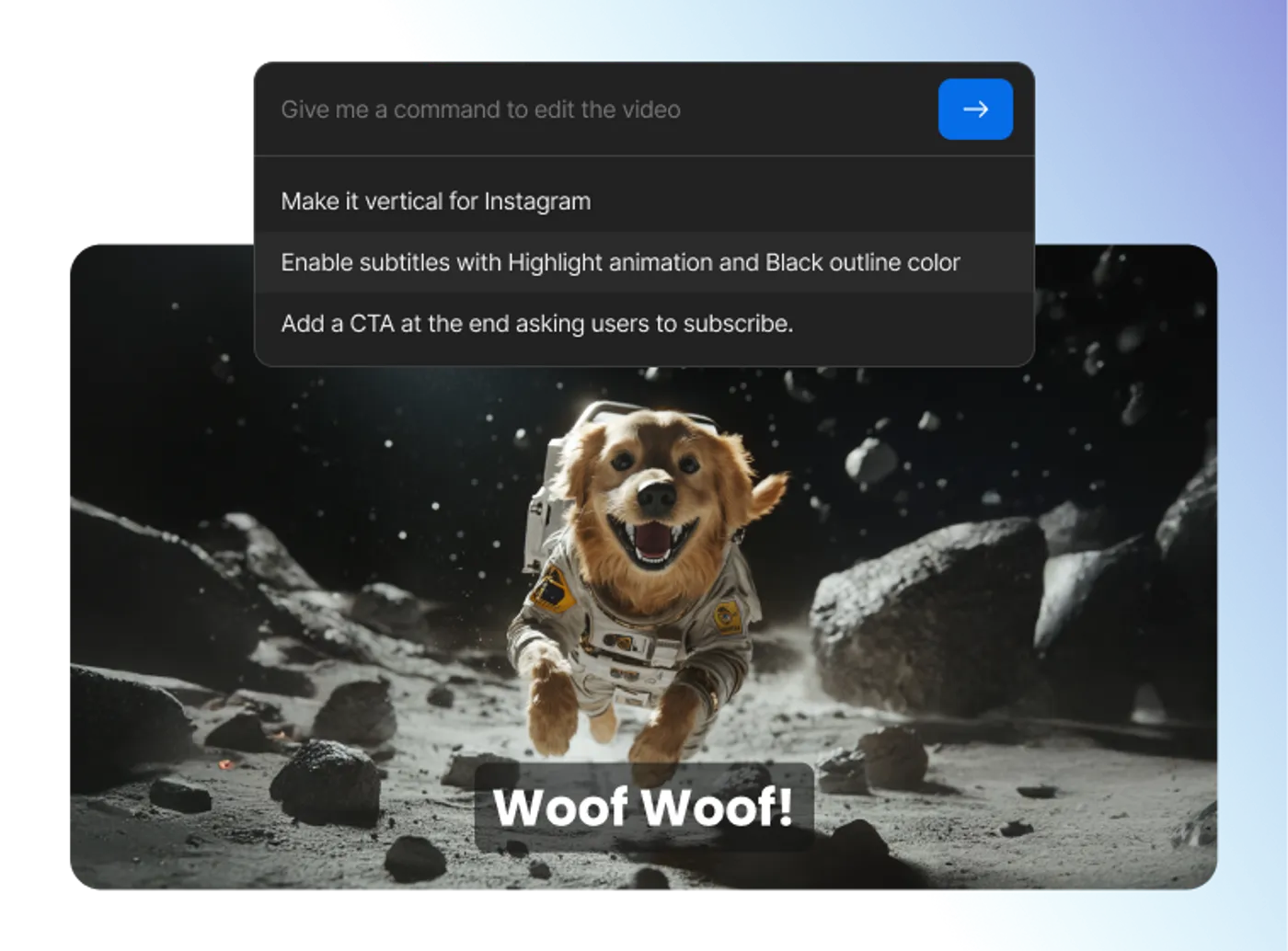
Once the initial draft is generated, users transition to the timeline editor screen. This workspace displays the video script on one side and the corresponding media clips on the other. It allows creators to make granular adjustments without starting from scratch.
The stock media library integrates millions of licensed clips and images directly into this interface. If an automatically selected clip feels generic, you can use the search bar to find a more relevant replacement. This screen also lets you upload custom brand assets to maintain visual consistency.
Adjusting text overlays and subtitle styles happens within this same workspace. Users can change fonts, modify colors, and reposition text blocks to match their brand guidelines. These manual refinements are often what separates a generic automated video from a professional production.

Voice Cloning and Voiceover Settings
The audio configuration screen handles voice generation, music selection, and sound effects. Paid users gain access to advanced `voice cloning technology`, allowing them to upload clean audio samples of their own voice to generate custom voiceovers.
For those who prefer pre-made options, the library contains dozens of professional voice models spanning different accents, age groups, and delivery styles. The software automatically syncs the chosen voiceover with the text on screen, adjusting clip durations to match the spoken words. This is particularly helpful when cloning your own voice to maintain brand continuity.
Background music tracks are automatically mixed to sit beneath the voiceover without overpowering it. Users can adjust these audio levels manually on the timeline to ensure that the narration remains clear and easy to understand.
Which Subscription Tier Should You Pick?
Deciding whether to invest in a paid subscription depends heavily on your production volume and editing workflow. The free plan is excellent for testing the interface and understanding the software's capabilities, but watermarked exports limit its professional utility.
The entry-level paid plan, often billed annually, is ideal for casual creators, solopreneurs, and small businesses producing a few short videos each week. It provides a moderate pool of credits that easily covers short-form content creation. When choosing the right subscription, consider how many minutes of video you need to render each month.
If you are managing multiple social channels or producing longer educational content, the higher-tier plan offers a much larger pool of credits. This tier provides a lower cost-per-credit ratio, making it the more economical choice for high-volume agencies and professional content teams.
How InVideo AI Compares to Traditional Editors
While automated tools simplify production, they serve a very different purpose than traditional video editing suites. Traditional editors offer complete creative control but require extensive manual work to trim clips, sync audio, and design graphics from scratch.
In contrast, this platform streamlines the workflow by generating drafts in minutes. However, it lacks the frame-by-frame precision and complex visual effects tools found in dedicated software. For creators who prioritize speed over highly customized cinematic grading, the automated approach is vastly superior.
Ultimately, the value depends on your workflow. If you enjoy spending hours tweaking keyframes and sound design, you may find the automated environment restrictive. But if you need to bypass the editing bottleneck to publish consistently, the trade-off in control is well worth the subscription.
Frequently asked
As an Amazon Associate I earn from qualifying purchases. This does not affect the price you pay. Affiliate disclosure