Is GetResponse Worth Paying For?
Determine if GetResponse fits your email marketing workflow by looking at its drag-and-drop builder, visual automation designer, and lead capture tools.

Some links are affiliate links: we may earn a commission if you sign up or buy through them, at no extra cost to you.
On this page8 sections
The short answer
- Automation features justify the cost for businesses building multi-step logic-based customer journeys.
- All-in-one tools eliminate extra subscriptions by combining emails, pages, and webinars together.
- Simple newsletter senders should look elsewhere as basic needs do not warrant premium tiers.
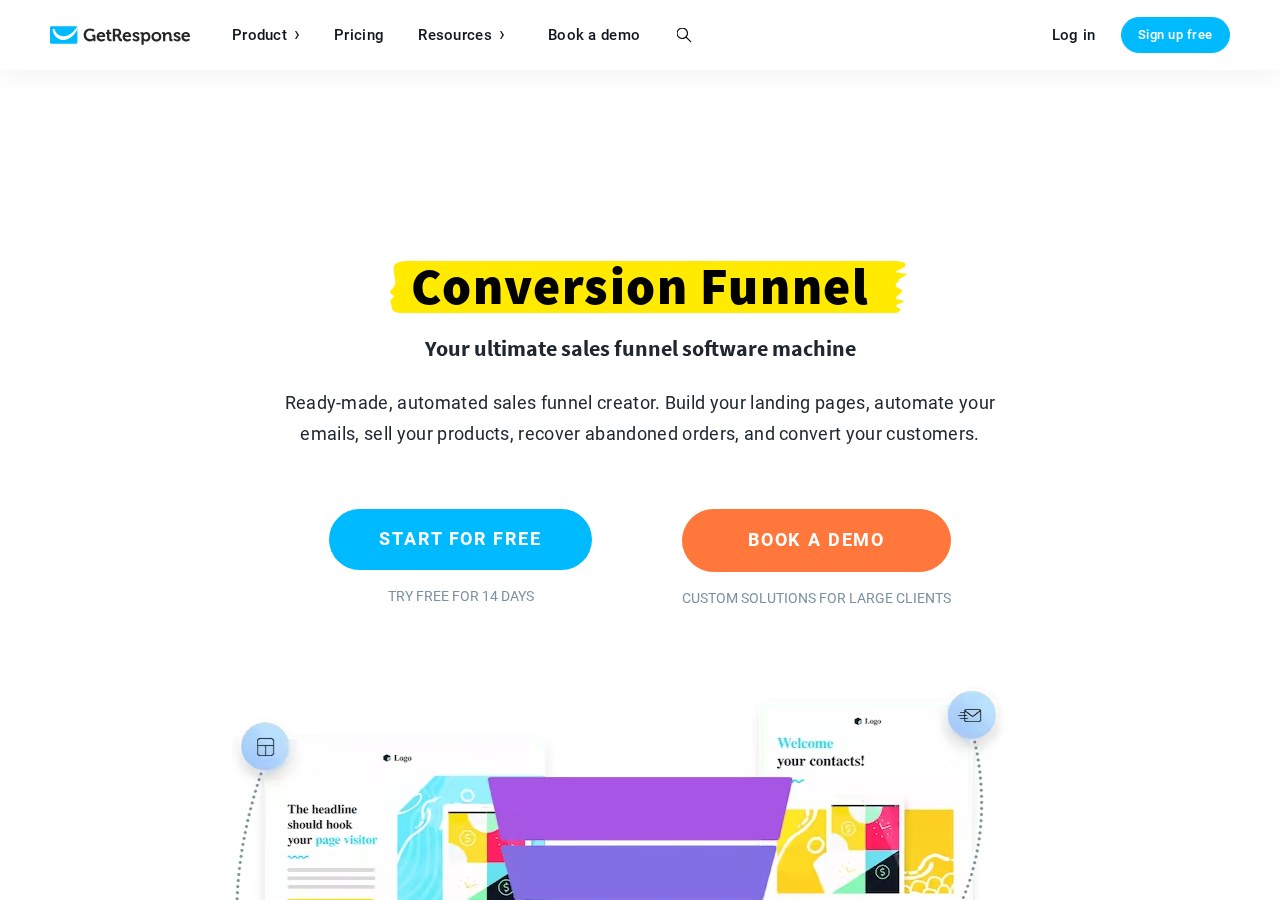
GetResponse is worth paying for if you need an all-in-one platform that combines email marketing with advanced automation and landing pages. However, those who only want simple newsletter sending will find cheaper, more focused alternatives.
Evaluating marketing software requires looking past basic email blasts. Modern campaigns demand complex customer journeys, precise segmentation, and reliable message delivery. If you are struggling to connect your separate form builders, email dispatchers, and analytics tools, consolidating into a single dashboard can save hours of administrative work.
In this explainer, we will analyze the key features that justify a paid subscription. We will look at how the visual builder handles complex workflows, how the landing page system performs, and who should actually buy a plan. To see where it sits against competitors, read our GetResponse Review for a deep dive into its capabilities.
The quick version
- Create your target contact list
- Draft your initial welcome messages
- Open the visual automation builder
- Link your trigger to a send
- Add a delay block for follow-ups
- Publish the workflow to start tracking
Crafting Messages in the Email Creator
The primary workspace for most users is the drag-and-drop email creator. When you initiate a new newsletter, the software presents a canvas where you assemble modules like text blocks, images, buttons, and social media links. Users can customize layout grids, adjusting padding and column widths without touching code. The interface lets you preview how the design renders on both desktop monitors and mobile screens.
For those managing dynamic content, the email creator allows you to show or hide specific blocks based on subscriber tags. This means a single campaign can display different product recommendations to wholesale buyers and retail shoppers. Setting up these conditions happens directly within the block settings panel, reducing the need to build separate campaigns for every audience segment.
The system also includes a dedicated HTML editor for developers who prefer importing custom code. However, utilizing the visual designer is generally faster for routine updates. If you want to compare how different subject lines or layouts perform, the built-in split-testing tool allows you to send variations to a small subset of your audience before dispatching the winner.
To understand the baseline value of these creation tools before committing your budget, you can consult our comprehensive GetResponse Review to see how its ease of use matches up against industry standards. Evaluating these layout tools early ensures you do not encounter unexpected formatting hurdles later on.
Coordinating Journeys in the Automation Builder
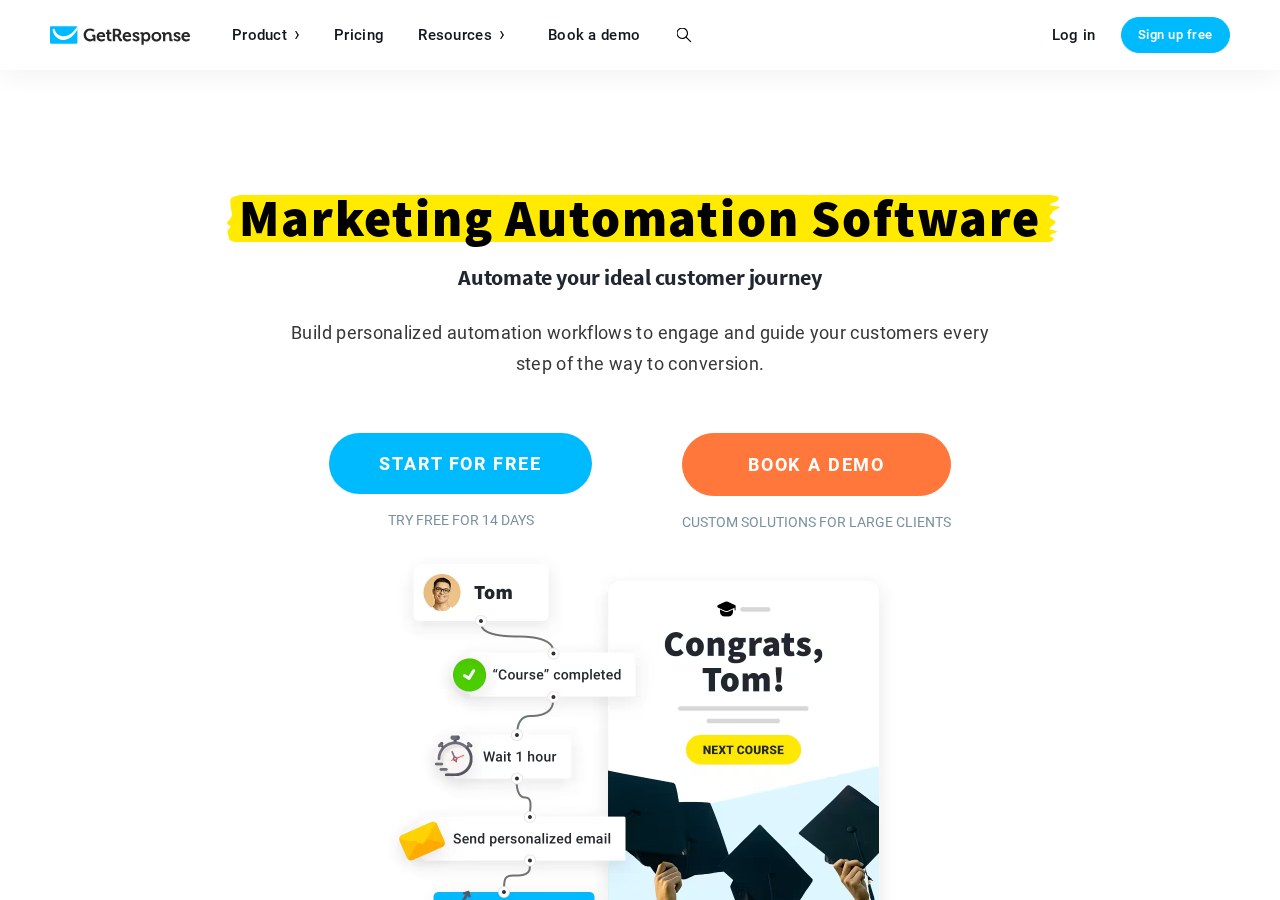
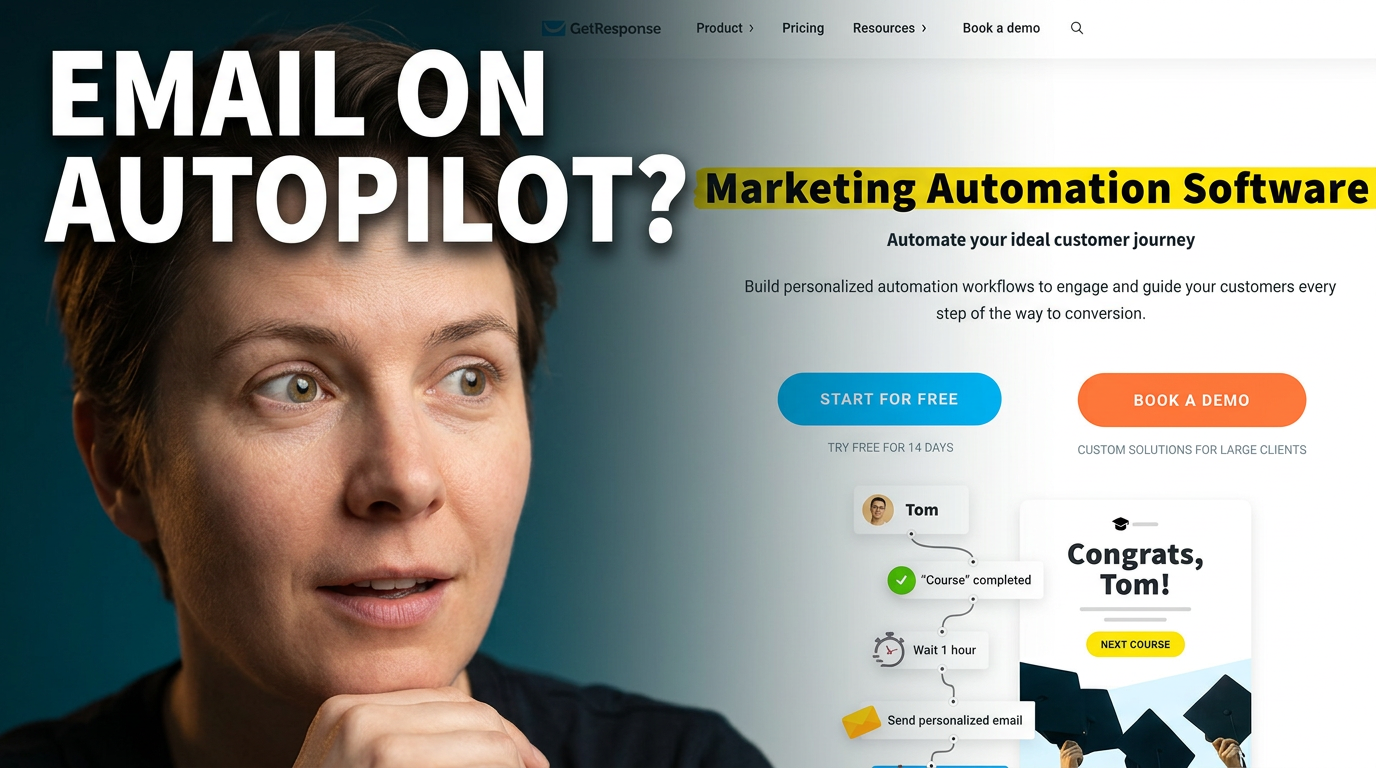
The visual automation builder is where the software moves beyond simple email dispatching. This canvas uses a node-based system where you drag triggers, actions, and conditions onto a large grid. A trigger might be a subscriber opening a specific message, clicking a link, or visiting a tracking-enabled URL on your main website.
Once a trigger is established, you connect it to actions, such as sending a follow-up message, applying a database tag, or moving the contact to a different list. The real power lies in the conditional logic blocks, which let the system wait a set number of days or check if a contact has made a purchase before proceeding down a specific workflow path.
Managing these paths visually prevents the confusion that often arises from trying to link dozens of independent, linear autoresponders. You can view exactly how many subscribers are currently sitting at each stage of a sequence, making it easy to spot where people are dropping off. This visualization is critical for optimizing lead nurturing sequences.
Setting up these automations requires some initial planning, but the visual interface keeps the process orderly. For a detailed breakdown of which subscription tiers include access to these visual workflows, check our GetResponse Review details to see how the limits apply to growing contact lists in your industry.
Designing High-Converting Landing Pages
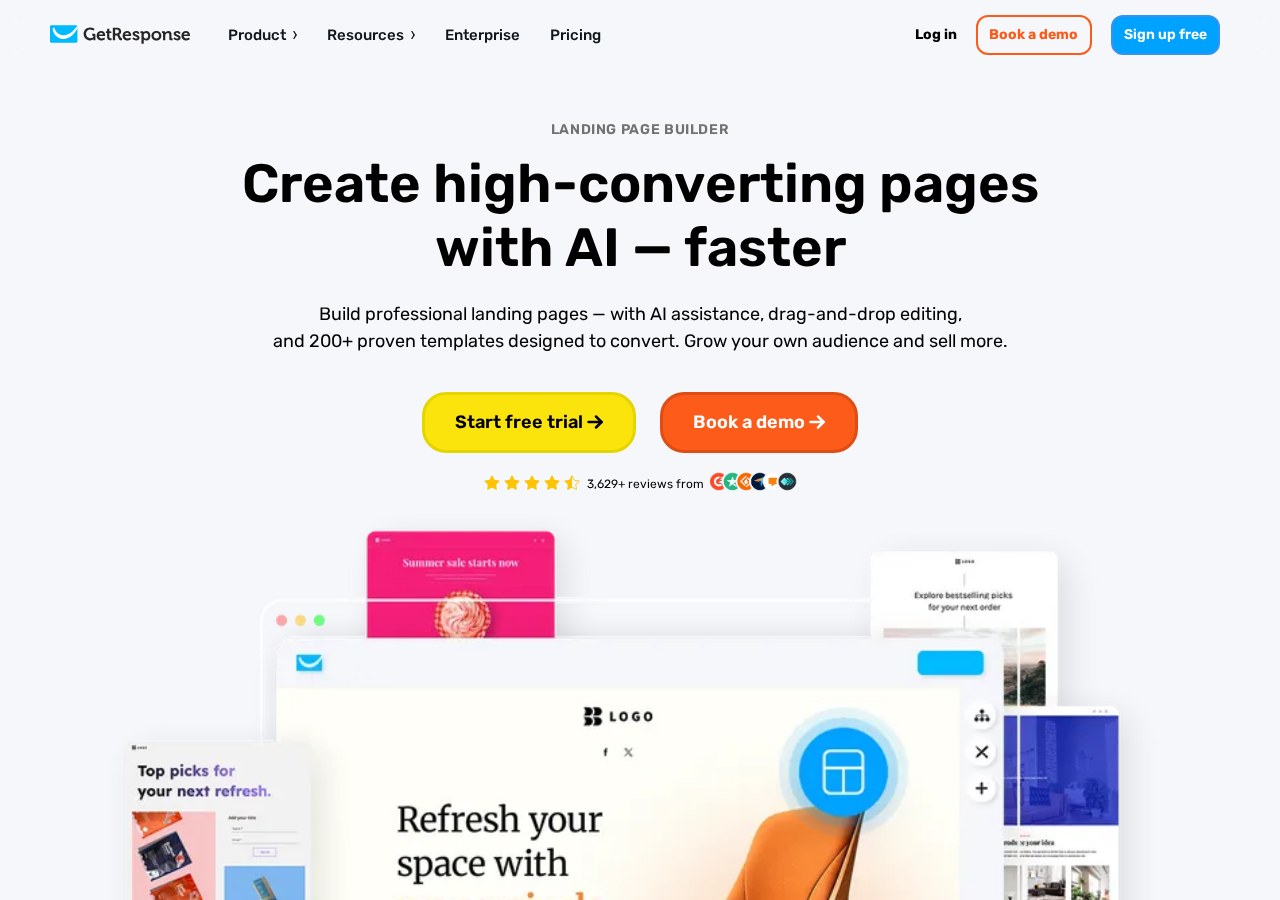
Instead of paying for a separate page-building tool, subscribers can use the integrated landing page creator to capture new leads. The builder operates similarly to the email editor, offering a drag-and-drop workspace optimized for web layouts. You can add signup forms, embedded video players, custom buttons, and countdown timers designed to encourage quick action.
One distinct benefit of this module is the direct integration with your main subscriber database. When a visitor submits a form on your landing page, their details transfer instantly to your chosen contact list, triggering any associated automated welcome sequences. This eliminates the need for third-party integrations that can break and cause lost leads.
The platform also lets you run split tests on your landing pages to compare different headlines or button colors. You can host these pages on a complimentary system domain or link your own custom domain name. This flexibility helps maintain consistent branding across your entire marketing funnel without requiring additional hosting expenses.
Because the landing page builder is bundled into the subscription, it serves as an excellent way to test new business ideas quickly. Instead of purchasing an expensive web-hosting package, you can spin up a simple page, direct some traffic to it, and gauge interest within an afternoon.
How to Set Up an Automated Welcome Sequence
Setting up an automated campaign is the best way to evaluate if the paid automation features fit your business model. The process begins inside the main dashboard, where you transition from basic list building to active customer engagement. Follow these straightforward steps to launch your first automated sequence.
- Create your target contact list. Navigate to the contact dashboard and establish a new list specifically for your incoming leads.
- Draft your initial welcome messages. Use the email creator to build the introductory emails that will be sent automatically to new subscribers.
- Open the visual automation builder. Choose to build a workflow from scratch and drag a 'Subscribed via Form' trigger onto the canvas.
- Link your trigger to a send action. Connect the subscription trigger block directly to your first drafted welcome email block.
- Add a delay block for follow-ups. Drag a 'Wait' action below the first email, set it to forty-eight hours, and then connect it to your second message block.
- Publish the workflow to start tracking. Activate your automation so that any new subscriber immediately enters the active sequence.
Once published, the sequence runs continuously in the background. You do not need to manually trigger emails or monitor signups daily, as the system handles the entire progression. This set-and-forget reliability is one of the main reasons growing businesses choose to pay for automation tools.
Managing Leads with Conversion Funnels
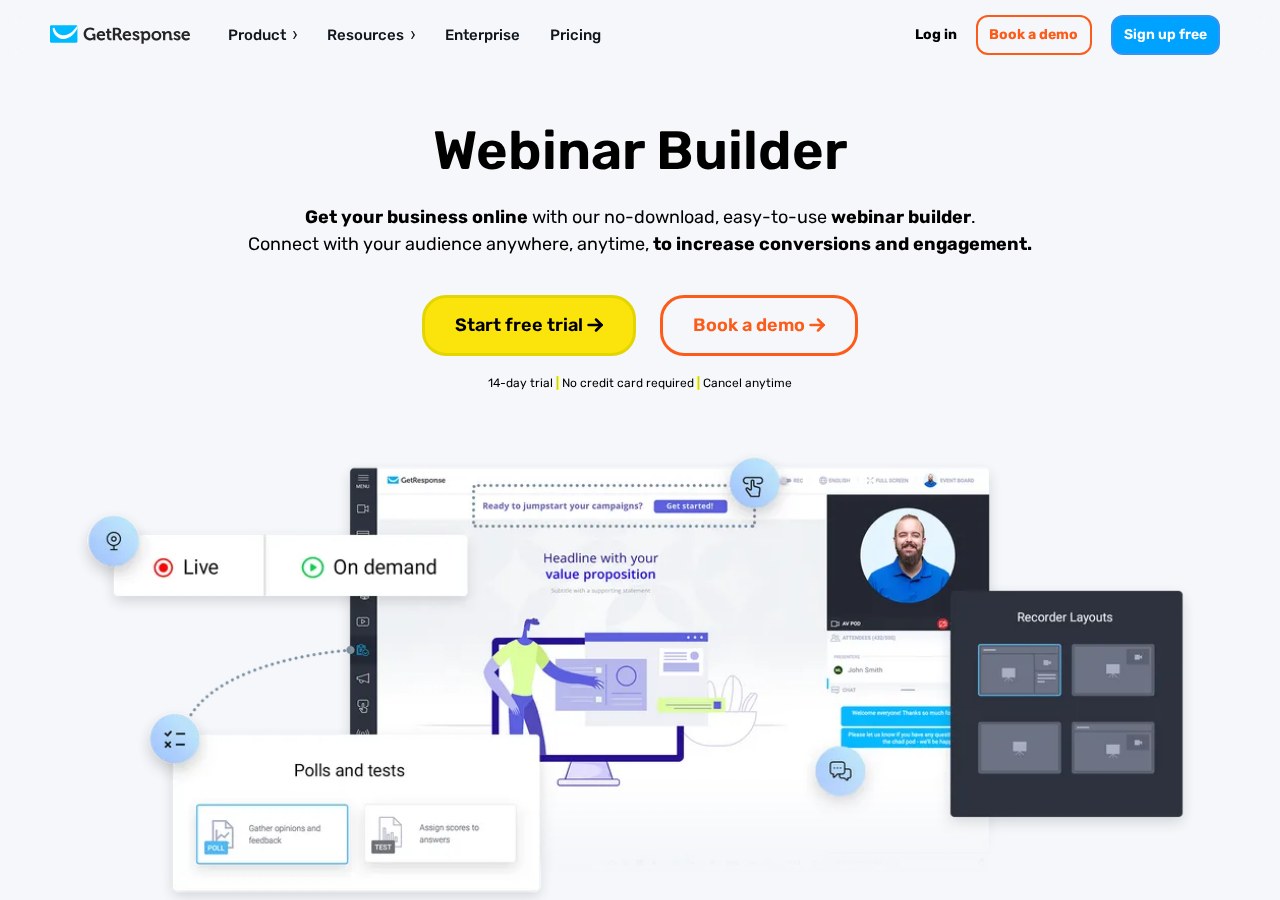
The Conversion Funnel tool provides a structured blueprint for selling products or services. This feature guides you through setting up a complete sales pipeline, from the initial traffic acquisition stage to the final purchase confirmation screen. It consolidates landing pages, automated emails, and payment processing into a single stream.
Within the funnel workspace, you can see a visual representation of your sales pipeline. The screen displays the percentage of visitors who clicked through your landing page, how many filled out the checkout form, and the final conversion rate. This unified view helps you isolate exactly where prospective buyers are abandoning the checkout process.
You can also integrate popular payment processors to handle transactions directly on your landing pages. This setup is particularly useful for creators selling digital downloads, online courses, or event tickets. Having payments and email marketing in one system simplifies your tech stack and ensures automated post-purchase emails go out instantly.
This consolidated approach is especially valuable for small teams without dedicated web developers. By managing the entire transaction flow inside one software program, you reduce the risk of technical glitches that often occur when syncing independent checkout systems and email lists.
Selecting the Right Plan for Your Goals
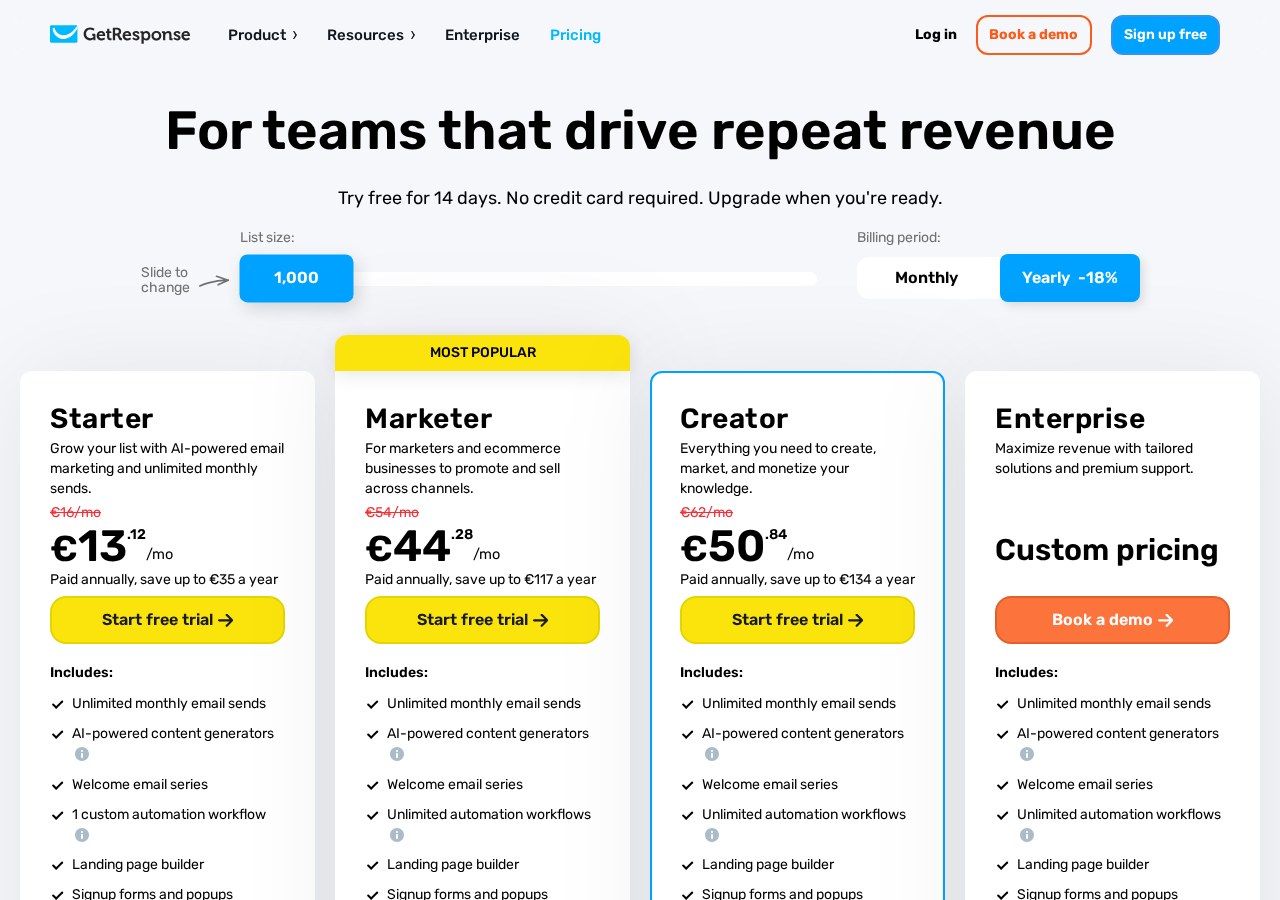
Deciding whether to pay for this software depends entirely on which features your marketing strategy requires. If your goal is simply to send a monthly update to a small list, a basic email plan will suffice, though you will miss out on advanced segmentation and list hygiene tools. For businesses focused on active customer acquisition, the middle tiers are much more appropriate.
Those who rely on automated lead nurturing, webinar hosting, or sales funnels will need to look at the advanced plans. While these tiers represent a larger investment, they replace multiple separate tools, often resulting in a lower overall monthly software bill. You can read more about how the distinct plan structures compare in our GetResponse Review guide.
Ultimately, you should choose a plan based on your current audience size and your automation needs. If you only send occasional updates, look for simpler tools. But if you want a centralized hub to build landing pages, automate customer paths, and monitor conversions, committing to a paid plan is a highly practical business decision.
Take the time to map out your list size projection before signing up. Because pricing plans scale as your subscriber database grows, choosing a tool that aligns with your realistic growth path ensures your marketing expenses remain sustainable over the long term.
Frequently asked
As an Amazon Associate I earn from qualifying purchases. This does not affect the price you pay. Affiliate disclosure