Is InVideo AI Safe and Private? What You Need to Know
Evaluate the safety, data privacy policies, and intellectual property terms of InVideo AI before uploading your personal media or business assets.

Some links are affiliate links: we may earn a commission if you sign up or buy through them, at no extra cost to you.
On this page9 sections
- 1The short answer
- 2The Prompt Input Box and Your Written Data
- 3The Media Upload Dashboard and Raw Files
- 4The Video Editor Interface and Script Generation
- 5Account Settings and Workspace Sharing Security
- 6AI Tools Comparison: Cloud AI vs. Local Offline Software
- 7How to Secure Your Account and Assets
- 8Which System Style Should You Pick?
- 9Frequently asked
The short answer
- InVideo AI uses standard encryption to protect your uploaded assets and account information.
- Prompts and uploaded media are processed on cloud servers, limiting privacy for sensitive business data.
- You generally own the generated videos, but licensing terms apply to underlying stock media.
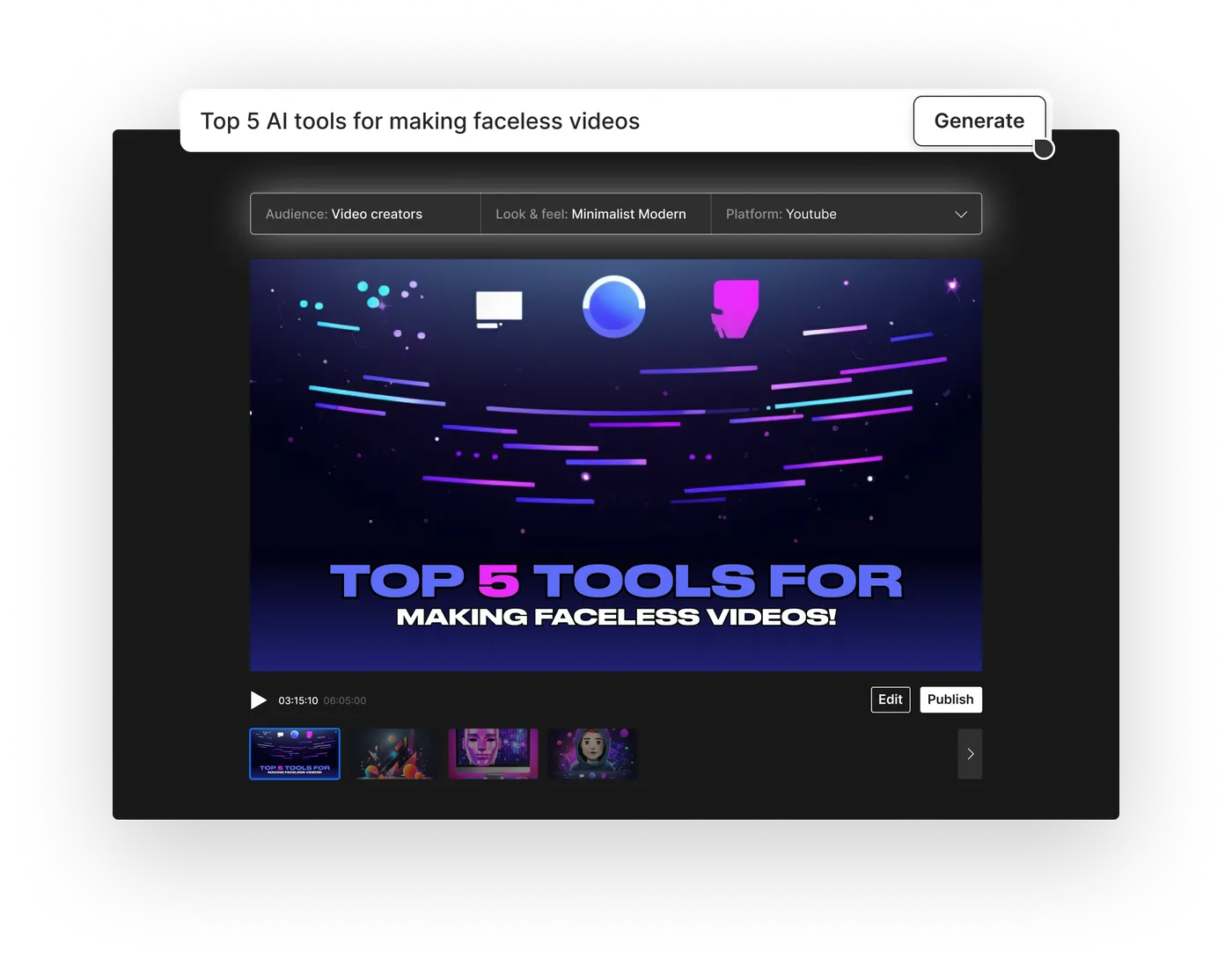
InVideo AI is safe to use from a technical security perspective, relying on standard data protection practices to guard your account. However, because your prompts and uploaded media are processed on cloud servers, the platform does not offer absolute privacy for sensitive or proprietary assets.
When using cloud-based generative AI systems, safety is not just about avoiding malware or virus threats. It also involves understanding who owns the final video, how your input text is processed, and whether your private uploads are used to train machine learning models.
For those deciding whether to integrate this tool into their creative workflow, assessing these variables is critical. If you are curious about how this fits into your budget or creative constraints, you can read our comprehensive InVideo AI Review: Pricing, Credits and Limitations to see how the overall package stacks up.
The quick version
- Enable multi-factor authentication
- Keep sensitive details out of prompts
- Clear your media library regularly
- Monitor connected social media channels
- Verify stock media licensing terms
The Prompt Input Box and Your Written Data
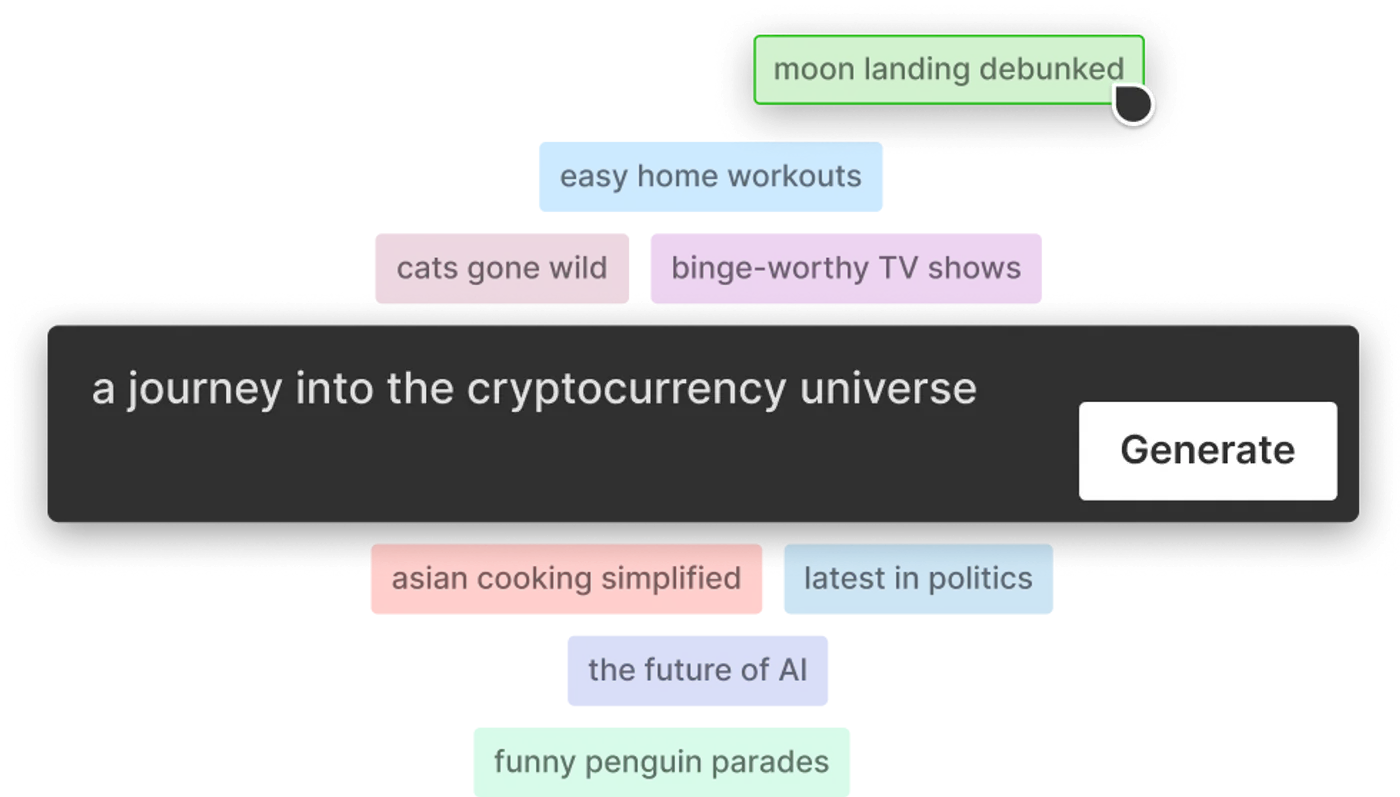
The initial step in using this application is entering a text prompt into the primary generation field. This text input acts as the blueprint for your entire video project. According to the developer's terms, any text command or script you type into this prompt box is transmitted to their servers for processing. This means that if you include highly confidential company details or personal identifiable information within the prompt, that data is shared with the system's cloud network.
Because the tool relies on third-party AI models to parse text and draft scripts, your input text may be processed by partner services. This workflow makes the prompt box a critical area where users must exercise caution. Standard practice is to avoid typing sensitive, proprietary, or unreleased product details directly into the generation field.
The system monitors these prompts to prevent violations of its safety guidelines. If a prompt contains prohibited language or sensitive topics, automated filters will flag and block the request. This mechanism keeps the platform safe from generating harmful media, but it also means human moderators or automated checkers can review flagged prompts, reducing the private nature of your input data.
The Media Upload Dashboard and Raw Files
Many creators do not rely solely on text prompts; they use the media upload dashboard to bring in their own voiceovers, images, and video clips. When you drag and drop files into this section, they are stored in your personal media library on the cloud. InVideo states that they use data encryption in transit and at rest to secure these files from unauthorized external access.
While your uploaded files are protected from outside hackers by standard security layers, they are still accessible within your active workspace. If you work in a team environment, anyone with access to your workspace can view and use these uploaded files. Consequently, organizational access control becomes a key factor in keeping your media secure.
Additionally, you must consider how these assets are managed long-term. Although the files remain yours, leaving them sitting in a cloud library indefinitely exposes them to standard cloud security risks. Regularly purging your media library of completed project files is an effective habit to maintain maximum privacy. To understand how media storage limitations affect your workflow over time, you can refer to our guide on InVideo AI Review: Pricing, Credits and Limitations.
The Video Editor Interface and Script Generation
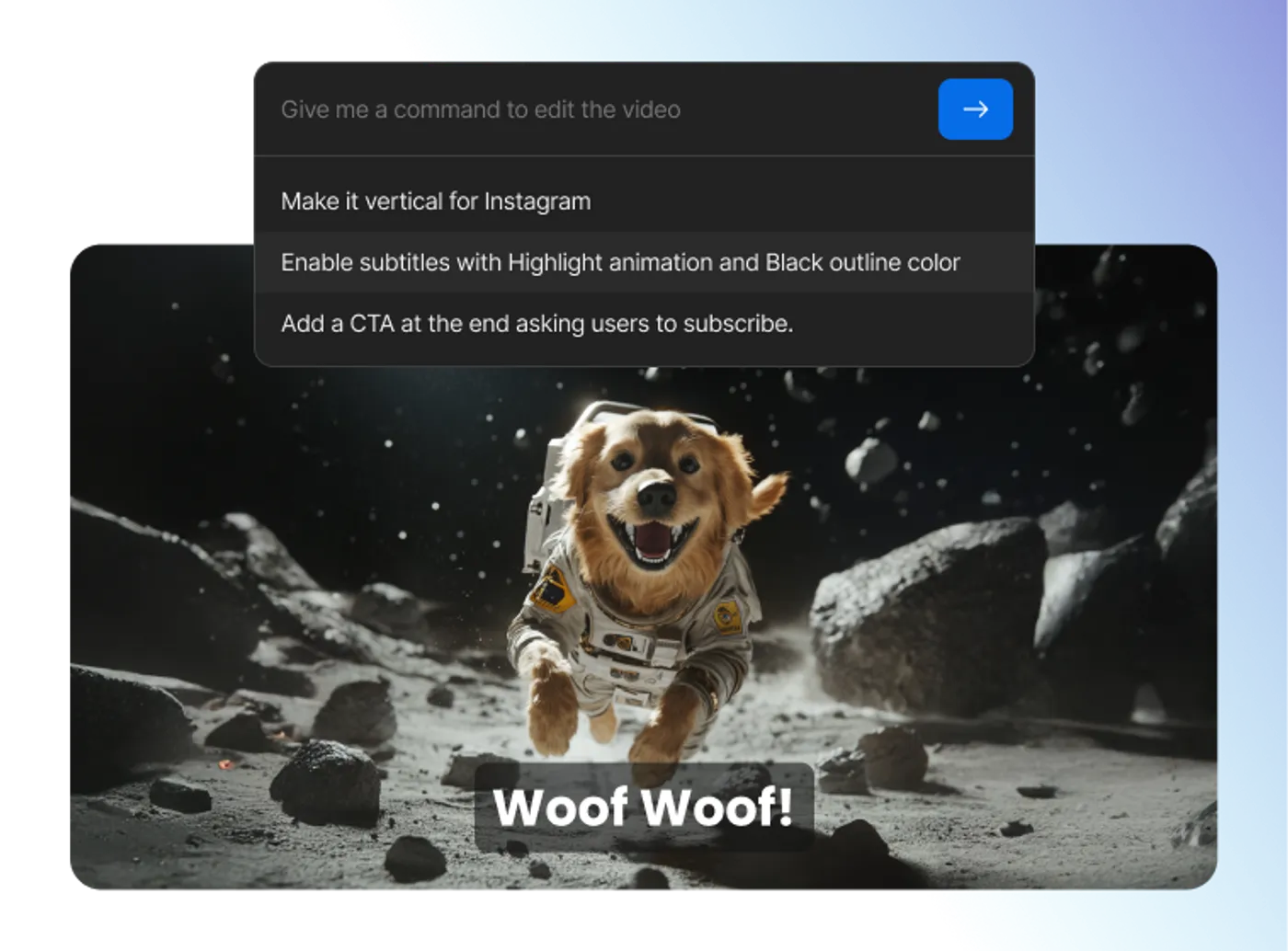
Once the system generates a draft, you are taken to the primary editing interface where you can alter the script, swap out media, and edit scenes. Within this workspace, the generated script represents your primary intellectual property. According to the platform's standard terms, users hold the rights to the videos they create using the service, provided they adhere to the licensing agreements.
However, the background music, voice clones, stock footage, and illustrations integrated by the AI are licensed from third-party libraries. This distinction is critical for creators who plan to monetize their videos on platforms like YouTube or social media. While you own the final compilation, you do not own the individual stock assets outright; you merely hold a license to use them within that specific video.
To avoid copyright claims, the platform provides automated tools to link your social accounts and clear copyright claims. Safe usage in this interface means understanding these licensing boundaries so you do not run into legal issues when publishing your rendered outputs.
Account Settings and Workspace Sharing Security
The account settings panel controls who has access to your generation history, active projects, and billing credentials. When inviting collaborators or sharing workspace links, safety depends heavily on user-managed permissions. Creating weak passwords or sharing login details directly compromises the safety of your entire video production suite.
The platform supports team collaboration, allowing multiple users to edit the same project. While this increases productivity, it also means that your project files, rendering history, and billing structures are visible to invited team members. Managing user roles carefully within the settings dashboard is the primary defense against internal security leaks.
Moreover, linking external social media accounts or storage drives within your profile introduces additional integrations. Each linked service creates a pathway that requires authorization. Ensuring you regularly audit these integrations and revoke permissions for tools you no longer use is essential for maintaining a tight security perimeter.

AI Tools Comparison: Cloud AI vs. Local Offline Software
Understanding whether to use a cloud-based generative AI platform or a traditional offline video editor depends heavily on your specific privacy requirements. While generative web applications offer rapid automated creation, local software provides total control over your raw data.
Here is how these two software paradigms compare across key operational aspects:
- Data Processing: Cloud AI tools process all prompts and media on remote web servers, whereas local editors handle all video rendering and file storage directly on your physical computer.
- Asset Security: Cloud-based creation requires uploading raw video files to online databases, while offline software keeps your proprietary assets completely isolated from the internet.
- Creative Speed: Web-based generative platforms can build an entire video from a simple text prompt in minutes, whereas local editors require manual assembly, timing, and asset sourcing.
- Collaboration: Cloud systems allow instant real-time sharing and team workspaces, while local software requires manually exporting and transferring project files to collaborators.
Choosing between these methods is a balancing act between the speed of automated workflows and the absolute privacy of offline processing. If you work with highly sensitive corporate documents or under strict non-disclosure agreements, traditional offline video editing software remains the safer option.
How to Secure Your Account and Assets
If you decide to proceed with using this web application for your video creation, following specific security protocols can minimize your exposure to data leaks. Implementing strong digital hygiene ensures that your creative workspace remains protected.
Follow these essential steps to maximize your security while using the platform:
- Enable multi-factor authentication. Always activate the highest level of login security available in your account settings to prevent unauthorized access.
- Keep sensitive details out of prompts. Never input proprietary code, unreleased product names, or private personal information into the text prompt field.
- Clear your media library regularly. Delete raw files, voiceovers, and test images from your online storage once a video project is fully rendered and downloaded.
- Monitor connected social media channels. Review which third-party accounts are linked to your profile and disconnect any platforms you do not actively use.
- Verify stock media licensing terms. Check the current terms of use for stock music and video clips before publishing rendered files to public monetization channels.
These proactive measures help isolate your creative workspace and protect your valuable assets from standard online risks. To learn more about managing your generation limits and storage options, consult our InVideo AI Review: Pricing, Credits and Limitations.
Which System Style Should You Pick?
Deciding whether to adopt a cloud-based generative system like InVideo AI or stick with traditional desktop tools comes down to your primary business priorities. If your focus is on rapid content generation, scaling social media channels, and working with standard stock media, the cloud-based AI route offers unmatched speed and efficiency. The built-in protection measures are robust enough for standard content creation, marketing agencies, and independent creators.
Conversely, if you are a corporate video editor handling pre-release product footage, highly sensitive client documentation, or work under rigid privacy compliance mandates, traditional desktop-based editing tools are the logical choice. The trade-off is that offline editing requires significant manual labor and technical expertise to achieve comparable results, but it guarantees that your assets never leave your local storage drive.
By matching your security requirements to the appropriate tool, you can build a pipeline that protects your intellectual assets while maximizing your creative output. Ensure you evaluate your tolerance for cloud processing before committing your entire media workflow to an online service.
Frequently asked
Some links are affiliate links: we may earn a commission if you sign up or buy through them, at no extra cost to you. Affiliate disclosure