Is OpusClip Free? What the Free Plan Really Includes
OpusClip offers a limited free trial rather than a permanent free plan. Here is how the credits, watermarks, and editing features work before you sign up.
Some links are affiliate links: we may earn a commission if you sign up or buy through them, at no extra cost to you.
On this page8 sections
The short answer
- OpusClip offers a free trial with a set package of rendering credits rather than a permanent free plan.
- Free trial exports carry a visible watermark and are restricted to standard definition video resolutions.
- Once trial credits expire, you cannot generate new clips without upgrading to a paid subscription tier.
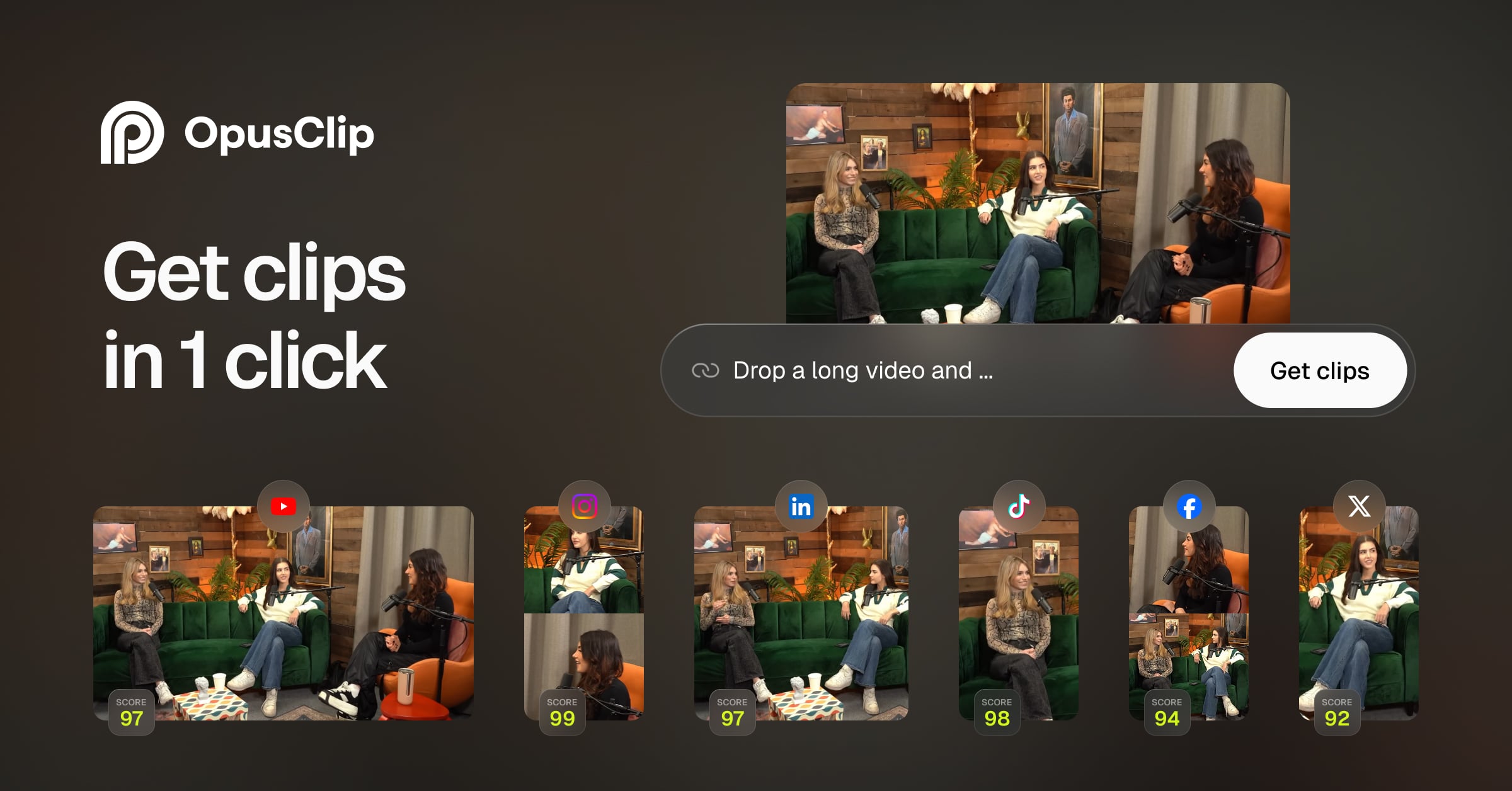
Yes, OpusClip has a free trial that lets you test its AI video clipping features, but it does not offer a permanently unrestricted free account. Once your initial free trial credits are exhausted, you must upgrade to a paid subscription to continue exporting new clips. This system means that creators cannot rely on the platform indefinitely without budget allocation. The free tier serves primarily as a hands-off evaluation tool rather than a long-term production solution. Understanding how these credits work is essential before uploading your long-form footage. The platform uses a specific allocation system that decodes your video length into processing minutes, meaning a single upload can consume a large portion of your free allowance. To help you decide if the free tier fits your workflow, we break down the limitations of the trial, what happens when your credits expire, and how the free version compares to the paid tiers. For a broader look at the platform's value, check out our OpusClip Review 2026: Pricing, Credits and Who It's For.
Watch it in action
The Initial Upload Screen and Trial Credits
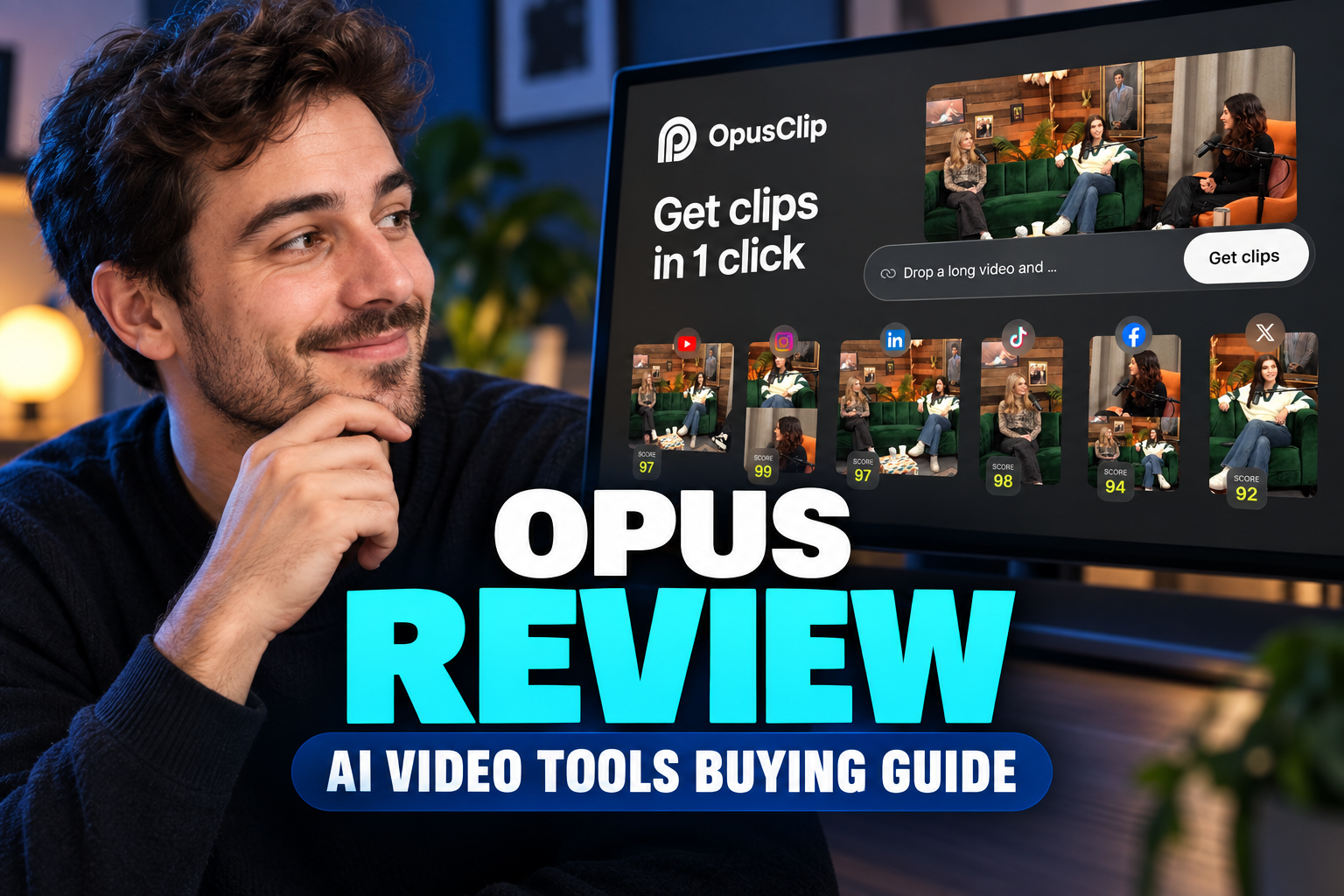
When you first sign up and access the dashboard, you are greeted by the main upload interface. This screen features a prominent drag-and-drop area where you can upload local video files or paste links from external video hosting platforms. The system immediately calculates how many minutes of video you are attempting to process and compares this against your remaining balance. These processing minutes are tracked via render credits, which represent the actual duration of the source footage you upload, not the length of the short clips you export. If you upload a thirty-minute video, thirty credits are deducted from your balance, regardless of whether the AI finds ten viral clips or none at all. This distinction catches many new users off guard, as they expect credits to be billed only for the final output. On the free tier, your credit balance is strictly capped and does not automatically replenish. This initial allocation is meant to give you a clear picture of how the artificial intelligence parses long-form talking-head videos, extracts key moments, and reframes them for vertical formats. Once this balance hits zero, the upload portal locks, prompting you to select a paid plan to continue using the processing engine.
Editing with AI Virality Scores and Layouts
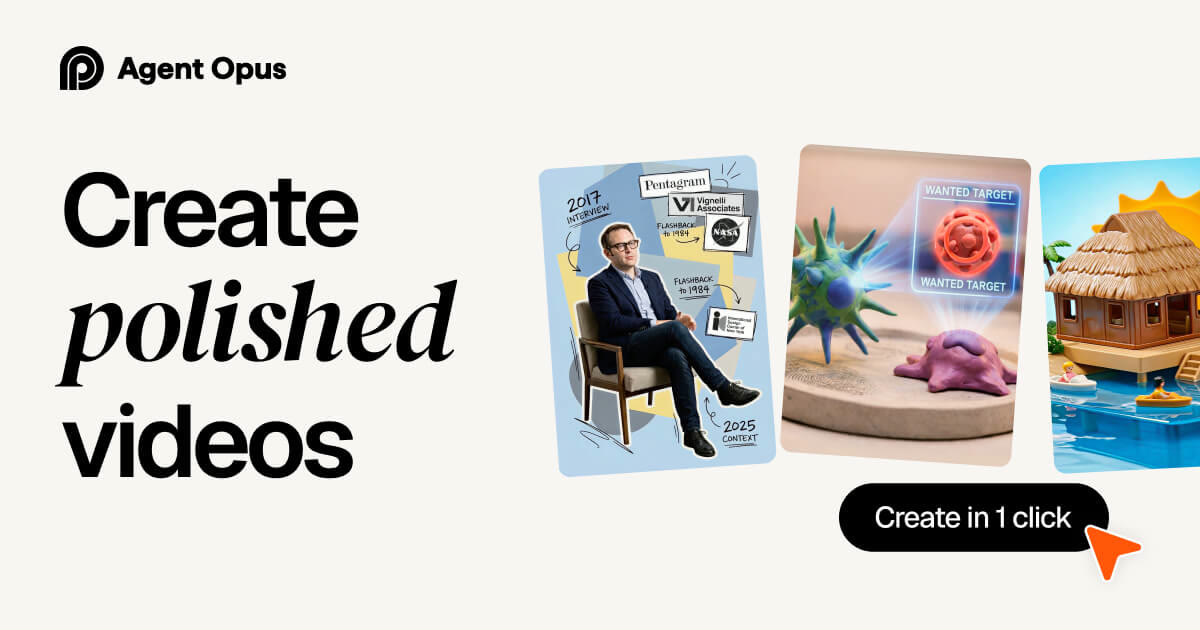
Once the processing engine finishes analyzing your uploaded video, you are redirected to the clip curation dashboard. This workspace displays a list of generated short clips on the left side, each accompanied by an AI-generated virality score and a brief explanation of why the clip was chosen. The center of the screen houses the video preview player, allowing you to watch the reframed footage. The editing interface on the free tier includes access to basic templates and layout options. You can choose how the AI frames the speaker, opting for single-speaker focus, split-screen layouts, or active-speaker tracking. However, advanced customization options, such as uploading custom fonts or saving personalized brand kits, are restricted or entirely unavailable on the free trial. The right side of the editor displays the interactive transcript, where you can modify the text, adjust caption timing, and change word styling. The platform uses auto-captioning to overlay kinetic text onto your vertical video. While you can edit these captions manually on the free plan, you are limited to the built-in library of default fonts and colors, which may not perfectly align with your existing visual branding.
How to Export Your First Free Clip
Navigating the export process requires careful attention to your remaining credit balance and export settings. To help you navigate this workflow smoothly, follow these straightforward steps to prepare and download your first vertical clip using the free trial tools. 1. Paste your video link. Enter a compatible video URL into the main dashboard input box to begin. 2. Set your clip parameters. Choose your preferred target length options before initiating processing. 3. Review the curated list. Browse through the generated clips and select the one with the highest virality score. 4. Customize your visual layout. Adjust the speaker crop box and choose a standard caption template. 5. Click the export button. Select the standard export option to render the video file directly. After clicking export, the rendering queue processes your video. Because the free tier shares processing servers with paid users, your rendering time may be slower during peak hours. Once complete, the download button becomes active, allowing you to save the MP4 file to your device.
Watermark and Resolution Restrictions on the Free Plan
The most visible limitation of the free trial is the application of a permanent OpusClip watermark on free exports. This logo is overlaid onto your final video, typically near the top or corner of the frame. While this watermark does not obscure the main subject of your video, it makes the footage less suitable for professional portfolios or corporate social media accounts. In addition to the visual watermark, free users face restrictions on output quality. The rendering engine limits free exports to standard high-definition resolutions, such as 720p or 1080p, depending on current server demand and promotional trial structures. Paid users, by contrast, have access to high-definition rendering pipelines that produce cleaner, sharper visuals suitable for modern high-resolution displays. These quality and branding restrictions are designed to encourage creators to transition to paid tiers. If you plan to distribute your clips across professional networks or client projects, the watermark can undermine your credibility. For creators testing the workflow or publishing to casual personal channels, however, the standard definition output and watermark may be acceptable compromises during the trial period.
Paid vs. Free Plan Feature Comparison
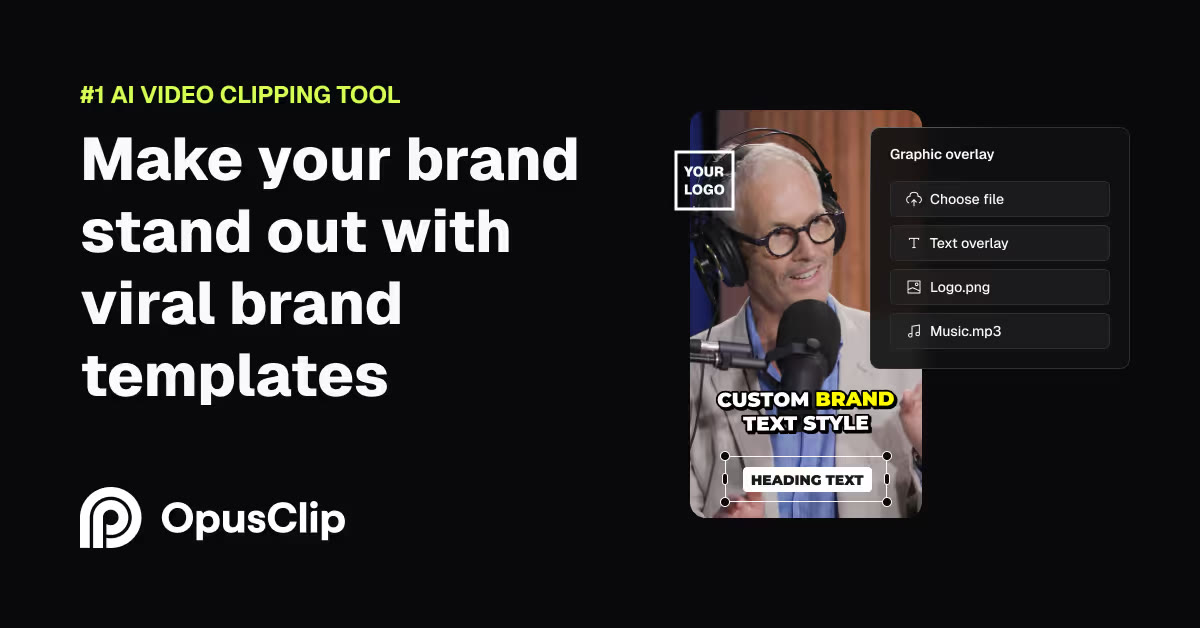
Choosing between the trial tier and a paid subscription depends heavily on your production volume and branding requirements. To clarify what you lose by staying on the free tier, let us look at the distinct differences between these options across several operational aspects. - Watermarks: Free exports include a prominent brand logo, whereas paid plans offer completely clean, watermark-free video downloads. - Video Resolution: Free outputs are restricted to lower standard resolutions, while paid plans enable high-definition exports up to full quality. - Processing Priority: Free users share standard rendering pipelines, whereas paid subscribers receive fast-track processing queue priority. - Brand Customization: Free accounts use default template layouts, while paid accounts allow custom fonts, brand colors, and asset uploads. - Auto-Reframe Control: Free plans utilize basic automatic cropping, whereas paid tiers offer advanced multi-speaker and manual cropping tools. These differences showcase that the limits of the free tier are structural, affecting both the cosmetic look of your final videos and the speed of your editing workflow. While the core AI engine performs identically on both tiers, the export boundaries make the free version a testing ground rather than a permanent workspace.
Which Subscription Tier Should You Choose?
When deciding on choosing the right plan, assess your weekly output and professional goals. If you are a hobbyist or individual creator experimenting with short-form content for the first time, the free trial is excellent for learning the basic mechanics of AI reframing and subtitle generation. It lets you practice editing without making a financial commitment. For professional social media managers, marketing agencies, or active content creators who publish multiple short clips daily, upgrading to a paid tier is virtually necessary. The removal of the watermark alone is crucial for maintaining brand authority, while fast-track rendering queues and higher resolution exports save hours of production time every week. Ultimately, if your workflow demands consistent, clean, and high-resolution vertical video delivery, you should pick a paid plan that offers monthly recurring credits. If you are still unsure of how the platform fits into your overall software budget, read our detailed OpusClip Review 2026: Pricing, Credits and Who It's For to compare features, processing credits, and alternative tools in the market.
Frequently asked
As an Amazon Associate I earn from qualifying purchases. This does not affect the price you pay. Affiliate disclosure