Is VEED Worth Paying For? How to Choose the Right Plan
Decide if a paid VEED subscription fits your video workflow by looking at watermark rules, AI translation limits, and export quality.

Some links are affiliate links: we may earn a commission if you sign up or buy through them, at no extra cost to you.
On this page8 sections
- 1The short answer
- 2The Impact of Free Tier Limitations and Watermarks
- 3Managing AI Subtitle and Translation Credits
- 4How to Configure a Paid Project for Clean Export
- 5Comparing Starter and Pro Workflows
- 6Which Subscription Plan Should You Pick?
- 7Evaluating Alternatives to the Paid Ecosystem
- 8Frequently asked
The short answer
- Paid tiers remove the visible watermark, unlocking professional-looking high-definition exports for social media channels.
- Subtitle generation and automated translation use a monthly credit allocation that varies by subscription tier.
- Heavy team collaboration and custom brand kits require upgrading beyond the entry-level paid subscription tier.
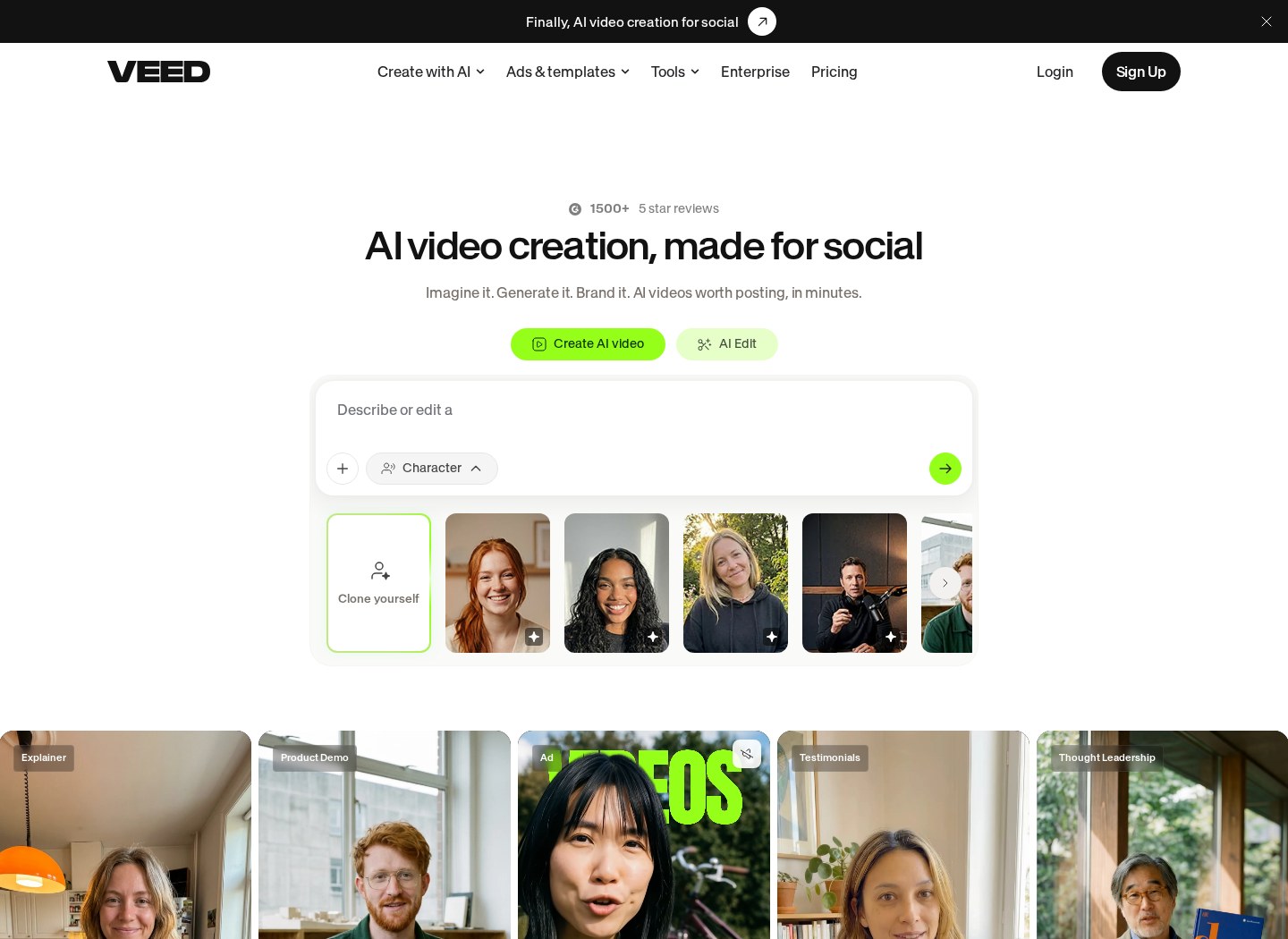
VEED is worth paying for if you regularly create short-form videos and need automated subtitles, clean templates, and fast exports without watermarks. If you only edit casual videos occasionally, the restricted free plan will suffice despite its visual limitations.
For professional creators, social media managers, and businesses, the constraints of the unpaid tier present significant hurdles. Standard exports on the free tier feature a prominent company watermark, capping video resolution at standard high definition and limiting the overall duration of your project timeline.
Upgrading to a paid account resolves these visual barriers, providing cleaner exports, advanced subtitle styles, and automated speech-to-text tools. To understand how these changes impact your daily production, you can read our VEED Review 2026: Pricing, Free Plan and Who It's For for an in-depth breakdown of features.
Watch it in action
The quick version
- Import your master footage
- Clean the audio track
- Generate automated captions
- Style the text layout
- Configure the export parameters
- Initiate the cloud render
The Impact of Free Tier Limitations and Watermarks
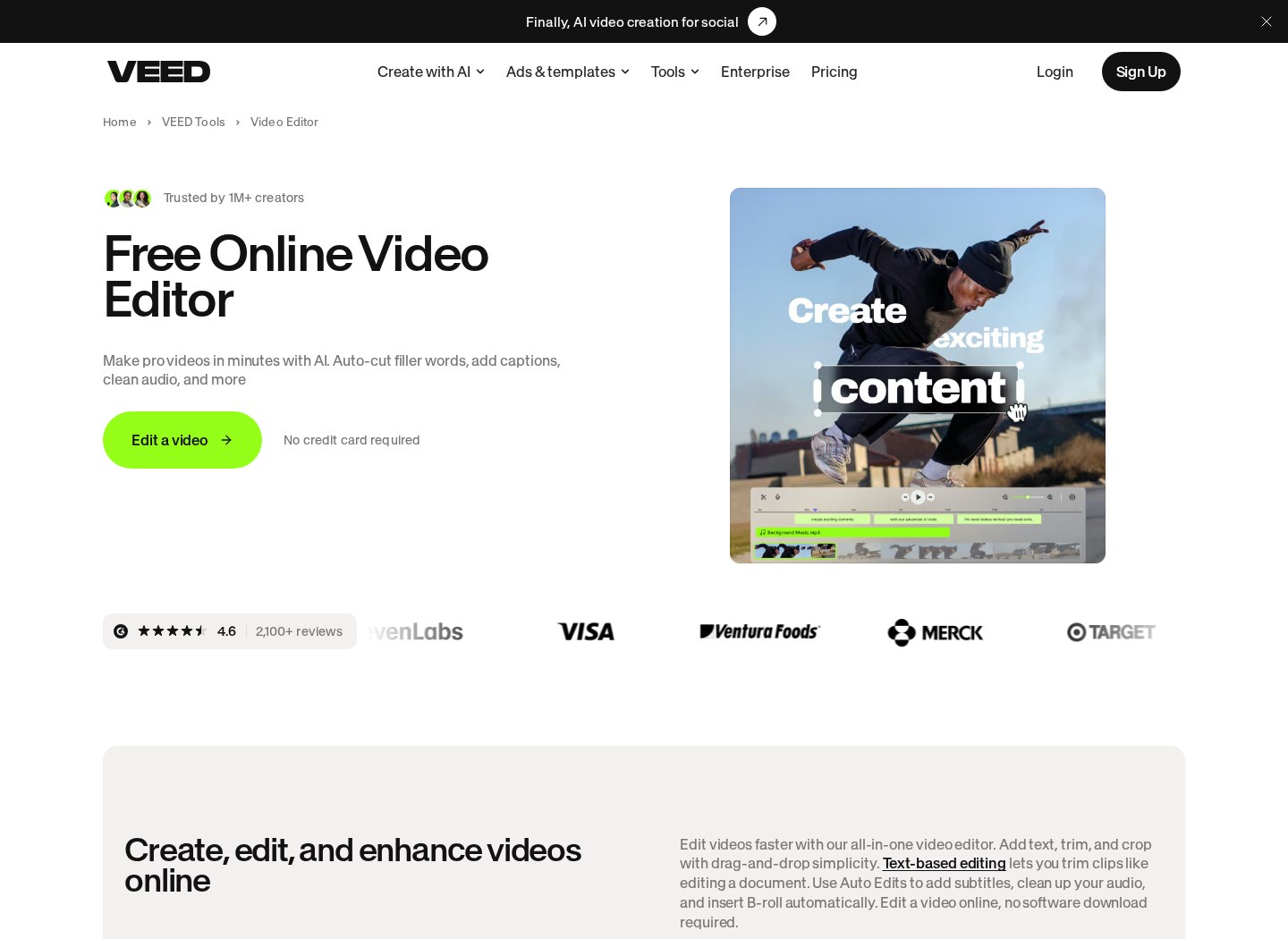
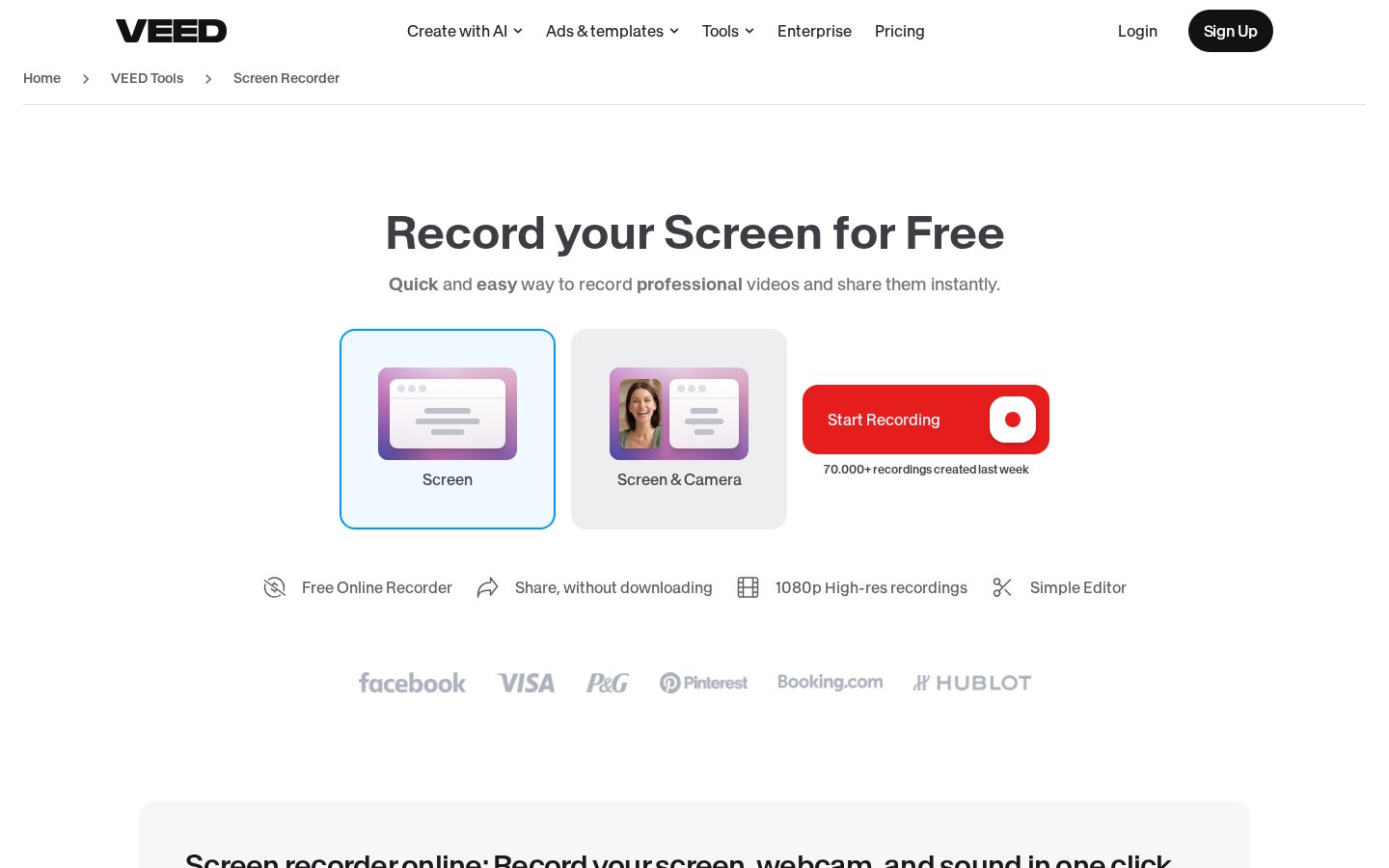
When you first open the browser-based editing canvas, the interface presents a robust suite of tools. You can assemble clips, add background music, and apply transitions directly within the timeline. However, the true limitations of the free tier only become apparent when you click the export button in the top-right corner of the workspace.
Free projects are limited to lower resolution exports and include a distinct branded overlay. For commercial brands, independent freelancers, or growing content creators, this visual badge detracts from the professional quality of the content. Consequently, removing the branded watermark remains the primary reason most users transition to a paid plan.
The paid tiers immediately lift this restriction, allowing clean, high-definition exports that align with professional publishing standards. Additionally, paid accounts unlock higher export speeds, processing complex video rendering on dedicated cloud servers rather than shared queues. This speed improvement is critical when working under tight content calendar deadlines.
Furthermore, paid access expands your cloud storage capacity, ensuring that past video projects remain editable for future updates. On the free tier, files may be archived or removed after a short period, preventing you from repurposing successful clips months down the line.
Managing AI Subtitle and Translation Credits
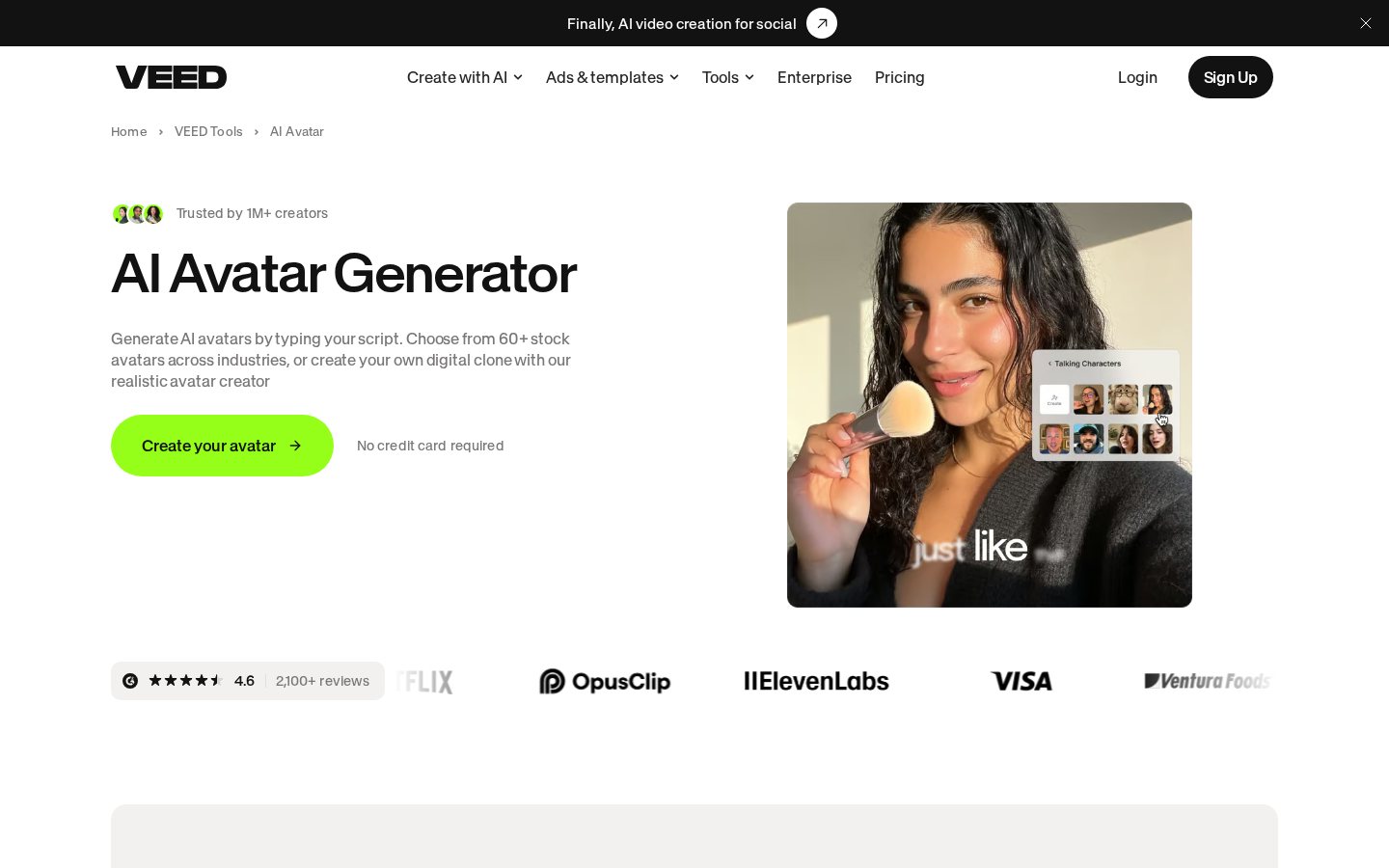
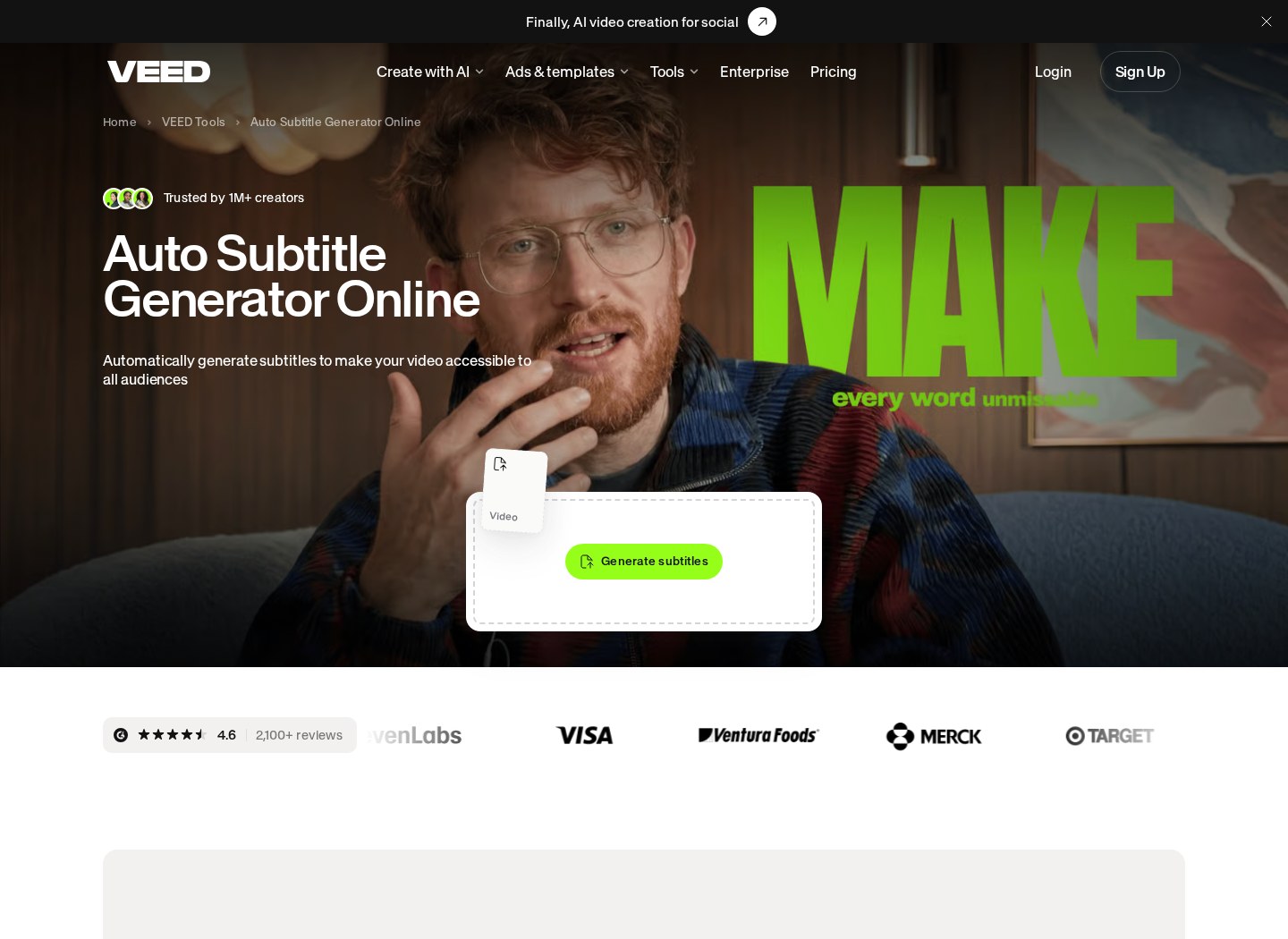
Subtitles are central to modern video engagement, particularly for platforms where viewers watch with the sound turned off. The editor simplifies this process through automated transcription, which analyzes the audio track and generates synchronized text overlays. This feature is highly accurate, but its usage is tied strictly to a monthly credit budget.
Every paid subscription plan allocates a specific number of minutes for automatic subtitle generation and translation. When you use the automated subtitle tool on the left-hand menu panel, the software deducts the exact length of your video from your monthly credit allowance. If you manage multiple long-form videos, these credits can deplete quickly, forcing you to budget your usage carefully.
Automated captioning saves hours of manual typing, but browser-based editors must limit cloud usage to keep rendering times consistent for everyone.
Moreover, the translation feature operates on these same credits. Converting your English dialogue into multiple languages for global distribution consumes your balance at a predictable rate. For international marketing campaigns, AI translation credits act as the primary currency for automated multilingual expansion.
Understanding this credit consumption model is essential before selecting a paid plan. If your workflow requires hours of transcribing every week, you must aim for higher-tier packages that offer generous credit pools. Relying on manual transcription to save credits is possible, but it defeats the purpose of utilizing a rapid automated editor.
How to Configure a Paid Project for Clean Export
Transitioning to a paid subscription changes how you configure your rendering and subtitle assets within the editor interface. Follow these steps to ensure you maximize your upgraded features during your first project setup.
- Import your master footage. Drag your raw video files directly into the central media library panel on the left side of the dashboard.
- Clean the audio track. Select the audio waveform on the timeline and activate the clean audio tool to remove distracting background hiss.
- Generate automated captions. Click the subtitle icon in the primary toolbar, select your language, and let the cloud server draft the text.
- Style the text layout. Choose a premium subtitle animation style from the expanded design menu, adjusting the safety margins for social media templates.
- Configure the export parameters. Open the export settings dialog, toggle the resolution to maximum definition, and confirm the removal of the default watermark logo.
- Initiate the cloud render. Press the export button to send the project to the dedicated rendering server for rapid processing.
Comparing Starter and Pro Workflows
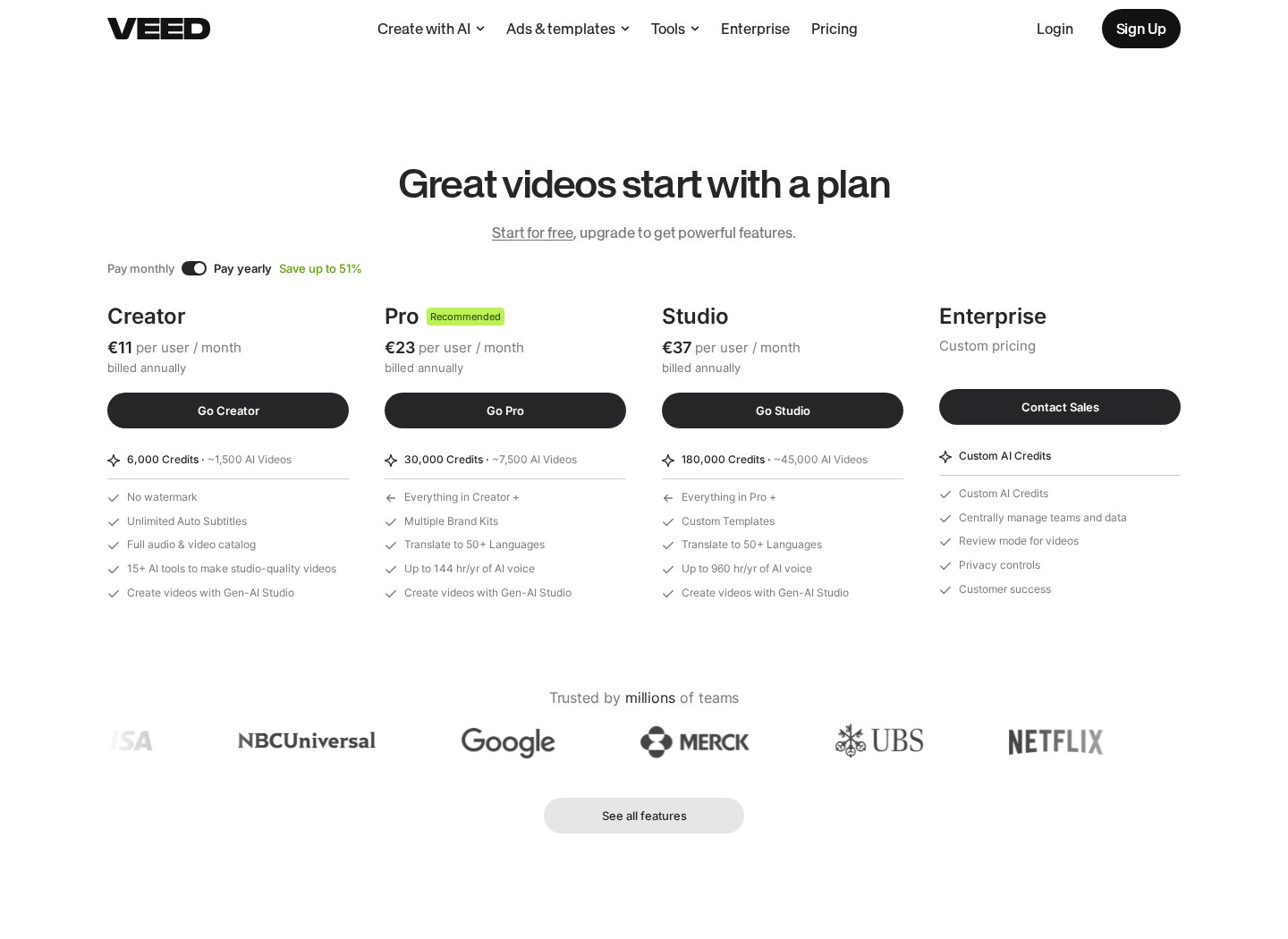
The division between the different paid subscription tiers is defined by feature depth and asset access. The entry-level paid plan, often called the Starter tier, is built for individual creators who need clean, watermark-free videos but do not require complex collaboration tools. It provides a moderate cap on export length and a standard allocation of transcription credits.
In contrast, the Pro tier expands these capabilities to suit active digital marketers and small teams. This level introduces asynchronous rendering queues, prioritizing your projects during peak hours to ensure rapid delivery. It also opens access to a vast library of stock footage, music tracks, and custom font uploads.
To understand how these differences function in practice, consider the following structural comparisons:
- Export Resolution: Starter limits exports to standard high-definition formats, while Pro allows full ultra-high-definition rendering.
- Video Length: Starter supports moderately long projects, whereas Pro accommodates extended video formats suitable for webinars or tutorials.
- Subtitle Translation: Starter allows basic captioning, while Pro includes comprehensive translation tools for global language localizations.
- Brand Customization: Starter requires manual color matching, whereas Pro saves your brand kits, custom fonts, and logo presets directly in the editor.
Evaluating these specific points helps determine whether the baseline upgrade is sufficient or if your volume demands a deeper investment. For a closer look at user experiences across these tiers, read our VEED Review 2026: Pricing, Free Plan and Who It's For analysis.
Which Subscription Plan Should You Pick?
Choosing the right subscription depends entirely on your weekly production volume and your translation requirements. If you only produce one or two short videos per week for local audiences, the Starter plan represents a reasonable upgrade that removes the watermark without overcomplicating your billing. It provides all the core editing tools needed for clean, simple presentations.
For professional creators running multiple channels, the Pro tier is far more appropriate, as the Pro plan offers the best balance of export length and subtitle translation hours for independent creators. The time saved by having instant access to stock media and reusable brand templates justifies the higher monthly commitment.
Larger business teams or agencies should bypass these individual plans entirely and look toward the Business or Enterprise tiers. These levels offer shared workspaces, collaborative video review links, and expanded credit pools for multilingual dubbing. Attempting to run a multi-person agency on a shared single-user login will lead to constant security alerts and export bottlenecks.
Ultimately, a paid subscription is highly recommended if you rely on fast, browser-based video editing workflows to maintain a consistent upload schedule. The time saved by bypassing slow offline rendering and manual captioning processes directly translates into higher productivity.
Evaluating Alternatives to the Paid Ecosystem
While this cloud editor is highly capable, it is not the only option available for modern video production. Depending on your specific technical needs, other browser-based editors or desktop applications might offer a more cost-effective path. For instance, offline editors do not require an active internet connection and do not charge monthly fees based on transcription minutes.
However, offline alternatives require powerful local computer hardware to render video smoothly. If you work on a lightweight laptop or travel frequently, cloud-based editors handle the heavy computational processing on their own servers, protecting your local hardware from overheating. This cloud-first approach is the core selling point of modern browser tools.
To see how this tool measures up against other top-rated platforms in the industry, check out our VEED Review 2026: Pricing, Free Plan and Who It's For guide, which outlines the current software landscape. Weighing these options ensures you do not overpay for cloud features you could otherwise run locally on your own machine.
Frequently asked

As an Amazon Associate I earn from qualifying purchases. This does not affect the price you pay. Affiliate disclosure