Is OpusClip Worth Paying For in 2026? What to Know
Determine if OpusClip is worth the subscription by understanding its AI framing, automated caption tools, and monthly credit usage patterns.

Some links are affiliate links: we may earn a commission if you sign up or buy through them, at no extra cost to you.
On this page8 sections
- 1The short answer
- 2Navigating the Video Upload and Processing Dashboard
- 3Customizing Visuals with the Caption and Template Editor
- 4Analyzing Social Media Potential with Virality Scores
- 5Step-by-Step: How to Process a Long Video
- 6Understanding Credit Consumption and Monthly Limits
- 7OpusClip vs Manual Editing: Which Should You Pick?
- 8Frequently asked
The short answer
- Automated editing saves hours by finding hooks and applying subtitles in one click.
- Account minutes determine how much footage you can process, requiring strategic pre-trimming.
- Visual customization allows for consistent branding, but lacks the granular control of manual editors.
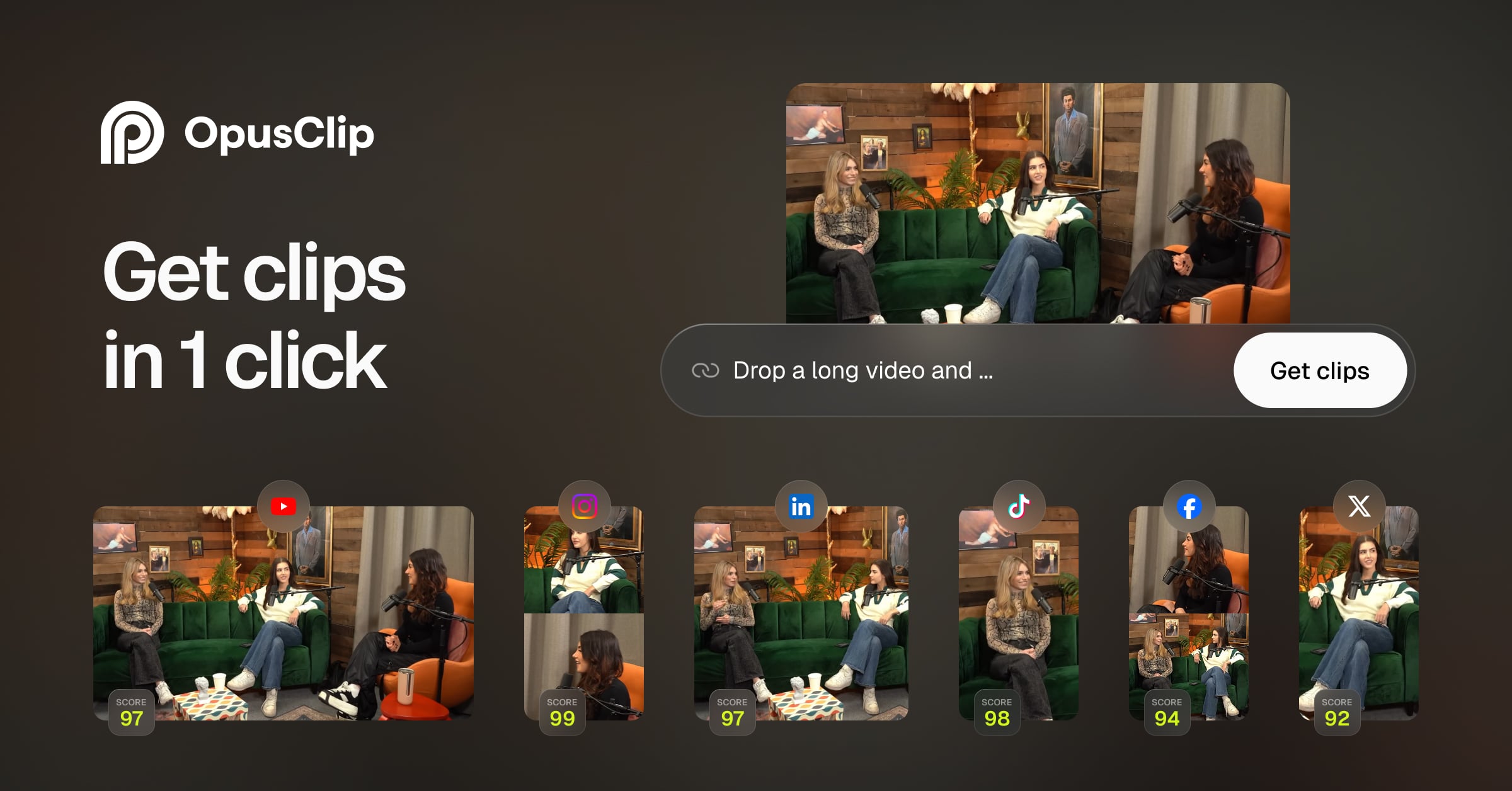
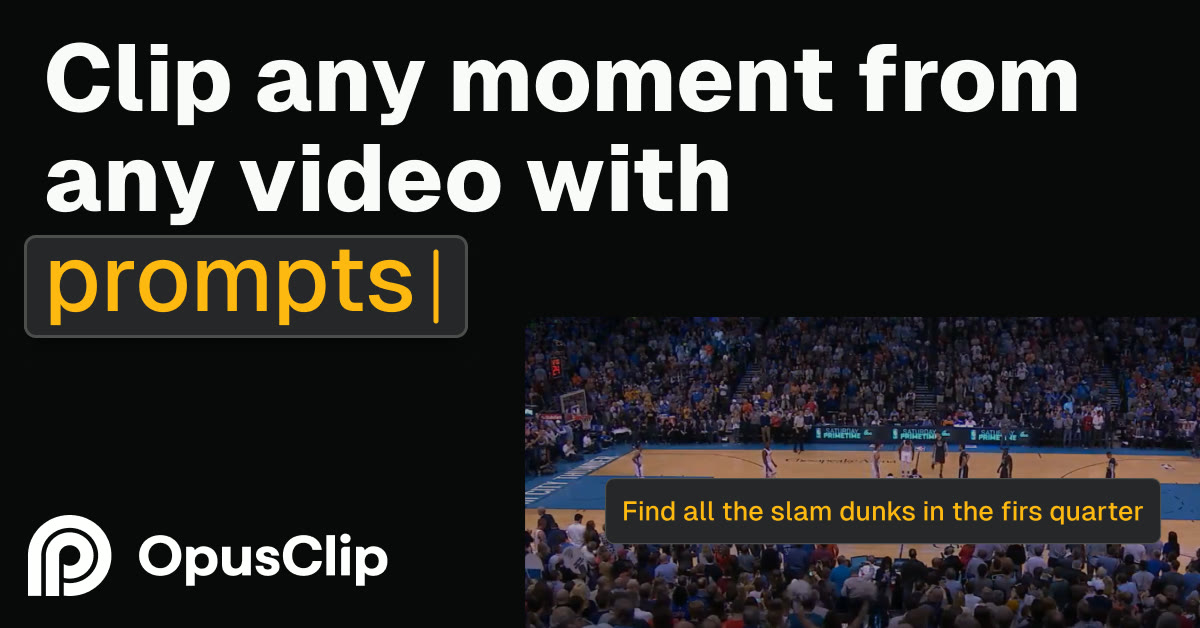
OpusClip is worth paying for if you need to rapidly turn long-form videos into short, captioned clips for social media. For creators who publish multiple short videos weekly, the subscription pays for itself by saving hours of manual editing. The utility of the tool lies in its automated transcription, auto-framing, and clip selection features. Instead of manually searching through hours of raw footage for key moments, you let the algorithm isolate the hooks. This system transforms long video assets into a stream of vertical posts with minimal manual effort. For those managing multiple social channels, the platform reduces editing overhead from hours to a few clicks, making a paid tier highly efficient.
Watch it in action
Navigating the Video Upload and Processing Dashboard
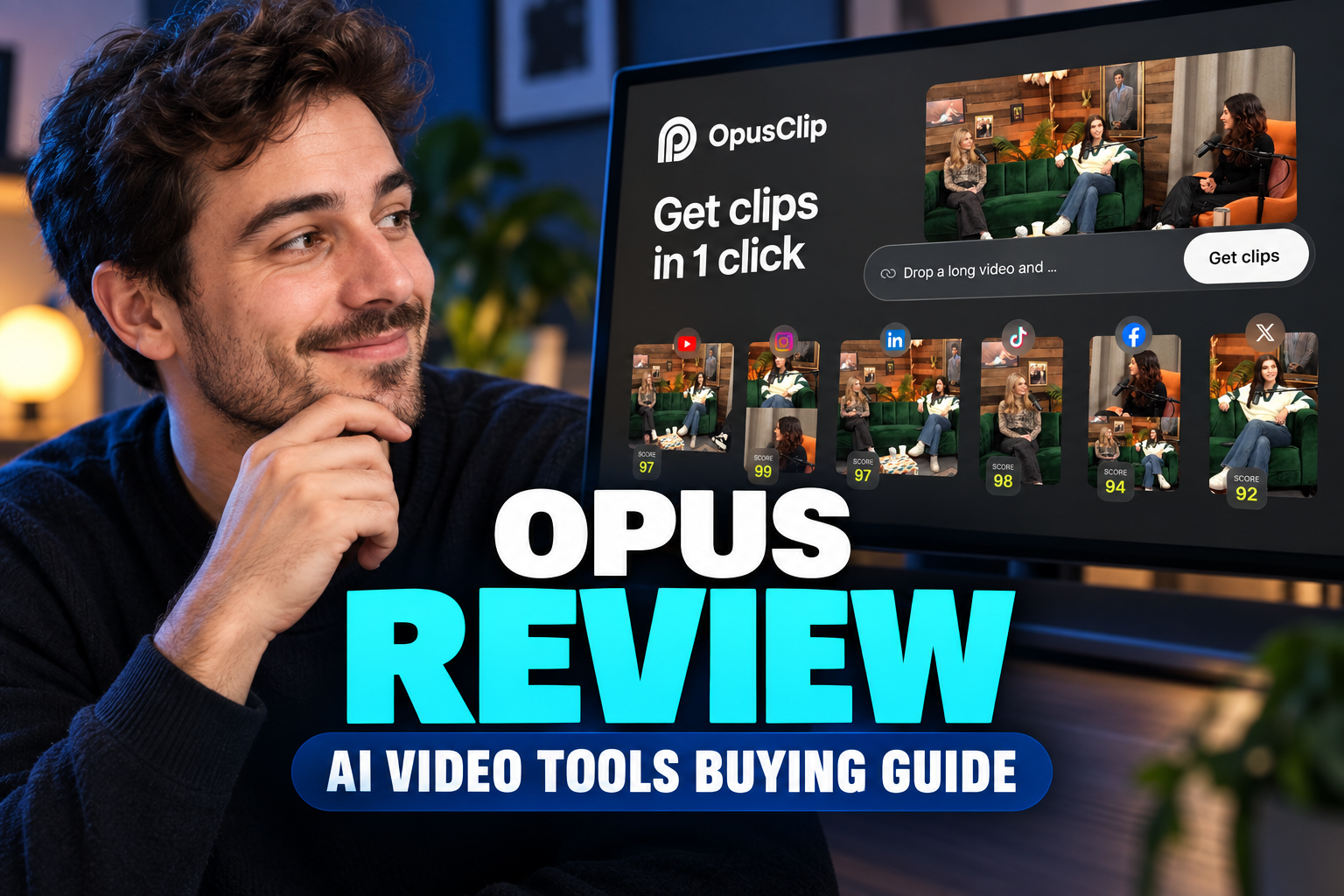
The processing phase begins on the main dashboard screen, where you are prompted to upload your raw video footage or insert links directly from video hosting services. Once the media file is submitted, the platform immediately begins analyzing the audio track to identify key speech patterns, conversational pauses, and shifts in vocal tone. This initial background processing requires no manual configuration, allowing you to upload multiple long files at once. The system performs speech-to-text transcription to create a readable script. As the transcription completes, the dashboard lists individual video segments sorted by their narrative structure. For high-volume creators, the time saved on transcription and framing justifies the monthly subscription fee. You do not have to watch the entirety of the footage to locate natural starting points; the platform identifies hooks and presents them as ready-to-edit vertical clips in a clear vertical queue. This streamlined layout ensures that you can scan through several hours of raw footage in a matter of seconds, drastically reducing the friction of finding publishable moments.

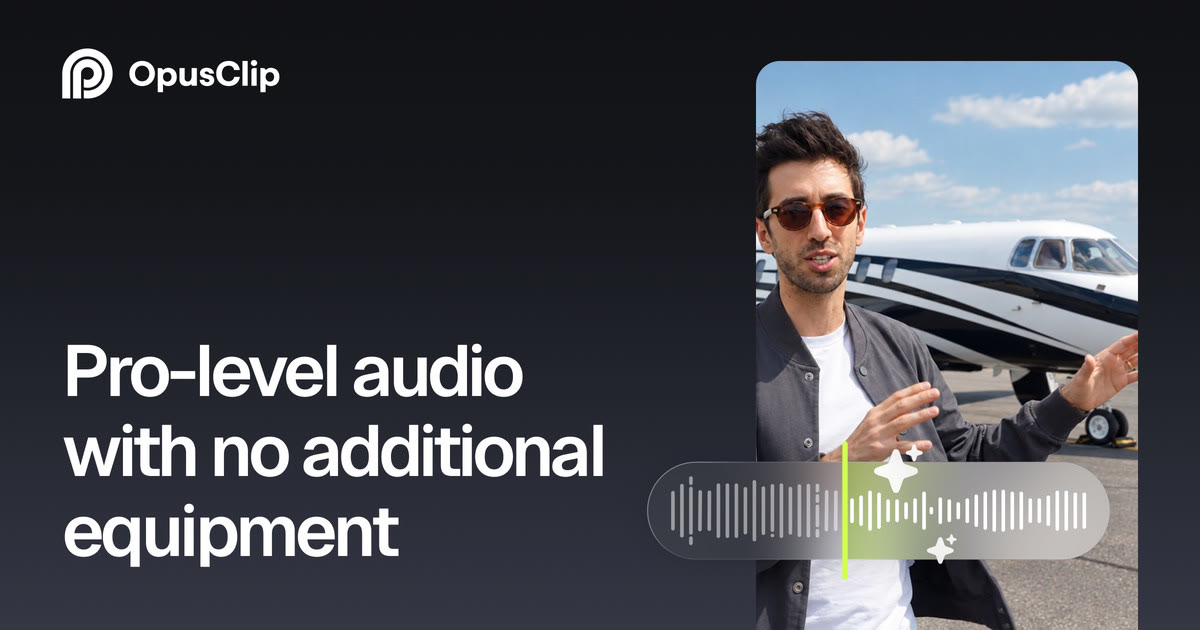
Customizing Visuals with the Caption and Template Editor
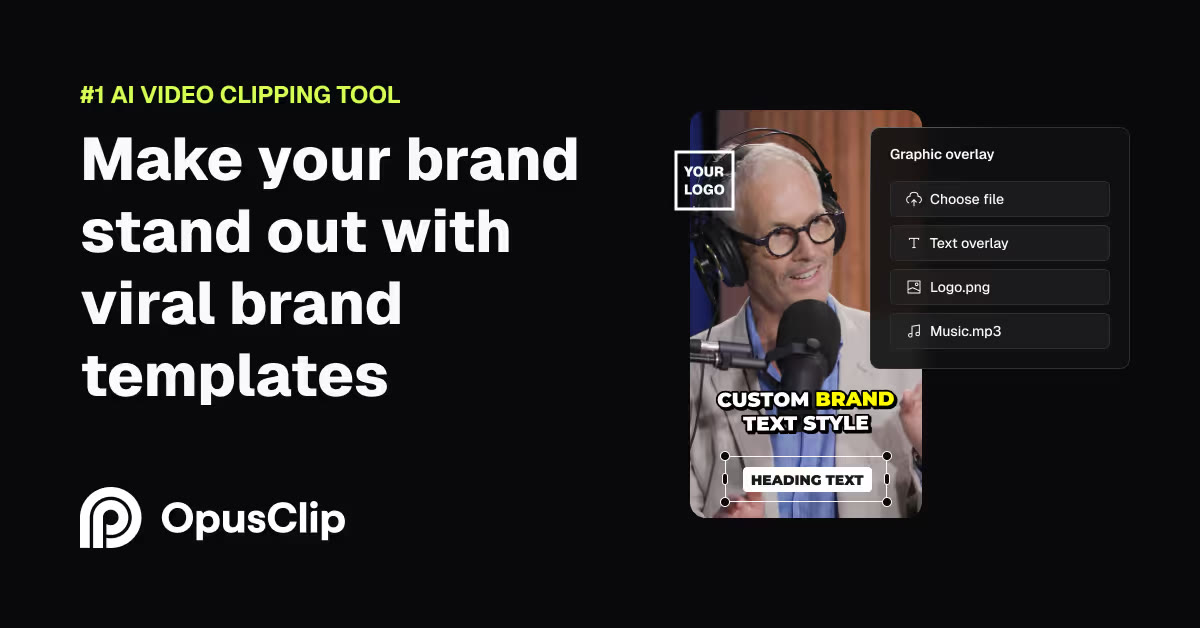
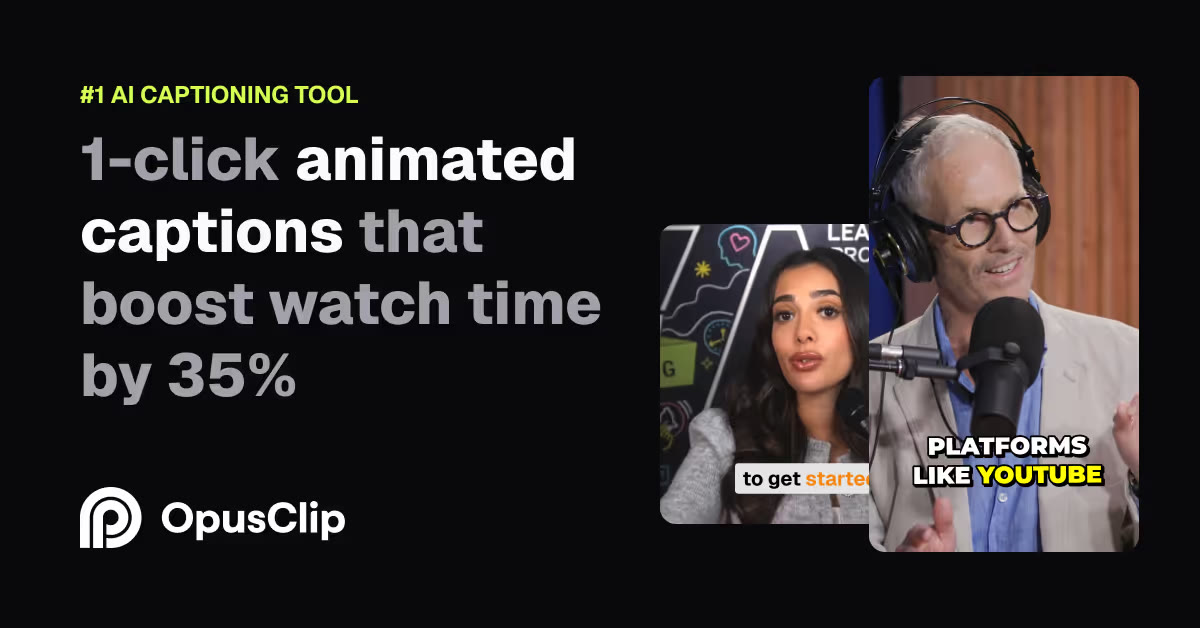
Once processing concludes, you transition to the visual customization interface. This screen displays a text-based timeline where you edit the actual video by directly modifying the transcribed text. Removing a word or sentence from the transcript automatically cuts that exact portion from the video timeline, bypassing the steep learning curve of traditional video editing programs. The editor also implements dynamic captioning, which displays synchronized subtitles that change color and scale as each word is spoken. You can select from various font styles, color alignments, and background highlights to match your brand identity. The software also executes automatic aspect ratio conversion to crop horizontal widescreen videos into vertical formats. When speakers move across the frame, the automated tracking centers them, though a manual camera positioning slider allows you to adjust the crop zone frame-by-frame. If you notice a quick transition that needs a jump cut, you can easily apply it with a single toggle switch, ensuring the visual pacing remains fast enough for modern feed-based algorithms.
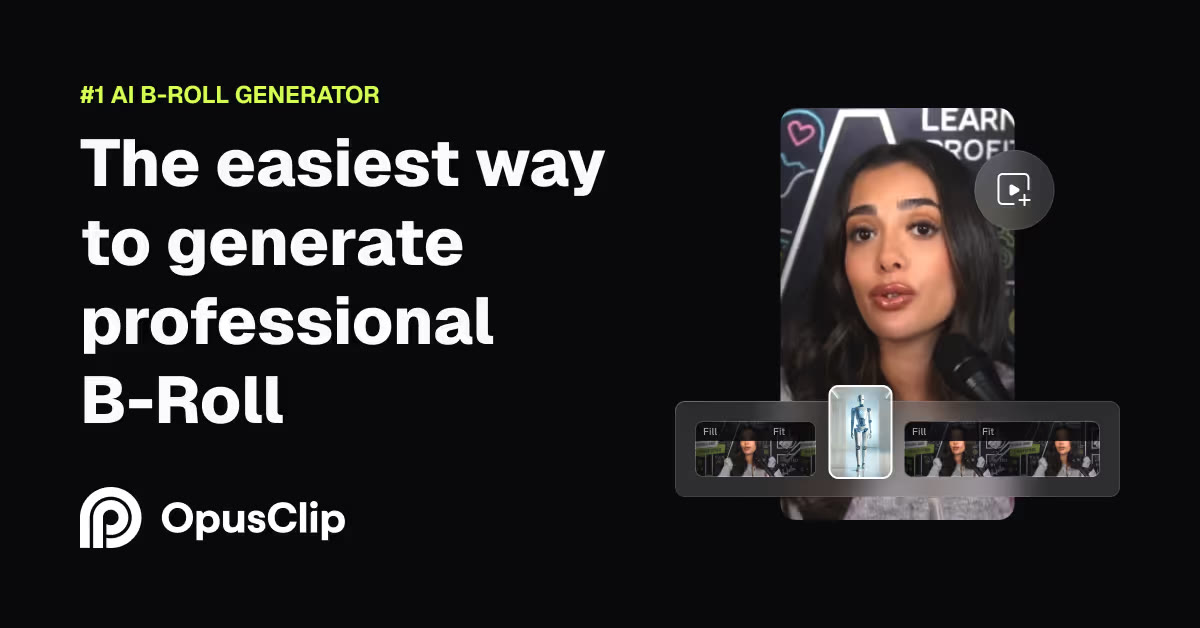
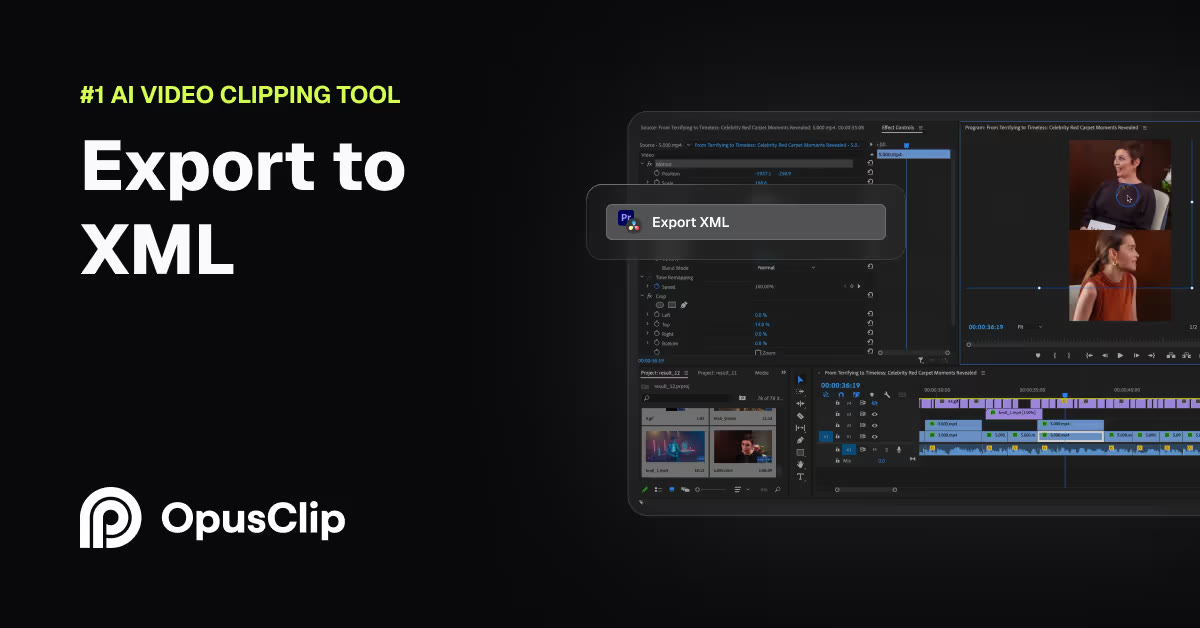
Analyzing Social Media Potential with Virality Scores
After your short videos are generated, the interface presents a numeric rating next to each segment. This rating represents the potential of the clip to capture and hold viewer attention on social feeds. The software provides a detailed written breakdown explaining the reason for the score, pointing out the quality of the hook, the pacing of the delivery, and the flow of information. This score helps you quickly filter through dozens of options to identify which clips are worth fine-tuning. By utilizing these predictive metrics, you can organize your content calendar without manually watching every option in its entirety. This score is especially useful when handling client videos, as it provides an objective baseline for deciding which clips to export first. By automating the selection process, the platform reduces editing overhead from hours to a few clicks, making a paid tier highly efficient for small teams.
Step-by-Step: How to Process a Long Video
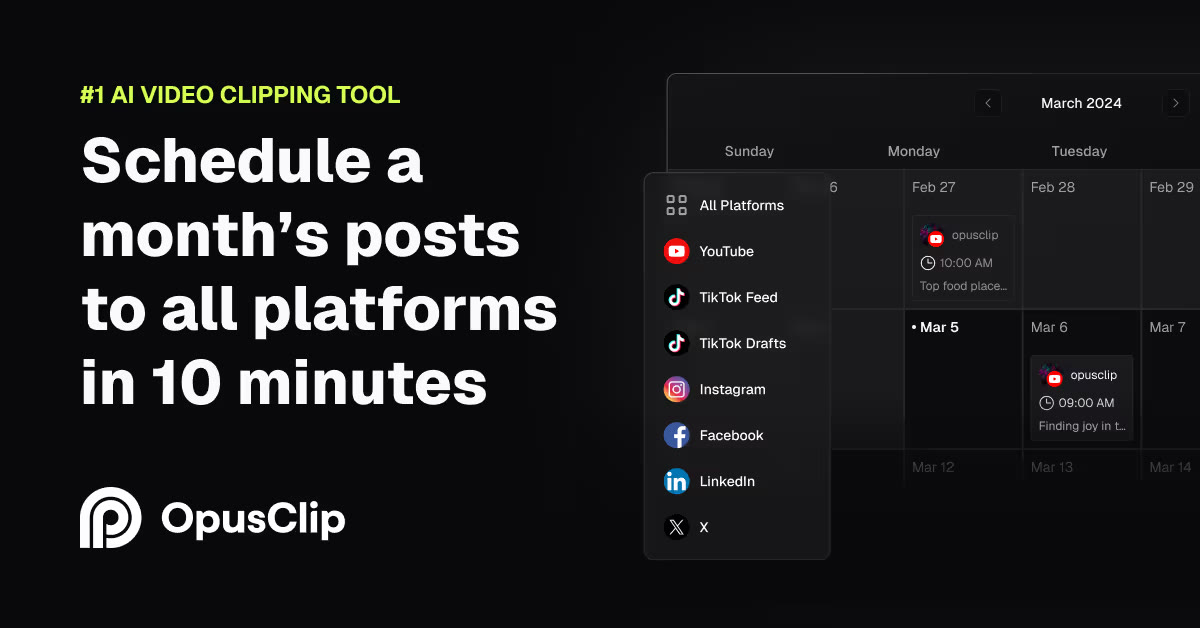
To generate short videos from your long-form assets, follow this structured setup process. 1. Paste your video source link. You can drop a YouTube link, Zoom recording, or upload a local file directly into the primary input field on the home dashboard. 2. Select your transcription language. Choose the primary language spoken in the video from the settings menu to ensure maximum transcription accuracy. 3. Choose a caption style template. Select a pre-configured aesthetic layout from the styling panel that matches the visual tone of your social channel. 4. Review the generated clip library. Inspect the suggested vertical clips, reading through the text-based timeline to verify the hook is placed correctly. 5. Export the finished vertical video. Click the export button to download the finalized clips or schedule them directly to your active social media channels.
Understanding Credit Consumption and Monthly Limits
The utility of a paid plan is governed by a credit system that measures usage by the minute. When you upload a video, the system deducts the exact duration of that raw file from your monthly balance. This deduction occurs regardless of how many short clips the software actually produces from the file. Managing your credits requires strategic planning to avoid running out of processing time before the billing cycle ends. You can find more detail on how these limitations translate to daily workflows in our OpusClip Review 2026: Pricing, Credits and Who It's For. Pre-trimming raw footage to eliminate silent pauses, introductory small talk, or technical setups before uploading is a reliable way to optimize your credit balance. If you are uploading a multi-hour podcast just to extract two short clips, cutting those specific sections beforehand saves massive amounts of credits. This proactive strategy ensures that every minute deducted from your account balance is spent analyzing high-value conversational content.
OpusClip vs Manual Editing: Which Should You Pick?
Deciding between automation and manual production depends entirely on your publishing goals, budget, and design expectations. - Speed: OpusClip generates dozens of ready-to-post vertical clips in minutes, whereas manual editing requires hours of cutting and aligning tracks manually. - Precision: OpusClip relies on automated visual tracking that can sometimes miss subtle camera movements, while manual editing allows you to adjust every single frame frame-by-frame. - Subtitling: OpusClip creates immediate, synchronized captions with built-in styling templates, whereas manual editing requires typing out text or importing external subtitle files. - Cost: OpusClip demands a recurring subscription based on video minutes, while manual editing software often involves a flat license fee or a free open-source alternative. If your content relies heavily on custom motion graphics, manual editing remains the superior choice for precise control. However, for agencies managing multiple client channels, the batch-export capabilities offer massive scaling advantages over traditional pipelines. Choosing the right tool depends on whether you prioritize absolute control over every pixel or the speed required to publish daily content.
Frequently asked
As an Amazon Associate I earn from qualifying purchases. This does not affect the price you pay. Affiliate disclosure