Who Should Use OpusClip, and Who Should Skip It?
OpusClip automates video clipping, but it isn't perfect for everyone. Learn who benefits from its AI curation and who should use alternative editing workflows.
Some links are affiliate links: we may earn a commission if you sign up or buy through them, at no extra cost to you.
On this page8 sections
The short answer
- Solo creators and podcasters save hours by letting AI identify, crop, and caption their best moments automatically.
- High-volume editors might find the credit-based pricing model and lack of timeline editing too restrictive for advanced workflows.
- Choose alternative tools if you need to build short clips from scratch rather than repurposing existing footage.
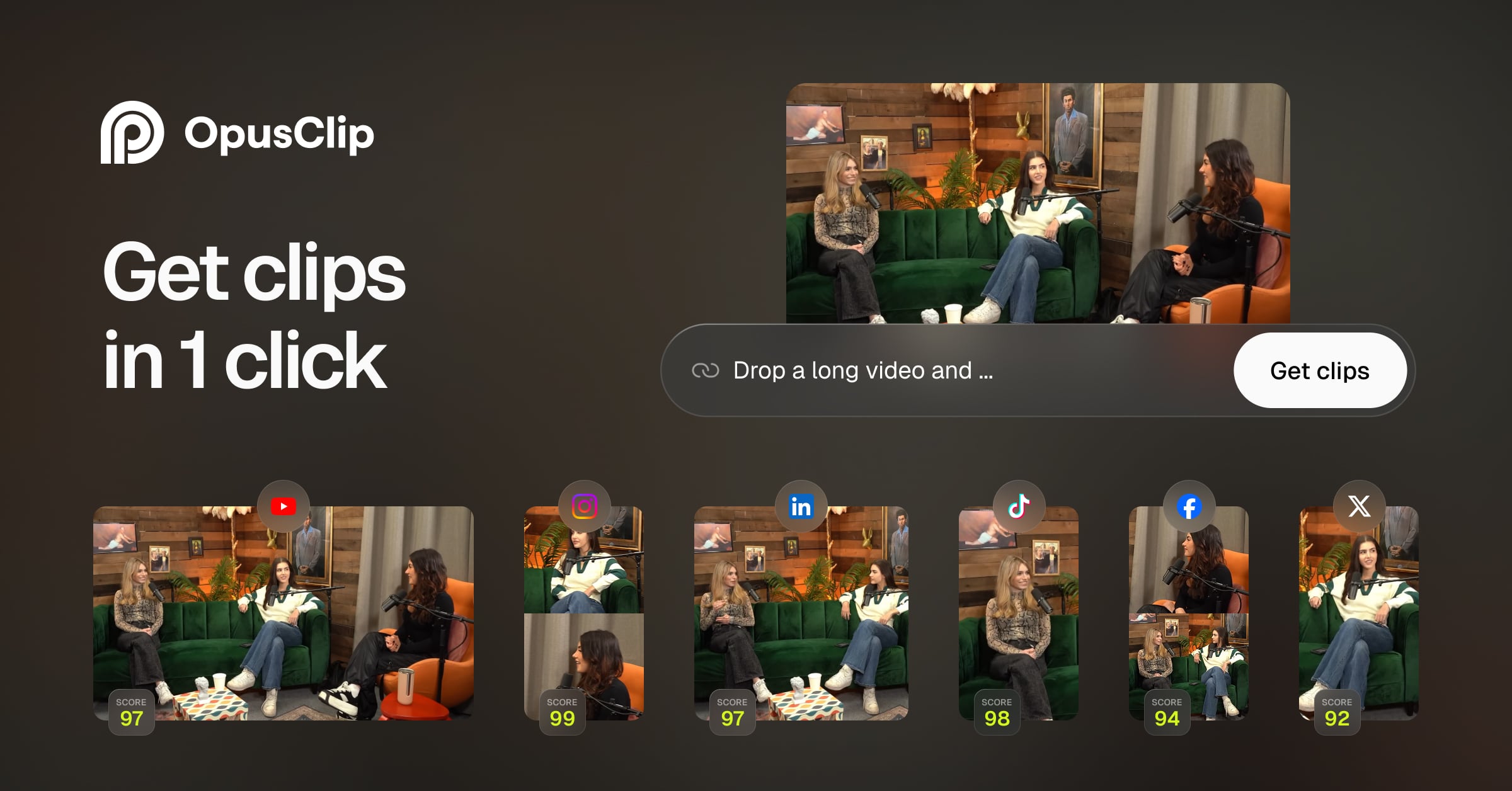
You should use OpusClip if you are a solo creator or marketer who needs to turn long-form podcasts, interviews, or streams into short clips quickly. You should skip it if you require precise manual control over editing cuts or work on tight, credit-constrained budgets.
For anyone producing multi-platform video content, the workflow of slicing up a single long-form recording into multiple short-form vertical videos is tedious. This is where automated AI video tools step in, promising to identify the most engaging moments, auto-crop the speakers, and format captions without human intervention.
However, automated clipping is not a universal solution for every creative project. Understanding how the tool operates, its interface limitations, and its credit consumption model will help you decide whether to integrate it into your daily production pipeline or stick to traditional video editing software.
Watch it in action
The quick version
- Upload your source file
- Set your time range
- Choose your visual style
- Review the AI suggestions
- Edit the transcription text
- Export your final clips
The Upload and AI Settings Interface
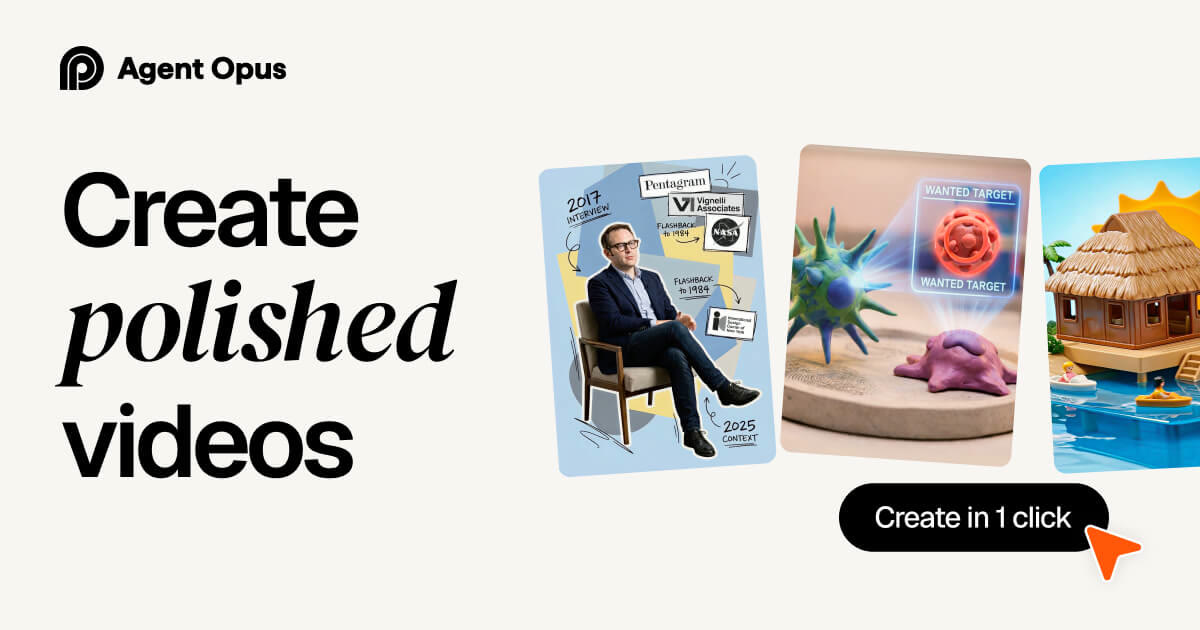
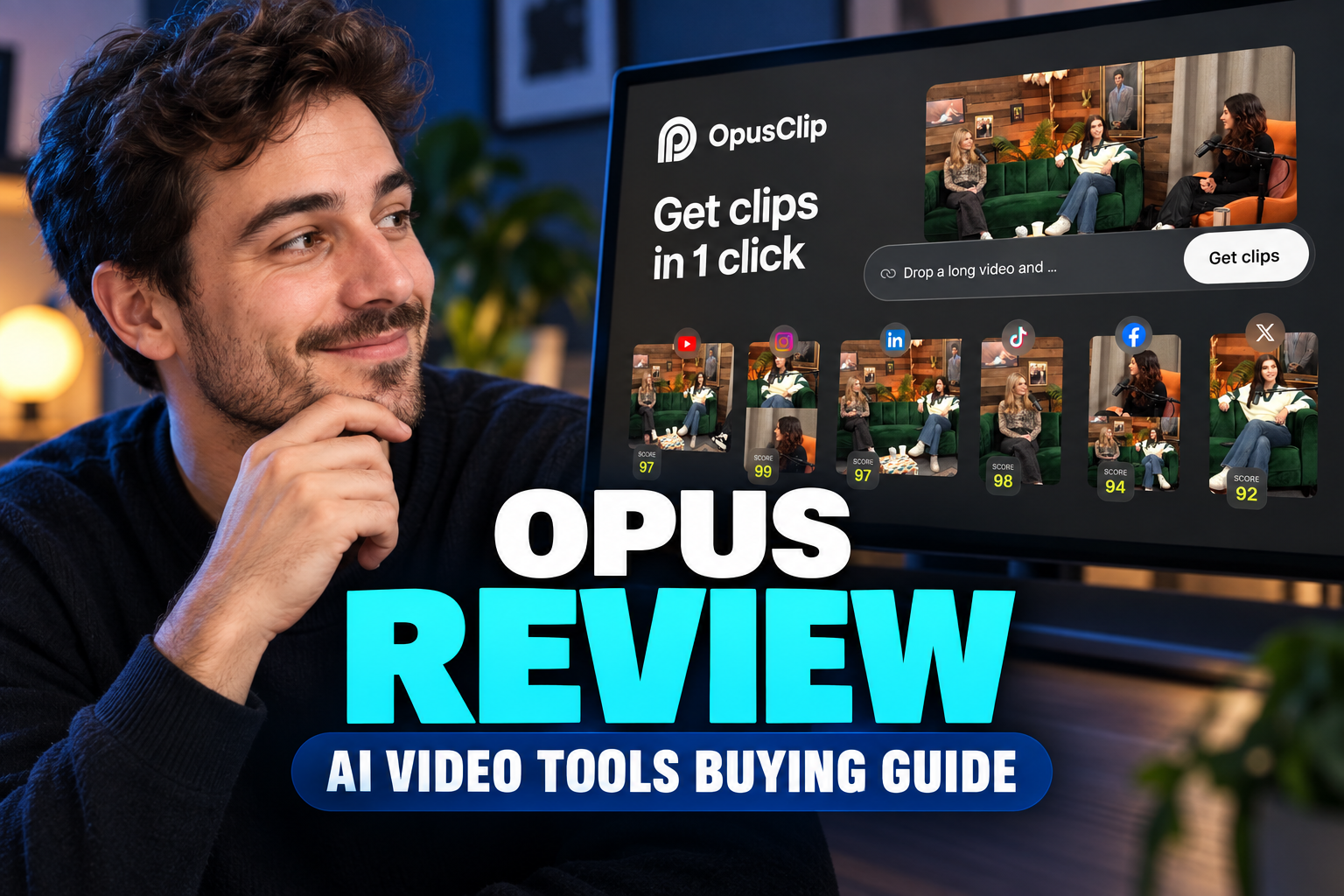
When you first open the dashboard, you are met with a straightforward upload zone. You can paste a public link from major video platforms or drop a local file directly into the browser window. The system immediately prompts you to establish your processing parameters, such as language preferences and target clip lengths. This initial screen is where you define how the repurposing algorithm handles your raw footage. You can choose whether to let the AI scan the entire upload or pinpoint a specific timestamp range to conserve your monthly processing credits. This boundary-setting step is crucial because your account balance is measured in minutes of processed video. For creators who publish on tight schedules, this interface offers a simple starting point. It bypasses the complex project setup dialogues found in professional editing suites, focusing instead on rapid ingestion. To understand the exact cost structure and how minutes are billed, you can read our detailed OpusClip Review 2026: Pricing, Credits and Who It's For.
The Curation Workspace and Virality Scoring
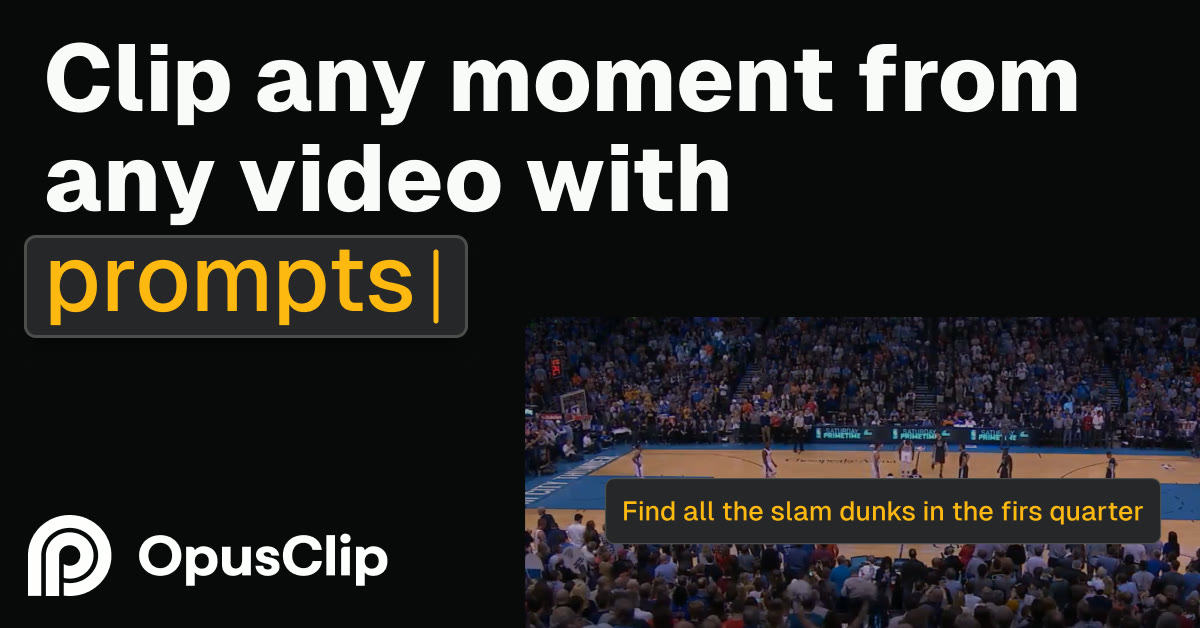
Once processing finishes, the platform presents its curation workspace. Here, you see a list of generated clips, each accompanied by an AI-generated title, a short summary, and an estimated virality score. This workspace aims to eliminate the guesswork of hunting for the best hooks in a two-hour recording. The interface displays your video cropped into a vertical format, using active speaker detection to keep the presenter centered. It relies on facial tracking to transition between speakers during a conversational segment. You can preview each clip individually to verify if the automated hook selection actually makes sense in context. While this workspace excels at identifying clear narrative peaks in conversational formats, it sometimes struggles with complex visual storytelling. Videos that rely on physical action, sudden visual cues, or atmospheric pauses rather than spoken dialogue often receive inaccurate virality scores. For these visual formats, the automated curation can feel hit-or-miss.
Caption Styles and Visual Customization
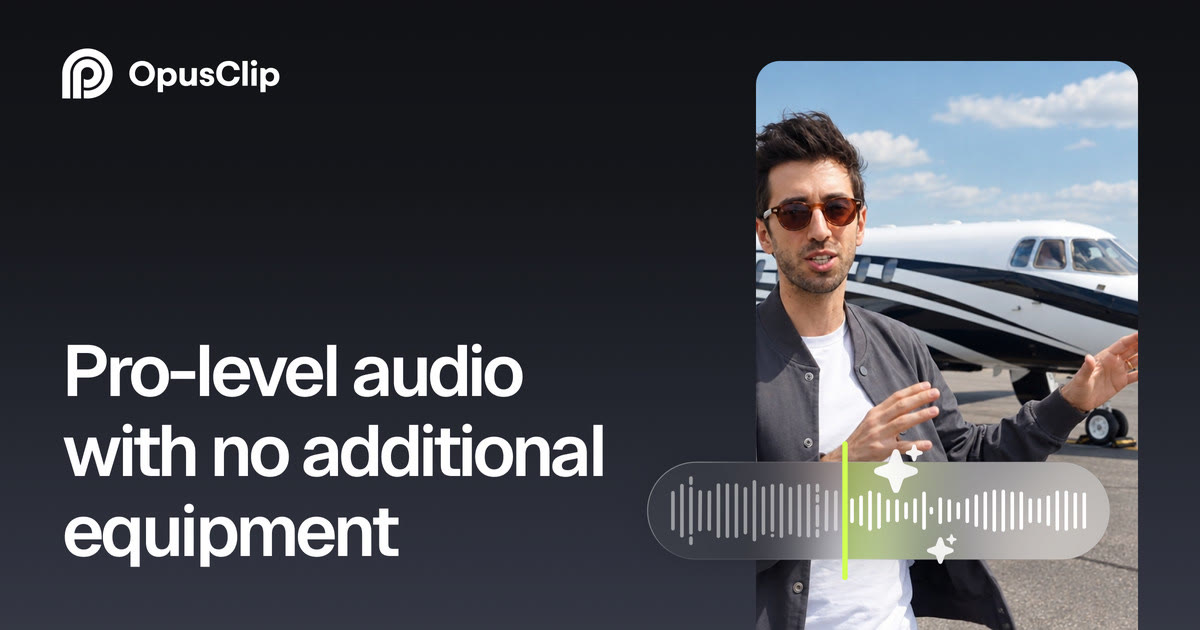
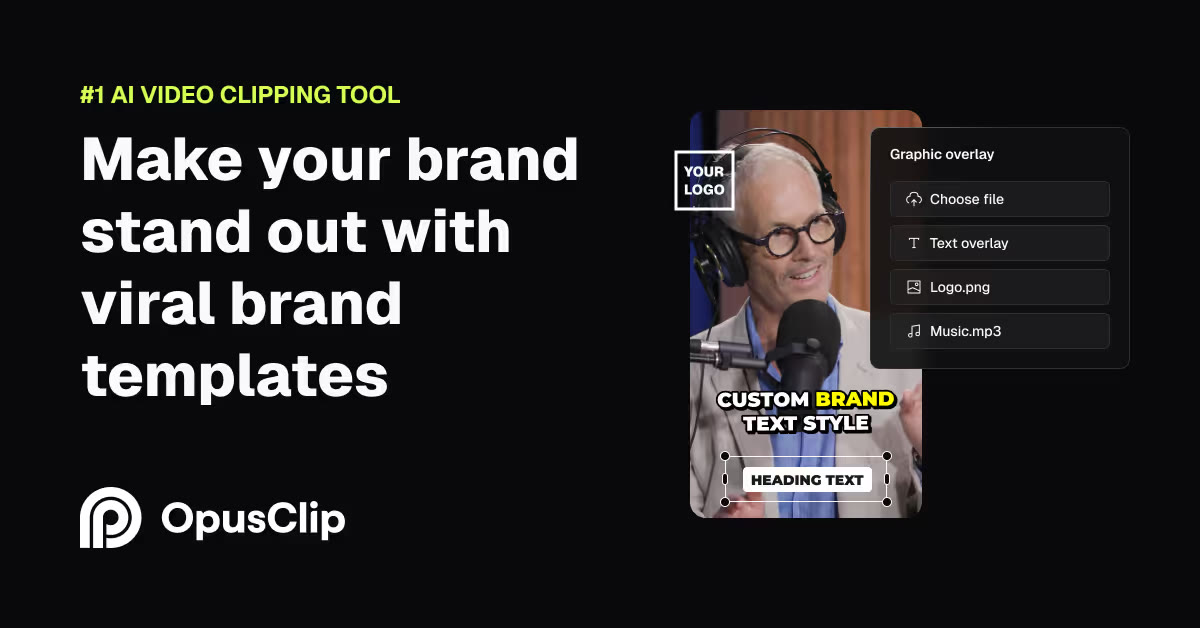
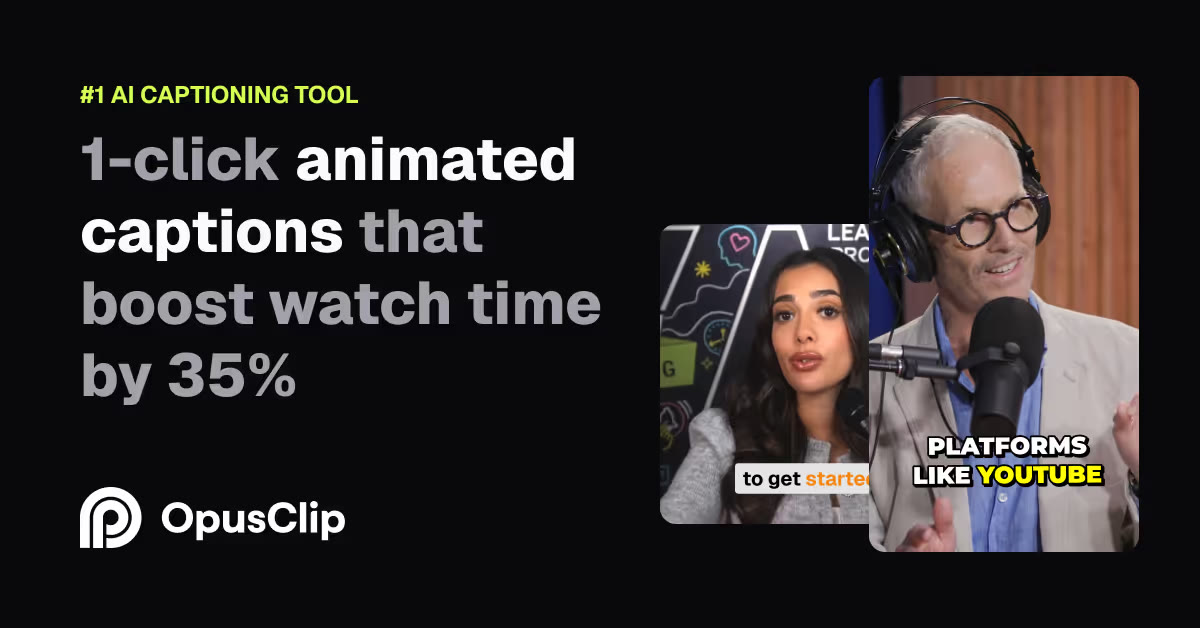
After selecting your preferred clips, you transition to the captioning and design tab. This interface allows you to select from several pre-made subtitle templates that mimic popular social media formats. The tool automatically transcribes the dialogue, adds kinetic animations, and highlights key terms in contrasting colors. Within this editor, you can adjust the auto-generated text to fix spelling mistakes or modify the visual timing of specific words. The control panel lets you upload custom fonts, position the text block, and add brand logos. While these features are highly functional for standard social media clips, they lack the deep keyframing controls of professional software. This screen highlights the tool's core design philosophy: speed over hyper-customization. It is designed to get a functional, formatted clip out the door in minutes. If you want to construct complex animations from scratch or use multi-layered A-roll and B-roll tracks, you will quickly hit the limits of this simplified editor.
How to Process a Long Video Step-by-Step
Navigating the automated pipeline is designed to be straightforward, even for those without formal editing experience. The platform groups complex cloud rendering steps into a few simple choices. By following a structured sequence, you can turn a lengthy recording into ready-to-post social media assets efficiently. Managing this workflow correctly prevents you from wasting processing time on parts of your video that do not need clipping. It also ensures that the final output aligns with your branding before you commit to downloading the finished clips.
- Upload your source file. Paste a public video link or drag your file into the dashboard.
- Set your time range. Choose the exact portion of the video you want the AI to analyze to save processing credits.
- Choose your visual style. Select a caption layout and color scheme that matches your branding.
- Review the AI suggestions. Walk through the generated shorts, adjusting the automated crops if a speaker is off-center.
- Edit the transcription text. Correct any spelling errors or incorrect words directly within the interactive transcript editor.
- Export your final clips. Download the processed vertical videos or schedule them directly to your social media channels.
This structured approach minimizes manual editing effort. By handling the heavy lifting of transcription, cropping, and subtitle alignment in the cloud, you can focus your energy entirely on refining the content and writing compelling captions for your social media posts.
Comparing Use Cases: Who It Helps vs Who It Hurts
Deciding whether to adopt this platform depends heavily on your specific content format and production volume. Different creators have vastly different editing demands, and a tool that saves hours for one user might create frustrating bottlenecks for another. To understand where this utility fits, it helps to compare the experiences of different production profiles. Let's look at how various editing needs line up with what this automated tool actually delivers:
- Podcasters and Interviewers: OpusClip is highly effective here because these formats rely on clear conversational turn-taking, which the speaker-tracking AI handles well.
- High-Volume Social Media Managers: The ability to batch-produce dozens of captioned clips from a single webinar or live stream saves immense amounts of manual effort.
- Cinematic and Narrative Filmmakers: This group should skip the tool, as the AI cannot interpret artistic framing, pacing, or complex sound design that lacks spoken dialogue.
- Solo Creators on Tight Budgets: If you only produce one or two short videos a week, you might find the recurring cost and credit limits hard to justify compared to free manual tools.
By analyzing these distinct profiles, you can identify where your own workflow sits. It is rarely a question of whether the technology works, but rather whether your specific style of video content plays to the strengths of relying on automated speaker tracking and speech-to-text algorithms.
Which Workflow Fits Your Production Style?
If your primary goal is to maintain a high-frequency posting schedule across vertical video platforms, the automated approach is incredibly compelling. It takes the tedious, repetitive tasks of cropping, transcribing, and rendering off your plate, freeing up time to plan future episodes or engage with your audience. For a deeper breakdown of the feature tiers, check out our OpusClip Review 2026: Pricing, Credits and Who It's For. On the other hand, if your brand identity relies on highly unique visual designs, custom-tailored pacing, or intricate sound effects, you will likely find the automated templates too restrictive. Traditional timeline editors offer the pixel-perfect control required for premium, bespoke content, especially if you are demanding total creative control over visual timing and frame-by-frame edits. Ultimately, the choice comes down to speed versus control. If you have hours of conversational footage waiting to be repurposed and want the fastest path to publication, adopting this AI-driven tool is a logical step. If you need to craft unique visual stories from scratch, saving your budget for advanced editing suites remains the smarter path.
Frequently asked
As an Amazon Associate I earn from qualifying purchases. This does not affect the price you pay. Affiliate disclosure