Choosing Pollo AI: Who Should Use It and Who Should Skip It
Decide if Pollo AI fits your workflow by comparing its automated prompt-to-video capabilities with the manual control needs of professional editors.
Some links are affiliate links: we may earn a commission if you sign up or buy through them, at no extra cost to you.
On this page8 sections
- 1The short answer
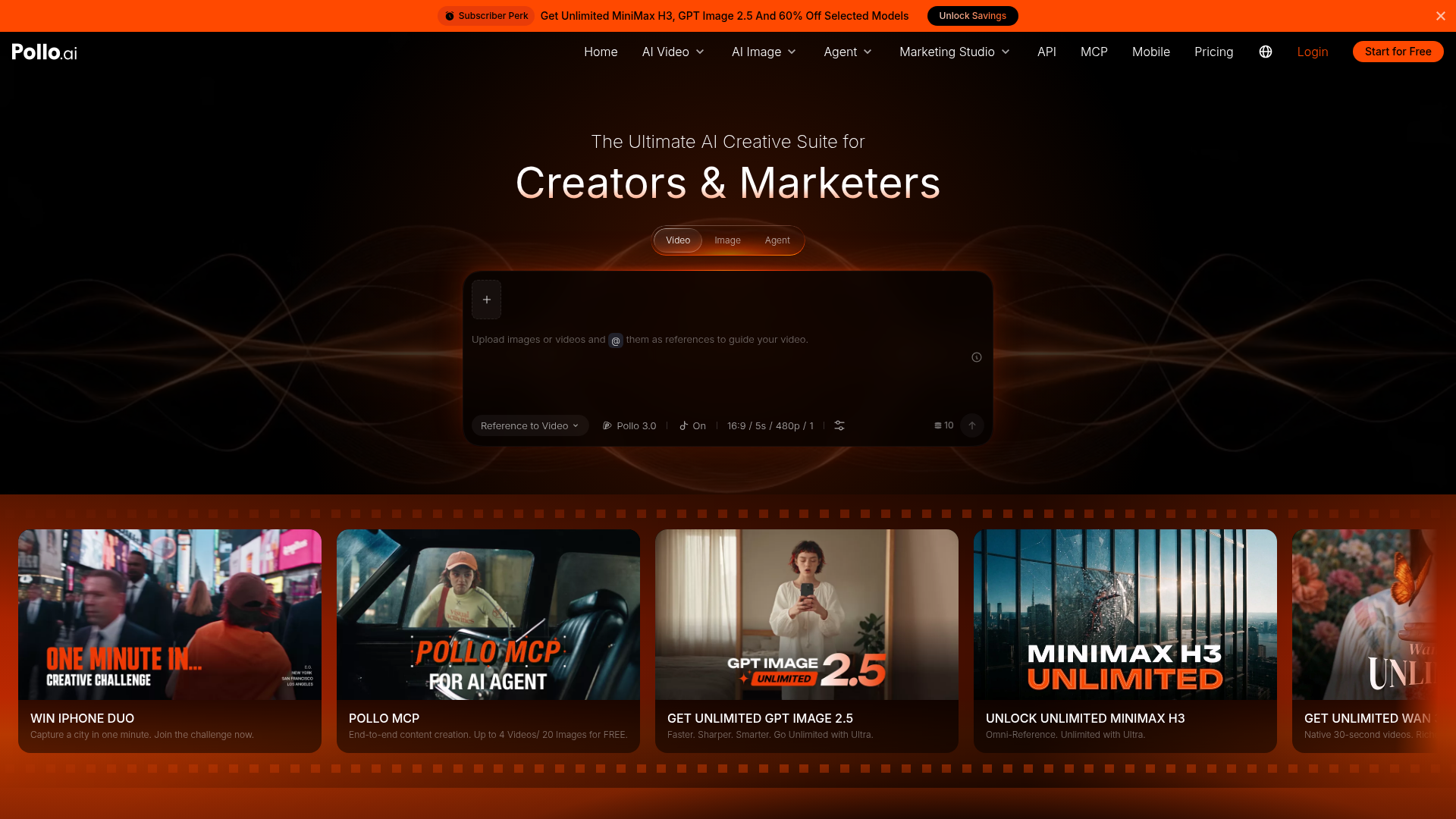
- 2Navigating the Text-to-Video Creation Workspace
- 3Transforming Static Graphics with Image-to-Video Controls
- 4Fine-Tuning Motion Parameters and Aspect Ratios
- 5Step-by-Step Guide to Generating Your First AI Video
- 6Comparing the Target Audiences: Who Wins and Who Loses?
- 7Making the Choice: Which One Should You Pick?
- 8Frequently asked
The short answer
- Creators needing rapid, short-form stylized social media videos should use Pollo AI for fast drafts.
- Traditional animators requiring exact structural control over individual object paths should skip this platform.
- Marketers wanting to animate existing static product photos into brief promotional clips will benefit most.
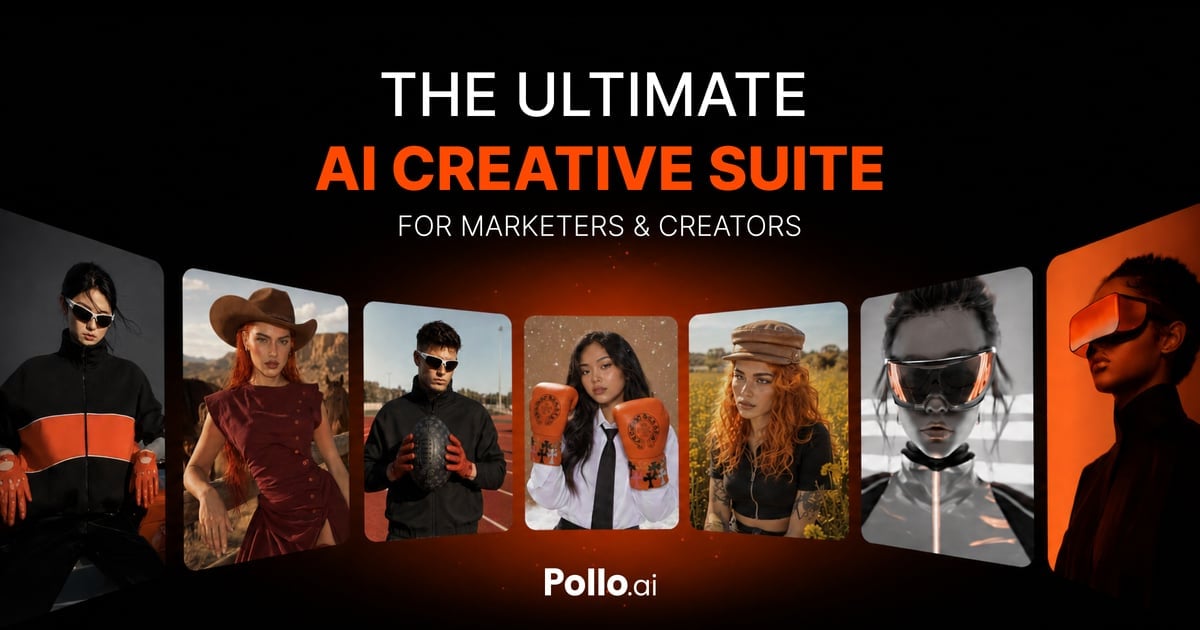
Pollo AI is ideal for content creators and marketers who need fast, stylized video clips from text or image prompts. You should skip it if you require precise frame-by-frame timeline editing or long-form narrative production.
For context, this platform operates primarily in the cloud, utilizing deep learning models to interpret written descriptions and static graphics, rendering them into brief animated sequences. It bridges the gap between static graphic design and complex video post-production workflows that usually require heavy local hardware.
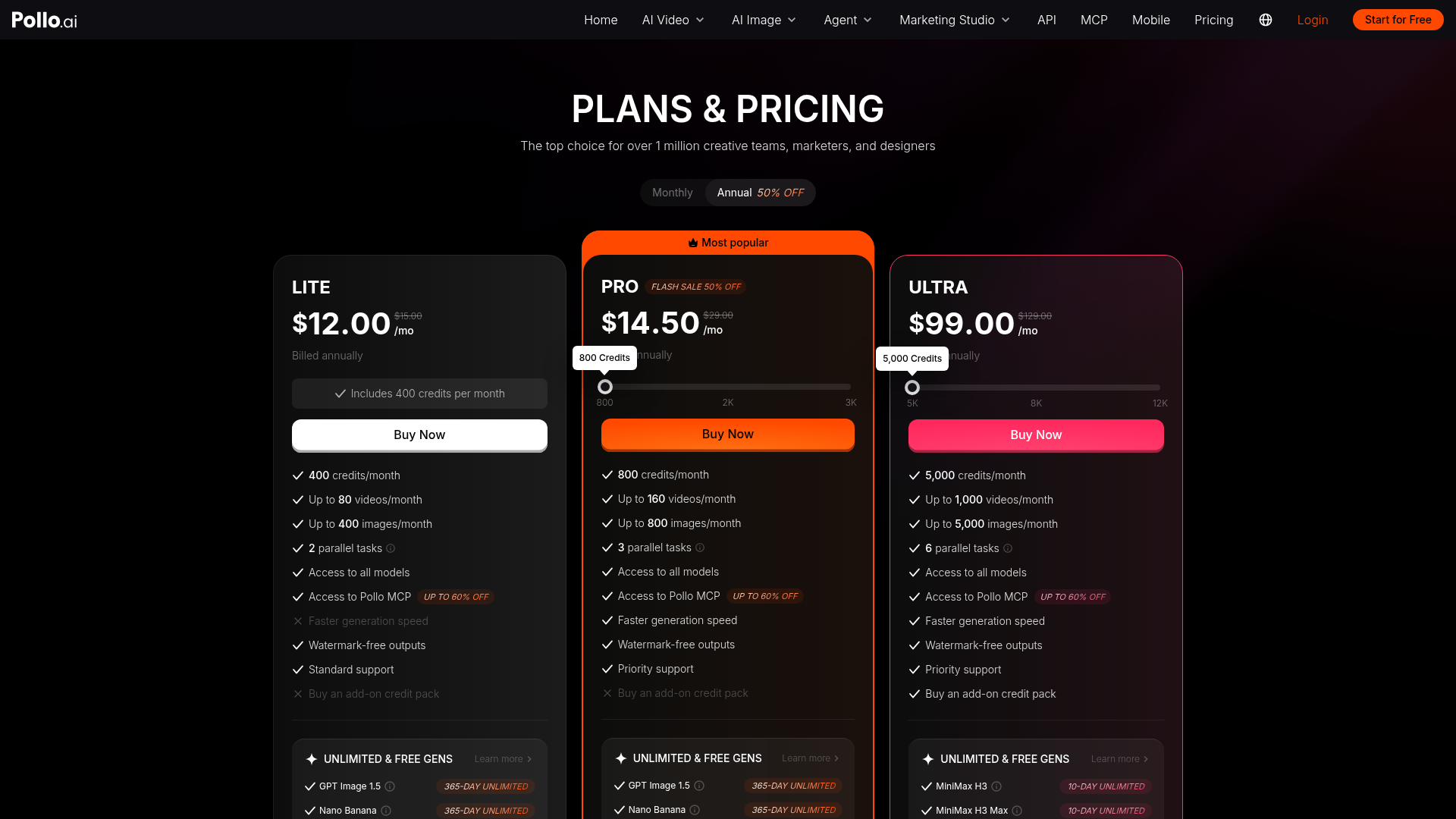
Understanding where this tool fits in your creative pipeline prevents wasted subscription credits and unnecessary trial sign-ups. To see how it aligns with your budget and output goals, read our full Pollo AI Review 2026: Pricing, Credits and Who It's For to evaluate its specific credit system and tiers.
The quick version
- Select your starting generation mode
- Input your descriptive generation prompt
- Set your preferred visual style preset
- Adjust the virtual camera settings
- Choose the output aspect ratio
- Click the generate button to start
Transforming Static Graphics with Image-to-Video Controls
Moving beyond raw text prompts, the image upload panel allows creators to ground their projects in existing brand assets. This stage of the workflow is where the platform performs image-to-video synthesis, using a static photograph, vector icon, or illustration as the anchor frame. The software analyzes the image structure and attempts to animate it naturally based on default settings.
Within this screen, the primary control mechanism is a motion intensity slider. Adjusting this slider tells the artificial intelligence how much physics-based movement to introduce into the scene. Lower settings keep the camera stable and generate subtle environmental motion, while higher settings generate dramatic sweeps, pans, or fast-moving environmental elements that can drastically alter the scene.
Brand designers who possess a library of high-quality product photos can use this screen to generate social media banners with animated smoke or lighting effects. Conversely, if your original image has intricate text or highly specific human facial expressions, the motion engine may warp these details. Those who require absolute fidelity to a source face or logo should exercise caution here.
Fine-Tuning Motion Parameters and Aspect Ratios
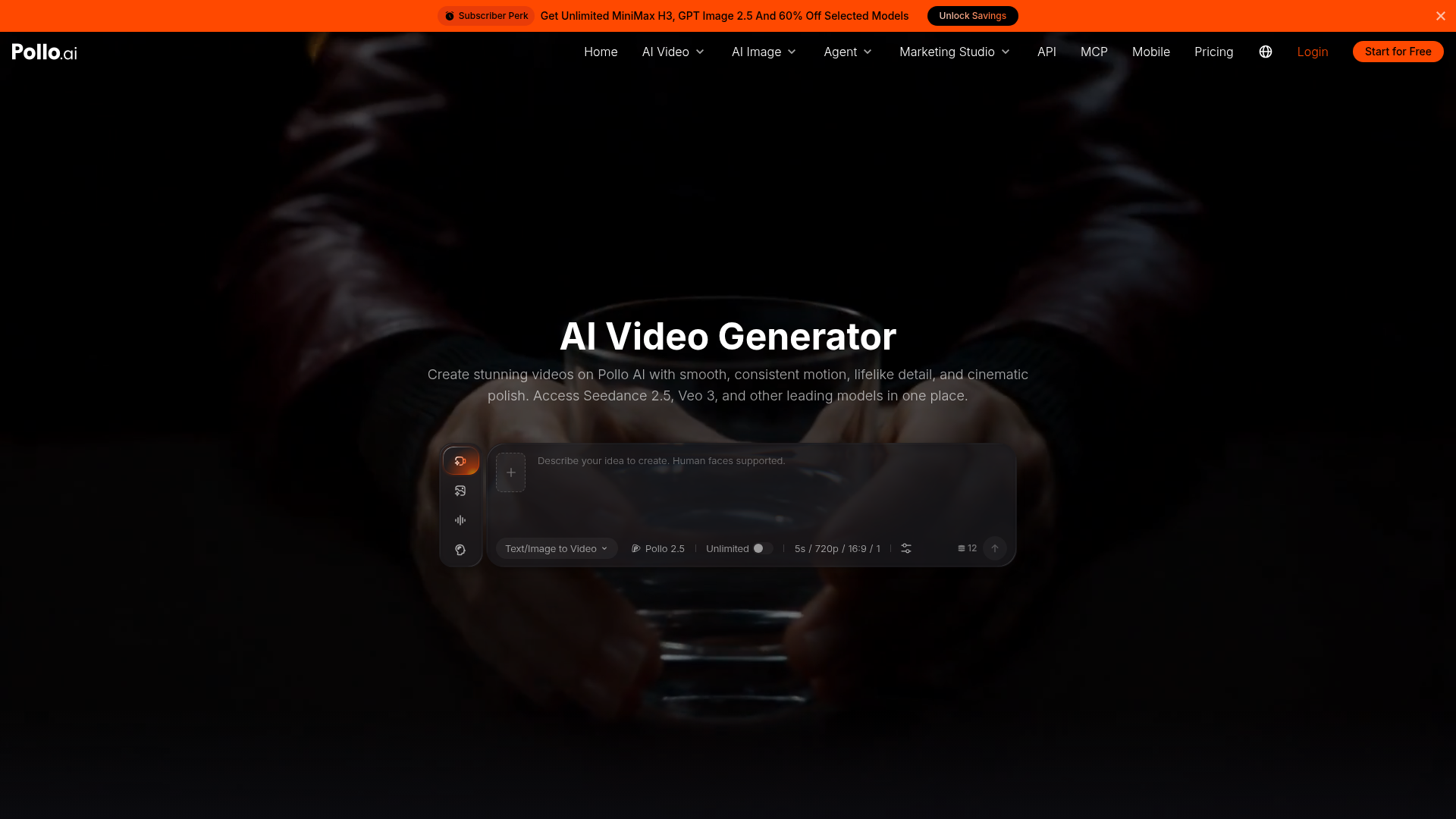
The advanced settings panel provides a set of direction controls that mimic physical camera rigs. Here, users can instruct the virtual camera to pan left, tilt upward, zoom in, or roll along the horizontal axis. These controls are essential for creators who want to establish specific cinematic perspectives without writing long descriptive text prompts in the main input field.
Next to the camera controls, the aspect ratio selector offers multiple standard dimensions, including vertical formats for mobile platforms and widescreen formats for traditional displays. This visual configuration ensures that the output fits your target platform without requiring manual cropping in external software later, saving valuable post-production hours for rapid turnaround campaigns.
While these virtual camera movements add polish, they are applied globally across the entire clip duration. The lack of keyframing is a major reason why advanced video editors might choose to skip this tool for complex compositions. You cannot schedule a pan to start at the two-second mark and switch to a zoom at the four-second mark.
Step-by-Step Guide to Generating Your First AI Video
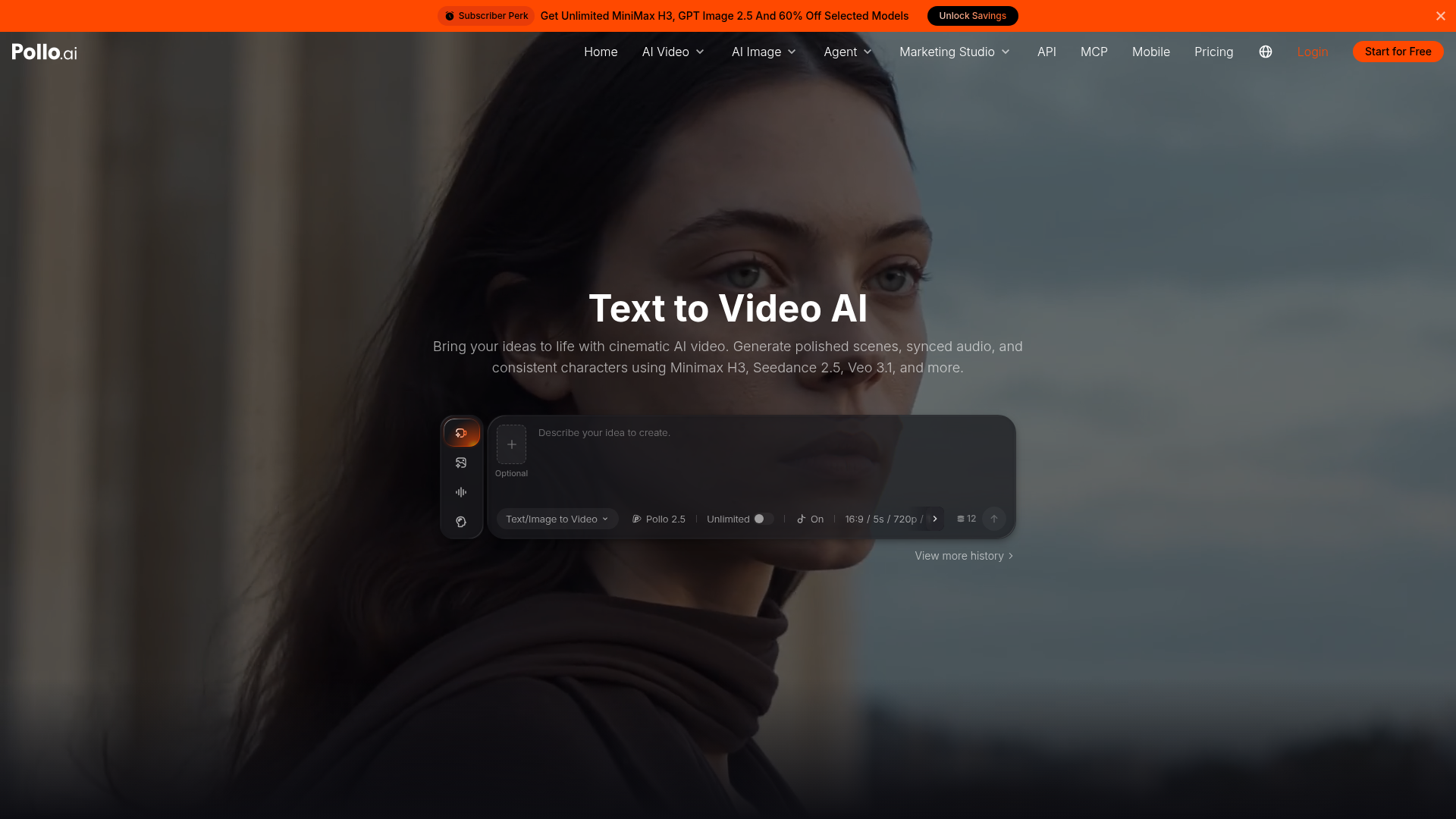
Setting up your first generation project involves a structured path through the main dashboard. Following a consistent sequence helps you conserve your generation credits by avoiding common setup mistakes that lead to unusable clips. Here is how to initiate your first render successfully and get the best possible starting results.
- Select your starting generation mode. Choose either the text-prompt console or the image-upload box depending on your source assets.
- Input your descriptive generation prompt. Use clear nouns and active verbs to describe the subject and the desired motion.
- Set your preferred visual style preset. Click on one of the style cards like cinematic or watercolor to establish the artistic theme.
- Adjust the virtual camera settings. Use the directional buttons to add subtle panning or zooming to your scene.
- Choose the output aspect ratio. Match the dimensions to your target platform, such as vertical for social feeds or widescreen for presentations.
- Click the generate button to start rendering. Wait for the cloud server to process your request and display the final video clip.
After the rendering finishes, the video appears in your personal library folder. From this screen, you can review the motion quality and decide whether to download the clip or run a variation. To understand how many of these generations your account can perform per month, look at our detailed breakdown in the Pollo AI Review 2026: Pricing, Credits and Who It's For article.

Comparing the Target Audiences: Who Wins and Who Loses?
The decision to adopt or skip this software depends heavily on your daily production requirements and technical background. By looking at how different professional roles interact with the generation interface, we can see where the tool succeeds and where it falls short. Let us examine how different workflows match up against the platform's core capabilities:
- Aspect: Speed of output: Social media managers get finished video clips in minutes, whereas traditional animators spend hours manually drawing individual frames.
- Aspect: Precision of movement: Traditional video editors can map exact motion paths for objects, while AI users must rely on algorithmic interpretation of their text prompts.
- Aspect: Source asset flexibility: Illustrators can quickly breathe life into flat drawings via image conversion, while technical CAD designers will find the geometric distortion unacceptable.
- Aspect: Audio integration: Conventional editing suites allow precise audio-to-video syncing on a timeline, while this generator requires you to add soundtracks later using external programs.
This comparison highlights that the software functions best as an ideation tool or a fast content generator. It is not designed to replace a fully featured digital audio workstation or an advanced composition suite. Instead, it serves as a rapid starting point for visual concepts before bringing them into final assembly.
Making the Choice: Which One Should You Pick?
When deciding whether to integrate this platform into your toolkit or look elsewhere, your choice hinges on the balance between control and convenience. If your primary goal is to bypass the steep learning curve of traditional video editing, opting for a system powered by generative diffusion makes sense. It allows you to produce visually striking assets with minimal manual labor.
On the other hand, if you are a professional who needs to maintain strict consistency across a long-form narrative campaign, you should skip this tool. The unpredictable nature of AI-generated frames means that characters or backgrounds can shift slightly between clips, which can disrupt the visual continuity required for high-end commercial work.
For those who fall in the middle, using this platform as a supplementary tool is often the ideal path. You can generate draft concepts, test visual aesthetics, and create background elements quickly, then import those clips into your standard editing suite for final assembly, sound design, and color grading.
Frequently asked
As an Amazon Associate I earn from qualifying purchases. This does not affect the price you pay. Affiliate disclosure