Best Kling AI Alternatives: Which Video Generator Should You Use?
Compare the top video generation tools like Runway Gen-3 and Luma Dream Machine to find the right motion control panel and physics engine for your projects.

Some links are affiliate links: we may earn a commission if you sign up or buy through them, at no extra cost to you.
On this page8 sections
- 1The short answer
- 2Prompting Dashboards and Text-to-Video Workflows
- 3Managing Image Inputs and Keyframe Controls
- 4Camera Direction Sliders and Virtual Rig Controls
- 5Isolating Movement With Local Motion Brushes
- 6Generation Speeds, Queue Management, and Export Settings
- 7Choosing the Right Video Generator for Your Needs
- 8Frequently asked
The short answer
- Runway Gen-3 Alpha excels at professional cinematic camera controls and highly detailed prompt adherence.
- Luma Dream Machine offers rapid rendering speeds and highly realistic camera movement physics.
- Pika 2.0 features specialized localized modification tools like inflation, melting, and crushing.
The best Kling AI alternatives for high-fidelity video generation are Runway Gen-3 Alpha, Luma Dream Machine, and Pika 2.0. Each platform offers distinct advantages in prompting accuracy, rendering speed, and camera motion control.
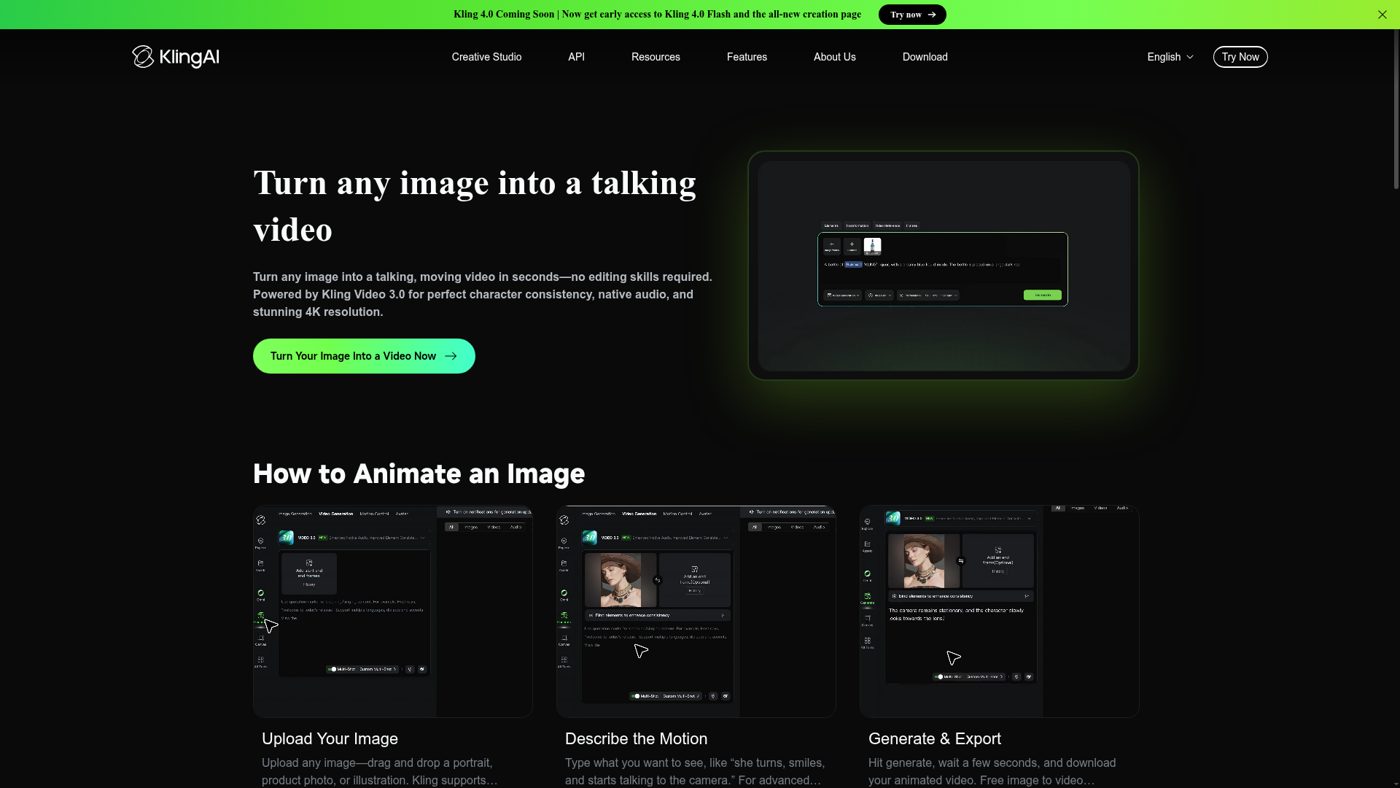
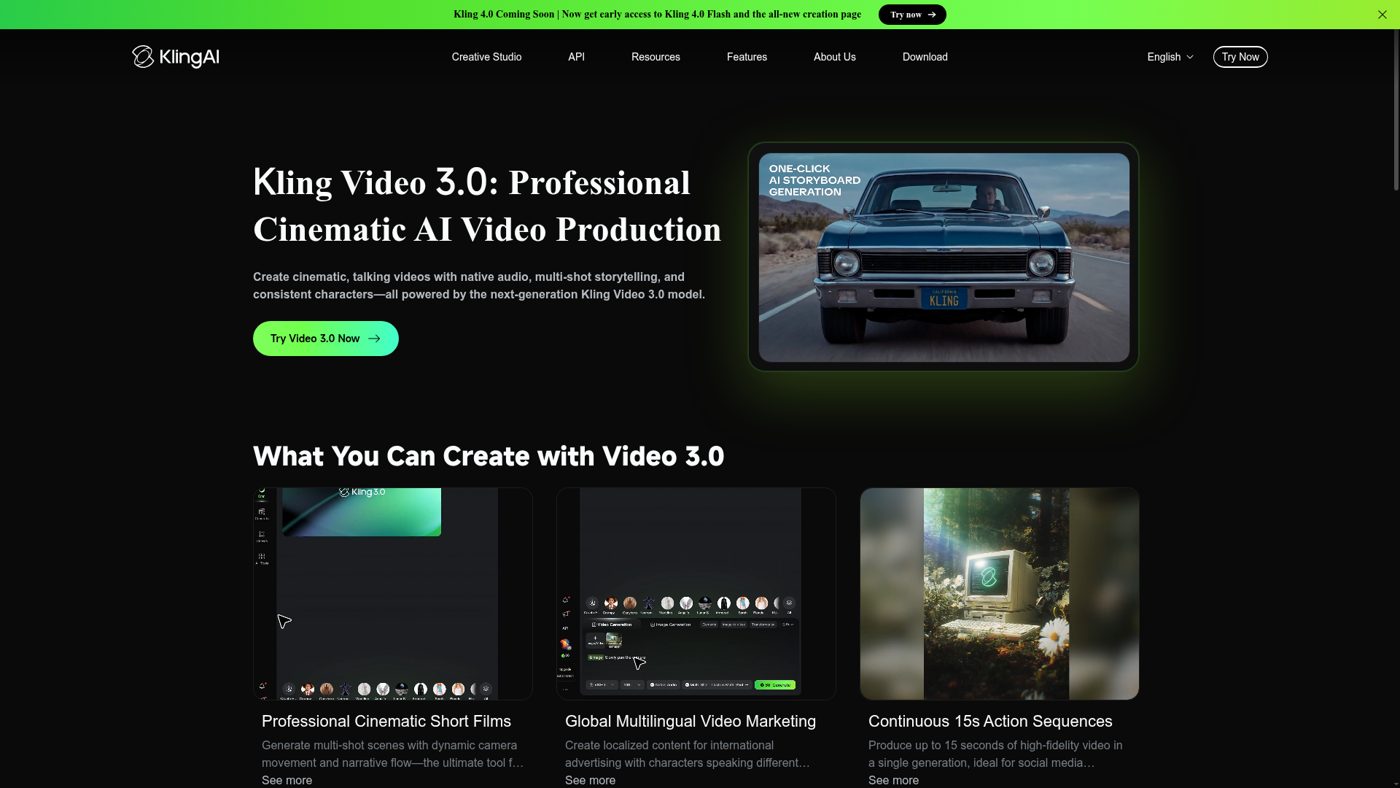
While Kling AI is a powerful tool for generating realistic movement, creators often seek alternatives to bypass processing queues or access specialized workspaces. Reading our Kling AI Review (2026): Video, Images and Motion Control reveals that while its motion brush is top-tier, other options provide smoother workflows for specific creative tasks.
Finding the right tool involves looking closely at the generation panel. By comparing how these platforms handle prompt structures, keyframe images, and localized controls, you can find the perfect match for your visual production.
Prompting Dashboards and Text-to-Video Workflows
The primary generation window of any AI video platform defines your daily workflow. When setting up a text-to-video project, you are presented with a central input box where you describe the scene, lighting, and camera angle. While Kling AI relies on highly descriptive prompts that work well in both English and Chinese, competitors like Runway Gen-3 Alpha utilize a structured prompting style that responds exceptionally well to traditional cinematic terminology.
Within the Runway workspace, the text entry field is paired with a prompt expansion assistant. This helper adds descriptive qualifiers to your base prompt, ensuring the underlying diffusion model understands the desired atmosphere. If you write a simple prompt, the platform can automatically expand it to include details about camera lenses, cinematic lighting styles, and subtle environmental motion.
Luma Dream Machine takes a different approach in its main generation interface. The focus here is on raw action and rapid velocity, meaning the prompt box is optimized for dramatic verbs and fast-paced sequences. Luma is designed to interpret sudden physics changes, such as explosions, fast-moving cars, or running characters, with fewer artifacts than you might experience on other generation panels.
When comparing these prompting screens, the main layout difference lies in user guidance. Some platforms leave you with a blank box and expect you to know exact camera directions, while others provide structured drop-down menus for style, aspect ratio, and resolution before you even begin typing. Choosing between them depends on whether you prefer raw prompting freedom or guided assistant boxes.
Managing Image Inputs and Keyframe Controls
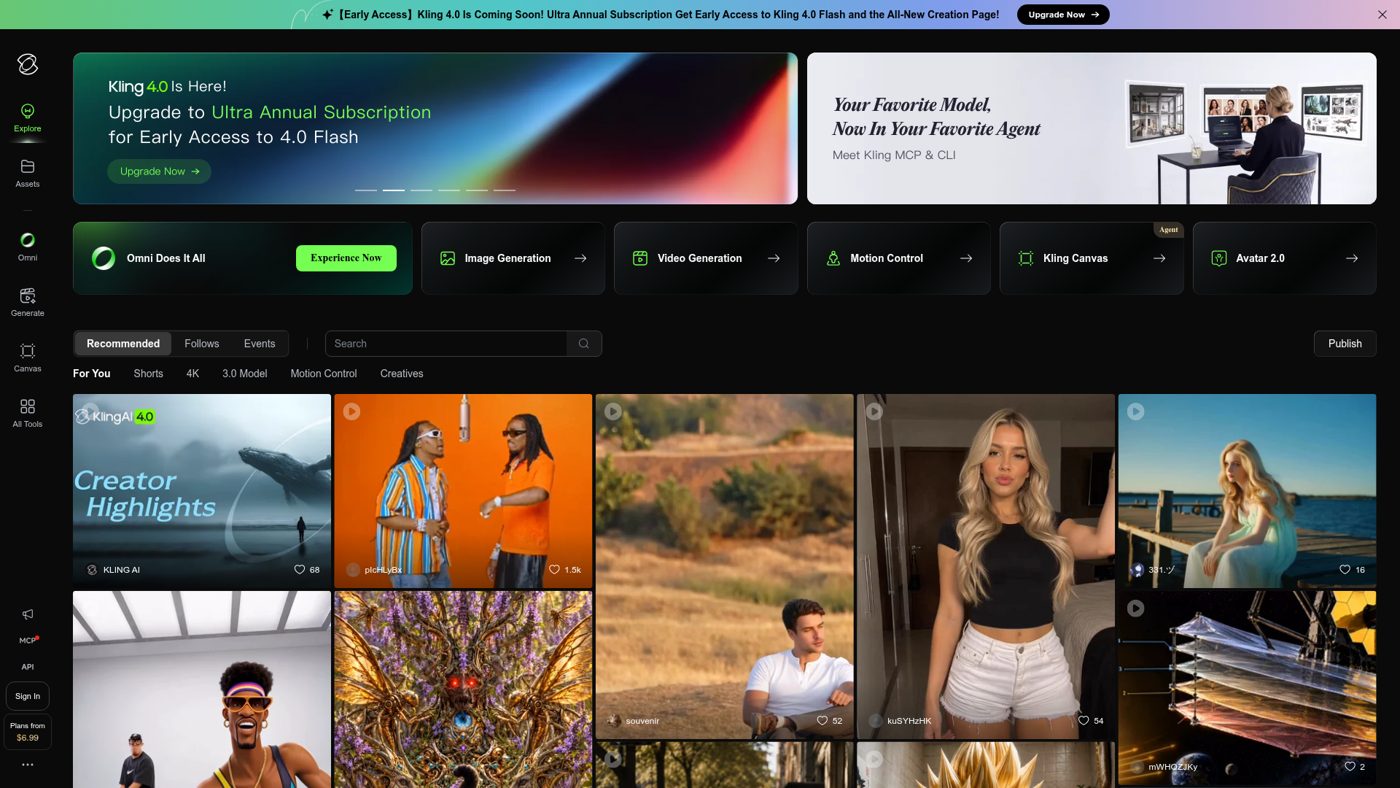
Generating video from a static image requires a specialized workspace where you can upload reference material. In this image-to-video workflow, you provide a starting frame and ask the engine to animate it. The layout of this dashboard is critical because you need to control exactly how much the final video departs from your original image.
On the Kling AI interface, you can upload both a starting frame and an ending frame to guide the sequence. Our detailed guide to the Kling AI Review (2026): Video, Images and Motion Control outlines how this dual-keyframe approach forces the engine to calculate the logical motion between two separate pictures. This is incredibly useful for complex narrative sequences where a character must start in one position and end in another.
Runway Gen-3 Alpha offers a highly detailed image-to-video interface that features a weight slider. This control allows you to decide if the engine should strictly adhere to the source image's geometry or allow the characters to move freely. A higher image weight keeps facial features and backgrounds completely stable, which is necessary if you are working with existing branding or specific character portraits.
Luma Dream Machine simplifies this dashboard by focusing on speed. You drop an image into the drop-zone, type a brief motion command, and hit generate. The interface does not feature as many complex sliders, making it faster to use but offering less manual control over the visual drift that often happens during multi-second renders.
Camera Direction Sliders and Virtual Rig Controls
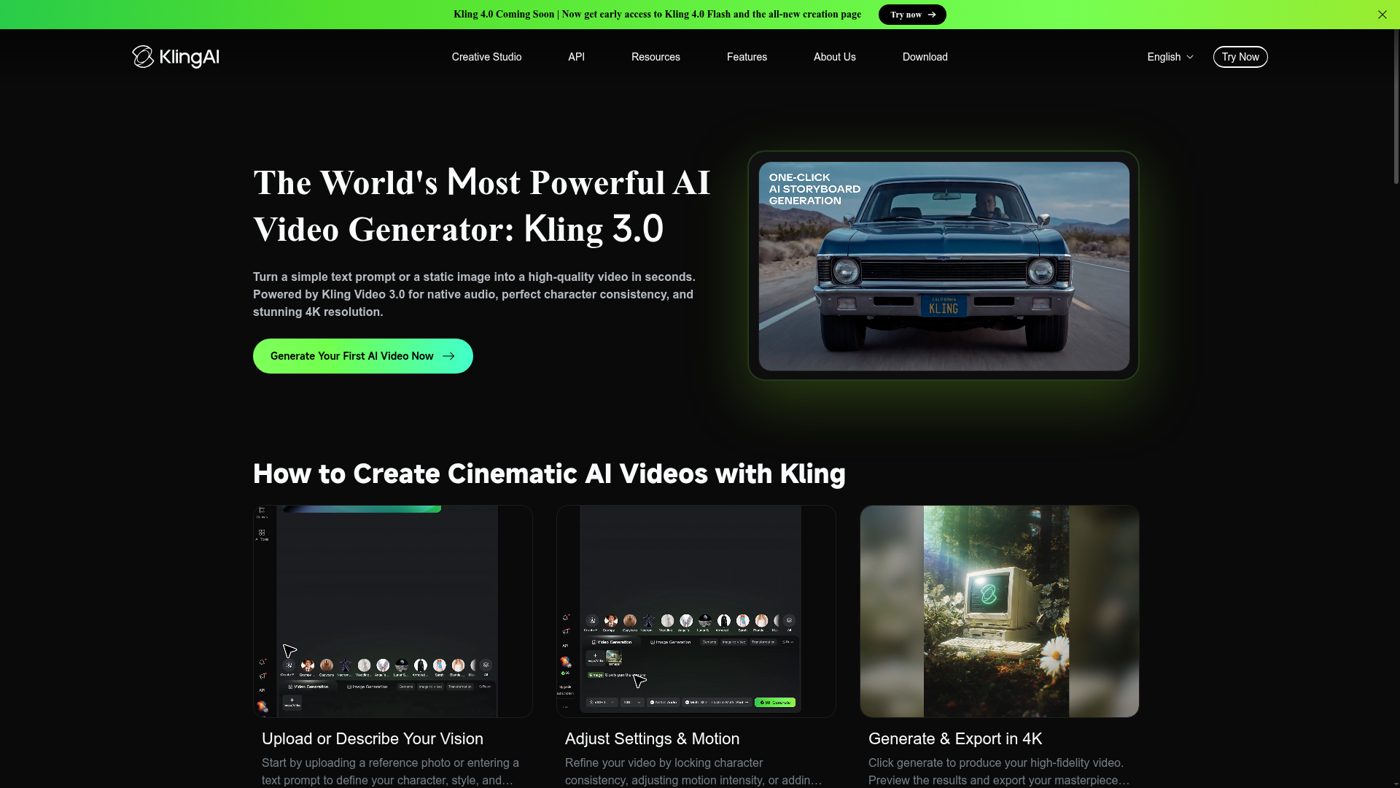
One of the biggest differences between high-end video engines is how they let you control the virtual camera. Instead of typing "pan left" in your text prompt, advanced platforms feature dedicated camera control panels with graphical dials. These dials simulate a real camera rig, allowing you to set specific values for horizontal panning, vertical tilting, rolling, and zooming.
Kling AI provides a straightforward camera control box where you can toggle these settings on or off. However, Runway's "Director Mode" panel is much more visual. It displays a virtual joystick on the screen, letting you drag your cursor in the exact direction you want the camera to fly. This interactive joystick makes it far easier to choreograph complex diagonal sweeps and panning shots.
Luma Dream Machine manages camera movement largely through text-based camera presets or simple directional buttons. Because Luma's physics engine is highly responsive, camera moves feel heavy and realistic, mimicking the actual momentum of a handheld camera or a crane rig. However, you have fewer precise dials to tweak before pressing the generation button.
If your workflow relies heavily on matching specific angles for virtual storyboarding, look for a platform that separates camera speed from camera direction. Having a dedicated speed slider ensures that a camera sweep does not blur the main subject of your shot, maintaining visual clarity throughout the render.
Isolating Movement With Local Motion Brushes
When animating a static picture, you rarely want the entire frame to move. If you have an image of a person standing next to a waterfall, only the water should flow while the person remains perfectly still. To achieve this, advanced video platforms include a motion brush tool directly inside the image-to-video workspace.
This screen allows you to paint over specific regions of your uploaded image with a semi-transparent brush. Once highlighted, you assign a specific direction and speed of motion only to that brushed area. This technique is the best way to prevent the background or the main subject's face from morphing uncontrollably during the generation.
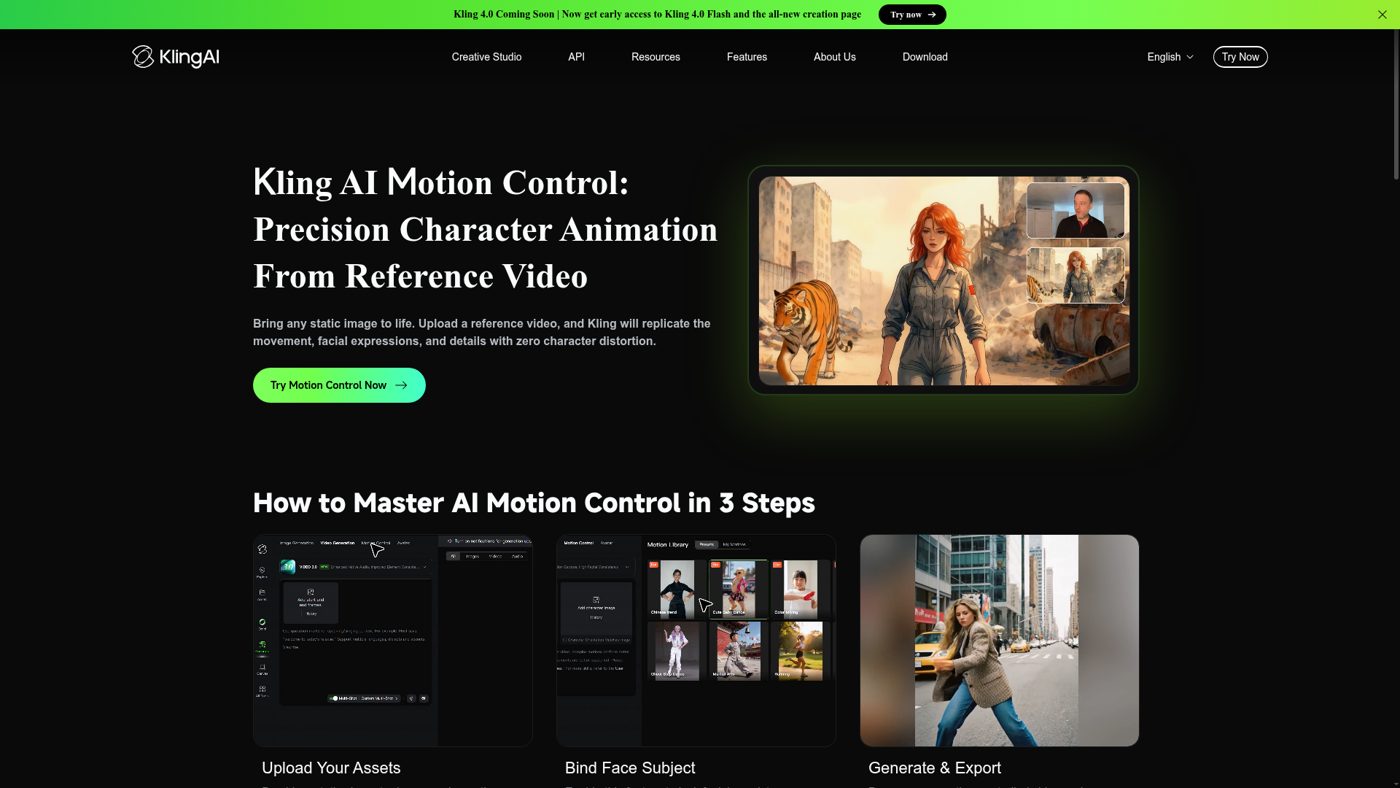
Kling AI has a highly regarded motion brush that lets you paint multiple independent paths on a single image. You can tell one brushed area to move left and another to move right. Runway offers a comparable "Motion Brush" dashboard with up to five distinct colored brushes. This allows you to paint water moving down, clouds moving right, and leaves blowing left, all within a single generation task.
Pika 2.0 takes localized editing a step further with specialized regional effects. Instead of just directing motion, Pika's localized tool panel lets you select an area and apply physics-defying commands like "inflate" or "melt." This makes the interface highly creative for surreal animations, though it behaves differently than the standard directional brushes found in Runway or Kling.
Generation Speeds, Queue Management, and Export Settings
Beyond the creative controls, the daily utility of a video generator is dictated by its rendering pipeline. Video generation is computationally heavy, and every platform handles its queue and processing times differently. The screen where you monitor your active jobs, view generation progress, and download completed clips is where you will spend a significant portion of your time.
In the Kling AI dashboard, tasks are queued based on your subscription tier, with high-priority tasks rendering faster. The interface displays a percentage counter, though the actual time to completion can vary depending on overall server demand. Users who need immediate results for client work often find themselves waiting during peak operational hours.
Luma Dream Machine is built specifically for speed, often delivering completed clips in a fraction of the time of its competitors. Its rendering queue dashboard is clean and straightforward, focusing on getting your clip processed immediately. This rapid turnaround is invaluable when you are brainstorming or need to generate dozens of iterations to find one with perfect physics.
The right alternative will provide clear feedback during the generation process, letting you see the initial frames as they render. This allows you to cancel a failed generation early, saving your processing credits. Some platforms also feature resolution upscaling and frame interpolation tools on the export screen, letting you turn a standard generation into a crisp, high-definition final file.
Choosing the Right Video Generator for Your Needs
Choosing the best platform depends entirely on your production workflow and how you prefer to control the movement of your characters and cameras. No single generator serves every purpose perfectly, so understanding the core focus of each workspace is the best way to make a decision. Look at the controls you use most often to guide your choice.
If you require deep cinematic camera controls, highly structured prompts, and a multi-colored motion brush for complex shots, Runway Gen-3 Alpha is the primary choice. Its dashboard is built for professional filmmakers who need precise, predictable adjustments. You can read more about how these controls contrast with standard options in our comprehensive Kling AI Review (2026): Video, Images and Motion Control.
For those who value rendering speed, realistic momentum, and fast prototyping above all else, Luma Dream Machine is the ideal tool. It eliminates complex slider setups in favor of a fast, action-focused physics engine that delivers rapid renders. It is perfect for creators who want to see their text prompts turned into moving footage almost instantly.
Here is a direct breakdown of how these tools compare across key design aspects:
- Cinematic Control: Runway Gen-3 Alpha provides precise camera dials and joystick controls, while Luma Dream Machine relies on simpler presets and prompt commands.
- Rendering Speed: Luma Dream Machine processes clips very quickly, whereas Runway and Kling AI often require longer processing queues depending on server traffic.
- Localized Editing: Runway and Kling AI feature advanced multi-colored motion brushes, while Pika 2.0 offers specialized structural editing tools like melting and inflation.
- Keyframe Flexibility: Kling AI supports both start and end keyframes, while Runway relies on image weight sliders to manage temporal consistency.
Frequently asked

Some links are affiliate links: we may earn a commission if you sign up or buy through them, at no extra cost to you. Affiliate disclosure