How to Fix the Most Common Fliki Video Creation Mistakes
Avoid wasted credits and artificial-sounding voiceovers by mastering Fliki's text-to-video workflow, subtitle styling, and pronunciation maps.
Some links are affiliate links: we may earn a commission if you sign up or buy through them, at no extra cost to you.
On this page9 sections
- 1The short answer
- 2Wasting Account Credits on Rough Draft Scripts
- 3Failing to Customize Pronunciation and Voice Pauses
- 4Relying Blindly on Automatic Stock Media Selection
- 5A Step-by-Step Workflow to Adjust Voice Pacing
- 6Choosing Your Aspect Ratio Too Late in the Process
- 7Auto-Generated Media vs. Manual Curation
- 8Leaving Subtitles in the Default Safe Zones
- 9Frequently asked
The short answer
- Edit scripts thoroughly before previewing or rendering scenes to preserve precious account generation credits.
- Customize pronunciation and pauses in the timeline to remove robotic-sounding speech patterns.
- Select your aspect ratio manually prior to searching media to prevent awkward cropping issues.
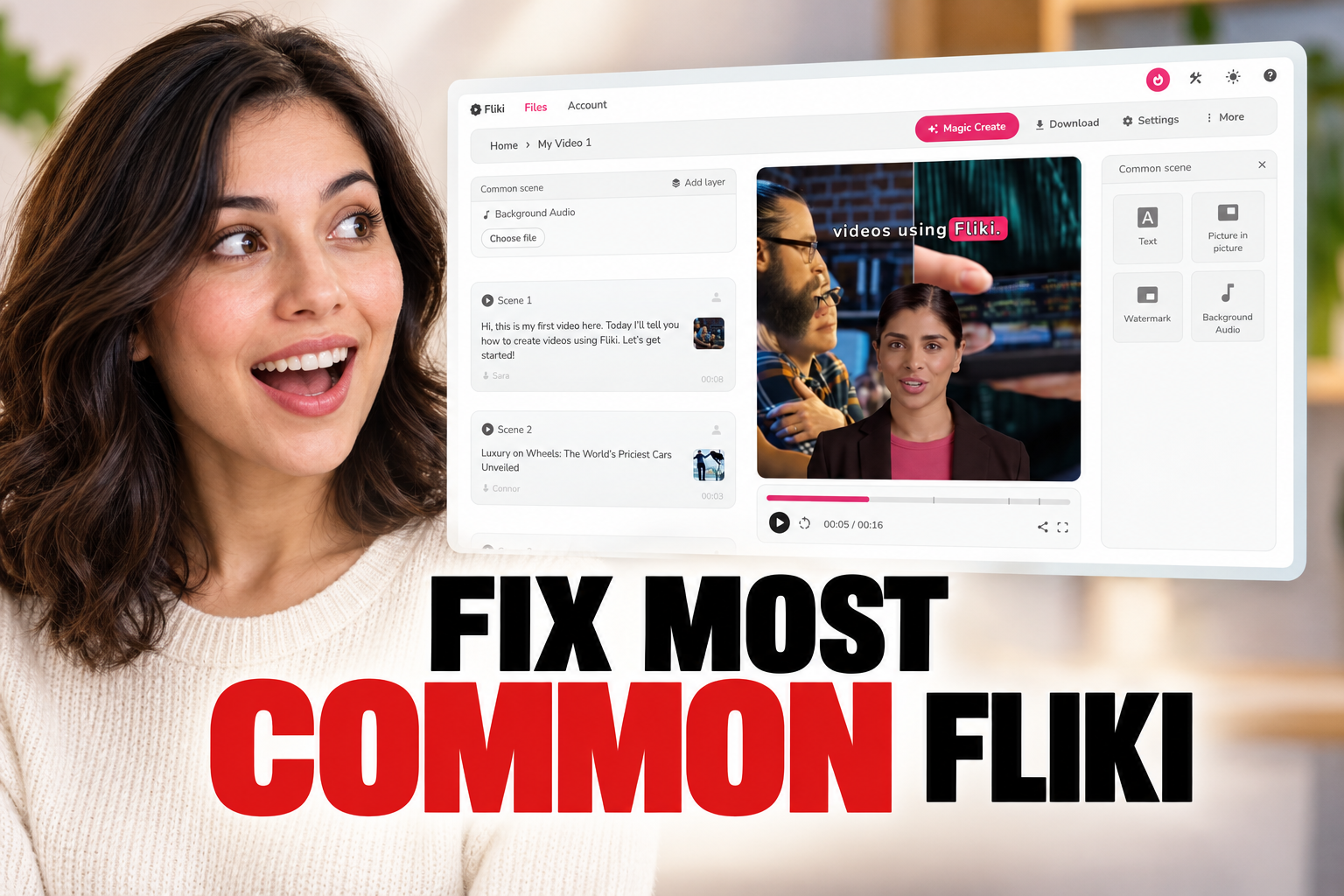
The most common Fliki mistakes include wasting rendering credits on unpolished scripts, accepting unnatural robotic voiceover cadences, and ignoring subtitle customization. Users also frequently fail to adjust aspect ratios before generating AI-driven media assets.
Fliki simplifies video creation by converting text into visual stories through automated voice synthesis and stock media pairing. However, relying purely on default automation often leads to generic, poorly paced videos that fail to engage viewers on popular video sharing networks.
Understanding how to navigate Fliki's settings, timeline, and asset allocation is crucial for any creator. By avoiding these standard missteps, you can protect your monthly subscription limits while producing highly professional video content.
The quick version
- Select the target voiceover layer
- Pinpoint the rushed transitions
- Place a custom pause marker
- Modify the pause duration slider
- Register custom words in the dictionary
- Preview the corrected scene audio
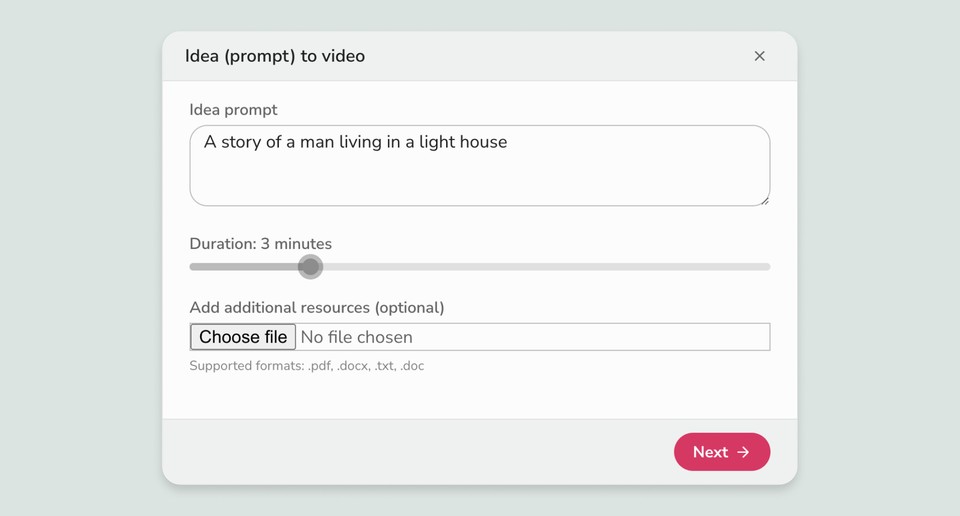
Wasting Account Credits on Rough Draft Scripts
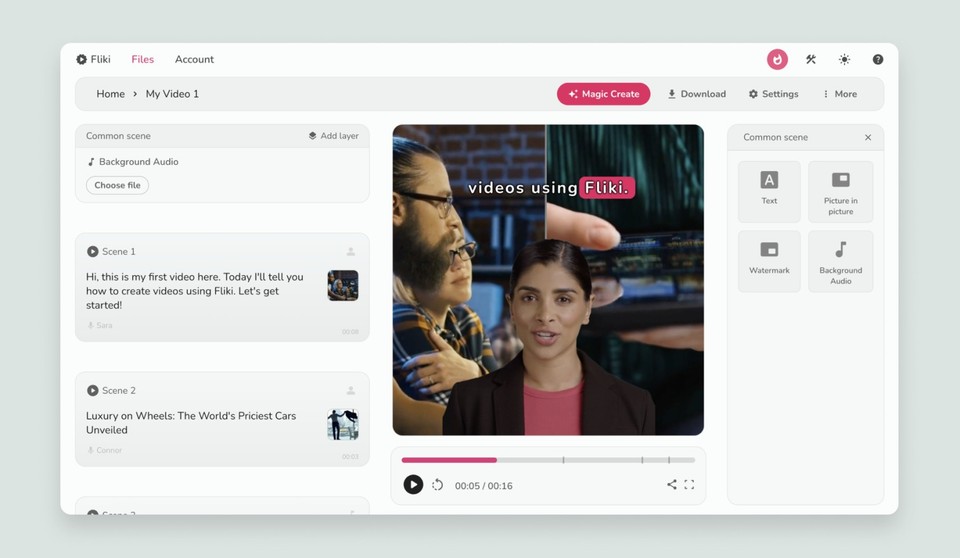
When you paste text into Fliki's main editing board, the system segments your narrative into distinct scene cards. Every time you generate these scenes to preview the voiceover or rendering flow, your account balance decreases. A frequent error is inputting a draft that has not been thoroughly proofread.
If your imported script contains grammatical issues or awkward syntax, you will be forced to edit the text and regenerate the scene. This repeated rendering process is a primary driver of drained monthly limits. Reading your script aloud prior to importing it helps identify awkward pacing before any digital resources are spent.
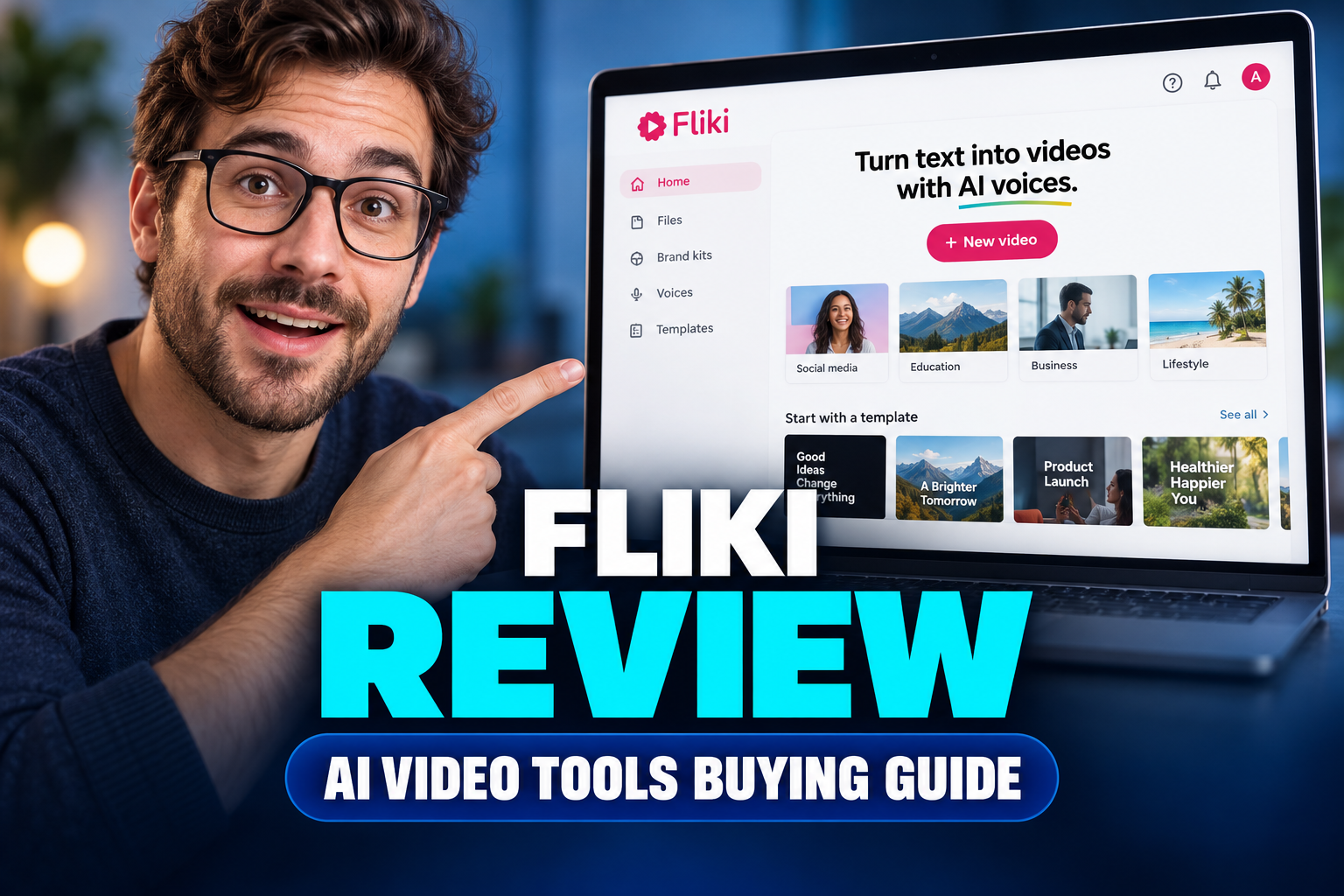
To maintain an efficient production cycle, write and refine your scripts in an external document editor first. Ensure all commas and periods are placed correctly, as the platform relies on these marks to anchor voice pauses. For a comprehensive strategy on managing your generation limits, refer to our Fliki Review 2026: Pricing, Credits and Who It's For.
Failing to Customize Pronunciation and Voice Pauses
Fliki offers an extensive array of text-to-speech voices, but even the most advanced voice models can struggle with brand names, industry jargon, or technical abbreviations. Accepting the automated vocal generation without review often leaves you with an obviously automated voiceover that alienates viewers.
To bypass this issue, creators should actively use the platform's settings panel to adjust pronunciation maps. By mapping out phonetic spellings for complex words, you ensure the AI voice reads them naturally across every scene. Skipping this setup step usually results in jarring mispronunciations of your core topics.
Similarly, default voiceovers can sometimes sound rushed or unnatural. The editor allows you to insert specific pause durations directly between words or sentences. Introducing subtle timing variations prevents your narration from sounding robotic and keeps your audience engaged throughout the video.
Relying Blindly on Automatic Stock Media Selection
The primary appeal of Fliki's text-to-video workflow is its ability to automatically pair your script with relevant background footage. However, the system's search algorithm often takes figurative language literally, leading to highly confusing visual pairings. If you mention "climbing the corporate ladder" in your script, the system might insert a literal video of a construction ladder.
Accepting these automatic choices without double-checking makes your final video look unpolished and disjointed. Viewers expect the imagery on screen to reinforce your spoken points, not distract from them. Smart creators must manually inspect every scene card to replace inaccurate automatic matches with more appropriate clips.
Furthermore, using only the first suggested stock asset makes your content look identical to other automated channels. Taking the extra minute to explore the media library or upload custom images helps establish a distinct look. Do not let the ease of automation compromise your visual storytelling.
A Step-by-Step Workflow to Adjust Voice Pacing
Refining the rhythm of your AI narration prevents your video from sounding rushed. If you notice your voiceover lacks natural pauses, follow this sequential adjustment process within the scene editor.
- Select the target voiceover layer. Click on the voice name badge at the top of the active scene card to open the audio configuration panel.
- Pinpoint the rushed transitions. Listen to the localized scene preview to find exactly where sentences collide or sound too mechanical.
- Place a custom pause marker. Position your cursor at the natural breathing point in the text box and click the pause icon.
- Modify the pause duration slider. Adjust the gap length to between 0.5 and 1.2 seconds to create realistic conversational pauses.
- Register custom words in the dictionary. Open the pronunciation map tool to correct any misspelled syllables or unusual brand names.
- Preview the corrected scene audio. Play back the individual block to verify the pacing sounds natural before proceeding to full video rendering.
This precise level of control separates amateur automated videos from polished, professional content. Dedicating a few moments to adjusting the rhythm of your voiceover preserves your visual authority and keeps eyes on your video.
Choosing Your Aspect Ratio Too Late in the Process
Fliki supports video creation for landscape, square, and portrait layouts, but changing this setting late in your workflow creates massive formatting issues. Many creators begin editing in the default landscape mode and switch to portrait for TikTok or YouTube Shorts right before exporting.
When you shift aspect ratios after adding media, Fliki crops your background footage to fit the new frame. This often slices off the main focal point of your images or video clips, forcing you to manually reposition every single asset. It also breaks the formatting of your subtitles and overlays.
To avoid this corrective work, make defining your target platform settings the absolute first step of any new project. Setting your aspect ratio early ensures that all stock media searches and AI image generations are pre-scaled to the correct proportions.
Auto-Generated Media vs. Manual Curation
Deciding how much control to yield to Fliki's automation affects both your editing speed and credit usage. Let's compare how automated video generation stacks up against manual curation across key editing aspects.
- Speed: Auto-generation produces a complete draft in seconds, while manual curation requires several minutes per scene to locate appropriate assets.
- Visual accuracy: Auto-generation often misinterprets metaphorical language, whereas manual curation ensures every background clip aligns with your script's true context.
- Credit efficiency: Auto-generation can waste your monthly balance if you must regenerate poorly matched scenes, while manual curation lets you finalize media before rendering.
- Brand consistency: Auto-generation mixes various stock video styles randomly, whereas manual curation allows you to maintain a unified visual theme.
If you are producing rapid, high-volume news summaries, relying on auto-generation with light edits is your best route. For professional brand tutorials, marketing assets, or product reviews, manual curation is necessary to prevent a cheap look. For more advice on choosing the right creation path, check our Fliki Review 2026: Pricing, Credits and Who It's For.
Leaving Subtitles in the Default Safe Zones
Automated subtitles are highly convenient, but leaving them in their default configuration is a major mistake. Standard caption placements often get covered by social media interfaces, such as TikTok's side engagement icons or Instagram's bottom text descriptions.
To maximize readability, open the subtitle customization panel and adjust the vertical position of your captions. You should also change the font, size, and background opacity to ensure high legibility against varied video backgrounds. Utilizing safe zones guarantees your text remains visible on all screen sizes.
Additionally, look at how the text wraps across lines. Huge blocks of text appearing simultaneously can overwhelm viewers, while short, synchronized phrases maintain high engagement. Taking control of your subtitle layout turns basic AI output into a professional asset.
Frequently asked
Some links are affiliate links: we may earn a commission if you sign up or buy through them, at no extra cost to you. Affiliate disclosure