How to Avoid the Most Common Synthesia Mistakes
Avoid uncanny valley results in Synthesia by mastering script pause tags, correcting voice phonetic spelling, and spacing canvas margins properly.
Some links are affiliate links: we may earn a commission if you sign up or buy through them, at no extra cost to you.
On this page8 sections
- 1The short answer
- 2The Script Editor: Mismanaging Voice Cadence and Pause Tags
- 3The Studio Canvas: Improper Avatar Framing and Visual Collisions
- 4How to Format Your Synthesia Scripts for Natural Speech Patterns
- 5The Voice Selection Panel: Accents and Demographics Out of Sync
- 6The Video Timeline: Overcrowding Slides with Verbatim On-Screen Text
- 7The Localization Workflow: Relying on Unedited Automated Translations
- 8Frequently asked
The short answer
- Use explicit pause markers to keep your avatar's breathing patterns and cadence realistic.
- Apply the phonetic spelling override feature for complex technical terms, brand names, and acronyms.
- Position your digital presenter carefully to avoid overlapping critical on-screen text or slide graphics.
The most common Synthesia mistakes involve failing to format scripts for spoken cadence, neglecting custom pronunciation spelling, and placing avatars where they block essential on-screen slide text. Avoiding these errors ensures your AI-generated presenters look and sound natural.
Creating professional presentation videos requires more than simply copying and pasting a text document. This process requires adjusting to the nuances of synthesized speech to ensure professional results. If the voice styling and presentation visual rules are ignored, the final export can feel robotic or visually crowded.
If you are deciding which plan tier is right for your output needs, checking out our Synthesia Review 2026: Pricing, Free Plan and Who It's For will help you understand the tool's structural limits and feature access.
The quick version
- Read your script aloud
- Break up complex sentences
- Identify technical terms
- Insert deliberate pause tags
- Run the audio preview
The Script Editor: Mismanaging Voice Cadence and Pause Tags
When you first open the video editor, the temptation is to paste written documents directly into the script panel. This is a significant error because written prose utilizes visual grammar that does not translate to spoken performance. Standard sentence lengths make the avatar sound rushed and unnatural, as if running out of breath. To prevent this, you must construct sentences that are shorter than standard written copy.
Additionally, relying solely on standard punctuation like periods and commas to create natural pauses is a common mistake. Synthesia readouts require creators to use explicit pause markers to create natural space between thoughts. Creators often overlook the pause tag utility, which inserts precise silence durations between sentences. Failing to inject these custom intervals results in a relentless wall of speech that quickly fatigues the listener.
To avoid this issue, use the dedicated pause feature located right above the text input field. This allows you to place specific pause lengths, such as half-second or full-second gaps, directly into the stream of text. Pacing your script this way mirrors human breathing and gives your audience time to digest the concepts presented.
The Studio Canvas: Improper Avatar Framing and Visual Collisions
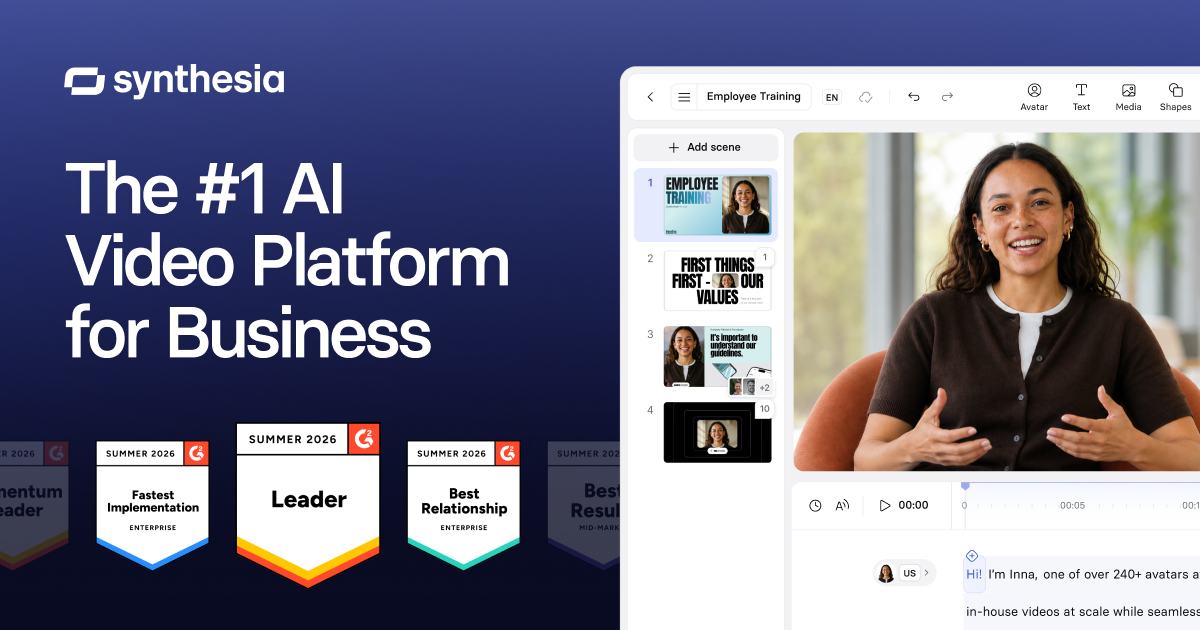
The visual arrangement of your digital presenter on the studio canvas determines how professional your final output appears. A frequent design slip is placing the avatar too close to the edge of the slide, which cuts off the virtual shoulders or creates an awkward framing. Many creators fail to adjust the avatar size when switching between full-body, waist-up, or circular frame formats, leaving the presenter looking out of proportion with the background elements.
Another critical visual mistake is allowing on-screen text or graphical elements to overlap with the avatar. Since the digital presenter moves their hands and head during speech, text that appears safe during a static preview may collide with the avatar during the actual playback. It is vital to maintain clean margins around the virtual presenter, ensuring that at least twenty percent of the surrounding canvas remains completely clear of titles, bullet points, or icons.
You must also pay attention to eye level and the virtual line of sight. Placing your avatar in a lower corner while the primary text is at the very top makes the presenter look disconnected from the slide content. Aligning the avatar so they appear to point or look toward the key points on the slide creates a much more cohesive and engaging presentation.

How to Format Your Synthesia Scripts for Natural Speech Patterns
Before inputting your final text into the video generator, you must prepare the copy specifically for artificial voices. Standard written text often sounds robotic or hurried when read directly by an AI avatar without structured pacing. Using the pronunciation override tool helps resolve complex jargon, but following a step-by-step preparation flow will make your entire presentation sound natural and polished.
- Read your script aloud. Listen closely to where you naturally take a breath and mark those spots for later editing.
- Break up complex sentences. Divide any statement longer than fifteen words into two separate, punchy sentences.
- Identify technical terms. Use the phonetic spelling override tool to spell out brand names or acronyms phonetically.
- Insert deliberate pause tags. Place timing indicators between distinct ideas to allow the viewer to process information.
- Run the audio preview. Use the preview player to hear the vocal pacing before you commit to rendering the final video.
Following these steps ensures you do not waste valuable rendering credits on videos that require immediate correction. Spending extra minutes refining the draft prevents costly and time-consuming re-rendering loops.
The Voice Selection Panel: Accents and Demographics Out of Sync
Synthesia offers a diverse library of artificial voices, but selecting the wrong vocal profile is a mistake that immediately breaks viewer immersion. Creators sometimes pair an avatar of a specific age or demographic with a voice style that sounds completely mismatched in tone or regional accent. This incongruity makes the digital presenter look like they are lip-syncing poorly rather than speaking naturally.
Additionally, neglecting regional accent variations can alienate localized audiences. For instance, using a standard US accent voice for a presentation aimed at a UK or Australian corporate team can reduce the localized impact of your message. You should carefully filter the voice list by language, region, and style, testing several options to find the exact voice match for your visual avatar.
Always preview the voice performance to check the voice's pitch and natural inflection before finalizing your selection. Some voices are tuned for energetic promotional videos, while others are designed for formal corporate compliance training. Choosing a high-energy sales voice for a serious safety briefing will sound inappropriate and distract your viewers from the core message.
The Video Timeline: Overcrowding Slides with Verbatim On-Screen Text
A common trap in AI video production is treating the slide canvas like a document by copying the spoken script directly onto the screen. This redundancy forces the audience to read the exact words that the avatar is speaking, which decreases information retention and causes cognitive overload. The on-screen text should complement the spoken word, not repeat it verbatim.
Instead, use the canvas to highlight key metrics, core concepts, or visual diagrams while the avatar handles the detailed explanation. Your bullet points should act as brief signposts that anchor the viewer's attention. If your script goes into detail about a specific process, the screen should display a simple flow chart or diagram rather than a massive wall of text.
Furthermore, failing to coordinate the appearance of text with the avatar's speech timing makes the video feel unpolished. Use the canvas timeline to synchronize your bullet points so they emerge exactly when the presenter mentions them. This keeps the visual flow dynamic and prevents the viewer from reading ahead and ignoring the avatar's presentation.

The Localization Workflow: Relying on Unedited Automated Translations
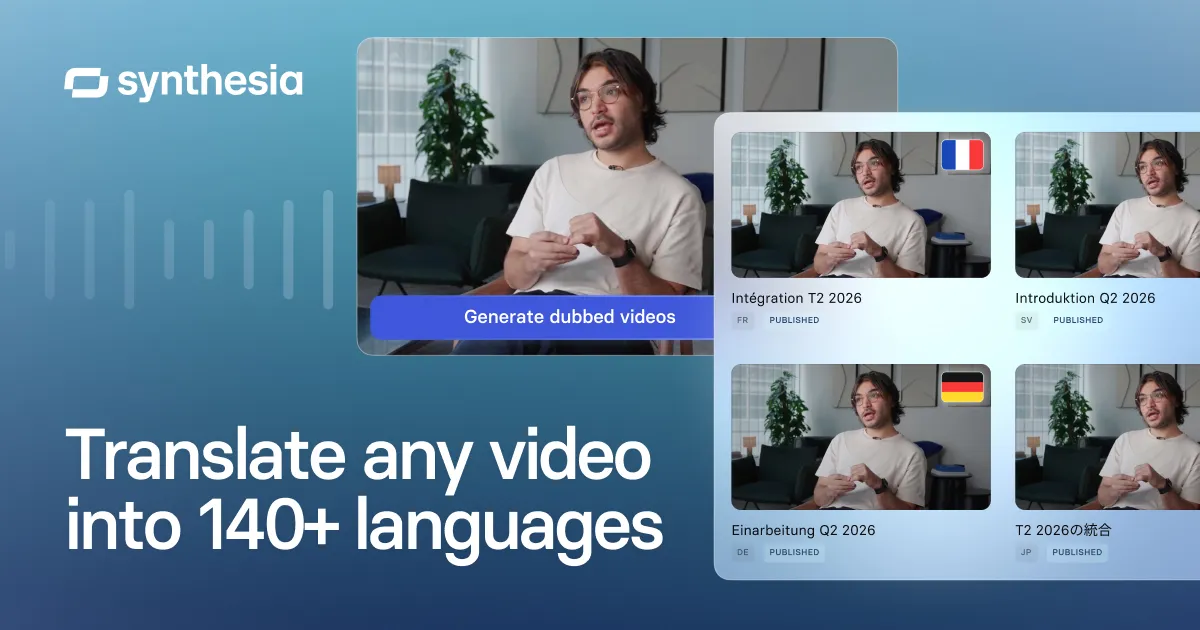
Synthesia makes it incredibly easy to translate your video projects into dozens of different languages with just a few clicks. However, relying purely on the automated translation feature without manual review is a significant quality risk. Automated engines translate text literally, which often results in awkward phrasing, incorrect technical terminology, or grammatically incorrect sentences that sound unnatural when spoken aloud.
Another issue with instant translation is text expansion. Languages like German, French, or Spanish typically require more words or longer phrasing to convey the same message as English. When the system translates the script, the spoken duration will increase, which can cause the avatar's speech to run over the slide transitions or crowd the text layout on the canvas.
To avoid these translation blunders, always have a fluent speaker review the translated script panel before you render the localized videos. You may need to manually trim down the translated text or split the content across additional slides to accommodate the longer spoken duration. Taking this extra step ensures your international training modules look as polished and professional as your primary language version.
Frequently asked
Some links are affiliate links: we may earn a commission if you sign up or buy through them, at no extra cost to you. Affiliate disclosure