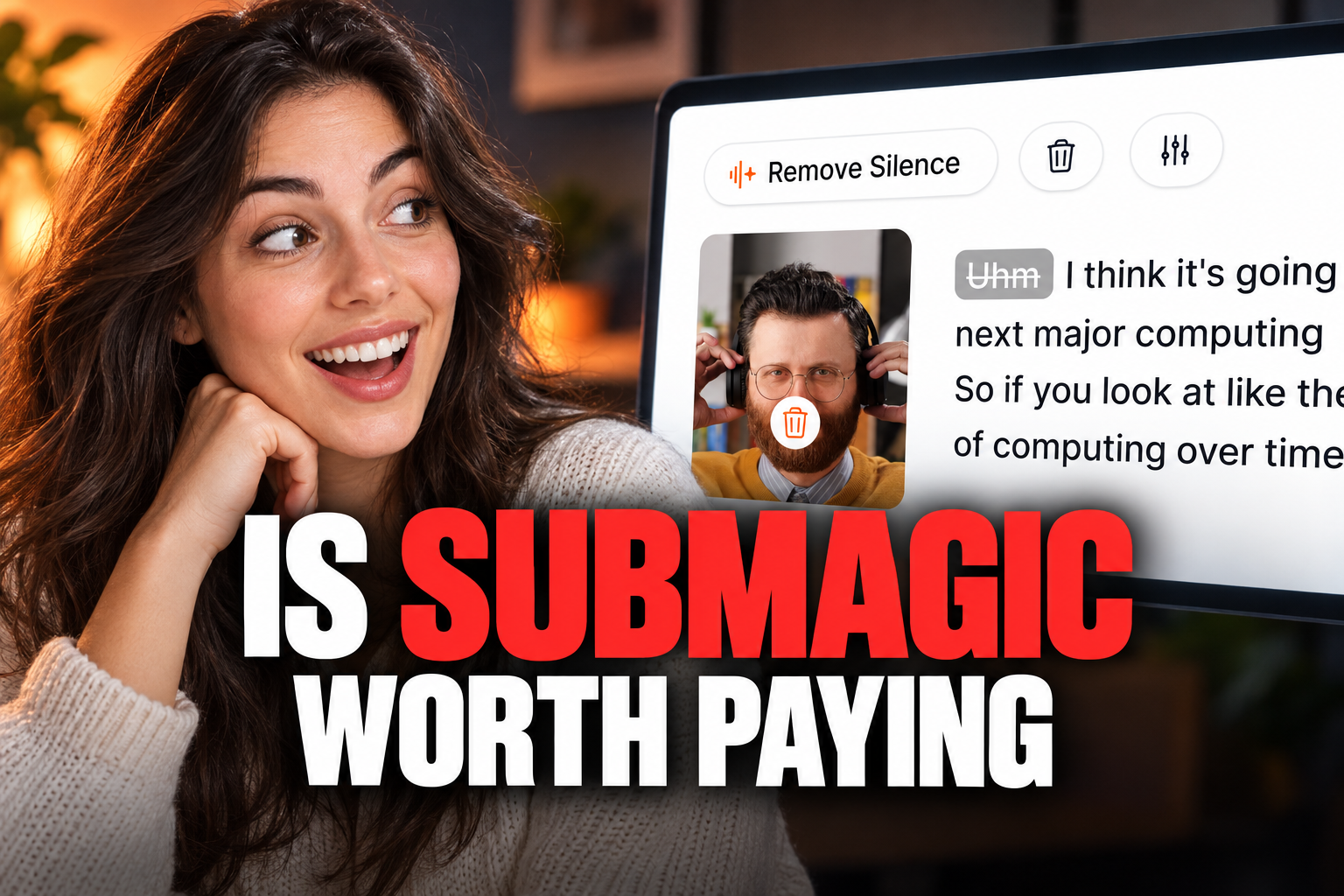
Is Submagic Worth Paying For? A 2026 Buying Guide
Evaluate if Submagic's automated caption styles and AI-generated B-roll fit your social media workflow before committing to a monthly subscription.
Some links are affiliate links: we may earn a commission if you sign up or buy through them, at no extra cost to you.
On this page8 sections
- 1The short answer
- 2Uploading Footage and the Auto-Transcription Screen
- 3Styling and Customizing Animated Captions
- 4Adding Auto B-Roll, Sound Effects, and Transitions
- 5How to Extract Short Clips from Long Videos
- 6Understanding Paid Plans and Export Limits
- 7Which Video Editing Setup Should You Choose?
- 8Frequently asked
The short answer
- Submagic saves substantial time by automating animated, high-engagement captions and aligning them with sound effects.
- A subscription is highly valuable for high-volume creators but less practical for casual, occasional uploaders.
- The software focuses heavily on the post-production rendering phase rather than deep, multi-track timeline adjustments.
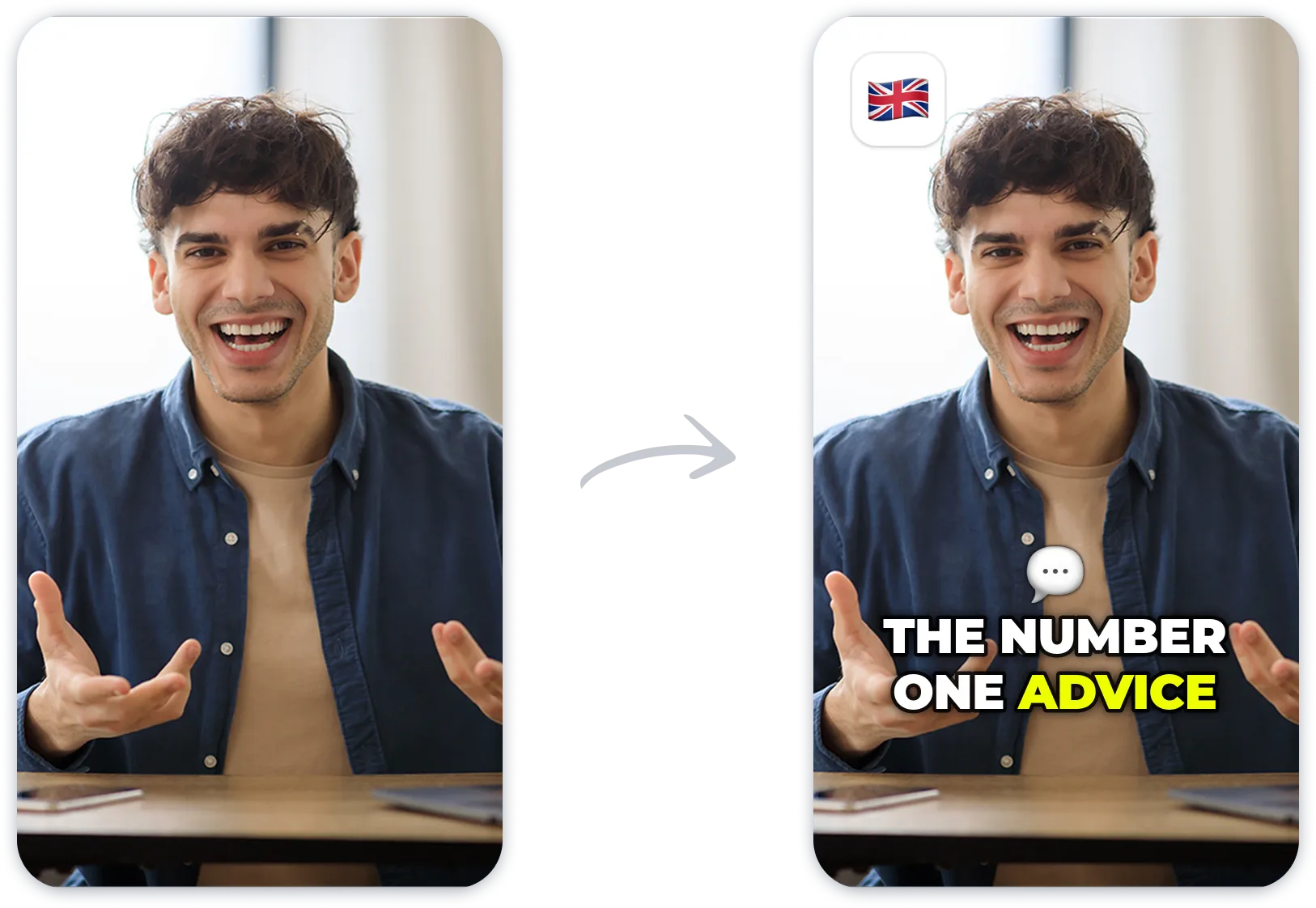
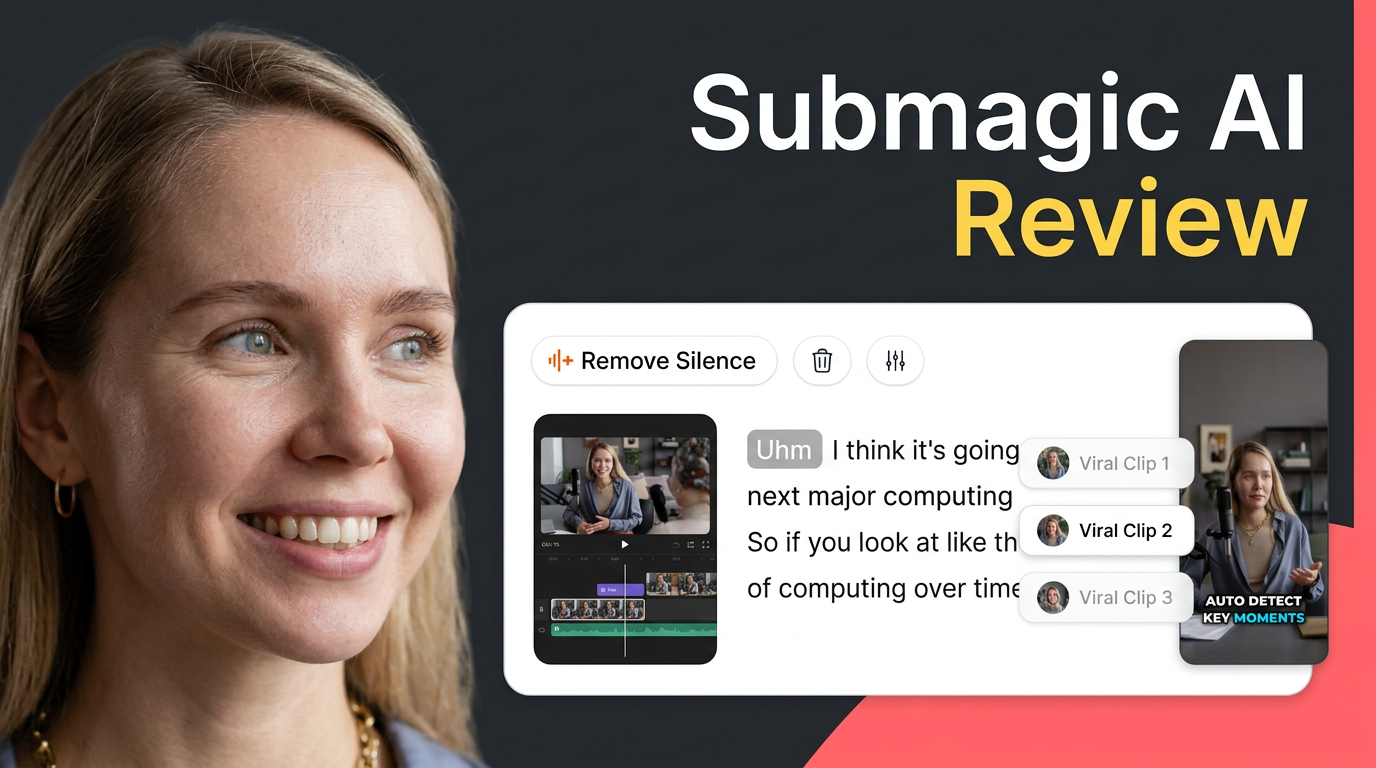
Submagic is worth paying for if you regularly publish short-form video content and need to automate caption styling, sound effects, and B-roll generation. If you publish occasionally, the subscription cost may not align with your workflow. The landscape of short-form video editing has shifted from basic subtitle alignment to hyper-engaging, fast-paced visual hooks that capture viewer attention quickly.
Tools like this have stepped in to handle the heavy lifting, allowing creators to upload raw footage and receive ready-to-publish vertical clips with minimal manual intervention. Deciding whether to allocate part of your monthly software budget to this tool depends heavily on your publishing volume and the specific features you rely on.
To help you decide, we break down what happens inside the editor, how its automated systems perform under pressure, and where your money actually goes. By focusing on the workflow itself, you can determine if the interface saves you enough time to warrant the monthly expenditure.
The quick version
- Upload your long video
- Set your desired parameters
- Review the generated segments
- Adjust the start and end points
- Apply your global caption style
Uploading Footage and the Auto-Transcription Screen
The Submagic journey begins at the central dashboard, where users drop their raw video files into the upload window. The primary task of the software during this initial phase is converting spoken audio into readable text. Utilizing advanced neural networks, the engine analyzes vocal tracks to map out spoken words against a precise timestamp timeline. This ensures that every visual asset aligns perfectly with your voice-over track.
For creators who speak clearly, this stage requires almost zero manual editing. The automatic transcription algorithm handles multiple languages and accents, placing words onto the workspace screen within seconds of processing. However, if your video contains heavy background noise, music, or overlapping dialogue, you may need to spend some time correcting minor spelling errors before moving on to visual elements.
On this screen, the interface presents your video on the right and a text editor on the left. This split-screen layout ensures that any edits you make to the text instantly update the visual preview. You can easily click on individual words to change their spelling, adjust their capitalization, or force a line break to match your pacing, making it simple to polish your scripts.
Styling and Customizing Animated Captions
Once the text is synchronized, the creative customization process begins in the style tab. Here, the system allows you to apply kinetic subtitles, which are animated words that light up or pop as they are spoken. You can choose from various pre-designed templates modeled after high-profile social media influencers, which feature distinct highlight colors, bouncing text animations, and vibrant shadow effects.
The layout editor gives you complete control over the positioning of these captions on the screen. Users can drag the text box up or down to ensure it does not cover vital facial features or get obscured by social media platform interfaces. Additionally, the software automatically suggests relevant emojis that correspond to the meaning of your words, placing them next to the active text automatically.
Submagic is worth paying for if you want to bypass manual keyframing of text animations in traditional video editors. Instead of spending an hour setting up anchor points and color changes in complex software, this tool applies those exact styles in a single click. You can also customize the primary, secondary, and background colors to align with your personal brand palette easily.
Adding Auto B-Roll, Sound Effects, and Transitions
Beyond captions, the platform provides automated tools to enhance visual variety through B-roll footage and quick sound effects. Within the media assets tab, the system scans your transcribed text to identify key concepts and automatically inserts relevant stock clips over the speaker. This process attempts to keep viewers engaged by breaking up monotonous talking-head sequences with fresh, relevant imagery without any manual searching.
For further information on how these automatic edits fit into your broader content strategy, check out our comprehensive Submagic Review 2026: Pricing, Captions and Who It's For to compare its automation capabilities. The software also layers in sound cues, such as swooshes and pops, to accompany the kinetic text transitions and slide-ins. These auditory additions keep the pacing rapid and match modern social media consumption patterns.
While these automated additions are convenient, they sometimes require manual adjustment to ensure the selected stock footage fits your precise context. The interface allows you to replace any generated B-roll clip with your own uploaded files or search the integrated library for a better match. This flexibility keeps you in control of the ultimate message and aesthetic of your presentation.
How to Extract Short Clips from Long Videos
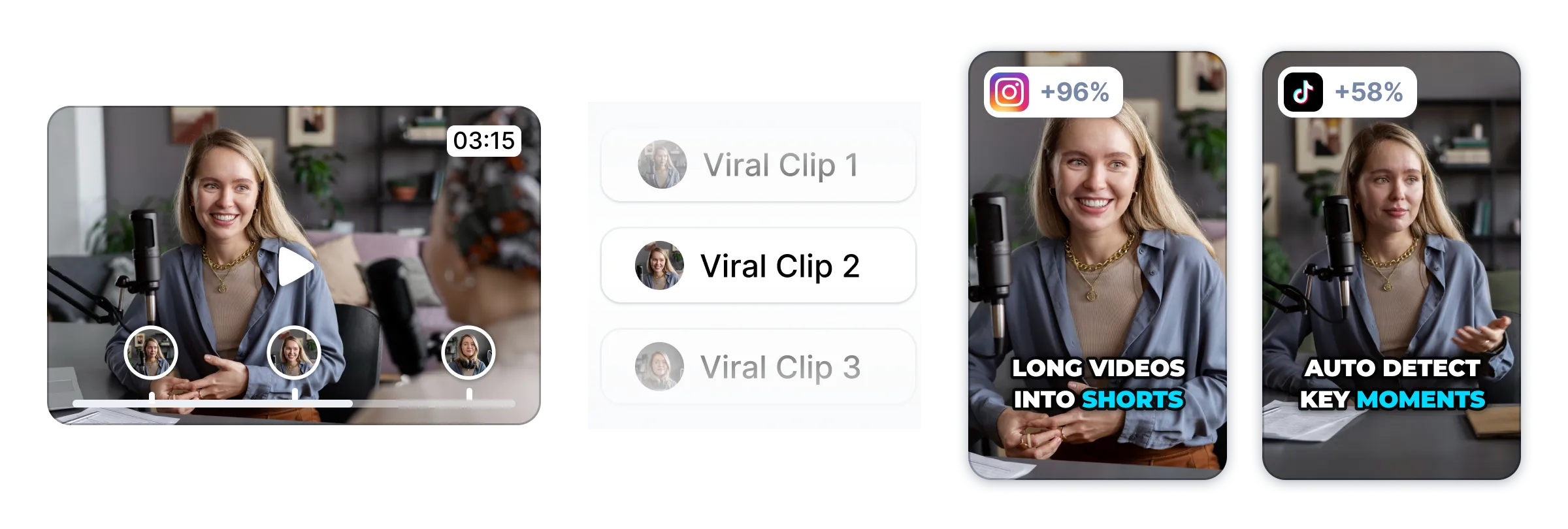
For creators with long-form recordings, the dashboard features a specialized tool designed to crop and slice longer files into vertical segments. This segmenting screen analyzes audio patterns, changes in speaker, and sentence pauses to locate potential viral hooks. Using these automated editing systems allows you to generate dozens of social-media-ready clips from a single long podcast or presentation. This speeds up production dramatically.
The step-by-step procedure for utilizing this feature is straightforward and integrated directly into the workspace:
- Upload your long video. Drag your long-form file into the magic clips project panel on the primary dashboard.
- Set your desired parameters. Choose the target length for your clips and select the social media platforms you want to optimize for.
- Review the generated segments. Examine the list of extracted short videos that the editor creates, checking the quality score assigned to each.
- Adjust the start and end points. Use the simple slider controls to fine-tune where each clip begins and ends to avoid cutting off sentences.
- Apply your global caption style. Select a template to overlay consistent animated text across all your newly generated clips at once.
This specific workflow saves editing teams days of scrubbing through multi-hour timelines to find usable highlights. Because the system suggests which segments are most likely to perform well based on conversational flow, it reduces the mental fatigue associated with content repurposing. It transforms one long webinar into weeks of active social media presence.
Understanding Paid Plans and Export Limits
When evaluating the cost of the platform, it is crucial to understand how usage is measured. Rather than charging per export, the system uses a credit system linked to your chosen subscription tier. Each tier grants a specific amount of processing time or a set number of completed video exports per month, making usage tracking simple.
The entry-level subscription is tailored for creators starting out, providing standard transcription and caption styling but limiting the monthly output. If you require advanced features like removing watermarks, accessing the automated b-roll engine, or utilizing custom font uploads, you will need to step up to the professional or team tiers. These upper levels also expand your monthly export allowances and allow for longer input files.
A paid subscription is essential if you want to remove the default watermark and export high-definition files. While the restricted trial version lets you test the synchronization and see how the captions look on your footage, the resulting output is not suitable for professional brand pages. Upgrading your account removes these visual restrictions and grants access to collaborative features for team members.
Which Video Editing Setup Should You Choose?
Deciding between this platform and alternative editing suites depends on your volume and patience. If you publish multiple vertical videos every week across TikTok, Instagram, and YouTube, paying for Submagic is highly practical because the time saved editing translates directly to more consistent posting. The automated caption engine alone can replace hours of manual keyframing inside traditional editors, freeing up your schedule.
Conversely, if you only publish one or two videos a month, or if you prefer to have absolute control over every pixel, frame, and audio transition, a manual editing workflow in a traditional timeline editor is more appropriate. The highly automated nature of this tool means it prioritizes speed over hyper-detailed timeline manipulation, which might feel restrictive to professional colorists.
Ultimately, your choice should balance the speed of automation against the depth of creative control. Those who need to feed the social media algorithm with daily, high-quality talking-head clips will find the service incredibly valuable. Those who want custom-crafted, long-form cinematic projects should look to traditional editing software instead of automated suites.
Frequently asked
As an Amazon Associate I earn from qualifying purchases. This does not affect the price you pay. Affiliate disclosure