Who Should Use Synthesia, and Who Should Skip It?
Decide if Synthesia fits your project budget and production needs by analyzing its corporate template workflows and virtual avatar realism.
Some links are affiliate links: we may earn a commission if you sign up or buy through them, at no extra cost to you.
On this page8 sections
- 1The short answer
- 2Evaluating the Script-to-Video Workflow Screen
- 3Choosing Your Virtual Presenter and Voice Settings
- 4The Translation Panel and Multi-Language Editing
- 5Managing Custom Avatars and Brand Assets
- 6Media Libraries and the Canvas Layout Screen
- 7How to Choose Which Tool Fits Your Workflow
- 8Frequently asked
The short answer
- Ideal for corporate education
- Skip for complex action
- Scales global translation
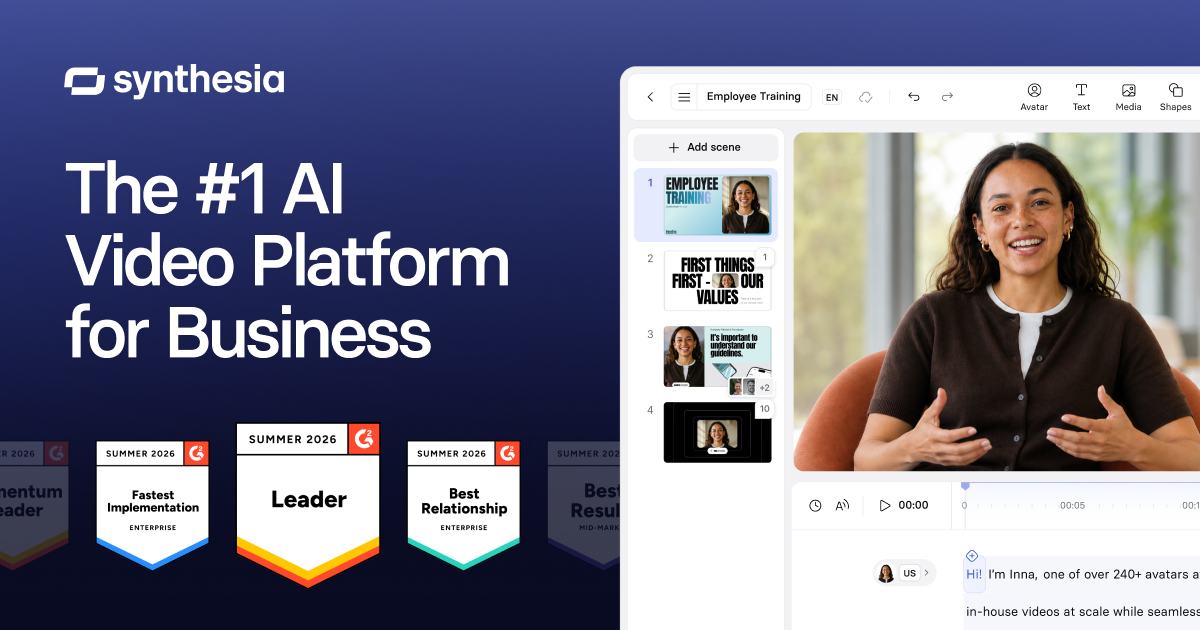
Synthesia is ideal for corporate training, customer education, and localized support teams needing rapid, multilingual video production. You should skip it if your project requires physical actions, high emotional depth, or custom cinematic camera angles.
For many organizations, traditional video production involves a slow cycle of renting studios, hiring voice actors, and editing footage. Software platforms that use artificial intelligence actors aim to bypass this process by generating talking-head videos directly from text files. However, this streamlined approach changes the creative workflow significantly.
Knowing whether to adopt this system depends on your specific communication goals. While some departments find it dramatically speeds up their workflow, other creators might find the structured layout too restrictive for artistic storytelling. You can read more about options in our full Synthesia Review 2026: Pricing, Free Plan and Who It's For.
Evaluating the Script-to-Video Workflow Screen
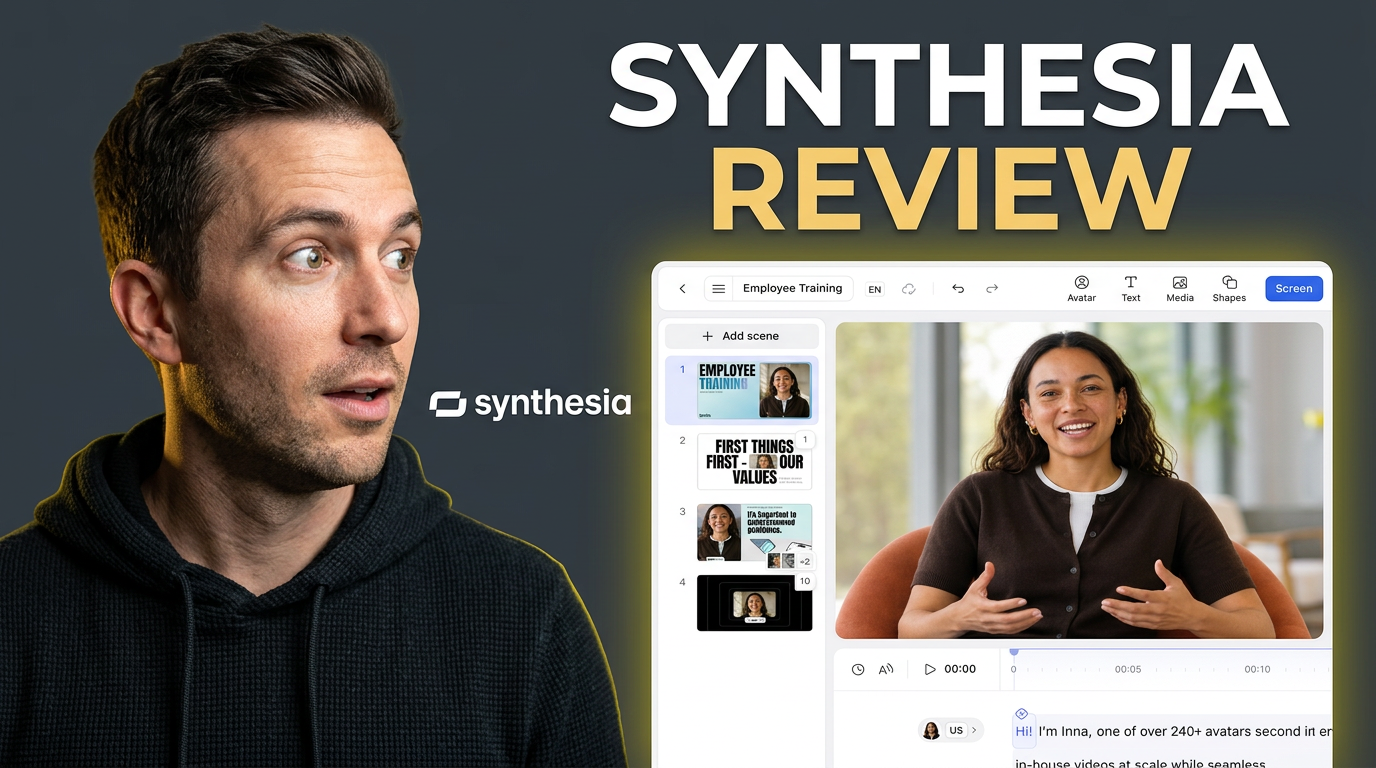
The primary workspace is built around a slide-based interface that pairs text inputs with visual slides. You write or paste your text directly into the script editor box located underneath the active canvas. The software immediately aligns your text with the visual movements of the virtual speaker on screen.
This structured environment is perfect for departments that want to rapidly convert text manuals into standardized presentations. If your primary goal is importing long paragraphs from customer support documents, this direct layout avoids the complicated timing adjustments associated with standard timeline editors. It keeps production simple and direct.
However, this layout screen can feel restrictive if you prefer to build videos visually first. Creative producers who like to start with dynamic action shots and layer sound effects later will find the text-centric layout frustrating. The system forces a script-first pattern that does not adapt well to highly physical visual concepts.
Choosing Your Virtual Presenter and Voice Settings
The avatar selection panel presents a grid of various virtual actors dressed in corporate, casual, or medical attire. After selecting your presenter, you navigate to the vocal settings panel where you select specific regional accents and vocal profiles. This is where the text-to-speech engine generates the spoken audio track.
Organizations with global audiences benefit most from this visual control panel. Instead of scheduling recording sessions with voice talent in five different countries, you configure multiple vocal profiles directly in the software. This maintains a clean, professional aesthetic while ensuring the pronunciation matches local expectations.
You should skip this platform if your projects demand high levels of physical energy or emotional subtlety. The virtual presenters maintain a steady, professional posture and are not built to show extreme anger, deep sorrow, or rapid comedic timing. If your brand relies on intense theatrical acting, real human spontaneity is still necessary.
The Translation Panel and Multi-Language Editing
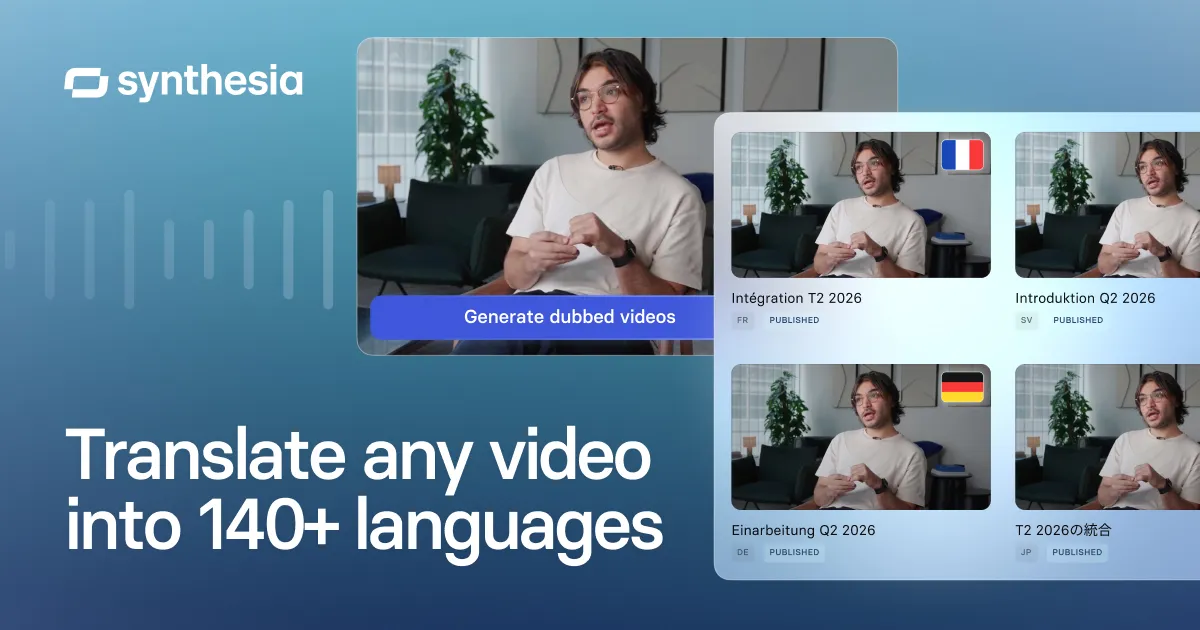
The localization interface contains the translation tools, allowing you to convert your master video script into dozens of languages. When you select a target language, the tool translates the text and matches the presenter's lip movements to the new phonetic sounds. This keeps the talking-head performance coordinated across every international variant.
This automated translation screen allows multinational training teams to scale localization across several regions without extra filming costs. Maintaining parallel training courses in French, Spanish, Japanese, and English becomes a software configuration task rather than a logistical challenge. It eliminates the need to hire multiple language specialists for simple administrative updates.
Conversely, if your company only serves a single local market, this extensive localization panel is unnecessary. You would be paying for advanced multi-language processing features that your team does not need. For local campaigns, simple recording setups often provide a more personal touch.
Managing Custom Avatars and Brand Assets
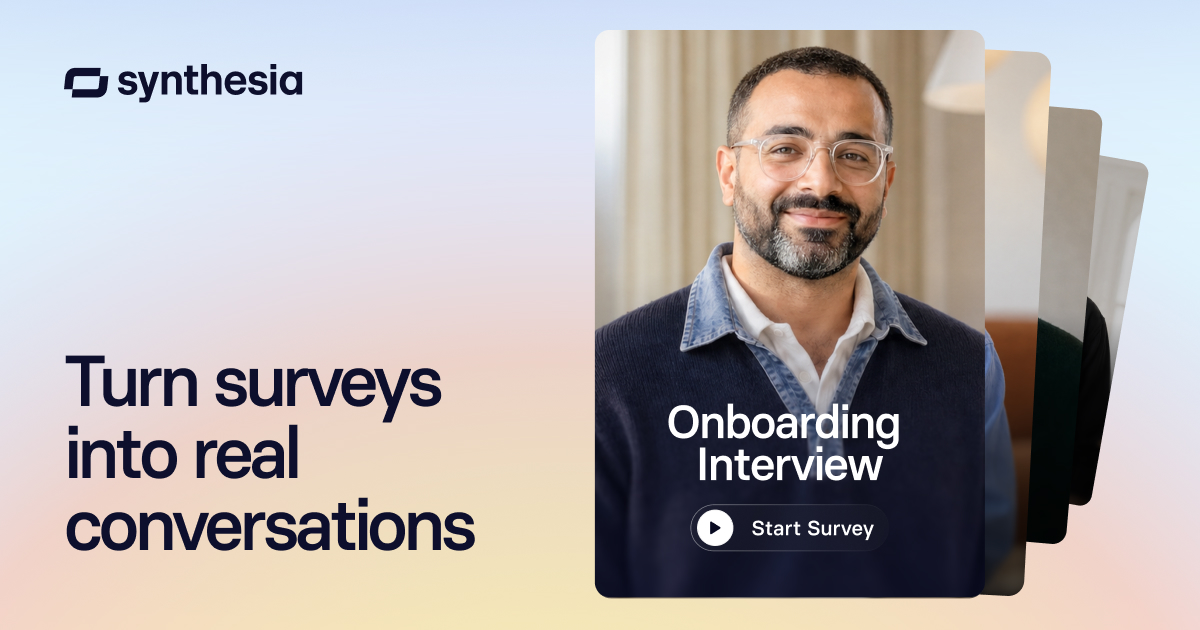
The custom avatar configuration system allows you to build a digital clone of an executive or a trainer. This setup screen guides you through submitting a high-definition recording of your chosen presenter reading a test script. The system then builds a custom virtual model that you can control using only your keyboard.
This feature serves organizations that want to maintain a consistent corporate identity across a massive volume of educational content. A single spokesperson can appear in hundreds of short updates without ever having to step into a recording studio again. This keeps your brand look unified even when content is updated years later.
However, the creation screen requires high-quality camera work and flawless initial audio to build a convincing replica. If your team cannot provide studio-quality setup files, the resulting visual model will lack polish. Additionally, anyone who feels uncomfortable with automated likeness replication should skip this specific feature.
Media Libraries and the Canvas Layout Screen
The main canvas screen allows you to drop in brand colors, logo graphics, transition shapes, and slide templates. It includes a built-in screen capture tool that records your desktop, making it easy to create software training videos. You can place your visual presenter in a circular window that floats over your screen recordings.
Educational content creators and customer success teams find this canvas screen helpful for building software walkthroughs. Having a friendly visual presenter guide the viewer through a complex software menu helps hold their attention. It prevents the video from feeling like a cold, impersonal screen recording.
Despite these features, the canvas interface is not a substitute for dedicated visual effects software. You cannot perform complex color corrections, build advanced 3D motion graphics, or manage multi-layered timeline composites. Teams that need intricate visual effects should use specialized video editing tools instead.
How to Choose Which Tool Fits Your Workflow
To make a decision, you must measure your output volume against the level of creative freedom your videos require. If your business must generate dozens of informational, compliance, or software guide videos every month, the structured workflow is highly efficient. It replaces a slow production pipeline with a straightforward typing interface.
On the other hand, if your project relies on physical hands-on work, detailed physical demonstrations, or artistic cinematography, traditional video tools are necessary. No virtual presenter can hold a physical product, run a physical test, or show deep human empathy. For those tactile scenarios, real filming remains the correct path.
For teams in the middle, evaluate your current editing capabilities. If you do not have professional video editors on staff, using an automated script-based editor helps you bypass a steep technical learning curve. For more information on licensing, read our complete Synthesia Review 2026: Pricing, Free Plan and Who It's For to help choose your path.
Frequently asked
As an Amazon Associate I earn from qualifying purchases. This does not affect the price you pay. Affiliate disclosure