Who Should Use Kling AI, and Who Should Skip It?
Decide if Kling AI fits your video production workflow by evaluating its motion controls, credit consumption system, and rendering speed.
Some links are affiliate links: we may earn a commission if you sign up or buy through them, at no extra cost to you.
On this page8 sections
- 1The short answer
- 2Navigating the Text to Video Prompt Workspace
- 3Utilizing the Image to Video and Motion Brush Interface
- 4Assessing the Credit System and Queue Performance
- 5Configuring the Synthesized Voiceover and Audio Controls
- 6How to Evaluate Kling AI in Five Simple Steps
- 7Which Video Generation Path Suits Your Creative Style
- 8Frequently asked
The short answer
- Choose Kling AI if you need precise camera movement controls and high-fidelity image-to-video rendering.
- Skip this platform if your projects require perfect character facial consistency across multiple edited scenes.
- Evaluate your monthly generation volume before committing to the credit-based rendering tier system.
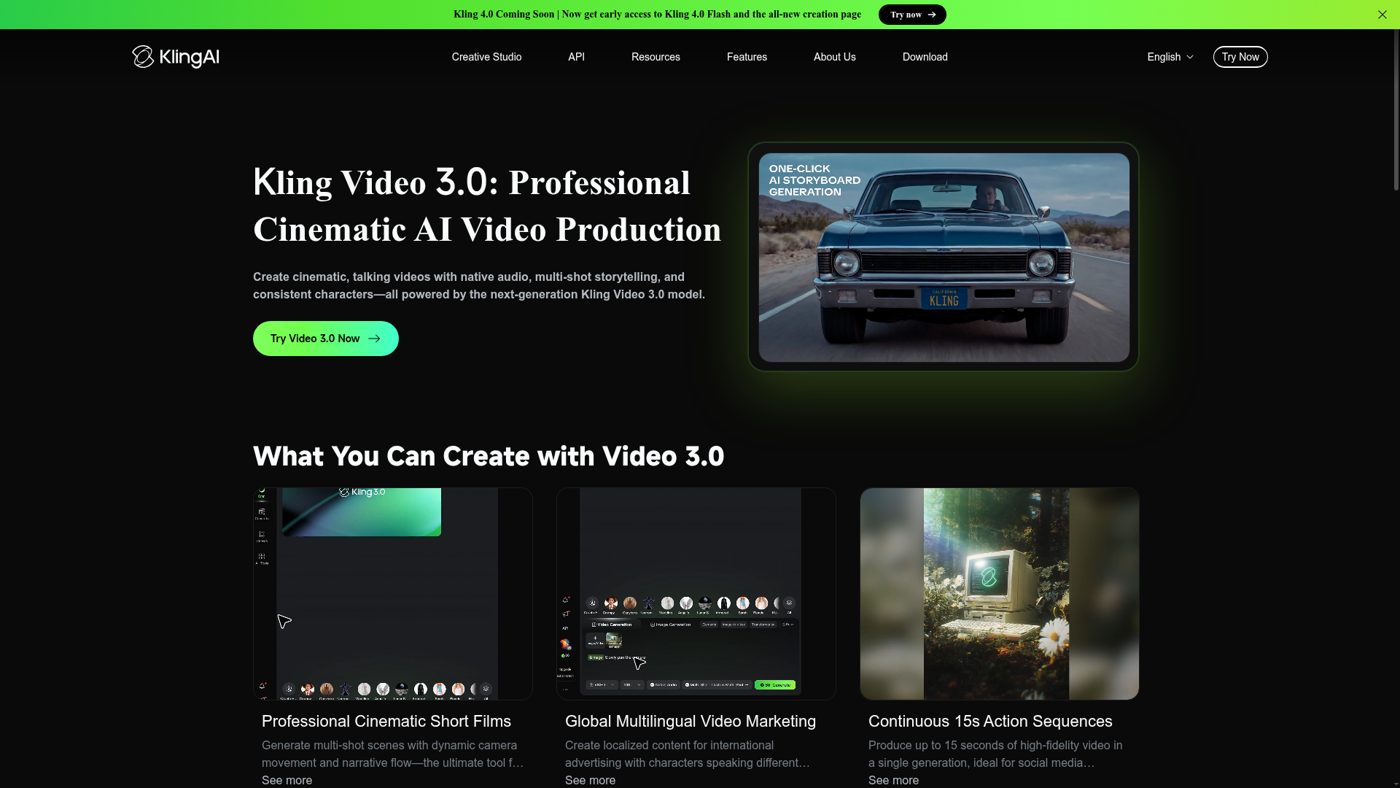
Kling AI is ideal for creative designers who need advanced camera motion controls and high-quality image-to-video generation. However, social media managers requiring instant, credit-efficient bulk exports or perfectly consistent human faces should skip it. Developed by Kuaishou, this generative tool has quickly gained attention for its text-to-video capabilities and prompt adherence. It uses advanced machine learning models to translate natural language descriptions into cinematic clips. For creators, the primary decision lies in whether its sophisticated controls justify navigating a complex online interface and a tiered subscription structure. Deciding where to spend your creative budget is crucial when choosing software. To help you choose, we analyze the specific creative workflows where this platform shines and identify the bottlenecks that might make alternative tools a better fit for your production line.
Navigating the Text to Video Prompt Workspace
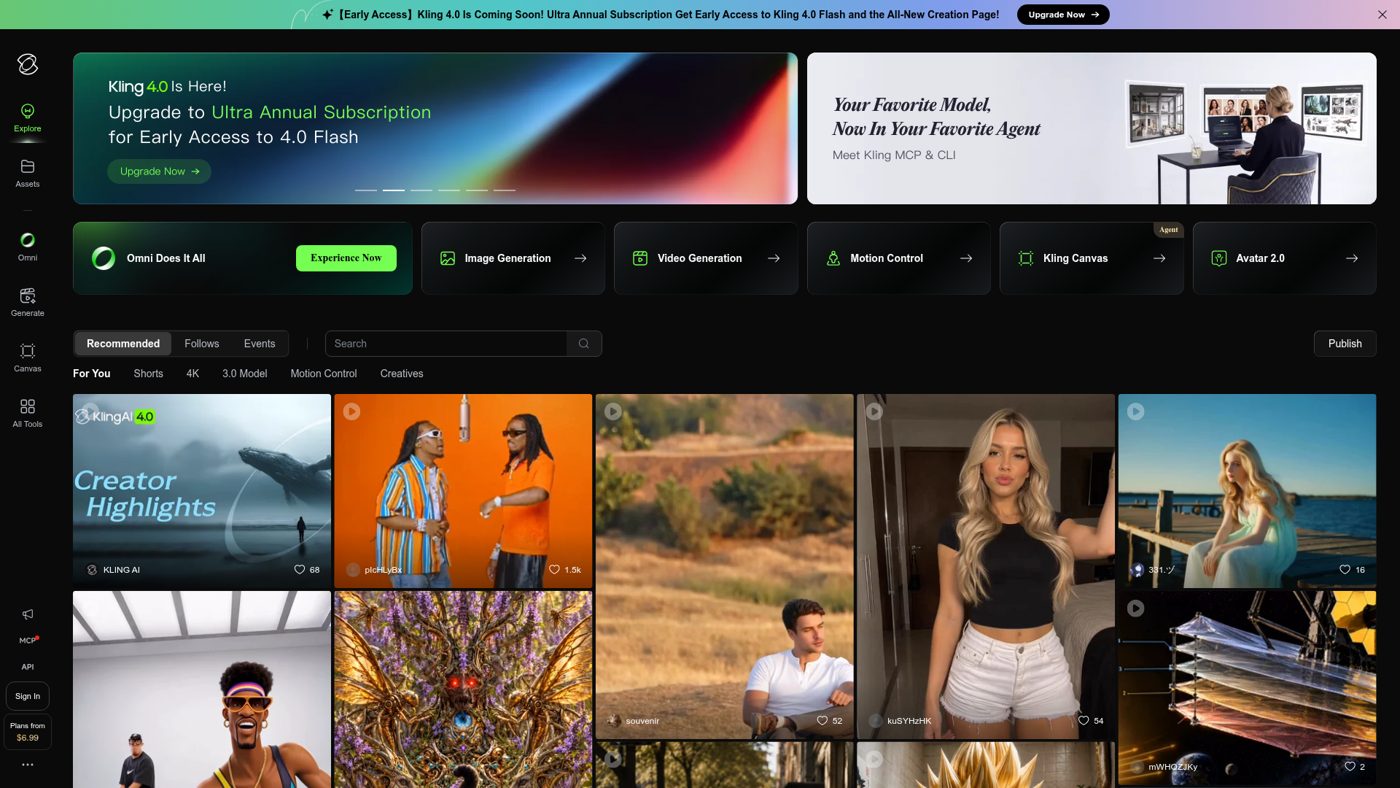
The primary screen you encounter when launching the application is the text-to-video generation interface. This workspace centers around a large text input box where you construct natural language prompts describing your desired scene. Users can choose between standard and professional modes, adjusting settings like aspect ratio and video length. The software translates these prompts into cinematic motion using a complex diffusion model. To achieve high prompt fidelity, creators must learn how to structure their descriptions, balancing action verbs with environmental details. Adjusting the prompt weight slider allows you to dictate how closely the engine adheres to your exact wording versus applying its own creative interpretations. For creators who want to build atmospheric backgrounds, complex sci-fi environments, or surreal concept art, this screen acts as the primary creative sandbox. However, getting the exact frame composition on the first try can be highly unpredictable. This means you will often need to generate multiple iterations of the same prompt, which will steadily consume resources from your account's daily allowance. By adjusting these parameters, you can generate everything from sweeping landscape shots to close-up character details. The interface also supports ratio adjustments for standard cinematic, widescreen, or vertical formats, making it versatile across multiple platforms.
Utilizing the Image to Video and Motion Brush Interface
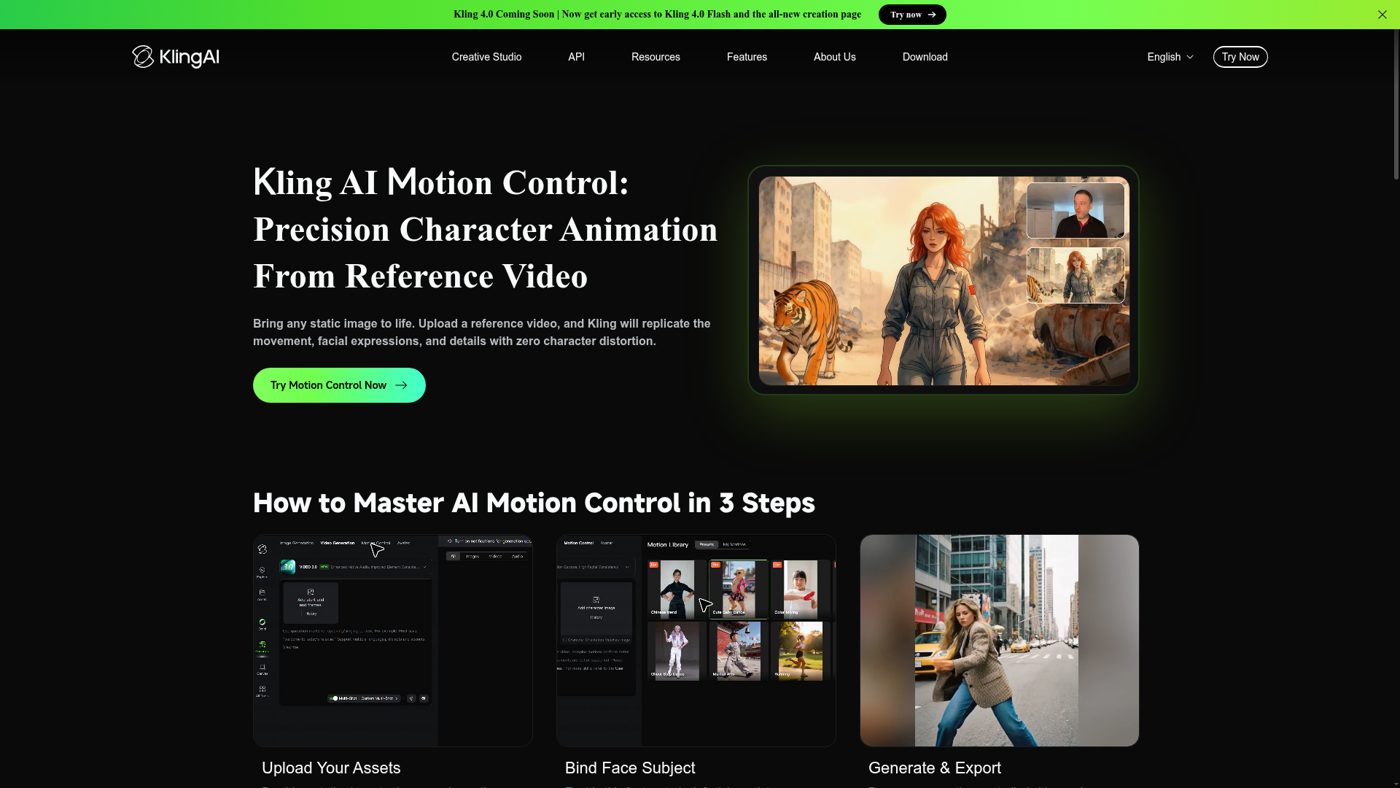
Transitioning to the image-to-video screen reveals a highly specialized toolset designed to animate static pictures. The central feature on this canvas is the motion brush, which allows you to manually paint over specific regions of an uploaded photograph. By marking these zones, you tell the artificial intelligence exactly which parts of the image should remain still and which parts should move. Alongside the brush tool sits the camera control panel, where you adjust physical movement vectors. You can dial in specific values for horizontal panning, vertical tilting, zooming, and rolling. This precise control over the motion vector helps simulate realistic camera rigs, making the output look less like a random slideshow and more like professional cinematography. This workflow is incredibly valuable for storyboard artists who want to bring their pre-rendered digital paintings or concept art to life. By combining an anchor image with motion paths, you bypass the unpredictability of pure text prompting. This makes it a preferred starting point for many professional editors who need high consistency. The visual brush feature is particularly helpful when you want to keep characters completely static while animating elements in the background, like rushing water, blowing wind, or drifting clouds. It gives you a level of artistic influence that text-only generators simply cannot match.
Assessing the Credit System and Queue Performance
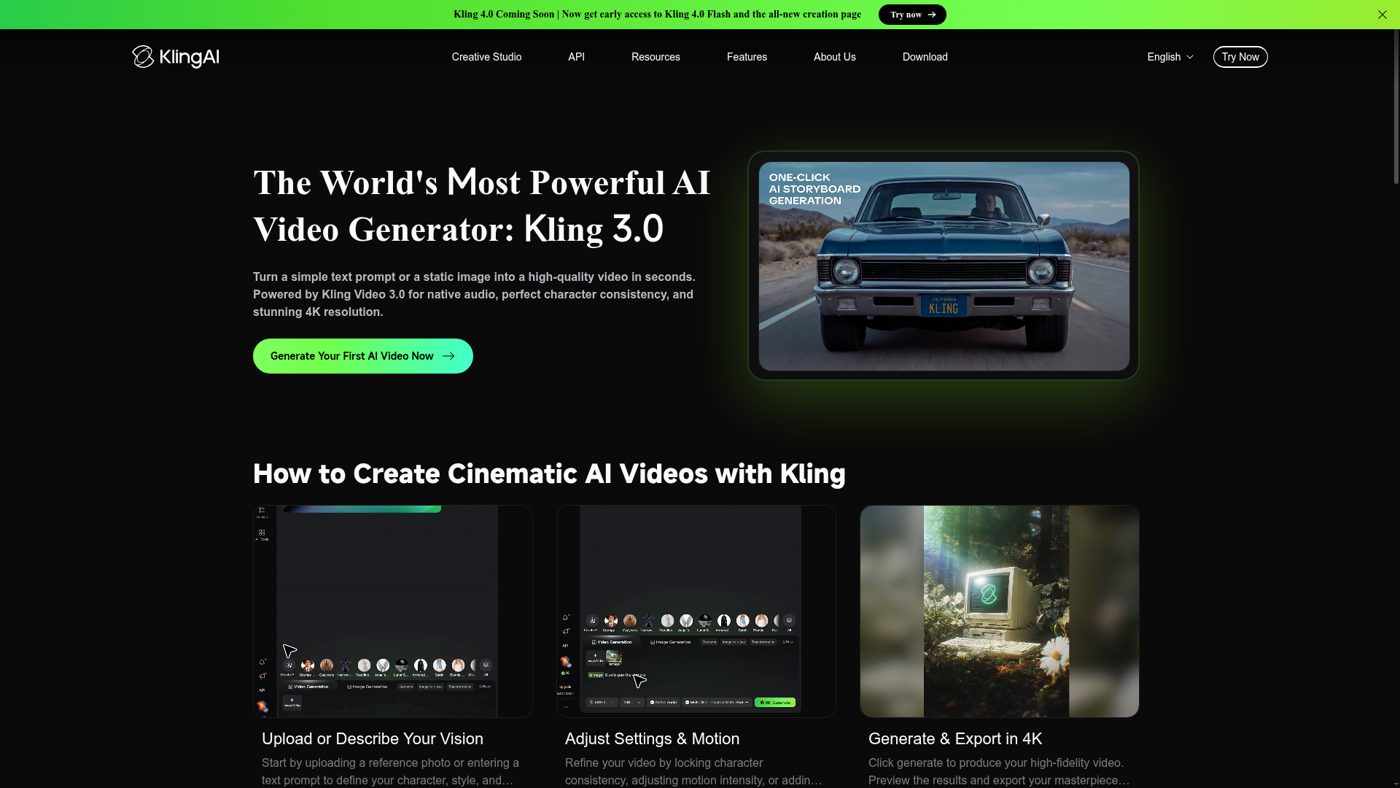
Keep a close eye on your dashboard, as high-definition professional renderings deplete your credits significantly faster than standard previews. Before integrating this software into a commercial production pipeline, you must navigate to the billing and account dashboard. The platform operates entirely on a credit-based consumption model, where every second of rendered video subtracts a set number of points from your account. Choosing professional rendering modes or higher resolution formats dramatically increases this consumption rate. Queue management is another critical factor visible on this screen, as free accounts sit in a shared processing line that can slow down during peak global hours. Upgrading your tier grants access to high-priority rendering lanes, reducing the time spent waiting for a preview to finish. If you want a deeper look at how these performance metrics hold up under pressure, refer to our detailed Kling AI Review (2026): Video, Images and Motion Control. Understanding this system is vital because rendering errors or unwanted outputs still cost credits. Creative professionals who rely on tight deadlines must factor these queue wait times into their delivery schedules. For some, the cost of iterating until a clip is perfect may outweigh the visual benefits, making alternative platforms more appealing. Because of this, it is crucial to review your usage patterns weekly. Users must carefully budget their rendering tasks, balancing quick draft generations against the resource-heavy final professional renders needed for high-profile client presentations.
Configuring the Synthesized Voiceover and Audio Controls
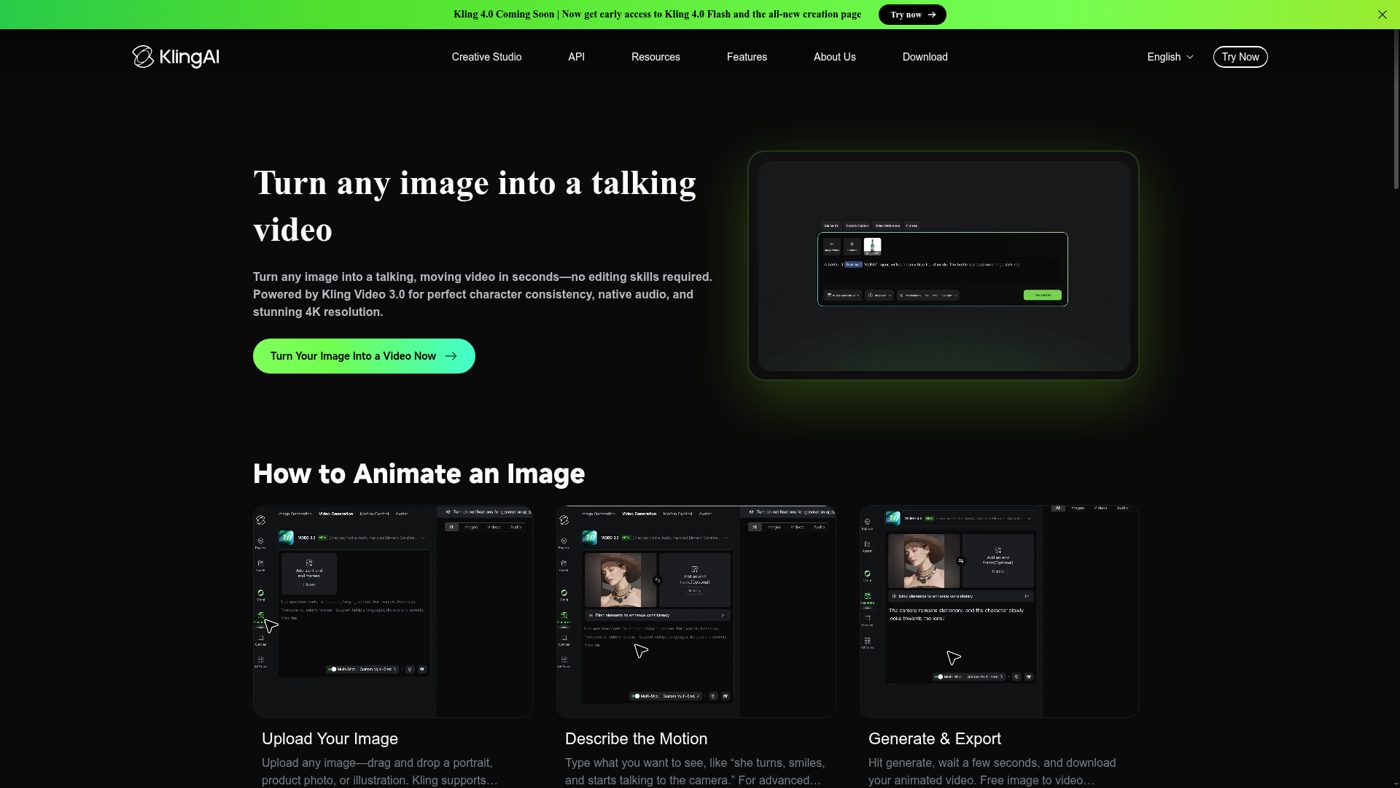
Beyond visual generation, the platform includes a secondary workspace dedicated to generating synthesized voiceovers. Within this audio panel, you can paste scripts and choose from a selection of artificial voices trained to deliver natural-sounding narration. The settings allow you to adjust the pacing and tone to match the emotional arc of your video clip. This feature aims to streamline the post-production workflow by eliminating the need to export files to external audio editors. However, achieving perfect synchronization between the synthesized voice and the visual lip movements of characters remains a challenge. The engine excels at providing highly natural background narration, but it is less effective for direct dialogue scenes where precise mouth shapes are required. If your marketing campaigns rely on rapid voiceovers paired with striking B-roll footage, this integrated audio panel can save valuable production time. But if your project demands professional character voice acting, you will likely still need to rely on dedicated third-party software to get the job done right. The visual timeline displays both audio and video elements side-by-side, allowing for quick adjustments to clip start and end points. This visual alignment process is relatively straightforward, helping editors quickly block out draft sequences for creative review.
How to Evaluate Kling AI in Five Simple Steps
To determine if this platform fits your specific creative workflow, you should run a structured evaluation before choosing a premium plan. Follow these steps to test the system effectively: 1. Register a basic account. Sign up with your email to access the free trial tier and receive your initial daily check-in credits. 2. Run a simple text prompt. Use the standard text-to-video workspace to generate a five-second clip, noting how long the render takes to complete. 3. Animate a reference photograph. Upload a high-resolution image and use the brush tool to test how accurately the system handles localized motion. 4. Adjust the camera controls. Input specific panning or zoom values on the movement panel to see if the camera simulation matches your expectations. 5. Review your credit statement. Check your account dashboard to see how many points were consumed by your test runs and calculate your future monthly needs.
Which Video Generation Path Suits Your Creative Style
Choosing the right tool comes down to matching its specific capabilities with your daily output demands. Not every video editor requires the same level of granular control or rendering speed. By analyzing your primary project goals, you can easily decide whether to adopt this system or skip it entirely. To help make your decision, consider how these distinct production paths align with your needs: - Production Speed: High-volume content creators who need dozens of videos daily should look at alternative engines, while independent filmmakers who prioritize fine visual adjustments will find the render time acceptable. - Visual Control: Editors who require precise camera paths and detailed motion brushes will thrive on this platform, whereas casual creators wanting simple one-click templates might find the interface overly complex. - Budget Efficiency: Teams with flexible budgets can easily absorb the cost of the subscription tiers discussed in our Kling AI Review (2026): Video, Images and Motion Control, but hobbyists may find the daily free credits too limiting for complex projects. Ultimately, your choice depends on whether you value precise control over instant speed. Those who want to craft cinematic scenes step by step will find the advanced features highly rewarding, while those who want instant, bulk generation might prefer to skip it. If your goal is to build an efficient, automated video machine with minimal hands-on tuning, you should likely bypass this platform. But if you want to push the boundaries of custom motion design and direct your scenes like a true cinematographer, configuring fine-tuned camera movement parameters is well worth the learning curve.
Frequently asked

As an Amazon Associate I earn from qualifying purchases. This does not affect the price you pay. Affiliate disclosure